This page contains information to review before you start an integration. After
reviewing the following information, including the [limitations](https://docs.cloud.google.com/sql/docs/sqlserver/cmad.md.txt#limitations-and-alternatives),
see [Use customer-managed Active Directory](https://docs.cloud.google.com/sql/docs/sqlserver/configure-cmad.md.txt).
You can integrate Cloud SQL for SQL Server with customer-managed Microsoft Active
Directory (also referred to as customer-managed AD (CMAD)).
Authentication, authorization, and more are available through CMAD. For example,
joining an instance to a CMAD domain lets you sign in using Windows Authentication
with an AD-based identity. Integrating Cloud SQL for SQL Server with an AD domain
has the additional advantage of Google Cloud integration with your on-premises
AD domains.
## Before you begin
You can integrate with CMAD,
[adding support for Windows Authentication](https://docs.cloud.google.com/sql/docs/sqlserver/configure-ad.md.txt)
to an instance. However, before integrating, the following are required for your
Google Cloud project:
- For authentication to work, your Cloud SQL instances must have network connectivity to all relevant Active Directory domains. This includes the primary domain the instance joins, as well as any trusted or child domains containing users who need to access Cloud SQL for SQL Server. To enable this, ensure the following ports (both TCP and UDP) are open between your Cloud SQL instances and all of your domain controllers: `53`, `88`, `135`, `389`, `445`, `464`, `3268`, `3269`, and `49152` through `65535`.
- You must [create an organizational unit (OU)](https://learn.microsoft.com/en-us/dynamics365/customer-service/administer/create-org-units-cs-scheduling?tabs=customerserviceadmincenter) to store all related integration objects.
- Within this OU, you also need to [delegate](https://learn.microsoft.com/en-us/windows-server/identity/ad-ds/plan/delegating-administration-by-using-ou-objects) the following permissions to the administrator account:
- **On the OU** : **Create Computer objects** , **Delete
Computer objects** , **Create User objects** , and **Delete User
objects**
- **On the user objects in the OU** : **Write All Properties** and **Reset password**
To delegate these permissions, use the Active Directory Delegation of
Control Wizard to create two custom tasks on the OU:
1. Delegate the OU permissions:
1. In Active Directory Users and Computers, right-click the OU, and then select **Delegate Control**.
2. Add the administrator account, and then select **Create a
custom task to delegate**.
3. On the **Active Directory Object Type** page, select **This folder, existing objects in this folder, and creation of
new objects in this folder**.
4. On the **Permissions** page, select **Creation/deletion of
specific child objects** , and then select **Create Computer
objects** , **Delete Computer objects** , **Create User
objects** , and **Delete User objects**.
5. Complete the wizard.
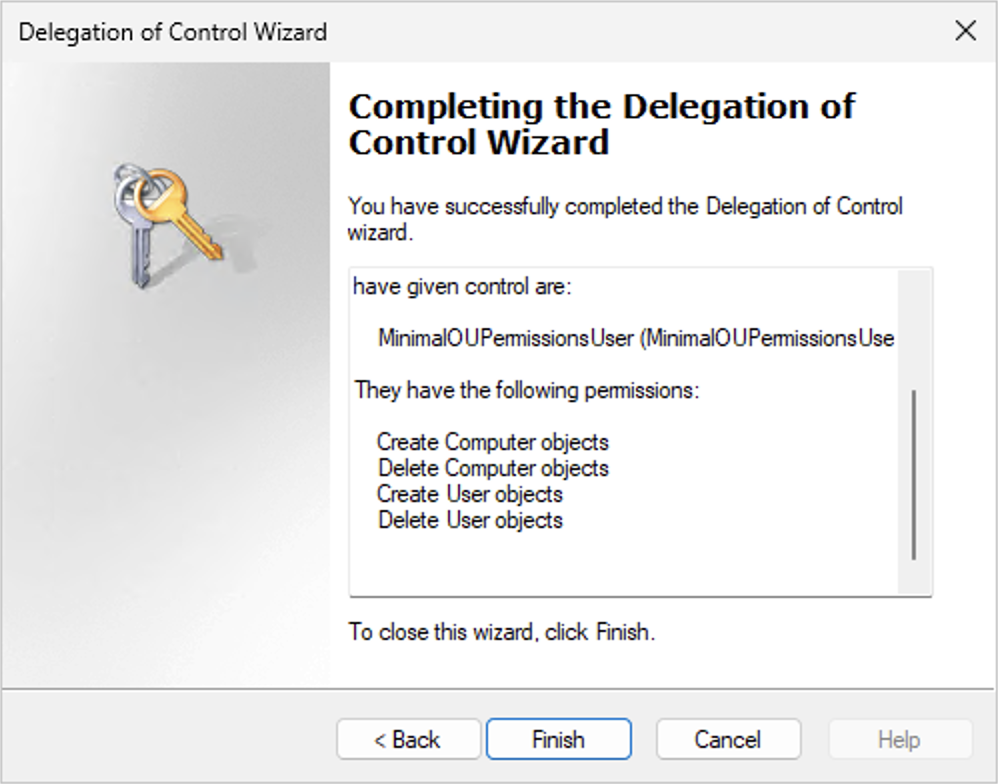
The following screenshot shows an example of the permissions
summary for this step (shown on Windows Server 2025):
2. Delegate the user object permissions:
1. Right-click the OU again, and then select **Delegate
Control**.
2. Add the administrator account, and then select **Create a
custom task to delegate**.
3. On the **Active Directory Object Type** page, select **Only the following objects in the folder** , and then select **User objects** as the only object type.
4. On the **Permissions** page, select **General** , and then select **Write All Properties** and **Reset
password** . If **Reset password** isn't listed, make sure that **User objects** is the only object type that you selected.
5. Complete the wizard.
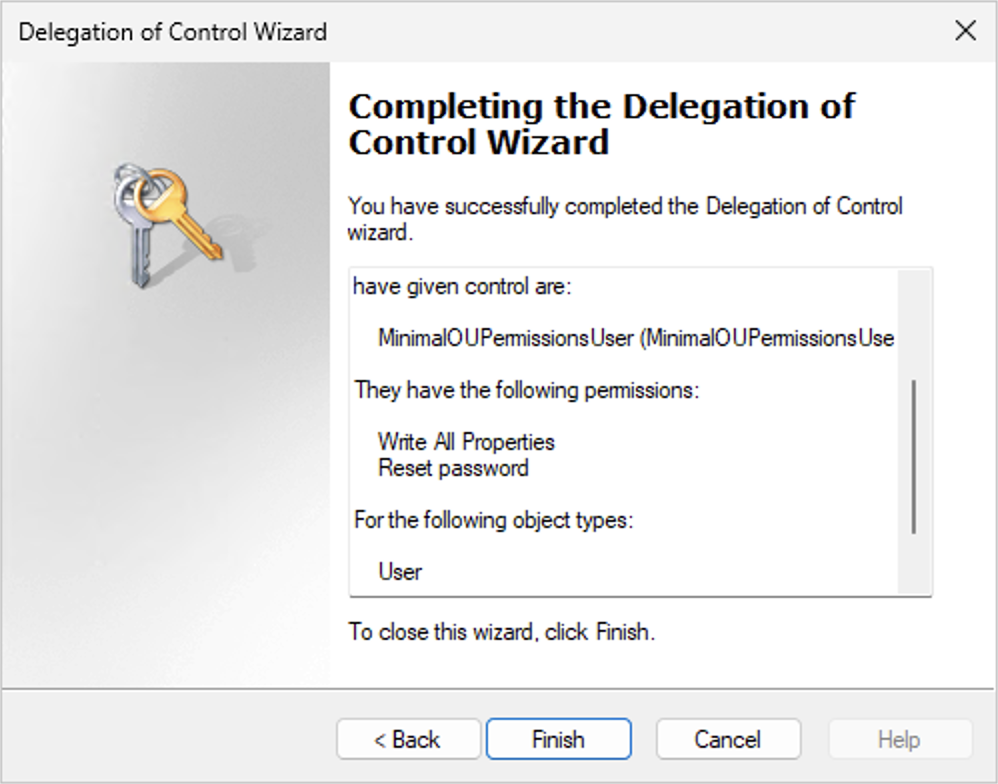
The following screenshot shows an example of the permissions
summary for this step (shown on Windows Server 2025):
- We also recommend granting this administrator account permissions to manage DNS records, for example, by adding it to the DnsAdmins group. If you don't grant these permissions, the integration will still succeed.
However, connecting to your instance will require you to manually create
the necessary DNS records, as described in
[Connect to an instance with a user](https://docs.cloud.google.com/sql/docs/sqlserver/configure-cmad.md.txt#connect-to-instance-with-user).
The alternative is to connect using the instance's IP address, which has
limitations and won't work for connections from trusted domains.
- You must store your administrator credentials in a [Secret Manager](https://docs.cloud.google.com/secret-manager/docs/overview.md.txt) secret, using the following JSON format:
```bash
{
"credentials": [
{
"validAfterUTC": "VALID_AFTER_UTC_VALUE",
"administratorLogin": "ADMINISTRATOR_LOGIN_VALUE_1",
"administratorPassword": "ADMINISTRATOR_PASSWORD_VALUE_1"
},
{
"validAfterUTC": "VALID_AFTER_UTC_VALUE_2",
"administratorLogin": "ADMINISTRATOR_LOGIN_VALUE_2",
"administratorPassword": "ADMINISTRATOR_PASSWORD_VALUE_2"
}
]
}
```
Replace the following:
- VALID_AFTER_UTC_VALUE_1: the first UTC value you want to use, provided in the format `YYYY-MM-DDThh:mm:ssZ`. An example might be `2099-07-01T10:30:00Z`.
- ADMINISTRATOR_LOGIN_VALUE_1: the first administrator login you want to use, such as `myadmin`. Don't include the domain name in the value. Entries similar to `myadmin@my-domain-name.com` aren't supported.
- ADMINISTRATOR_PASSWORD_VALUE_1: the administrator password.
- VALID_AFTER_UTC_VALUE_2: the second UTC value you want to use, provided in the format `YYYY-MM-DDThh:mm:ssZ`. An example might be `2099-07-01T10:30:00Z`.
- ADMINISTRATOR_LOGIN_VALUE_2: the second administrator's login you want to use, such as `myadmin2`. Similarly, don't include the domain name in the value. Entries similar to `myadmin2@my-domain-name.com` aren't supported.
- ADMINISTRATOR_PASSWORD_VALUE_2: the second administrator's password.
This file can contain multiple credential entries to mitigate issues with
slow propagation or to accommodate planned, upfront rotations.
The `validAfterUTC` field is optional, if it is not specified,
then it will be assumed the credentials are always valid. We recommend keeping
these credentials permanently available in Secret Manager and using
automation to update the password if you rotate the credentials.
While you can delete the secret after instance creation, be aware that
future operations like cloning or adding a read replica will result in the new
instance not being joined to the domain.
Furthermore, deleting the original instance will leave orphaned objects,
such as the computer account, in your CMAD.
- Have a list of DNS server IP addresses for your customer-managed Active Directory, which are typically your domain controllers. We recommend using static IP addresses for these servers.
- Assign Per-Product, Per-Project service accounts.
## Create and configure a service account
To create a service account with the required permissions, verify the following:
- You must [enable the Cloud SQL Admin API](https://docs.cloud.google.com/sql/docs/sqlserver/admin-api.md.txt#enable_the_api).
- You must have the following [permissions](https://docs.cloud.google.com/sql/docs/sqlserver/iam-permissions.md.txt):
- [resourcemanager.projects.setIamPolicy](https://docs.cloud.google.com/resource-manager/reference/rest/v1/projects/setIamPolicy.md.txt)
- [secretmanager.secrets.getIamPolicy](https://docs.cloud.google.com/secret-manager/docs/access-control.md.txt)
- [secretmanager.secrets.setIamPolicy](https://docs.cloud.google.com/secret-manager/docs/access-control.md.txt)
You need a Per-Product, Per-Project Service account for each project that
you plan to integrate with CMAD. Use [gcloud CLI](https://docs.cloud.google.com/sdk/gcloud.md.txt) to create
the account at the project level. The Per-Product, Per-Project Service account
should be granted the `secretmanager.secrets.getIamPolicy` and
`secretmanager.secrets.setIamPolicy` permissions for the secret
created on the previous step. For additional information, see
[Secret Manager permissions](https://docs.cloud.google.com/iam/docs/roles-permissions/secretmanager.md.txt).
We recommend creating a [custom role](https://docs.cloud.google.com/resource-manager/docs/access-control-proj.md.txt#creating-custom-roles)
with the permissions you need.
To create a service account with [gcloud CLI](https://docs.cloud.google.com/sdk/gcloud.md.txt), run the following command:
```bash
gcloud beta services identity create --service=sqladmin.googleapis.com
--project=PROJECT_ID
```
That command returns a service account name in the following format:
```bash
service-PROJECT_ID@gcp-sa-cloud-sql.iam.gserviceaccount.com
```
Here is an example of a service account name:
```bash
service-333445@gcp-sa-cloud-sql.iam.gserviceaccount.com
```
To grant the necessary permission for integration, run the following command:
```bash
gcloud iam roles create secretIamPolicyManager --project=PROJECT_ID
--permissions="secretmanager.secrets.getIamPolicy,secretmanager.secrets.setIamPolicy"
```
Then, run the following command:
```bash
gcloud secrets add-iam-policy-binding ADCredentials --project="722300452883"
--member="serviceAccount:service-SQL_PROJECT_NUMBER@gcp-sa-cloud-sql.iam.gserviceaccount.com"
--role="projects/PROJECT-ID/roles/secretIamPolicyManager"
```
For more information, see
`gcloud beta services identity create`.
## Best practices for integrating with CMAD
When integrating with CMAD, we recommend completing the following steps.
### Prerequisites for integration
[Use the customer-managed Active Directory Diagnosis tool](https://docs.cloud.google.com/sql/docs/sqlserver/cmad-diagnosis-tool.md.txt)
to troubleshoot Active Directory setup issues with your domain before integrating with Cloud SQL.
### Topologies for integrating with CMAD
Cloud SQL for SQL Server doesn't support domain local groups. However, the following
alternatives are available:
- Add global groups or individual user logins directly in SQL Server.
- Use universal groups if all groups and users belong to the same forest.
Cloud SQL for SQL Server doesn't support domain local groups as logins. To grant
permissions to domain users, you must use global or universal groups instead, as
described in this section.
#### Option 1: Add user accounts and groups as logins to SQL Server
If you have multiple domains, in multiple forests, and you have multiple global
groups, you can add all of the individual user accounts, and the global and
universal groups, directly as logins to SQL Server. As an example of Option 1,
see the following diagram:

#### Option 2: Define a universal group in one of your domains
If your domains are in the same forest, you can define a universal group in one
of your domains. Then you can add all of the individual user accounts, and the
global and universal groups, as children of that defined universal group, and
add the defined universal group as a SQL Server login. As an example of Option 2,
see the following diagram:

## Limitations and alternatives
> [!NOTE]
> **Note:** For information related to this section, see [Unsupported for integration](https://docs.cloud.google.com/sql/docs/sqlserver/cmad.md.txt#unsupported-for-integration).
The following limitations apply when integrating with CMAD:
- Cloud SQL for SQL Server instances using Private Service Connect (PSC) for private connectivity are not supported. Use [private services access](https://docs.cloud.google.com/vpc/docs/configure-private-services-access.md.txt) (PSA) instead.
- Domain local groups are not supported, but you can add global groups or individual user logins directly in SQL Server. Alternatively, you can use universal groups when all groups and users belong to the same forest.
- If there are any additional trusted domains and you plan to access SQL Server instances with user names from there, then they need to be connected through a two-way trust. One-way and external trusts are not supported.
- In general, new users created through the Google Cloud console are assigned the `CustomerDbRootRole` role, which has this [SQL Server Agent fixed database role](https://docs.microsoft.com/en-us/sql/ssms/agent/sql-server-agent-fixed-database-roles?view=sql-server-ver15): `SQLAgentUserRole`. However, users created through SQL Server directly, such as CMAD users, can't be granted this role, or use SQL Server Agent, because the MSDB database where this role must be granted is protected.
- Fully qualified domain names (FQDNs) aren't supported by SQL Server. Therefore, use domain names (short names), rather than FQDNs, when you create SQL Server logins. For example, if your domain name is `ad.mydomain.com`, then create SQL Server logins for `ad\user`, rather than for `ad.mydomain.com\user`.
- To access SQL Server instances, always use FQDNs. For example, you could use an FQDN similar to `private.myinstance.us-central1.myproject.cloudsql.mydomain.com`. Netbios names aren't supported, nor are any short names if DNS suffixes are omitted.
- SQL Server logins based on Active Directory users and groups can't be managed from the Google Cloud console.
- Windows Authentication won't work with an external trust. The returned error might be the following:
```
"The target principal name is incorrect. Cannot generate SSPI context."
```
Additionally, as related to [Microsoft's recommendations](https://learn.microsoft.com/en-us/previous-versions/windows/it-pro/windows-server-2003/dd560679(v=ws.10)), use a forest trust instead of an external trust for Kerberos authentication.
- The latest version of the secret is always used. The secret must be active and can't be destroyed.
> [!NOTE]
> **Note:** Customer-managed domains with fewer than eight characters (such as the seven-character domain of `xyz.com`) are unsupported. As a workaround, create a customer-managed domain with a longer name.
## Active Directory endpoints and TLS connections
If you're using Windows Authentication and you want to establish a TLS connection
without trusting the server certificate, you must rotate the certificates after
Windows Authentication is enabled on the instance.
If the connection fails and one of your certificates was created before
March 15, 2025, you must rotate the [server certificate](https://docs.cloud.google.com/sql/docs/sqlserver/manage-ssl-instance.md.txt)
again and try the connection again.
## Unsupported for integration
> [!NOTE]
> **Note:** For alternatives to some unsupported operations, see [Limitations and alternatives](https://docs.cloud.google.com/sql/docs/sqlserver/cmad.md.txt#limitations-and-alternatives).
The following features are unsupported when integrating with CMAD:
- Domain local groups.
- NTLM authentication.
- Login with an IP address from domains connected through a trust relationship.
- Instances with long names (more than 63 characters).
## Monitoring
> [!NOTE]
> **Note:** The following metrics support both Managed Service for Microsoft Active Directory and CMAD.
You can use the following metric to monitor CMAD status and health:
`cloudsql.googleapis.com/database/active_directory/domain_reachable`
This metric reports if the CMAD is reachable from
the Cloud SQL instance. It's a useful tool to help troubleshoot network issues:
`cloudsql.googleapis.com/database/active_directory/instance_available`
## What's next
- [Use customer-managed Active Directory (CMAD)](https://docs.cloud.google.com/sql/docs/sqlserver/configure-cmad.md.txt)
- [Use the Active Directory Diagnosis tool](https://docs.cloud.google.com/sql/docs/sqlserver/ad-diagnosis-tool.md.txt)