## Overview
This page shows you how to use a write endpoint to connect from clients in your
Virtual Private Cloud (VPC) network to a Cloud SQL instance using
[private services access (PSA)](https://docs.cloud.google.com/sql/docs/postgres/configure-private-services-access.md.txt).
A write endpoint is a global domain name service (DNS) name that resolves to the
IP address of the current primary instance automatically. In the case of a replica
[failover or switchover](https://docs.cloud.google.com/sql/docs/postgres/replication/cross-region-replicas.md.txt)
operation, this write endpoint redirects incoming connections to the new primary
instance automatically. You can use the write endpoint in a SQL connection
string to the Cloud SQL instance instead of using an IP address. By using a
write endpoint, you can avoid having to make application connection changes when
you perform a replica failover or switchover operation for region outage recovery
or disaster recovery drill.
Each [eligible](https://docs.cloud.google.com/sql/docs/postgres/connect-to-instance-using-write-endpoint.md.txt#generate-the-write-endpoint) Cloud SQL instance has a
single built-in write endpoint whose name, creation, and update are managed by
Cloud SQL. The following example illustrates its format:
```bash
103uufa2svq8u.2rb3qdj9tkf4d.global.sql-psa.goog.
```
The write endpoint always ends with the `.global.sql-psa.goog.` suffix.
You can't modify the name or format of this write endpoint managed by Cloud SQL.
You can use the write endpoint for all write operations on the primary instance,
including inserts, updates, deletes, and DDL changes. You can also use the write
endpoint for read operations, such as queries. The private IP address pointed to
by the write endpoint is automatically changed by Cloud SQL when you perform a
replica failover or switchover operation to promote a replica instance to be the
new primary instance.
## Generate the write endpoint
If you create a new Cloud SQL instance, then Cloud SQL
automatically creates the write endpoint when the following prerequisites are met:
- The following APIs must be [enabled](https://docs.cloud.google.com/endpoints/docs/openapi/enable-api.md.txt#enabling_an_api) in the Google Cloud project where your Cloud SQL instance resides:
- [Compute Engine API](https://docs.cloud.google.com/compute/docs/reference/rest/v1.md.txt)
- [Cloud DNS API](https://docs.cloud.google.com/dns/docs/reference/rest/v1)
Failure to enable the Cloud DNS API in the project leads to the
failure to create the peering DNS zone which will make the DNS names unusable.
Once the peering DNS zone has been successfully created, it is important
that it is not modified in any way. Any modifications including delete will
render the DNS to be unusable for database connection.
- The Cloud SQL instance must be [Cloud SQL Enterprise Plus edition](https://docs.cloud.google.com/sql/docs/postgres/editions-intro.md.txt).
- The Cloud SQL instance must be configured to use a private IP with [private service access (PSA) enabled](https://docs.cloud.google.com/sql/docs/mysql/configure-private-ip#configure_an_instance_to_use_private_ip).
- The feature requires instances on the new network architecture. In most cases, new instances are created with the new architecture. To verify this, [check the network architecture of your instance](https://docs.cloud.google.com/sql/docs/postgres/upgrade-cloud-sql-instance-new-network-architecture.md.txt#check-single-instance).
When you upgrade an existing Cloud SQL Enterprise edition instance to an Cloud SQL Enterprise Plus edition instance,
Cloud SQL automatically generates the write endpoint if the previously
listed prerequisites are met. If your existing instance is in the old network
architecture, then you must first
[upgrade the instance to the new network architecture](https://docs.cloud.google.com/sql/docs/postgres/upgrade-cloud-sql-instance-new-network-architecture.md.txt#upgrade-network-architecture)) to get the write endpoint.
If you already have a Cloud SQL Enterprise Plus edition instance without the write endpoint and you
want Cloud SQL to generate a write endpoint automatically, then
create a
replica that's enabled for
[advanced disaster recovery](https://docs.cloud.google.com/sql/docs/postgres/use-advanced-disaster-recovery.md.txt#designate-dr-replica).
## View the write endpoint
### gcloud
To find the write endpoint, use the following gcloud CLI command:
```bash
gcloud sql instances describe INSTANCE_NAME \
| grep psaWriteEndpoint
```
Make the following replacements:
INSTANCE_NAME: the name of the Cloud SQL instance.
Write endpoints always end with the `.global.sql-psa.goog.` suffix,
similar to the following example:
```bash
103uufa2svq8u.2rb3qdj9tkf4d.global.sql-psa.goog.
```
If you don't see the write endpoint for an [eligible](https://docs.cloud.google.com/sql/docs/postgres/connect-to-instance-using-write-endpoint.md.txt#generate-the-write-endpoint)
instance, then refer to [Troubleshooting](https://docs.cloud.google.com/sql/docs/postgres/connect-to-instance-using-write-endpoint.md.txt#troubleshooting).
## Connect to a Cloud SQL instance using a write endpoint
### psql
To connect a `psql` client to a Cloud SQL instance using the write endpoint,
run the following command:
```bash
psql -U DATABASE_NAME -h WRITE_ENDPOINT
```
Make the following replacements:
- DATABASE_NAME: the name of the database. For example, `postgres`.
- WRITE_ENDPOINT: the DNS name or write endpoint. This alphanumeric value always ends with the `.global.sql-psa.goog.` suffix. For example, `103uufa2svq8u.2rb3qdj9tkf4d.global.sql-psa.goog.`.
## Connect database clients with database instances using write endpoint over an SSL/TLS connection
### psql
To connect database clients to instances using a write endpoint over an
SSL/TLS connection, run the following command:
```bash
psql "sslmode=SSL_MODE \
sslrootcert=SSL_ROOT_SERVER \
sslcert=SSL_CERT \
sslkey=SSL_KEY \
host=WRITE_ENDPOINT \
port=PORT user=USERNAME \
dbname=DATABASE_NAME"
```
Make the following replacements:
- SSL_MODE: the SSL mode used. For example, `verify-full`.
- SSL_ROOT_SERVER: the name of the SSL root server. For example, `server-ca.pem`.
- SSL_CERT: the name of the SSL certificate used by the client. For example, `client-cert.pem`.
- SSL_KEY: the name of the SSL key used by the client. For example, `client-key.pem`.
- WRITE_ENDPOINT: the DNS name or write endpoint. This alphanumeric value always ends with the `.global.sql-psa.goog.` suffix. For example, `103uufa2svq8u.2rb3qdj9tkf4d.global.sql-psa.goog.`.
- PORT: the port number used. For example, `5432`.
- USERNAME: the username. For example, `postgres`.
- DATABASE_NAME: the name of the database. For example, `postgres`.
## Connect database clients to instances using the Cloud SQL Auth Proxy or Cloud SQL Language Connectors
When you configure the [Cloud SQL Auth Proxy](https://docs.cloud.google.com/sql/docs/postgres/sql-proxy.md.txt) or one of the [Cloud SQL Language Connectors](https://docs.cloud.google.com/sql/docs/postgres/language-connectors.md.txt) using a
write endpoint DNS name, the Cloud SQL connector periodically checks for
a
[switchover](https://docs.cloud.google.com/sql/docs/postgres/intro-to-cloud-sql-disaster-recovery.md.txt#switchover)
or [failover](https://docs.cloud.google.com/sql/docs/postgres/intro-to-cloud-sql-disaster-recovery.md.txt#replica-failover) operation.
When the Cloud SQL connector detects that the write endpoint DNS
name refers to a different instance, it closes all open connections to the old
instance. Subsequent connection attempts are directed to the new instance.
> [!CAUTION]
> **Caution**: Be sure to notify application owners before starting a switchover or failover operation. During the switchover and failover, the connector or Auth Proxy forcibly terminates all open database connections.
For example, suppose an application is configured to connect using the write
endpoint DNS name
`103uufa2svq8u.2rb3qdj9tkf4d.global.sql-psa.goog`.
Initially, the DNS zone is configured with a record pointing to the primary
instance,
`my-project:region:instance-a`. The application establishes connections to the
`my-project:region:instance-a` Cloud SQL instance.
When the failover or switchover occurs, Cloud SQL updates the DNS record from
`my-project:region:instance-a` to the designated [DR replica](https://docs.cloud.google.com/sql/docs/postgres/intro-to-cloud-sql-disaster-recovery.md.txt#designated-dr-replica)
instance:
`my-project:other-region:instance-b`.
The Cloud SQL connector used by the application detects the change to
this DNS record. When the application connects to its database using the write
endpoint DNS name
`103uufa2svq8u.2rb3qdj9tkf4d.global.sql-psa.goog`,
it connects to the
`my-project:other-region:instance-b` Cloud SQL instance.
The connector or Auth Proxy automatically closes all existing connections to
`my-project:region:instance-a`. This forces any connection pools used by the
application to establish new connections. It can also cause database queries in
progress to fail.
The Cloud SQL Auth Proxy polls for changes to the DNS name every 30 seconds.
### Update the instance network configuration
If your instance was created
before August 8, 2025,
then you might need to update the instance's network configuration for Cloud SQL Language Connectors or the Cloud SQL Auth Proxy to be able to use the write endpoint. You only need to run this update task once for each instance. Run the following command:
### [gcloud CLI](https://docs.cloud.google.com/sdk/gcloud.md.txt)
```bash
# Update the primary instance DNS settings
gcloud sql instances patch "PRIMARY_NAME" \
--reconcile-psa-networking
```
Make the following replacements:
- PRIMARY_NAME: the name of the instance. For example, `my-instance`
### Connect database clients to instances using the Cloud SQL Auth Proxy
To connect to a Cloud SQL instance by its write endpoint and using the Cloud SQL Auth Proxy, first
start the proxy using the write endpoint instead of the instance connection
name.
### psql
```bash
$ cloud-sql-proxy --port PORT WRITE_ENDPOINT
```
Then configure the database client to connect to the Cloud SQL Auth Proxy:
```bash
psql
host=127.0.0.1 \
port=PORT user=USERNAME \
dbname=DATABASE_NAME
```
Make the following replacements:
- WRITE_ENDPOINT: the DNS name or write endpoint. This alphanumeric value always ends with the `.global.sql-psa.goog.` suffix. For example, `103uufa2svq8u.2rb3qdj9tkf4d.global.sql-psa.goog.`.
- PORT: the port number used. For example, `5432`.
- USERNAME: the username. For example, `postgres`.
- DATABASE_NAME: the name of the database. For example, `postgres`.
### Connect using Cloud SQL Language Connectors
To connect using one of the Cloud SQL Language Connectors, configure your application
by following the instructions in the [Connect using Cloud SQL Language
Connectors documentation](https://docs.cloud.google.com/sql/docs/postgres/connect-connectors). Then,
modify your database connection to use the write endpoint instead of the
instance DNS name.
### Java
```java
String jdbcUrl = "jdbc:postgresql://WRITE_ENDPOINT/DATABASE_NAME?"
+ "&socketFactory=com.google.cloud.sql.postgres.SocketFactory"
+ "&user=USERNAME"
+ "&password=PASSWORD";
```
Make the following replacements:
- WRITE_ENDPOINT: the DNS name or write endpoint. This alphanumeric value always ends with the `.global.sql-psa.goog.` suffix.
- DATABASE_NAME: the name of the database. For example, `my-database`.
- USERNAME: the username. For example, `postgres`.
- PASSWORD: the database password.
For more information, see the [Java connector documentation](https://github.com/GoogleCloudPlatform/cloud-sql-jdbc-socket-factory/blob/main/docs/jdbc.md#using-dns-domain-names-to-identify-instances) on GitHub.
### Go
```go
db, err := sql.Open(
"cloudsql-postgres",
"host=WRITE_ENDPOINT user=USERNAME password=PASSWORD dbname=DATABASE_NAME sslmode=disable",
)
```
Make the following replacements:
- WRITE_ENDPOINT: the DNS name or write endpoint. This alphanumeric value always ends with the `.global.sql-psa.goog.` suffix.
- DATABASE_NAME: the name of the database. For example, `my-database`.
- USERNAME: the username. For example, `postgres`.
- PASSWORD: the database password.
For more information, see the [Go connector documentation](https://github.com/GoogleCloudPlatform/cloud-sql-go-connector/?tab=readme-ov-file#using-dns-domain-names-to-identify-instances) on GitHub.
### Python
```python
engine = sqlalchemy.create_engine(
"postgresql+pg8000://",
creator=lambda: connector.connect(
"WRITE_ENDPOINT", # using DNS name
"pg8000",
user="USERNAME",
password="PASSWORD",
db="DATABASE_NAME"
),
)
```
Make the following replacements:
- WRITE_ENDPOINT: the DNS name or write endpoint. This alphanumeric value always ends with the `.global.sql-psa.goog.` suffix.
- DATABASE_NAME: the name of the database. For example, `my-database`.
- USERNAME: the username. For example, `postgres`.
- PASSWORD: the database password.
For more information, see the [Python connector documentation](https://github.com/GoogleCloudPlatform/cloud-sql-python-connector/?tab=readme-ov-file#using-dns-domain-names-to-identify-instances) on GitHub.
### Node.js
```javascript
import pg from 'pg';
import {Connector} from '@google-cloud/cloud-sql-connector';
const {Pool} = pg;
const connector = new Connector();
const clientOpts = await connector.getOptions({
domainName: 'WRITE_ENDPOINT',
ipType: 'PUBLIC',
});
const pool = new Pool({
...clientOpts,
user: 'USERNAME',
password: 'PASSWORD',
database: 'DATABASE_NAME',
max: 5,
});
```
Make the following replacements:
- WRITE_ENDPOINT: the DNS name or write endpoint. This alphanumeric value always ends with the `.global.sql-psa.goog.` suffix.
- DATABASE_NAME: the name of the database. For example, `my-database`.
- USERNAME: the username. For example, `postgres`.
- PASSWORD: the database password.
For more information, see the [Node.js connector documentation](https://github.com/GoogleCloudPlatform/cloud-sql-nodejs-connector/?tab=readme-ov-file#using-dns-domain-names-to-identify-instances) on GitHub.
## Limitations
- Write endpoints aren't available for Cloud SQL Enterprise edition instance creations.
- Write endpoints aren't available for public IP only instances or Private Service Connect only instances.
## Troubleshooting
The following sections describe the architecture of write endpoints and address common troubleshooting issues.
### Architecture of a write endpoint
When you create an [eligible](https://docs.cloud.google.com/sql/docs/postgres/connect-to-instance-using-write-endpoint.md.txt#generate-the-write-endpoint) instance,
a write endpoint is generated by default.
To create a write endpoint, Cloud SQL performs the following setup:
- Creates a [private DNS zone](https://docs.cloud.google.com/dns/docs/zones/zones-overview.md.txt#zonal-dns-zones) in the service Cloud SQL producer VPC network
- Creates a [peering DNS zone](https://docs.cloud.google.com/dns/docs/zones/zones-overview.md.txt#peering_zones) in the customer VPC network
- Creates a DNS record in the private DNS zone in the service producer network
The following diagram illustrates how this process works:
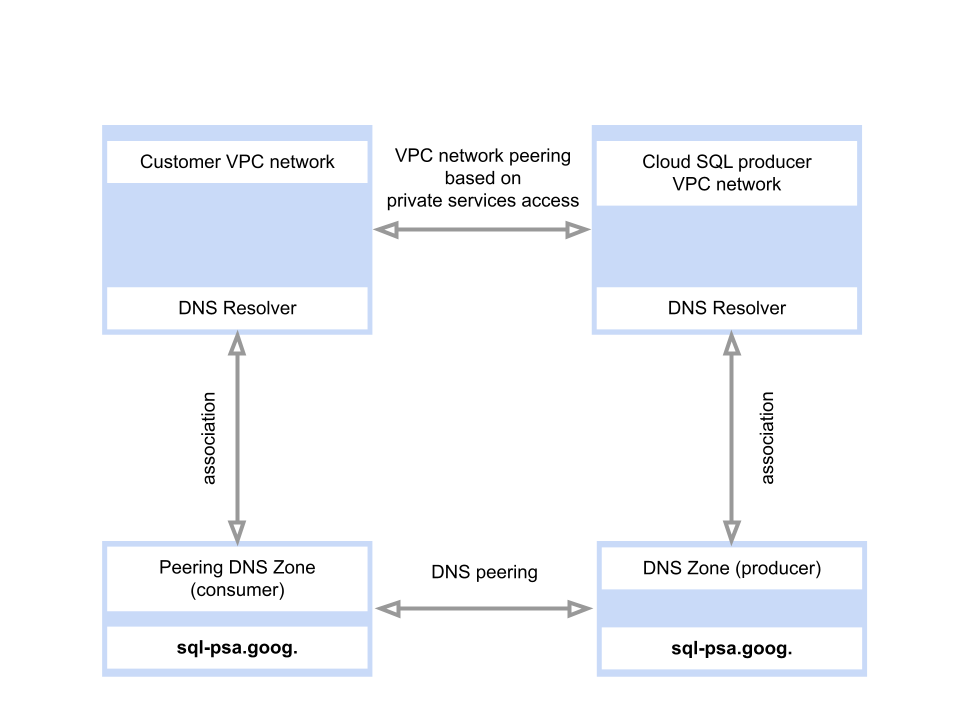 **Figure 1.** Diagram showing how VPC peering supports DNS zone peering between a service producer network and a customer network.
### DNS resolutions issues
If DNS resolution isn't working, then check each of the following items:
1. Make sure all [prerequisites](https://docs.cloud.google.com/sql/docs/postgres/connect-to-instance-using-write-endpoint.md.txt#generate-the-write-endpoint) are met.
2. Make sure that the clients where the resolution is expected are located in the same network to which the Cloud SQL instance is attached. To check this, use the `gcloud compute instances list` command:
```bash
gcloud compute instances list \
--format="table( name, zone.basename(), networkInterfaces[].network )" \
--project=PROJECT_NAME
```
Replace PROJECT_NAME with the project name where the DNS consumer network
resides.
3. Verify that the peering zone exists. To do so, use the `gcloud dns managed-zones list` command:
```bash
gcloud dns managed-zones list \
--project=PROJECT_NAME
```
Replace PROJECT_NAME with the project name where the DNS consumer network resides.
4. If the peering zone doesn't exist, then you can fix the issue by using the [`gcloud sql instances patch`](https://docs.cloud.google.com/sdk/gcloud/reference/sql/instances/patch.md.txt#--reconcile-psa-networking) command:
```bash
gcloud sql instances patch INSTANCE_NAME --reconcile-psa-networking
```
Replace INSTANCE_NAME with the name of your Cloud SQL instance.
### New instance doesn't have a write endpoint
If a newly created instance doesn't contain a write endpoint, then check each
of the following items:
1. Make sure that all [prerequisites](https://docs.cloud.google.com/sql/docs/postgres/connect-to-instance-using-write-endpoint.md.txt#generate-the-write-endpoint) are completed.
2. Make sure there isn't a leftover peering DNS zone with the DNS name `sql-psa.goog.`.
A peering DNS zone is a leftover DNS zone if the network associated with
the DNS zone doesn't have a VPC peering with the peer project ID
of the peering DNS zone.
If there's a leftover peering DNS zone with the
`sql-psa.goog.` suffix, then delete it.
> [!CAUTION]
> **Caution**: Use extreme caution when you delete the peering DNS zone. If you delete the incorrect DNS zone, then you can cause connectivity loss for all instances attached to the network.
To check for leftover peering DNS zones, use the
`gcloud dns managed-zones list`
command:
```bash
gcloud dns managed-zones list \
--project=PROJECT_NAME
```
Replace PROJECT_NAME with the name of the project where the DNS consumer network resides.
If a DNS zone exists with the `sql-psa.goog.` suffix, then delete the DNS zone after double-checking that the peering DNS zone is a leftover DNS zone.
To delete a DNS zone, use the
`gcloud dns managed-zones delete`
command:
```bash
gcloud dns managed-zones delete ZONE_NAME
```
Replace ZONE_NAME with the DNS zone name associated with
the write endpoints. Values are alphanumeric and use the following format:
`cloud-sql-psa-dns-1234567890`.
3. You can fix a missing write endpoint for an eligible instance by using the `gcloud sql instances patch` command:
```bash
gcloud sql instances patch INSTANCE_NAME --reconcile-psa-networking
```
Replace INSTANCE_NAME with the name of your Cloud SQL instance.
## What's next
- Learn more about [Cloud SQL troubleshooting](https://docs.cloud.google.com/sql/docs/postgres/troubleshooting.md.txt).