# Set up TCP traffic routing
This guide demonstrates how you can use Cloud Service Mesh to route traffic to services
that handle TCP traffic. These services include databases, VOIP services, and
management platforms, which expect to receive TCP traffic on specific ports or
port ranges.
> [!NOTE]
> **Note:** This guide only supports Cloud Service Mesh with Google Cloud APIs and does not support Istio APIs. For more information see, [Cloud Service Mesh overview](https://docs.cloud.google.com/service-mesh/docs/overview.md.txt).
This guide applies to deployment with the older APIs. If you are using the new
service routing APIs, which are in preview, see
[Cloud Service Mesh setup for TCP services with a `TCPRoute` resource](https://docs.cloud.google.com/service-mesh/docs/service-routing/set-up-tcp-route.md.txt).
Use this guide to do the following:
- Set up a service that represents a collection of identical backends or endpoints that accept TCP requests from clients.
- Set up a routing rule map so that Envoy proxies that Cloud Service Mesh configures can send TCP requests.
The following diagrams show how TCP routing works for virtual machine (VM)
instances and network endpoint groups (NEGs), respectively.
[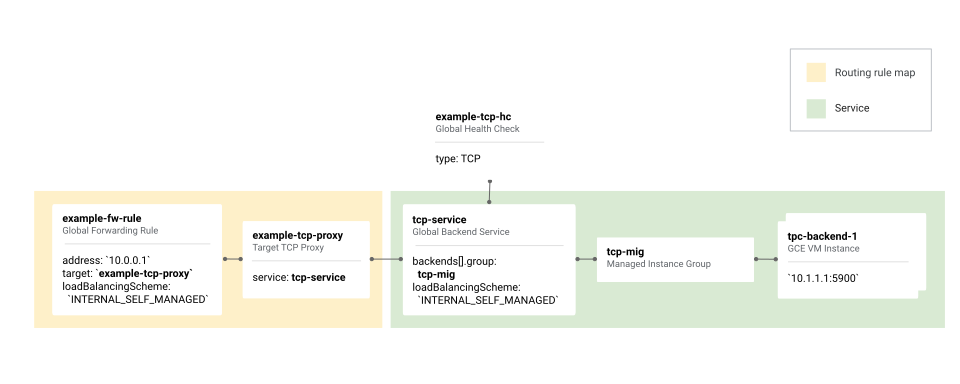](https://docs.cloud.google.com/static/service-mesh/docs/images/td-tcp-gce.svg) Setting up Cloud Service Mesh for TCP, Compute Engine backends (click to enlarge)
[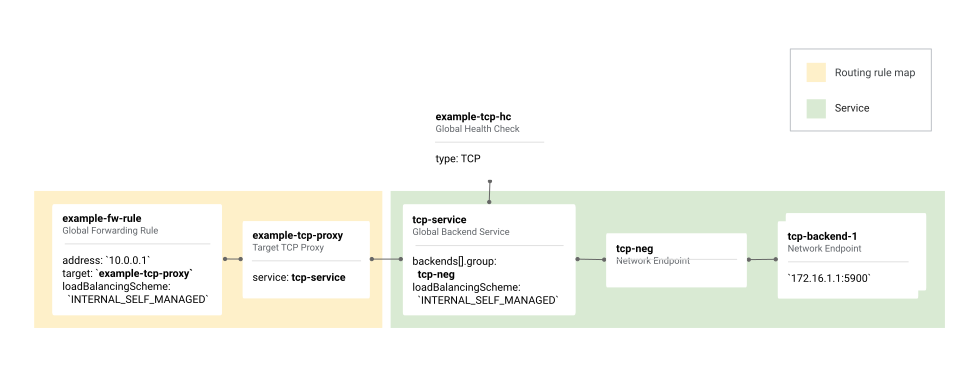](https://docs.cloud.google.com/static/service-mesh/docs/images/td-tcp-neg.svg) Setting up Cloud Service Mesh for TCP, NEG backends (click to enlarge)
## Preparation
- This guide builds on the [Envoy for service mesh](https://docs.cloud.google.com/service-mesh/docs/service-routing/prepare-for-envoy-setup) preparation guide, and assumes that you already have a basic understanding of how Cloud Service Mesh works.
- The guide focuses on aspects of Cloud Service Mesh setup that are different when you configure your services and routing for TCP traffic.
- The guide assumes that you have already set up a managed instance group (MIG) or NEG.
## Configure load-balancing resources
Use the following steps to configure the load-balancing resources.
### Create a TCP health check
### Setup with VMs
If you are configuring MIGs, use the following command to create a global
health check; replace `PORT` with the TCP port
number that this health check monitors:
```
gcloud compute health-checks create tcp td-vm-health-check \
--global \
--port=PORT
```
### Setup with NEGs
If you are configuring NEGs, use the following command to create a health
check:
```
gcloud compute health-checks create tcp td-gke-health-check \
--use-serving-port
```
For more information about health checks, see the following:
- [Creating health checks](https://docs.cloud.google.com/load-balancing/docs/health-checks.md.txt) in the Cloud Load Balancing documentation
- [`gcloud compute health-checks create tcp`](https://docs.cloud.google.com/sdk/gcloud/reference/compute/health-checks/create/tcp) in the `gcloud` command reference
### Create a firewall rule for your health check
This rule enables health checks from Google Cloud's health checkers to reach
your backends.
### gcloud
```
gcloud compute firewall-rules create fw-allow-health-checks \
--action=ALLOW \
--direction=INGRESS \
--source-ranges=35.191.0.0/16,130.211.0.0/22 \
--target-tags=TAGS \
--rules=tcp:80
```
For more information about firewall rules for health checks, see the following:
- [Firewall rules for health checks](https://docs.cloud.google.com/load-balancing/docs/health-checks.md.txt#fw-rule) in the Cloud Load Balancing documentation
- [`gcloud compute firewall-rules create`](https://docs.cloud.google.com/sdk/gcloud/reference/compute/firewall-rules/create.md.txt) in the `gcloud` command reference (includes guidance for `TAGS`)
### Create a backend service for your TCP backends
The backend service setup for TCP with Cloud Service Mesh differs slightly
from the setup for HTTP. The following steps capture those differences.
### Setup with VMs
If you are configuring MIGs, use the following
command to create a backend service and add the health check:
```
gcloud compute backend-services create td-vm-service \
--global \
--load-balancing-scheme=INTERNAL_SELF_MANAGED \
--health-checks=td-vm-health-check \
--protocol=TCP \
--global-health-checks
```
The final step for setting up your backend service is to add your backends.
Because this step is standard Cloud Service Mesh setup (in other
words, nothing specific for TCP-based services), it is not shown here.
For more information, see
[Create the backend service](https://docs.cloud.google.com/service-mesh/docs/service-routing/set-up-gce-vms-auto#creating_the_backend_service)
in the setup guide for Compute Engine VMs with automatic Envoy
deployment.
### Setup with NEGs
If you are configuring NEGs, use the following commands to create a
backend service and associate the health check with the backend service:
```
gcloud compute backend-services create td-gke-service \
--global \
--health-checks=td-gke-health-check \
--protocol=TCP \
--load-balancing-scheme=INTERNAL_SELF_MANAGED
```
The final step for setting up your backend service is to add your backend
group. Because this step is standard Cloud Service Mesh setup (in other
words, nothing specific for TCP-based services), it is not shown here.
For more information, see
[Create the backend service](https://docs.cloud.google.com/service-mesh/legacy/load-balancing-apis/set-up-gke-pods-auto.md.txt#creating_the_backend_service)
in the setup guide for GKE Pods with automatic Envoy injection.
### Set up routing for your TCP-based backend service
In this section, you create a global
[target TCP proxy](https://docs.cloud.google.com/load-balancing/docs/tcp.md.txt)
and a global [forwarding rule](https://docs.cloud.google.com/load-balancing/docs/forwarding-rule-concepts.md.txt).
These resources enable your applications to send traffic to the backends with
your newly created backend services.
Consider the following:
- Your forwarding rule must have the load-balancing scheme `INTERNAL_SELF_MANAGED`.
- The virtual IP address (VIP) and port that you configure in the forwarding
rule are the VIP and port that your applications use when sending traffic to
your TCP services. You can choose the VIP from one of your subnets.
Cloud Service Mesh uses this VIP and port to match client requests to a
particular backend service.
For information about how client requests are matched to backend services, see
[Service discovery](https://docs.cloud.google.com/service-mesh/docs/traffic-management/service-discovery.md.txt#service_discovery).
### gcloud
1. Use the following command to create the target TCP proxy; replace
`BACKEND_SERVICE` with the name of the backend service
created in the previous step. In the following example, we use
`td-tcp-proxy` as the name for the target TCP proxy, but you can choose
a name that suits your needs.
```
gcloud compute target-tcp-proxies create td-tcp-proxy \
--backend-service=BACKEND_SERVICE
```
> [!NOTE]
> **Note:** Each service that requires a different VIP address must use a different forwarding rule.
2. Create the forwarding rule. The forwarding rule specifies the VIP and
port that are used when matching client requests to a particular backend
service. For more information, see
[`gcloud compute forwarding-rules create`](https://docs.cloud.google.com/sdk/gcloud/reference/compute/forwarding-rules/create.md.txt)
in the `gcloud` command reference.
```
gcloud compute forwarding-rules create td-tcp-forwarding-rule \
--global \
--load-balancing-scheme=INTERNAL_SELF_MANAGED \
--address=VIP\
--target-tcp-proxy=td-tcp-proxy \
--ports=PORT \
--network=default
```
At this point, Cloud Service Mesh is configured to load balance traffic for
the VIP specified in the forwarding rule across your backends.
## Limitations
You cannot configure a Google Cloud Armor security policy if you are using
TCP traffic routing.
## Troubleshooting
If your applications are attempting to send requests to your TCP-based services,
do the following:
- Confirm that the TCP health check port matches the port on which the TCP application expects to receive health check traffic.
- Confirm that the port name of the backend service matches what is specified in the instance group.
## What's next
- [Prepare to set up Cloud Service Mesh with Envoy](https://docs.cloud.google.com/service-mesh/docs/service-routing/prepare-for-envoy-setup)
- [Troubleshoot Envoy deployments](https://docs.cloud.google.com/service-mesh/docs/service-routing/troubleshooting.md.txt)