# Set up cross-project network endpoint group
> [!NOTE]
> **Note:** This guide only supports Cloud Service Mesh with Google Cloud APIs and does not support Istio APIs. For more information see, [Cloud Service Mesh overview](https://docs.cloud.google.com/service-mesh/docs/overview.md.txt).
The cross-project network endpoint group (NEG) feature allows customers to
attach NEGs from a different project to a Traffic Director/Cloud Service Mesh
`BackendService`, enabling the following use cases:
- In a multi-project deployment, `BackendServices` along with their associated
routing and traffic policies in a centralized project. with backend endpoints
from different projects.
- In a multi-project deployment, you can manage all your compute resources
(Compute Engine VMs, GKE NEGs, etc) in a single, central
Google Cloud project while Service teams own their own Google Cloud service
projects where they define service policies expressed in `BackendServices`
and Service routing Routes in their respective service project. This delegates
managing their services while maintaining close control over the compute
resources which may be shared between different service teams.
This page shows you how to create a baseline 2-project setup where the NEG in
project B (referred to as the workload project) is attached to the
`BackendService` in project A (referred to as the policy project). The following
example sets up workload VMs in the default VPC network in the workload project
and demonstrates that the client can route to in the workload project based on
the configurations in the policy project.
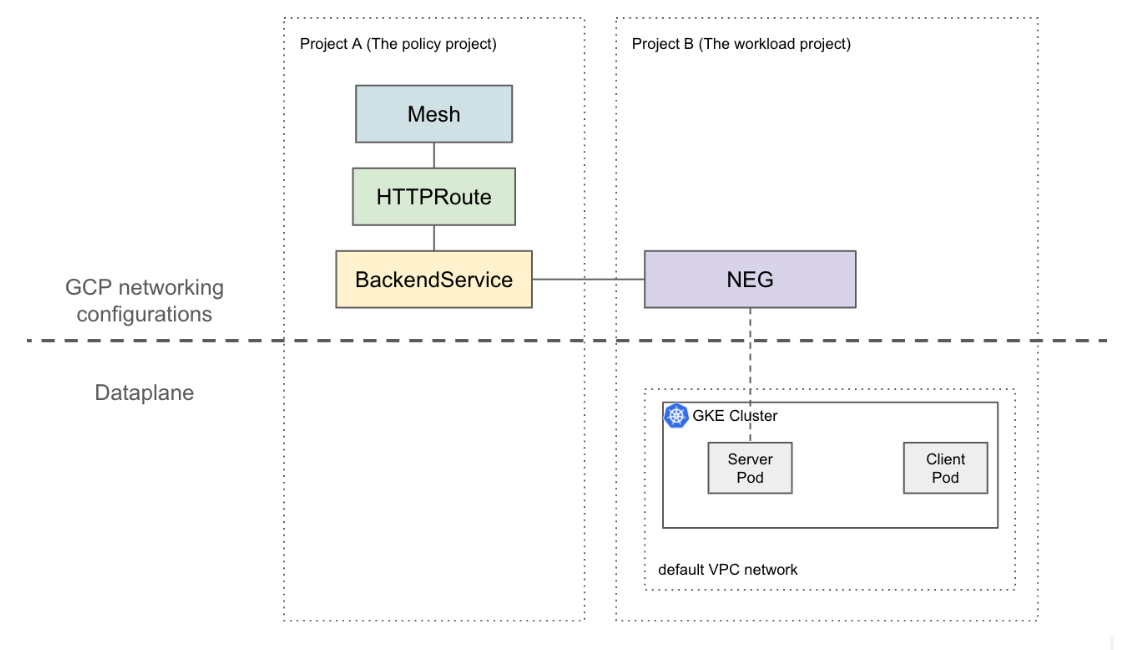
In a more sophisticated setup, a solution such as Shared VPC is required
for an interconnected dataplane across multiple projects. This also implies that
NEG endpoints have unique IPs. This example setup can be extended to more
complicated scenarios where workloads are in a Shared VPC network
spanning multiple projects.
## Limitations
The general [Traffic Director limitations](https://docs.cloud.google.com/service-mesh/docs/service-routing/service-routing-overview.md.txt#considerations_and_limitations)
and [BackendService/NetworkEndpointGroup limitations](https://docs.cloud.google.com/load-balancing/docs/quotas.md.txt)
apply.
The following limitations also apply but may not be specific to a multi-project
setup:
- A single BackendService can only support up to 50 backends(including NEGs, MIGs).
- Only zonal NEGs of type GCP_VM_IP_PORT are supported.
- Cross project BackendServices to instance groups (managed or unmanaged) reference is not supported.
- Listing cross-project NEGs that can be attached to a given BackendService is not supported.
- Listing cross-project BackendServices that are using a specific NEG is not supported.
## Before you begin
You must complete the following prerequisites before you can set up cross-project
NEGs.
### Enable the required APIs
The following APIs are required to complete this guide:
- osconfig.googleapis.com
- trafficdirector.googleapis.com
- compute.googleapis.com
- networkservices.googleapis.com
Run the following command to enable the required APIs in both the workload
project and the policy project:
```bash
gcloud services enable --project PROJECT_ID \
osconfig.googleapis.com \
trafficdirector.googleapis.com \
compute.googleapis.com \
networkservices.googleapis.com
```
### Grant the required IAM permissions
You must have sufficient Identity and Access Management (IAM) permissions to complete this
guide. If you have the role of project
[Owner or Editor](https://docs.cloud.google.com/iam/docs/roles-overview.md.txt#basic) (`roles/owner` or
`roles/editor`) in the project where you
are enabling Cloud Service Mesh, you automatically have the correct
permissions.
Otherwise, you must grant all of the following IAM roles. If you
have these roles, you also have their associated permissions, as described in
the
[Compute Engine IAM documentation](https://docs.cloud.google.com/compute/docs/access/iam.md.txt).
The following roles are required in **both** workload and policy projects:
- roles/iam.serviceAccountAdmin
- roles/serviceusage.serviceUsageAdmin
- roles/compute.networkAdmin
The following roles are required in the workload project only:
- roles/compute.securityAdmin
- roles/container.admin
- Any role that includes the following permissions. The most granular predefined role that include all the required permission for attaching a NEG to a BackendService is roles/compute.loadBalancerServiceUser
- compute.networkEndpointGroups.get
- compute.networkEndpointGroups.use
Additionally, Traffic Director managed xDS clients (like Envoy proxy) must have
the permissions under `roles/trafficdirector.client`. For demonstration purposes,
you can use the following command to grant this permission in the policy project
to the default compute service account of the workload project:
```bash
gcloud projects add-iam-policy-binding POLICY_PROJECT_ID \
--member "serviceAccount:WORKLOAD_PROJECT_NUMBER-compute@developer.gserviceaccount.com" \
--role "roles/trafficdirector.client"
```
where
- POLICY_PROJECT_ID is the ID of the policy project.
- WORKLOAD_PROJECT_NUMBER is the project number of the workload project.
## Configure a service backend in the workload project
1. Run the following command to point your Google Cloud CLI to the workload
project and set the preferred Google Cloud compute zone:
```bash
gcloud config set project WORKLOAD_PROJECT_ID
gcloud config set compute/zone ZONE
```
where
- WORKLOAD_PROJECT_ID is the ID of the workload project.
- ZONE is the zone of the GKE cluster, for example `us-central1`.
2. Create a GKE cluster. For demonstration purposes, the
following command creates a zonal GKE cluster. However, this
feature also works on regional GKE clusters.
```bash
gcloud container clusters create test-cluster \
--scopes=https://www.googleapis.com/auth/cloud-platform
--zone=ZONE
```
3. Create a firewall rule:
```bash
gcloud compute firewall-rules create http-allow-health-checks \
--network=default \
--action=ALLOW \
--direction=INGRESS \
--source-ranges=35.191.0.0/16,130.211.0.0/22 \
--rules=tcp:80
```
A firewall rule allows the Google Cloud control plane to send
health check probes to backends in the default VPC network.
4. Change the current context for kubectl to the newly created cluster:
```bash
gcloud container clusters get-credentials test-cluster \
--zone=ZONE
```
5. Create and deploy the whereami sample app:
```bash
kubectl apply -f - <POLICY_PROJECT_NUMBER is the project number of the policy project.
## Verify the setup
You can verify the setup by sending an HTTP request with HOST header set to
`example-service` to a VIP behind a Traffic Director managed sidecar proxy:
```bash
curl -H "Host: example-service" http://10.0.0.1/
```
The output is similar to:
```bash
{"cluster_name":"test-cluster","gce_instance_id":"4879146330986909656","gce_service_account":"...","host_header":"example-service","pod_name":"whereami-7fbffd489-nhkfg","pod_name_emoji":"...","project_id":"...","timestamp":"2024-10-15T00:42:22","zone":"us-west1-a"}
```
Note that since all outbound traffic from Pods are intercepted by an Envoy
sidecar in a service mesh, and the previous HTTPRoute is configured to send
all traffic to the "whereami" Kubernetes Service purely based on the L7
attribute (host header). For example purposes the VIP in this command is
10.0.0.1, but the VIP can be any IP.
The sidecar proxy should request configurations associated with the mesh
resource in the policy project. To do so, make sure the Node ID is set in the
following format:
```bash
projects/POLICY_PROJECT_NUMBER/networks/mesh:example-mesh/nodes/UUID"
```
## What's next
- [Set up cross-project mesh route](https://docs.cloud.google.com/service-mesh/docs/service-routing/set-up-cross-project-mesh-route.md.txt)