Personalized Service Health logs service health events in Cloud Logging. It
records all updates to the event's description, relevance, or state as a
distinct log.
This document explains how to view, export, and store Service Health
logs.
## Before you begin
[Verify that billing is enabled for your Google Cloud project](https://docs.cloud.google.com/billing/docs/how-to/verify-billing-enabled.md.txt#confirm_billing_is_enabled_on_a_project).
1. [Enable the Service Health API](https://docs.cloud.google.com/service-health/docs/manage-access.md.txt#enable-service-health-api-single-project) for the project that you want to view, export, or store logs for.
2. Get [access to Service Health logs](https://docs.cloud.google.com/service-health/docs/manage-access.md.txt#access_logs_and_configure_log_alerts).
## Log schema
See the
[Log schema reference](https://docs.cloud.google.com/service-health/docs/reference/event-logs/rpc/google.cloud.servicehealth.logging.v1.md.txt)
for the fields you can set in your query.
## View Service Health logs
To view Service Health logs:
1. In the Google Cloud console, go to the **Logs Explorer** page.
[Go to Logs Explorer](https://console.cloud.google.com/logs/query)
2. Select a Google Cloud project at the top of the page.
3. In the **Log name** drop-down menu, select **Service Health**.

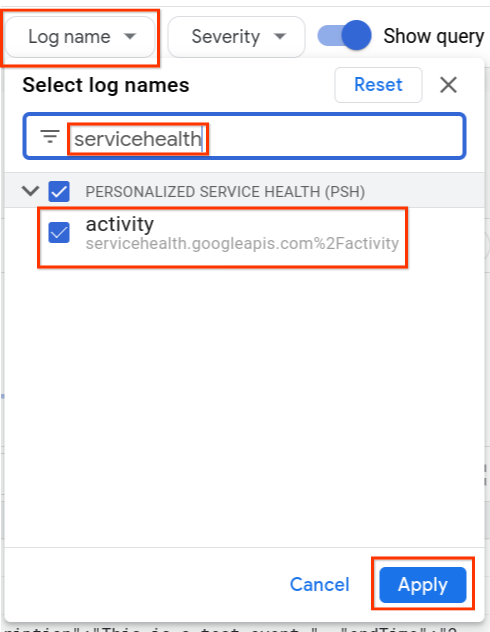
A list of logs for
`type.googleapis.com/google.cloud.servicehealth.logging.v1.EventLog`
appears.
4. Expand a log entry to view the event details. The following example shows a
typical event.
"insertId":"1pw1msgf6a3zc6",
"timestamp":"2022-06-14T17:17:55.722035096Z",
"receiveTimestamp":"2022-06-14T17:17:55.722035096Z",
"logName":"projects/PROJECT_ID/logs/servicehealth.googleapis.com%2Factivity",
"resource":{
"type":"servicehealth.googleapis.com/Event",
"labels":{
"resource_container":"797731824162",
"location":"global",
"event_id":"U4AqrjwFQYi5fFBmyAX-Gg"
}
}
"labels":{
"new_event":"true"
"updated_fields": "[]"
},
"jsonPayload":{
"@type":"type.googleapis.com/google.cloud.servicehealth.logging.v1.EventLog",
"category":"INCIDENT",
"title":"We are experiencing a connectivity issue affecting Cloud SQL in us-east1, australia-southeast2.",
"description":"We are experiencing an issue with Google Cloud infrastructure components at us-east1, australia-southeast2. Our engineering team continues to investigate the issue. We apologize to all who are affected by the disruption.",
"updateTime":"2023-11-14T22:26:40Z",
"endTime":"2023-11-14T22:13:20Z",
"impactedLocations":"['us-east1','australia-southeast2']",
"impactedProducts":"['Google Cloud SQL']",
"impactedProductIds":"['hV87iK5DcEXKgWU2kDri']",
"nextUpdateTime":"2023-11-14T22:40:00Z",
"startTime":"2020-09-13T12:26:40Z",
"state":"ACTIVE",
"detailedState":"CONFIRMED",
"relevance":"RELATED",
}
## Query Service Health logs
You can use Logs Explorer to query Service Health logs. You may need
the following references to build your query:
- [Instructions for viewing logs in Logs Explorer](https://docs.cloud.google.com/logging/docs/view/logs-explorer-interface.md.txt)
- [Logging query language](https://docs.cloud.google.com/logging/docs/view/logging-query-language.md.txt)
Examples:
|---|---|
| Condition | Query |
| Get logs with a specific incident relevance | `jsonPayload.relevance = ("IMPACTED" OR "RELATED")` |
| Combine multiple filters | `jsonPayload.impactedLocations : "us-central1" AND jsonPayload.impactedProducts : "Google Compute Engine" AND jsonPayload.state = "ACTIVE"` |
## Export Service Health logs
You can export Service Health logs to any Cloud Logging sink
destination using the Google Cloud console, API, or the gcloud CLI.
To set up a Cloud Logging sink, see
[Configure and manage sinks](https://docs.cloud.google.com/logging/docs/export/configure_export_v2.md.txt).
You can include and exclude Service Health logs by configuring the
[inclusion and exclusion filters](https://docs.cloud.google.com/logging/docs/routing/overview.md.txt#exclusions)
for the sink.
When setting the product or location, use the values found at
[Google Cloud products](https://docs.cloud.google.com/service-health/docs/supported-products-locations.md.txt) and
[locations](https://docs.cloud.google.com/service-health/docs/supported-products-locations.md.txt#locations).
## Aggregate Service Health logs at a folder level
Sending Service Health-related logs from all projects under a folder to
a project created for Service Health logs lets you do more complex
queries on them.
You'll create a [sink](https://docs.cloud.google.com/logging/docs/routing/overview.md.txt#sinks) at the folder level
to send all Service Health-related logs to a new project under that
folder. Do the following:
1. [Create a new project under a folder](https://developers.google.com/workspace/guides/create-project#gcloud-cli). This project is allocated to the Service Health logs.
gcloud projects create PROJECT_ID --folder FOLDER_ID
> [!NOTE]
> **Note:** Make sure to link a billing account to the project.
2. Create an [aggregated sink](https://docs.cloud.google.com/logging/docs/export/aggregated_sinks.md.txt#create_an_aggregated_sink) at the folder level for the other projects in the folder.
gcloud logging sinks create SINK_NAME \
SINK_DESTINATION --include-children \
--folder=FOLDER_ID --log-filter="LOG_FILTER"
To get logs for all relevant incidents, set the LOG_FILTER value to the following:
resource.type=servicehealth.googleapis.com/Event AND jsonPayload.category=INCIDENT AND jsonPayload.relevance!=NOT_IMPACTED AND jsonPayload.@type=type.googleapis.com/google.cloud.servicehealth.logging.v1.EventLog
3. [Set permissions for the sink Service Account](https://docs.cloud.google.com/logging/docs/export/configure_export_v2.md.txt#dest-auth).
gcloud projects add-iam-policy-binding PROJECT_ID --member=SERVICE_ACCT_NAME --role=roles/logging.bucketWriter
gcloud projects add-iam-policy-binding PROJECT_ID --member=SERVICE_ACCT_NAME --role=roles/logging.logWriter
4. (Optional) If you don't want to send the logs to the `_Default` sink,
[create a log bucket](https://docs.cloud.google.com/logging/docs/buckets.md.txt#gcloud) for
Service Health-related logs in the project.
gcloud logging buckets create BUCKET_ID --location=LOCATION --enable-analytics --async
If you created a log bucket, create a sink to send those logs to the bucket.
gcloud logging sinks create SINK_NAME_BUCKET \
logging.googleapis.com/projects/PROJECT_ID/locations/LOCATION/buckets/BUCKET_ID \
--project=PROJECT_ID --log-filter="LOG_FILTER"
### Query Service Health logs with BigQuery
You can query logs sent to Cloud Logging using BigQuery by:
1. Creating SQL queries.
2. Using the BigQuery API to feed the results of the queries to external systems.
Do the following:
1. [Create a log bucket](https://docs.cloud.google.com/logging/docs/buckets.md.txt#gcloud) in the project you
created for Service Health logs.
gcloud logging buckets create BUCKET_ID --location=LOCATION --enable-analytics --async
2. [Enable Observability Analytics](https://docs.cloud.google.com/logging/docs/buckets.md.txt#upgrade-bucket).
gcloud logging buckets update BUCKET_ID --location=LOCATION --enable-analytics --async
3. [Create a new BigQuery dataset that links to the bucket with Service Health logs](https://docs.cloud.google.com/logging/docs/buckets.md.txt#link-bq-dataset).
gcloud logging links create LINK_ID --bucket=BUCKET_ID --location=LOCATION
4. If necessary, enable the BigQuery API.
gcloud services enable bigquery.googleapis.com
Now you can run complex SQL queries against BigQuery, such as:
|---|---|
| Condition | Query |
| Get logs with a specific incident relevance | ``gcloud query --use_legacy_sql=false 'SELECT * FROM `PROJECT_ID.LINK_ID._AllLogs` WHERE JSON_VALUE(json_payload["relevance"]) = "IMPACTED"'`` |
| Get all child log events for a parent event | ``gcloud query --use_legacy_sql=false 'SELECT * FROM `PROJECT_ID.LINK_ID._AllLogs` WHERE JSON_VALUE(json_payload["parentEvent"]) = "projects/PROJECT_ID/locations/global/events/EVENT_ID"'`` |
## Retain past events
Personalized Service Health provides limited retention of events.
If you need to retain a record of past service health events beyond a few
months, we recommended storing Service Health logs.
1. [Configure Service Health logs](https://docs.cloud.google.com/service-health/docs/logs.md.txt#view-service-health-logs).
2. [Store logs in a log bucket](https://docs.cloud.google.com/logging/docs/buckets.md.txt).