This tutorial shows you how to de-identify data while querying tables from
BigQuery using remote functions and Sensitive Data Protection. This approach
is useful for sanitizing real-time query results to minimize access to data that
is not needed for analysis.
This tutorial demonstrates encryption and decryption of data in transit. For
information about using Sensitive Data Protection to encrypt data at rest, see
[De-identification of sensitive data in
storage](https://docs.cloud.google.com/sensitive-data-protection/docs/concepts-deidentify-storage).
This tutorial is intended for audiences whose responsibilities include data
security, data processing, or data analytics. This guide assumes that you're
familiar with data processing and data privacy; you don't need to be an expert.
This guide also assumes you can run basic [Cloud Shell](https://docs.cloud.google.com/shell) and SQL
scripts.
This tutorial uses SQL-based functions, [BigQuery](https://docs.cloud.google.com/bigquery),
[remote functions](https://docs.cloud.google.com/bigquery/docs/reference/standard-sql/remote-functions),
[Cloud Run](https://docs.cloud.google.com/run), and Sensitive Data Protection.
De-identification techniques, like encryption, obfuscate raw sensitive
identifiers in your data. These techniques let you preserve the utility of your
data for joining or analytics, while reducing the risk of handling the data.
Enterprises might have policies or regulatory requirements to store only
de-identified data in their cloud data warehouse. Additionally, they might need
to efficiently re-identify the de-identified data for report generation.
To minimize the risk of handling large volumes of sensitive data, you can use an
automated data transformation pipeline to create de-identified datasets. You can
use this tutorial to replace that pipeline with a SQL query for only
re-identification or both de-identification and re-identification. This tutorial
helps you perform both de-identification and re-identification using a central
service hosted on [Cloud Run](https://docs.cloud.google.com/run). You can use this central service
across the entire organization without the need to set up or maintain a
Dataflow cluster.
Sensitive Data Protection can classify datasets by inspecting the data for sensitive
information. Sensitive Data Protection has more than [200 built-in
classifiers](https://docs.cloud.google.com/sensitive-data-protection/docs/infotypes-reference), called *infoTypes*. Using the
Cloud Data Loss Prevention API to de-identify data requires data pipelines and applications. This
tutorial aims to help your data analysts, engineers, or scientists achieve the
same outcome through SQL functions.
At the end of this tutorial, you will be able to write a query similar to the
following; the sensitive data will be de-identified and re-identified in the
query result.
```sql
SELECT
pii_column,
fns.dlp_freetext_encrypt(pii_column) AS dlp_encrypted,
fns.dlp_freetext_decrypt(fns.dlp_freetext_encrypt(pii_column)) AS dlp_decrypted
FROM
UNNEST(
[
'My name is John Doe. My email is john.doe@example.com']) AS pii_column
```
The output is similar to the following:
| Row | **`pii_column`** | **`dlp_encrypted`** | **`dlp_decrypted`** |
|---|---|---|---|
| `1` | `My name is John Doe. My email is john.doe@example.com` | `My name is John Doe. My email is BQ_TRF_EMAIL(40):AQy6lGvwKR+AiiRqJpEr+nBzZUzOcjXkXamUugU=` | `My name is John Doe. My email is john.doe@example.com` |
## Architecture
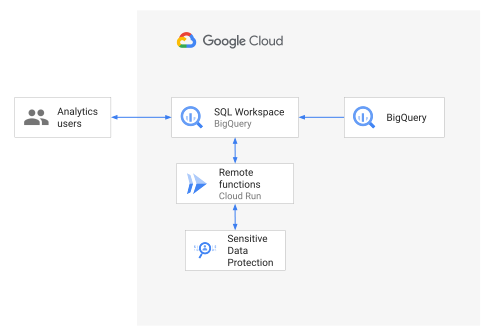
The following diagram shows how this tutorial uses BigQuery as
the data warehouse, Sensitive Data Protection to de-identify and re-identify data, and
Cloud Run to host the remote functions.
[](https://docs.cloud.google.com/static/sensitive-data-protection/docs/images/unified-analytics-dlp-proxy.svg)
## Objectives
- Deploy a Cloud Run service that provides de-identification functionality from Sensitive Data Protection.
- Create BigQuery remote functions that use Sensitive Data Protection de-identification templates.
- Verify data encryption in BigQuery by using a SQL query.
## Costs
In this document, you use the following billable components of Google Cloud:
- [BigQuery](https://cloud.google.com/bigquery/pricing)
- [Cloud Build](https://docs.cloud.google.com/build/pricing)
- [Sensitive Data Protection](https://docs.cloud.google.com/sensitive-data-protection/pricing)
- [Cloud Run](https://docs.cloud.google.com/run/pricing)
- [Artifact Registry](https://docs.cloud.google.com/artifact-registry/pricing)
To generate a cost estimate based on your projected usage,
use the [pricing calculator](https://docs.cloud.google.com/products/calculator).
New Google Cloud users might be eligible for a [free trial](https://docs.cloud.google.com/free).
When you finish the tasks that are described in this document, you can avoid
continued billing by deleting the resources that you created. For more information, see
[Clean up](https://docs.cloud.google.com/sensitive-data-protection/docs/deidentify-bq-tutorial.md.txt#clean-up).
## Before you begin
## Prepare the environment
1. In Cloud Shell, clone the source repository:
```bash
git clone https://github.com/GoogleCloudPlatform/bigquery-dlp-remote-function.git
```
2. Go to the directory for this tutorial:
```bash
cd bigquery-dlp-remote-function/
```
## Deploy the resources by using a script
If you want to use the deployment script without making customizations, follow
these steps. If you want to customize the deployment, skip this
section and see [Deploy a customized solution manually](https://docs.cloud.google.com/sensitive-data-protection/docs/deidentify-bq-tutorial.md.txt#deploy-manually)
instead.
1. Set the values for the PROJECT_ID and REGION fields:
# Project ID of the Google Cloud project
PROJECT_ID="PROJECT_ID"
# Google Cloud region to use for deployment of resources
# Refer to https://cloud.google.com/about/locations
REGION="REGION"
Replace the following:
- PROJECT_ID: the ID of the project for this tutorial.
- REGION: the [region](https://cloud.google.com/about/locations) where you want to store and process the data---for example, `us-west1`. Provide a region, not a zone.
2. Optional: If you have an [inspection
template](https://docs.cloud.google.com/sensitive-data-protection/docs/creating-templates-inspect) that you want to use, set the
DLP_INSPECT_TEMPLATE field to the full resource name of that
inspection template. The inspection template must be in the same region
that you set in the REGION field.
Make sure that the inspection template includes all the
infoTypes used in the de-identification template.
If you skip this step, Sensitive Data Protection inspects the
data with a system-default set of [infoType detectors](https://docs.cloud.google.com/sensitive-data-protection/docs/infotypes-reference.md.txt).
DLP_INSPECT_TEMPLATE="DLP_INSPECT_TEMPLATE"
Replace DLP_INSPECT_TEMPLATE with the full resource name of your
inspection template---for example,
`projects/PROJECT_ID/locations/REGION/inspectTemplates/TEMPLATE_ID`.
3. Authenticate using [Application Default Credentials](https://docs.cloud.google.com/sdk/gcloud/reference/auth/application-default.md.txt):
```bash
gcloud auth application-default login && \
gcloud auth application-default set-quota-project "${PROJECT_ID}"
```
4. Initialize and run the Terraform script to create all resources:
```bash
terraform init && \
terraform apply \
-var "project_id=${PROJECT_ID}" \
-var "region=${REGION}" \
-var "dlp_inspect_template_full_path=${DLP_INSPECT_TEMPLATE}"
```
The system displays all actions that Terraform will perform.
Review the actions. To continue, enter `yes`.
5. [Verify](https://docs.cloud.google.com/sensitive-data-protection/docs/deidentify-bq-tutorial.md.txt#verify) that data can be encrypted and decrypted.
## Deploy a customized solution manually
If you want to customize the deployment, follow these steps. If
you want to use the provided deployment script without customizations or manual
steps, see [Deploy the resources by using a script](https://docs.cloud.google.com/sensitive-data-protection/docs/deidentify-bq-tutorial.md.txt#deploy-script) instead.
### Set the environment variables
In Cloud Shell, set the following environment variables:
```bash
PROJECT_ID="PROJECT_ID"
REGION="REGION"
CLOUD_RUN_SERVICE_NAME="CLOUD-RUN-SERVICE-NAME"
ARTIFACT_REGISTRY_NAME="ARTIFACT-DOCKER-REGISTRY-NAME"
```
Replace the following:
- PROJECT_ID: the ID of the project for this tutorial.
- REGION: the [region](https://cloud.google.com/about/locations) where you want to store and process the data---for example, `us-west1`. Provide a region, not a zone.
- CLOUD_RUN_SERVICE_NAME: a name for the new Cloud Run service. Enter up to 15 characters.
- ARTIFACT_REGISTRY_NAME: a name for the new Artifact Registry for storing container images.
### Create a service account for the Cloud Run service
1. Create a service account:
```bash
RUNNER_SA_NAME="${CLOUD_RUN_SERVICE_NAME}-runner"
RUNNER_SA_EMAIL="${RUNNER_SA_NAME}@${PROJECT_ID}.iam.gserviceaccount.com"
gcloud iam service-accounts create "${RUNNER_SA_NAME}" \
--project="${PROJECT_ID}" \
--description "Runner for BigQuery remote function execution" \
--display-name "${RUNNER_SA_NAME}"
```
2. Grant the required roles for Sensitive Data Protection.
Grant the [DLP Reader](https://docs.cloud.google.com/iam/docs/roles-permissions/dlp.md.txt#dlp.reader) role:
```bash
gcloud projects add-iam-policy-binding "${PROJECT_ID}" \
--member="serviceAccount:${RUNNER_SA_EMAIL}" \
--role='roles/dlp.reader'
```
Grant the [DLP User](https://docs.cloud.google.com/iam/docs/roles-permissions/dlp.md.txt#dlp.user) role:
```bash
gcloud projects add-iam-policy-binding "${PROJECT_ID}" \
--member="serviceAccount:${RUNNER_SA_EMAIL}" \
--role='roles/dlp.user'
```
### Deploy the Cloud Run service
To deploy the application, follow these steps:
1. Optional: You can change the default values by changing the environment
variables or updating the `src/main/resources/aes.properties` file.
2. Create an Artifact Registry repository to store the function's container image:
```bash
gcloud artifacts repositories create "${ARTIFACT_REGISTRY_NAME}" \
--repository-format=docker \
--location="${REGION}" \
--description="Container images repository for BigQuery Functions" \
--project="${PROJECT_ID}"
```
3. Compile the application and deploy it on Cloud Run by using
Cloud Build:
```bash
gcloud builds submit \
--project ${PROJECT_ID} \
--substitutions=_CONTAINER_IMAGE_NAME="${REGION}-docker.pkg.dev/${PROJECT_ID}/${ARTIFACT_REGISTRY_NAME}/${CLOUD_RUN_SERVICE_NAME}:latest" \
--machine-type=e2-highcpu-8 && \
gcloud beta run deploy ${CLOUD_RUN_SERVICE_NAME} \
--image="${REGION}-docker.pkg.dev/${PROJECT_ID}/${ARTIFACT_REGISTRY_NAME}/${CLOUD_RUN_SERVICE_NAME}:latest" \
--execution-environment=gen2 \
--platform=managed \
--region="${REGION}" \
--service-account="${RUNNER_SA_EMAIL}" \
--cpu=4 \
--memory=8Gi \
--no-allow-unauthenticated \
--project ${PROJECT_ID} \
--update-env-vars=PROJECT_ID=${PROJECT_ID}
```
The end of the output is similar to the following:
```
ID: 403a276e-b0c6-41f3-aaed-f0ec9f9cedba
CREATE_TIME: 2023-02-04T01:52:15+00:00
DURATION: 1M59S
SOURCE: gs://PROJECT_ID_cloudbuild/source/1675475534.124241-9c43787f64e04cfd9e4a1979d3324fe0.tgz
IMAGES: gcr.io/PROJECT_ID/CLOUD_RUN_SERVICE_NAME (+1 more)
STATUS: SUCCESS
Deploying container to Cloud Run service [CLOUD_RUN_SERVICE_NAME] in project [PROJECT_ID] region [REGION]
OK Deploying new service... Done.
OK Creating Revision... Revision deployment finished. Checking container heal
th.
OK Routing traffic...
Done.
Service [CLOUD_RUN_SERVICE_NAME] revision [CLOUD_RUN_SERVICE_NAME-00001-tat] has been deployed and is serving 100 percent of traffic.
Service URL: https://CLOUD_RUN_SERVICE_NAME-j2bpjx2xoq-uw.a.run.app
```
4. Retrieve the Cloud Run URL and save it to your environment variables:
```bash
RUN_URL="$(gcloud run services describe ${CLOUD_RUN_SERVICE_NAME} --region \
${REGION} --project ${PROJECT_ID} --format="get(status.address.url)")"
```
### Create a Sensitive Data Protection de-identification template
[Sensitive Data Protection de-identification
templates](https://docs.cloud.google.com/sensitive-data-protection/docs/creating-templates-deid) help you save your
de-identification settings so that you can reuse them on multiple operations and
data sources.
This step uses the `sample_dlp_deid_config.json` file, which contains an example
de-identification template.
In Cloud Shell, create the template:
```bash
DEID_TEMPLATE=$(curl -X POST \
-H "Authorization: Bearer `gcloud auth print-access-token`" \
-H "Accept: application/json" \
-H "Content-Type: application/json" \
-H "X-Goog-User-Project: ${PROJECT_ID}" \
--data-binary "@sample_dlp_deid_config.json" \
"https://dlp.googleapis.com/v2/projects/${PROJECT_ID}/locations/${REGION}/deidentifyTemplates")
DEID_TEMPLATE_NAME="$(echo ${DEID_TEMPLATE} | jq -r '.name')"
```
Google recommends that you use a wrapped key when performing Sensitive Data Protection
encryption on actual sensitive workloads. For demonstration purposes, this
tutorial uses an unwrapped key. For more information about how to create a
wrapped key and use it in de-identification and re-identification requests, see
[De-identify and re-identify sensitive
data](https://docs.cloud.google.com/sensitive-data-protection/docs/inspect-sensitive-text-de-identify).
### Create the BigQuery connection to Cloud Run
1. In Cloud Shell, create a BigQuery connection to
access Cloud Run:
```bash
bq mk --connection \
--display_name='External transform function connection' \
--connection_type=CLOUD_RESOURCE \
--project_id="${PROJECT_ID}" \
--location="${REGION}" \
ext-${CLOUD_RUN_SERVICE_NAME}
```
2. Find and set the BigQuery service account used for the
connection:
```bash
CONNECTION_SA="$(bq --project_id ${PROJECT_ID} --format json show \
--connection ${PROJECT_ID}.${REGION}.ext-${CLOUD_RUN_SERVICE_NAME} \
| jq -r '.cloudResource.serviceAccountId')"
```
3. Grant the [Cloud Run Invoker](https://docs.cloud.google.com/iam/docs/roles-permissions/run.md.txt#run.invoker) role to the service account:
```bash
gcloud projects add-iam-policy-binding ${PROJECT_ID} \
--member="serviceAccount:${CONNECTION_SA}" \
--role='roles/run.invoker'
```
### Create the BigQuery dataset for remote functions
1. Define the BigQuery dataset for the remote functions:
```bash
BQ_FUNCTION_DATASET="fns"
```
2. Create the dataset if it doesn't already exist:
```bash
bq mk --dataset \
--project_id ${PROJECT_ID} \
--location ${REGION} \
${BQ_FUNCTION_DATASET}
```
### Create the Sensitive Data Protection remote functions
1. Optional: If you have an [inspection
template](https://docs.cloud.google.com/sensitive-data-protection/docs/creating-templates-inspect) that you want to use, set the
DLP_INSPECT_TEMPLATE variable to the full resource name of that
inspection template. The inspection template must be in the same region
that you set in the REGION environment variable.
Make sure that the inspection template includes all the
infoTypes used in the de-identification template.
If you skip this step, Sensitive Data Protection inspects the
data with a system-default set of [infoType detectors](https://docs.cloud.google.com/sensitive-data-protection/docs/infotypes-reference.md.txt).
```bash
DLP_INSPECT_TEMPLATE="DLP_INSPECT_TEMPLATE"
```
Replace DLP_INSPECT_TEMPLATE with the full resource name of your
inspection template---for example,
`projects/PROJECT_ID/locations/REGION/inspectTemplates/TEMPLATE_ID`.
2. Create the Sensitive Data Protection de-identification function:
```bash
bq query --project_id ${PROJECT_ID} \
--use_legacy_sql=false \
"CREATE OR REPLACE FUNCTION ${BQ_FUNCTION_DATASET}.dlp_freetext_encrypt(v STRING)
RETURNS STRING
REMOTE WITH CONNECTION \`${PROJECT_ID}.${REGION}.ext-${CLOUD_RUN_SERVICE_NAME}\`
OPTIONS (endpoint = '${RUN_URL}', user_defined_context = [('mode', 'deidentify'),('algo','dlp'),('dlp-deid-template','${DEID_TEMPLATE_NAME}'),('dlp-inspect-template', '${DLP_INSPECT_TEMPLATE}')]);"
```
3. Create the Sensitive Data Protection re-identification function:
```bash
bq query --project_id ${PROJECT_ID} \
--use_legacy_sql=false \
"CREATE OR REPLACE FUNCTION ${BQ_FUNCTION_DATASET}.dlp_freetext_decrypt(v STRING)
RETURNS STRING
REMOTE WITH CONNECTION \`${PROJECT_ID}.${REGION}.ext-${CLOUD_RUN_SERVICE_NAME}\`
OPTIONS (endpoint = '${RUN_URL}', user_defined_context = [('mode', 'reidentify'),('algo','dlp'),('dlp-deid-template','${DEID_TEMPLATE_NAME}'),('dlp-inspect-template', '${DLP_INSPECT_TEMPLATE}')]);"
```
## Verify de-identification and re-identification
To verify whether the solution de-identifies and re-identifies data, do the
following:
### Console
1. In the Google Cloud console, go to BigQuery.
[Go to BigQuery](https://console.cloud.google.com/bigquery)
BigQuery opens in your most recently accessed project.
2. To open a query editor, click
**Compose a new query**.
3. Enter the following query:
```sql
SELECT
pii_column,
fns.dlp_freetext_encrypt(pii_column) AS dlp_encrypted,
fns.dlp_freetext_decrypt(fns.dlp_freetext_encrypt(pii_column)) AS dlp_decrypted
FROM
UNNEST(
[
'My name is John Doe. My email is john.doe@example.com',
'Some non PII data',
'650-253-0000',
'some script with simple number 1234']) AS pii_column
```
4. Click **Run**.
### bq
1. Set the environment variable for the dataset:
BQ_FUNCTION_DATASET="fns"
2. Run the query:
bq query --project_id ${PROJECT_ID} \
--use_legacy_sql=false \
"
SELECT
pii_column,
${BQ_FUNCTION_DATASET}.dlp_freetext_encrypt(pii_column) AS dlp_encrypted,
${BQ_FUNCTION_DATASET}.dlp_freetext_decrypt(${BQ_FUNCTION_DATASET}.dlp_freetext_encrypt(pii_column)) AS dlp_decrypted
FROM
UNNEST(
[
'My name is John Doe. My email is john.doe@example.com',
'Some non PII data',
'650-253-0000',
'some script with simple number 1234']) AS pii_column"
The output is similar to the following:
| Row | **`pii_column`** | **`dlp_encrypted`** | **`dlp_decrypted`** |
|---|---|---|---|
| `1` | `My name is John Doe. My email is john.doe@example.com` | `My name is John Doe. My email is BQ_TRF_EMAIL(40):AQy6lGvwKR+AiiRqJpEr+nBzZUzOcjXkXamUugU=` | `My name is John Doe. My email is john.doe@example.com` |
| `2` | `Some non PII data` | `Some non PII data` | `Some non PII data` |
| `3` | `650-253-0000` | `BQ_TRF_PH(40):AeKpGU5KBXaTyecCun7dv1hHht5w5Q2PTpvkRC4=` | `650-253-0000` |
| `4` | `some script with simple number 1234` | `some script with simple number 1234` | `some script with simple number 1234` |
## Considerations
When adapting this tutorial to your needs, consider the following:
- The de-identification and re-identification is processed through a Cloud Run service. Provision the Cloud Run CPU and memory according to your compute requirements. For details, see the [CPU
limits](https://docs.cloud.google.com/run/docs/configuring/services/cpu) and [memory
limits](https://docs.cloud.google.com/run/docs/configuring/services/memory-limits) for Cloud Run.
- When using Sensitive Data Protection, consider the [usage limits](https://docs.cloud.google.com/sensitive-data-protection/limits.md.txt) and [recommendations for controlling costs](https://docs.cloud.google.com/sensitive-data-protection/docs/best-practices-costs.md.txt).
- To help control costs and your total Sensitive Data Protection quota consumption, limit the [items](https://docs.cloud.google.com/sensitive-data-protection/docs/reference/rest/v2/projects.locations.content/deidentify.md.txt#body.request_body.FIELDS.item) that you pass through the Sensitive Data Protection remote function
to 10,000 or less. The solution can automatically batch the requests to gracefully handle the following Sensitive Data Protection request limits:
- Maximum number of table values: 50,000
- Default request size limit: 0.5 MB
The final and filtered results of the query should be passed to the Sensitive Data Protection function instead of the source.
For this solution, each value in the `pii_column` column is an item---for example, `My name is John Doe. My email is john.doe@example.com` is one item.
- Ensure that your BigQuery dataset, Cloud Run
service, and Sensitive Data Protection templates are in the same [cloud
region](https://cloud.google.com/about/locations).
## Clean up
To avoid incurring charges to your Google Cloud account for the resources used in this
tutorial, either delete the project that contains the resources, or keep the project and
delete the individual resources.
> [!CAUTION]
> **Caution** : Deleting a project has the following effects:
>
> - **Everything in the project is deleted.** If you used an existing project for the tasks in this document, when you delete it, you also delete any other work you've done in the project.
> - **Custom project IDs are lost.** When you created this project, you might have created a custom project ID that you want to use in the future. To preserve the URLs that use the project ID, such as an `appspot.com` URL, delete selected resources inside the project instead of deleting the whole project.
>
>
> If you plan to explore multiple architectures, tutorials, or quickstarts, reusing projects
> can help you avoid exceeding project quota limits.
1. Delete a Google Cloud project:
```
gcloud projects delete PROJECT_ID
```
## What's next
- Learn more about [BigQuery remote
functions](https://docs.cloud.google.com/bigquery/docs/reference/standard-sql/remote-functions).
- Learn how to [de-identify sensitive
data](https://docs.cloud.google.com/sensitive-data-protection/docs/deidentify-sensitive-data).
- Work through an example that demonstrates how to [create a wrapped key,
tokenize content, and re-identify tokenized
content](https://docs.cloud.google.com/sensitive-data-protection/docs/inspect-sensitive-text-de-identify).
- Learn how to handle [de-identification and re-identification of PII in
large-scale datasets using
Sensitive Data Protection](https://docs.cloud.google.com/solutions/de-identification-re-identification-pii-using-cloud-dlp).
- Learn more about [Cloud KMS](https://docs.cloud.google.com/kms).