

Create and deploy a Secure Web Proxy instance
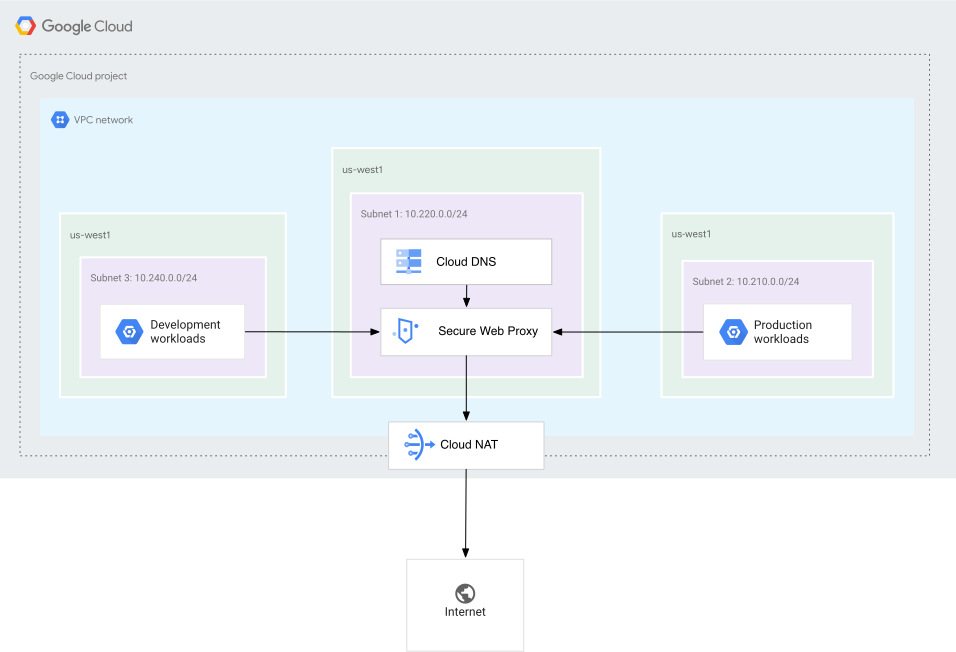
This quickstart explains how to deploy and test a Secure Web Proxy instance. The steps describe deploying Secure Web Proxy in explicit routing mode, functioning as an explicit proxy.
Secure Web Proxy instances in explicit routing mode can be deployed as a Private Service Connect service. Alternatively, you can deploy Secure Web Proxy in next hop routing mode.
Deploying Secure Web Proxy in explicit routing mode includes the following steps:
- Create a Secure Web Proxy policy.
- Create Secure Web Proxy rules and add them to the policy.
- Set up the Secure Web Proxy instance in explicit routing mode.
- Test connectivity from a Linux virtual machine (VM) instance to confirm that the proxy and its policies are functioning correctly.
Before you begin
Complete the initial setup steps.
Optional: To run the
gcloudcommand-line examples specified in this document, install the Google Cloud CLI in any of the following development environments:Cloud Shell
To use an online terminal with the gcloud CLI already set up, activate Cloud Shell.
At the end of this page, a Cloud Shell session starts and displays a command-line prompt. It can take a few seconds for the session to initialize.
If you previously installed the gcloud CLI, then make sure that you have the latest available version by running the the
gcloud components updatecommand.Local shell
To use a local development environment, follow these steps:
Create or select an existing Google Cloud project.
If you don't plan to keep the resources that you create in this procedure, then we recommend that you create a project instead of selecting an existing project. After completing the steps of this quickstart, you can then delete the project to remove all resources associated with the project.
Console
In the Google Cloud console, on the project selector page, either create a Google Cloud project or select an existing project.
Cloud Shell
Create a Google Cloud project.
gcloud projects create PROJECT_ID
Replace
PROJECT_IDwith the project ID of your choice.Select the Google Cloud project that you created.
gcloud config set project PROJECT_ID
Create a Linux VM instance.
gcloud compute instances create swp-test-vm \
    --subnet=default \
    --zone=ZONE \
    --image-project=debian-cloud \
    --image-family=debian-11
Replace
ZONEwith the zone of your test VM instance.Compute Engine grants the Compute Instance Admin role (
roles/compute.instanceAdmin) to the user who creates the VM instance. Compute Engine also adds that user to the sudo group.Create a firewall rule.
gcloud compute firewall-rules create default-allow-ssh \
    --direction=INGRESS \
    --priority=1000 \
    --network=default \
    --action=ALLOW \
    --rules=tcp:22 \
    --source-ranges=0.0.0.0/0
Required roles
Make sure that you have the following roles to complete the tasks in this tutorial:
Compute Network Admin role (
roles/compute.networkAdmin)Certificate Manager Editor role (
roles/certificatemanager.editor)
For more information, see the following:
Create a Secure Web Proxy policy
This section explains the steps to create a Secure Web Proxy policy. The policy can then serve as the container for all security rules that govern traffic flow through the Secure Web Proxy. After creating the policy, you can create rules and add them to the policy.
Console
In the Google Cloud console, go to the SWP Policies page.
Click Create a policy.
In the Name field, enter a name for the policy, such as
myswppolicy.In the Description field, enter a description for the policy, such as
My new swp policy.For Regions, select the region where you want to create the policy, such as
us-central1.If you want to create rules for your policy, then click Add rule. For more information, see the Create Secure Web Proxy rules section.
Click Create.
Cloud Shell
Use a text editor to create a
policy.yamlfile.Add the following code to the
policy.yamlfile:description: basic Secure Web Proxy policy name: projects/PROJECT_ID/locations/REGION/gatewaySecurityPolicies/myswppolicyReplace the following:
PROJECT_ID: ID of your projectREGION: region where your policy is created, such asus-central1
Create the Secure Web Proxy policy.
gcloud network-security gateway-security-policies import myswppolicy \
    --source=policy.yaml \
    --location=REGION
Create Secure Web Proxy rules
This section details the steps to create Secure Web Proxy rules. Rules help define the actual access controls for web traffic.
Within the policy that you previously created, you can define rules
such as allow-wikipedia-org. These rules specify the criteria for matching web
sessions—for example, matching a specific host like www.wikipedia.org—and
then either allowing or denying the web traffic.
Console
In the Google Cloud console, go to the SWP Policies page.
Click the name of your policy, such as
myswppolicy.Click Add rule.
For each rule, do the following:
For Priority, enter a numeric evaluation order for the rule. Rules are evaluated from highest to lowest priority, where
0is the highest priority.In the Name field, enter a name for the rule, such as
allow-wikipedia-org.In the Description field, enter a description for the rule, such as
Allow wikipedia.org.For Action, select one of the following options:
- Allow: to allow connection requests that match the rule.
- Deny: to deny connection requests that match the rule.
For the Status field, select one of the following options for the rule enforcement:
- Enabled: to enforce the rule on your Secure Web Proxy instance.
- Disabled: to not enforce the rule on your Secure Web Proxy instance.
In the Session Match section, specify the criteria for matching the session, such as
host() == 'www.wikipedia.org'.For more information about the syntax for
SessionMatcher, see CEL matcher language reference.In the Application Match section, specify the criteria for matching the request. Because we haven't enabled the rule for TLS inspection, the request can match only HTTP traffic.
For more information about matching TCP traffic, see Configure TCP proxy rules.
Click Create.
To add another rule, click Add rule.
Cloud Shell
Use a text editor to create the
rule.yamlfile.Add the following code to the
rule.yamlfile. For more information about the syntax forSessionMatcher, see CEL matcher language reference.name: projects/PROJECT_ID/locations/REGION/gatewaySecurityPolicies/policy1/rules/RULE_NAME description: Allow wikipedia.org enabled: true priority: 1 basicProfile: ALLOW sessionMatcher: host() == 'www.wikipedia.org'Replace the following:
PROJECT_ID: ID of your projectREGION: region of your policyRULE_NAME: name of the rule, such asallow-wikipedia-org.
Create the security policy rule.
gcloud network-security gateway-security-policies rules import allow-wikipedia-org \
    --source=rule.yaml \
    --location=REGION \
    --gateway-security-policy=policy1
Set up a web proxy
This section describes how to deploy Secure Web Proxy in explicit routing mode, functioning as an explicit proxy. It also explains how to associate the previously created policy and rules with your Secure Web Proxy instance, ensuring that all traffic flowing through it is subject to the defined access controls.
Console
In the Google Cloud console, go to the Web Proxies page.
Click Create a secure web proxy.
In the Name field, enter a name for the web proxy, such as
myswp.In the Description field, enter a description for the web proxy, such as
My new swp.For Routing mode, select the Explicit option.
For Regions, select the region where you want to create the web proxy, such as
us-central1.For Network, select the network where you want to create the web proxy.
For Subnetwork, select the VPC subnet that you previously created as part of the initial setup steps.
Optional: In the Web proxy IP address field, enter the Secure Web Proxy IP address.
You can enter an IP address from the range of Secure Web Proxy IP addresses that reside in the subnetwork you created in the previous step. If you don't enter the IP address, then your Secure Web Proxy instance automatically chooses an IP address from the selected subnetwork.
For Ports, enter the port numbers, such as
80or443, on which you want the web proxy to listen.
For Certificate, select the certificate that you want to use to create the web proxy.
For Associated policy, select the policy that you created to associate the web proxy with.
Click Create.
Cloud Shell
Use a text editor to create a
gateway.yamlfile.Add the following code to the
gateway.yamlfile:name: projects/PROJECT_ID/locations/REGION/gateways/myswp type: SECURE_WEB_GATEWAY addresses: ["IP_ADDRESS"] ports: [443] gatewaySecurityPolicy: projects/PROJECT_ID/locations/REGION/gatewaySecurityPolicies/policy1 network: projects/PROJECT_ID/global/networks/NETWORK subnetwork: projects/PROJECT_ID/regions/REGION/subnetworks/SUBNETWORK routingMode: EXPLICIT_ROUTING_MODEOptional: To allow client applications from other Google Cloud regions to connect to your proxy, enable global access when creating your Secure Web Proxy instance.
In the
gateway.yamlfile, add theallowGlobalAccessfield and set it totrue.Important: You can enable
allowGlobalAccessonly when you create a Secure Web Proxy instance. You can't configure this setting later.name: projects/PROJECT_ID/locations/REGION/gateways/swp1 type: SECURE_WEB_GATEWAY addresses: ["IP_ADDRESS"] ports: [443] gatewaySecurityPolicy: projects/PROJECT_ID/locations/REGION/gatewaySecurityPolicies/policy1 network: projects/PROJECT_ID/global/networks/NETWORK subnetwork: projects/PROJECT_ID/regions/REGION/subnetworks/SUBNETWORK routingMode: EXPLICIT_ROUTING_MODE allowGlobalAccess: trueReplace the following:
PROJECT_ID: ID of your projectREGION: region where your Secure Web Proxy instance is createdIP_ADDRESS: IP address of your Secure Web Proxy instanceNETWORK: network of your Secure Web Proxy instanceSUBNETWORK: subnetwork of your Secure Web Proxy instance. You must use the VPC subnet that you previously created as part of the initial setup steps.
Create a Secure Web Proxy instance based on the
gateway.yamlfile.gcloud network-services gateways import myswp \ --source=gateway.yaml \ --location=REGIONA Secure Web Proxy instance can take several minutes to deploy.
Test connectivity
This section focuses on testing the connectivity from a Linux VM to confirm that the newly deployed Secure Web Proxy, its policies, and its associated rules are functioning correctly.
Connect to the VM that you previously provisioned.
gcloud compute ssh swp-test-vm \
    --zone=ZONE
Replace
ZONEwith the zone of your test VM instance.Test the Secure Web Proxy instance.
curl -s -o /dev/null -w "%{http_code}\\n" -x IP_ADDRESS:443 https://www.wikipedia.orgReplace
IP_ADDRESSwith the IP address of your Secure Web Proxy instance.This command prints the HTTP status code that's returned from
www.wikipedia.org. If the command is successful, then the status code is200. However, if there's an issue with the proxy, then the command returns a000status code to indicate a connection error. To view the detailed error messages, add the-voption to the command.
We haven't configured TLS inspection in the example mentioned on this page. For more information about how to configure Secure Web Proxy for TLS inspection and then test your Secure Web Proxy instance, see Enable TLS inspection.
Clean up
To avoid incurring charges to your Google Cloud account for the resources used on this page, follow these steps.
Delete the swp1 Secure Web Proxy instance
Console
In the Google Cloud console, go to the Web Proxies page. You can view the list of all web proxies or just the web proxies that are available in a particular network.
Select the web proxy that you want to delete. Here, the name of the web proxy is
swp1.Click Delete, and then click Delete again to confirm.
Cloud Shell
gcloud network-services gateways delete swp1 \
    --location=REGION
Replace REGION with the region of your Secure Web Proxy
instance.
Delete the Cloud NAT gateway
Console
In the Google Cloud console, go to the Cloud NAT page.
Select the Cloud NAT gateway that was auto-generated for your Secure Web Proxy instance. The Cloud NAT gateway is typically named
swg-autogen-nat.Click Delete, and then click Delete again to confirm.
Cloud Shell
Optional: To identify the name of the auto-generated Cloud Router, list the routers in your region.
gcloud compute routers list \
    --region=REGION \
    --filter="name:(swg-autogen-router-*)" \
    --format="value(name)"
Replace
REGIONwith the region of your Secure Web Proxy instance.Delete the Cloud NAT gateway.
gcloud compute routers nats delete NAT_NAME \
    --router=ROUTER_NAME \
    --region=REGION
Replace the following:
NAT_NAME: name of the Cloud NAT gateway, typicallyswg-autogen-natROUTER_NAME: name of the Cloud Router that's associated with the Cloud NAT gateway. The name of the router typically starts withswg-autogen-router-.REGION: region of the Cloud NAT gateway
Delete the Cloud Router
Console
In the Google Cloud console, go to the Cloud Routers page.
Select the Cloud Router that was auto-generated for your Secure Web Proxy instance. The name of the router typically starts with
swg-autogen-router-.Click Delete, and then click Delete again to confirm.
Cloud Shell
gcloud compute routers delete ROUTER_NAME \
    --region=REGION
Replace the following:
ROUTER_NAME: name of the Cloud RouterREGION: region of the Cloud Router
Delete the allow-wikipedia-org rule
Console
In the Google Cloud console, go to the Web Proxies page. You can view the list of all web proxies or just the web proxies that are available in a particular network.
Click your policy. Here, the name of the policy is
policy1.Select the rule that you want to delete. Here, the name of the rule is
allow-wikipedia-org.Click Delete, and then click Delete again to confirm.
Cloud Shell
gcloud network-security gateway-security-policies rules delete allow-wikipedia-org \
    --location=REGION \
    --gateway-security-policy=policy1
Replace REGION with the region of your policy.
Delete the policy1 Secure Web Proxy policy
Console
In the Google Cloud console, go to the Web Proxies page. You can view the list of all web proxies or just the web proxies that are available in a particular network.
Select the policy that you want to delete. Here, the name of the policy is
policy1.Click Delete, and then click Delete again to confirm.
Cloud Shell
gcloud network-security gateway-security-policies delete policy1 \
    --location=REGION
Replace REGION with the region of your policy.
Delete the swp-test-vm Linux VM instance
Console
In the Google Cloud console, go to the VM instances page.
Select the instances that you want to delete. Here,
swp-test-vmis the name of the Linux VM instance.Click Delete.
Cloud Shell
gcloud compute instances delete swp-test-vm