

You can use Cloud Scheduler to start and stop Cloud SQL instances on a regular schedule. For example, you might want your instances to run only during certain hours.
This tutorial demonstrates how to automatically start and stop a Cloud SQL for SQL Server instance by building an event-driven architecture using Google Cloud products.
Objectives
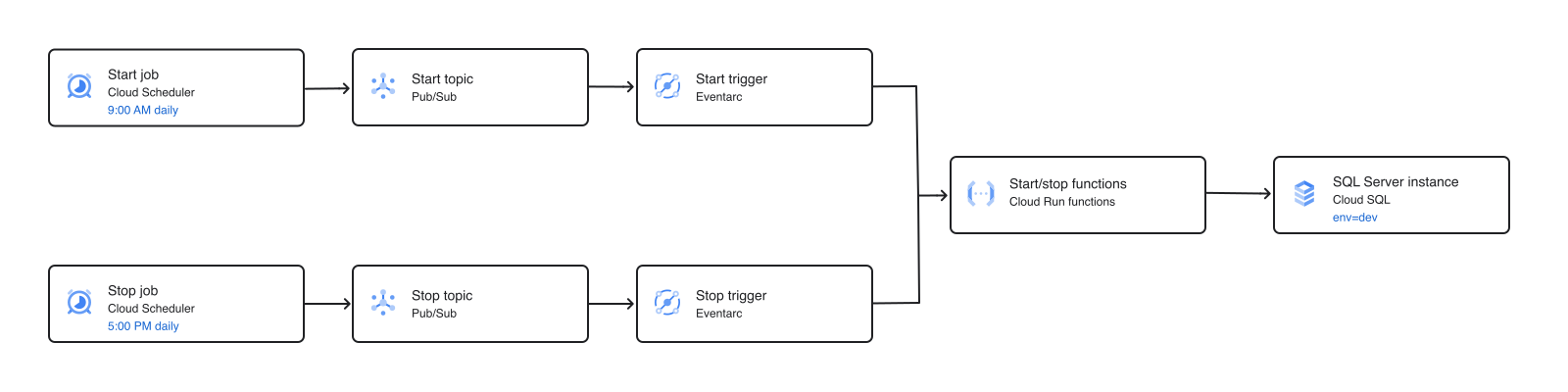
In this tutorial, you will create Cloud Scheduler jobs that schedule
Cloud SQL instances with an env=dev resource label to run during
specific hours. You will schedule only one instance. However, the architecture
described in this tutorial can be used to stop and start multiple instances
where the resource label is env=dev.
To accomplish this objective, complete the following steps:
- Create a Cloud SQL for SQL Server instance and
assign it a specific resource label
(
env=dev). - Create two Pub/Sub topics to act as event sources for your Eventarc triggers, and as message brokers.
- Create and deploy two event-driven
Cloud Run functions triggered through
the Pub/Sub topics. When triggered, the functions search for
Cloud SQL instances in your project that match the label provided in
the Pub/Sub message payload (
env=dev). - Create and deploy two Eventarc triggers. Pub/Sub topic events are routed to your functions as HTTP requests, and the event message content is passed as input data to the functions.
- Create two Cloud Scheduler cron jobs to publish a message containing the target label to the Pub/Sub topics at specific times. Schedule the instances to start at 9:00 AM and stop at 5:00 PM, Monday through Friday.
The following diagram provides an overview of the event-driven architecture:
Costs
In this document, you use the following billable components of Google Cloud:
-
Cloud Run functions
Cloud Run functions operate as Cloud Run services and are billed accordingly.
- Cloud Scheduler
- Cloud SQL for SQL Server
-
Eventarc
Cloud Run uses Eventarc for event delivery. Pricing for Eventarc is not included in the Cloud Run pricing.
- Pub/Sub
To generate a cost estimate based on your projected usage,
use the pricing calculator.
When you finish the tasks that are described in this document, you can avoid continued billing by deleting the resources that you created. For more information, see Clean up.
Before you begin
Security constraints defined by your organization might prevent you from completing the following steps. For troubleshooting information, see Develop applications in a constrained Google Cloud environment.
- Sign in to your Google Cloud account. If you're new to Google Cloud, create an account to evaluate how our products perform in real-world scenarios. New customers also get $300 in free credits to run, test, and deploy workloads.
-
Install the Google Cloud CLI.
-
If you're using an external identity provider (IdP), you must first sign in to the gcloud CLI with your federated identity.
-
To initialize the gcloud CLI, run the following command:
gcloud init -
Create or select a Google Cloud project.
Roles required to select or create a project
- Select a project: Selecting a project doesn't require a specific IAM role—you can select any project that you've been granted a role on.
-
Create a project: To create a project, you need the Project Creator role
(
roles/resourcemanager.projectCreator), which contains theresourcemanager.projects.createpermission. Learn how to grant roles.
-
Create a Google Cloud project:
gcloud projects create PROJECT_ID
Replace
PROJECT_IDwith a name for the Google Cloud project you are creating. -
Select the Google Cloud project that you created:
gcloud config set project PROJECT_ID
Replace
PROJECT_IDwith your Google Cloud project name.
-
If you're using an existing project for this guide, verify that you have the permissions required to complete this guide. If you created a new project, then you already have the required permissions.
-
Verify that billing is enabled for your Google Cloud project.
Enable the Cloud Build, Cloud Functions, Cloud Pub/Sub, Cloud Run Admin, Cloud Scheduler, Cloud SQL Admin, and Eventarc APIs, if any are not already enabled:
Roles required to enable APIs
To enable APIs, you need the
serviceusage.services.enablepermission. If you created the project, then you likely already have this permission through the Owner role (roles/owner). Otherwise, you can get this permission through the Service Usage Admin role (roles/serviceusage.serviceUsageAdmin). Learn how to grant roles.gcloud services enable cloudbuild.googleapis.com
cloudfunctions.googleapis.com pubsub.googleapis.com run.googleapis.com cloudscheduler.googleapis.com sqladmin.googleapis.com eventarc.googleapis.com -
Set up authentication:
-
Ensure that you have the Create Service Accounts IAM role
(
roles/iam.serviceAccountCreator) and the Project IAM Admin role (roles/resourcemanager.projectIamAdmin). Learn how to grant roles. -
Create the service account:
gcloud iam service-accounts create SERVICE_ACCOUNT_NAME
Replace
SERVICE_ACCOUNT_NAMEwith a name for the service account. -
Grant roles to the service account. Run the following command once for each of the following IAM roles:
roles/cloudbuild.builds.builder, roles/cloudsql.editor, roles/run.invoker:gcloud projects add-iam-policy-binding PROJECT_ID --member="serviceAccount:SERVICE_ACCOUNT_NAME@PROJECT_ID.iam.gserviceaccount.com" --role=ROLE
Replace the following:
SERVICE_ACCOUNT_NAME: the name of the service accountPROJECT_ID: the project ID where you created the service accountROLE: the role to grant
-
Ensure that you have the Create Service Accounts IAM role
(
-
Install the Google Cloud CLI.
-
If you're using an external identity provider (IdP), you must first sign in to the gcloud CLI with your federated identity.
-
To initialize the gcloud CLI, run the following command:
gcloud init -
Create or select a Google Cloud project.
Roles required to select or create a project
- Select a project: Selecting a project doesn't require a specific IAM role—you can select any project that you've been granted a role on.
-
Create a project: To create a project, you need the Project Creator role
(
roles/resourcemanager.projectCreator), which contains theresourcemanager.projects.createpermission. Learn how to grant roles.
-
Create a Google Cloud project:
gcloud projects create PROJECT_ID
Replace
PROJECT_IDwith a name for the Google Cloud project you are creating. -
Select the Google Cloud project that you created:
gcloud config set project PROJECT_ID
Replace
PROJECT_IDwith your Google Cloud project name.
-
If you're using an existing project for this guide, verify that you have the permissions required to complete this guide. If you created a new project, then you already have the required permissions.
-
Verify that billing is enabled for your Google Cloud project.
Enable the Cloud Build, Cloud Functions, Cloud Pub/Sub, Cloud Run Admin, Cloud Scheduler, Cloud SQL Admin, and Eventarc APIs, if any are not already enabled:
Roles required to enable APIs
To enable APIs, you need the
serviceusage.services.enablepermission. If you created the project, then you likely already have this permission through the Owner role (roles/owner). Otherwise, you can get this permission through the Service Usage Admin role (roles/serviceusage.serviceUsageAdmin). Learn how to grant roles.gcloud services enable cloudbuild.googleapis.com
cloudfunctions.googleapis.com pubsub.googleapis.com run.googleapis.com cloudscheduler.googleapis.com sqladmin.googleapis.com eventarc.googleapis.com -
Set up authentication:
-
Ensure that you have the Create Service Accounts IAM role
(
roles/iam.serviceAccountCreator) and the Project IAM Admin role (roles/resourcemanager.projectIamAdmin). Learn how to grant roles. -
Create the service account:
gcloud iam service-accounts create SERVICE_ACCOUNT_NAME
Replace
SERVICE_ACCOUNT_NAMEwith a name for the service account. -
Grant roles to the service account. Run the following command once for each of the following IAM roles:
roles/cloudbuild.builds.builder, roles/cloudsql.editor, roles/run.invoker:gcloud projects add-iam-policy-binding PROJECT_ID --member="serviceAccount:SERVICE_ACCOUNT_NAME@PROJECT_ID.iam.gserviceaccount.com" --role=ROLE
Replace the following:
SERVICE_ACCOUNT_NAME: the name of the service accountPROJECT_ID: the project ID where you created the service accountROLE: the role to grant
-
Ensure that you have the Create Service Accounts IAM role
(
Create a Cloud SQL instance
To create a Cloud SQL for SQL Server instance with the resource label env=dev,
use the gcloud beta sql instances create
command:
gcloud beta sql instances create dev-instance \
    --database-version=SQLSERVER_2019_EXPRESS \
    --region=us-west1 \
    --tier=db-custom-2-3840 \
    --root-password=YourStrongPassword123! \
    --labels=env=dev
It might take a few minutes to create the instance. For more information, see Create instances.
Create Pub/Sub topics
To create the two Pub/Sub topics that act as event sources for
your Eventarc triggers, use the
gcloud pubsub topics create
command:
gcloud pubsub topics create start-instance-event
gcloud pubsub topics create stop-instance-event
For more information, see Create a topic.
Create and deploy Cloud Run functions
Create and deploy two Cloud Run (Node.js) functions triggered
by Eventarc through Pub/Sub topics. When triggered, the
functions search for Cloud SQL instances in your project that match
the label provided in the Pub/Sub message payload (env=dev):
- The start function updates the
activationPolicyof the instance toALWAYS, which turns the instance on. - The stop function updates the
activationPolicytoNEVER, which shuts the instance down.
For more information, see Write Cloud Run functions and Cloud Run function triggers.
Create the functions
Create event-driven Cloud Run functions that automatically unmarshal events conforming to the CloudEvents specification. This industry-standard specification describes event data in a common way.
Your source code must define a function entry point, which is the code that runs when Cloud Run invokes your function. You specify this entry point when you deploy your function.
Download the code.
git clone https://github.com/GoogleCloudPlatform/nodejs-docs-samples.git
Alternatively, you can download the sample as a zip file and extract it.
Go to the correct directory.
cd nodejs-docs-samples/functions/scheduleinstance/
Deploy the event-driven functions
To deploy the functions on Cloud Run, use the
gcloud run deploy command.
Deploy the function that starts the Cloud SQL instance:
gcloud run deploy startinstance \
    --source . \
    --function startInstanceEvent \
    --base-image nodejs24 \
    --region=us-west1 \
    --build-service-account=projects/PROJECT_ID/serviceAccounts/SERVICE_ACCOUNT_NAME@PROJECT_ID.iam.gserviceaccount.com \
    --service-account=SERVICE_ACCOUNT_NAME@PROJECT_ID.iam.gserviceaccount.com
If you are prompted to create a repository in the specified region, type
y.At the
Allow unauthenticated invocationsprompt, typen.Deploy the function that shuts down the Cloud SQL instance:
gcloud run deploy stopinstance \
    --source . \
    --function stopInstanceEvent \
    --base-image nodejs24 \
    --region=us-west1 \
    --build-service-account=projects/PROJECT_ID/serviceAccounts/SERVICE_ACCOUNT_NAME@PROJECT_ID.iam.gserviceaccount.com \
    --service-account=SERVICE_ACCOUNT_NAME@PROJECT_ID.iam.gserviceaccount.com
If you are prompted to create a repository in the specified region, type
y.At the
Allow unauthenticated invocationsprompt, typen.
When the deployment is complete, the Google Cloud CLI displays a URL where the service is running.
Create Eventarc triggers
To create Eventarc triggers that route events from
Pub/Sub, use the
gcloud eventarc triggers create
command. Every message published to the Pub/Sub topic triggers the
corresponding function and the message content is passed as input data.
Create a trigger that starts the Cloud SQL instance:
gcloud eventarc triggers create start-instance-trigger \
    --location=us-west1 \
    --destination-run-service=startinstance \
    --destination-run-region=us-west1 \
    --event-filters="type=google.cloud.pubsub.topic.v1.messagePublished" \
    --transport-topic=start-instance-event \
    --service-account=SERVICE_ACCOUNT_NAME@PROJECT_ID.iam.gserviceaccount.com
Create a trigger that stops the Cloud SQL instance:
gcloud eventarc triggers create stop-instance-trigger \
    --location=us-west1 \
    --destination-run-service=stopinstance \
    --destination-run-region=us-west1 \
    --event-filters="type=google.cloud.pubsub.topic.v1.messagePublished" \
    --transport-topic=stop-instance-event \
    --service-account=SERVICE_ACCOUNT_NAME@PROJECT_ID.iam.gserviceaccount.com
It can take up to 2 minutes for a new trigger to become active.
Optional: Verify that the functions work
You can verify that your functions work by directly publishing messages to the Pub/Sub topics. It might take a few minutes to update the Cloud SQL instance.
To stop instances with the label
env=dev, use thegcloud pubsub topics publishcommand to publish a message to the stop topic:gcloud pubsub topics publish stop-instance-event --message='{"label":"env=dev"}'
To confirm that the instance has stopped, check its activation policy by using the
gcloud sql instances describecommand:gcloud sql instances describe dev-instance --format="value(settings.activationPolicy)"
The output should be
NEVER.To start instances with the label
env=dev, publish a message to the start topic:gcloud pubsub topics publish start-instance-event --message='{"label":"env=dev"}'
Confirm that the instance has started by checking its activation policy:
gcloud sql instances describe dev-instance --format="value(settings.activationPolicy)"
The output should be
ALWAYS.
Create the Cloud Scheduler jobs
Create Cloud Scheduler jobs that publish messages to the Pub/Sub topics on a regular schedule.
To create a job that runs at 9:00 AM, Monday to Friday, and which starts the instances, use the
gcloud scheduler jobs createcommand:gcloud scheduler jobs create pubsub startup-dev-instances \ --schedule '0 9 * * 1-5' \ --topic start-instance-event \ --message-body '{"label":"env=dev"}' \ --time-zone 'America/Los_Angeles' \ --location us-east1
Create a job that runs at 5:00 PM, Monday to Friday, and which stops the instances:
gcloud scheduler jobs create pubsub shutdown-dev-instances \
    --schedule '0 17 * * 1-5' \
    --topic stop-instance-event \
    --message-body '{"label":"env=dev"}' \
    --time-zone 'America/Los_Angeles' \
    --location us-east1
Due to some initial configuration, the first job created in a project can take a few minutes to run.
Optional: Verify that the jobs work
You can manually run your Cloud Scheduler jobs to verify that they successfully trigger the start and stop functions. It might take a few minutes to update the Cloud SQL instance.
To run the job and stop the Cloud SQL instance, use the
gcloud scheduler jobs runcommand:gcloud scheduler jobs run shutdown-dev-instances --location="us-east1"
Verify that the activation policy of
dev-instanceisNEVER:gcloud sql instances describe dev-instance --format="value(settings.activationPolicy)"
Run the job to start the instance:
gcloud scheduler jobs run startup-dev-instances --location="us-east1"
Verify that the activation policy of
dev-instanceisALWAYS:gcloud sql instances describe dev-instance --format="value(settings.activationPolicy)"
Clean up
To avoid incurring charges for the resources used in this tutorial, clean up the resources by deleting them.
- Delete the Cloud Scheduler jobs:
gcloud scheduler jobs delete startup-dev-instances --location=us-east1 --quiet
gcloud scheduler jobs delete shutdown-dev-instances --location=us-east1 --quiet
- Delete the Eventarc triggers:
gcloud eventarc triggers delete start-instance-trigger --location=us-west1 --quiet
gcloud eventarc triggers delete stop-instance-trigger --location=us-west1 --quiet
- Delete the Cloud Run services:
gcloud run services delete startinstance --region=us-west1 --quiet
gcloud run services delete stopinstance --region=us-west1 --quiet
- Delete the Pub/Sub topics:
gcloud pubsub topics delete start-instance-event
gcloud pubsub topics delete stop-instance-event
- Delete the Cloud SQL instance:
gcloud sql instances delete dev-instance --quiet
- Alternatively, you can delete your Google Cloud project to avoid incurring
charges. Deleting your Google Cloud project stops billing for all the
resources used within that project.
Delete a Google Cloud project:
gcloud projects delete PROJECT_ID
What's next
- Explore reference architectures, diagrams, and best practices about Google Cloud. Take a look at our Cloud Architecture Center.