You can use Cloud Scheduler to start and stop Cloud SQL instances on
a regular schedule. For example, you might want your instances to run only
during certain hours.
This tutorial demonstrates how to automatically start and stop a Cloud SQL for SQL Server
instance by building an event-driven architecture using Google Cloud products.
> [!NOTE]
> **Note:** Google Cloud products are supported in specific [regions](https://cloud.google.com/about/locations#regional-products). For this application, no product needs to be deployed in the same region as any other. However, locating your products in the same region improves latency.
## Objectives
In this tutorial, you will create Cloud Scheduler jobs that schedule
Cloud SQL instances with an `env=dev` resource label to run during
specific hours. You will schedule only one instance. However, the architecture
described in this tutorial can be used to stop and start multiple instances
where the resource label is `env=dev`.
To accomplish this objective, complete the following steps:
1. Create a [Cloud SQL for SQL Server instance](https://docs.cloud.google.com/sql/docs/sqlserver/features.md.txt) and assign it a specific [resource label](https://docs.cloud.google.com/resource-manager/docs/labels-overview.md.txt) (`env=dev`).
2. Create two [Pub/Sub topics](https://docs.cloud.google.com/pubsub/docs/overview.md.txt) to act as event sources for your Eventarc triggers, and as message brokers.
3. Create and deploy two event-driven [Cloud Run functions](https://docs.cloud.google.com/run/docs/functions/overview.md.txt) triggered through the Pub/Sub topics. When triggered, the functions search for Cloud SQL instances in your project that match the label provided in the Pub/Sub message payload (`env=dev`).
4. Create and deploy two [Eventarc triggers](https://docs.cloud.google.com/eventarc/standard/docs/overview.md.txt). Pub/Sub topic events are routed to your functions as HTTP requests, and the event message content is passed as input data to the functions.
5. Create two [Cloud Scheduler cron jobs](https://docs.cloud.google.com/scheduler/docs/creating.md.txt) to publish a message containing the target label to the Pub/Sub topics at specific times. Schedule the instances to start at 9:00 AM and stop at 5:00 PM, Monday through Friday.
The following diagram provides an overview of the event-driven architecture:
[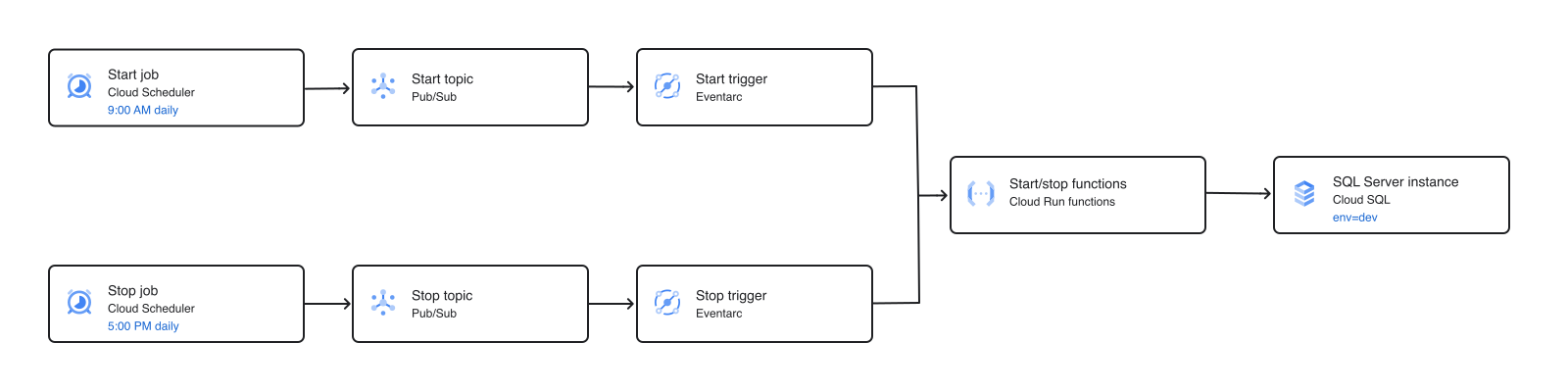](https://docs.cloud.google.com/static/scheduler/docs/images/start-stop-sql-server-instances.svg) Starting and stopping Cloud SQL instances on a schedule (click diagram to enlarge).
## Costs
In this document, you use the following billable components of Google Cloud:
- [Cloud Run functions](https://cloud.google.com/run/pricing)
Cloud Run functions operate as Cloud Run
services and are billed accordingly.
- [Cloud Scheduler](https://cloud.google.com/scheduler/pricing)
- [Cloud SQL for SQL Server](https://cloud.google.com/sql/pricing#sql-server-pricing-1)
- [Eventarc](https://cloud.google.com/eventarc/pricing)
Cloud Run uses Eventarc
for event delivery. Pricing for Eventarc is not included in the
Cloud Run pricing.
- [Pub/Sub](https://cloud.google.com/pubsub/pricing)
To generate a cost estimate based on your projected usage,
use the [pricing calculator](https://docs.cloud.google.com/products/calculator).
New Google Cloud users might be eligible for a [free trial](https://docs.cloud.google.com/free).
When you finish the tasks that are described in this document, you can avoid
continued billing by deleting the resources that you created. For more information, see
[Clean up](https://docs.cloud.google.com/scheduler/docs/start-and-stop-sql-server-instances-on-a-schedule.md.txt#clean-up).
## Before you begin
Security constraints defined by your organization might prevent you from completing the
following steps. For troubleshooting information, see
[Develop applications in a constrained Google Cloud environment](https://docs.cloud.google.com/resource-manager/docs/organization-policy/develop-apps-constrained-environment).
## Create a Cloud SQL instance
To create a Cloud SQL for SQL Server instance with the resource label `env=dev`,
use the [`gcloud beta sql instances create`](https://docs.cloud.google.com/sdk/gcloud/reference/beta/sql/instances/create.md.txt)
command:
```bash
gcloud beta sql instances create dev-instance \
--database-version=SQLSERVER_2019_EXPRESS \
--region=us-west1 \
--tier=db-custom-2-3840 \
--root-password=YourStrongPassword123! \
--labels=env=dev
```
It might take a few minutes to create the instance. For more information, see
[Create instances](https://docs.cloud.google.com/sql/docs/sqlserver/create-instance.md.txt).
## Create Pub/Sub topics
To create the two Pub/Sub topics that act as event sources for
your Eventarc triggers, use the
[`gcloud pubsub topics create`](https://docs.cloud.google.com/sdk/gcloud/reference/pubsub/topics/create)
command:
```bash
gcloud pubsub topics create start-instance-event
gcloud pubsub topics create stop-instance-event
```
For more information, see [Create a topic](https://docs.cloud.google.com/pubsub/docs/create-topic.md.txt).
## Create and deploy Cloud Run functions
Create and deploy two Cloud Run (Node.js) functions triggered
by Eventarc through Pub/Sub topics. When triggered, the
functions search for Cloud SQL instances in your project that match
the label provided in the Pub/Sub message payload (`env=dev`):
- The start function updates the `activationPolicy` of the instance to `ALWAYS`, which turns the instance on.
- The stop function updates the `activationPolicy` to `NEVER`, which shuts the instance down.
For more information, see
[Write Cloud Run functions](https://docs.cloud.google.com/run/docs/write-functions.md.txt) and
[Cloud Run function triggers](https://docs.cloud.google.com/run/docs/function-triggers.md.txt).
### Create the functions
Create event-driven Cloud Run functions that automatically unmarshal events
conforming to the [CloudEvents](https://cloudevents.io/) specification. This
industry-standard specification describes event data in a common way.
Your source code must define a function entry point, which is the code that runs
when Cloud Run invokes your function. You specify this entry
point when you deploy your function.
1. Download the code.
```bash
git clone https://github.com/GoogleCloudPlatform/nodejs-docs-samples.git
```
Alternatively, you can
[download the sample](https://github.com/GoogleCloudPlatform/nodejs-docs-samples/archive/main.zip)
as a zip file and extract it.
2. Go to the correct directory.
```bash
cd nodejs-docs-samples/functions/scheduleinstance/
```
### Deploy the event-driven functions
To deploy the functions on Cloud Run, use the
[`gcloud run deploy`](https://docs.cloud.google.com/sdk/gcloud/reference/run/deploy.md.txt) command.
1. Deploy the function that starts the Cloud SQL instance:
```bash
gcloud run deploy startinstance \
--source . \
--function startInstanceEvent \
--base-image nodejs24 \
--region=us-west1 \
--build-service-account=projects/PROJECT_ID/serviceAccounts/SERVICE_ACCOUNT_NAME@PROJECT_ID.iam.gserviceaccount.com \
--service-account=SERVICE_ACCOUNT_NAME@PROJECT_ID.iam.gserviceaccount.com
```
2. If you are prompted to create a repository in the specified region, type `y`.
3. At the `Allow unauthenticated invocations` prompt, type `n`.
4. Deploy the function that shuts down the Cloud SQL instance:
```bash
gcloud run deploy stopinstance \
--source . \
--function stopInstanceEvent \
--base-image nodejs24 \
--region=us-west1 \
--build-service-account=projects/PROJECT_ID/serviceAccounts/SERVICE_ACCOUNT_NAME@PROJECT_ID.iam.gserviceaccount.com \
--service-account=SERVICE_ACCOUNT_NAME@PROJECT_ID.iam.gserviceaccount.com
```
5. If you are prompted to create a repository in the specified region, type `y`.
6. At the `Allow unauthenticated invocations` prompt, type `n`.
When the deployment is complete, the Google Cloud CLI displays a URL where the
service is running.
### Create Eventarc triggers
To create Eventarc triggers that route events from
Pub/Sub, use the
[`gcloud eventarc triggers create`](https://docs.cloud.google.com/sdk/gcloud/reference/eventarc/triggers/create)
command. Every message published to the Pub/Sub topic triggers the
corresponding function and the message content is passed as input data.
1. Create a trigger that starts the Cloud SQL instance:
```bash
gcloud eventarc triggers create start-instance-trigger \
--location=us-west1 \
--destination-run-service=startinstance \
--destination-run-region=us-west1 \
--event-filters="type=google.cloud.pubsub.topic.v1.messagePublished" \
--transport-topic=start-instance-event \
--service-account=SERVICE_ACCOUNT_NAME@PROJECT_ID.iam.gserviceaccount.com
```
2. Create a trigger that stops the Cloud SQL instance:
```bash
gcloud eventarc triggers create stop-instance-trigger \
--location=us-west1 \
--destination-run-service=stopinstance \
--destination-run-region=us-west1 \
--event-filters="type=google.cloud.pubsub.topic.v1.messagePublished" \
--transport-topic=stop-instance-event \
--service-account=SERVICE_ACCOUNT_NAME@PROJECT_ID.iam.gserviceaccount.com
```
It can take up to 2 minutes for a new trigger to become active.
### Optional: Verify that the functions work
You can verify that your functions work by directly publishing messages to the
Pub/Sub topics. It might take a few minutes to update the
Cloud SQL instance.
1. To stop instances with the label `env=dev`, use the
[`gcloud pubsub topics publish`](https://docs.cloud.google.com/sdk/gcloud/reference/pubsub/topics/publish)
command to publish a message to the stop topic:
```bash
gcloud pubsub topics publish stop-instance-event --message='{"label":"env=dev"}'
```
2. To confirm that the instance has stopped, check its activation policy by
using the [`gcloud sql instances describe`](https://docs.cloud.google.com/sdk/gcloud/reference/sql/instances/describe)
command:
```bash
gcloud sql instances describe dev-instance --format="value(settings.activationPolicy)"
```
The output should be `NEVER`.
3. To start instances with the label `env=dev`, publish a message to the start
topic:
```bash
gcloud pubsub topics publish start-instance-event --message='{"label":"env=dev"}'
```
4. Confirm that the instance has started by checking its activation policy:
```bash
gcloud sql instances describe dev-instance --format="value(settings.activationPolicy)"
```
The output should be `ALWAYS`.
## Create the Cloud Scheduler jobs
Create Cloud Scheduler jobs that publish messages to the
Pub/Sub topics on a regular schedule.
1. To create a job that runs at 9:00 AM, Monday to Friday, and which starts
the instances, use the
[`gcloud scheduler jobs create`](https://docs.cloud.google.com/sdk/gcloud/reference/scheduler/jobs/create)
command:
```bash
gcloud scheduler jobs create pubsub startup-dev-instances \
--schedule '0 9 * * 1-5' \
--topic start-instance-event \
--message-body '{"label":"env=dev"}' \
--time-zone 'America/Los_Angeles' \
--location us-east1
```
2. Create a job that runs at 5:00 PM, Monday to Friday, and which stops the
instances:
```bash
gcloud scheduler jobs create pubsub shutdown-dev-instances \
--schedule '0 17 * * 1-5' \
--topic stop-instance-event \
--message-body '{"label":"env=dev"}' \
--time-zone 'America/Los_Angeles' \
--location us-east1
```
Due to some initial configuration, the first job created in a project can take a
few minutes to run.
### Optional: Verify that the jobs work
You can manually run your Cloud Scheduler jobs to verify that they
successfully trigger the start and stop functions. It might take a few minutes
to update the Cloud SQL instance.
1. To run the job and stop the Cloud SQL instance, use the
[`gcloud scheduler jobs run`](https://docs.cloud.google.com/sdk/gcloud/reference/scheduler/jobs/run) command:
```bash
gcloud scheduler jobs run shutdown-dev-instances --location="us-east1"
```
2. Verify that the activation policy of `dev-instance` is `NEVER`:
```bash
gcloud sql instances describe dev-instance --format="value(settings.activationPolicy)"
```
3. Run the job to start the instance:
```bash
gcloud scheduler jobs run startup-dev-instances --location="us-east1"
```
4. Verify that the activation policy of `dev-instance` is `ALWAYS`:
```bash
gcloud sql instances describe dev-instance --format="value(settings.activationPolicy)"
```
## Clean up
To avoid incurring charges for the resources used in this tutorial, clean up the
resources by deleting them.
1. Delete the Cloud Scheduler jobs:
```bash
gcloud scheduler jobs delete startup-dev-instances --location=us-east1 --quiet
gcloud scheduler jobs delete shutdown-dev-instances --location=us-east1 --quiet
```
2. Delete the Eventarc triggers:
```bash
gcloud eventarc triggers delete start-instance-trigger --location=us-west1 --quiet
gcloud eventarc triggers delete stop-instance-trigger --location=us-west1 --quiet
```
3. Delete the Cloud Run services:
```bash
gcloud run services delete startinstance --region=us-west1 --quiet
gcloud run services delete stopinstance --region=us-west1 --quiet
```
4. Delete the Pub/Sub topics:
```bash
gcloud pubsub topics delete start-instance-event
gcloud pubsub topics delete stop-instance-event
```
5. Delete the Cloud SQL instance:
```bash
gcloud sql instances delete dev-instance --quiet
```
6. Alternatively, you can delete your Google Cloud project to avoid incurring charges. Deleting your Google Cloud project stops billing for all the resources used within that project.
> [!CAUTION]
> **Caution** : Deleting a project has the following effects:
> - **Everything in the project is deleted.** If you used an existing project for the tasks in this document, when you delete it, you also delete any other work you've done in the project.
> - **Custom project IDs are lost.** When you created this project, you might have created a custom project ID that you want to use in the future. To preserve the URLs that use the project ID, such as an `appspot.com` URL, delete selected resources inside the project instead of deleting the whole project.
Delete a Google Cloud project:
```
gcloud projects delete PROJECT_ID
```
## What's next
- Explore reference architectures, diagrams, and best practices about Google Cloud. Take a look at our [Cloud Architecture Center](https://docs.cloud.google.com/architecture).