This guide provides an overview of what is required to run SAP HANA
on Google Cloud, and provides details that you can use
when planning the implementation of a new SAP HANA system.
For details about how to deploy SAP HANA on Google Cloud, see:
- For single-host scale-up deployments, see [Terraform: SAP HANA scale-up deployment guide](https://docs.cloud.google.com/sap/docs/sap-hana-deployment-guide-tf.md.txt)
- For multi-host scale-out deployments, see: [Terraform: SAP HANA multi-host scale-out deployment guide](https://docs.cloud.google.com/sap/docs/sap-hana-scaleout-deployment-tf.md.txt)
- For scale-out system with host auto-failover deployments, see:
- [Terraform: SAP HANA scale-out system with host auto-failover deployment guide](https://docs.cloud.google.com/sap/docs/sap-hana-ha-scaleout-tf-deployment-guide.md.txt)
- [Manual deployment: SAP HANA scale-out system with host auto-failover on SLES](https://docs.cloud.google.com/sap/docs/sap-hana-scaleout-with-standby-nodes-manual-config-sles.md.txt)
- For scale-up high-availability cluster configurations, see:
- [Terraform: SAP HANA scale-up high-availability cluster configuration guide](https://docs.cloud.google.com/sap/docs/sap-hana-ha-tf-deployment.md.txt)
- [Manual HA scale-up cluster configuration on RHEL](https://docs.cloud.google.com/sap/docs/sap-hana-ha-config-rhel.md.txt)
- [Manual HA scale-up cluster configuration on SLES](https://docs.cloud.google.com/sap/docs/sap-hana-ha-config-sles.md.txt)
- For scale-out high-availability cluster configurations, see:
- [Terraform: SAP HANA scale-out high-availability cluster configuration guide](https://docs.cloud.google.com/sap/docs/sap-hana-scaleout-ha-tf-deployment.md.txt)
- [Manual HA scale-out cluster configuration on SLES](https://docs.cloud.google.com/sap/docs/sap-hana-ha-scaleout-config-sles.md.txt)
## About SAP HANA on Google Cloud
SAP HANA is an in-memory, column-oriented, relational database that provides
high-performance analytics and real-time data processing. Customers can leverage
ease of provisioning, highly scalable, and redundant Google Cloud infrastructure
capabilities to run their business critical workloads. Google Cloud
provides a set of physical assets, such as computers and hard disk drives, and
virtual resources, such as Compute Engine instances, located in
Google data centers around the world.
When you deploy SAP HANA on Google Cloud, you deploy to
instances running on Compute Engine. Compute Engine instances
provide disks for persistent storage, which function similarly to physical disks in a
desktop or a server, but are automatically managed for you by
Compute Engine to ensure data redundancy and optimized performance.
## Google Cloud basics
Google Cloud consists of many cloud-based services and products.
When running SAP products on Google Cloud, you mainly use the IaaS-based services offered
through [Compute Engine](https://docs.cloud.google.com/compute/docs.md.txt) and
[Cloud Storage](https://docs.cloud.google.com/storage/docs.md.txt),
as well as some platform-wide features, such as
[tools](https://docs.cloud.google.com/docs/overview/developer-and-admin-tools).
See the [Google Cloud platform overview](https://docs.cloud.google.com/docs/overview.md.txt)
for important concepts and terminology. This guide duplicates some
information from the overview for convenience and context.
For an overview of considerations that enterprise-scale organizations should
take into account when running on Google Cloud, see the
[Google Cloud Well-Architected Framework](https://docs.cloud.google.com/architecture/framework.md.txt).
### Interacting with Google Cloud
Google Cloud offers three main ways to interact with the platform, and your resources,
in the cloud:
- The Google Cloud console, which is a web-based user interface.
- The `gcloud` command-line tool, which provides a superset of the functionality that Google Cloud console offers.
- [Client libraries](https://docs.cloud.google.com/sdk/cloud-client-libraries), which provide APIs for accessing services and management of resources. Client libraries are useful when building your own tools.
**Important** : If you are using the gcloud CLI, then make sure that you are using the latest version. To install the latest version of the gcloud CLI, see the [gcloud install instructions.](https://cloud.google.com/sdk/downloads)
### Google Cloud services
SAP deployments typically utilize some or all of the following Google Cloud
services:
| Service | Description |
|---|---|
| [VPC networking](https://docs.cloud.google.com/compute/docs/networking) | Connects your Compute Engine instances to each other and to the internet. Each compute instance is a member of either a legacy network with a single global IP range, or a recommended subnet network, where the instance is a member of a single subnetwork that is a member of a larger network. Note that a Virtual Private Cloud (VPC) network cannot span Google Cloud projects, but a Google Cloud project can have multiple VPC networks. To connect resources from multiple projects to a common VPC network, you can use [Shared VPC](https://docs.cloud.google.com/vpc/docs/shared-vpc.md.txt), so that the resources can communicate with each other securely and efficiently by using internal IP addresses from that network. For information about how to provision a Shared VPC including requirements, configuration steps, and usage, see [Provision Shared VPC](https://docs.cloud.google.com/vpc/docs/provisioning-shared-vpc.md.txt). |
| [Compute Engine](https://docs.cloud.google.com/compute/docs/overview.md.txt) | Creates and manages compute instances with your choice of operating system and software stack. |
| [Persistent Disk and Hyperdisk](https://docs.cloud.google.com/compute/docs/disks.md.txt) | You can use Persistent Disk and Google Cloud Hyperdisk: - Persistent Disk volumes are available as either standard hard disk drives (HDD) or solid-state drives (SSD). For Balanced Persistent Disk and SSD Persistent Disk volumes, [PD Async Replication](https://docs.cloud.google.com/compute/docs/disks/async-pd/about.md.txt) provides asynchronous replication of SAP data between two Google Cloud regions. - Hyperdisk Extreme volumes provide higher maximum IOPS and throughput options than SSD Persistent Disk volumes. - Compute Engine enables [default encryption at rest](https://docs.cloud.google.com/docs/security/encryption/default-encryption.md.txt), including content inside Persistent Disk and Hyperdisk volumes. For more information about disk encryption and possible encryption options, see [About disk encryption](https://docs.cloud.google.com/compute/docs/disks/disk-encryption.md.txt). |
| [Google Cloud console](https://console.cloud.google.com/) | A browser-based tool for managing Compute Engine resources. Use a template to describe all of the Compute Engine resources and instances you need. You don't have to individually create and configure the resources or figure out dependencies because the Google Cloud console does that for you. |
| [Cloud Storage](https://docs.cloud.google.com/storage/docs/introduction.md.txt) | You can store your SAP database backups in Cloud Storage for added durability and reliability, with replication. |
| [Cloud Monitoring](https://docs.cloud.google.com/monitoring/docs/monitoring-overview.md.txt) | Provides visibility into the deployment, performance, uptime, and health of Compute Engine, network, and persistent storage disks. Monitoring collects metrics, events, and metadata from Google Cloud and uses these to generate insights through dashboards, charts, and alerts. You can monitor the compute metrics at no cost through Monitoring. |
| [IAM](https://docs.cloud.google.com/iam/docs.md.txt) | Provides unified control over permissions for Google Cloud resources. IAM lets you control who can perform control-plane operations on your compute instances, including creating, modifying, and deleting instances and persistent storage disks, and creating and modifying networks. |
### Pricing and quotas
You can use the [pricing calculator](https://cloud.google.com/products/calculator/)
to estimate your usage costs. For more pricing information, see
[Compute Engine pricing](https://cloud.google.com/compute/pricing),
[Cloud Storage pricing](https://cloud.google.com/storage/pricing),
and [Google Cloud Observability pricing](https://cloud.google.com/stackdriver/pricing).
Google Cloud resources are subject to quotas. If you plan to use high-CPU or
high-memory machines, then you might need to request additional quota. For more
information, see [Allocation quotas](https://docs.cloud.google.com/compute/resource-usage.md.txt).
## Compliance and sovereign controls
If you require your SAP workload to run in compliance with data residency, access control, support
personnel, or regulatory requirements, then you must plan for using Assured Workloads
- a service that helps you run secure and compliant workloads on Google Cloud without
compromising the quality of your cloud experience.
For more information, see [Compliance and sovereign controls
for SAP on Google Cloud](https://docs.cloud.google.com/sap/docs/compliance-and-sovereign-controls).
## Resource requirements
This section provides guidance to help you identify the resources that you'd
require to run SAP HANA on Google Cloud.
### Certified machine types for SAP HANA
For SAP HANA, SAP certifies only a subset of the machine types that are
available from Google Cloud. From the machine types that SAP has
certified for use with SAP HANA, you can choose to create virtual machine (VM)
instances or bare metal instances.
To view the list of SAP-certified Compute Engine machine types that you
can use to run SAP HANA, go to
[Certified solutions and machine types](https://docs.cloud.google.com/sap/docs/sap-certifications.md.txt#certified-solutions-and-machine-types)
and in the **Certified SAP solution** menu, select **SAP HANA**.
For information about the operating systems that SAP has certified for use with
SAP HANA on each machine type, see [Certified operating systems for SAP HANA](https://docs.cloud.google.com/sap/docs/sap-hana-planning-guide.md.txt#hana-cert-table-oss).
Some machine types are not available in all Google Cloud
regions. To check the regional availability of a Compute Engine
machine type, see [Available regions \& zones](https://docs.cloud.google.com/compute/docs/regions-zones.md.txt#available).
SAP lists the certified machine types for SAP HANA in the
[Certified and supported SAP HANA hardware directory](https://www.sap.com/dmc/exp/2014-09-02-hana-hardware/enEN/#/solutions?filters=iaas;ve:29).
For more information about different Compute Engine machine types and
their use cases, see
[Machine families resource and comparison guide](https://docs.cloud.google.com/compute/docs/machine-resource.md.txt).
#### Certified custom machine types for SAP HANA
The following table shows the Compute Engine custom machine
types that are certified by SAP for production use of SAP HANA
on Google Cloud.
SAP certifies only a subset of the custom machine types that are
available from Compute Engine.
Custom machine types are subject to customization rules that are defined by
Compute Engine. The rules differ depending on which
machine type you are customizing. For complete customization rules, see
[Create a VM with a custom machine type](https://docs.cloud.google.com/compute/docs/instances/creating-instance-with-custom-machine-type.md.txt).
| Base machine type | vCPUs | Memory (GB) | Operating system | CPU platforms |
|---|---|---|---|---|
| `n1-highmem` | A number of vCPUs from 32 to 64 that is evenly divisible by 2. | 6.5 GB for each vCPU | [RHEL](https://docs.cloud.google.com/sap/docs/sap-hana-planning-guide.md.txt#hana-cert-table-os-redhat), [SUSE](https://docs.cloud.google.com/sap/docs/sap-hana-planning-guide.md.txt#hana-cert-table-os-suse) | Intel Broadwell |
| `n2-highmem` (Scale up only) | On Intel Ice Lake, a number of vCPUs from 32 to 80 that is evenly divisible by 4. On Intel Cascade Lake, a number of vCPUs from 32 to 80 that is evenly divisible by 4. | Up to 8 GB per vCPU | [RHEL](https://docs.cloud.google.com/sap/docs/sap-hana-planning-guide.md.txt#hana-cert-table-os-redhat), [SUSE](https://docs.cloud.google.com/sap/docs/sap-hana-planning-guide.md.txt#hana-cert-table-os-suse) | Intel Ice Lake, Intel Cascade Lake |
### Sole tenancy
You can deploy SAP HANA on a sole-tenant node. A sole-tenant node is a physical Compute Engine server that is dedicated to host the VMs in your SAP HANA
deployment.
Sole-tenant nodes let you keep
your SAP HANA VMs physically separate from VMs used by other deployments in your
Google Cloud project or VMs in other Google Cloud projects. This lets you
control the usage of the underlying hardware. Also, by using a sole-tenant node
for your SAP HANA deployment, you can meet security or compliance requirements
with workloads that require physical isolation from other workloads or VMs.
For more information about sole tenancy, see
[Sole tenancy overview](https://docs.cloud.google.com/compute/docs/nodes/sole-tenant-nodes.md.txt).
#### Deployment architecture for sole-tenant nodes
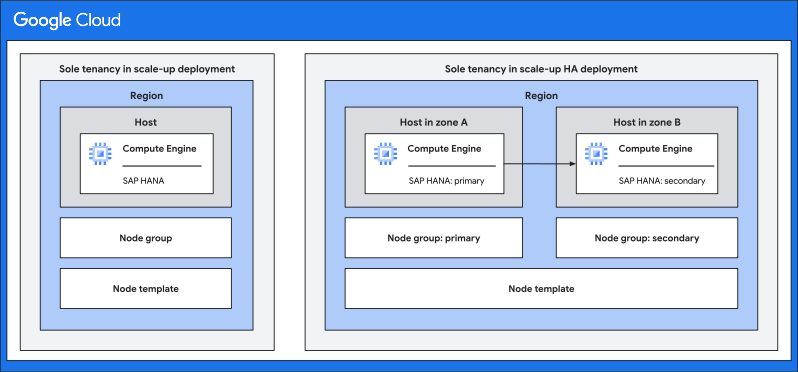
- The following diagram shows the architectures for SAP HANA scale-up and SAP
HANA scale-up HA deployments on Google Cloud that use sole tenancy:
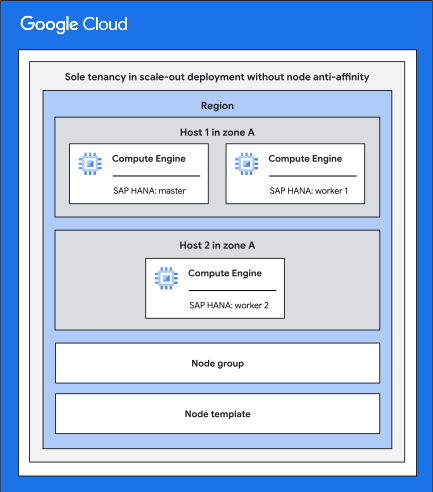
- The following diagram shows the architecture for an SAP HANA multi-host
scale-out deployment on Google Cloud that uses sole tenancy without node
anti-affinity:
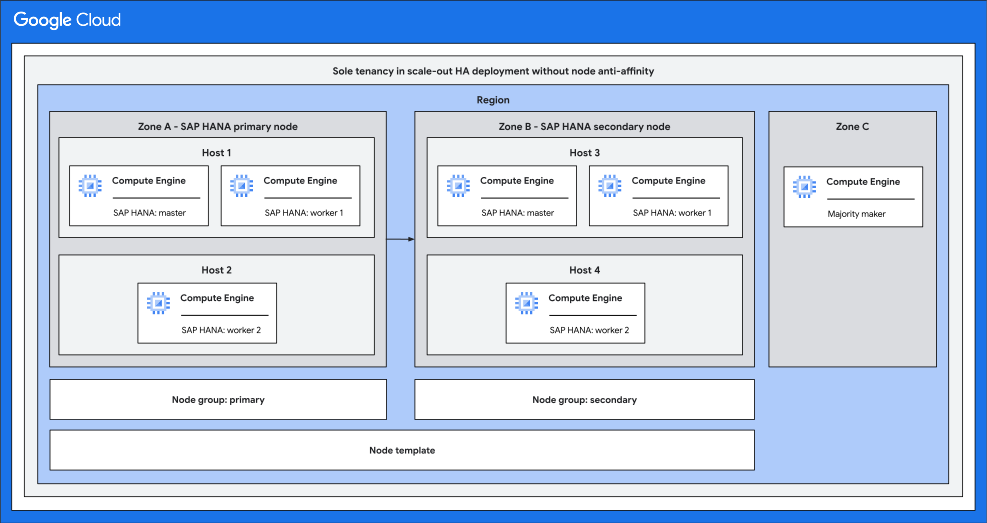
- The following diagram shows the architecture for an SAP HANA scale-out HA
deployment on Google Cloud that uses sole tenancy without node
anti-affinity:
#### Automation support for sole-tenant nodes
You can automate the deployment of a sole-tenant node for the following
architectures:
- SAP HANA scale-up
- SAP HANA scale-up with high availability
- SAP HANA multi-host scale-out without node anti-affinity
- SAP HANA scale-out with high availability without node anti-affinity
For this, you use version `1.3.704310921` or later of the `sap_hana` and
`sap_hana_ha` Terraform modules provided by Google Cloud.
When you use these Terraform modules to deploy SAP HANA with a sole-tenant node,
Terraform provisions the following resources:
- A sole-tenant node template based on the node type that you specify. This is provisioned is the region that corresponds to the zone that you specify.
- A sole-tenant node group for each SAP HANA node in your deployment. The node group is created by using the node template provisioned as part of the same deployment.
- One or more sole-tenant nodes, depending on the deployment architecture you choose, on top of which the Compute Engine VMs are deployed.
To see a diagram that shows this deployment architecture, see
[Deployment architecture for sole-tenant nodes](https://docs.cloud.google.com/sap/docs/sap-hana-planning-guide.md.txt#hana-sole-tenancy-deployment-architecture).
For more information about automating the deployment of a sole-tenant node for
SAP HANA, see the following deployment guides:
- [Terraform: SAP HANA scale-up deployment guide](https://docs.cloud.google.com/sap/docs/sap-hana-deployment-guide-tf.md.txt)
- [Terraform: SAP HANA scale-up high-availability cluster configuration guide](https://docs.cloud.google.com/sap/docs/sap-hana-ha-tf-deployment.md.txt)
- [Terraform: SAP HANA scale-out high-availability cluster configuration guide for SLES](https://docs.cloud.google.com/sap/docs/sap-hana-scaleout-ha-tf-deployment.md.txt)
### Memory configuration
Your memory configuration options are determined by the Compute Engine
machine type that you choose. For more information, do the following:
1. Go to [Certified solutions and machine types](https://docs.cloud.google.com/sap/docs/sap-certifications.md.txt#certified-solutions-and-machine-types).
2. In the **Certified SAP solution** menu, select **SAP HANA**.
3. Optionally, you can filter the machine types based on your memory requirements by using the **Memory** slider.
4. In the table, see the values shown in the **Memory** column.
### Network configuration
Your Compute Engine instance network capabilities are determined by its
[machine family](https://docs.cloud.google.com/compute/docs/machine-resource.md.txt),
and not by its network interface (NIC) or IP address.
Based on its machine type, your compute instance is capable of 2-32 Gbps
network throughput. Certain machine types also support throughputs up to 100 Gbps,
which requires the use of the Google Virtual NIC (gVNIC) interface type with a
Tier_1 network configuration. The ability to achieve these throughput rates is
further dependent on the traffic direction and the type of the destination IP
address.
Compute Engine instance network interfaces are backed by redundant and
resilient network infrastructure using physical and software-defined network
components. These interfaces inherit the redundancy and resiliency of the
underlying platform. Multiple virtual NICs can be used for traffic separation,
but that offers no additional resilience or performance benefits.
A single NIC provides the needed performance for SAP HANA deployments on
Compute Engine. Your particular use case, security requirements or
preferences might also require additional interfaces for separating traffic, such
as Internet traffic, internal SAP HANA System Replication traffic, or other
flows that might benefit from specific network policy rules. We recommend that
you employ traffic encryption offered by the application, and
secure network access following a least privilege firewall policy to restrict
access.
Depending on your requirements, you can improve security on multiple ways as
described in the
[SAP HANA Security Guide for SAP HANA Platform](https://help.sap.com/docs/SAP_HANA_PLATFORM/b3ee5778bc2e4a089d3299b82ec762a7/335deb08092e4c60b5c159e7983aec7c.html?locale=en-US).
For example, you can implement network isolation but it provides lower
security without encryption and port and IP specific allowlisting.
Consider the need for traffic separation early on as part of your network design
and allocate additional NICs when you deploy compute instances. Your choice for the number of network
interfaces depends on the level of isolation that you require. For more information
about multi-NIC compute instances, such as network and subnetwork requirements and the maximum
number of network interfaces, see [Multiple network interfaces](https://docs.cloud.google.com/vpc/docs/multiple-interfaces-concepts.md.txt).
For example, you might define a Virtual Private Cloud network for your SAP HANA SQL application
clients (SAP NetWeaver application servers, custom applications, etc.), and a
separate network for inter-server traffic, such as SAP HANA System Replication.
Consider that too many segments might complicate management and troubleshooting of
network issues. If you change your mind later, then you can use [Compute Engine machine images](https://docs.cloud.google.com/compute/docs/machine-images.md.txt)
to recreate your compute instance while retaining all associated configuration, metadata and
data.
For more information, see the following:
- [Networking overview for VMs](https://docs.cloud.google.com/compute/docs/networking/network-overview.md.txt)
- [Network bandwidth](https://docs.cloud.google.com/compute/docs/network-bandwidth.md.txt)
### Certified operating systems for SAP HANA
The following table shows the Red Hat Enterprise
Linux (RHEL) and SUSE Linux Enterprise Server (SLES) operating systems
that are certified by SAP for production use with SAP HANA on
Google Cloud.
Except where noted in the table, each operating system is supported with
SAP HANA on all [certified Compute Engine machine types](https://docs.cloud.google.com/sap/docs/sap-hana-planning-guide.md.txt#certified-vms).
For information about the current support status of each operating system
and which operating systems are available from
Google Cloud, see [Operating system support for SAP HANA on Google Cloud](https://docs.cloud.google.com/sap/docs/sap-hana-os-support.md.txt).
For information from SAP about which operating systems SAP supports with
SAP HANA on Google Cloud, go to
[Certified and supported SAP HANA hardware directory](https://www.sap.com/dmc/exp/2014-09-02-hana-hardware/enEN/#/solutions?filters=iaas;ve:29),
click the required machine type, and then see **Operating System**.
For SLES 15 SP5 and earlier, SAP HANA table load performance can be slower
because of a Linux kernel limitation that is optimized in SLES 15 SP6 and later.
For more information, see the SUSE knowledge base article [High system CPU during HANA table load in SUSE Linux Enterprise 15 SP5 and earlier](https://support.scc.suse.com/s/kb/High-system-CPU-during-HANA-table-load-in-SUSE-Linux-Enterprise-15-SP5-and-earlier?language=en_US).
The following table doesn't include the following:
- Certified operating system versions that are no longer in mainstream support.
- Operating system versions that are not specific to SAP.
| Operating system | Version | Supported SAP-certified machine types for use with SAP HANA | Minimum kernel version |
|---|---|---|---|
| **RHEL for SAP** | 10.0 | All | `6.12.0-55.73.1.el10_0.x86_64` for all SAP-certified machine types |
| **RHEL for SAP** | 9.6 ^[Note](https://docs.cloud.google.com/sap/docs/sap-hana-planning-guide.md.txt#note_rhel_9x)^ | All except X5 | `5.14.0-570.16.1.el9_6`, for X4, C3-metal, and C4-metal |
| **RHEL for SAP** | 9.4 ^[Note](https://docs.cloud.google.com/sap/docs/sap-hana-planning-guide.md.txt#note_rhel_9x)^ | All except X5 | `5.14.0-427.70.1.el9_4`, for X4, C3-metal, and C4-metal |
| **RHEL for SAP** | 9.2 ^[Note](https://docs.cloud.google.com/sap/docs/sap-hana-planning-guide.md.txt#note_rhel_9x)^ | All except X4, X5, C3-metal, C4-metal | N/A |
| **RHEL for SAP** | 9.0 ^[Note](https://docs.cloud.google.com/sap/docs/sap-hana-planning-guide.md.txt#note_rhel_9x)^ | All except X4, X5, C3-metal, C4-metal | N/A |
| **RHEL for SAP** | 8.10 | All except X5 | `4.18.0-553.58.1.el8_10`, for X4, C3-metal, and C4-metal |
| **RHEL for SAP** | 8.8 | All except X4, X5, C3-metal, C4-metal | N/A |
| **RHEL for SAP** | 8.6 | All except X4, X5, C3-metal, C4-metal | N/A |
| **RHEL for SAP** | 8.4 | All except X4, X5, C3-metal, M4, C4-metal | N/A |
| **RHEL for SAP** | 8.2 | All except X4, X5, C3-metal, M4, C4-metal | N/A |
| **RHEL for SAP** | 8.1 | All except X4, X5, C3, M3, M4, C4-metal | N/A |
| **RHEL for SAP** | 7.9 | All except C4, X4, X5, C3-metal, M4 | N/A |
| **SLES for SAP** | 16 | All | `6.12.0-16000.35.1`, for X4, X5, C3-metal, and C4-metal |
| **SLES for SAP** | 15 SP7 | All | `6.4.0-150700.53.3`, for X4, X5, C3-metal, and C4-metal |
| **SLES for SAP** | 15 SP6 | All except X5 | `6.4.0-150600.23.38.1`, for X4, C3-metal, and C4-metal |
| **SLES for SAP** | 15 SP5 | All except X5 | `5.14.21-150500.55.94.1`, for X4, C3-metal, and C4-metal |
| **SLES for SAP** | 15 SP4 | All except X5 | `5.14.21-150400.24.161.1`, for X4, C3-metal, and C4-metal |
| **SLES for SAP** | 15 SP3 | All except X4, X5, C3-metal, C4-metal | N/A |
| **SLES for SAP** | 15 SP2 | All except X4, X5, C3-metal, M4, C4-metal | N/A |
| **SLES for SAP** | 12 SP5 | All except X4, X5, C3-metal, C4-metal | N/A |
> [!NOTE]
> **Note:** Before you install any SAP software on RHEL for SAP 9.x, additional packages must be installed on your host machines, especially `chkconfig` and `compat-openssl11`. If you use an image provided by Compute Engine, then these packages are automatically installed for you. For more information from SAP, see the SAP note [3108316 - Red Hat Enterprise Linux 9.x:
> Installation and Configuration](https://me.sap.com/notes/3108316).
#### Custom operating system images
You can use a Linux image that Google Cloud provides and maintains (a public image) or
you can provide and maintain your own Linux image (a custom image).
Use a custom image if the version of the SAP-certified operating system
that you require is not available from Google Cloud as a public image. The following
steps, which are described in detail in [Importing Boot Disk Images to Compute Engine](https://docs.cloud.google.com/compute/docs/images/import-existing-image),
summarize the procedure for using a custom image:
1. Prepare your boot disk so it can boot within the Google Cloud Compute Engine environment and so you can access it after it boots.
2. Create and compress the boot disk image file.
3. Upload the image file to [Cloud Storage](https://docs.cloud.google.com/storage) and import the image to Compute Engine as a new [custom image](https://docs.cloud.google.com/compute/docs/images.md.txt#custom_images).
4. Use the imported image to create a virtual machine instance and make sure it boots properly.
5. [Optimize the image](https://docs.cloud.google.com/compute/docs/images/configuring-imported-images) and install the [Linux Guest Environment](https://docs.cloud.google.com/compute/docs/images/configuring-imported-images#install_guest_environment) so that your imported operating system image can communicate with the metadata server and use additional Compute Engine features.
After your custom image is ready, you can use it when creating compute instances
for your SAP HANA system.
If you are moving a RHEL operating system from an on-premises installation to
Google Cloud, you need to add Red Hat Cloud Access to your Red Hat subscription. For more
information, see [Red Hat Cloud Access](https://www.redhat.com/solutions/cloud/access).
For more information about the operating system images that Google Cloud provides, see
[Images](https://docs.cloud.google.com/compute/docs/images.md.txt).
For more information about importing an operating system into Google Cloud as a custom
image, see
[Importing Boot Disk Images to Compute Engine](https://docs.cloud.google.com/compute/docs/images/import-existing-image).
For more information about the operating systems that SAP HANA supports, see:
- [Certified and supported SAP HANA hardware directory](https://www.sap.com/dmc/exp/2014-09-02-hana-hardware/enEN/#/solutions?filters=iaas;ve:29)
- SAP note [2235581 - SAP HANA: Supported Operating Systems](https://me.sap.com/notes/2235581)
#### OS clocksource on Compute Engine instances
For SAP HANA on Compute Engine instances, the required OS clocksource
is `TSC`, which is the default setting for SLES and RHEL images.
For more information about this requirement from SAP, see [SAP note 2753418 - Potential Performance Degradation Due to Timer Fallback](https://me.sap.com/notes/2753418).
To confirm that the `TSC` clocksource is active, run the following command:
```sh
cat /sys/devices/system/clocksource/current_clocksource
```
If the output is not `TSC`, then you must change the OS clocksource.
To change the OS clocksource to `TSC`, first connect to your instance by
using SSH, and then run the following commands:
```sh
echo "tsc" | sudo tee /sys/devices/system/clocksource/*/current_clocksource
sudo cp /etc/default/grub /etc/default/grub.backup
sudo sed -i '/GRUB_CMDLINE_LINUX/ s|"| clocksource=tsc"|2' /etc/default/grub
sudo grub2-mkconfig -o /boot/grub2/grub.cfg
```
### Persistent disk storage
For persistent block storage, you can attach Persistent Disk or Hyperdisk volumes when you create your compute instances or add them to your compute instances later.
#### Supported disk types
Compute Engine offers different Persistent Disk and
Hyperdisk types based on either
[solid-state drive (SSD)](https://en.wikipedia.org/wiki/Solid-state_drive)
technology or
[standard hard disk drive (HDD)](https://en.wikipedia.org/wiki/Hard_disk_drive)
technology. Each type has different performance characteristics.
Google Cloud manages the underlying hardware of the
disks to ensure data redundancy and to optimize performance.
For performance reasons, the SAP HANA `/hana/data` and `/hana/log` volumes
require SSD-based persistent storage disks.
SSD-based Hyperdisk and Persistent Disk types that are
certified by SAP for use with SAP HANA include the following:
- **Hyperdisk types** : Hyperdisk Extreme (`hyperdisk-extreme`) and
Hyperdisk Balanced (`hyperdisk-balanced`)
- Hyperdisk Extreme provides higher maximum IOPS and throughput options than SSD-based Persistent Disk types.
- For a list of the machine types that support Hyperdisk Extreme and Hyperdisk Balanced, see [Machine type support](https://docs.cloud.google.com/compute/docs/disks/hyperdisks.md.txt#machine_type_support).
- On Compute Engine bare metal instances such as X4, use Hyperdisk Balanced as the recommended disk for hosting the following volumes:
- The boot volume.
- The `/usr/sap` volume.
- The `/hana/shared` volume, if you're hosting it on its own disk.
- The `/hanabackup` volume, if you're saving your backups on a disk.
- For Hyperdisk Extreme, you select the performance you need by provisioning IOPS, which also determines your throughput. For more information, see [Size and performance limits for Hyperdisk Extreme](https://docs.cloud.google.com/compute/docs/disks/hd-types/hyperdisk-extreme.md.txt#size_limits).
- For Hyperdisk Balanced, you select the performance you need by provisioning IOPS and throughput. For more information, see [Size and performance limits for Hyperdisk Balanced](https://docs.cloud.google.com/compute/docs/disks/hd-types/hyperdisk-balanced.md.txt#size_limits).
- You can use Hyperdisk Extreme for the `/hana/data` and `/hana/log` volumes when you require the highest performance.
- To enable the best performance from Hyperdisk Extreme for SAP HANA, update your SAP HANA system properties as recommended in [Hyperdisk performance](https://docs.cloud.google.com/sap/docs/sap-hana-planning-guide.md.txt#hyperdisk_performance).
- **Persistent Disk types**: Legacy machine types support Persistent Disk types.
Google Cloud recommends that you use the latest machine types and
Hyperdisk volumes for running performant SAP HANA workloads.
#### Click to expand and view information about supported Persistent Disk types
- Supported Persistent Disk types include the following: Balanced (`pd-balanced`), Performance or SSD (`pd-ssd`), and Extreme (`pd-extreme`).
- These disk types provide cost-effective and reliable block storage.
- Performance (SSD) Persistent Disk (`pd-ssd`) provides higher performance than Balanced Persistent Disk (`pd-balanced`).
- Use Balanced Persistent Disk as the recommended disk for hosting the following volumes:
- Boot volume of the compute instance.
- The `/usr/sap` volume.
- The `/hana/shared` volume, if you're hosting it on its own disk.
- The `/hanabackup` volume, if you save your backups to a disk. If you want to reduce the backup costs, then you can use a Standard HDD Persistent Disk (`pd-standard`). Balanced Persistent Disk provides faster backups than Standard HDD Persistent Disk. While selecting the disk, make sure that your machine type supports the disk type.
- Balanced and Performance (SSD) Persistent Disk support PD Async Replication. You can use this feature for cross-region active-passive disaster recovery. For more information, see [Disaster
recovery using PD Async Replication](https://docs.cloud.google.com/sap/docs/sap-hana-dr-planning-guide#dr_using_pd_async_replication).
- While Extreme Persistent Disk (`pd-extreme`) is certified for use with SAP HANA, we recommend that you instead use Hyperdisk Extreme (`hyperdisk-extreme`), which provides greater performance. If you want to use Extreme Persistent Disk, then make sure to provision the disks in accordance with the information in [Minimum sizes for SSD-based
Persistent Disk and Hyperdisk volumes](https://docs.cloud.google.com/sap/docs/sap-hana-planning-guide#hana-minimum-pd-sizes-ssd-balanced).
- For information about Persistent Disk performance, see [Persistent Disk performance overview](https://docs.cloud.google.com/compute/docs/disks/performance.md.txt) and [Optimize Persistent Disk performance](https://docs.cloud.google.com/compute/docs/disks/optimizing-pd-performance.md.txt#performance_factors)
#### Supported disk layouts
The following figure shows the disk storage layout in suggested architectures for SAP HANA
on Google Cloud.
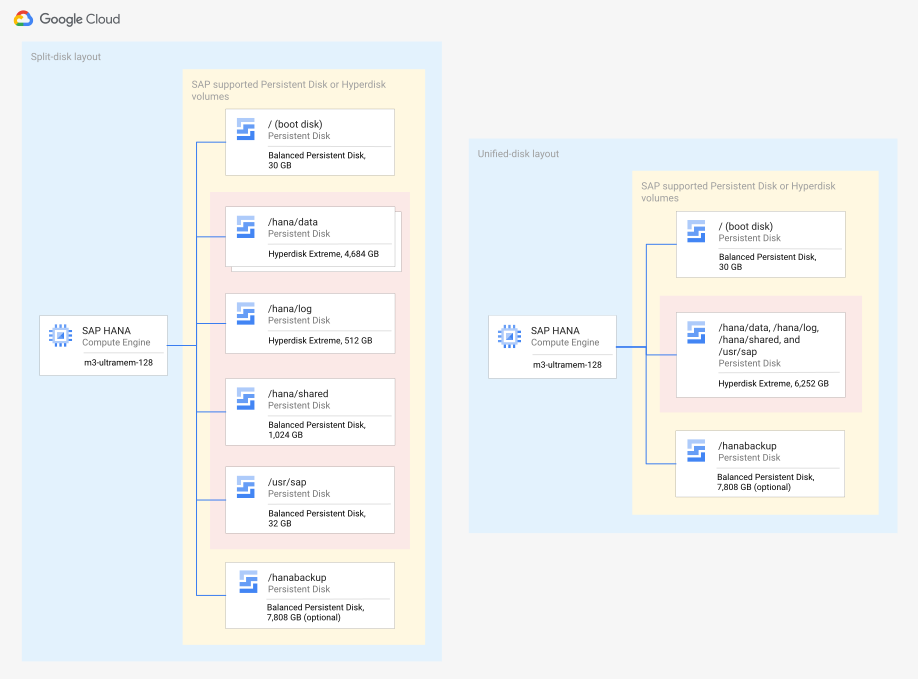
In the preceding figure, each of the following volumes are hosted on
Hyperdisk volumes: `/hana/data`, `/hana/log`, `/hana/shared`,
and `/usr/sap`. The `/hana/data` and `/hana/log` volumes can
be hosted on more than one disk.
Hyperdisk volumes are located independently
from your compute instances, so you can detach or
move these disks to keep your data, even after you delete your compute instances.
In the [Google Cloud console](https://console.cloud.google.com/compute/instances),
you can see the Hyperdisk volumes that are
attached to your compute instances under **Additional disks** on the
**VM instance details** page for each compute instance.
For more information about Hyperdisk types, their performance
characteristics, and how to work with them, see the following documentation:
- [Storage options](https://docs.cloud.google.com/compute/docs/disks.md.txt)
- [About Hyperdisk](https://docs.cloud.google.com/compute/docs/disks/hyperdisks.md.txt)
- [Hyperdisk performance](https://docs.cloud.google.com/compute/docs/disks/hyperdisk-performance.md.txt)
- [Hyperdisk performance limits](https://docs.cloud.google.com/compute/docs/disks/hyperdisk-perf-limits.md.txt)
- [Attach a non-boot disk to a VM](https://docs.cloud.google.com/compute/docs/disks/attach-disks.md.txt)
- [Create and manage disk snapshots](https://docs.cloud.google.com/compute/docs/disks/create-snapshots.md.txt)
- [Migrate SAP HANA Persistent Disk volumes to Hyperdisk volumes](https://docs.cloud.google.com/sap/docs/migrate-hana-pd-to-hyperdisk.md.txt)
#### Minimum sizes for SSD-based Persistent Disk and Hyperdisk volumes
When you size certain Compute Engine SSD-based Persistent Disk
or Hyperdisk volumes for
SAP HANA, you need to account for not only the storage requirements of
your SAP HANA instance, but also for the performance of the disk.
The performance of Hyperdisk is not
affected by disk size. Its performance is determined by the IOPS or throughput
that you provision. For information about the performance of
Hyperdisk for SAP HANA workloads, see
[Hyperdisk performance](https://docs.cloud.google.com/sap/docs/sap-hana-planning-guide.md.txt#hyperdisk_performance).
For information about Persistent Disk
based storage configurations for SAP HANA, see
[Disk sizes for legacy machine and disk types](https://docs.cloud.google.com/sap/docs/sap-hana-planning-guide.md.txt#legacy-disk-sizes).
Use the following widget to view Hyperdisk based storage
configurations for SAP-certified machine types that support usage of
Hyperdisk Balanced. Choose the configuration
that best fits your needs. The following disk
configurations are intended for scale-up systems. For scale-out systems, all
disk calculations remain the same except for `/hana/shared`, which is subject to
the number of worker nodes you deploy. For every four worker hosts, increase the
disk size by 1 x memory, or 1 TB, whichever is smaller.
- The widget presents the following configurations: **Simple** , **Advanced** , and **Performance**. All of these configurations are designed to help you meet the SAP HANA minimum storage and performance requirements.
- These configurations differ in the following aspects: performance, deployment complexity, and cost.
- **Simple** and **Advanced** cost nearly the same, with **Advanced** offering better performance because it uses striped disks to host the `/hana/data` volume. However, using striped disks adds to the complexity of your deployment and maintenance operations.
- **Performance** is a disk configuration that helps you provision maximum performance without the complexity of maintaining striped disks. This is achieved by provisioning disks with high IOPS and throughput. Consequently, this configuration is the costliest in most cases.
- The number of disks shown in the **Advanced** disk configuration is the minimum number of disks required to help you achieve a performant disk configuration. While you can add more disks to achieve the required performance, doing so increases the costs you incur.
> [!NOTE]
> **Note:** The following storage configurations are only initial recommendations. We strongly recommend that you size your workloads and perform validations to help ensure optimal performance.
#### Disk sizes for legacy machine and disk types
Within limits, the performance of an SSD or Balanced
Persistent Disk volume increases as the size of the disk and the number of
vCPUs increase. If an SSD or Balanced Persistent Disk volume is too small,
then it might not provide the performance that SAP HANA requires.
A 550 GB SSD or a 943 GB Balanced Persistent Disk volume provides
a sustained throughput of 400 MB per second for reads and writes, which
is the minimum. For general information about Persistent Disk performance, see
[Persistent Disk performance overview](https://docs.cloud.google.com/compute/docs/disks/performance.md.txt).
The following table shows the minimum recommended sizes for SSD
Persistent Disk (`pd-ssd`) and Balanced Persistent Disk
(`pd-balanced`) to meet SAP HANA performance
requirements in a
production environment for each Compute Engine
machine type that is certified for use with SAP HANA.
The sizes in the following table assume that you are using a separate disk
for each of the following volumes: `/hana/data`,
`/hana/log`, `/hana/shared`, and `/usr/sap`
volumes. This table shows disk sizes for SAP-certified machine types that support using only
Persistent Disk. For information about disk
configuration for SAP-certified machine types that can use Hyperdisk,
see [Minimum sizes for SSD-based
Persistent Disk and Hyperdisk volumes](https://docs.cloud.google.com/sap/docs/sap-hana-planning-guide#hana-minimum-pd-sizes-ssd-hyperdisk).
### Balanced Persistent Disk
If you want to use more than one Balanced Persistent Disk volume to
host your `/hana/data` volume, then make sure to equally divide
the size value given in the "`/hana/data` size (GB)" column among
the disk volumes that you provision.
| Compute Engine machine type | `/hana/data` size (GB) | `/hana/log` size (GB) | `/hana/shared` size (GB) | `/usr/sap` size (GB) | Total size (GB) |
|---|---|---|---|---|---|
| `n1-highmem-32` | 599 | 104 | 208 | 32 | 943 |
| `n1-highmem-64` | 499 | 208 | 416 | 32 | 1,155 |
| `n1-highmem-96` | 748 | 312 | 624 | 32 | 1,716 |
| `n2-highmem-32` | 527 | 128 | 256 | 32 | 943 |
| `n2-highmem-48` | 460 | 192 | 384 | 32 | 1,068 |
| `n2-highmem-64` | 614 | 256 | 512 | 32 | 1,414 |
| `n2-highmem-80` | 768 | 320 | 640 | 32 | 1,760 |
| `n2-highmem-96` | 921 | 384 | 768 | 32 | 2,105 |
| `n2-highmem-128` | 1,036 | 432 | 864 | 32 | 2,364 |
### SSD Persistent Disk
If you want to use more than one SSD Persistent Disk volume to
host your `/hana/data` volume, then make sure to equally divide
the size value provided in the "`/hana/data` size (GB)" column among
the disk volumes that you provision.
| Compute Engine machine type | `/hana/data` size (GB) | `/hana/log` size (GB) | `/hana/shared` size (GB) | `/usr/sap` size (GB) | Total size (GB) |
|---|---|---|---|---|---|
| `n1-highmem-32` | 249 | 104 | 208 | 32 | 593 |
| `n1-highmem-64` | 499 | 208 | 416 | 32 | 1,155 |
| `n1-highmem-96` | 748 | 312 | 624 | 32 | 1,716 |
| `n2-highmem-32` | 307 | 128 | 256 | 32 | 723 |
| `n2-highmem-48` | 460 | 192 | 384 | 32 | 1,068 |
| `n2-highmem-64` | 614 | 256 | 512 | 32 | 1,414 |
| `n2-highmem-80` | 768 | 320 | 640 | 32 | 1,760 |
| `n2-highmem-96` | 921 | 384 | 768 | 32 | 2,105 |
| `n2-highmem-128` | 1,036 | 432 | 864 | 32 | 2,364 |
#### Determining disk size
For information about the number of Hyperdisk volumes that you
need to use with SAP HANA, and the disk size, IOPS, and throughput, see
[Minimum sizes for SSD-based Persistent Disk and Hyperdisk volumes](https://docs.cloud.google.com/sap/docs/sap-hana-planning-guide.md.txt#hana-minimum-pd-sizes-ssd-balanced).
Calculate the amount of disk storage that you need for the SAP HANA
volumes based on the amount of memory that your selected
Compute Engine machine type contains.
The following guidance about disk sizes refers to the minimum sizes that
Google Cloud recommends for your deployments. This guidance, while
exceeding SAP's minimum requirements, is designed to balance the storage
requirements of your SAP HANA system, the performance requirements of the disks,
and the total cost of ownership.
You can increase the disk sizes up to the limit that the underlying disk types support.
For information about the required minimum disk sizes, see
[Minimum sizes for SSD-based Persistent Disk and Hyperdisk volumes](https://docs.cloud.google.com/sap/docs/sap-hana-planning-guide.md.txt#hana-minimum-pd-sizes-ssd-balanced).
##### Disk size requirements for scale-up systems
For SAP HANA scale-up systems, use the following formulas for each volume:
- `/hana/data`: 1 x memory
> [!NOTE]
> **Note:** The disk sizes for `/hana/data` that are provided in [Disk sizes for legacy machine and disk types](https://docs.cloud.google.com/sap/docs/sap-hana-planning-guide.md.txt#legacy-disk-sizes) use the older formula: 1.2 x memory.
- `/hana/log`: either 0.5 x memory or 512 GB, whichever is smaller
- `/hana/shared`: either 1 x memory or 1,024 GB, whichever is smaller
- `/usr/sap`: 32 GB
- `/hanabackup`: 2 x memory, optional allocation
##### Disk size requirements for scale-out systems
For SAP HANA scale-out systems, use the same formula as SAP HANA scale-up systems
for `/hana/data`, `/hana/log`, and `/usr/sap` volumes. For `/hana/shared` volume, calculate
the disk size based on the number of worker hosts in your deployment.
For each four worker hosts, increase the disk size by 1 x memory, or 1 TB,
whichever is smaller. For example:
- From 1 to 4 worker hosts: 1 x memory, or 1 TB, whichever is smaller
- From 5 to 8 worker hosts: 2 x memory, or 2 TB, whichever is smaller
- From 9 to 12 worker hosts: 3 x memory, or 3 TB, whichever is smaller
- From 13 to 16 worker hosts: 4 x memory, or 4 TB, whichever is smaller
To determine your overall storage quota requirements for SAP HANA scale-out systems,
you need to total up the disk sizes for each type of disk that is used with all
of the hosts in the scale-out system. For example, if you have put `/hana/data`
and `/hana/log` on SSD Persistent Disk (`pd-ssd`) volumes, but `/hana/shared`
and `/usr/sap` on Balanced Persistent Disk (`pd-balanced`) volumes, then you
need separate totals for `pd-ssd` and `pd-balanced` to
request separate quotas.
For an SAP HANA scale-out system with host auto-failover, you only need to calculate
the disk size for master and worker hosts. The standby hosts don't have
their own `/hana/data`, `/hana/log`, and `/usr/sap` volumes. If there is a
failure, then SAP HANA automatic failover unmounts the `/hana/data`, `/hana/log`, and
`/usr/sap` volumes from the failed host and mounts on them on a standby host. The
`/hana/shared` and `/hanabackup` volumes for a standby host are mounted on a
separately-deployed NFS solution.
##### Allocating additional disk storage
Select a disk size that
is no smaller than the minimum size listed in
[Minimum sizes for SSD-based Persistent Disk and Hyperdisk volumes](https://docs.cloud.google.com/sap/docs/sap-hana-planning-guide.md.txt#hana-minimum-pd-sizes-ssd-balanced).
If you are using SSD or Balanced Persistent Disk, then the minimum
size might be determined by SAP HANA performance requirements rather than
SAP HANA storage requirements.
For example, if you are running SAP HANA on an `n2-highmem-32` instance,
which has 256 GB of memory, then your total storage requirement for the
SAP HANA volumes is 723 GB: 307 GB for the data volume, 128 GB for the log
volume, 256 GB for the shared volume, and 32 GB for the `/usr/sap` volume.
However, if you use Balanced Persistent Disk, then the required minimum size
is 943 GB, where the additional 220 GB is
allocated to the data volume to meet the required performance. Therefore, if you
use a `n2-highmem-32` instance with Balanced Persistent Disk to run SAP HANA,
then you need to provision 943 GB or more of disk storage. The additional
provision of 220 GB is applied
to the disk that hosts the `/hana/data` volume to provide the required performance.
Apply any additional disk storage to the `/hana/data` volume.
For information from SAP about sizing for SAP HANA, see
[Sizing SAP HANA](https://help.sap.com/viewer/eb3777d5495d46c5b2fa773206bbfb46/LATEST/en-US/d4a122a7bb57101493e3f5ca08e6b039.html).
#### Hyperdisk performance
Hyperdisk provides higher maximum IOPS and
throughput options for the `/hana/log` and `/hana/data` volumes than the other
SSD-based persistent disks. For more information about
provisioning IOPS and throughput options for Hyperdisk, see
[About provisioning performance](https://docs.cloud.google.com/compute/docs/disks/hyperdisk-performance.md.txt#about-prov-perf).
Unlike with SSD-based Persistent Disk types, when you use Hyperdisk
with SAP HANA, you don't need to worry about performance when you
size the Hyperdisk. The sizing for Hyperdisk is based
solely on the storage requirements of SAP HANA. For more information about
sizing persistent disks or Hyperdisk, see [Determining persistent disk size](https://docs.cloud.google.com/sap/docs/sap-hana-planning-guide.md.txt#determining-pd-disk-size).
While using Hyperdisk with SAP HANA, to enable the best performance, we
recommend that you update your SAP HANA system properties as follows:
- Update your `global.ini` file:
- In the `fileio` section, set `num_completion_queues = 12`
- In the `fileio` section, set `num_submit_queues = 12`
- Update your `indexserver.ini` file:
- In the `parallel` section, set `tables_preloaded_in_parallel = 32`
- In the `global` section, set `load_table_numa_aware = true`
When you create a Hyperdisk Extreme volume, the number of IOPS that you provision
determines its maximum throughput. The following formula can be used as a
starting point. It provides a minimum of 2500 MiB/s throughput
(256 KB per IOPS \* 10,000 IOPS) and more for larger machine types with larger
disks.
- When using the default deployment with separate disks for `/hana/log` and `/hana/data`:
- IOPS for the data disk: `maximum(10,000, size of data disk in GB * 2)`
- IOPS for the log disk: `maximum(10,000, size of log disk in GB * 2)`
- When a single disk is used for `/hana/data`, `/hana/log`, `/hana/shared`, and `/usr/sap`:
- IOPS for disk: `maximum(10,000, size of data disk GB * 2) + maximum(10,000, size of log disk in GB * 2)`
The maximum number of IOPS that you can provision can
differ depending on the machine type you are using. For a list of the machine
types that support Hyperdisk Extreme, as
well as the maximum IOPS and throughput that Hyperdisk Extreme can
provide with each machine type, see [Machine type support](https://docs.cloud.google.com/compute/docs/disks/hyperdisks.md.txt#machine_type_support).
When you create a Hyperdisk Balanced volume, you can provision the IOPS and
throughput to meet your workload performance needs, taking into consideration
the rules for [IOPS provisioning](https://docs.cloud.google.com/compute/docs/disks/hd-types/hyperdisk-balanced.md.txt#provisioned-iops-limits) and [throughput provisioning](https://docs.cloud.google.com/compute/docs/disks/hd-types/hyperdisk-balanced.md.txt#provisioned-tput-limits).
For SAP HANA, the minimum supported aggregate provisioned IOPS is 3000 and throughput
is 400 MiB/s.
#### Disks deployed by the deployment automation scripts
When you deploy an SAP HANA system by using the Terraform configurations that
Google Cloud provides, the deployment script allocates Hyperdisk
or Persistent Disk volumes for the SAP volumes as follows:
- By default, separate disks are deployed for each of the following directories:
`/hana/data`, `/hana/log`, `/hana/shared`, and `/usr/sap`.
For SAP HANA scale-out deployments, the `/hana/shared` directory is
hosted by an NFS solution.
- Optionally, a disk for the `/hanabackup` directory.
The following example shows how Terraform maps the volumes for SAP HANA on a
Compute Engine `n2-highmem-32` instance, which has 256 GB of memory:
```
hana-ssd-example:~ # lvs
LV VG Attr LSize Pool Origin Data% Meta% Move Log Cpy%Sync Convert
data vg_hana_data -wi-ao--- 308.00g
log vg_hana_log -wi-ao--- 128.00g
shared vg_hana_shared -wi-ao--- 256.00g
usrsap vg_hana_usrsap -wi-ao--- 32.00g
backup vg_hanabackup -wi-ao--- 512.00g
```
The sizes of your volumes for the same machine type might differ slightly from
what is shown in this example.
When you opt to deploy a single-disk layout using the Terraform configurations
provided by Google Cloud, the deployment script
maps the `/hana/data`, `/hana/log`, `/usr/sap`, and `/hana/shared`
directories to their own individual logical volume for simplified resizing and maps them to
the SSD-based Persistent Disk or Hyperdisk volume in a single volume group.
The Terraform configurations also map the `/hanabackup` directory
to a logical volume in a separate volume group, which is then mapped to a Balanced
Persistent Disk or Hyperdisk Balanced.
#### Optional persistent disk storage for backups
When storing SAP HANA backups on a disk, we recommend that you use a Balanced Persistent Disk (`pd-balanced`).
If you want to reduce costs, then you can use a Standard HDD Persistent Disk
(`pd-standard`). However, use a Balanced Persistent Disk when a higher
throughput or concurrency is needed.
The SAP HANA backup volume size is designed to provide optimal baseline and
burst throughput as well as the ability to hold several backup sets. Holding
multiple backup sets in the backup volume makes it easier to recover your
database if necessary.
To make the SAP HANA backups available as a regional resource for disaster recovery,
you can use Compute Engine disk snapshots. You can schedule
snapshots to regularly and automatically back up your disk. For more information, see
[About archive and standard disk snapshots](https://docs.cloud.google.com/compute/docs/disks/snapshots.md.txt).
If you use the
Backint feature of Google Cloud's Agent for SAP, then you can backup SAP HANA
directly to a Cloud Storage bucket, which makes the use of a Persistent Disk
volume for storing backups optional.
### SAP HANA Fast Restart option
For SAP HANA 2.0 SP04 and later, Google Cloud **strongly**
recommends the [SAP HANA Fast Restart option](https://help.sap.com/viewer/6b94445c94ae495c83a19646e7c3fd56/LATEST/en-US/ce158d28135147f099b761f8b1ee43fc.html).
This option is automatically enabled if you deploy SAP HANA using
Google Cloud's Terraform module `sap_hana` or `sap_hana_ha`, version
`202309280828` or later. For information about how to manually enable SAP HANA Fast Restart, see
[Enable the SAP HANA Fast Restart option](https://docs.cloud.google.com/sap/docs/manage-hana-fast-restart-config.md.txt#enable-hana-fast-restart).
SAP HANA Fast Restart reduces restart time in the event that SAP HANA
terminates, but the operating system remains running. To reduce the restart
time, SAP HANA leverages the SAP HANA persistent memory functionality to
preserve MAIN data fragments of column store tables in DRAM that is
mapped to the `tmpfs` file system.
Additionally, on instances in the M2, M3, and M4 families of Compute Engine
memory-optimized machine types, SAP HANA Fast Restart improves recovery
time if uncorrectable errors occur in memory. For more information,
see [Memory-error recovery with Fast Restart on Compute Engine instances](https://docs.cloud.google.com/sap/docs/sap-hana-planning-guide.md.txt#sap-hana-fast-restart-memory-error-recovery).
#### Required OS settings for SAP HANA Fast Restart
To use SAP HANA Fast Restart, your operating system must be tuned as
required by SAP.
If you use the Terraform configuration files that
Google Cloud provides, then the kernel settings are set
for you.
If you don't use the deployment files that Google Cloud provides, SAP
provides guidance for configuring both the RHEL and SLES operating systems
for SAP HANA. For SAP HANA Fast Restart, pay particular attention to
setting `numa_balancing` and `transparent_hugepage` correctly.
If you use RHEL, use the `sap-hana` tuned profile, if it is available.
For the configuration steps, see the following SAP notes:
- [3562919 - SAP HANA DB:
Recommended OS Settings for RHEL 10](https://me.sap.com/notes/3562919)
- [3108302 - SAP HANA DB:
Recommended OS Settings for RHEL 9](https://me.sap.com/notes/3108302)
- [2292690 - SAP HANA DB:
Recommended OS settings for RHEL 7](https://me.sap.com/notes/2292690)
- [2777782 - SAP HANA DB:
Recommended OS Settings for RHEL 8](https://me.sap.com/notes/2777782)
If you use SLES, use the `saptune` tool from SUSE to apply the required
configuration. To apply all of the recommended SAP HANA settings, including
both of the preceding kernel parameters, specify the following
`saptune` command:
```
saptune solution apply HANA
```
For more information about configuring SLES for SAP HANA, see the following SAP
notes:
- [3577842 - SAP HANA DB: Recommended OS settings for SLES 16 / SLES for SAP Applications 16](https://me.sap.com/notes/3577842)
- [2684254 - SAP HANA DB: Recommended OS settings for SLES 15 / SLES for SAP Applications 15](https://me.sap.com/notes/2684254)
- [2205917 - SAP HANA DB: Recommended OS settings for SLES 12 / SLES for SAP Applications 12](https://me.sap.com/notes/2205917)
#### Memory-error recovery with Fast Restart on Compute Engine instances
Enabling SAP HANA Fast Restart on compute instances in the M2, M3, and M4 families of
Compute Engine memory-optimized machine types reduces the time it
takes SAP HANA to recover from uncorrectable memory errors.
By leveraging Intel processor capabilities, the M2, M3, and M4 machine types can
keep running when uncorrectable errors occur in the memory subsystem.
If SAP HANA Fast Restart is enabled when the memory error
occurs, then the affected SAP HANA process restarts, but the whole database
doesn't need to be reloaded, only the affected file block.
##### Machine types that support memory-error recovery
The following Compute Engine machine types support
memory-error recovery:
- M4N:
- `m4n-hypermem-16`
- `m4n-hypermem-32`
- `m4n-hypermem-64`
- `m4n-megamem-28`
- `m4n-megamem-56`
- `m4n-megamem-112`
- `m4n-megamem-224`
- `m4n-ultramem-56`
- `m4n-ultramem-112`
- `m4n-ultramem-224`
- M4:
- `m4-hypermem-16`
- `m4-hypermem-32`
- `m4-hypermem-64`
- `m4-megamem-28`
- `m4-megamem-56`
- `m4-megamem-112`
- `m4-megamem-224`
- `m4-ultramem-56`
- `m4-ultramem-112`
- `m4-ultramem-224`
- M3:
- `m3-ultramem-32`
- `m3-ultramem-64`
- `m3-ultramem-128`
- `m3-megamem-64`
- `m3-megamem-128`
- M2:
- `m2-ultramem-208`
- `m2-ultramem-416`
- `m2-megamem-416`
- `m2-hypermem-416`
##### Required operating systems for memory-error recovery
With the required kernel patches, the following operating systems support
memory-error recovery with SAP HANA Fast Restart:
- SUSE Linux Enterprise Server (SLES) for SAP, 12 SP3 or later.
- Included in Compute Engine public images with a build date of v202103\* or later.
- If you need to apply the latest kernel patches to an existing deployment, follow your standard update process. For example, issue the following commands:
- `sudo zypper refresh`
- `sudo zypper update`
- Red Hat Enterprise Linux (RHEL) for SAP, 8.4 or later.
### File server options
The file server options for SAP HANA on Google Cloud include
Filestore and Google Cloud NetApp Volumes.
For more information about all of the file server options for
SAP on Google Cloud, see
[File sharing solutions for SAP on Google Cloud](https://docs.cloud.google.com/sap/docs/filers-for-sap.md.txt).
#### Filestore
For the `/hana/shared` volume in a single zone scale-out configuration, we
suggest using the Filestore Basic
[service tier](https://docs.cloud.google.com/filestore/docs/service-tiers.md.txt) as it is designed for zonal resources. For scenarios where
additional resilience is required, you can use
[Filestore Regional](https://docs.cloud.google.com/filestore/docs/service-tiers.md.txt#regional) (formerly Enterprise). For more information, see
[Components in an SAP HANA scale-out system on Google Cloud](https://docs.cloud.google.com/sap/docs/sap-hana-planning-guide.md.txt#scaleout_components).
#### Google Cloud NetApp Volumes
Google Cloud NetApp Volumes is a fully-managed, cloud-based
data storage service that you can use to create an NFS file system for SAP
HANA scale-up systems.
For information about how to deploy NetApp Volumes for use with
SAP HANA, see
[Deploy NetApp Volumes for SAP HANA](https://docs.cloud.google.com/sap/docs/sap-hana-with-gcnv.md.txt).
To use NetApp Volumes as the block storage for your SAP HANA
workloads, use the following guidance:
- To host the `/hana/data` and `/hana/log` directories, you must use the
Premium or Extreme service level of NetApp Volumes with an
SAP-certified Compute Engine machine type.
For information about the Compute Engine machines types that SAP has
certified to run SAP HANA with NetApp Volumes:
1. Go to [Certified solutions and machine types](https://docs.cloud.google.com/sap/docs/sap-certifications.md.txt#certified-solutions-and-machine-types), and in the **Certified SAP solution** menu, select **SAP HANA**.
2. Click **Expand all**.
3. Look for machine types where NetApp Volumes is listed in the **Certified block storage** column.
- Ensure that you deploy the NetApp Volumes volumes in the
[region](https://docs.cloud.google.com/compute/docs/regions-zones.md.txt) where your SAP HANA workload runs.
For information about the regions where NetApp Volumes is
available, see
[Supported regions](https://docs.cloud.google.com/netapp/volumes/docs/discover/service-levels.md.txt#supported_regions).
- You can use the Premium service level of
NetApp Volumes to host the `/hana/shared` directory only when
you've deployed a separate NetApp Volumes volume to host the
`/hana/data` and `/hana/log` directories.
- NetApp Volumes supports the NFSv3 and NFSv4.1 protocols with
SAP HANA on Google Cloud.
For volumes that need to support multiple TCP connections, we recommend
that you use the NFSv3 protocol.
##### Sizing and performance
To ensure that your Google Cloud NetApp Volumes volumes help you run performant
SAP HANA workloads, use the following guidance:
- To meet the SAP HANA performance requirements, ensure that your
NetApp Volumes volumes adhere to the following sizing:
| SAP HANA directory | Minimum size |
|---|---|
| `/hana/data` | 1 TB |
| `/hana/log` | 2.5 TB |
| `/hana/shared` | 4 TB |
| `/hanabackup` | The minimum size is determined by your backup strategy. |
- Adjust the size of your NetApp Volumes volumes to meet your
throughput requirements.
- To host the `/hana/data` directory, we recommend that you size your
NetApp Volumes volume to the greater value of the following:
1.5 times the memory of your Compute Engine instance or 4 TB.
However, provisioning more disk space for the `/hana/data` directory can
increase the time that it takes to start your SAP HANA system.
For information about the expected performance of
NetApp Volumes volumes, see
[Volume performance sizing](https://docs.cloud.google.com/netapp/volumes/docs/plan-and-prepare/volume-performance-sizing.md.txt).
- For the best performance with SAP HANA systems that require more than 1 TB of
storage, deploy the `/hana/data` and `/hana/log` on separate
NetApp Volumes volumes.
### User identification and resource access
When planning security for an SAP deployment on Google Cloud,
you must identify:
- The user accounts and applications that need access to the Google Cloud resources in your Google Cloud project
- The specific Google Cloud resources in your project that each user needs to access
You must add each user to your project by adding their Google account ID
to the project as a principal. For an application program that uses
Google Cloud resources,
you create a *service account*, which provides a user identity for the
program within your project.
Compute Engine VMs have their own service account. Any programs that
run on a VM can use the VM service account, as long as the VM service
account has the resource permissions that the program needs.
After you identify the Google Cloud resources that each user needs
to use, you grant each user permission to use each resource by assigning
resource-specific roles to the user. Review the predefined roles that
IAM provides for each resource,
and assign roles to each user that provide just enough permissions to
complete the user's tasks or functions and no more.
If you need more granular or restrictive control over permissions than
the predefined IAM roles provide, you can create custom roles.
For more information about the IAM roles that SAP
programs need on Google Cloud, see [Identity and access management for SAP
programs on Google Cloud](https://docs.cloud.google.com/sap/docs/security-for-sap/iam-for-sap-programs).
For an overview of identity and access management for SAP on
Google Cloud, see [Identity and access management overview for SAP
on Google Cloud](https://docs.cloud.google.com/sap/docs/security-for-sap/iam-for-sap).
## Pricing and quota considerations for SAP HANA
You are responsible for the costs incurred for using the resources created by
following this deployment guide. Use the
[Google Cloud pricing calculator](https://cloud.google.com/products/calculator)
to help estimate your actual costs.
**Important** : RHEL and SLES are premium images and all prices for premium images are in addition to charges for using a machine type. For details about premium image pricing, refer to the [Premium images](https://cloud.google.com/compute/pricing#premiumimages).
> [!NOTE]
> **Note:** You might be able to achieve a [sustained use discount](https://docs.cloud.google.com/compute/docs/sustained-use-discounts.md.txt) of up to 30% for your Compute Engine instances.
### Quotas
SAP HANA requires more CPU and memory than many workloads on Google Cloud.
If you have a new Google Cloud account, or if you
haven't asked for an increased quota, then you would need to do so to deploy SAP
HANA.
The Hyperdisk quota that you need to run your SAP HANA workload
is the sum of the Hyperdisk volume sizes that you decide to deploy.
For information about the disk configurations that Google Cloud recommends
as good starting points, see
[Minimum sizes for SSD-based Persistent Disk and Hyperdisk volumes](https://docs.cloud.google.com/sap/docs/sap-hana-planning-guide.md.txt#hana-minimum-pd-sizes-ssd-balanced).
For information about the Persistent Disk quota that you need to run your
SAP HANA workload, see the **Total size** column for the required
Persistent Disk type in
[Disk sizes for legacy machine and disk types](https://docs.cloud.google.com/sap/docs/sap-hana-planning-guide.md.txt#legacy-disk-sizes).
[View your existing quota](https://console.cloud.google.com/iam-admin/quotas),
and compare with your resource (CPU, memory, and storage) requirements to see
what increase to ask for. You can then [request a quota-limit increase](https://docs.cloud.google.com/compute/quotas#requesting_additional_quota).
## Licensing
Running SAP HANA on Google Cloud requires you to bring your own license (BYOL).
> [!NOTE]
> **Note:** After you deploy SAP HANA on Google Cloud, you must install your permanent SAP HANA license before the temporary license for SAP HANA expires. If you don't, then your SAP HANA system might go into *database lockdown* after the temporary license expires.
For more information from SAP about managing your SAP HANA licenses, see
[License Keys for the SAP HANA Database](https://help.sap.com/viewer/6b94445c94ae495c83a19646e7c3fd56/2.0.03/en-US/9fd02a6c45eb485b9b3b0bc845586a6a.html).
## Deployment architectures
On Google Cloud, you can deploy SAP HANA in scale-up and scale-out
architectures.
### Scale-up architecture
The following diagram shows the scale-up architecture. In the diagram, notice
both the deployment on Google Cloud and the disk layout. You can use Cloud Storage
to back up your local backups available in `/hanabackup`. This mount must be
sized equal to or greater than the data mount.
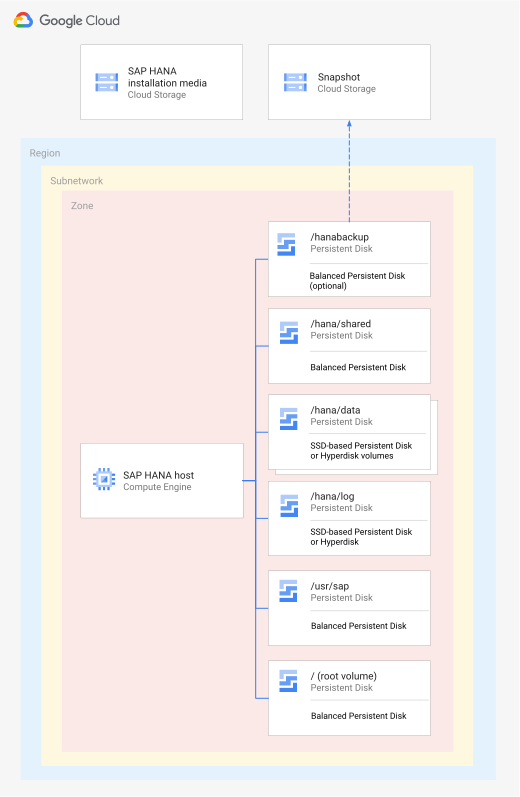
On Google Cloud, an SAP HANA single-host, scale-up architecture can
include the following components:
- One Compute Engine instance for the SAP HANA database with a network
bandwidth of up to 32 Gbps, or up to 100 Gbps on selected machine types using
[high-bandwidth networking](https://docs.cloud.google.com/compute/docs/networking/configure-vm-with-high-bandwidth-configuration.md.txt).
For information about the machine types that are certified for use with SAP
HANA, go to
[Certified solutions and machine types](https://docs.cloud.google.com/sap/docs/sap-certifications.md.txt#certified-solutions-and-machine-types),
and in the **Certified SAP solution** menu, select **SAP HANA**.
- If you choose to deploy a compute instance, then you can also deploy it on top of
a sole-tenant node. For more information, see
[Sole tenancy](https://docs.cloud.google.com/sap/docs/sap-hana-planning-guide.md.txt#hana-sole-tenancy).
- SSD based Google Cloud Hyperdisk volumes as follows. Legacy machine types support using
Persistent Disk volumes.
- One disk for each of the following directories: `/hana/data`, `/hana/log`
`/hana/shared`, and `/usr/sap`. The `/hana/data` volume can also be hosted on
more than one disk. For information about disk recommendations
for SAP HANA, see
[Persistent disk storage](https://docs.cloud.google.com/sap/docs/sap-hana-planning-guide.md.txt#persistent_disk_storage).
For SAP optimum performance, the Hyperdisk or Persistent Disk
volumes must be sized according to the table in
[Minimum sizes for SSD-based Persistent Disk and Hyperdisk volumes](https://docs.cloud.google.com/sap/docs/sap-hana-planning-guide.md.txt#hana-minimum-pd-sizes-ssd-balanced).
- One Hyperdisk Balanced or Balanced Persistent Disk volume
for the boot disk.
- Optionally, a disk for the `/hanabackup` directory of the SAP HANA database.
- Compute Engine firewall rules restricting access to instances.
- [Google Cloud's Agent for SAP](https://docs.cloud.google.com/sap/docs/agent-for-sap/latest/planning.md.txt).
From version 2.0, you can configure this agent to collect the SAP HANA
monitoring metrics, which lets you monitor your SAP HANA instances. From
version 3.0, you can also use its
[Backint](https://docs.cloud.google.com/sap/docs/agent-for-sap/latest/backint-backup-recovery.md.txt)
feature to store SAP HANA backups directly in Cloud Storage bucket,
and retrieve as required.
- An optional, but recommended, subnetwork with a custom topology and IP ranges
in the Google Cloud region of your choice. The SAP HANA database and the
other Compute Engine instances are launched within this subnetwork.
You can use an existing subnetwork for SAP HANA.
- Optional components:
- SAP HANA Cockpit or SAP HANA Studio on a small Compute Engine instance.
If you provision your SAP HANA system without a public IP, then it cannot connect
directly to resources through the public internet. Therefore, you need to
provide an indirect method for internet access using the following options:
- Configure [Google private access](https://docs.cloud.google.com/vpc/docs/private-access-options.md.txt)
so that your compute instance can access the Google Cloud APIs.
- Use [Cloud NAT](https://docs.cloud.google.com/nat/docs/overview.md.txt)
or configure a compute instance as a NAT gateway to access the public internet.
- For administrative purposes, you can use TCP forwarding to connect to the systems.
For information about using Identity-Aware Proxy for TCP forwarding, see
[Using IAP for TCP forwarding](https://docs.cloud.google.com/iap/docs/using-tcp-forwarding.md.txt).
- Use a compute instance that is configured as a bastion host to
access the public internet.
### Scale-out architectures
The scale-out architecture consists of one master host, a number of worker
hosts, and, optionally, one or more standby hosts. The hosts are interconnected
through a network that supports sending data between hosts at rates of up to
32 Gbps, or up to 100 Gbps on selected machine types using
[high-bandwidth networking](https://docs.cloud.google.com/compute/docs/networking/configure-vm-with-high-bandwidth-configuration.md.txt).
As the workload demand increases, especially when using Online Analytical
Processing (OLAP), a multi-host scale-out architecture can distribute the load
across all hosts.
The following diagram shows a scale-out architecture for SAP HANA on
Google Cloud:
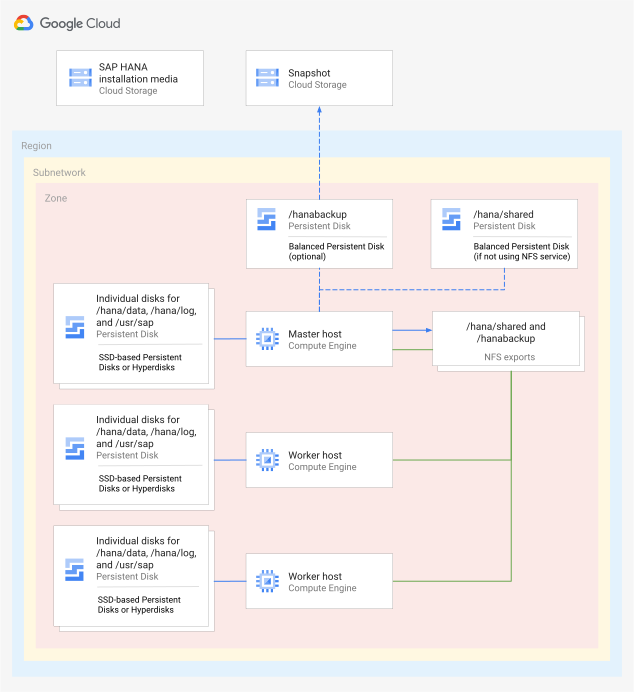
Standby hosts support the SAP HANA host auto-failover fault recovery solution.
For more information about host auto-failover on Google Cloud, see
[SAP HANA host auto-failover on Google Cloud](https://docs.cloud.google.com/sap/docs/sap-hana-ha-planning-guide.md.txt#host_auto_failover).
The following diagram shows a scale-out architecture with host auto-failover on Google Cloud.
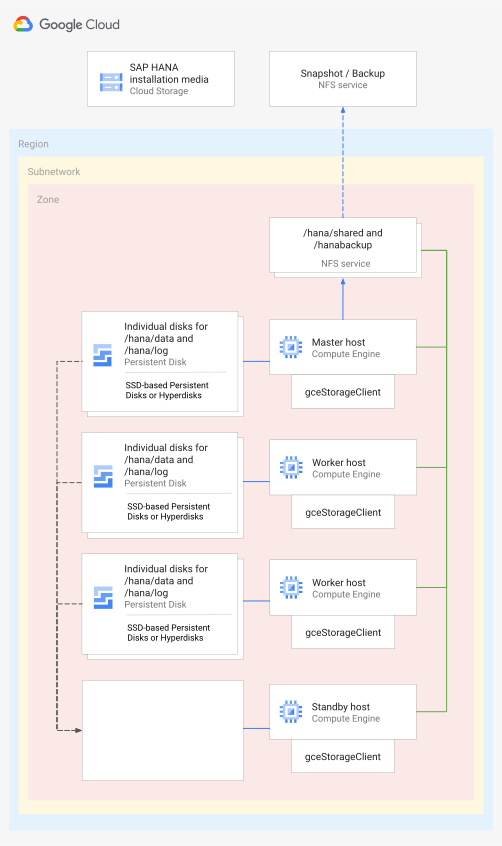
#### Disk structures for SAP HANA scale-out systems on Google Cloud
Except for standby hosts, each host has its own `/hana/data`, `/hana/log`, and,
usually, `/usr/sap` volumes on SSD-based Hyperdisk or Persistent Disk volumes, which provide
consistent, high IOPS, and IO services. The `/hana/data` volume can run on more than
one disk. The master host also serves as an NFS
master for the `/hana/shared` and `/hanabackup` volumes, and this NFS master is mounted on
each worker and standby host.
For a standby host, the `/hana/data` and `/hana/log` volumes are not mounted
until a takeover occurs.
#### Components in an SAP HANA scale-out system on Google Cloud
A multi-host SAP HANA scale-out architecture on Google Cloud contains the following components:
- 1 Compute Engine instance for each SAP HANA host in the system,
including 1 master host, up to 15 worker hosts, and up to 3 optional
standby hosts.
Each compute instance uses the same Compute Engine machine type. For information
about the machine types that are certified for use with SAP HANA, go to
[Certified solutions and machine types](https://docs.cloud.google.com/sap/docs/sap-certifications.md.txt#certified-solutions-and-machine-types),
and in the **Certified SAP solution** menu, select **SAP HANA**.
- SSD based Persistent Disk or Hyperdisk volumes, as follows:
- Each compute instance must include a disk, mounted in the correct location.
- Optionally, if you are not deploying an SAP HANA host auto-failover system, then a disk for the `/hanabackup` local volume for each compute instance.
- A separately deployed NFS solution for sharing the `/hana/shared` and the
`/hanabackup` volumes with the worker and standby hosts. You can use
[Filestore](https://docs.cloud.google.com/filestore) or another NFS solution.
- Compute Engine firewall rules or other network access controls that
restrict access to your Compute Engine instances while allowing
communication between the instances and any other distributed or remote
resources that your SAP HANA system requires.
- [Google Cloud's Agent for SAP](https://docs.cloud.google.com/sap/docs/agent-for-sap/latest/planning.md.txt).
From version 2.0, you can configure this agent to collect the SAP HANA
monitoring metrics, which lets you monitor your SAP HANA instances. From
version 3.0, you can also use its
[Backint](https://docs.cloud.google.com/sap/docs/agent-for-sap/latest/backint-backup-recovery.md.txt)
feature to store SAP HANA backups directly in Cloud Storage bucket,
and retrieve as required.
- An optional, but recommended, subnetwork with a custom topology and IP ranges
in the Google Cloud region of your choice. The SAP HANA database
and the other Compute Engine instances are launched within this
subnetwork. You can use an existing subnetwork if you prefer.
- Optional components:
- SAP HANA Cockpit or SAP HANA Studio on a small Compute Engine instance.
If you provision your SAP HANA system without a public IP, then it cannot connect
directly to resources through the public internet. Therefore, you need to
provide an indirect method for internet access using the following options:
- Configure [Google private access](https://docs.cloud.google.com/vpc/docs/private-access-options.md.txt)
so that your compute instance can access the Google Cloud APIs.
- Use [Cloud NAT](https://docs.cloud.google.com/nat/docs/overview.md.txt)
or configure a compute instance as a NAT gateway to access the public internet.
- For administrative purposes, you can use TCP forwarding to connect to the systems.
For information about using Identity-Aware Proxy for TCP forwarding, see [Using IAP for TCP forwarding](https://docs.cloud.google.com/iap/docs/using-tcp-forwarding.md.txt).
- Use a compute instance that is configured as a bastion host to
access the public internet.
### High availability for SAP HANA systems on Google Cloud
To design a high-availability configuration for SAP HANA on Google Cloud,
you can use a combination of Google Cloud, SAP, and OS-native features.
For information about the high-availability options, see
[SAP HANA high-availability planning guide](https://docs.cloud.google.com/sap/docs/sap-hana-ha-planning-guide.md.txt#host_auto_failover).
## Automation for SAP HANA deployments
Google Cloud provides Terraform configuration files
that you can use to automate the deployment of Google Cloud
infrastructure and, optionally, SAP HANA.
The deployment automation options that Google Cloud
provides support the following SAP HANA deployment scenarios:
- Scale up
- Scale up in a two-node high-availability cluster
- Scale out without standby nodes
- Scale out without standby nodes in a high-availability cluster
- Scale out with SAP HANA Host auto-failover standby nodes
For more information about the automation for the scale-up or scale-out
deployment scenarios, see:
- [Deployment automation for scale-up systems](https://docs.cloud.google.com/sap/docs/sap-hana-planning-guide.md.txt#scaleup_scripts)
- [Deployment automation for scale-out systems](https://docs.cloud.google.com/sap/docs/sap-hana-planning-guide.md.txt#scaleout_scripts)
### Automating the deployment of the SAP HANA instance
Optionally, you can include the installation of SAP HANA with the automated
deployment of the Google Cloud infrastructure.
The installation scripts that Google Cloud provides install SAP
HANA after the infrastructure is deployed.
If any problems prevent the
installation of an SAP HANA instance, the infrastructure is usually still
deployed and configured. You can then either use the deployed infrastructure
and install SAP HANA manually or delete the infrastructure, correct the
problem, and rerun the deployment automation until the SAP HANA instance
is installed successfully.
When you use the installation scripts that Google Cloud to install SAP
HANA, you must provide values for certain parameters. If you
omit these parameters or don't specify valid values for all of them, then the
installation script fails to install the SAP HANA instance on the deployed
infrastructure.
When you use the Terraform configuration files that Google Cloud
provides to install SAP HANA, you must provide valid values for the following
arguments: `sap_hana_deployment_bucket`, `sap_hana_sid`,
`sap_hana_sidadm_uid`, `sap_hana_sidadm_password`, and
`sap_hana_system_password`. For more information about the Terraform
arguments, see
[Terraform: SAP HANA scale-up deployment guide](https://docs.cloud.google.com/sap/docs/sap-hana-deployment-guide-tf.md.txt).
#### Password management
To automate the installation of SAP HANA on the deployed Compute Engine
instances, you must specify the passwords for the `SIDadm` user
and the database user.
To specify these passwords, use one of the following options:
- (Recommended) To provide the passwords to the installation scripts securely, you can create
secrets using
[Secret Manager](https://docs.cloud.google.com/secret-manager/docs/overview.md.txt),
which is a charged service of Google Cloud, and then specify the names
of the secrets as values for the `sap_hana_sidadm_password_secret` and
`sap_hana_system_password_secret` arguments.
Make sure that the secret you use is the same Google Cloud project where
you deploy SAP HANA.
For information about Secret Manager pricing, see
[Secret Manager pricing](https://cloud.google.com/secret-manager/pricing).
- Alternatively, you can specify the passwords in plain text on the
`sap_hana_sidadm_password` and `sap_hana_system_password` arguments.
You must use either secrets for both passwords or specify them both
directly in plain text.
#### Backup management
While automating your SAP HANA deployment by using the Terraform configurations
provided by Google Cloud, you can use one of the following backup options:
- **Disk based backup** : You can choose to deploy a disk to host the
`/hanabackup` volume. For this, use the following Terraform arguments:
`include_backup_disk`, `backup_disk_type`, and `sap_hana_backup_size`.
This option is not available for scale-out deployments that use the host
auto-failover solution. For such deployments, you can use the Backint related
Terraform arguments.
- **Backint based backup** : You can choose to configure Backint based backup and
recovery for your SAP HANA deployment. For this, use the following Terraform
arguments: `configure_backint` and `backint_gcs_bucket`.
The Backint related Terraform arguments are available from version
`1.5.807307812` or later of the Terraform configurations that
deploy SAP HANA. For information about Backint based backup and recovery,
see [Backup and recovery for SAP HANA by using Backint](https://docs.cloud.google.com/sap/docs/agent-for-sap/latest/backint-backup-recovery.md.txt).
#### Disk deployment by Terraform
When you automate the deployment of SAP HANA by using the Terraform
configuration provided by Google Cloud, then the default disk deployment
is as follows:
| Volume or directory | Default disk deployed for X4 instances | Default disk deployed for C3 bare metal instances | Default disk deployed for VM instances |
|---|---|---|---|
| Boot volume | Hyperdisk Balanced | Hyperdisk Balanced | Balanced Persistent Disk |
| `/hana/data` | Hyperdisk Extreme | Hyperdisk Balanced | SSD Persistent Disk |
| `/hana/log` | Hyperdisk Extreme | Hyperdisk Balanced | SSD Persistent Disk |
| `/hana/shared` | Hyperdisk Balanced | Hyperdisk Balanced | - SSD Persistent Disk, if you specify `disk_type = "pd-ssd"` in your Terraform configuration file. - Balanced Persistent Disk, in all other scenarios. |
| `/hanabackup` | Hyperdisk Balanced | Hyperdisk Balanced | Balanced Persistent Disk |
| `/usr/sap` | Hyperdisk Balanced | Hyperdisk Balanced | - SSD Persistent Disk, if you specify `disk_type = "pd-ssd"` in your Terraform configuration file. - Balanced Persistent Disk, in all other scenarios. |
### Custom machine types and automated deployments
The Terraform configuration files provided by Google Cloud don't support
the deployment of Compute Engine custom machine types.
If you need to use a custom machine type, then deploy an instance based on a
small predefined machine type first and, after the deployment is complete,
customize the instance as needed.
For more information about modifying compute instances, see
[Modify compute instance configurations for SAP systems](https://docs.cloud.google.com/sap/docs/modifying_vm_configurations.md.txt).
### Deployment automation for scale-up systems
Google Cloud provides Terraform configuration files
that you can use to automate the deployment of SAP
HANA single-host scale-up systems.
The Terraform configuration files can be used to deploy the following:
- A standalone, scale-up SAP HANA system.
For more information, see
[Terraform: SAP HANA scale-up deployment guide](https://docs.cloud.google.com/sap/docs/sap-hana-deployment-guide-tf.md.txt).
- An active and standby scale-up SAP HANA system on a Linux high-availability cluster.
For more information, see
[Terraform: SAP HANA scale-up high-availability cluster configuration guide](https://docs.cloud.google.com/sap/docs/sap-hana-ha-tf-deployment.md.txt).
The Terraform configuration files can deploy the compute instances, disks for
block storage, SAP HANA, and, in the case of the Linux HA cluster, the required HA
components.
For information about creating these components, see the Prerequisites section
in [Terraform: SAP HANA scale-up deployment guide](https://docs.cloud.google.com/sap/docs/sap-hana-deployment-guide-tf.md.txt).
### Deployment automation for scale-out systems
Google Cloud provides Terraform configuration files that you can use to
automate the deployment of the SAP HANA multi-host scale-out systems.
- To deploy a scale-out system that does not include SAP HANA host auto-failover, see [Terraform: SAP HANA multi-host scale-out deployment guide](https://docs.cloud.google.com/sap/docs/sap-hana-scaleout-deployment-tf.md.txt).
- To deploy a scale-out system without standby hosts in a Linux high-availability cluster, see [Terraform: SAP HANA high-availability cluster configuration guide](https://docs.cloud.google.com/sap/docs/sap-hana-scaleout-ha-tf-deployment.md.txt).
- To deploy a scale-out system that includes standby hosts, see [Terraform: SAP HANA Scale-Out System with Host Auto-Failover Deployment Guide](https://docs.cloud.google.com/sap/docs/sap-hana-ha-scaleout-tf-deployment-guide.md.txt).
The Terraform configuration can
deploy the compute instances, disks for block storage, and SAP HANA. They can also map NFS mount
points to the SAP HANA shared and backup volumes. For multi-host scale-out
deployments, the Terraform configuration can also deploy new Filestore instances to host the SAP
HANA shared and backup volumes.
#### File sharing solutions for multi-host scale-out and scale-out HA deployments
The Terraform configuration that Google Cloud provides for SAP HANA
multi-host scale-out deployment, by default, creates NFS exports for the
`/hana/shared` and `/hanabackup` volumes on the compute instance that hosts the
primary SAP HANA instance
and shares the volumes with the worker nodes.
However, if you want to use an NFS solution for sharing the `/hana/shared` and
`/hanabackup` volumes with your worker hosts, then you can use one of the
following options:
- For multi-host scale-out setup:
- To use an existing NFS solution that you have deployed on
Google Cloud, you need to specify the NFS mount points of the
`/hana/shared` and `/hanabackup` volumes to the `sap_hana_shared_nfs` and
`sap_hana_backup_nfs` arguments, respectively, in your Terraform configuration
file.
- To deploy new Filestore instances and associate their file
shares with the `/hana/shared` and `/hanabackup` volumes, you need to define
a [`google_filestore_instance` resource](https://registry.terraform.io/providers/hashicorp/google/latest/docs/resources/filestore_instance#argument-reference)
and then specify the names of the file shares to the
`sap_hana_shared_nfs_resource` and `sap_hana_backup_nfs_resource` arguments,
respectively, in your Terraform configuration file.
To view an example, see
[sample configuration](https://docs.cloud.google.com/sap/docs/sap-hana-scaleout-deployment-tf.md.txt#sample_config).
- For scale-out HA setup:
- To use an existing NFS solution that you have deployed on Google Cloud, you need to specify the NFS mount points of the `/hana/shared` and `/hanabackup` volumes to the `primary_sap_hana_shared_nfs` and `primary_sap_hana_backup_nfs` arguments for the primary SAP HANA system, and `secondary_sap_hana_shared_nfs` and `secondary_sap_hana_backup_nfs` arguments for the secondary SAP HANA system , respectively, in your Terraform configuration file.
To view an example, see
[sample configuration](https://docs.cloud.google.com/sap/docs/sap-hana-scaleout-ha-tf-deployment.md.txt#sample_config).
## Support
For issues with Google Cloud infrastructure or services, contact Customer Care. You can find the contact information on the
[Support Overview page](https://console.cloud.google.com/support)
in the Google Cloud console. If Customer Care determines that a problem
resides in your SAP systems, then you are referred to SAP Support.
For SAP product-related issues, log your support request with
[SAP support](https://support.sap.com/support-programs-services/about/getting-started.html).
SAP evaluates the support ticket and, if it appears to be a Google Cloud
infrastructure issue, then SAP transfers that ticket to the appropriate
Google Cloud component in its system: `BC-OP-LNX-GOOGLE` or
`BC-OP-NT-GOOGLE`.
### Support requirements
Before you can receive support for SAP systems and the
Google Cloud
infrastructure and services that they use, you must meet the minimum
support plan requirements.
For more information about the minimum support requirements for SAP on
Google Cloud, see:
- [Getting support for SAP on Google Cloud](https://docs.cloud.google.com/sap/docs/getting-support.md.txt)
- [SAP Note 2456406 - SAP on Google Cloud Platform: Support Prerequisites](https://launchpad.support.sap.com/#/notes/2456406) (An SAP user account is required)