This guide provides instructions for operating SAP HANA systems
deployed on Google Cloud by following
[Terraform: SAP HANA scale-up deployment guide](https://docs.cloud.google.com/sap/docs/sap-hana-deployment-guide-tf.md.txt).
Note that this guide is not intended to replace any of the standard SAP
documentation.
## Administering an SAP HANA system on Google Cloud
This section shows how to perform administrative tasks typically required to
operate an SAP HANA system, including information about starting, stopping, and
cloning systems.
### Starting and stopping instances
You can stop one or multiple SAP HANA hosts at any time; stopping an instance
shuts down the instance. If the shutdown doesn't complete within the
[shutdown period](https://docs.cloud.google.com/compute/docs/instances/suspend-stop-reset-instances-overview.md.txt#stopping-instance),
then the instance is forced to halt. To avoid data loss or corrupted file
systems, we recommend doing one or both of the following:
- Stop SAP HANA running on the instance before stopping the instance.
- To extend the shutdown period of an instance, enable
[graceful shutdown](https://docs.cloud.google.com/compute/docs/instances/graceful-shutdown-overview.md.txt) in the
instance.
To learn how to stop or restart an instance, see
[Stop or restart a Compute Engine instance](https://docs.cloud.google.com/compute/docs/instances/stop-start-instance.md.txt).
### Modifying a VM
You can change various attributes of a VM, including the VM type, after
the VM is deployed. Some changes might require
you to restore your SAP system from backups, while others only require you
to restart the VM.
For more information, see
[Modifying VM configurations for SAP systems](https://docs.cloud.google.com/sap/docs/modifying_vm_configurations.md.txt).
### Creating a snapshot of SAP HANA
To generate a point-in-time backup of your persistent disk, you can create a
snapshot. Compute Engine redundantly stores multiple copies of each
snapshot across multiple locations with automatic checksums to ensure the
integrity of your data.
> [!NOTE]
> **Note:** You must either stop SAP HANA or stop writes to the filesystem to obtain a consistent snapshot.
To create a snapshot, follow the Compute Engine instructions for
[creating snapshots](https://docs.cloud.google.com/compute/docs/disks/create-snapshots.md.txt#creating_snapshots).
Pay careful attention to the preparation steps before creating
a consistent snapshot, such as flushing the disk buffers to disk, to make sure
that the snapshot is consistent.
Snapshots are useful for the following use cases:
| Use case | Details |
|---|---|
| Provide an easy, software-independent, and cost-effective data backup solution. | Backup your data, log, backup and shared disks with snapshots. Schedule a daily backup of these disks for point in time backups of your entire dataset. After the first snapshot, only the incremental block changes are stored in subsequent snapshots. This helps save costs. |
| Migrate to a different storage type. | Compute Engine offers different types of persistent disks, including types backed by standard (magnetic) storage and types backed by solid-state drive storage (SSD-based persistent disks). Each has different cost and performance characteristics. For example, use a standard type for your backup volume and use an SSD-based type for the `/hana/log` and `/hana/data` volumes, because they require higher performance. To migrate between storage types, use the volume snapshot, then create a new volume using the snapshot and select a different storage type. |
| Migrate SAP HANA to another region or zone. | Use snapshots to move your SAP HANA system from one zone to another zone in the same region or even to another region. Snapshots can be used globally within Google Cloud to create disks in another zone or region. To move to another region or zone, create a snapshot of your disks including the root disk, and then create the virtual machines in your desired zone or region with disks created from those snapshots. |
### Changing the disk settings
You can change the provisioned IOPS or
throughput, or increase the size of Hyperdisk volumes
once every 4 hours.
If you attempt to modify the disk again before the 4 hours have expired, then
you receive a [rate limited error](https://docs.cloud.google.com/compute/docs/troubleshooting/troubleshooting-disk-full-resize.md.txt#rate_limited_error_when_modifying_a_disk) message like
`Cannot update provisioned throughput due to being rate limited`.
To resolve these errors, wait for 4 hours since your last modification before
attempting to modify the disk again.
Use this procedure only in emergencies when you can't wait for 4 hours to
adjust the disk size, provisioned IOPS, or throughput of the
Hyperdisk volumes.
> [!NOTE]
> **Note:** Changing disk settings using this procedure requires downtime, which varies based on disk size. For disks between 50 GB and 100 GB, the downtime is typically 3-4 minutes, while for disks around 500 GB, it's around 10 minutes. The downtime depends on the time needed to create a snapshot or image of the disk.
To change the disk settings, perform the following steps:
1. Stop your SAP HANA instance by running one of the following commands:
- `HDB stop`
- `sapcontrol -nr INSTANCE_NUMBER -function StopSystem HDB`
Replace `INSTANCE_NUMBER` with the instance number for
your SAP HANA system.
For more information, see [Starting and Stopping SAP HANA Systems](https://help.sap.com/docs/SAP_HANA_PLATFORM/6b94445c94ae495c83a19646e7c3fd56/19d7e465008045afb996c61a804e76f0.html?q=stop+hana&locale=en-US).
2. Create a snapshot or image of your existing disk:
### Snapshot-based backup
gcloud compute snapshots create SNAPSHOT_NAME \
--project=PROJECT_NAME \
--source-disk=SOURCE_DISK_NAME \
--source-disk-zone=ZONE \
--storage-location=LOCATION
Replace the following:
- `SNAPSHOT_NAME`: name of the snapshot that you want to create.
- `PROJECT_NAME`: the name of your Google Cloud project.
- `SOURCE_DISK_NAME`: the source disk used to create the snapshot.
- `ZONE`: zone of the source disk to operate on.
- `LOCATION`: Cloud Storage location, either
regional or multi-regional, where snapshot content is to be stored.
For more information, see [Create and manage disk snapshots](https://docs.cloud.google.com/compute/docs/disks/create-snapshots.md.txt).
### Image-based backup
gcloud compute images create IMAGE_NAME \
--project=PROJECT_NAME \
--source-disk=SOURCE_DISK_NAME \
--source-disk-zone=ZONE \
--storage-location=LOCATION
Replace the following:
- `IMAGE_NAME`: name of the disk image that you want to create.
- `PROJECT_NAME`: the name of your Google Cloud project.
- `SOURCE_DISK_NAME`: the source disk used to create the image.
- `ZONE`: zone of the source disk to operate on.
- `LOCATION`: Cloud Storage location, either
regional or multi-regional, where image content is to be stored.
For more information, see [Create custom images](https://docs.cloud.google.com/compute/docs/images/create-custom.md.txt).
3. Create a new disk from the snapshot or image.
For Hyperdisk volumes, make sure to specify the disk size,
IOPS, and throughput to meet your
workload requirements. For more information about provisioning IOPS
and throughput for Hyperdisk, see
[About provisioned performance for Hyperdisk](https://docs.cloud.google.com/compute/docs/disks/hyperdisk-performance.md.txt#about-prov-perf).
### From a snapshot
gcloud compute disks create NEW_DISK_NAME \
--project=PROJECT_NAME \
--type=DISK_TYPE \
--size=DISK_SIZE \
--zone=ZONE \
--source-snapshot=SOURCE_SNAPSHOT_NAME \
--provisioned-iops=IOPS \
--provisioned-throughput=THROUGHPUT
Replace the following:
- `NEW_DISK_NAME`: name of the disk that you want to create.
- `PROJECT_NAME`: the name of your Google Cloud project.
- `DISK_TYPE`: the type of disk to create.
- `DISK_SIZE`: size of the disk.
- `ZONE`: zone of the disks to create.
- `SOURCE_SNAPSHOT`: source snapshot used to create the disks.
- `IOPS`: provisioned IOPS of disk to create.
- `THROUGHPUT`: provisioned throughput of disk to create.
### From an image
gcloud compute disks create NEW_DISK_NAME \
--project=PROJECT_NAME \
--type=DISK_TYPE \
--size=DISK_SIZE \
--zone=ZONE \
--image=SOURCE_IMAGE_NAME \
--image-project=IMAGE_PROJECT_NAME \
--provisioned-iops=IOPS \
--provisioned-throughput=THROUGHPUT
Replace the following:
- `NEW_DISK_NAME`: name of the disk that you want to create.
- `PROJECT_NAME`: the name of your Google Cloud project.
- `DISK_TYPE`: the type of disk to create.
- `DISK_SIZE`: size of the disk.
- `ZONE`: zone of the disks to create.
- `SOURE_IMAGE_NAME`: the source image to apply to the disks being created.
- `IMAGE_PROJECT_NAME`: the Google Cloud project against which all image and image family references are going to be resolved.
- `IOPS`: provisioned IOPS of disk to create.
- `THROUGHPUT`: provisioned throughput of disk to create.
For more information, see [`gcloud compute disks create`](https://docs.cloud.google.com/sdk/gcloud/reference/compute/disks/create.md.txt).
4. Detach the existing disk from your SAP HANA system:
gcloud compute instances detach-disk INSTANCE_NAME \
--disk OLD_DISK_NAME \
--zone ZONE \
--project PROJECT_NAME
Replace the following:
- `INSTANCE_NAME`: name of the instance to operate on.
- `OLD_DISK_NAME`: the disk to detach by its resource name.
- `ZONE`: zone of the instance to operate on.
- `PROJECT_NAME`: the name of your Google Cloud project.
For more information, see [`gcloud compute instances detach-disk`](https://docs.cloud.google.com/sdk/gcloud/reference/compute/instances/detach-disk.md.txt).
5. Attach the new disk to your SAP HANA system:
gcloud compute instances attach-disk INSTANCE_NAME \
--disk NEW_DISK_NAME \
--zone ZONE \
--project PROJECT_NAME
Replace the following:
- `INSTANCE_NAME`: name of the instance to operate on.
- `NEW_DISK_NAME`: the name of the disk to attach to the instance.
- `ZONE`: zone of the instance to operate on.
- `PROJECT_NAME`: the name of your Google Cloud project.
For more information, see [`gcloud compute instances attach-disk`](https://docs.cloud.google.com/sdk/gcloud/reference/compute/instances/attach-disk.md.txt).
6. Validate if the mount points are attached correctly:
lsblk
You should see output similar to the following:
NAME MAJ:MIN RM SIZE RO TYPE MOUNTPOINT
...
sdd 8:48 0 1T 0 disk
└─vg_hana_shared-shared 254:0 0 1024G 0 lvm /hana/shared
sde 8:64 0 32G 0 disk
└─vg_hana_usrsap-usrsap 254:3 0 32G 0 lvm /usr/sap
sdf 8:80 0 13.8T 0 disk
└─vg_hana_data-data 254:1 0 13.8T 0 lvm /hana/data
sdg 8:96 0 512G 0 disk
└─vg_hana_log-log 254:2 0 512G 0 lvm /hana/log
7. Start your SAP HANA instance by running one of the following commands:
- `HDB start`
- `sapcontrol -nr INSTANCE_NUMBER -function StartSystem HDB`
Replace `INSTANCE_NUMBER` with the instance number
for your SAP HANA system.
For more information, see [Starting and Stopping SAP HANA Systems](https://help.sap.com/docs/SAP_HANA_PLATFORM/6b94445c94ae495c83a19646e7c3fd56/19d7e465008045afb996c61a804e76f0.html?q=stop+hana&locale=en-US).
8. Validate the disk size, IOPS, and throughput of your new
Hyperdisk volume:
gcloud compute disks describe DISK_NAME \
--zone ZONE \
--project PROJECT_NAME
Replace the following:
- `DISK_NAME`: name of the disk to describe.
- `ZONE`: zone of the disk to describe.
- `PROJECT_NAME`: the name of your Google Cloud project.
For more information, see [`gcloud compute disks describe`](https://docs.cloud.google.com/sdk/gcloud/reference/compute/disks/describe).
### Cloning your SAP HANA system
You can create snapshots of an existing SAP HANA system on Google Cloud to
create an exact clone of the system.
To clone a single-host SAP HANA system:
1. Create a snapshot of your data and backup disks.
2. Create new disks using the snapshots.
3. In the Google Cloud console, go to the **VM Instances** page.
[Go to VM Instances page](https://console.cloud.google.com/compute/instances)
4. Click the instance to clone to open the instance detail page, and then click
**Clone**.
5. Attach the disks that were created from the snapshots.
> [!NOTE]
> **Note:** If you clone your existing SAP HANA instance to a new instance, the hostname of your new instance will be different, so for continued operation of SAP HANA, you must run a rename operation to change the SAP HANA hostname. Alternatively, you can modify the host resolution in `/etc/hosts` to point your new instance private IP address to the old hostname, but this is not recommended and should be avoided.
To clone a multi-host SAP HANA system:
1. Provision a new SAP HANA system with the same configuration as the SAP HANA
system you want to clone.
2. Perform a data backup of the original system.
3. Restore the backup of the original system into the new system.
> [!NOTE]
> **Note:** You cannot clone a multi-host SAP HANA system by creating an image.
## Installing and updating the gcloud CLI
After a VM is deployed for SAP HANA and the operating system is installed, an
up-to-date Google Cloud CLI is required for various purposes, such as transferring
files to and from Cloud Storage, interacting with network services, and so
forth.
If you follow the instructions in the
[SAP HANA deployment guide](https://docs.cloud.google.com/sap/docs/sap-hana-deployment-guide-tf.md.txt),
then the gcloud CLI is installed automatically for you.
However, if you bring your own operating system to Google Cloud as a
custom image or you are using an older public image provided by
Google Cloud, then you might need to install or update the gcloud CLI
yourself.
To check if the gcloud CLI is installed and whether updates are
available, open a terminal or command prompt and enter:
gcloud version
If the command is not recognized, the gcloud CLI is not installed.
To install the gcloud CLI, follow the instructions in
[Installing the gcloud CLI](https://docs.cloud.google.com/sdk/docs/install).
> [!NOTE]
> **Note:** If you have previously deployed a VM with a SUSE Linux Enterprise Server (SLES) public image, your image might include version 140 or earlier of the gcloud CLI that is integrated into the SLES operating system by SUSE. This version is deprecated and cannot be updated.
To replace version 140 or earlier of the SLES-integrated gcloud CLI:
1. Log into the VM by using `ssh`.
2. Switch to the super user:
sudo su
3. Enter the following commands:
bash <(curl -s https://dl.google.com/dl/cloudsdk/channels/rapid/install_google_cloud_sdk.bash) --disable-prompts --install-dir=/usr/local
update-alternatives --install /usr/bin/gsutil gsutil /usr/local/google-cloud-sdk/bin/gsutil 1 --force
update-alternatives --install /usr/bin/gcloud gcloud /usr/local/google-cloud-sdk/bin/gcloud 1 --force
gcloud --quiet compute instances list
## Setting up your SAP support channel with SAProuter
> [!NOTE]
> **Note:** Also see the "Getting Support" section in the [SAP HANA Administration Guide](https://help.sap.com/viewer/6b94445c94ae495c83a19646e7c3fd56/2.0.02/en-US/858da1f3aedc46d784ae2a2a597ced04.html).
If you need to allow an SAP support engineer to access your SAP HANA systems on
Google Cloud, you can do so using SAProuter. Follow these steps:
1. Launch the Compute Engine VM instance that the SAProuter software will be
installed on, and
[assign an external IP address](https://docs.cloud.google.com/compute/docs/configure-instance-ip-addresses#assign_new_instance)
so the instance has internet access.
2. Create a new,
[static external IP address](https://docs.cloud.google.com/compute/docs/configure-instance-ip-addresses#reserve_new_static)
and then
[assign this IP address](https://docs.cloud.google.com/compute/docs/configure-instance-ip-addresses#assign_new_instance)
to the instance.
3. Create and
[configure a specific SAProuter firewall rule](https://docs.cloud.google.com/compute/docs/vpc/using-firewalls)
in your network. In this rule, allow only the required inbound and outbound
access to the SAP support network, for the SAProuter instance.
Limit the inbound and outbound access to a specific IP address
that SAP provides for you to connect to, along with TCP port `3299`. Add a
target tag to your firewall rule and enter your instance name. This ensures
that the firewall rule applies only to the new instance. See the [firewall
rules](https://docs.cloud.google.com/compute/docs/vpc/firewalls) documentation for additional details
about creating and configuring firewall rules.
4. Install the SAProuter software, following
[SAP Note 1628296](https://launchpad.support.sap.com/#/notes/1628296),
and create a `saprouttab` file that allows access from SAP to your SAP HANA
systems on Google Cloud.
5. Set up the connection with SAP. For your internet connection, use Secure
Network Communication. For more information, see
[SAP Remote Support -- Help](https://support.sap.com/en/tools/connectivity-tools/remote-support.html#section_736312205).
> [!NOTE]
> **Tip**: For added security, shut down the Compute Engine instance hosting the SAProuter service when it is not needed for support.
## Configuring your network
You are provisioning your SAP HANA system by using VMs with the
Google Cloud virtual network. Google Cloud uses state-of-the-art,
[software-defined networking](https://wikipedia.org/wiki/Software-defined_networking)
and distributed-systems technologies to host and deliver your services around
the world.
For SAP HANA, create a non-default subnet network with non-overlapping CIDR IP
address ranges for each subnetwork in the network. Note that each subnetwork and
its internal IP address ranges are mapped to a single region.
> [!NOTE]
> **Tip**: For lower latency, configure your application servers to connect to SAP HANA in the same region as the subnetwork where SAP HANA is hosted.
A subnetwork spans all of the zones in the region where it is created.
However, when you create a VM instance, you specify a zone and a subnetwork for
the VM. For example, you can create one set of instances in `subnetwork1` and in
`zone1` of `region1` and another set of instances in `subnetwork2` and in
`zone2` of `region1`, depending on your needs.
A new network has no firewall rules and hence no network access. You should
create firewall rules that open access to your SAP HANA instances based on
a [minimum privilege model](https://docs.cloud.google.com/sap/docs/sap-hana-operations-guide.md.txt#minimum_privilege_model). The firewall rules apply
to the entire network and can also be configured to apply to specific target
instances by using the tagging mechanism.
Routes are global, not regional, resources that are attached to a single
network. User-created routes apply to all instances in a network. This means you
can add a route that forwards traffic from instance to instance within the same
network, even across subnetworks, without requiring external IP addresses.
For your SAP HANA instance, launch the instance with no external IP
address and configure another VM as a NAT gateway for external
access. This configuration requires you to add your NAT gateway as a route for
your SAP HANA instance. This procedure is described in the
[deployment guide](https://docs.cloud.google.com/sap/docs/sap-hana-deployment-guide.md.txt).
## Security
The following sections discuss security operations.
### Minimum privilege model
Your first line of defense is to restrict who can reach the instance by using
[firewalls](https://docs.cloud.google.com/compute/docs/vpc/firewalls). By creating
firewall rules, you can restrict all traffic to a network or target machines on
a given set of ports to specific source IP addresses. You should follow the
minimum-privilege model to restrict access to the specific IP addresses,
protocols, and ports that need access. For example, you should always set up a
bastion host, and allow SSH into your SAP HANA system only from that host.
### Configuration changes
You should configure your SAP HANA system and the operating system with
recommended security settings. For example, make sure that only relevant network
ports are listed to allow access, harden the operating system you are running
SAP HANA, and so on.
Refer to the following SAP notes (SAP user account required):
- [1944799: Guidelines for SLES SAP HANA
installation](https://launchpad.support.sap.com/#/notes/1944799)
- [1730999: Recommended configuration
changes](https://launchpad.support.sap.com/#/notes/1730999)
- [1731000: Unrecommended configuration
changes](https://launchpad.support.sap.com/#/notes/1731000)
### Disabling unneeded SAP HANA Services
If you do not require SAP HANA Extended Application Services (SAP HANA XS),
disable the service. Refer to [SAP note 1697613: Removing the SAP HANA XS Classic Engine service from the topology](https://launchpad.support.sap.com/#/notes/1697613).
After the service has been disabled, remove all the TCP ports that were opened
for the service. In Google Cloud, this means editing your firewall rules
for your network to remove these ports from the access list.
### Audit logging
Cloud Audit Logs consists of two log streams, admin activity and data
access, both of which are automatically generated by Google Cloud. These
can help you answer the questions, "Who did what, where, and when?" in your
Google Cloud project.
Admin activity logs contain log entries for API calls or administrative actions
that modify the configuration or metadata of a service or project. This log is
always enabled and is visible by all project members.
Data access logs contain log entries for API calls that create, modify, or read
user-provided data managed by a service, such as data stored in a database
service. This type of logging is enabled by default in your project and is
accessible to you through [Cloud Logging](https://docs.cloud.google.com/logging), or through your
activity feed.
### Securing a Cloud Storage bucket
If you use Cloud Storage to host your backups for your data and log,
make sure you use TLS (HTTPS) while sending data to Cloud Storage from
your instances to protect data in transit. Cloud Storage automatically
encrypts data at rest. You can specify your own encryption keys if you have your
own key-management system.
### Related security documents
Refer to the following additional security resources for your SAP HANA
environment on Google Cloud:
- [Security center](https://cloud.google.com/security)
- [Compliance resource center](https://cloud.google.com/compliance)
- [Google security overview](https://docs.cloud.google.com/docs/security/overview/whitepaper.md.txt)
- [Google Infrastructure security design overview](https://docs.cloud.google.com/static/docs/security/infrastructure/design/resources/google_infrastructure_whitepaper_fa.pdf)
## High availability for SAP HANA on Google Cloud
Google Cloud provides a variety of options for ensuring high availability
for your SAP HANA system, including the Compute Engine live migration
and automatic restart features. These features, along with the high
[monthly uptime percentage](https://cloud.google.com/compute/sla) of Compute Engine VMs, might
make paying for and maintaining standby systems unnecessary.
However, if required, you can deploy a multi-host scale-out system that
includes standby hosts for SAP HANA Host Auto-failover, or you can deploy a
scale-up system with a standby SAP HANA instance in a high-availability
Linux cluster.
For more information about the high availability options for SAP HANA on
Google Cloud, see the
[SAP HANA high-availability planning guide](https://docs.cloud.google.com/sap/docs/sap-hana-ha-planning-guide.md.txt).
### Enable the SAP HANA HA/DR provider hook
## Disaster recovery
The SAP HANA system provides several high availability features to make sure
that your SAP HANA database can withstand failures at the software or
infrastructure level. Among these features is SAP HANA System replication and
SAP HANA backups, both of which Google Cloud supports.
For more information about SAP HANA backups, see [Backup and recovery](https://docs.cloud.google.com/sap/docs/sap-hana-operations-guide.md.txt#backup_and_recovery).
For more information about system replication, see the
[SAP HANA disaster recovery planning guide](https://docs.cloud.google.com/sap/docs/sap-hana-dr-planning-guide.md.txt).
## Backup and recovery
Backups are vital for protecting your system of record (your database). Because
SAP HANA is an in-memory database, creating backups regularly and implementing a
proper backup strategy help you recover your SAP HANA database in situations
such as data corruption or data loss due to an unplanned outage or failure in
your infrastructure. SAP HANA system provides built-in
backup and recovery features to help you do this. You can use Google Cloud
services such as Cloud Storage to serve as the backup destination for
SAP HANA backup.
You can also enable the Backint feature of Google Cloud's Agent for SAP so that you
can use Cloud Storage directly for backups and recoveries.
For information about backup and recovery recommendations for SAP HANA systems
running on Compute Engine bare metal instances such as X4, see
[Backup and recovery for SAP HANA on bare metal instances](https://docs.cloud.google.com/sap/docs/backup-recovery-for-hana-on-bare-metal-instances.md.txt).
This document assumes you are familiar with SAP HANA backup and recovery, along
with the following SAP service Notes:
- [1642148: FAQ: SAP HANA Database Backup \& Recovery](https://launchpad.support.sap.com/#/notes/1642148)
- [1821207: Determining required recovery files](https://launchpad.support.sap.com/#/notes/1821207)
- [1869119: Checking backups using `hdbbackupcheck`](https://launchpad.support.sap.com/#/notes/1869119)
- [1873247: Checking recoverability with `hdbbackupdiag --check`](https://launchpad.support.sap.com/#/notes/1873247)
- [1651055: Scheduling SAP HANA Database Backups in Linux](https://launchpad.support.sap.com/#/notes/1651055)
### Using Compute Engine Persistent Disk volumes and Cloud Storage for backups
If you followed the Terraform based
[deployment instructions](https://docs.cloud.google.com/sap/docs/sap-hana-deployment-guide-tf.md.txt)
provided by Google Cloud to deploy your SAP HANA system,
then you have an SAP HANA installation with a `/hanabackup` directory hosted on
a Balanced Persistent Disk volume.
To create your online database backups to the `/hanabackup` directory, you use
the standard SAP tools such as SAP HANA Studio, SAP HANA Cockpit, SAP ABAP
transaction `DB13`, or the SAP HANA SQL statements. Finally, you save the
completed backup by uploading it
to a Cloud Storage bucket, from which you can download the backup, when
you need to recover your SAP HANA system.
### Using Compute Engine to create backups and disk snapshots
You can use Compute Engine for SAP HANA backups, and you also have the
option of backing up the entire disk hosting your SAP HANA data and log volumes
using [standard disk snapshots](https://docs.cloud.google.com/compute/docs/disks/snapshots.md.txt).
If you followed the instructions in the
[deployment guide](https://docs.cloud.google.com/sap/docs/sap-hana-deployment-guide-tf.md.txt), then you
have an SAP HANA
installation with a `/hanabackup` directory for your online database
backups. You can use that same directory to store snapshots of the `/hanabackup`
volume and maintain a point-in-time backup of your SAP HANA data and log
volumes.
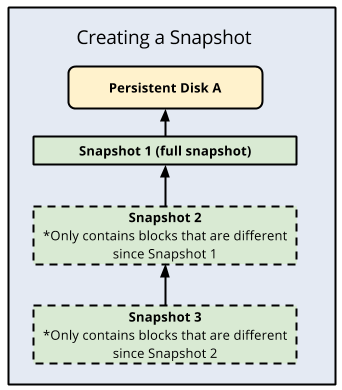
An advantage of standard disk snapshots is that they are incremental, where each subsequent
backup only stores incremental block changes instead of creating an entirely
new backup. Compute Engine redundantly stores multiple copies of each snapshot
across multiple locations with automatic checksums to ensure the integrity of
your data.
The following is an illustration of incremental backups:
### Cloud Storage as your backup destination
Cloud Storage is a good choice to use as your backup destination
for SAP HANA because it provides high durability and availability of data.
Cloud Storage is an object store for files of any type or format. It
has virtually unlimited storage and you don't have to worry about provisioning
it or adding more capacity to it. An [object](https://docs.cloud.google.com/storage/docs/objects.md.txt)
in Cloud Storage consists of file data and its associated metadata, and
can be up to 5 TB in size. A Cloud Storage
[bucket](https://docs.cloud.google.com/storage/docs/buckets.md.txt) can store any number of objects.
With Cloud Storage, your data is stored in multiple locations, which
provides high durability and high availability. When you upload your data to
Cloud Storage or copy your data within it, Cloud Storage
reports the action as successful only if object redundancy is achieved.
The following table shows the storage options offered by Cloud Storage:
| Data read/write frequency | The recommended Cloud Storage option |
|---|---|
| Frequent reads or writes | Choose the Standard [storage class](https://docs.cloud.google.com/storage/docs/storage-classes.md.txt) for databases that are in use, as they might frequently access Cloud Storage for writing and reading backup files. |
| Infrequent reads or writes | Choose Nearline or Coldline storage for infrequently accessed data, such as archived backups that need to be maintained following your organization's retention policy. Nearline is a good choice for backed-up data that you plan to access at most once a month, while Coldline is better for data that has very low probability of being accessed, such as once a year at most. |
| Archival data | Choose Archive storage for your long-term archival data. Archive is a good choice for data that you need to retain a copy of for an extended period of time, but which you don't intend to access more than once a year. For example, use Archive storage for backups that you need to retain for a long term to satisfy regulatory requirements. Consider replacing your tape-based backup solution with Archive. |
When you plan your usage of these storage options, start with the frequently
accessed tier and age your backup data through to the infrequent access tiers.
Backups generally become rarely used as they become older. The probability of
needing a backup that is 3 years old is extremely low and you can age this
backup into the Archive tier to save on costs. For information about
Cloud Storage costs, see
[Cloud Storage pricing](https://cloud.google.com/storage/pricing).
#### Cloud Storage compared to tape backup
The conventional, on-premises backup destination is tape. Cloud Storage
has many benefits over tape, including the ability to automatically store backups
"offsite" from the source system, because data in Cloud Storage is
replicated across multiple facilities. This also means that the backups stored
in Cloud Storage are highly available.
Another key difference is the speed of restoring backups when you need to use
them. If you need to create a new SAP HANA system from a backup, or restore an
existing system from a backup, then Cloud Storage provides faster access
to your data, which helps you build the system faster.
### Backint feature of Google Cloud's Agent for SAP
You can use Cloud Storage directly for backups and recoveries
for both on-premises and cloud installations by using the SAP-certified
Backint feature of Google Cloud's Agent for SAP.
For more information about this feature, see
[Backint based backup and recovery for SAP HANA](https://docs.cloud.google.com/sap/docs/agent-for-sap/latest/backint-backup-recovery.md.txt).
### Back up and recover SAP HANA by using Backint
The following sections provide information about how you can back up and recover
SAP HANA by using the
[Backint](https://docs.cloud.google.com/sap/docs/agent-for-sap/latest/backint-backup-recovery.md.txt)
feature of Google Cloud's Agent for SAP.
- [Triggering data and delta backups](https://docs.cloud.google.com/sap/docs/sap-hana-operations-guide.md.txt#trigger_data_delta_backups)
- [Triggering log backups](https://docs.cloud.google.com/sap/docs/sap-hana-operations-guide.md.txt#trigger_log_backups)
- [Querying the backup catalog](https://docs.cloud.google.com/sap/docs/sap-hana-operations-guide.md.txt#query_backup_catalog)
- [Recovering a database](https://docs.cloud.google.com/sap/docs/sap-hana-operations-guide.md.txt#recover_database)
#### Triggering data and delta backups
To trigger a backup for the SAP HANA data volume and send it to
Cloud Storage using the Backint feature of Google Cloud's Agent for SAP,
you can use
[SAP HANA Studio](https://help.sap.com/docs/SAP_HANA_PLATFORM/f157e7b47b2a417a99eadd4b6c433b77/2febf2472303493fbfe26eeb822f26f4.html),
[SAP HANA Cockpit](https://help.sap.com/docs/SAP_HANA_COCKPIT/afa922439b204e9caf22c78b6b69e4f2/f3ae772da42243dda1c0d9e34bceec0a.html),
[SAP HANA SQL](https://help.sap.com/docs/SAP_HANA_PLATFORM/4fe29514fd584807ac9f2a04f6754767/75a06c444e9a4b3287a46a6a40b4ee69.html),
or the DBA Cockpit.
The following are SAP HANA SQL statements for triggering data backups:
- To create a full backup for the system database:
```
BACKUP DATA USING BACKINT ('BACKUP_NAME');
```
Replace `BACKUP_NAME` with the name that you want to
set for the backup.
- To create a full backup for a tenant database:
```
BACKUP DATA FOR TENANT_SID USING BACKINT ('BACKUP_NAME');
```
Replace `TENANT_SID` with the SID of the tenant
database.
- To create differential and incremental backups:
```
BACKUP DATA BACKUP_TYPE USING BACKINT ('BACKUP_NAME');
BACKUP DATA BACKUP_TYPE FOR TENANT_SID USING BACKINT ('BACKUP_NAME');
```
Replace `BACKUP_TYPE` with `DIFFERENTIAL` or
`INCREMENTAL`, depending on the type of backup that you want to create.
There are multiple options that you can use while triggering data backups. For
information about these options, see the SAP HANA SQL reference guide
[`BACKUP DATA` Statement (Backup and Recovery)](https://help.sap.com/docs/SAP_HANA_PLATFORM/4fe29514fd584807ac9f2a04f6754767/75a06c444e9a4b3287a46a6a40b4ee69.html).
For more information about data and delta backups, see the SAP documents
[Data Backups](https://help.sap.com/docs/SAP_HANA_PLATFORM/6b94445c94ae495c83a19646e7c3fd56/c38fab0bbb57101493c8bb9730c8c79c.html)
and
[Delta Backups](https://help.sap.com/docs/SAP_HANA_PLATFORM/6b94445c94ae495c83a19646e7c3fd56/ad64f2a2e08a4e8c860a760e533bc40c.html).
#### Triggering log backups
To trigger a backup for the SAP HANA log volume and send it to
Cloud Storage using the Backint feature of Google Cloud's Agent for SAP,
complete the following steps:
1. Create a full database backup. For instructions, see the SAP documentation for your SAP HANA version.
2. In the SAP HANA `global.ini` file, set the parameter `catalog_backup_using_backint` to `yes`.
Make sure that the log mode for your SAP HANA system is `normal`, which is the
default value. If the log mode is set to `overwrite`, then the SAP HANA database
disables the creation of log backups.
For more information about log backups, see the SAP document
[Log Backups](https://help.sap.com/docs/SAP_HANA_PLATFORM/6b94445c94ae495c83a19646e7c3fd56/c3bb7e33bb571014a03eeabba4e37541.html).
#### Querying the backup catalog
The SAP HANA backup catalog is a vital part of the backup and recovery
operations. It contains information about the backups created for the SAP HANA
database.
To query the backup catalog for information about backups of a tenant database,
complete the following steps:
1. Take the tenant database offline.
2. On the system database, run the following SQL statement:
```
BACKUP COMPLETE LIST DATA FOR TENANT_SID;
```
Alternatively, to query for a specific point in time, run the following SQL
statement:
```
BACKUP LIST DATA FOR TENANT_SID UNTIL TIMESTAMP 'YYYY-MM-DD';
```
The statement creates the `strategyOutput.xml` file in the following
directory:
`/usr/sap/SID/HDBINSTANCE_NUMBER/HOST_NAME/trace/DB_TENANT_SID`.
For information about the `BACKUP LIST DATA` statement, see the SAP HANA SQL
reference guide
[`BACKUP DATA` Statement (Backup and Recovery)](https://help.sap.com/docs/SAP_HANA_PLATFORM/4fe29514fd584807ac9f2a04f6754767/75a06c444e9a4b3287a46a6a40b4ee69.html).
For information about the backup catalog, see the SAP
document
[Backup Catalog](https://help.sap.com/docs/SAP_HANA_PLATFORM/6b94445c94ae495c83a19646e7c3fd56/c3d31debbb5710148100a43bfe990b4a.html?locale=en-US).
#### Recovering a database
When you perform a recovery using a multi-streamed data backup, SAP HANA uses
the same number of channels that were used when the backup was created. For more
information, see the SAP document
[Prerequisites: Recovery Using Multistreamed Backups](https://help.sap.com/docs/SAP_HANA_PLATFORM/6b94445c94ae495c83a19646e7c3fd56/950bdfb7dd054248ad1f2f41fa900a41.html).
To restore an SAP HANA database backup that you created using the Backint
feature of Google Cloud's Agent for SAP, SAP HANA provides the
[`RECOVER DATA`](https://help.sap.com/docs/SAP_HANA_PLATFORM/4fe29514fd584807ac9f2a04f6754767/93637a07e3b544398aa02de1541b903c.html)
and
[`RECOVER DATABASE`](https://help.sap.com/docs/SAP_HANA_PLATFORM/4fe29514fd584807ac9f2a04f6754767/c4205f73bb571014ba46d209981bc1f5.html?locale=en-US)
SQL statements.
Both SQL statements restore backups from the Cloud Storage bucket that
you specified for the `bucket` parameter in your
`PARAMETERS.json` file, unless you've specified a bucket
for the `recover_bucket` parameter.
The following are sample SQL statements for recovering an SAP HANA database
using a backup that you created using the Backint feature of
Google Cloud's Agent for SAP:
- To recover a tenant database by specifying the backup filename:
```
RECOVER DATA FOR TENANT_SID USING BACKINT('BACKUP_NAME') CLEAR LOG;
```
- To recover a tenant database by specifying the backup ID:
```
RECOVER DATA FOR TENANT_SID USING BACKUP_ID BACKUP_ID CLEAR LOG;
```
Replace `BACKUP_ID` with the ID of the required backup.
- To recover a tenant database by specifying the backup ID when you need to use
the backup of the SAP HANA backup catalog, which is stored in your
Cloud Storage bucket:
```
RECOVER DATA FOR TENANT_SID USING BACKUP_ID BACKUP_ID USING CATALOG BACKINT CLEAR LOG;
```
- To recover a tenant database to a specific point in time or to a specific
log position:
```
RECOVER DATABASE FOR TENANT_SID UNTIL TIMESTAMP 'YYYY-MM-DD HH:MM:SS' CHECK ACCESS USING BACKINT;
```
- To recover a tenant database using a backup from an external database:
```
RECOVER DATABASE FOR TENANT_SID UNTIL TIMESTAMP 'YYYY-MM-DD HH:MM:SS' CLEAR LOG USING SOURCE 'SOURCE_TENANT_SID@SOURCE_SID' USING CATALOG BACKINT CHECK ACCESS USING BACKINT
```
Replace the following:
- `SOURCE_TENANT_SID`: the SID of the source tenant database
- `SOURCE_SID`: the SID of the SAP system where the source tenant database exists
If you need to recover an SAP HANA database when the SAP HANA backup catalog is
not available in the backup stored in your Cloud Storage bucket, then
follow the instructions given in the SAP Note
[3227931 - Recover a HANA DB From Backint Without a HANA Backup Catalog](https://launchpad.support.sap.com/#/notes/3227931).
### Managing identity and access to backups
When you use Cloud Storage or Compute Engine to back up your
SAP HANA data,
access to those backups is controlled by Identity and Access Management (IAM). This
feature gives admins the ability to authorize who
can take action on specific resources. IAM provides you with
centralized control and visibility for managing all of your
Google Cloud resources, including your backups.
IAM also provides a full audit trail history of permissions
authorization, removal, and delegation gets surfaced automatically for your
admins. This lets you configure policies that monitor access to your data in the
backups, allowing you to complete the full access-control cycle with your data.
IAM provides a unified view into security policy across your
entire organization, with built-in auditing to ease compliance processes.
To grant a principal access to your backups in Cloud Storage:
1. In the Google Cloud console, go to the **IAM \& Admin** page:
[Go to IAM \& Admin](https://console.cloud.google.com/iam-admin/iam)
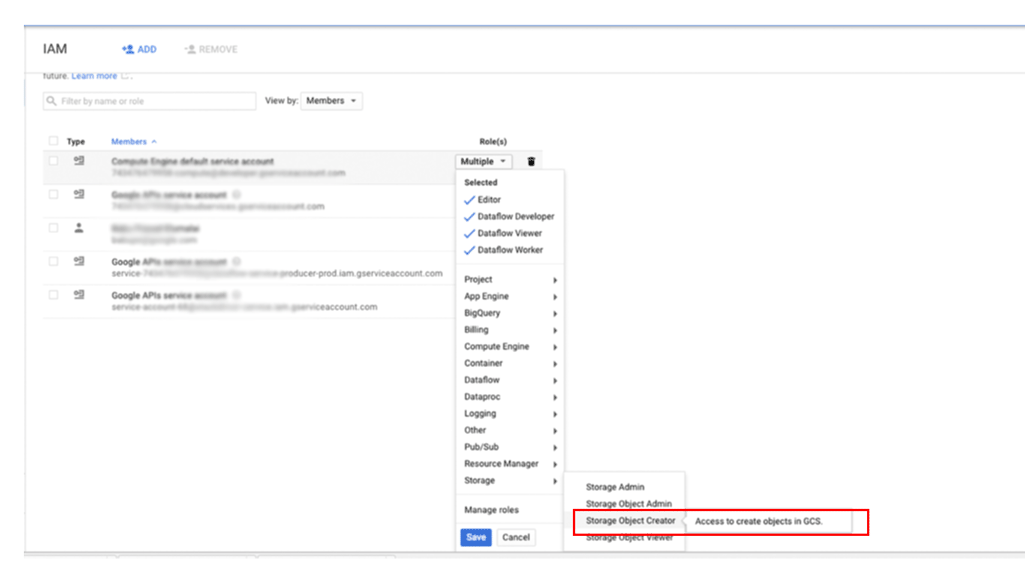
2. Specify the user to whom you want to grant access, and then assign the role
**Storage** \> **Storage Object Creator**:
### How to create file system based backups for SAP HANA
SAP HANA systems deployed on Google Cloud using the
[deployment guide](https://docs.cloud.google.com/sap/docs/sap-hana-deployment-guide-tf.md.txt) are
configured with a set of Persistent Disk or Hyperdisk volumes
to be used as an NFS-mounted backup destination. SAP HANA backups are first
stored on these local disks, and after which you need to copy them to
Cloud Storage for long-term storage. You can either manually copy the
backups over to Cloud Storage or schedule the copy to
Cloud Storage in a `crontab`.
If you are using the Backint feature of Google Cloud's Agent for SAP, then you back
up to and recover from a Cloud Storage bucket directly, thereby
negating the need for persistent disk storage for backups.
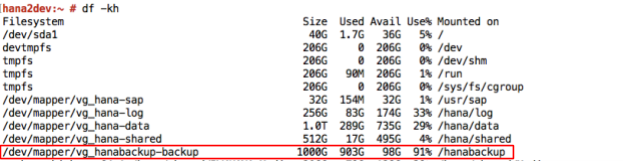
To start or schedule the SAP HANA data backups, you can use SAP HANA Studio, SQL
commands, or the DBA Cockpit. Log backups are written automatically unless
disabled. The following screenshot shows an example:
#### Configuring SAP HANA `global.ini`
If you followed the
[deployment guide](https://docs.cloud.google.com/sap/docs/sap-hana-deployment-guide-tf.md.txt)
instructions, then the SAP HANA `global.ini` configuration file is customized with
database backups stored in `/hanabackup/data/` and automatic log archival files are
stored in `/hanabackup/log/`. The following is an example of how the `global.ini`
looks:
[persistence]
basepath_datavolumes = /hana/data
basepath_logvolumes = /hana/log
basepath_databackup = /hanabackup/data
basepath_logbackup = /hanabackup/log
[system_information]
usage = production
To customize the `global.ini` configuration file for the Backint feature of
Google Cloud's Agent for SAP, see
[Configure SAP HANA for the Backint feature](https://docs.cloud.google.com/sap/docs/agent-for-sap/latest/configure-backint-backup-recovery.md.txt#configure_sap_hana_for_the_backint_feature).
#### Notes for scale-out deployments
In a scale-out implementation, a
[high-availability solution that uses live migration and automatic restart](https://docs.cloud.google.com/sap/docs/sap-hana-operations-guide.md.txt#ha_for_hana_on_gcp)
works in the same way as in a single-host setup. The main
difference is that the `/hana/shared` volume is NFS-mounted to all the worker
hosts and mastered in the HANA master. There is a brief period of
inaccessibility on the NFS volume in the event of a master host's live migration
or auto restart. When the master host restarts, the NFS volume shortly starts
functioning again on all hosts, and the normal operations resume automatically.
The SAP HANA backup volume, `/hanabackup`, must be available on all hosts during backup
and recovery operations. In the event of failure, you must verify that
`/hanabackup` is mounted on all hosts and remount any that are not. When you
choose to copy the backup set to another volume or Cloud Storage,
run the copy on the master host to achieve better I/O performance and
reduce network usage. To simplify the backup and recovery process, you can use
Cloud Storage Fuse to mount the Cloud Storage bucket on
each host.
The scale-out performance is only as good as your data distribution. The better
the data is distributed, the better your query performance is. This
requires that you know your data well, understand how the data is being
consumed, and design table distribution and partitioning accordingly. For more
information, see the SAP Note
[2081591 - FAQ: SAP HANA Table Distribution](https://launchpad.support.sap.com/#/notes/0002081591).
#### Gcloud Python
Gcloud Python is an idiomatic Python client that you can use to access
Google Cloud services. This guide uses Gcloud Python to perform backup and
restore operations to and from Cloud Storage for your SAP HANA database
backups.
If you followed the
[deployment guide](https://docs.cloud.google.com/sap/docs/sap-hana-deployment-guide-tf.md.txt)
instructions, Gcloud Python libraries are already available in the
Compute Engine instances.
The libraries are open source and allow you to operate on your
Cloud Storage bucket to store and retrieve backup data.
> [!NOTE]
> **Note:** If you did not follow the deployment guide instructions, and thus need to install the Gcloud Python libraries, then as the root user, run the following commands to install on SUSE Linux Enterprise Server (SLES):
>
> ```
> zypper in python-pip python-devel gcc
> pip install packaging
> pip install appdirs
> pip install --upgrade google-cloud-storage
> ```
You can run the following command to list objects in your Cloud Storage
bucket. You can use it to list the available backups:
python 2>/dev/null - <")
blobs = bucket.list_blobs()
for fileblob in blobs:
print(fileblob.name)
EOF
For complete details about Gcloud Python, see the
[storage client library reference documentation](https://docs.cloud.google.com/python/docs/reference/storage/latest.md.txt).
#### Example backup and restore
The following sections illustrate the procedure that you might follow for a
typical backup and restore tasks using SAP HANA Studio.
##### Example backup creation
1. In the SAP HANA Backup Editor, select **Open Backup Wizard**.
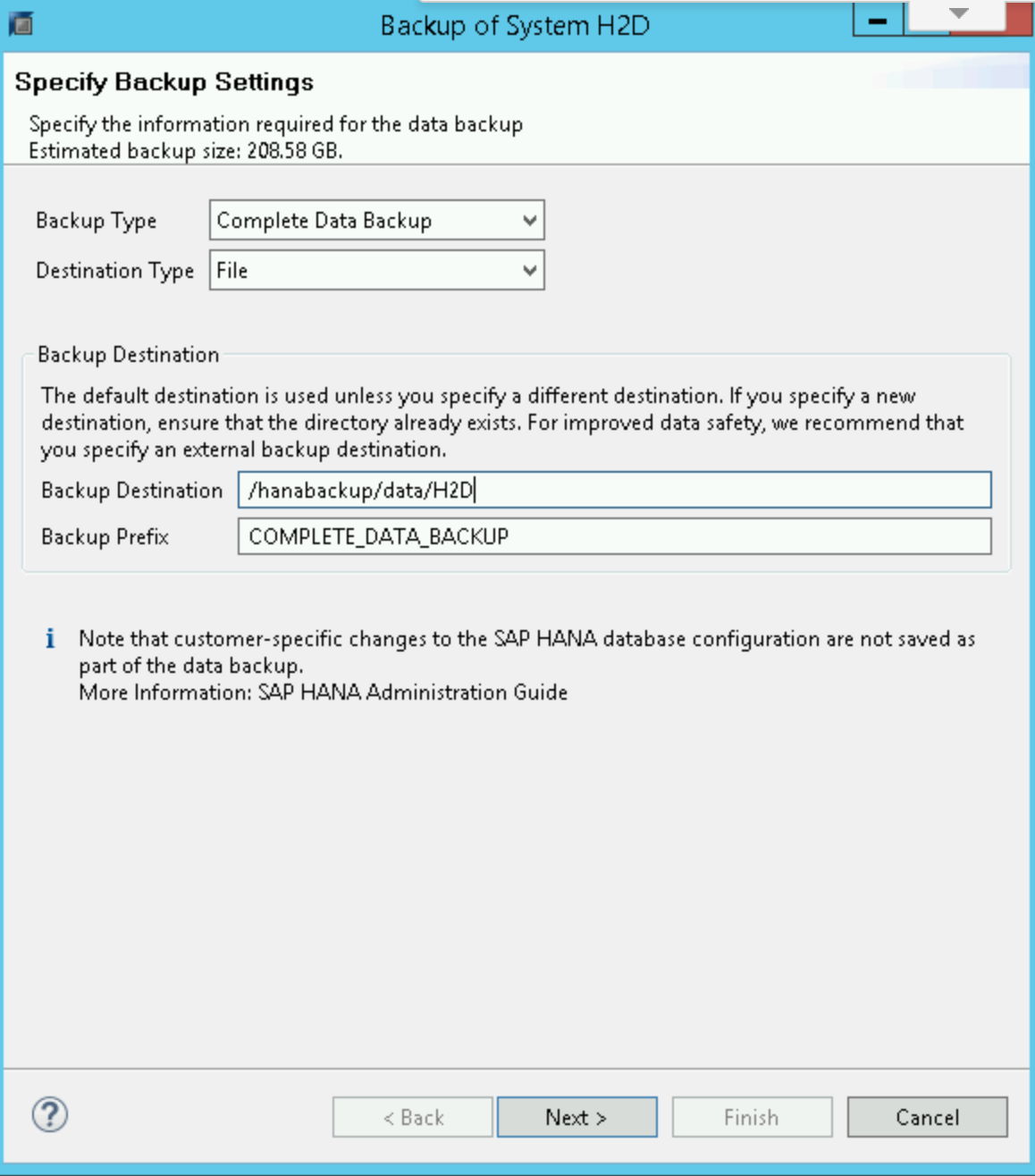
1. Select **File** as the destination type. This backs up the database to files in the specified file system.
2. Specify the backup destination, `/hanabackup/data/SID`, and the backup prefix. Replace `SID` with the system ID of your SAP system.
3. Click **Next**.
2. Click **Finish** in the confirmation form to start the backup.
3. When the backup starts, a status window displays the progress of your backup.
Wait for the backup to complete.
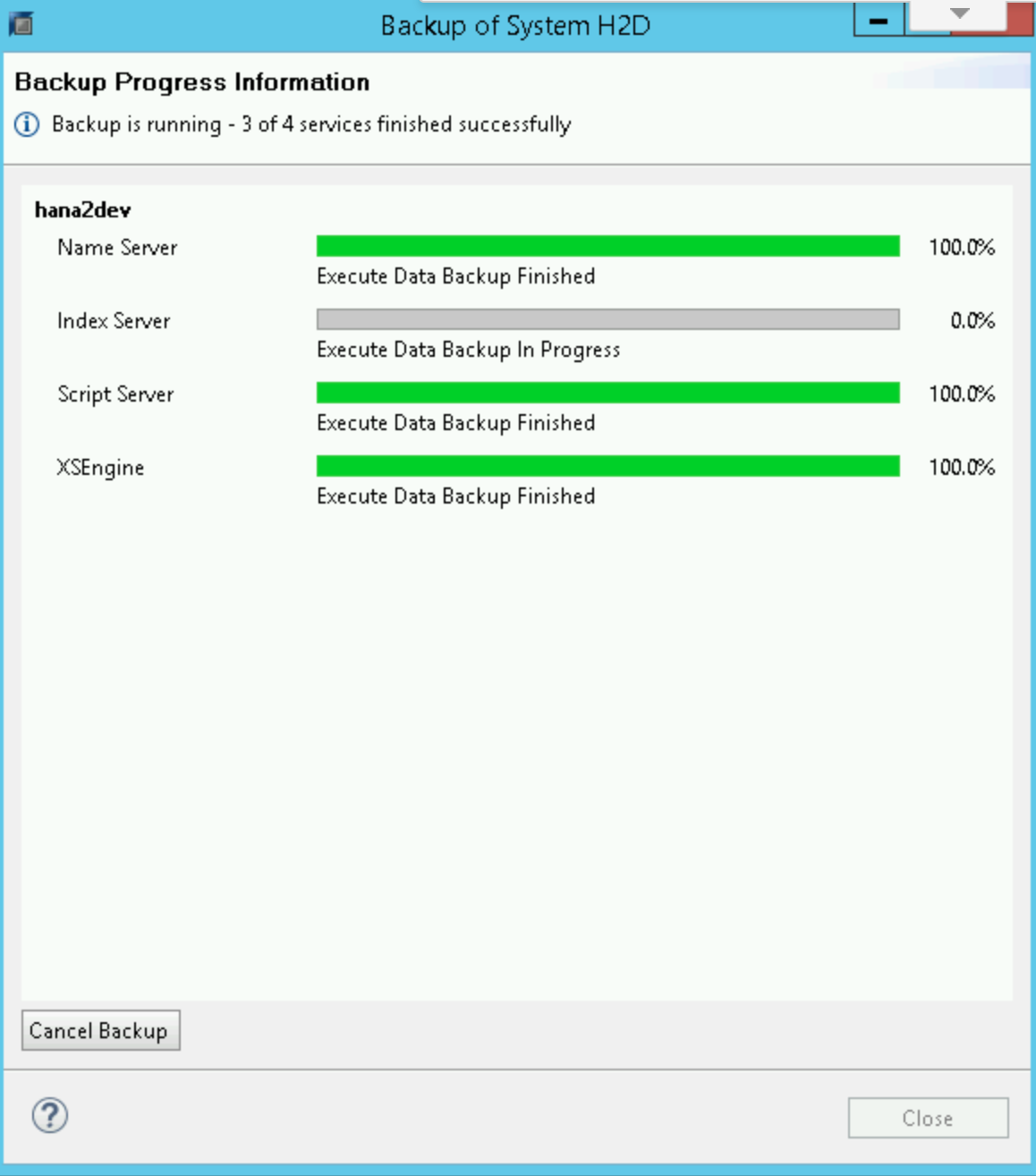
When the backup is complete, the backup summary displays a `Finished`
message.
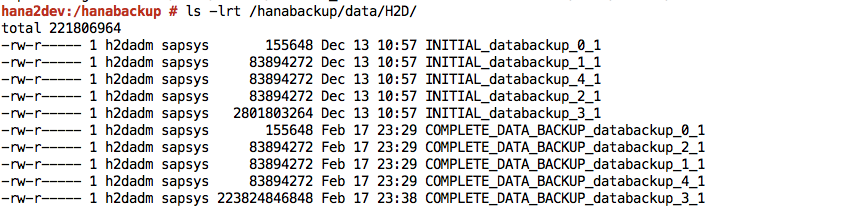
4. Sign in to your SAP HANA system and verify that the backups are available at
the expected locations in the file system. For example:

5. Push or synchronize the backup files from the `/hanabackup` file system to
Cloud Storage. The following sample Python script pushes the data
from `/hanabackup/data` and `/hanabackup/log` to the bucket used for
backups, in the form `NODE_NAME/DATA` or
`LOG/YYYY/MM/DD/HH/BACKUP_FILE_NAME`.
This lets you identify backup files based on the time during which the backup
was copied. Run this `gcloud Python` script on your operating system bash
prompt:
python 2>/dev/null - < [!NOTE]
> **Note:** Backing up directly to Cloud Storage buckets by using Cloud Storage FUSE is not supported. However, if you want to use Cloud Storage FUSE, then you can mount your Cloud Storage volumes to `/hanabackup_gcs` and create a script to schedule the movement of your backups from `/hanabackup` to `/hanabackup_gcs`. This would replace the operations in the previous two steps.
##### Example restoration of backup
1. If the backup files are not available in the `/hanabackup` directory but are
available in Cloud Storage, then download the files from
Cloud Storage, by running the following script from your operating
system bash prompt:
python - < **Recover System**:
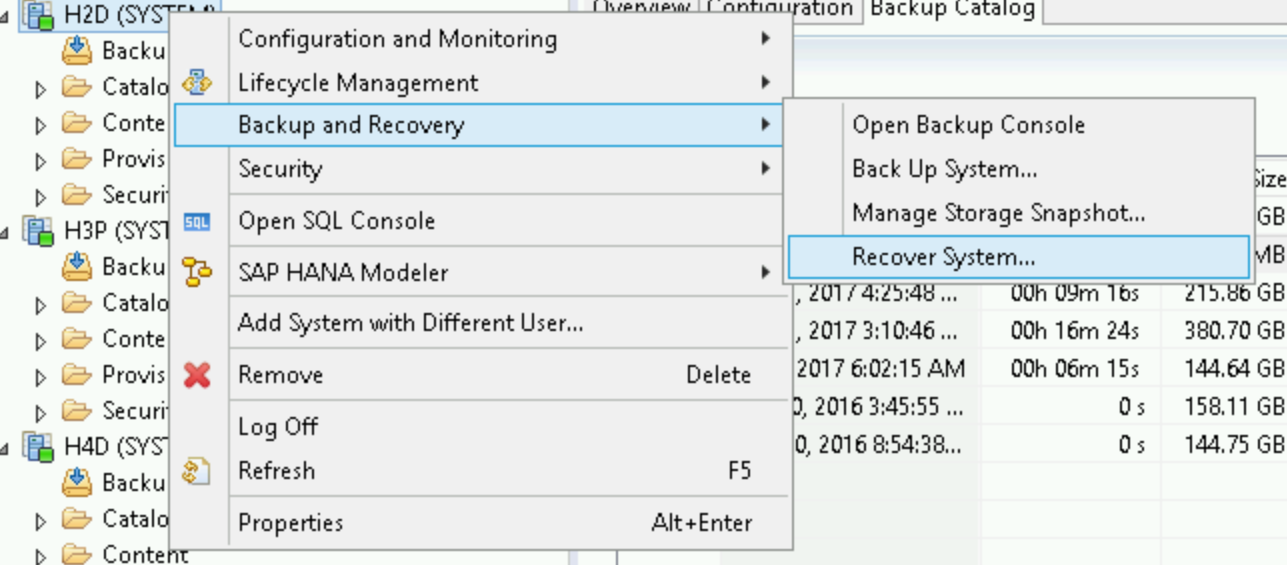
3. Click **Next**.
4. Specify the location of your backups in your local file system and click
**Add**.
5. Click **Next**.
6. Select **Recover without the backup catalog**:
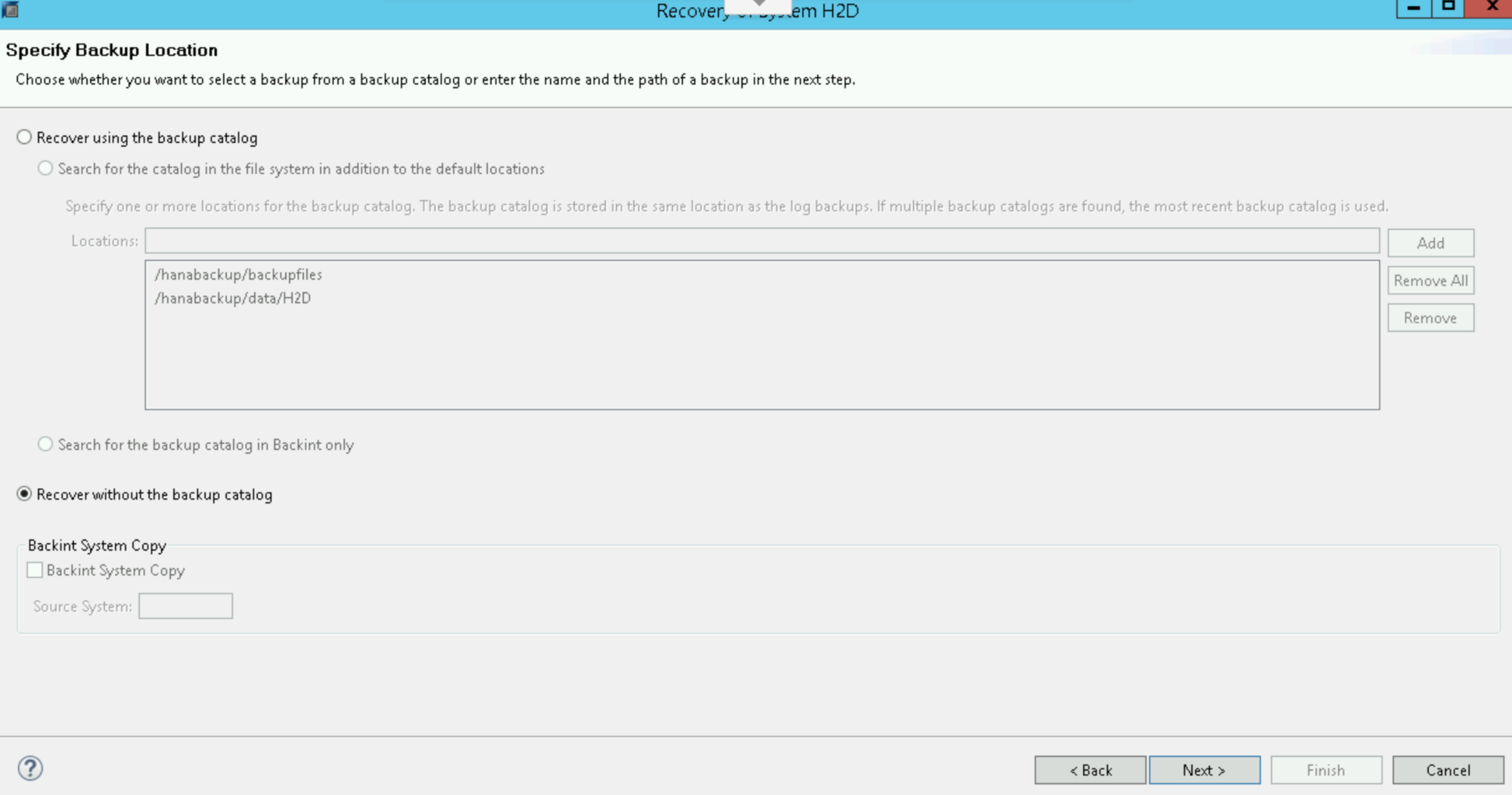
7. Click **Next**.
8. Select **File** as the destination type, then specify the location of the
backup files and the correct prefix for your backup. If you followed the
[Example backup creation](https://docs.cloud.google.com/sap/docs/sap-hana-operations-guide.md.txt#example_backup_creation) procedure, then remember
that `COMPLETE_DATA_BACKUP` was set as the prefix.
9. Click **Next** twice.
10. Click **Finish** to start the recovery.
11. When recovery completes, resume normal operations and remove backup files
from the `/hanabackup/data/SID/*` directories.
## What's next
You might find the following standard SAP documents helpful:
- [SAP HANA Library](https://help.sap.com/viewer/p/SAP_HANA_PLATFORM)
- [SAP ONE Support Launchpad](https://launchpad.support.sap.com/#)
You might also find the following Google Cloud documents useful:
- [Free cloud features and trial offer](https://docs.cloud.google.com/free-trial/docs/free-trial-eligibility-sign-up)
- [Get started with Google Cloud](https://docs.cloud.google.com/docs/get-started)
- [Compute Engine](https://docs.cloud.google.com/compute)
- [Persistent Disk](https://docs.cloud.google.com/compute/docs/disks/persistent-disks.md.txt)