These instructions show you how to export data from a
SAP application or its underlying database to
BigQuery by using SAP Data Services (DS).
The database can be SAP HANA or any other database that is supported by SAP.
The example in this guide exports SQL Anywhere database tables, but you can
use them to set up the export of other types of objects from both SAP
application and database layer to BigQuery.
You can use data export to backup your SAP data or to consolidate the data from
your SAP systems with consumer data from other systems in
BigQuery, where you can draw insights from machine learning
and for petabyte-scale data analytics.
The instructions are intended for SAP system administrators who have basic
experience with the configuration of SAP Basis, SAP DS, and Google Cloud.
## Architecture
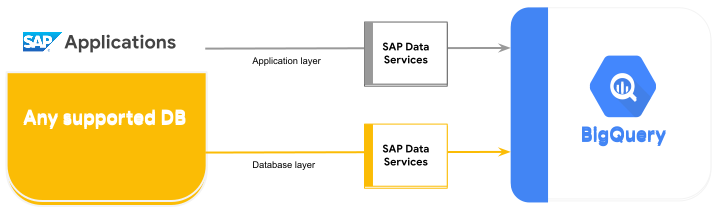
SAP Data Services retrieves the data from the SAP application or underlying
database, transforms the data to be compatible with the BigQuery
format, and initiates the load job that moves the data to
BigQuery. After the load job is complete, the data is available
in BigQuery for analysis.
The export is a snapshot of the data in the source system at the time of export.
You control when SAP Data Services initiates an export. Any existing data in
the target BigQuery table is overwritten by the exported data.
After the export is complete, the data in BigQuery
is not kept in sync with the data in the source system.
In this scenario, the SAP source system and SAP Data Services can be running
either on or off of Google Cloud.
## Core solution components
The following components are required to export data from an SAP application or
from a database to BigQuery by using SAP Data Services:
| **Component** | **Required versions** | **Notes** |
|---|---|---|
| SAP application server stack | Any ABAP-based SAP System starting with R/3 4.6C | In this guide, the application server and database server are collectively referred to as the *source system* , even if they are running on different machines.
Define RFC user with appropriate authorization
Optional: define separate table space for logging tables |
| Database (DB) system | Any DB version that is listed as supported in the [SAP Product Availability Matrix (PAM)](https://apps.support.sap.com/sap/support/pam), subject to any restrictions of the SAP NetWeaver stack that are listed in the PAM. | |
| SAP Data Services | SAP Data Services 4.2 SP1 or higher | |
| BigQuery | N/A | |
## Costs
BigQuery is a billable Google Cloud component.
Use the [Pricing Calculator](https://cloud.google.com/products/calculator/#id=411d8ca1-210f-4f2c-babd-34c6af2b5538)
to generate a cost estimate based on your projected usage.
## Prerequisites
These instructions assume that the SAP application system, database server,
and SAP Data Services are already installed and configured for normal operation.
Check with SAP to ensure that your planned configuration conforms to
SAP licensing requirements. The requirements might differ depending on
whether you are exporting data from an SAP application system or from
an underlying database.
### Set up a Google Cloud project in Google Cloud
Before you can use BigQuery, you need a Google Cloud project.
#### Create a Google Cloud project
1. Go to the Google Cloud console and sign up, walking through the setup
wizard.
[GO TO CLOUD CONSOLE](https://console.cloud.google.com/)
2. Next to the Google Cloud logo in the upper left-hand corner, click
the dropdown and select **NEW PROJECT**.
3. Give your project a name and click **Create**.
4. After the project is created (a notification is displayed in the upper
right), refresh the page.
#### Enable APIs
Enable the BigQuery API:
[GO TO BIGQUERY API](https://console.cloud.google.com/apis/enableflow?apiid=bigquery)
#### Create a service account
The service account (specifically its key file) is used to authenticate SAP DS
to BigQuery. You use the key file later when you
[create the target datastore](https://docs.cloud.google.com/sap/docs/bigquery-sap-export-using-sds.md.txt#create_a_target_datastore).
1. In the Google Cloud console, go to the **Service accounts**
page.
[GO TO SERVICE ACCOUNTS](https://console.cloud.google.com/iam-admin/serviceaccounts)
2. Select your Google Cloud project.
3. Click **Create Service Account**.
4. Enter a **Service account name**.
5. Click **Create and Continue**.
6. In the **Select a role** list, choose **BigQuery \> BigQuery Data Editor**.
7. Click **Add Another Role**.
8. In the **Select a role** list, choose **BigQuery \> BigQuery Job User**.
9. Click **Continue**.
10. As appropriate, grant other users access to the service account.
11. Click **Done**.
12. On the **Service accounts** page in the Google Cloud console,
click the email address of the service account that you just created.
13. Under the service account name, click the **Keys** tab.
14. Click the **Add Key** drop-down menu, and then select **Create new key**.
15. Make sure the **JSON** key type is specified.
16. Click **Create**.
17. Save the automatically downloaded key file to a secure location.
## Configuring export from SAP systems to BigQuery
Configuring this solution includes the following high-level steps:
- Configuring SAP Data Services
- Creating the data flow between SAP Data Services and BigQuery
### SAP Data Services Configuration
#### Create data services project
1. Open the SAP Data Services Designer application.
2. Go to **Project \> New \> Project**.
3. Specify a name in the **Project name** field.
4. Click **Create**. Your project appears in the Project Explorer on the left.
#### Create a source datastore
You can use either a SAP application system or its underlying database
as your source datastore for SAP Data Services. The types of data objects
that you can export are different depending on whether you are using an
SAP application system or a database as your datastore.
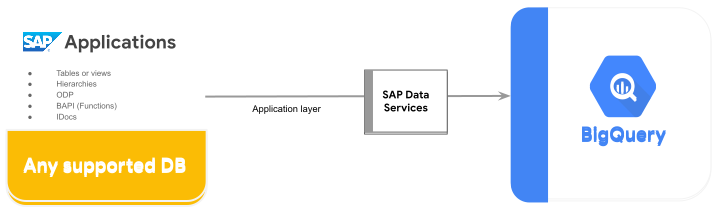
If you use an SAP application system as your datastore, you can export the
following objects:
- Tables
- Views
- Hierarchies
- ODP
- BAPI (Functions)
- IDocs
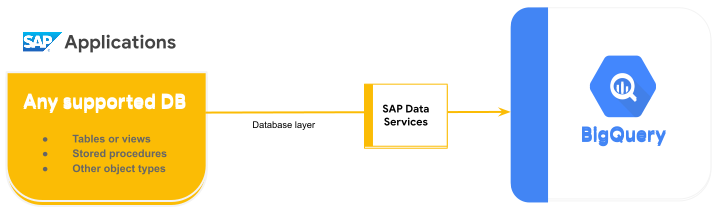
If you use an underlying database as your datastore connection, you can
export objects such as the following:
- Tables
- Views
- Stored procedures
- Other data objects
The datastore configurations for SAP application systems and databases are
described in the following sections. Regardless of the type of datastore
connection or data object, the procedure for importing and using the objects
in a SAP Data Services data flow is almost identical.
#### Configuration for SAP application layer connection
These steps create a connection to SAP application and add the data objects to
the applicable datastore node in the Designer object library.
1. Open the SAP Data Services Designer application.
2. Open your SAP Data Services project in Project Explorer.
3. Go to **Project \> New \> Datastore**.
4. Fill in **Datastore Name**. For example, ECC_DS.
5. In the **Datastore type** field, select **SAP Applications**.
6. In the **Application server name** field, provide the instance name of the SAP application server.
7. Specify the SAP application server access credentials.
8. Click **OK**.
#### Configuration for SAP database layer connection
##### SAP HANA
These steps create a connection to SAP HANA database and add the data tables to
the applicable datastore node in the Designer object library.
1. Open the SAP Data Services Designer application.
2. Open your SAP Data Services project in Project Explorer.
3. Go to **Project \> New \> Datastore**.
4. Fill out **Datastore Name** eg. HANA_DS.
5. In **Datastore type** field select option **Database.**
6. In **Database type** field select option **SAP HANA.**
7. In **Database version** field select your database version.
8. Fill out **Database server** name, **Port Number** and access credentials.
9. Click **OK**.
##### Other supported databases
These steps create a connection to SQL Anywhere and add the data tables to the
applicable datastore node in the Designer object library.
The steps for the creation of connection to other supported databases are almost
identical.
1. Open the SAP Data Services Designer application.
2. Open your SAP Data Services project in Project Explorer.
3. Go to **Project \> New \> Datastore**.
4. Fill out **Name** eg. SQL_ANYWHERE_DS.
5. In **Datastore type** field select option **Database.**
6. In **Database type** field select option **SQL Anywhere.**
7. In **Database version** field select your database version.
8. Fill out **Database server name** , **Database name** and access credentials.
9. Click **OK**.
The new datastore appears in the **Datastore** tab in the Designer local object
library.
#### Create a target datastore
These steps create a BigQuery datastore that uses the service
account that you created previously in the [Create a service account](https://docs.cloud.google.com/sap/docs/bigquery-sap-export-using-sds.md.txt#create_a_service_account)
section. The service account enables SAP Data Services to securely access
BigQuery.
For more information, see [Obtain your Google service account email](https://help.sap.com/viewer/497053670ed1451d9cf24afc40de68ea/4.2.11/en-US/fc236cb735714f02b0e322a19ad73203.html)
and [Obtain a Google service account private key file](https://help.sap.com/viewer/497053670ed1451d9cf24afc40de68ea/4.2.11/en-US/fa5192d438bd42ec8547c7c8e809b2e0.html)
in the SAP Data Services documentation.
1. Open the SAP Data Services Designer application.
2. Open your SAP Data Services project in Project Explorer.
3. Go to **Project \> New \> Datastore**.
4. Fill in the **Name** field. For example, BQ_DS.
5. In the **Datastore type** field, select **Google BigQuery**.
6. The **Web Service URL** option appears. The software automatically completes the option with the default BigQuery web service URL.
7. Select **Advanced**.
8. Complete the Advanced options based on the [Datastore option descriptions](https://help.sap.com/viewer/497053670ed1451d9cf24afc40de68ea/4.2.11/en-US/041c48f50d244b3cb30fb2e9600fd8ad.html) for BigQuery in the SAP Data Services documentation.
9. Click **OK**.
The new datastore appears in the **Datastore** tab in the Designer local object
library.
### Set up the data flow between SAP Data Services and BigQuery
To set up the data flow, you need to create the batch job, create the
BigQuery loader data flow, and import the source and
BigQuery tables into SAP Data Services as external metadata.
#### Create the batch job
1. Open the SAP Data Services Designer application.
2. Open your SAP Data Services project in Project Explorer.
3. Go to **Project \> New \> Batch Job.**
4. Fill in the **Name** field. For example, JOB_SQL_ANYWHERE_BQ.
5. Click on **OK**.
#### Create data flow logic
##### Import source table
These steps import database table from source datastore and make it available
in SAP Data Services.
1. Open the SAP Data Services Designer application.
2. Expand the source datastore in the Project Explorer.
3. Select the **External Metadata** option in the upper portion of the right panel. The list of nodes with available tables and/or other objects appears.
4. Select the table to import from the list.
5. Right-click and select the **Import** option.
6. The imported table is now available in the object library under the source datastore node.
##### Create data flow
1. Select the batch job in the Project Explorer.
2. Right-click in empty workspace in the right panel and select option **Add New \> Dataflow**.
3. Right-click on the dataflow icon and select **Rename**.
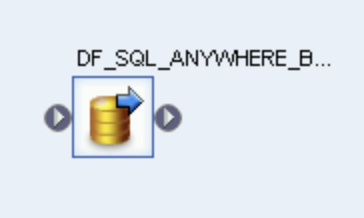
4. Change name to DF_SQL_ANYWHERE_BQ.
5. Open the dataflow workspace by double-clicking on the dataflow icon.
##### Import and connect the data flow with the source datastore objects
1. Expand the source datastore in the Project Explorer.
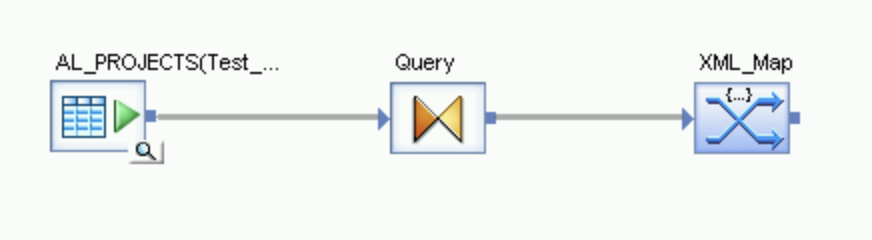
2. From the datastore, drag and drop the source table onto the data flow workspace (choose **Make Source** option when you drag the table to workspace). In these instructions, the datastore is named SQL_ANYWHERE_DS. The name of your datastore might be different.
3. Drag **Query transform** from the **Platform** node in the **Transforms** tab of the object library onto the data flow.
4. Connect the source table in the workspace to the **Query transform**.
5. Double-click on **Query transform**.
6. Select all of the table fields under **Schema In** on the left and drag
them to **Schema Out** on the right.
> [!IMPORTANT]
> **Important:** If the data type of a field is `Datetime`, you must add a conversion function to convert the datetime value that is used in SAP Data Services to the timestamp format that is used by BigQuery.To add a conversion function for a datetime field:
- Select the datetime field in the **Schema Out** list on the right.
- Select the **Mapping** tab below the schema lists.
- Replace the field name with the following function:
```
to_date(to_char(FIELDNAME,'yyyy-mm-dd hh24:mi:ss'), 'yyyy-mm-dd
hh24:mi:ss')
```
Where FIELDNAME is the name of the field you selected.

7. Click on the Back icon in the application toolbar to get back to the
Dataflow Editor.
8. From the **Platform** node in the **Transforms** tab of the object
library, drag an **XML_Map** transform onto the data flow.
9. Select **Batch** mode in the dialog.
10. Connect the **Query** transform to the **XML_Map** transform.
##### Create a schema file
These steps create a schema file that reflects the structure of the source
tables. Later, you use the schema file to create a BigQuery
table.
The schema ensures that the BigQuery loader data flow populates
the new BigQuery table successfully.
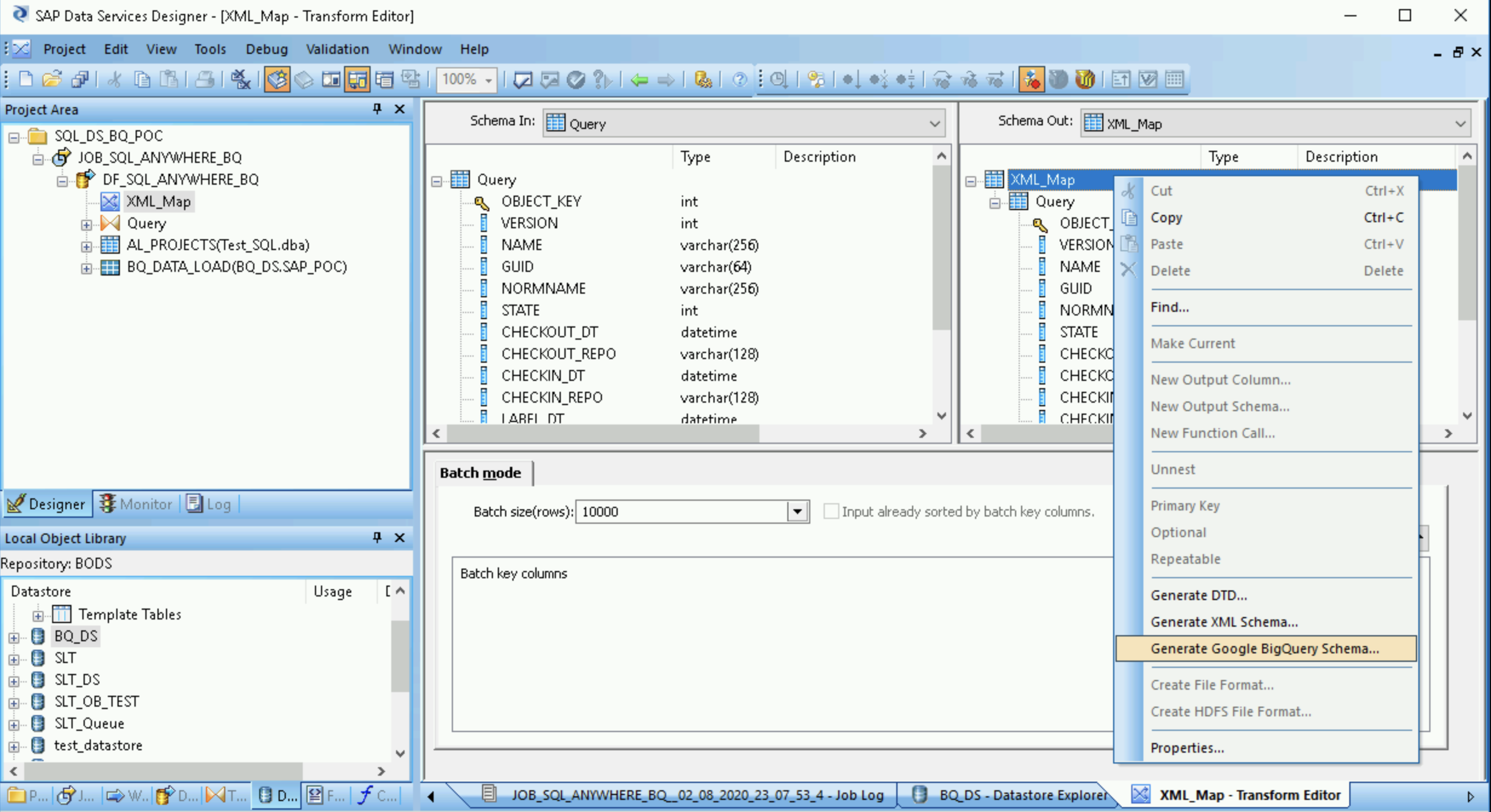
1. Open the **XML Map transform** and complete the input and output schema sections based on the data you are including in the BigQuery table.
2. Right-click the **XML_Map** node in the **Schema Out** column and select **Generate Google BigQuery Schema** from the dropdown menu.
3. Enter a name and location for the schema.
4. Click **Save**.
SAP Data Services generates a schema file with the .json file extension.
##### Create the BigQuery table
You need to create a table in your BigQuery dataset on
Google Cloud for the data load. You use the schema you created in SAP Data
Services to create the table.
The table is based on the schema that you generated in the previous step.
1. Access your Google Cloud project in the Google Cloud console.
2. Select **BigQuery**.
3. Click on the applicable dataset.
4. Click on **Create table**.
5. Enter a Table name. For example, `BQ_DATA_LOAD`.
6. Under **Schema** , toggle the setting to enable the **Edit as text** mode.
7. Set the schema of the new table in BigQuery by copying and pasting the contents of the schema file that you created in [Create a schema file](https://docs.cloud.google.com/sap/docs/bigquery-sap-export-using-sds.md.txt#create_a_schema_file).
8. Click **Create table**.
##### Import the BigQuery table
These steps import the BigQuery table that you created in the
previous step and make it available in SAP Data Services.
1. In the SAP Data Services Designer object library, right-click on the BigQuery datastore and select the **Refresh Object Library** option. This updates the list of datasource tables that you can use in your dataflow.
2. Open the BigQuery datastore.
3. In the upper part of the right panel, select **External Metadata**. The BigQuery table that you created appears.
4. Right-click the applicable BigQuery table name and select **Import**.
5. The import of the selected table into SAP Data Services starts. The table is now available in the object library under the target datastore node.
##### Import and connect the data flow with the target datastore objects
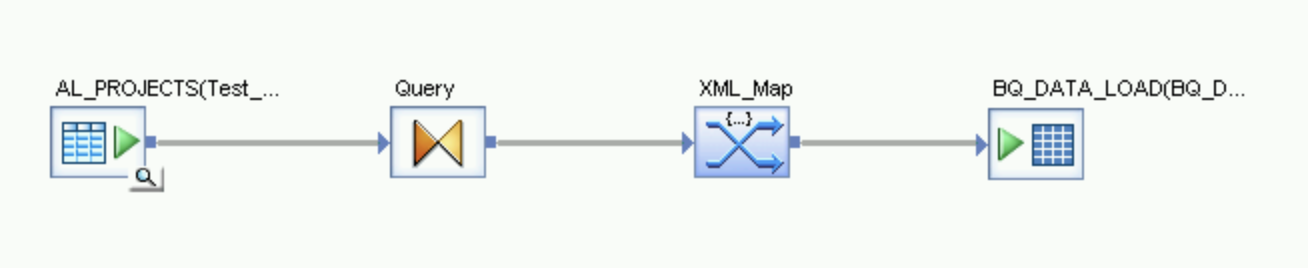
1. From the datastore in the object library, drag the imported BigQuery table onto the data flow. The name of the datastore in these instructions is `BQ_DS`. Your datastore name might be different.
2. Connect the **XML_Map** transform to the imported
BigQuery table.
3. Open the **XML_Map** transform and complete the input and output schema
sections based on the data you are including in the BigQuery
table.
4. Double-click the BigQuery table in the workspace to open
it and complete the options in the **Target** tab as indicated in the
following table:
| **Option** | **Description** |
|---|---|
| **Make Port** | Specify **No** , which is the default.
Specifying **Yes** makes a source or target file an embedded data flow port. |
| **Mode** | Specify **Truncate** for the initial load, which replaces any existing records in the BigQuery table with the data loaded by SAP Data Services. **Truncate** is the default. |
| **Number of loaders** | Specify a positive integer to set the number of loaders (threads) to use for processing. The default is 4.
Each loader starts one resumable load job in BigQuery. You can specify any number of loaders. For help determining an appropriate number of loaders, see the SAP documentation, including: - [SAP Data Services Sizing Guide](https://help.sap.com/viewer/ead3b177ef07496f815c511a47f220a8/4.2.13/en-US) - [The SAP Quicksizer tool](https://service.sap.com/quicksizer) - [The SAP Product Availability Matrix](https://apps.support.sap.com/sap/support/pam) |
| **Maximum failed records per loader** | Specify 0 or a positive integer to set the maximum number of records that can fail per load job before BigQuery stops loading records. The default is zero (0). |
5. Click on the Validate icon in the top toolbar.
6. Click on the Back icon in the application toolbar to return to the
Dataflow Editor.
## Loading the data into BigQuery
These steps start the replication job and execute the dataflow in SAP Data
Services to load the data from source system to BigQuery.
When you execute the load, all of the data in the source dataset is replicated
to the target BigQuery table that is connected to the load data
flow. Any data in the target table is overwritten.
1. In the SAP Data Services Designer, open Project Explorer.
2. Right-click on the replication job name and select **Execute**.
3. Click **OK**.
4. The loading process starts and debug messages start appearing in the SAP Data Services log. The data is loaded into the table that you created in BigQuery for initial loads. The name of the load table in these instructions is `BQ_DATA_LOAD`. The name of your table might be different.
5. To see if loading is complete, go to the Google Cloud console and open the BigQuery dataset that contains the table. If the data is still loading, "**Loading**" appears next to the table name.
After loading, the data is ready for processing in BigQuery.
## Scheduling loads
You can schedule a load job to run on at regular intervals by using the SAP
Data Services Management Console.
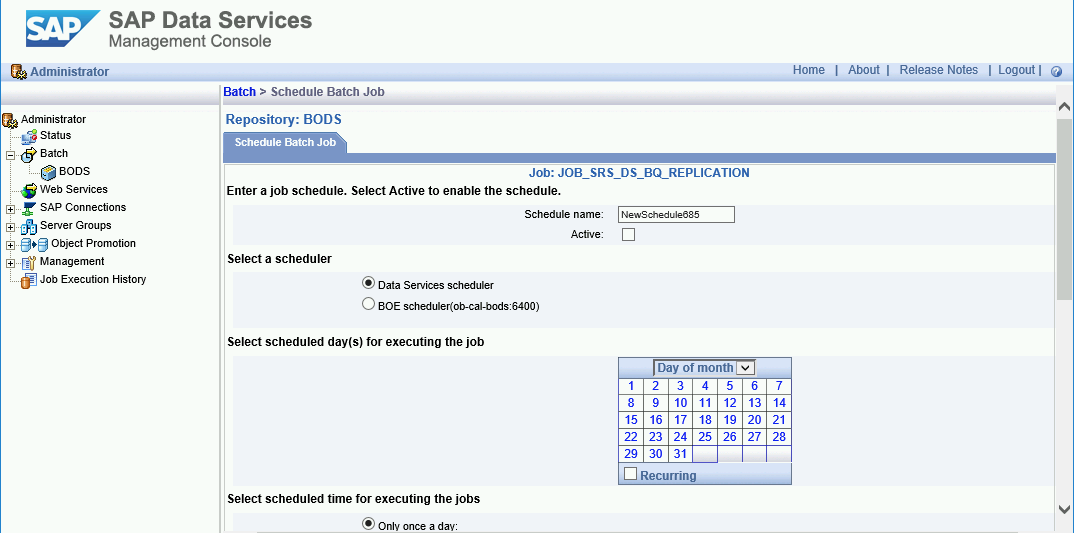
1. Open the SAP Data Services Management Console application.
2. Click on **Administrator**.
3. Expand the **Batch** node in the menu tree on the left side.
4. Click on the name of your SAP Data Services repository.
5. Click on the **Batch Job Configuration** tab.
6. Click on **Add Schedule**.
7. Fill in **Schedule** name.
8. Check **Active**.
9. In the **Select scheduled time for executing the jobs** section, specify the frequency for your delta load execution.
1. **Important** : Google Cloud limits the number of [BigQuery load jobs](https://docs.cloud.google.com/bigquery/docs/reference/rest/v2/jobs.md.txt) that you can run in a day. Make sure that your schedule does not exceed the limit, which cannot be raised. For more information about the limit for BigQuery load jobs, see [Quotas \& limits](https://docs.cloud.google.com/bigquery/quotas.md.txt#load_jobs) in the BigQuery documentation.
10. Click on **Apply**.
## What's next
Query and analyze replicated data in BigQuery.
For more information about querying, see:
- [Overview of querying BigQuery data](https://docs.cloud.google.com/bigquery/docs/query-overview.md.txt) in the BigQuery documentation.
For some ideas about how to set up a solution for close-to-real time
replicating data from SAP applications to BigQuery by using SAP
Landscape Transformation Replication Server and SAP Data Services, see:
- [Replicating data from SAP Applications to BigQuery through
SAP Data Services and SAP LT Replication Server](https://docs.cloud.google.com/sap/docs/bigquery-replication-from-sap-apps)
For more reference architectures, diagrams, and best practices, explore the
[Cloud Architecture Center](https://docs.cloud.google.com/architecture).