This reference architecture is intended for people who are evaluating
Google Cloud as a platform for deploying SAP Business Suite applications
on SAP ASE or IBM Db2. It includes considerations during the planning phase,
deployment models and automation, and common operational procedures like backup
and DR tasks.
Google Cloud provides cost-effective, reliable, secure, and
high-performance SAP-certified infrastructure for running SAP Business Suite
on SAP ASE or IBM Db2. For a complete list of supported SAP solutions on
Google Cloud, see
[SAP on Google Cloud](https://docs.cloud.google.com/solutions/sap).
## Architecture
The following diagrams show a high-level view of three common deployment models
for SAP Business Suite:
[centralized](https://docs.cloud.google.com/sap/docs/architectures/sap-business-suite-on-ase-or-db2.md.txt#centralized_deployment),
[distributed](https://docs.cloud.google.com/sap/docs/architectures/sap-business-suite-on-ase-or-db2.md.txt#distributed_deployment), and
[distributed with high availability](https://docs.cloud.google.com/sap/docs/architectures/sap-business-suite-on-ase-or-db2.md.txt#distributed_deployment_with_ha).
### Centralized deployment
In a centralized deployment, you can install SAP Business Suite and the
SAP ASE or IBM Db2
database on the same Compute Engine instance. We recommend this
approach for non-production environments such as sandbox and development
environments.
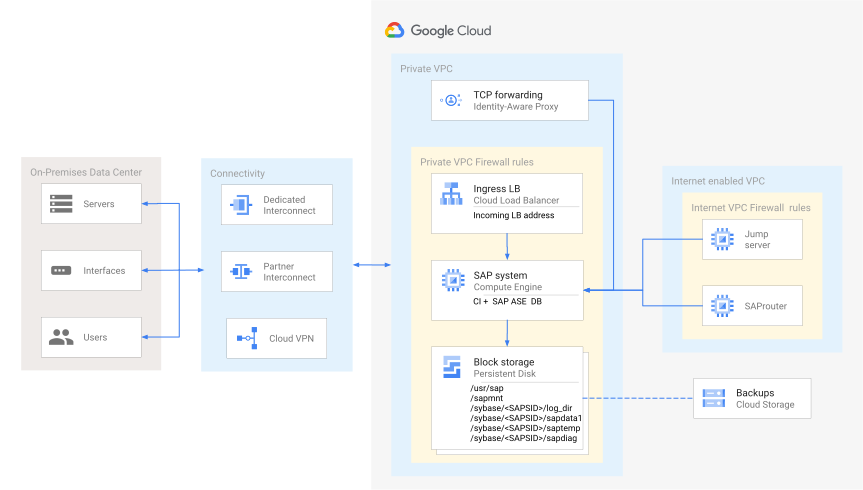
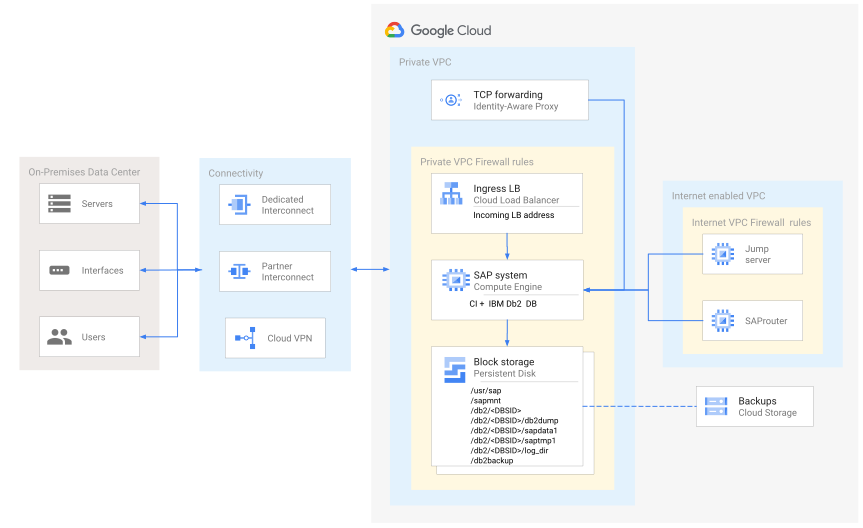
The following sections show reference architectures for SAP Business Suite on SAP ASE and IBM Db2 in centralized deployments.
#### Centralized deployment of SAP Business Suite with SAP ASE
The following diagram shows a reference architecture for a centralized
deployment of SAP Business Suite on SAP ASE. Note that SAP ASCS, PAS, WD, and
the database are all installed on the same compute instance.
#### Centralized deployment of SAP Business Suite with IBM Db2
The following diagram shows a reference architecture for a centralized
deployment of SAP Business Suite on IBM Db2. Note that SAP ASCS, PAS, WD, and
the database are all installed on the same compute instance.
### Distributed deployment
In a distributed deployment, you can install the different components on
different Compute Engine instances. We recommend this approach for
production environments or environments that require a lot of compute power to
handle heavy transaction loads.
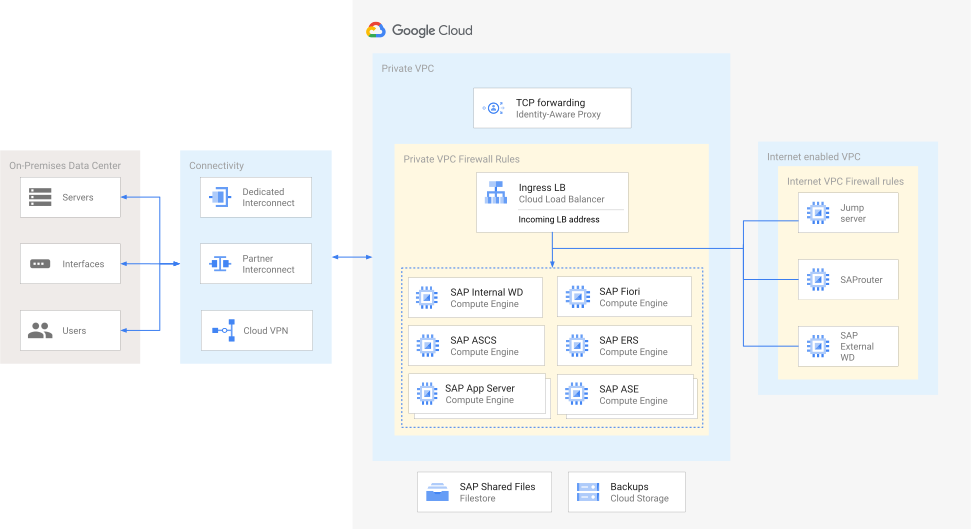
#### Distributed deployment of SAP Business Suite with SAP ASE
The following diagram shows a reference architecture for SAP Business Suite on
SAP ASE in a distributed deployment. Note that SAP ASCS, PAS, WD, and ASE are
all installed on different compute instances.
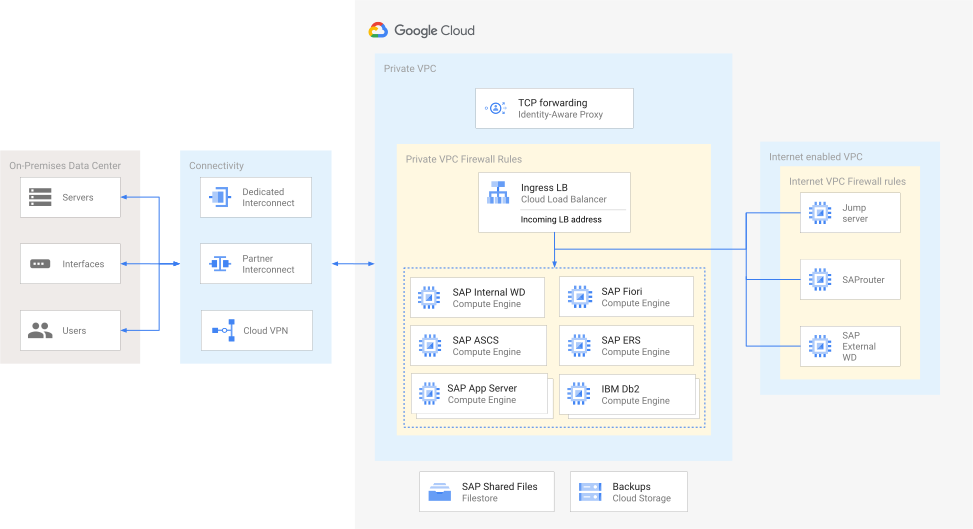
#### Distributed deployment of SAP Business Suite with IBM Db2
The following diagram shows a reference architecture for SAP Business Suite on
IBM Db2 in a distributed deployment. Note that SAP ASCS, PAS, WD, and IBM Db2
are all installed on different compute instances.
### Distributed deployment with high availability
In a distributed deployment with high availability, Linux clusters are set up across zones to help guard against component failures in a given region. You can deploy a Linux cluster across zones using an active/passive configuration. In both cases, you start by setting up two Compute Engine instances in separate zones for maximum redundancy, each with its own SAP ASE or IBM Db2 database.
- **Distributed deployment of SAP ASE with high availability** : You can deploy a
highly-available and disaster-tolerant (HADR) SAP ASE database on
Google Cloud that is supported by SAP. For more information, see
[SAP ASE planning guide](https://docs.cloud.google.com/sap/docs/sap-ase-planning-guide.md.txt).
The following diagram illustrates an architecture for SAP Business Suite on
SAP ASE that uses a Linux cluster to achieve high availability on both the
application and the database side:
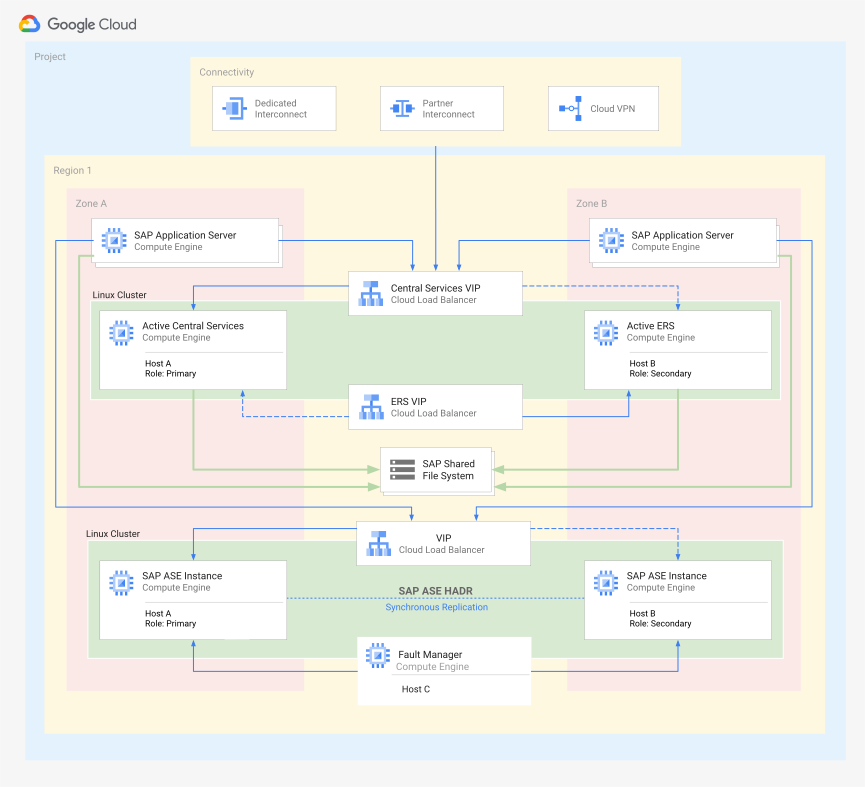
The cluster managing high availability includes the following functions and
features:
- Three host compute instances, two hosts each with a database instance and one with Fault Manager.
- Synchronous SAP ASE replication.
- The Pacemaker high-availability cluster resource manager.
- A fencing mechanism using Fault Manager to ensure isolation of the failed or failing resources.
- Automatic restart of the failed instance as the new secondary instance and automatic re-registration for SAP ASE replication.
- **Distributed deployment of IBM Db2 with high availability** : You can deploy a
highly-available and disaster-tolerant (HADR) IBM Db2 database on
Google Cloud that is supported by SAP. For more information, see
[IBM Db2 for SAP planning guide](https://docs.cloud.google.com/sap/docs/sap-ibm-db2-planning-guide.md.txt).
You can configure a two-host HADR Pacemaker cluster using the clustering
solution provided by IBM for Db2. For more information, see the SAP PDF
[Database Administration Guide for SAP on IBM Db2 for Linux, Unix, and Windows](https://help.sap.com/doc/7367f81b468e4480b3c550669b3534aa/CURRENT_VERSION/en-US/DB6_Admin_Guide.pdf).
The following diagram illustrates an architecture for SAP Business Suite on IBM
Db2 that uses a Linux cluster to achieve high availability on both the
application and the database side.
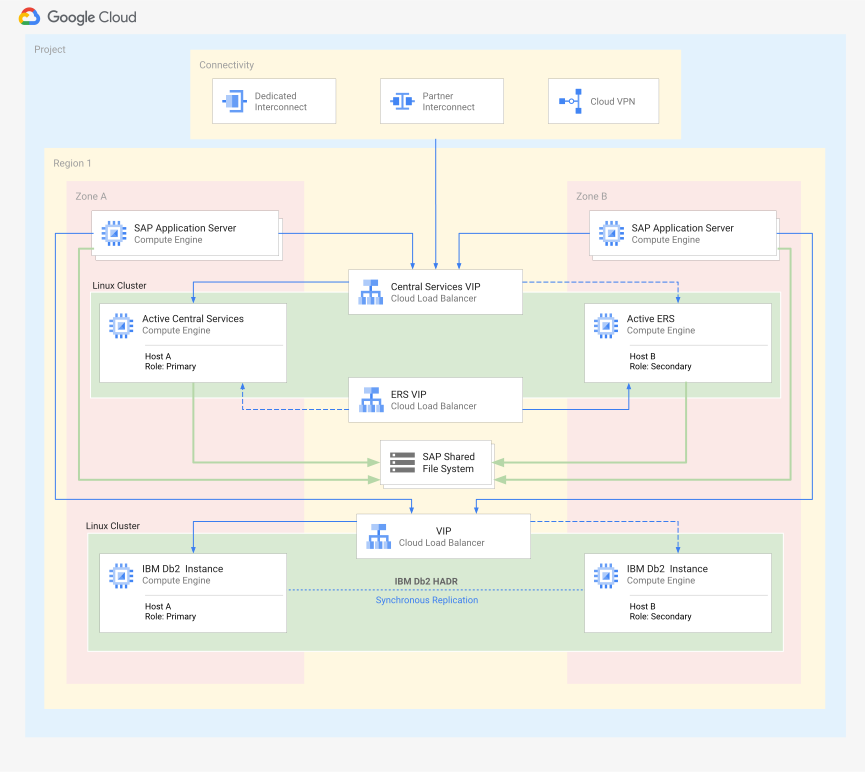
The cluster managing the high availability includes the following functions
and features:
- Two host compute instances, each with an instance of IBM Db2.
- Synchronous IBM Db2 HADR replication.
- A Linux high-availability cluster resource manager, such as Pacemaker.
- A fencing mechanism that fences off the failed node.
- An internal Application Load Balancer to route the VIP to the active node.
- Automatic restart of the failed instance as the new secondary instance and automatic re-registration for IBM Db2 HADR.
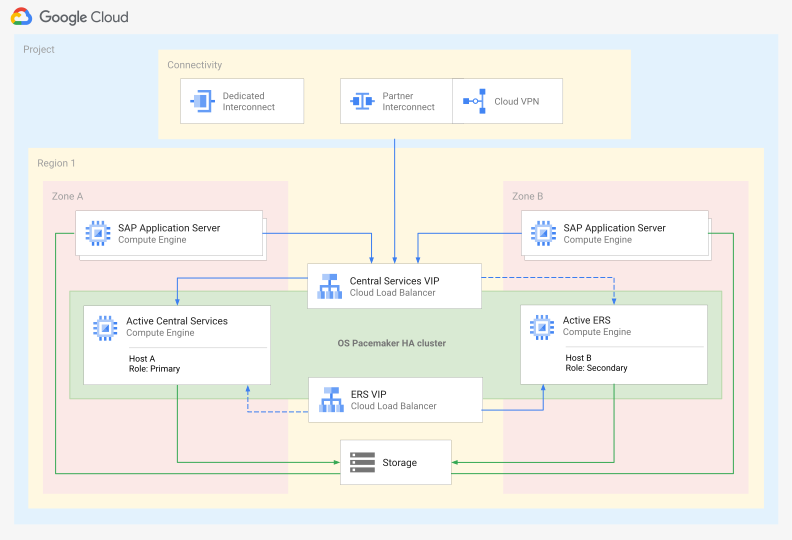
The architecture on the application side is similar. In this case, the cluster
manages the ABAP SAP Central Services (ASCS) and the Enqueue Replication Server
or Enqueue Replicator (ERS) that are used to provide the SAP Business Suite
system with high availability in case something happens to any of the ASCS and
ERS instances.
Depending on the
SAP NetWeaver version you use with your SAP Business Suite system,
the Enqueue Server and the Enqueue Replication Server / Enqueue Replicator run
on a different version:
The following diagram shows an SAP Business Suite system using a Pacemaker
cluster to limit the single points of failure from both the Message Server and
the Enqueue Server:
Details about the deployment of the high availability system and Linux
clustering across zones are covered later in this document.
#### A note on load balancing
In a distributed SAP Business Suite
on SAP ASE or IBM Db2
environment, load balancing is mandatory. You can configure application load
balancing using a combination of the SAP application layer and
Network Load Balancers. For more information, see
[Internal passthrough Network Load Balancer VIP implementations](https://docs.cloud.google.com/sap/docs/netweaver-ha-planning-guide.md.txt#vip_with_internal_tcp_udp_load_balancing_failover_support)
section in the high-availability planning guide for SAP NetWeaver on
Google Cloud.
## Deployment components
SAP Business Suite
on SAP ASE or IBM Db2
consists of the following technical components:
- SAP ASE or IBM Db2 database
- Fault Manager, only on SAP ASE
- This has its own host server, and monitors the primary and standby servers. Fault Manager ensures high availability of SAP ASE by starting automatic failover. It monitors the following components: Replication Management Agent, replication server, applications, databases, and operating system. It also lets you check the health of the database and restart the database if required.
- ASCS: ABAP SAP Central Services
- Contains the Message Server and Enqueue Server, which are required in any SAP ABAP system.
- Deployed either on their own VM instance in HA deployments or deployed on the VM instance hosting the PAS.
- In HA deployments, the ASCS resources are managed by a Linux cluster resource manager such as Pacemaker.
- ERS: Enqueue Replication Server or Enqueue Replicator
- Deployed in HA deployments to keep a replica of the lock table in case something happens to the ASCS instance.
- Managed by a Linux cluster resource manager such as Pacemaker.
- PAS: Primary Application Server
- The first or only application server for the SAP system.
- AAS: Additional Application Server
- Usually deployed for application level load balancing. You can install multiple AAS instances to achieve higher availability from an application layer perspective as well. If one of the application servers goes down, then all user sessions connected to that application server are terminated, but users can sign in again to the other AAS in the environment.
- SAP NetWeaver gateway
- Deployed either as a standalone system or as part of the SAP Business Suite system.
- Allows the system to connect devices, environments, and platforms to SAP systems using Open Data Protocol (OData).
- SAP Fiori front-end server
- Deployed either as a standalone system or as part of the SAP Business Suite system.
- The SAP Netweaver ABAP system is used to host SAP Fiori applications.
- WD: Web Dispatcher (optional)
- Intelligent software load balancer that distributes HTTP and HTTPS requests, based on application type, to PAS and AAS.
The following Google Cloud services are used in the SAP Business Suite
on SAP ASE or IBM Db2
deployment:
| Service | Description |
|---|---|
| [VPC networking](https://docs.cloud.google.com/compute/docs/networking) | Connects your Compute Engine instances to each other and to the internet. Each compute instance is a member of either a legacy network with a single global IP range, or a recommended subnet network, where the instance is a member of a single subnetwork that is a member of a larger network. Note that a Virtual Private Cloud (VPC) network cannot span Google Cloud projects, but a Google Cloud project can have multiple VPC networks. To connect resources from multiple projects to a common VPC network, you can use [Shared VPC](https://docs.cloud.google.com/vpc/docs/shared-vpc.md.txt), so that the resources can communicate with each other securely and efficiently by using internal IP addresses from that network. For information about how to provision a Shared VPC including requirements, configuration steps, and usage, see [Provision Shared VPC](https://docs.cloud.google.com/vpc/docs/provisioning-shared-vpc.md.txt). |
| [Compute Engine](https://docs.cloud.google.com/compute/docs/overview.md.txt) | Creates and manages compute instances with your choice of operating system and software stack. |
| [Persistent Disk and Hyperdisk](https://docs.cloud.google.com/compute/docs/disks.md.txt) | You can use Persistent Disk and Google Cloud Hyperdisk: - Persistent Disk volumes are available as either standard hard disk drives (HDD) or solid-state drives (SSD). For Balanced Persistent Disk and SSD Persistent Disk volumes, [PD Async Replication](https://docs.cloud.google.com/compute/docs/disks/async-pd/about.md.txt) provides asynchronous replication of SAP data between two Google Cloud regions. - Hyperdisk Extreme volumes provide higher maximum IOPS and throughput options than SSD Persistent Disk volumes. - Compute Engine enables [default encryption at rest](https://docs.cloud.google.com/docs/security/encryption/default-encryption.md.txt), including content inside Persistent Disk and Hyperdisk volumes. For more information about disk encryption and possible encryption options, see [About disk encryption](https://docs.cloud.google.com/compute/docs/disks/disk-encryption.md.txt). |
| [Google Cloud console](https://console.cloud.google.com/) | A browser-based tool for managing Compute Engine resources. Use a template to describe all of the Compute Engine resources and instances you need. You don't have to individually create and configure the resources or figure out dependencies because the Google Cloud console does that for you. |
| [Cloud Storage](https://docs.cloud.google.com/storage/docs/introduction.md.txt) | You can store your SAP database backups in Cloud Storage for added durability and reliability, with replication. |
| [Cloud Monitoring](https://docs.cloud.google.com/monitoring/docs/monitoring-overview.md.txt) | Provides visibility into the deployment, performance, uptime, and health of Compute Engine, network, and persistent storage disks. Monitoring collects metrics, events, and metadata from Google Cloud and uses these to generate insights through dashboards, charts, and alerts. You can monitor the compute metrics at no cost through Monitoring. |
| [IAM](https://docs.cloud.google.com/iam/docs.md.txt) | Provides unified control over permissions for Google Cloud resources. IAM lets you control who can perform control-plane operations on your compute instances, including creating, modifying, and deleting instances and persistent storage disks, and creating and modifying networks. |
| [Filestore](https://docs.cloud.google.com/filestore/docs/overview.md.txt) | High-performance, fully managed NFS file storage from Google Cloud. For multi-zonal high-availability deployments, we recommend using Filestore Regional (formerly Enterprise) that has 99.99% availability SLA. For information about the Filestore service tiers, see [Service tiers](https://docs.cloud.google.com/filestore/docs/service-tiers.md.txt). |
| [NetApp Cloud Volumes ONTAP](https://cloud.netapp.com/ontap-cloud) | A full-featured, smart storage solution that you deploy and manage yourself on a compute instance. For more information about NetApp Cloud Volumes ONTAP, see [Overview of Cloud Volumes ONTAP](https://docs.netapp.com/us-en/bluexp-cloud-volumes-ontap/task-getting-started-gcp.html). |
| [Google Cloud NetApp Volumes](https://docs.cloud.google.com/netapp/volumes/docs/discover/overview.md.txt) | A fully managed NFS and SMB file storage solution from Google Cloud, powered by NetApp Cloud Volumes ONTAP. Depending on the region, there can be multiple service levels available to select from. For more information, see [Service levels](https://docs.cloud.google.com/netapp/volumes/docs/discover/service-levels.md.txt). |
## Design considerations
This section provides guidance to help you use this reference architecture to
develop an architecture that meets your specific requirements for security,
reliability, operational efficiency, cost, and performance.
### Networking
There are multiple ways to deploy an SAP Business Suite system from the
networking perspective and how you deploy your network has a significant impact
on its availability, resilience, and performance. As mentioned earlier, a
Virtual Private Cloud (VPC) is a secure, isolated private network hosted within
Google Cloud. VPCs are global in Google Cloud, so a single VPC can
span multiple regions without communicating across the internet.
A typical SAP deployment places the instances of HA systems in different zones
in the same region to ensure resilience while providing low latency. Subnets can
span multiple zones due to Google Cloud capabilities. These capabilities
also simplify SAP clustering because the cluster's virtual IP (VIP) address can
be in the same range as the instances of the HA systems. This configuration
shields the floating IP by using an internal Application Load Balancer and is applicable to HA
clustering of the application layer (ASCS and ERS) and the
SAP ASE or IBM Db2 database layer (primary and secondary).
There are multiple ways to build your network and connect your SAP Business Suite
system with your infrastructure:
- [VPC Network Peering](https://docs.cloud.google.com/vpc/docs/vpc-peering.md.txt) connects two VPC
networks so that resources in each network can communicate with each other.
The VPC networks can be hosted in the same Google Cloud project, different
projects of the same organization, or even different projects of different
organizations. VPC Network Peering establishes a direct connection between
two VPC networks, each one using their own subnets, enabling private
communication between resources in the peered VPCs.
- [Shared VPC](https://docs.cloud.google.com/vpc/docs/shared-vpc.md.txt) is a feature in Google Cloud
that lets an organization connect resources from multiple projects to a
common VPC network. The systems using a Shared VPC can communicate
efficiently and securely using internal IP addresses. You can centrally manage
network resources such as subnets, routes, and firewalls in a host project,
while delegating administrative responsibilities for creating and managing
individual resources to service projects. This separation of concerns
simplifies network administration and enforces consistent security policies
across your organization.
For SAP systems, it is generally recommended to group resources by environment
type. For example, production environments must not share computing resources
with non-production environments so as to provide adequate isolation, but you
can use a Shared VPC for a common layer of connectivity between your
projects. You can also use independent VPCs and use VPC peering to connect
projects.
While designing your network, start with a host project containing one or more
Shared VPC networks. You can attach additional service projects to a
host project, which allows the service projects to participate in the
Shared VPC. Depending on your needs, you can deploy SAP Business Suite
on a single Shared VPC or multiple shared VPCs. The two scenarios differ
in terms of network control, SAP environment isolation, and network inspection:
- Scenario 1: Deploying SAP Business Suite on a single Shared VPC. This simplifies the deployment and reduces administrative overhead at the expense of lower isolation between networks.
- Scenario 2: Deploying SAP Business Suite on multiple shared VPCs. This increases network isolation and adds security at the expense of increasing the complexity and the administrative overhead.
It is also possible to use a hybrid approach. For example, you can use one
Shared VPC for the production environment and one Shared VPC for
all non-production systems. For more information, see the "Networking" section
in
[General checklist for SAP on Google Cloud](https://docs.cloud.google.com/sap/docs/checklist-sap.md.txt#checklist-section-1).
### Single points of failure
An SAP Business Suite system
on SAP ASE or IBM Db2,
has some common single points of failure that can impact the availability of the
system:
- SAP Central Services such as Message Server and Enqueue Server
- SAP Application Server
- SAP ASE or IBM Db2 database
- SAP Web Dispatcher, if used as a frontend for HTTP/HTTPS access to the system
- Shared storage such as NFS
There are multiple options for reducing the impact of such single points
of failure, and these options involve deploying the system using
high-availability solutions, replication services, or using other
functionalities that protect the system from failures. When planning your
SAP Business Suite system
on SAP ASE or IBM Db2,
we recommend that you study such single points of failure and plan accordingly.
For an overview about the alternative solutions that you can use to manage
single points of failure, see the following sections in this guide:
- [Availability and continuity](https://docs.cloud.google.com/sap/docs/architectures/sap-business-suite-on-ase-or-db2.md.txt#availability_and_continuity)
- [Deployment architecture for
SAP ASE](https://docs.cloud.google.com/sap/docs/architectures/sap-business-suite-on-ase-or-db2#deployment-architecture-for-sap-ase)
- [Deployment architecture for
IBM Db2](https://docs.cloud.google.com/sap/docs/architectures/sap-business-suite-on-ase-or-db2#deployment-architecture-for-ibm-db2)
- [Deployment
architecture for SAP Business Suite](https://docs.cloud.google.com/sap/docs/architectures/sap-business-suite-on-ase-or-db2#deployment-architecture-for-sap-business-object)
### Availability and continuity
During the planning phase of implementing an SAP Business Suite
system on SAP ASE or IBM Db2,
you need to specify the following data points for defining the system's
availability and continuity:
- **Service Level Objectives (SLO)**: A target value or range of values for a service level that is measured by a service level indicator (SLI). For example: performance, availability, and reliability.
- **Service Level Indicators (SLI)**: Metrics, such as latency, that help in measuring the performance of a service. It is a carefully defined quantitative measure of some aspect of the level of service that is provided.
- **Service Level Agreement (SLA)**: A service contract between two parties (provider, customer) that defines an agreement about the provided service in measurable terms called Service Level Objectives (SLOs).
- **Recovery Time Objective (RTO)**: The maximum tolerable duration between a data-loss incident and its mitigation.
- **Recovery Point Objective (RPO)**: The Recovery Point Objective (RPO) is the maximum amount of data that can be lost, measured in time, without causing significant harm. Practically, this translates to the point in time at which the state of the impacted data must be recovered following a data loss event.
Depending on the data points and the agreed values between all the stakeholders,
the SAP Business Suite system relies on capabilities such as high availability
or disaster recovery:
- **High Availability (HA)**: The capability of a system that supports the goal of business continuity while ensuring that data and services are available for users when needed. The usual way to achieve this capability is by enabling redundancy, including hardware redundancy, network redundancy, and data center redundancy.
- **Disaster Recovery (DR)**: The capability of a system to be protected from unplanned outages through reliable and predictable recovery methods on a different hardware and/or physical location.
Both high availability and disaster recovery are compatible, but they cover
different cases and situations. For example, an HA solution lets you continue
with your operations if one of the elements of the system has an unplanned
downtime or outage without causing any interruption for your users. The same can
be said about a DR solution with the exception of experiencing an interruption
from the moment the outage occurs until the DR solution starts the faulty
elements of the system on a different location.
The ensuing sections provide an overview of the different options that you have
when planning and deploying your SAP Business Suite system
on SAP ASE or IBM Db2
on Google Cloud.
### Supported machine types for SAP Business Suite instances
Google Cloud offers Compute Engine VM instance types that are
certified by SAP to match sizing requirements when you're deploying
SAP Business Suite with SAP ASE or IBM Db2.
For more information about sizing on Google Cloud and the machine types
that are supported, see the following documents:
- For SAP ASE, see the "VM configuration" section in the [SAP
ASE planning guide](https://docs.cloud.google.com/sap/docs/sap-ase-planning-guide#vm_configuration). For information about the operating system version supported for use with SAP ASE on Google Cloud, see the following SAP notes:
- [2537664 - SAP
Adaptive Server Enterprise (SAP ASE) 16.0 Certification for
Google Cloud Platform](https://me.sap.com/notes/2537664)
- [2987324 - SAP
ASE 16.0 SP04 Supported Operating Systems and Versions](https://me.sap.com/notes/2987324)
- For IBM Db2, see the "VM configuration" section in the [IBM Db2 for SAP planning guide](https://docs.cloud.google.com/sap/docs/sap-ibm-db2-planning-guide.md.txt#vm_configuration).
### Plan regions and zones
When you deploy a Compute Engine instance, you must choose a region and
zone. A region is a specific geographical location where you can run your
resources, and corresponds to one or more data center locations in relatively
close proximity to each other. Each region has one or more zones with redundant
connectivity, power, and cooling.
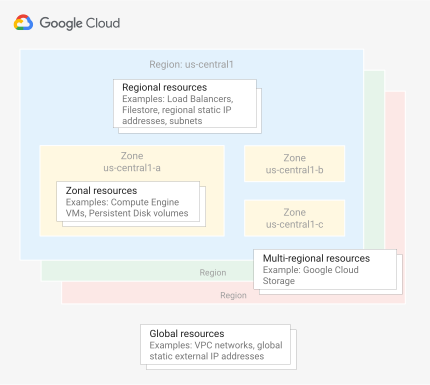
Global resources, such as pre-configured disk images and disk snapshots, can be
accessed across regions and zones. Regional resources, such as regional static
external IP addresses, can only be accessed by resources that are in the same
region. Zonal resources, such as compute instances and disks, can only be
accessed by resources that are located in the same zone. For more information, see
[Global, regional, and zonal resources](https://docs.cloud.google.com/compute/docs/regions-zones/global-regional-zonal-resources.md.txt).
When you choose a region and zone for your compute instances, consider the
following:
- The location of your users and your internal resources, such as your data center or corporate network. To decrease latency, select a location that is in close proximity to your users and resources.
- The CPU platforms that are available for that region and zone. For example, Intel's Broadwell, Haswell, Skylake, and Ice Lake processors are supported for workloads of SAP NetWeaver on Google Cloud.
- For more information, see the SAP note [SAP Note 2456432 - SAP Applications on Google Cloud: Supported Products and
Google Cloud machine types](https://launchpad.support.sap.com/#/notes/2456432).
- For details about which regions the Haswell, Broadwell, Skylake, and Ice Lake processors are available for use with Compute Engine, see [Available regions
and zones](https://docs.cloud.google.com/compute/docs/regions-zones#available).
- Ensure that your SAP Application Server and your database are in the same region.
### Storage options for SAP Business Suite
The following are the storage options offered by Google Cloud that are
certified by SAP for use with SAP Business Suite and
SAP ASE or IBM Db2.
For general information about storage options in Google Cloud, see
[Storage options](https://docs.cloud.google.com/compute/docs/disks.md.txt).
#### Persistent Disk
- Standard Persistent Disk (`pd-standard`): efficient and economical block storage backed by [standard hard disk drives (HDD)](https://en.wikipedia.org/wiki/Hard_disk_drive) for handling sequential read-write operations, but not optimized to handle high rates of random input-output operations per second (IOPS).
- SSD Persistent Disk (`pd-ssd`): provides reliable, high-performance block storage backed by [solid-state drives (SSD)](https://en.wikipedia.org/wiki/Solid-state_drive).
- Balanced Persistent Disk (`pd-balanced`): provides cost-effective and reliable SSD-based block storage.
- Extreme Persistent Disk (`pd-extreme`): SSD-based; provides higher maximum IOPS and throughput options than `pd-ssd` for larger Compute Engine machine types. For more information, see [Extreme persistent disks](https://docs.cloud.google.com/compute/docs/disks/extreme-persistent-disk.md.txt).
#### Hyperdisk
- Hyperdisk Extreme (`hyperdisk-extreme`): provides higher
maximum IOPS and throughput options than SSD based Persistent Disk volumes.
You select the performance needed by provisioning IOPS, which determines the
throughput.
For more information, see
[About Google Cloud Hyperdisk Extreme](https://docs.cloud.google.com/compute/docs/disks/hd-types/hyperdisk-extreme.md.txt).
- Hyperdisk Balanced (`hyperdisk-balanced`): The best fit for
most workloads. We recommend this option for use with databases that don't
require the performance of Hyperdisk Extreme. You select the
performance you need by provisioning the IOPS and throughput.
For more information, see
[About Google Cloud Hyperdisk Balanced](https://docs.cloud.google.com/compute/docs/disks/hd-types/hyperdisk-balanced.md.txt).
Persistent Disk and Hyperdisk are designed
for high durability. They store data redundantly to ensure data integrity. Each
Persistent Disk volume can store up to 64 TB, so you can create large logical
volumes without managing arrays of disks. Hyperdisk volumes also
allow up to 64 TB of storage, depending on the type you use. One key feature is
that Persistent Disk and Hyperdisk volumes are automatically
encrypted to protect data.
Upon creation, a Compute Engine VM instance allocates a single root
Persistent Disk or Hyperdisk by default that contains the
operating system. You can add more storage options to the VM instance as
required.
For SAP implementations, review the recommended storage options in the
[SAP directory structure and storage options](https://docs.cloud.google.com/sap/docs/architectures/sap-business-suite-on-ase-or-db2.md.txt#sap_directory_structure_and_storage_options).
#### File sharing solutions
Several file sharing solutions are available on Google Cloud, including
the following:
- Filestore: Google Cloud high-performance, fully managed NFS file storage with regional availability.
- Google Cloud NetApp Volumes: A fully managed NFS or SMB file storage solution from Google Cloud.
- NetApp Cloud Volumes ONTAP: A full-featured, smart storage solution that you deploy and manage yourself on a Compute Engine VM.
For more information about file sharing solutions for SAP Business Suite on
Google Cloud, see
[File sharing solutions for SAP on Google Cloud](https://docs.cloud.google.com/sap/docs/filers-for-sap.md.txt).
#### Cloud Storage for object storage
Cloud Storage is an object store for files of any type or format; it
has virtually unlimited storage, and you don't have to worry about provisioning
it or adding more capacity. An [object](https://docs.cloud.google.com/storage/docs/objects.md.txt) in
Cloud Storage contains file data and its associated metadata, and can
be up to 5 TB in size. A Cloud Storage [bucket](https://docs.cloud.google.com/storage/docs/buckets.md.txt)
can store any number of objects.
It's common practice to use Cloud Storage to store backup files for
nearly any purpose. For example, Cloud Storage is a good place to store
the
SAP ASE or IBM Db2
database backups. For information about database backup planning, see
[Database backup and recovery](https://docs.cloud.google.com/sap/docs/netweaver-planning-guide.md.txt#database_backup_recovery).
You can also use Cloud Storage as part of a
[migration process](https://docs.cloud.google.com/sap/docs/netweaver-planning-guide.md.txt#migration_process).
Additionally you can use Backup and DR Service as a centralized
solution for backup and disaster recovery operations. This service supports a
broad spectrum of databases including
SAP ASE or IBM Db2.
For more information, see
[Backup and Disaster Recovery Solutions with Google Cloud](https://cloud.google.com/solutions/backup-dr).
Choose your Cloud Storage option based on how frequently you need to
access the data. For frequent access, such as multiple times a month, select the
Standard storage class. For infrequent access, select Nearline
or Coldline storage. For archived data, which you don't expect to
access, select Archive storage.
#### SAP ASE directory structure and storage options
The following tables describe the directory structures for the
SAP Business Suite system on SAP ASE database on Google Cloud.
- Recommended Linux directory structure for a generic SAP ABAP instance:
| Linux directory | Recommended storage option in Google Cloud |
| `/sapmnt`^[\*](https://docs.cloud.google.com/sap/docs/architectures/sap-business-suite-on-ase-or-db2.md.txt#note-ase)^ | Balanced Persistent Disk |
| `/usr/sap` | Balanced Persistent Disk |
|---|---|
In distributed deployments, `/sapmnt` can also be mounted as a network file system using an NFS solution such as [Filestore](https://docs.cloud.google.com/filestore/docs.md.txt).
- The following is the recommended Linux directory structure for
SAP Business Suite on SAP ASE on Google Cloud.
Note that all the data and log files of the SAP ASE database must be located
under the `/sybase/SAP_SID` directory. Replace
`SAP_SID` with the SAP system identifier (SID), which is
the SAP instance number that you used during database installation.
| SAP ASE directory | Recommended storage option in Google Cloud |
|---|---|
| `/usr/sap` | Balanced Persistent Disk |
| `/sybase/SAP_SID/sapdata1` | SSD-based Persistent Disk or Hyperdisk |
| `/sybase/SAP_SID/log_dir` | SSD-based Persistent Disk or Hyperdisk |
| `/sybase/SAP_SID/saptemp` | Balanced Persistent Disk |
| `/sybase/SAP_SID/sapdiag` | Balanced Persistent Disk |
For information from SAP about running SAP ASE, see
[SAP Applications on SAP Adaptive Server Enterprise - Best Practices for
Migration and Runtime](https://help.sap.com/docs/help/061ec8a5739842df9e505d8944fae8e2/9de2f6247b824caa9dd31e9b795e87de.html).
- The following is the recommended Windows directory structure for
SAP Business Suite on SAP ASE on Google Cloud. The following directory
structure applies to central server installation.
| Drive | Description | Recommended storage option in Google Cloud |
|---|---|---|
| `C:\` | Boot | Balanced Persistent Disk |
| `D:\` | Database binaries | Balanced Persistent Disk |
| `E:\` | Database data files | SSD-based Persistent Disk or Hyperdisk |
| `L:\` | Database log files | SSD-based Persistent Disk or Hyperdisk |
| `P:\` | Page file | Balanced Persistent Disk |
| `S:\` | `/usr/sap` and `/sapmnt` directories | Balanced Persistent Disk |
| `T:\` | `temp` and `saptemp` directories | Balanced Persistent Disk |
| `X:\` | Backup | Balanced Persistent Disk |
For information from SAP about running SAP ASE, see
[SAP Applications on SAP Adaptive Server Enterprise - Best Practices for
Migration and Runtime](https://help.sap.com/docs/help/061ec8a5739842df9e505d8944fae8e2/9de2f6247b824caa9dd31e9b795e87de.html).
#### IBM Db2 directory structure and storage options
The following tables describe the directory structures for the
SAP Business Suite system on IBM Db2 database on Google Cloud.
- Recommended Linux directory structure for SAP Business Suite on IBM Db2 on
Google Cloud:
| IBM Db2 directory structure | Recommended storage option in Google Cloud |
|---|---|
| `/sapmnt` | Balanced Persistent Disk |
| `/usr/sap` | Balanced Persistent Disk |
| `/db2/DB_SID` | Balanced Persistent Disk |
| `/db2/DB_SID/db2dump` | Balanced Persistent Disk |
| `/db2/DB_SID/sapdata1` | SSD-based Persistent Disk or Hyperdisk |
| `/db2/DB_SID/log_dir` | SSD-based Persistent Disk or Hyperdisk |
| `/db2/DB_SID/saptmp1` | Balanced Persistent Disk |
| `/db2backup` | Balanced Persistent Disk |
For information from SAP about running SAP systems on IBM Db2, see
[SAP on IBM Db2 for Linux, UNIX, and Windows](https://help.sap.com/docs/DB6).
- The following is the recommended Windows directory structure for
SAP Business Suite on IBM Db2 on Google Cloud. This directory structure
applies to central server installation.
| Drive | Description | Recommended storage option in Google Cloud |
|---|---|---|
| `C:\` | Boot | Balanced Persistent Disk |
| `D:\` | Database binaries | Balanced Persistent Disk |
| `E:\` | Database data files | SSD-based Persistent Disk or Hyperdisk |
| `L:\` | Database log files | SSD-based Persistent Disk or Hyperdisk |
| `P:\` | Page file | Balanced Persistent Disk |
| `S:\` | `/usr/sap` and `/sapmnt` directories | Balanced Persistent Disk |
| `T:\` | `temp` and `saptemp` directories | Balanced Persistent Disk |
| `X:\` | Backup | Balanced Persistent Disk |
For more information about the directory structures, see the
[SAP NetWeaver planning guide](https://docs.cloud.google.com/sap/docs/netweaver-planning-guide.md.txt).
For information about calculating page file size, see the SAP note
[1518419: Page file and virtual memory required by the SAP system](https://launchpad.support.sap.com/#/notes/1518419).
### OS support for SAP Business Suite
When choosing an operating system (OS) for SAP NetWeaver on Google Cloud,
in addition to confirming that the OS version is certified by SAP, you also need
to confirm that all three companies, SAP, the OS vendor, and Google Cloud,
still support the OS version.
Your decision must also take into account the following:
- Whether a given OS version is available from Google Cloud. The [OS images](https://docs.cloud.google.com/compute/docs/images.md.txt) provided by Compute Engine are configured to work with Google Cloud. If an OS is not available from Google Cloud, then you can bring your own OS image (BYOI) and license. BYOI OS images are referred to by Compute Engine as [custom images](https://docs.cloud.google.com/compute/docs/images.md.txt#custom_images).
- The available licensing options for a given OS version. Review if the OS version has an on-demand licensing option or if you need to bring-your-own-subscription (BYOS) from the OS vendor.
- Whether the integrated high-availability capabilities of a given OS version are enabled for Google Cloud.
- The [committed use discount option](https://docs.cloud.google.com/compute/docs/committed-use-discounts/purchase-license-commitments.md.txt) for SLES for SAP and RHEL for SAP images.
The following operating systems are certified by SAP for use with SAP NetWeaver
on Google Cloud:
- [Red Hat Enterprise Linux (RHEL)](https://access.redhat.com/articles/3751271)
- [SUSE Linux Enterprise Server (SLES)](https://www.suse.com/products/sles-for-sap/)
- [Windows Server](https://learn.microsoft.com/en-us/windows-server/)
You can find more information about specific OS versions and their compatibility
with both SAP Business Suite and
SAP ASE or IBM Db2
in the following guides:
- [OS support for SAP NetWeaver on Google Cloud](https://docs.cloud.google.com/sap/docs/netweaver-os-support.md.txt)
- The "Supported operating systems" section in the [SAP ASE planning guide](https://docs.cloud.google.com/sap/docs/sap-ase-planning-guide.md.txt#supported_operating_systems)
- The "Supported operating systems" section in the [IBM Db2 for SAP planning guide](https://docs.cloud.google.com/sap/docs/sap-ibm-db2-planning-guide.md.txt#supported_operating_systems)
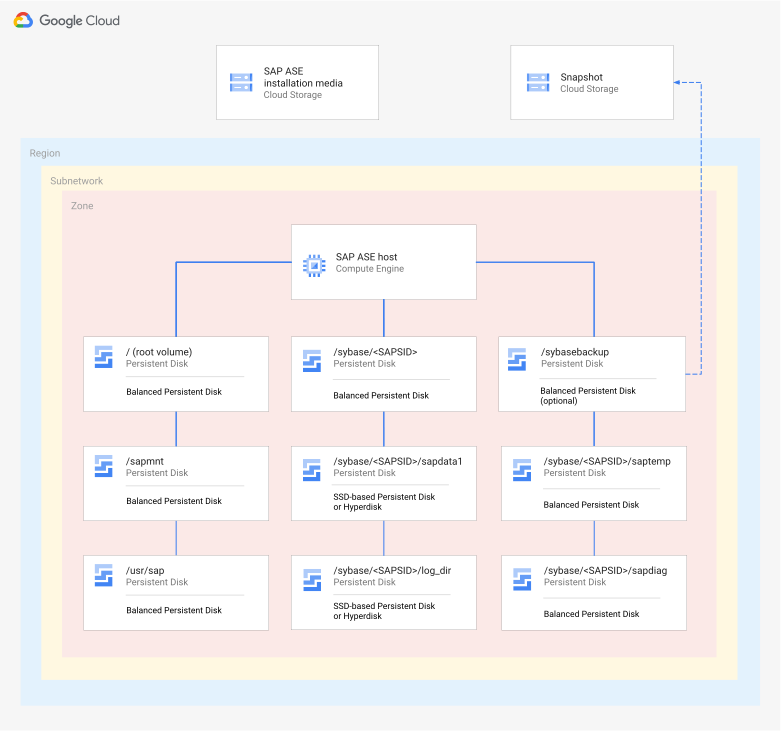
### Deployment architecture for SAP ASE
SAP ASE is a key component of any SAP Business Suite system because it serves
as one of the possible database types for the system.
The following diagram shows a deployment architecture for SAP ASE on
Google Cloud. In the diagram, make note of both - the deployment on
Google Cloud and the disk layout. You can use Cloud Storage to
back up your local backups available in `/sybasebackup`. This mount must be
sized equal to or greater than the data mount.
### Deployment architecture for IBM Db2
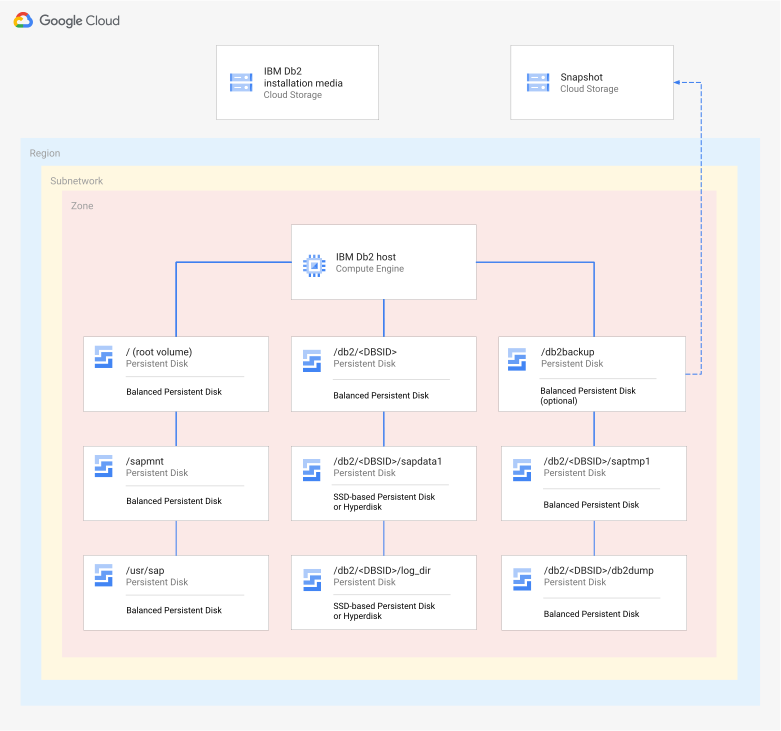
IBM Db2 is a key component of any SAP Business Suite system because it serves
as one of the possible database types for the system.
The following diagram shows a deployment architecture for IBM Db2 on
Google Cloud. In the diagram, notice both the deployment on
Google Cloud and the disk layout. You can use Cloud Storage to
back up your local backups available in `/db2backup`. This mount must be sized
equal to or greater than the data mount.
### Deployment architecture for SAP Business Suite
As mentioned in the [Architecture](https://docs.cloud.google.com/sap/docs/architectures/sap-business-suite-on-ase-or-db2.md.txt#architecture) section, there are multiple
deployment architectures that you can use for deploying SAP Business Suite
on SAP ASE or IBM Db2
on Google Cloud.
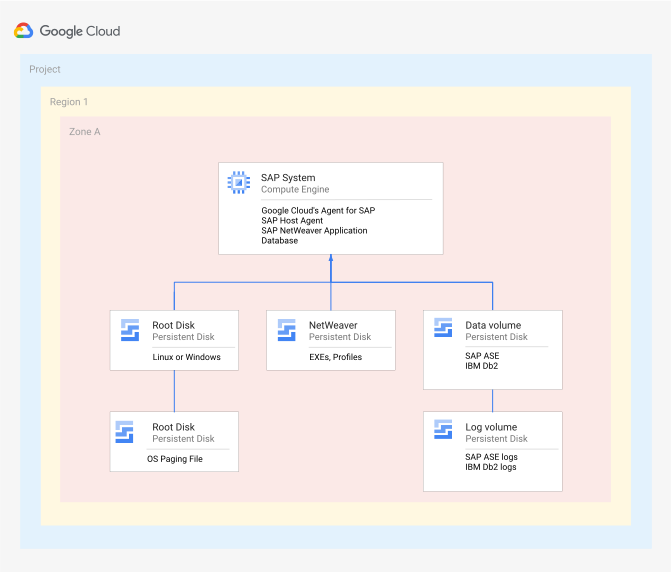
#### Two-tier architecture
This architecture is presented in the
[centralized deployment](https://docs.cloud.google.com/sap/docs/architectures/sap-business-suite-on-ase-or-db2.md.txt#centralized_deployment) section. The following diagram
shows some details of a two-tier architecture for SAP Business Suite running on
a Compute Engine VM:
#### Three-tier architecture
This architecture is presented in the
[distributed deployment](https://docs.cloud.google.com/sap/docs/architectures/sap-business-suite-on-ase-or-db2.md.txt#distributed_deployment) section. You can use this
architecture to deploy high-availability SAP Business Suite systems. The
following diagram shows some details of a three-tier architecture for
SAP Business Suite running on Compute Engine VMs:
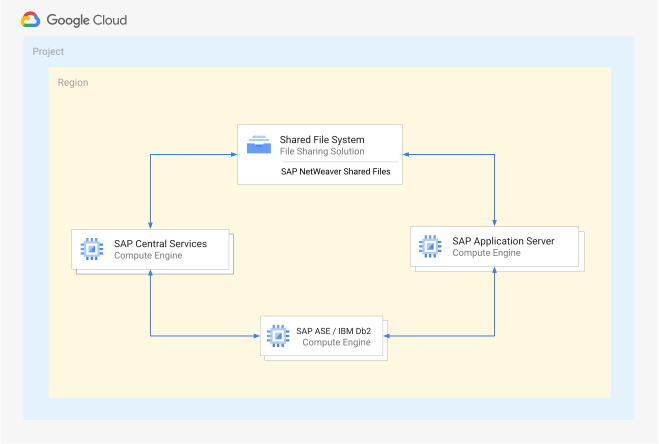
In this architecture, the SAP Business Suite system distributes work across
multiple NetWeaver Application Servers (AS), each hosted on a separate VM. All
the NetWeaver AS nodes share the same database, which is hosted on a separate
VM. All the NetWeaver AS nodes mount and access a shared file system that hosts
the SAP NetWeaver profiles. This shared file system is hosted on a
Persistent Disk volume shared across all nodes or on a supported
[file sharing solution](https://docs.cloud.google.com/sap/docs/filers-for-sap.md.txt).
### Security, privacy, and compliance
This section provides information about security, privacy, and compliance for
running SAP Business Suite
on SAP ASE or IBM Db2
on Google Cloud.
#### Compliance and sovereign controls
If you require your SAP workload to run in compliance with data residency, access control, support
personnel, or regulatory requirements, then you must plan for using Assured Workloads
- a service that helps you run secure and compliant workloads on Google Cloud without
compromising the quality of your cloud experience.
For more information, see [Compliance and sovereign controls
for SAP on Google Cloud](https://docs.cloud.google.com/sap/docs/compliance-and-sovereign-controls).
#### Networking and network security
Consider the information in the following sections when planning networking and
network security.
##### Minimum privilege model
One of your first lines of defense is to restrict who can reach your network and
your VMs. You do this by using
[VPC firewall rules](https://docs.cloud.google.com/firewall/docs/firewalls.md.txt). By default,
all traffic to VMs, even from other VMs, is blocked by the firewall unless you
create rules to allow access. The exception is the default network that is
created automatically with each project and has default
[firewall rules](https://docs.cloud.google.com/vpc/docs/vpc.md.txt#firewall_rules).
By creating VPC firewall rules, you can restrict all traffic on a
given set of ports to specific source IP addresses. To restrict access to the
specific IP addresses, protocols, and ports that need access, follow the minimum
privilege model. For example, always set up a
[bastion host](https://docs.cloud.google.com/sap/docs/architectures/sap-business-suite-on-ase-or-db2.md.txt#using_bastion_hosts_and_nat_gateways) and allow SSH
communications to your SAP NetWeaver system only from that host.
##### Custom networks and firewall rules
You can use a network to define a gateway IP and the network range for the VMs
attached to that network. All Compute Engine networks use the
[IPv4](https://tools.ietf.org/html/rfc791) protocol. Every
Google Cloud project is provided with a default network with preset
configurations and firewall rules, but we recommend that you add a custom
subnetwork and add firewall rules based on a
[minimum privilege model](https://docs.cloud.google.com/sap/docs/architectures/sap-business-suite-on-ase-or-db2.md.txt#minimum_privilege_model). By default, a newly created
network has no firewall rules and hence no network access.
You might want to add more than one subnetwork if you want to isolate parts of
your network, or satisfy other requirements. For more information, see
[Networks and subnets](https://docs.cloud.google.com/compute/docs/vpc#vpc_networks_and_subnets).
The firewall rules apply to the entire network and all the VMs in the network.
You can add a firewall rule that allows traffic between VMs in the same network
and across subnetworks. You can also configure firewalls to apply to specific
target VMs by using [network tags](https://docs.cloud.google.com/vpc/docs/add-remove-network-tags.md.txt).
SAP requires access to certain ports, so add firewall rules to allow access to
the
[ports outlined by SAP](https://help.sap.com/viewer/575a9f0e56f34c6e8138439eefc32b16/2.0/en-US/616a3c0b1cc748238de9c0341b15c63c.html).
##### Routes
[Routes](https://docs.cloud.google.com/vpc/docs/routes.md.txt) are global resources attached to a single network.
User-created routes apply to all VMs in a network. This means you can add a
route that forwards traffic from VM to VM within the same network and across
subnetworks without requiring external IP addresses.
For external access to internet resources, launch a VM with no external IP
address and configure another VM as a NAT gateway. This configuration requires
you to add your NAT gateway as a route for your SAP instance.
#### Bastion hosts and NAT gateways
If your security policy requires truly internal VMs, then you need to manually
set up a NAT proxy on your network and a corresponding route so that VMs can
reach the internet. It is important to note that you cannot directly connect to
a fully internal VM instance by using SSH.
To connect to such internal machines, you must set up a *bastion* instance that
has an external IP address and then tunnel through it. When VMs don't have
external IP addresses, they can only be reached by other VMs on the network, or
through a managed VPN gateway. You can provision VMs in your network to act as
trusted relays for inbound connections, called *bastion hosts* , or network
egress, called *NAT gateways*. For more transparent connectivity without setting
up such connections, you can use a managed VPN gateway resource.
##### Bastion hosts for inbound connections
[Bastion hosts](https://wikipedia.org/wiki/Bastion_host)
provide an external facing point of entry into a network containing
private-network VMs. This host can provide a single point of fortification or
audit and can be started and stopped to enable or disable inbound SSH
communication from the internet.
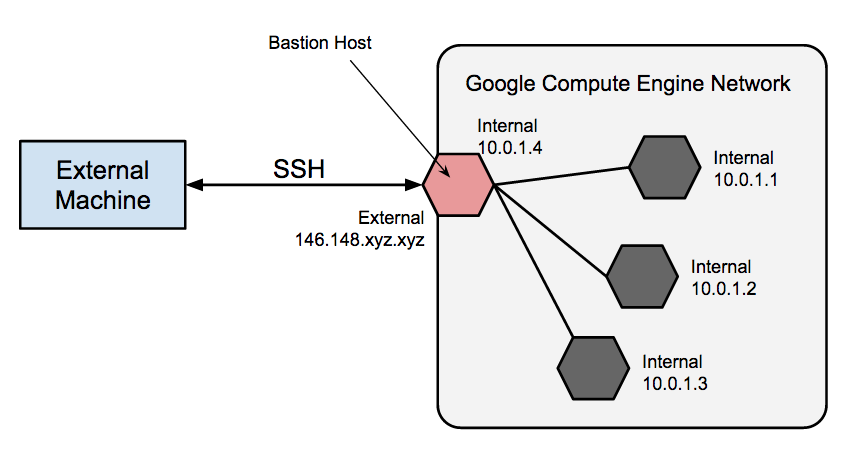
SSH access to VMs that don't have an external IP address can be achieved by
first connecting to a bastion host. A complete hardening of a bastion host is
outside the scope of this document, but some initial steps taken can include:
- Limit the CIDR range of source IPs that can communicate with the bastion.
- Configure firewall rules to allow SSH traffic to private VMs from only the bastion host.
By default, SSH on VMs is configured to use private keys for authentication.
When using a bastion host, you log into the bastion host first, and then into
your target private VM. Due to this two-step login, we recommend that you use
SSH-agent forwarding to reach the target VM instead of storing the target VM's
private key on the bastion host. You must do this even if you are using the same
key-value pair for both bastion and target VMs because the bastion has direct
access only to the public half of the key-pair.
##### NAT gateways for outbound data transfer
When a VM does not have an assigned, external IP address, it cannot make direct
connections to external services, including other Google Cloud services.
To let these VMs to reach services on the internet, you can set up and configure
a [NAT gateway](https://docs.cloud.google.com/nat/docs/overview.md.txt). The NAT gateway is a VM that can route
traffic on behalf of any other VM on the network. Use one NAT gateway per
network. A single-VM NAT gateway is not highly available and cannot support high
traffic throughput for multiple VMs. For information about how to set up a VM to
act as a NAT gateway, see the deployment guide for your operating system:
- [SAP NetWeaver on Linux Deployment Guide](https://docs.cloud.google.com/sap/docs/netweaver-deployment-guide-linux.md.txt)
- [SAP NetWeaver on Windows Deployment Guide](https://docs.cloud.google.com/sap/docs/netweaver-deployment-guide-windows.md.txt)
#### Cloud VPN
You can securely connect your existing network to Google Cloud through a
[VPN](https://wikipedia.org/wiki/Virtual_private_network)
connection that uses
[IPsec](https://wikipedia.org/wiki/IPsec) by using
Cloud VPN. Traffic traveling between the two networks is encrypted by
one VPN gateway, then decrypted by the other VPN gateway. This protects your
data as it travels over the internet. You can dynamically control which VMs can
send traffic down the VPN by using instance tags on routes. Cloud VPN
tunnels are billed at a static monthly rate plus standard charges for outbound
data transfer. Note that connecting two networks in the same project still
incurs standard charges for outbound data transfer. For more information, see:
- [Cloud VPN overview](https://docs.cloud.google.com/network-connectivity/docs/vpn/concepts/overview.md.txt)
- [Choosing Cloud VPN for networking connectivity](https://docs.cloud.google.com/network-connectivity/docs/how-to/how-to-choose#cloud-vpn)
#### Security for Cloud Storage buckets
If you use Cloud Storage to host your backups for your data and log
volumes, then make sure you use TLS (HTTPS) while sending data to
Cloud Storage from your VMs to protect data in transit.
While Cloud Storage automatically encrypts data at rest, you can
instead specify your own encryption keys if you have your own key-management
system.
#### Email notification limits
To help protect your systems and Google's from abuse, Google Cloud
enforces limitations for sending email from Compute Engine. This has
implications for the SCOT transaction on SAP NetWeaver ABAP systems because
it requires a specific configuration compared to on-premises systems.
For more information, including information about configuring SCOT, see
[Sending email from an instance](https://docs.cloud.google.com/compute/docs/tutorials/sending-mail.md.txt).
#### Related security documents
For more information about security resources for your SAP environment on
Google Cloud, see the following:
- [Securely connecting to VM instances](https://cloud.google.com/solutions/connecting-securely)
- [Security Center](https://cloud.google.com/security)
- [Compliance in Google Cloud](https://cloud.google.com/compliance)
- [Google security overview](https://docs.cloud.google.com/docs/security/overview/whitepaper.md.txt)
- The [Google Infrastructure Security Design Overview PDF](https://docs.cloud.google.com/static/docs/security/infrastructure/design/resources/google_infrastructure_whitepaper_fa.pdf)
### Reliability
This section provides information about aspects related to reliability for
running SAP Business Suite
on SAP ASE or IBM Db2
on Google Cloud.
#### High availability and disaster recovery
High availability (HA) and disaster recovery (DR) are sets of techniques,
engineering practices, and design principles to enable business continuity in
the event of failures. These approaches work by eliminating single points of
failure and providing the ability to rapidly resume operations after a system or
component outage with minimal business disruption. Fault recovery is the process
of recovering and resuming operations after an outage due to a failed component.
For example, the following are some HA and DR tools that you can use:
- Linux clustering across zones: For more information check the [High-availability planning guide for SAP NetWeaver on Google Cloud](https://docs.cloud.google.com/sap/docs/netweaver-ha-planning-guide.md.txt).
- [Live migration](https://docs.cloud.google.com/compute/docs/instances/live-migration)
- [VM host maintenance policy](https://docs.cloud.google.com/compute/docs/instances/setting-vm-host-options.md.txt)
- [Service Auto-Restart](https://help.sap.com/docs/SAP_HANA_PLATFORM/6b94445c94ae495c83a19646e7c3fd56/cf10efba8bea4e81b1dc1907ecc652d3.html?version=2.0.01)
- [Backups](https://docs.cloud.google.com/sap/docs/architectures/sap-business-suite-on-ase-or-db2.md.txt#backups)
#### SAP ASE high availability
You can achieve high availability for your SAP ASE database on
Google Cloud by configuring synchronous replication between the primary
and standby servers, allowing the two servers to always be in sync with zero
data loss. The SAP ASE *always-on* option, which is a high availability and
disaster recovery (HADR) system, is supported on Google Cloud.
For more information, see the
[SAP ASE planning guide](https://docs.cloud.google.com/sap/docs/sap-ase-planning-guide.md.txt#deployment_architecture).
The VM instances hosting the primary and standby servers must have the following
components:
- SAP ASE
- [SAP Host Agent](https://help.sap.com/docs/SAP%20Host%20Agent), which monitors the server's usage of CPU, memory, and other resources.
- Replication Management Agent (RMA)
- [SAP ASE Cockpit](https://help.sap.com/viewer/9623e59098a24dc6b9013ba5d709309e/16.0.3.4/en-US/13ec24bd751e1014bf789ad719f1de31.html), which performs database activities
- [Fault Manager](https://help.sap.com/viewer/a2510813307b4927b8a578ecda22ab94/16.0.2.3/en-US/dbcdc6f43d2444239c161414e500ab5c.html), which has its own host server. It monitors the primary and standby SAP ASE servers. Fault Manager ensures high availability of SAP ASE by starting automatic failover. It monitors the following components: RMA, replication server, applications, databases, and operating system. It also lets you check the health of the database and restart the database if required.
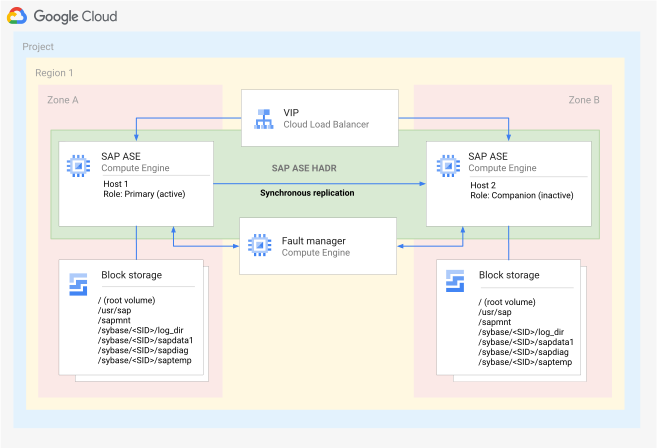
For improved system availability, an SAP ASE cluster enables workloads to be
moved to the secondary node by monitoring for failure of the primary node. The
following diagram shows a high-level reference architecture demonstrating how
the described SAP ASE components can be installed on Google Cloud.
#### SAP ASE disaster recovery
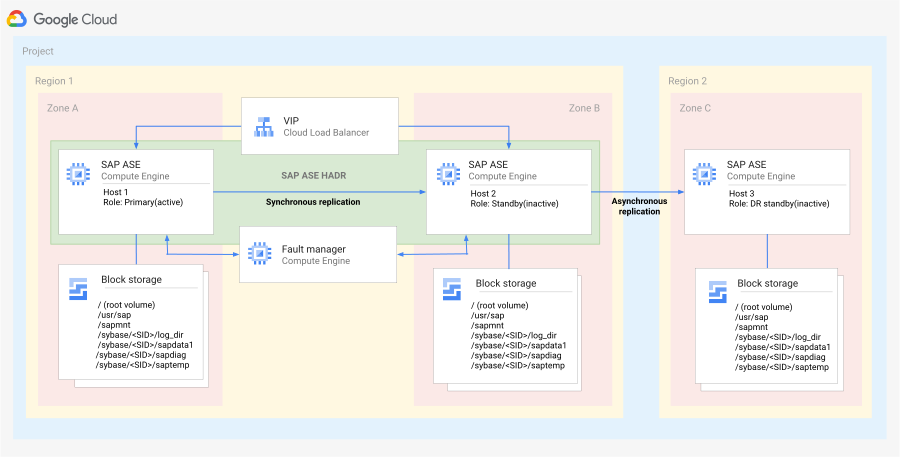
The SAP ASE HADR system with disaster recovery (DR) node system consists of
three SAP ASE servers:
- **Primary server**: This server handles all transaction processing.
- **Standby node**: This server acts as a warm standby for the primary server and contains copies of designated databases from the primary server.
- **DR node**: This server is geographically distant and backs up designated databases from the primary server.
The following diagram shows the flow of SAP ASE disaster recovery:
#### IBM Db2 high availability and disaster recovery
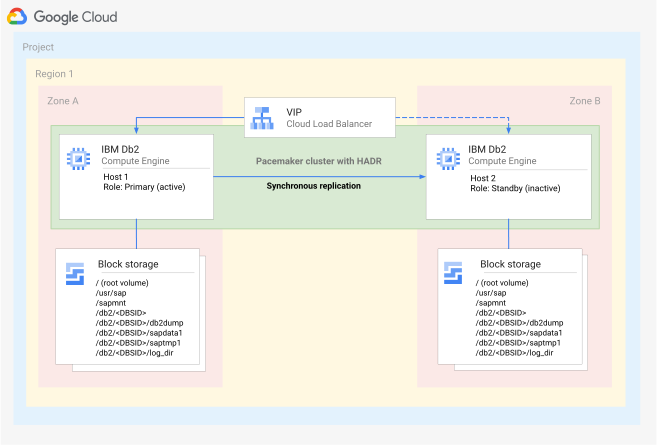
You can achieve high availability and disaster recovery (HADR) for your IBM Db2
database as follows:
- You must deploy two separate instances of your IBM Db2 database - one primary
and the other as standby. You must keep them in sync. If the primary instance
fails, then the standby instance supports takes over the workload.
The primary instance handles client connections and transactions, and records
these in logs. These logs are sent through TCP/IP to the standby server, which
uses them to update its database, staying synchronized with the primary
instance.
- Because HADR itself lacks failure detection and automation, you must also
deploy Pacemaker. Pacemaker monitors both instances, and if the primary
instance crashes, Pacemaker triggers HADR takeover by the standby instance,
ensuring that the floating IP address is assigned to the new primary instance.
Pacemaker handles cluster management, and a VIP is used along with
internal Application Load Balancer to route application requests to the primary instance.
### Cost optimization
This section provides information about licensing, discounts, and estimating
workload size.
#### Licensing
If you're an SAP customer, then you can use your existing license to deploy SAP
SAP Business Suite on Google Cloud under a bring-your-own-license (BYOL)
model. Google Cloud supports the BYOL model for both production and
non-production use cases. Operating system licenses are included in
Compute Engine prices.
Alternatively, you can bring your own OS image and licenses as well. For more
information, see [Custom OS images](https://docs.cloud.google.com/compute/docs/images.md.txt#custom_images).
For information about license for SAP ASE on Google Cloud, see the "SAP licenses" section in the [SAP ASE planning guide](https://docs.cloud.google.com/sap/docs/sap-ase-planning-guide.md.txt#sap_licenses).
To deploy IBM Db2 for SAP on Google Cloud, you must bring your own
license. You can obtain a license from SAP or from IBM. For more information
about licensing and support, see the SAP note
[1168456 - DB6: Support Process and End of Support Dates for IBM Db2 LUW](https://me.sap.com/notes/1168456).
#### Discounts
With Google Cloud's pay-as-you-go pricing model, you only pay for the
services you use. You don't have to be committed to a particular size or
service; you can alter or stop your usage as required. For predictable
workloads, Compute Engine provides committed use discounts (CUDs) that
help to reduce the cost of your infrastructure by committing to a contract in
return for heavily discounted VM usage prices.
Google Cloud offers these discounts in return for purchasing committed use
contracts, also known as *commitments* . When you purchase a commitment, you
commit either to a minimum amount of resource usage or to a minimum spend amount
for a specified term of one or three years. These discounts help you lower your
monthly bill for those resources used by your SAP Business Suite system. For
more information, see
[Committed use discounts (CUDs)](https://docs.cloud.google.com/compute/docs/instances/committed-use-discounts-overview.md.txt).
#### Size estimations
The following resources provide information about how to perform size
estimations for your SAP systems before migrating them to Google Cloud:
- [Review SAP workload sizing](https://docs.cloud.google.com/migration-center/docs/estimate/sap-sizing-guidance.md.txt)
- [Estimate infrastructure cost for your SAP workload](https://docs.cloud.google.com/migration-center/docs/estimate/specify-sap-workload-requirements.md.txt)
### Operational efficiency
This section provides information about how you can optimize the operational
efficiency of SAP Business Suite
on SAP ASE or IBM Db2
on Google Cloud.
#### Backup and recovery
Create backups of your application server and database on a regular basis so
that you can recover in case of a system crash, data corruption, or any other
issue.
You have a number of options to back up your
SAP ASE or IBM Db2
data on Google Cloud, including the following:
- Back up using Google's [Backup and DR Service](https://cloud.google.com/backup-disaster-recovery). For more information, see [Protect the database or instance and its logs](https://docs.cloud.google.com/backup-disaster-recovery/docs/backup/back-up-otherdb).
- Back up to a Persistent Disk or Hyperdisk and then upload the backups to Cloud Storage.
- Take [snapshots](https://docs.cloud.google.com/compute/docs/disks/snapshots.md.txt) of the disk that hosts the `/sybasebackup` directory for SAP ASE, or the `/db2backup` directory for IBM Db2.
##### Back up and recover SAP ASE
You can use the following options to back up and recover an IBM Db2 database on
Google Cloud:
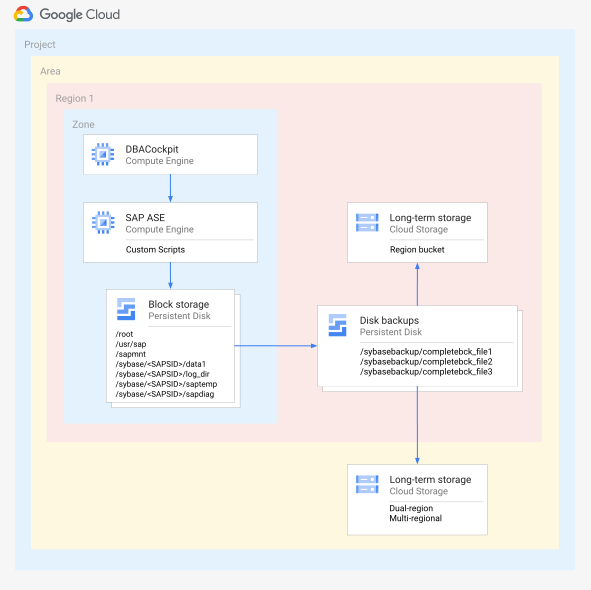
- **Backup and recovery using disks**: You can use SAP ASE's flexible
backup and recovery mechanisms in combination with the types of
Persistent Disk and Hyperdisk provided by
Compute Engine. To store backups for a longer period, you can use
Cloud Storage.
The following diagram shows how disks and Cloud Storage are used to
store backups for an SAP ASE database:
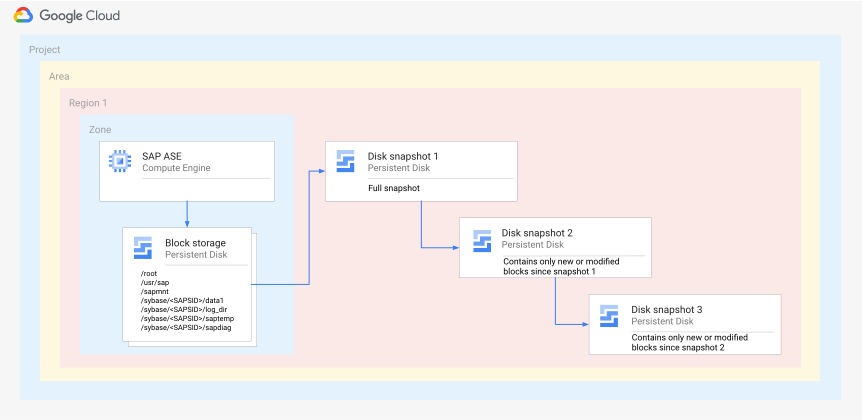
- **Backup and recovery using disk snapshots** : Another option
that you can add to your backup strategy is to take snapshots of entire disks
by using the [disk snapshot](https://docs.cloud.google.com/compute/docs/disks/snapshots.md.txt) feature of
Compute Engine. For example, you can take scheduled snapshots of the
disk hosting your `/sybasebackup` directory for use in disaster recovery
scenarios. It is also possible to use disk snapshots to back up and recover
your SAP ASE data volume. To ensure application consistency, take snapshots
when no changes are being made to the target volume. Snapshots occur on the
block level.
After the first snapshot, each subsequent snapshot is incremental and stores
only incremental block changes, as shown in the following diagram:
##### Back up an IBM Db2 database
You can back up an IBM Db2 database by using any of the following options:
- **Use the online and offline modes provided by IBM** :
- Online mode: In this mode, users can continue to work while the database backup is being created.
- Offline mode: In this mode, the database is completely shut down, making the database unavailable to users while the backup is being created.
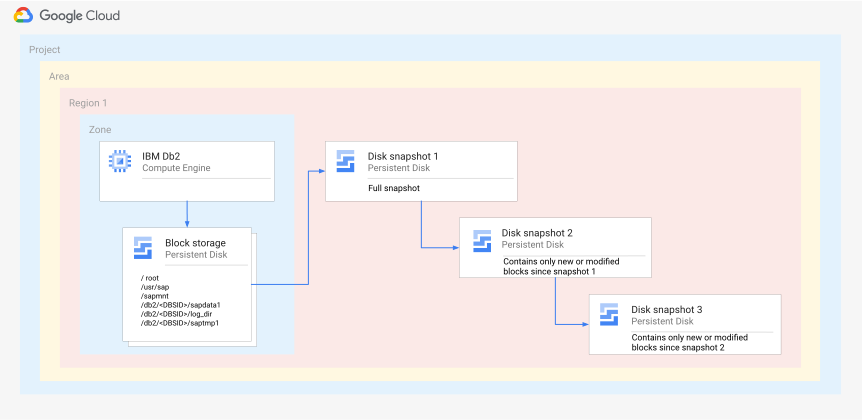
- **Back up and recover your IBM Db2 database using disk snapshots** : Another option
that you can add to your backup strategy is to take snapshots of entire disks
by using the [disk snapshot](https://docs.cloud.google.com/compute/docs/disks/snapshots.md.txt) feature of
Compute Engine. For example, you can take scheduled snapshots of the
disk hosting your `/db2backup` directory for use in disaster recovery
scenarios. It is also possible to use disk snapshots to back up and recover
your IBM Db2 data volume. To ensure application consistency, take snapshots
when no changes are being made to the target volume. Snapshots occur on the
block level.
After the first snapshot, each subsequent snapshot is incremental and stores
only incremental block changes, as shown in the following diagram:
The process for creating the database backup depends on how many partitions your
IBM Db2 database has:
- **Single-partition database**: In this configuration, you can create a backup
by completing the following steps:
1. As the `db2DB_SID` user, sign in to your database
server.
2. Run the following command:
```
db2 backup db DB_SID
```
Replace `DB_SID` with the database system identifier
(SID).
- **Multi-partition database**: In this configuration, you can create a backup
by completing the following steps:
1. As the `db2DB_SID` user, sign in to your database
server.
2. Run the following command:
```
db2 "backup db DB_SID on ALL DBPARTITIONNUMS..."
```
Replace `DB_SID` with the database system identifier
(SID).
You can also use the DBA Cockpit tool provided by IBM to create a database
backup. For more information about backing up an IBM Db2 database, see the SAP
document
[Performing a database backup](https://help.sap.com/docs/DB6/e3eefec5d20740f4872652a475457348/7f4875ff3d034c299f3fe786bedec907.html?language=en-US).
##### Recover an IBM Db2 database
You can recover your IBM Db2 database from a successful backup. Database
recovery is dependent on the accessibility to an up-to-date history file,
because all information about backup images and log files is accessed from
there.
- To recover your IBM Db2 database from a backup, complete the following steps:
1. As the `db2DB_SID` or the
`SAP_SIDadm` user, sign in to the database server.
2. Run the following command:
```
db2 RECOVER DB DB_SID
```
Replace `DB_SID` with the database system identifier
(SID).
- To recover your IBM Db2 database to a specific point in time, complete the
following steps:
1. As the `db2DB_SID` or the
`SAP_SIDadm` user, sign in to the database server.
2. Run the following command:
```
db2 RECOVER DB DB_SID to LOCAL_TIME_ON_DB_SERVER
```
Replace the following:
- `DB_SID`: your database system identifier (SID)
- `LOCAL_TIME_ON_DB_SERVER`: the local time on your database server
For more information about recovering an IBM Db2 database, see the SAP
document
[Database recovery using the `RECOVER` command](https://help.sap.com/docs/DB6/e3eefec5d20740f4872652a475457348/7d922c0dc3e744628ca27251f2852dbf.html?language=en-US).
#### Monitoring
To monitor and provide support for SAP workloads running on
Compute Engine instances and Bare Metal Solution servers,
Google Cloud provides the Agent for SAP.
As mandated by SAP, to get support from SAP and to enable SAP to meet its
service-level agreements (SLAs), you must install
[Google Cloud's Agent for SAP](https://docs.cloud.google.com/sap/docs/agent-for-sap/latest/planning.md.txt) on
all Compute Engine instances and Bare Metal Solution servers that run
any SAP system. For more information about the support prerequisites, see SAP
note
[SAP Note 2456406 - SAP on Google Cloud Platform: Support Prerequisites](https://launchpad.support.sap.com/#/notes/2456406).
In addition to the mandatory collection of SAP Host Agent metrics, on Linux,
Google Cloud's Agent for SAP includes optional features such as collection of
Process monitoring metrics and Workload Manager evaluation
metrics. You can opt in to these features that enable products and services such
as
[workload management](https://docs.cloud.google.com/workload-manager/docs/overview.md.txt) for your SAP workloads.
### Performance optimization
This section provides information about optimizing the performance of
SAP Business Suite workloads through sizing and network configuration.
#### Sizing
Several sizing options are available based on the implementation type. For
greenfield implementations, we recommend using the SAP Quick Sizer tool. For
detailed information, see SAP's
[Sizing](https://www.sap.com/about/benchmark/sizing.html)
page. SAP also provides T-shirt guides for specific solutions and tools for
migrating current on-premises solutions to Google Cloud. For example, see
the SAP note
[SAP Note 2456432 - SAP Applications on Google Cloud: Supported Products and
Google Cloud machine types](https://launchpad.support.sap.com/#/notes/2456432). SAP and Google Cloud use different
units to measure IOPS (input/output operations per second). Consult your SI
(Systems Integrator) partner to convert SAP sizing requirements into
appropriately sized Google Cloud infrastructure.
To size an SAP ASE database, see the SAP document [SAP ASE sizing](https://help.sap.com/docs/help/52f8de9cc8d44dc39ad7c49299dd9f1f/4090962cfc964c41954e3a3d3b86e6ba.html).
To size an IBM Db2 database, see the [SAP sizing benchmark](https://www.sap.com/about/benchmark/sizing.html).
For information about the hardware requirements for running SAP ASE or IBM Db2
with different operating system and SAP NetWeaver versions, see the SAP document
[Guide Finder for SAP NetWeaver and ABAP Platform](https://help.sap.com/docs/SAP_NETWEAVER/9e41ead9f54e44c1ae1a1094b0f80712/576f5c1808de4d1abecbd6e503c9ba42.html).
#### Network configuration
Your Compute Engine VM network capabilities are determined by its
machine family, and not by its network interface (NIC) or IP address.
Based on its machine type, your VM instance is capable of 2 to 32 Gbps network
throughput. Certain machine types also support throughputs up to 100 Gbps, which
requires the use of the Google Virtual NIC (gVNIC) interface type with a Tier_1
network configuration. The ability to achieve these throughput rates is further
dependent on the traffic direction and the type of the destination IP address.
Compute Engine VM network interfaces are backed by redundant and
resilient network infrastructure using physical and software-defined network
components. These interfaces inherit the redundancy and resiliency of the
underlying platform. Multiple virtual NICs can be used for traffic separation,
but that offers no additional resilience or performance benefits.
A single NIC provides the needed performance for
SAP ASE or IBM Db2
deployments on
Compute Engine. Your particular use case, security requirements, or
preferences might also require additional interfaces for separating traffic,
such as internet traffic, internal
SAP ASE or IBM Db2 HADR replication
traffic, or other
flows that might benefit from specific network policy rules. We recommend that
you employ the traffic encryption offered by the application, and secure network
access by following a least-privilege firewall policy to restrict access.
Consider the need for traffic separation early on as part of your network design
and allocate additional NICs when you deploy VMs. Your choice for the number of network
interfaces depends on the level of isolation that you require. For more information
about multi-NIC VMs, such as network and subnetwork requirements and the maximum
number of network interfaces, see [multiple network interfaces](https://docs.cloud.google.com/vpc/docs/multiple-interfaces-concepts.md.txt).
For more information, see:
- [Networking overview for VMs](https://docs.cloud.google.com/compute/docs/networking/network-overview.md.txt)
- [Network bandwidth](https://docs.cloud.google.com/compute/docs/network-bandwidth.md.txt)
## Deployment
This section provides information related to deploying SAP Business Suite
on SAP ASE or IBM Db2
on Google Cloud.
### Important pre-deployment SAP notes
Before you begin deploying an SAP Business Suite system on Google Cloud,
read the following SAP notes. Also, before you begin any SAP implementation,
check the SAP Marketplace for updated product installation guides and notes.
- [SAP Note 2456432 - SAP Applications on Google Cloud: Supported Products and
Google Cloud machine types](https://launchpad.support.sap.com/#/notes/2456432)
- [2446441 -
Linux on Google Cloud Platform (IaaS): Adaption of your SAP License](https://me.sap.com/notes/2446441)
- [2456953 -
Windows on Google Cloud Platform (IaaS): Adaptation of your SAP License](https://me.sap.com/notes/2456953)
- [1380654 - SAP support in public cloud environments](https://me.sap.com/notes/1380654)
- [SAP Note 2456406 - SAP on Google Cloud Platform: Support Prerequisites](https://launchpad.support.sap.com/#/notes/2456406)
- [2537664 - SAP Adaptive Server Enterprise (ASE) 16.0 Certification Report for Google Cloud Platform](https://me.sap.com/notes/2537664)
- [1554717 - SYB: Planning information for SAP on ASE](https://me.sap.com/notes/1554717)
- [1707361 - Inst. Systems Based on NW 7.1 and Higher: UNIX Db2 for LUW](https://me.sap.com/notes/1707361)
- [101809 - DB6: Supported Db2 Versions and Fix Pack Levels](https://me.sap.com/notes/101809)
For more information about installing SAP ASE or IBM Db2, see the following:
- [SAP Notes and Knowledge Base Articles for Adaptive Server Enterprise](https://wiki.scn.sap.com/wiki/display/SYBASE/SAP+Notes)
- [IBM Db2 for SAP planning guide](https://docs.cloud.google.com/sap/docs/sap-ibm-db2-planning-guide.md.txt)
### Deployment automation
#### Automate SAP ASE deployment
To automate the deployment of the infrastructure required to run SAP ASE and
SAP NetWeaver on Linux on Google Cloud, you can use the Terraform
configurations provided by Google Cloud. For more information, see the
[deployment guides for your scenario](https://docs.cloud.google.com/sap/docs/tf-for-sap.md.txt#supported_sap_solutions).
For information about planning your SAP ASE deployment, see:
- [SAP NetWeaver planning guide](https://docs.cloud.google.com/sap/docs/netweaver-planning-guide.md.txt)
- [SAP ASE planning guide](https://docs.cloud.google.com/sap/docs/sap-ase-planning-guide.md.txt)
#### Automate IBM Db2 deployment
To automate the deployment of the infrastructure required to run IBM Db2 and
SAP NetWeaver on Linux on Google Cloud, you can use the Terraform
configurations provided by Google Cloud. For more information, see the
[deployment guides for your scenario](https://docs.cloud.google.com/sap/docs/tf-for-sap.md.txt#supported_sap_solutions).
For information about planning your SAP ASE deployment, see:
- [SAP NetWeaver planning guide](https://docs.cloud.google.com/sap/docs/netweaver-planning-guide.md.txt)
- [IBM Db2 for SAP planning guide](https://docs.cloud.google.com/sap/docs/sap-ibm-db2-planning-guide.md.txt)
## What's next
- Learn more about the Google Cloud services used in this guide:
- [VPC networks](https://docs.cloud.google.com/vpc/docs/vpc.md.txt)
- [Compute Engine](https://docs.cloud.google.com/compute/docs.md.txt)
- [Storage options](https://docs.cloud.google.com/compute/docs/disks.md.txt): Persistent Disk, Hyperdisk, and Cloud Storage
- [Google Cloud console](https://console.cloud.google.com/)
- [Cloud Monitoring](https://docs.cloud.google.com/monitoring/docs.md.txt)
- [Identity and Access Management](https://docs.cloud.google.com/iam/docs.md.txt)
- [Filestore](https://docs.cloud.google.com/filestore/docs.md.txt)
- [NetApp Cloud Volumes ONTAP](https://bluexp.netapp.com/ontap-cloud)
- [Google Cloud NetApp Volumes](https://bluexp.netapp.com/google-cloud-netapp-volumes)
- [Backup and DR Service](https://docs.cloud.google.com/backup-disaster-recovery#all-features)
- For more reference architectures, design guides, and best practices, explore the [Cloud Architecture Center](https://cloud.google.com/architecture).