This document describes a reference architecture for designing a serving subsystem in SAP to use with [retrieval-augmented generation (RAG)](https://developers.google.com/machine-learning/glossary#retrieval-augmented-generation-rag) capable generative AI applications. To integrate with the Google Cloud services required for building RAG-capable generative AI applications, this reference architecture uses the [on-premises or any cloud edition of ABAP SDK for Google Cloud](https://docs.cloud.google.com/sap/docs/abap-sdk/on-premises-or-any-cloud/latest/all-guides).
This document is intended for ABAP developers,
SAP solution architects, and cloud architects. It assumes that you're
familiar with the [Vector Search terminology](https://docs.cloud.google.com/vertex-ai/docs/vector-search/overview#terminology) and [RAG](https://cloud.google.com/use-cases/retrieval-augmented-generation)
concepts.
A serving subsystem is an important component in a RAG-capable generative AI
application because it manages the flow of requests and responses between
the application and its users. The serving subsystem described in this
document lets your applications access and use SAP enterprise data to
provide context to large language models (LLMs), which can help to generate
more accurate and reliable output.
By combining Gemini LLMs with SAP enterprise data
and processes, you can unlock benefits such as the following:
- **Improved accuracy**: Access to a wider range of information leads to more accurate and informed decision-making grounded to your enterprise data.
- **Enhanced user experience**: Personalized and contextually relevant information improves user satisfaction with more reliable model response.
## Architecture
The following diagram shows the components of a serving subsystem in SAP:
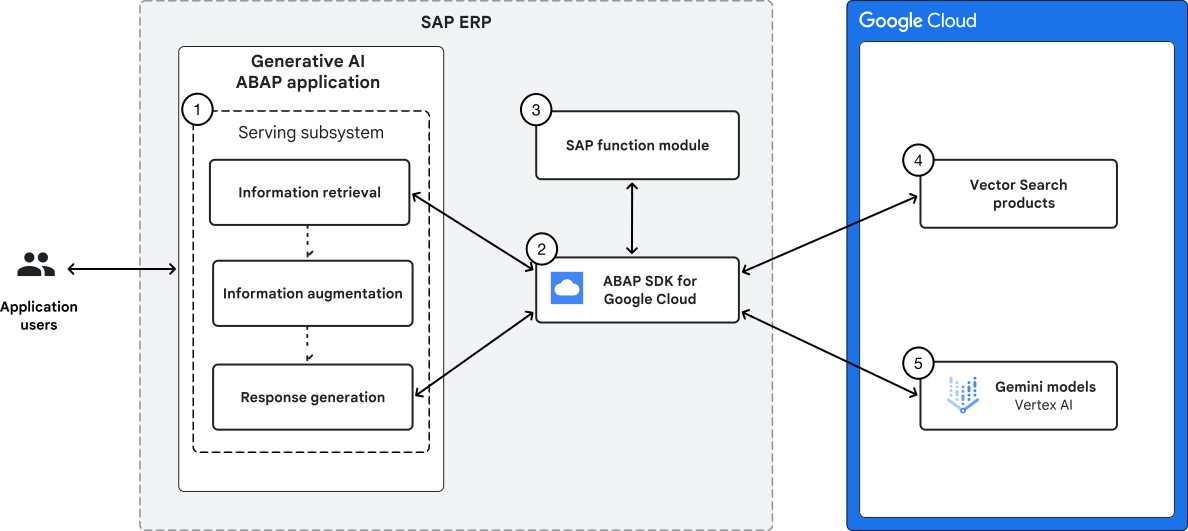
As shown in the preceding image, the serving subsystem architecture includes
the following components:
| Number | Component | Details |
|---|---|---|
| 1 | Serving subsystem | The serving subsystem is responsible for retrieving relevant information from data sources. It augments the information with a prompt, interacts with the generative AI models, and delivers the final response back to the user. |
| 2 | ABAP SDK for Google Cloud | The SDK handles communication between the serving subsystem and various Google Cloud services. |
| 3 | SAP function module | When your dataset is small and resides within your SAP systems, you can use the SAP function modules to build your information retrieval pipeline. You can retrieve data from an SAP function module by using `SELECT` queries, [BAPI calls](https://help.sap.com/docs/SAP_ERP/c5a8d544836649a1af6eaef358d08e3f/4dc89000ebfc5a9ee10000000a42189b.html), or [SAP function calling with Gemini](https://docs.cloud.google.com/sap/docs/abap-sdk/vertex-ai-sdk/latest/use-function-calling). |
| 4 | Vector Search products | When your enterprise data is large and you want a RAG application with minimal latency, you can build your retrieval pipeline by using Vector Search. You can perform semantic search on your enterprise data stored in the form of embeddings in a [vector database](https://cloud.google.com/discover/what-is-a-vector-database) such as [Cloud Storage](https://cloud.google.com/storage), [Agent Platform Feature Store](https://docs.cloud.google.com/vertex-ai/docs/featurestore/latest/overview), or [BigQuery](https://cloud.google.com/bigquery). |
| 5 | Agent Platform Gemini models | [Agent Platform Gemini models](https://docs.cloud.google.com/vertex-ai/generative-ai/docs/overview) that generate responses grounded to your enterprise data. |
## Serving subsystem
The serving subsystem of a generative AI solution consists of the
following subcomponents:
- [Information retrieval](https://docs.cloud.google.com/sap/docs/architectures/abap-sdk/serving-subsystem-sap.md.txt#information-retrieval)
- [Information augmentation](https://docs.cloud.google.com/sap/docs/architectures/abap-sdk/serving-subsystem-sap.md.txt#information-augmentation)
- [Response generation](https://docs.cloud.google.com/sap/docs/architectures/abap-sdk/serving-subsystem-sap.md.txt#response-generation)
### Information retrieval
When users submit requests to the generative AI application through a frontend,
the serving subsystem retrieves information from a data source.
To retrieve information from a data source, you can choose an appropriate
method for your use case:
- Retrieve information by using Vector Search
- Retrieve information without Vector Search
#### Retrieve information by using Vector Search
When your enterprise data is large (structured or unstructured data) and you want
a RAG application with minimal latency, we recommend that you build your retrieval pipeline
using Vector Search. Vector Search can execute text and
multimodal search on billions of records within milliseconds.
To use Vector Search for information retrieval, you need to
set up a vector database to store the enterprise data in the form of vector
embeddings. For information about how to ingest enterprise data into a
vector database, see [Build a data ingestion subsystem in SAP for RAG-capable generative AI applications](https://docs.cloud.google.com/sap/docs/architectures/abap-sdk/data-ingestion-subsystem-sap.md.txt).
#### Retrieve information without Vector Search
If your dataset is small and resides within your SAP systems, you can
retrieve information using `SELECT` queries, `SAP BAPI` calls, or use [SAP function calling with Gemini](https://docs.cloud.google.com/sap/docs/abap-sdk/vertex-ai-sdk/latest/use-function-calling)
to augment the model's context.
### Information augmentation
To provide the model with essential enterprise-specific context, we recommend
that you enrich your prompts with relevant information from your SAP systems.
After getting the additional data, augment the data to the model's context. This
augmentation gives the model the needed context
to make a response using the added enterprise information.
To augment the retrieved data to the model's context, append or
concatenate the data to the input prompt to the model. While appending the data,
you can prefix or suffix it with relevant text to denote that it is
additional context along with the prompt.
### Response generation
To invoke a Gemini AI model with the augmented prompt,
use the generative model invoker component of the Agent Platform SDK for ABAP.
This approach ensures that the generated response is not only relevant to the
user's query, and is based on your enterprise-specific data, leading to more
accurate and insightful outcomes.
## Use case
A RAG-capable generative AI application can be used to generate
quick updates on material stock in a warehouse by using natural language queries.
Consider a scenario where you're implementing a generative AI application
for warehouse employees of a company that manufactures and
ships home furniture, decor, and accessories.
To manage warehouse inventory and supply chain efficiently, the generative AI
application provides quick insights on material stock using natural language
based queries, through an SAP web application. One example of such a query
could be to determine the current inventory count of a specific material.
This information is stored within the product data in SAP database tables,
which might be a huge list of items for a large home furnishing company.
Warehouse employees need to get responses from the SAP application
that are [grounded](https://docs.cloud.google.com/vertex-ai/docs/glossary#ground_truth) to the information
in the SAP systems (the single source of truth).
This information allows them to make quick and efficient decisions, such as the following:
- Stock availability: Is a particular material in stock?
- Inventory levels: How many units of a material are available?
- Production planning: What should the manufacturing target be for a material to fulfill the next inbound order?
## Deployment
This section outlines the implementation of a serving subsystem for the
[warehouse use case](https://docs.cloud.google.com/sap/docs/architectures/abap-sdk/serving-subsystem-sap.md.txt#use-case). It details how to use the [Agent Platform SDK for ABAP](https://docs.cloud.google.com/sap/docs/abap-sdk/vertex-ai-sdk/latest/overview),
embedded in the latest version of
ABAP SDK for Google Cloud, to retrieve information and interact
with Gemini models.
For the [warehouse use case](https://docs.cloud.google.com/sap/docs/architectures/abap-sdk/serving-subsystem-sap.md.txt#use-case), note that the stock information
in SAP is linked to a unique material ID for each product. Each product also has
descriptive attributes stored in SAP, such as its name, a detailed description,
category, and other relevant properties. These textual descriptions are
converted into numerical representations called "embeddings" and stored in
a vector database. Each embedding is linked to its corresponding material ID,
allowing for efficient searching and analysis of product information.
Once your vector database is updated, to execute the search query
"what is the current inventory count for a product", you can do the following:
- Perform a vector search on the vector database with the query to retrieve the material ID.
- Query SAP tables and call SAP BAPI to get the stock quantity for the material ID.
- Augment the stock quantity to the model's context.
If your choice of vector database is a vector index, then you can use the
Agent Platform SDK for ABAP to invoke a vector search directly from ABAP.
For more information, see the reference architecture [Agent Platform Vector Search for intelligent SAP applications](https://docs.cloud.google.com/sap/docs/architectures/abap-sdk/vector-search-for-intelligent-sap-applications.md.txt).
The following are the implementation steps of a serving subsystem:
1. To retrieve the material ID for the [warehouse use case](https://docs.cloud.google.com/sap/docs/architectures/abap-sdk/serving-subsystem-sap.md.txt#use-case), you can use Vector Search.
The following code sample illustrates how to retrieve the material ID by
using Vector Search:
DATA:
lv_prompt TYPE string,
lv_available_quantity TYPE mng01,
ls_return TYPE bapireturn,
lv_available_inventory TYPE string,
lt_wmdvsx TYPE STANDARD TABLE OF bapiwmdvs,
lt_wmdvex TYPE STANDARD TABLE OF bapiwmdve.
lv_prompt = 'What is the current inventory count for Cymbal Emerald Flower Vase'.
* Get material id based on the prompt through vector search
TRY.
DATA(lo_vector_index) = NEW /goog/cl_vector_search( iv_search_key = 'SEARCH_KEY' ).
DATA(ls_material) = lo_vector_index->find_neighbors_by_string(
iv_search_string = lv_prompt
iv_embeddings_model_key = 'EMBEDDINGS_MODEL_KEY'
)->get_nearest_neighbor( ).
CATCH /goog/cx_sdk INTO DATA(lo_cx_sdk).
cl_demo_output=>display( 'Search not successful.' && lo_cx_sdk->get_text( ) ).
EXIT.
ENDTRY.
DATA(lv_material_id) = ls_material-datapoint_id.
* Get base unit of measure for the material
SELECT SINGLE meinh
FROM marm
INTO @DATA(lv_meinh)
WHERE matnr = @lv_material_id.
IF sy-subrc = 0.
* Get available stock for the material
CALL FUNCTION 'BAPI_MATERIAL_AVAILABILITY'
EXPORTING
plant =
material = CONV matnr18( lv_material_id )
unit = lv_meinh
IMPORTING
av_qty_plt = lv_available_quantity
return = ls_return
TABLES
wmdvsx = lt_wmdvsx
wmdvex = lt_wmdvex.
IF ls_return-type = 'S' OR
ls_return-type IS INITIAL.
* Prepare available stock value in base unit of measure
lv_available_inventory = |{ 'Avaiblable Stock = ' } | &&
lv_available_quantity && | { lv_meinh }|.
ELSE.
cl_demo_output=>display( 'Material availability lookup not successful:' && ls_return-message ).
ENDIF.
ENDIF.
If your dataset is small and resides within your SAP systems, to find the material ID
for the [warehouse use case](https://docs.cloud.google.com/sap/docs/architectures/abap-sdk/serving-subsystem-sap.md.txt#use-case), you can use `SELECT` queries
with the material description, and then query the SAP table to get the stock quantity.
The following code sample illustrates how to retrieve the material stock
information by using `SELECT` queries:
DATA:
lv_prompt TYPE string,
lv_available_quantity TYPE mng01,
ls_return TYPE bapireturn,
lv_available_inventory TYPE string,
lt_wmdvsx TYPE STANDARD TABLE OF bapiwmdvs,
lt_wmdvex TYPE STANDARD TABLE OF bapiwmdve,
lr_maktx TYPE RANGE OF maktx,
ls_maktx LIKE LINE OF lr_maktx.
lv_prompt = 'What is the current inventory count for Cymbal Emerald Flower Vase'.
ls_maktx-sign = 'I'.
ls_maktx-option = 'CP'.
ls_maktx-low = 'Cymbal Emerald Flower Vase'.
APPEND ls_maktx TO lr_maktx.
* Get material id through select statement
SELECT SINGLE matnr
FROM makt
INTO @DATA(lv_material_id)
WHERE maktx IN @lr_maktx.
IF sy-subrc <> 0.
cl_demo_output=>display( 'Material with given description not found' ).
EXIT.
ENDIF.
* Get base unit of measure for the material
SELECT SINGLE meinh
FROM marm
INTO @DATA(lv_meinh)
WHERE matnr = @lv_material_id.
IF sy-subrc = 0.
* Get available stock for the material
CALL FUNCTION 'BAPI_MATERIAL_AVAILABILITY'
EXPORTING
plant =
material = CONV matnr18( lv_material_id )
unit = lv_meinh
IMPORTING
av_qty_plt = lv_available_quantity
return = ls_return
TABLES
wmdvsx = lt_wmdvsx
wmdvex = lt_wmdvex.
IF ls_return-type = 'S' OR
ls_return-type IS INITIAL.
* Prepare available stock value in base unit of measure
lv_available_inventory = |{ 'Avaiblable Stock = ' } | &&
lv_available_quantity && | { lv_meinh }|.
ELSE.
cl_demo_output=>display( 'Material availability lookup not successful:' && ls_return-message ).
ENDIF.
ENDIF.
2. To augment the retrieved data to the input prompt, concatenate the available stock
for the material to the prompt with the prefix "Available stock".
The following code sample illustrates how to augment the retrieved data
to the input prompt:
* Augment retrieved data to the input prompt
lv_prompt = lv_prompt && 'Additional Context' && lv_available_inventory.
3. To invoke a Gemini AI model with the augmented prompt,
use the generative model invoker component of Agent Platform SDK for ABAP.
The following code sample illustrates how to invoke the model with augmented prompt:
TRY.
lv_prompt = lv_prompt && 'Additional Context' && lv_available_inventory.
DATA(lo_model_key) = NEW /goog/cl_generative_model( iv_model_key = 'MODEL_KEY' ).
DATA(lv_model_response) = lo_model_key->generate_content( lv_prompt
)->get_text( ).
IF lv_model_response IS NOT INITIAL.
cl_demo_output=>display( lv_model_response ).
ENDIF.
CATCH /goog/cx_sdk INTO DATA(lo_cx_sdk).
cl_demo_output=>display( lo_cx_sdk->get_text( ) ).
ENDTRY.
## Design considerations
This section provides guidance to help you use this reference architecture to
develop architectures that help you meet your specific requirements for
security, privacy, compliance, cost, and performance.
### Security, privacy, and compliance
Security and compliance are shared responsibilities. For detailed information,
see [Gemini Enterprise Agent Platform shared responsibility](https://docs.cloud.google.com/vertex-ai/docs/shared-responsibility).
For information about Google Cloud's commitment to data privacy,
see [Privacy Resource Center](https://cloud.google.com/privacy).
### Cost optimization
If you are using Vector Search to retrieve information for RAG, then to lower your
costs, consider choosing lower shard sizes and lower-dimensional
embeddings for your indexes, which lets you use a smaller compute machine for
deploying the indexes.
Agent Platform is a billable offering from Google Cloud.
For information about pricing, see [Agent Platform pricing](https://cloud.google.com/vertex-ai/pricing) and [Vector Search pricing](https://cloud.google.com/vertex-ai/pricing#vectorsearch).
To generate a cost estimate based on your projected usage, use the [Pricing Calculator](https://cloud.google.com/products/calculator/).
### Performance optimization
If you are using Vector Search to retrieve information for RAG, then
to improve latency to look up large datasets, consider choosing higher shard sizes while
creating your index and high performance compute machines while deploying your
index. To learn more about shard sizes for an index, see [Index size](https://docs.cloud.google.com/vertex-ai/docs/vector-search/create-manage-index#index_size).
To increase relevance of search responses, generate embeddings of your enterprise
data in higher dimensions.
Compute machines and higher embedding dimensions are cost intensive. To
generate a cost estimate based on your projected usage, use the [Pricing Calculator](https://cloud.google.com/products/calculator/).
## What's next
- To learn how to use Vector Search for semantic search with SAP applications, see [Agent Platform Vector Search for intelligent SAP applications](https://docs.cloud.google.com/sap/docs/architectures/abap-sdk/vector-search-for-intelligent-sap-applications.md.txt).
- To learn how to use Vector Search with
the Agent Platform SDK for ABAP, see [Use Agent Platform Vector Search](https://docs.cloud.google.com/sap/docs/abap-sdk/vertex-ai-sdk/latest/use-vector-search).
- To learn how to ingest enterprise data into a
vector database, see [Build a data ingestion subsystem in SAP for RAG-capable generative AI applications](https://docs.cloud.google.com/sap/docs/architectures/abap-sdk/data-ingestion-subsystem-sap.md.txt).
- If you need help resolving problems with the ABAP SDK for Google Cloud,
then do the following:
- Refer to the [ABAP SDK for Google Cloud troubleshooting guide](https://docs.cloud.google.com/sap/docs/abap-sdk/on-premises-or-any-cloud/latest/troubleshooting.md.txt).
- Ask your questions and discuss the ABAP SDK for Google Cloud with the community on [Cloud Forums](https://discuss.google.dev/tags/c/google-cloud/14/abap-sdk).
- Collect all available diagnostic information and contact Cloud Customer Care. For information about contacting Customer Care, see [Getting support for SAP on Google Cloud](https://docs.cloud.google.com/sap/docs/getting-support.md.txt).
## Contributors
Author:
[Devesh Singh](https://www.linkedin.com/in/devesh-singh-3447b054/) \| SAP Application Engineer
Other contributor:
[Vikash Kumar](https://www.linkedin.com/in/vikash-kumar-91923636/) \| Technical Writer