This document describes a reference architecture for building [interactive Google Chat apps](https://developers.google.com/workspace/chat/overview#build-interactive-google-chat-apps) for SAP, by using the [on-premises or any cloud edition of ABAP SDK for Google Cloud](https://docs.cloud.google.com/sap/docs/abap-sdk/on-premises-or-any-cloud/latest/all-guides).
With interactive Chat apps, in addition to receiving
notifications, users can take actions on SAP workflows such as
approve or reject requests, directly within their Google Workspace.
The intended audience for this document includes ABAP developers,
SAP solution architects, and cloud architects. This document assumes that
you're familiar with the [Chat apps](https://developers.google.com/workspace/chat/overview) available in [Google Workspace](https://developers.google.com/workspace/guides/get-started).
## Architecture
The following diagram shows a reference architecture for implementing
interactive Chat apps for SAP:
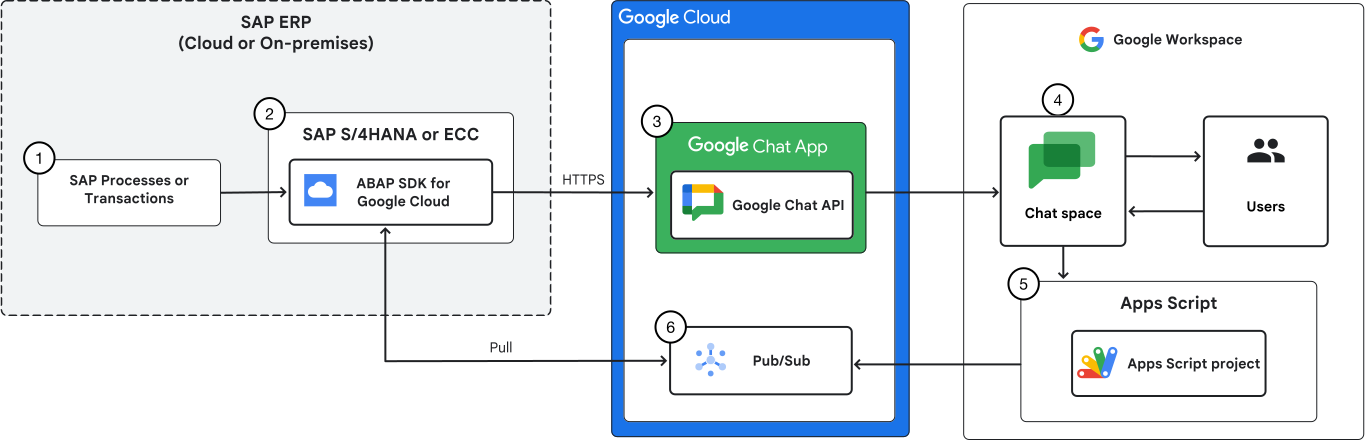
This reference architecture includes the following components:
| # | Component | Details |
|---|---|---|
| 1 | SAP processes or transactions | Any SAP process or transaction that needs to send messages to users. It's the starting point for triggering communication through Google Chat. |
| 2 | ABAP SDK for Google Cloud | Acts as a bridge between SAP systems and Google Cloud, enabling secure HTTPS communication with the Google Chat API. |
| 3 | Google Chat app project | The Google Cloud project where you've enabled the Google Chat API and configured your Chat app. |
| 4 | Chat space | A dedicated room within Google Chat where your SAP system can communicate with users. The Chat apps reside in this space, providing a real-time stream of information from your SAP systems through the Google Chat API. |
| 5 | Apps Script project | The Apps Script project where you implement your Chat app logic to receive and process messages. |
| 6 | Pub/Sub | The Apps Script project publishes user actions, such as approvals or rejections, as messages to a Pub/Sub topic. The ABAP SDK for Google Cloud uses a Pub/Sub subscription to pull these messages from the topic. This lets your SAP system process those actions and trigger any necessary updates to your business processes. |
## Products used
This reference architecture uses the following Google products:
- [ABAP SDK for Google Cloud](https://docs.cloud.google.com/sap/docs/abap-sdk/overview.md.txt): Helps you develop ABAP applications that connect your SAP systems to Google Cloud services, such as Google Chat.
- [Google Chat](https://developers.google.com/workspace/chat/overview):
Helps you create interactive and collaborative Chat apps, enhancing communication and productivity.
- [Apps Script](https://developers.google.com/apps-script): Lets you integrate with and automate tasks across Google products.
- [Pub/Sub](https://docs.cloud.google.com/pubsub/docs.md.txt): Lets you send and receive messages between independent applications.
## Use cases
Interactive Chat apps let you take actions on SAP workflows such as
approve or reject requests. The following diagram illustrates an interactive
chat pattern for purchase order (PO) and sales order (SO) approval workflows:
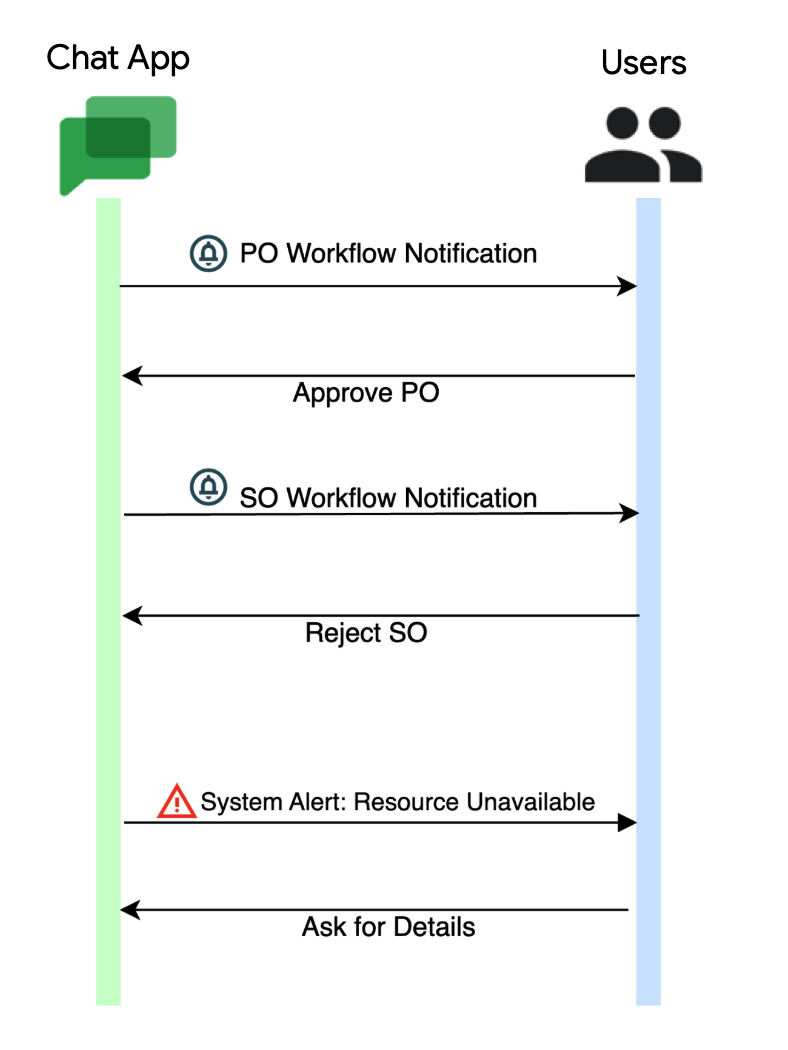
The following list shows some use cases of interactive Chat apps for SAP:
- **Workflow event management**: You can interact with a Chat app
to manage your workflow. For example, if a
purchase order needs your attention, then you can do the following through the Chat app:
- Approve the order
- Reject the order
- Request more details
- **System alerts**: You can send alerts to a Chat space
meant for the system admins to alert them of various system thresholds
being reached. For example, disk space usage, long-running operations,
cache locks, or license expiry.
- **Job status updates**: You can send updates for long-running custom jobs
to a set of users who are waiting for those jobs to complete
and take up post-processing operations.
## Design considerations
When you design Chat apps for your use cases, there are several
factors that might influence your design decisions. This section provides
guidance to help you use this reference architecture
to develop architectures that help you to meet your specific requirements
for security, privacy, compliance, and cost.
### Google Chat app configuration
- **Chat app name**: Provide a clear and meaningful name
for your Chat app. For a seamless user experience,
make sure your Chat app's name accurately reflects
its functionalities or the services it integrates with.
- **Time zones**: A Chat space
can be shared by members belonging to various time zones. Therefore,
configuring Chat apps
to transmit messages at a time that is convenient for all users of the space is essential.
Alternatively, for important alerts or notifications, you can designate members
to Chat spaces with a shared time zone and build logic to
determine which space the Chat app can send messages to.
### Security, privacy, and compliance
To maintain confidentiality, it is crucial to implement stringent controls
over the sharing of sensitive information, such as customer contact details,
IBAN, or other need-to-know data within Chat spaces. Additionally,
when new users
are added to Chat spaces, where the Chat apps
are added, it is essential to establish clear regulations to
ensure appropriate management of this activity.
You can also consider using [Cloud Data Loss Prevention API](https://docs.cloud.google.com/sensitive-data-protection/docs/reference/rest.md.txt)
to desensitize the message contents. For information about how to protect
sensitive enterprise data in SAP by using the DLP API, see
[Data protection in SAP with the DLP API](https://docs.cloud.google.com/sap/docs/architectures/abap-sdk/data-protection-with-cloud-dlp.md.txt).
For security, ensure that Google Workspace admins follow the [Google recommended best practices](https://support.google.com/a/answer/7587183#zippy=%2Cgoogle-chat-and-classic-hangouts-google-workspace-only).
### Quotas and limits
Google Chat API is a shared service therefore quotas and limitations are
applicable. If you exceed a quota, then you receive a `429: Too many requests`
HTTP status code response. For more information about quotas and limits, see
[Usage limits](https://developers.google.com/workspace/chat/limits).
Google Chat API itself does not have any usage fees, however, Google Chat is
a Google Workspace product. Google Workspace, a suite of bundled
productivity tools, encompasses Gmail, Docs,
Sheets, Slides, Google Chat apps, and more. Its
pricing structure is holistic, meaning that you cannot select and purchase individual
components. For more information about pricing, see [Google Workspace Pricing](https://workspace.google.com/pricing.html).
### Connection setting options
To handle interactions within Google Chat, this reference architecture uses
Apps Script as the backend. The code, hosted in an Apps Script
project, must be written in JavaScript.
Alternatively, you can build your interactive Chat app
by using Cloud Run functions or App Engine with an HTTP endpoint.
For information about how to use Cloud Run functions for
Google Chat, see [Build an HTTP Google Chat app](https://developers.google.com/workspace/chat/quickstart/gcf-app).
To build the Chat app logic in Cloud Run functions,
you can use the [Cloud libraries](https://docs.cloud.google.com/apis/docs/client-libraries-explained.md.txt) and
choose from multiple languages such as Node.js, Java, or Python.
Once you deploy your Cloud Run function, in the
Chat app configuration under **Connection settings** ,
select **HTTP endpoint URL**, and provide the URL for the Cloud Run function
trigger.
## Before you begin
Before implementing a solution based on this reference architecture,
make sure that you have completed the following prerequisites:
- You have a Business or Enterprise [Google Workspace](https://support.google.com/a/answer/6043576)
account with access to [Google Chat](https://workspace.google.com/products/chat/).
- You have a Google Cloud account and project. Each Chat app
requires its own Google Cloud project. That means you can configure only a single
Chat app in one Google Cloud project.
- You have enabled billing for your project. For information about how to
confirm that billing is enabled for your project, see [Verify the billing status of your projects](https://docs.cloud.google.com/billing/docs/how-to/verify-billing-enabled.md.txt).
- The [on-premises or any cloud edition of ABAP SDK for Google Cloud is installed and configured](https://docs.cloud.google.com/sap/docs/abap-sdk/on-premises-or-any-cloud/latest/install-config.md.txt).
- The [Google Chat API](https://console.cloud.google.com/project/_/apis/library/chat.googleapis.com) is enabled in your Google Cloud project.
### Set up an Apps Script project
For receiving and processing messages, you implement Chat app
logic in an [Apps Script](https://developers.google.com/apps-script/overview) project.
Apps Script provides the backend logic and automation.
It lets you write code to handle events such as extracting user messages,
processing button clicks, and triggering downstream actions.
To set up an Apps Script project, perform the following steps:
1. Go to [Apps Script](https://script.google.com/create).
2. Create a script to handle your Chat app logic
for receiving and processing messages. For information about how to create a script, see [Google Apps Script quickstart](https://developers.google.com/workspace/chat/api/guides/quickstart/apps-script).
For example, you need to write JavaScript code to handle various function types.
The following sample code illustrates how to handle `OnCardClicked` event:
```javascript
function onCardClick(event) {
console.info(event);
let message = 'Button Clicked';
// Get the function name from parameter
var functionToCall = event.action.parameters[0].value;
// Get the action name from parameter
var actionTaken = event.action.parameters[1].value;
// Call the function dynamically
if (this[functionToCall]) {
this[functionToCall](actionTaken);
} else {
// Handle invalid function name
console.log('Function not found:', functionToCall);
}
return { "text": message };
}
```
This sample code performs the following functions:
- **Reads the button click**: It determines the clicked button and the user's intended action.
- **Finds the right code to run**: It uses the information from the button click to find a matching piece of code within your Chat app.
- **Runs the code**: It runs the matching code to perform the action the user asked for.
- **Handles errors**: If it can't find the matching code, then it shows an error message.
3. Link your Google Cloud project to the Apps Script project.
For information about how to link your projects, see [Link your Google Cloud project](https://developers.google.com/workspace/chat/api/guides/quickstart/apps-script#link-cloud-project).
4. Create a deployment for your script. For information about how to deploy your script, see [Create and manage deployments](https://developers.google.com/apps-script/concepts/deployments).
5. Make a note of the deployment ID. For information about how to find a deployment ID, see [Find a deployment ID](https://developers.google.com/apps-script/concepts/deployments#find-deployment).
For more information about setting up your Apps Script project, see [Google Apps Script Chat app quickstart](https://developers.google.com/apps-script/quickstart/chat-app).
### Configure the Google Chat app
To configure your Google Chat app, perform the following steps:
1. In the Google Cloud console, search for "Google Chat API" and click **Google Chat API** , then click **Manage**.
[Go to Chat API](https://console.cloud.google.com/apis/api/chat.googleapis.com/hangouts-chat)
2. Click **Configuration** and set up the Google Chat app:
1. In **App name** , enter `Quickstart SAP App`.
2. In **Avatar URL** , enter `https://developers.google.com/chat/images/quickstart-app-avatar.png`.
3. In **Description** , enter `Quickstart app for SAP`.
3. Under **Connection settings** , select **Apps Script**.
4. Enter the deployment ID of the script that you've created in the section [Set up an Apps Script project](https://docs.cloud.google.com/sap/docs/architectures/abap-sdk/interactive-google-chat-apps-for-sap.md.txt#setup-apps-script-project).
5. Click **Save**.
### Set up authentication for Google Chat apps
You can authenticate to Google Chat apps in two ways:
as an app itself or as a user.
When your app needs to perform automated tasks, such as sending system
notifications without direct user interaction, it uses a service account.
If you want your app to act on behalf of a user, such as sending a message
as that specific person, then you need user authentication.
This dual authentication approach offers flexibility and control over how
your app interacts with Google Chat.
The ABAP SDK for Google Cloud lets you set up both types of authentication. For
information about how to set up authentication for Google Chat apps, see:
- Authenticate as a Google Chat app: [Authenticate by using access tokens](https://docs.cloud.google.com/sap/docs/abap-sdk/on-premises-or-any-cloud/latest/authentication-access-token.md.txt) or [Authenticate by using JSON Web Tokens](https://docs.cloud.google.com/sap/docs/abap-sdk/on-premises-or-any-cloud/latest/authentication-jwt.md.txt)
- Authenticate and authorize as a Google Chat user: [Authenticate to Google Workspace APIs by using OAuth 2.0 client credentials](https://docs.cloud.google.com/sap/docs/abap-sdk/on-premises-or-any-cloud/latest/authentication-oauth-client-credentials.md.txt)
For information about Google Chat API methods and their supported
authorization scopes, see [Authenticate and authorize Chat apps and Google Chat API requests](https://developers.google.com/workspace/chat/authenticate-authorize#asynchronous-chat-calls).
The reference architecture explained in this document uses authentication
as a Chat app and uses access tokens for authentication.
To set up authentication as a Chat app, perform the following steps:
1. In the Google Cloud console, [configure the OAuth consent screen and choose scopes](https://developers.google.com/workspace/guides/configure-oauth-consent).
2. In the Google Cloud console, [create a service account](https://docs.cloud.google.com/iam/docs/service-accounts-create.md.txt#creating).
3. Optional: Assign IAM roles to your service account to grant access to your Google Cloud project resources. For more information, see [Manage access to service accounts](https://docs.cloud.google.com/iam/docs/manage-access-service-accounts.md.txt).
4. In the SAP system, configure a client key with the following details:
| Field | Description |
|---|---|
| **Google Cloud Key Name** | Specify a name for the client key configuration. For example, `ABAP_SDK_CHAT`. |
| **Google Cloud Service Account Name** | Specify the name of the service account to which you have granted permissions to access the Google Chat API. For example, `sap-example-svc-acct@example-project-123456.iam.gserviceaccount.com`. |
| **Google Cloud Scope** | Specify the API access scope: `https://www.googleapis.com/auth/chat.bot`. |
| **Google Cloud Project Identifier** | Specify the ID of the Google Cloud project that contains your enabled Google Chat API. |
| **Command name** | Leave this field blank. |
| **Authorization Class** | Specify the authorization class, as appropriate: - For authentication by using access tokens: `/GOOG/CL_AUTH_GOOGLE` - For authentication by using JWT: `/GOOG/CL_AUTH_JWT` |
| **Token Caching** | The flag that determines whether or not the access tokens retrieved from Google Cloud are cached.
We recommend that you enable token caching after you are done configuring and testing your connection to Google Cloud. For more information about token caching, see [Enable token caching](https://docs.cloud.google.com/sap/docs/abap-sdk/on-premises-or-any-cloud/latest/install-config.md.txt#token_caching). |
| **Token Refresh Seconds** | The amount of time, in seconds, before an access token expires and must be refreshed. The default value is `3500`. |
| **Authorization Parameter 1** | Leave this field blank. |
| **Authorization Parameter 2** | Leave this field blank. |
For information about detailed steps to set up authentication, see [Authenticate by using access tokens](https://docs.cloud.google.com/sap/docs/abap-sdk/on-premises-or-any-cloud/latest/authentication-access-token.md.txt) or [Authenticate by using JSON Web Tokens](https://docs.cloud.google.com/sap/docs/abap-sdk/on-premises-or-any-cloud/latest/authentication-jwt.md.txt).
### Add the Google Chat app to spaces
1. Open your Google Chat apps or Gmail app.
2. Add the Chat app to a Chat space. For information about how to add apps to a Chat space, see [Add apps to conversations or spaces](https://support.google.com/chat/answer/7655820).
## Design interactive cards for user actions
Cards provide a visually appealing and interactive way to present information,
enhancing the overall user experience.
They can include elements such as titles, images, buttons, and more, enabling
users to engage with the content directly within the Chat interface.
For example, a purchase order workflow card might include the following information:
- Purchase order number
- Document date
- Document type
- Supplier
- Shipping type
- Link to open the purchase order display in SAP Fiori app and a button to approve the purchase order
To design interactive cards by using the ABAP SDK for Google Cloud,
use the custom interface `ZGOOG_IF_CHAT_CARDS_V2` from the [GitHub repository](https://github.com/GoogleCloudPlatform/google-cloud-abap/tree/main/abap-sdk/ZGOOG_SDK_RECIPES/ZGOOG_SDK_CHAT_RECIPE).
This custom interface contains the ABAP Types required to create cards.
You can build cards such as the following order workflow example card:
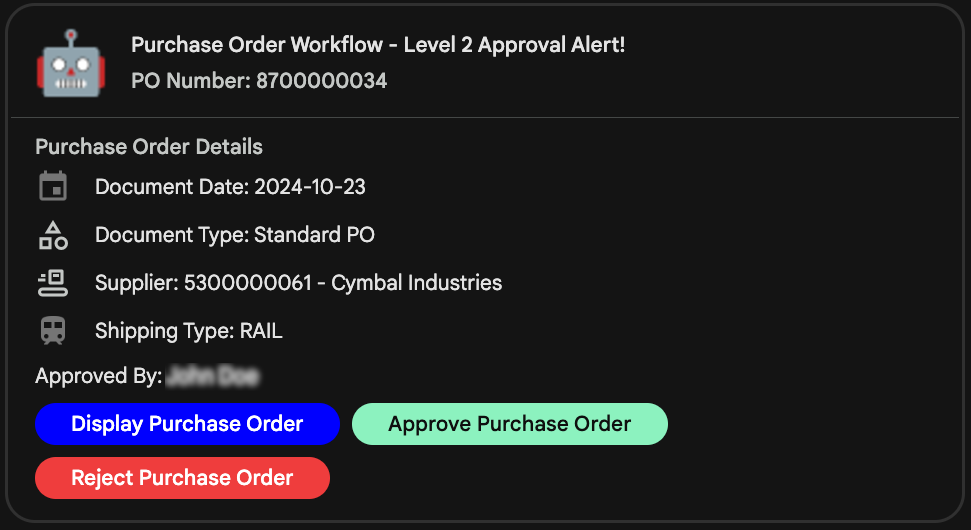
For more information about designing card messages,
see [Build cards for Google Chat apps](https://developers.google.com/workspace/chat/design-components-card-dialog).
To send messages from an SAP system to a Chat space by using
the ABAP SDK for Google Cloud, you use the `CREATE_MESSAGES` method
of the [`/GOOG/CL_CHAT_V1`](https://docs.cloud.google.com/sap/docs/abap-sdk/on-premises-or-any-cloud/latest/reference/googcl_chat_v1.md.txt) class.
The following code sample illustrates how to send a card message from
an SAP system to a Chat space:
REPORT zsend_interactive_card.
DATA lv_client_key TYPE /goog/keyname.
DATA ls_input TYPE /goog/cl_chat_v1=>ty_072.
DATA lv_space_id TYPE string.
DATA ls_widget TYPE zgoog_if_chat_cards_v2=>ty_widget.
DATA ls_section TYPE zgoog_if_chat_cards_v2=>ty_sections.
DATA ls_card_v2 TYPE zgoog_if_chat_cards_v2=>ty_cards_v2.
DATA ls_card TYPE /goog/cl_chat_v1=>ty_012.
DATA ls_rb TYPE zgoog_if_chat_cards_v2=>ty_selection_item.
DATA ls_button TYPE zgoog_if_chat_cards_v2=>ty_button.
DATA ls_param TYPE zgoog_if_chat_cards_v2=>ty_action_parameters.
lv_client_key = 'CLIENT_KEY'.
lv_space_id = 'SPACE_ID'.
TRY.
DATA(lo_chat) = NEW /goog/cl_chat_v1( iv_key_name = lv_client_key ).
CATCH /goog/cx_sdk INTO DATA(lo_excp).
" Handle exception here
ENDTRY.
" Building the Cards Structure
ls_card_v2-header = VALUE zgoog_if_chat_cards_v2=>ty_header(
title = 'Purchase Order Workflow - Level 2 Approval Alert!'
subtitle = 'PO Number: 8700000035'
image_url = 'https://developers.google.com/chat/images/quickstart-app-avatar.png' ).
ls_section-header = 'Purchase Order Details'.
ls_widget-decorated_text = VALUE zgoog_if_chat_cards_v2=>ty_decorated_text(
icon = VALUE zgoog_if_chat_cards_v2=>ty_icon( known_icon = 'INVITE' )
text = 'Document Date: 2024-10-23' ).
ls_section-widgets = VALUE #( ( ls_widget ) ).
CLEAR ls_widget.
ls_widget-decorated_text = VALUE zgoog_if_chat_cards_v2=>ty_decorated_text(
icon = VALUE zgoog_if_chat_cards_v2=>ty_icon(
material_icon = VALUE zgoog_if_chat_cards_v2=>ty_material_icon( name = 'category' ) )
text = 'Document Type: Standard PO' ).
ls_section-widgets = VALUE #( BASE ls_section-widgets
( ls_widget ) ).
CLEAR ls_widget.
ls_widget-decorated_text = VALUE zgoog_if_chat_cards_v2=>ty_decorated_text(
icon = VALUE zgoog_if_chat_cards_v2=>ty_icon(
material_icon = VALUE zgoog_if_chat_cards_v2=>ty_material_icon( name = 'conveyor_belt' ) )
text = 'Supplier: 5300000061 - Cymbal Industries' ).
ls_section-widgets = VALUE #( BASE ls_section-widgets
( ls_widget ) ).
CLEAR ls_widget.
ls_widget-decorated_text = VALUE zgoog_if_chat_cards_v2=>ty_decorated_text(
icon = VALUE zgoog_if_chat_cards_v2=>ty_icon( known_icon = 'TRAIN' )
text = 'Shipping Type: RAIL' ).
ls_section-widgets = VALUE #( BASE ls_section-widgets
( ls_widget ) ).
CLEAR ls_widget.
ls_button = VALUE #( text = 'Display Purchase Order'
color = VALUE zgoog_if_chat_cards_v2=>ty_color( alpha = '1'
blue = '1'
green = '0'
red = '1' ) ).
" Replace this with URL for Fiori Application
ls_button-on_click-open_link-url = 'https://developers.google.com/workspace/chat'.
ls_widget-button_list-buttons = VALUE #( BASE ls_widget-button_list-buttons
( ls_button ) ).
CLEAR ls_button.
ls_button = VALUE #( text = 'Approve Purchase Order'
on_click-action-function = 'onCardClick'
color = VALUE zgoog_if_chat_cards_v2=>ty_color( alpha = '1'
blue = '0.2'
green = '0.4'
red = '0' ) ).
ls_param-key = 'functionToCall'.
ls_param-value = 'sendToPubSub'. " Replace this with function name on AppsScript
ls_button-on_click-action-parameters = VALUE #( BASE ls_button-on_click-action-parameters
( ls_param ) ).
CLEAR ls_param.
ls_param-key = 'action'.
ls_param-value = 'approved'. " Indicate approval action has taken place
ls_button-on_click-action-parameters = VALUE #( BASE ls_button-on_click-action-parameters
( ls_param ) ).
CLEAR ls_param.
ls_widget-button_list-buttons = VALUE #( BASE ls_widget-button_list-buttons
( ls_button ) ).
CLEAR ls_button.
ls_button = VALUE #( text = 'Reject Purchase Order'
on_click-action-function = 'onCardClick'
color = VALUE zgoog_if_chat_cards_v2=>ty_color( alpha = '1'
blue = '0'
green = '0'
red = '0.7' ) ).
ls_param-key = 'functionToCall'.
ls_param-value = 'sendToPubSub'. " Function name on AppsScript
ls_button-on_click-action-parameters = VALUE #( BASE ls_button-on_click-action-parameters
( ls_param ) ).
CLEAR ls_param.
ls_param-key = 'action'.
ls_param-value = 'rejected'. " Indicate reject action has taken place
ls_button-on_click-action-parameters = VALUE #( BASE ls_button-on_click-action-parameters
( ls_param ) ).
CLEAR ls_param.
ls_widget-button_list-buttons = VALUE #( BASE ls_widget-button_list-buttons
( ls_button ) ).
CLEAR ls_button.
ls_section-widgets = VALUE #( BASE ls_section-widgets
( ls_widget ) ).
ls_card_v2-sections = VALUE #( ( ls_section ) ).
ls_card-card = REF #( ls_card_v2 ).
ls_input-cards_v2 = VALUE #( ( ls_card ) ).
TRY.
lo_chat->create_messages( EXPORTING iv_p_spaces_id = lv_space_id
is_input = ls_input
IMPORTING es_output = DATA(ls_output)
ev_ret_code = DATA(lv_ret_code)
ev_err_text = DATA(lv_err_text)
es_err_resp = DATA(ls_err_resp) ).
CATCH /goog/cx_sdk INTO lo_excp.
" Handle exception here
ENDTRY.
IF lo_chat->is_error( lv_ret_code ).
" Handle error here
ELSE.
" Handle success here
ENDIF.
Replace the following:
- `CLIENT_KEY`: The client key configured for authentication.
- `SPACE_ID`: The unique identifier ID of the Chat space.
To locate the Chat space ID, open the Google Chat space in your web browser. You can
find the ID in the URL, as illustrated in the following screenshot:

## Design alternative
For your SAP S/4 HANA or ECC system hosted on Google Cloud, you can consider
the following alternative reference architecture to design
your interactive Chat apps:
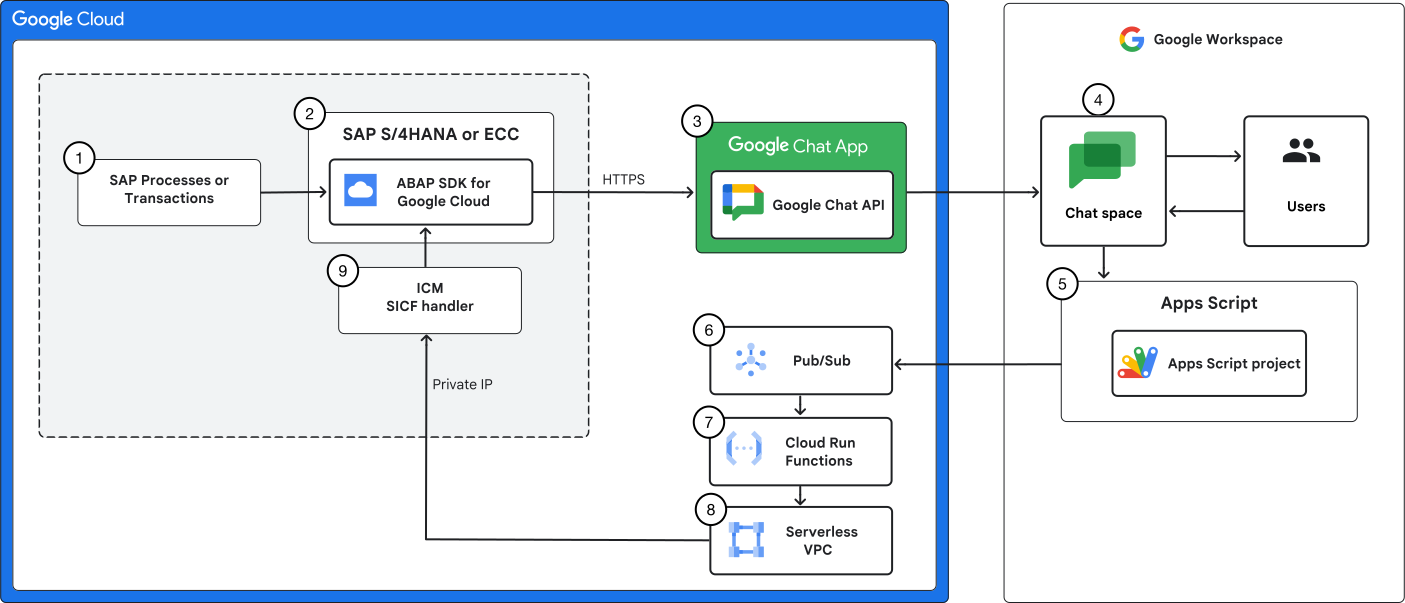
This reference architecture is based on the following considerations:
1. The originating SAP processes or transactions that are responsible for sending messages to users.
2. The ABAP SDK for Google Cloud sends messages by calling the Google Chat API method: `spaces.messages.create`.
3. The Google Chat API sends the messages to the corresponding Chat space.
4. The space users receive notifications, and then respond to take an action, such as click a button.
5. The user action invokes the Apps Script project to handle the corresponding event.
6. The Apps Script project invokes the Pub/Sub API to publish the messages.
7. The Cloud Run function processes the messages and publishes events by using the [Eventarc](https://docs.cloud.google.com/eventarc/docs.md.txt) trigger.
8. The Cloud Run function calls the SICF node through a serverless VPC connector.
9. The SAP system processes the event and triggers downstream actions based on the defined business logic.
This reference architecture requires implementing logic in three layers:
- The ABAP layer for creating a chat message, handling the event, and subsequent business processes.
- The Apps Script layer for handling the event in the Chat space and publishing messages to a Pub/Sub topic.
- The Cloud Run functions to receive messages from Pub/Sub subscription. Optionally, you can format the messages and call the SICF service hosted on your SAP system through the VPC connector.
## What's next
- To deploy the example solution explained in this guide with minimal effort,
use the code sample provided on [GitHub](https://github.com/GoogleCloudPlatform/google-cloud-abap/blob/main/abap-sdk/ZGOOG_SDK_RECIPES/ZGOOG_SDK_CHAT_RECIPE/zsend_interactive_card.prog.abap).
- To learn more about debugging and troubleshooting Chat app errors, see [Troubleshoot overview](https://developers.google.com/workspace/chat/troubleshoot-fix-chat-errors).
- For information about Google Workspace products, see [common questions when considering Google Workspace](https://workspace.google.com/faq).
- If you need to only send SAP notifications to Google Chat, then see the reference architecture [Send SAP notifications to Google Chat](https://docs.cloud.google.com/sap/docs/architectures/abap-sdk/google-chat-apps-for-sap.md.txt).
- If you need help resolving problems with the ABAP SDK for Google Cloud,
then do the following:
- Refer to the [ABAP SDK for Google Cloud troubleshooting guide](https://docs.cloud.google.com/sap/docs/abap-sdk/on-premises-or-any-cloud/latest/troubleshooting.md.txt).
- Ask your questions and discuss the ABAP SDK for Google Cloud with the community on [Cloud Forums](https://discuss.google.dev/tags/c/google-cloud/14/abap-sdk).
- Collect all available diagnostic information and contact Cloud Customer Care. For information about contacting Customer Care, see [Getting support for SAP on Google Cloud](https://docs.cloud.google.com/sap/docs/getting-support.md.txt).
## Contributors
Author:
[Satish Inamdar](https://www.linkedin.com/in/satish-inamdar-14450a35/) \| SAP Application Engineer
Other contributor:
[Vikash Kumar](https://www.linkedin.com/in/vikash-kumar-91923636/) \| Technical Writer