- [SAP BTP edition v1.1](https://docs.cloud.google.com/sap/docs/abap-sdk/btp/latest/install-config.md.txt)
- [On-premises or any cloud edition v1.15](https://docs.cloud.google.com/sap/docs/abap-sdk/on-premises-or-any-cloud/latest/install-config.md.txt)
This document shows how to install and configure the on-premises or any cloud edition of ABAP SDK for Google Cloud
on your SAP host system on Compute Engine VM instances, on-premises,
on another cloud provider, or in another environment outside of Google Cloud.
This document is intended for SAP administrators, Google Cloud administrators,
and other SAP and Google Cloud security professionals.
## Overview
ABAP SDK for Google Cloud provides client libraries for developers to
use ABAP to programmatically access Google Cloud APIs. By encapsulating
essential functions as reusable components, these client libraries reduce
the amount of code that developers need to write. For a complete list of
client libraries that the ABAP SDK for Google Cloud provides, see [ABAP SDK for Google Cloud client libraries](https://docs.cloud.google.com/sap/docs/abap-sdk/reference/v1.5/overview).
As an ABAP developer, you can build and deploy ML and AI-driven
solutions using a wide range of Google Cloud
services such as [Gemini Enterprise Agent Platform](https://docs.cloud.google.com/vertex-ai/docs), [Document AI Warehouse](https://docs.cloud.google.com/document-warehouse/docs/overview.md.txt), [BigQuery](https://docs.cloud.google.com/bigquery/docs/introduction.md.txt),
[Managed Service for Apache Spark](https://docs.cloud.google.com/dataproc/docs/concepts/overview), [Pub/Sub](https://docs.cloud.google.com/pubsub/docs/overview.md.txt), [Google Workspace APIs](https://developers.google.com/workspace), and [Google Maps Platform](https://mapsplatform.google.com/).
For communication between SAP and Google Cloud APIs, the
ABAP SDK for Google Cloud uses HTTPS protocol with TLS/SSL.
### Solutions and accelerators
The on-premises or any cloud edition of ABAP SDK for Google Cloud offers the following solutions and accelerators:
- **Agent Platform SDK for ABAP** : Lets you interact with
with Google Cloud's [Gemini Enterprise Agent Platform](https://docs.cloud.google.com/vertex-ai/docs/start/introduction-unified-platform) platform. For information about
Agent Platform SDK for ABAP, see [Overview of the Agent Platform SDK for ABAP](https://docs.cloud.google.com/sap/docs/abap-sdk/vertex-ai-sdk/latest/overview).
- **BigQuery AI and ML SDK for ABAP** : Lets you use the AI and ML capabilities of [BigQuery](https://docs.cloud.google.com/bigquery/docs/introduction.md.txt) in your ABAP applications and ABAP-based AI agents.
The SDK offers the following capabilities from your ABAP environment:
- Use Gemini to analyze your enterprise data in BigQuery.
- Generate and manage embeddings for enterprise data in BigQuery to make BigQuery as your low-cost vector database.
- Perform vector search on your enterprise data in BigQuery for similarity search or to RAG your model.
For more information, see [BigQuery AI and ML SDK for ABAP overview](https://docs.cloud.google.com/sap/docs/abap-sdk/on-premises-or-any-cloud/latest/bq-ai-ml-sdk/overview.md.txt).
- **BigQuery Toolkit for SAP** : Lets you programmatically replicate data from your SAP tables to
[BigQuery](https://docs.cloud.google.com/bigquery/docs/introduction.md.txt), without [SAP Landscape Transformation Replication Server](https://help.sap.com/viewer/product/SAP_LANDSCAPE_TRANSFORMATION_REPLICATION_SERVER/LATEST/en-US). For more information,
see [Overview of the BigQuery Toolkit for SAP](https://docs.cloud.google.com/sap/docs/abap-sdk/on-premises-or-any-cloud/latest/bq-toolkit-for-sap-overview.md.txt).
- **Business Eventing Toolkit for SAP** : Lets you integrate SAP with Google Cloud
and other business systems through its event-driven architecture, requiring minimal
configuration. For event
standardization, the toolkit provides built-in modules that let you
encode your SAP events into the industry-standard [CloudEvents specification](https://cloudevents.io/).
You can then publish these standardized events to prebuilt targets for
Google Cloud services such as Pub/Sub, Cloud Run functions,
Firebase Cloud Messaging (FCM), and Integration Connectors. For more information, see [Business Eventing Toolkit for SAP](https://docs.cloud.google.com/sap/docs/abap-sdk/on-premises-or-any-cloud/latest/eventing-toolkit-for-sap-overview.md.txt).
- **Cloud Storage as a content repository for SAP** : Lets you implement [Cloud Storage](https://docs.cloud.google.com/storage)
as a content repository for SAP. Cloud Storage can handle your
SAP-related data storage needs for storing various file types such as PDFs and images,
and for archiving business data. For more information,
see [Implement Cloud Storage as a content repository for SAP](https://docs.cloud.google.com/sap/docs/abap-sdk/on-premises-or-any-cloud/latest/implement-gcs-sap-content-repository.md.txt).
## Before you begin
Before you install ABAP SDK for Google Cloud, do the following:
1. If you're new to Google Cloud, then create an account on .
2. If you don't have a Google Cloud project already, then create a project:
[Go to project selector](https://console.cloud.google.com/projectselector2/home/dashboard)
3. Make sure billing is enabled for your project. For more information, see [Verify the billing status of your project](https://docs.cloud.google.com/billing/docs/how-to/verify-billing-enabled.md.txt).
4. Make sure the SAP software versions you are using are supported by the
ABAP SDK for Google Cloud. For more information, see [SAP software version requirements](https://docs.cloud.google.com/sap/docs/abap-sdk/on-premises-or-any-cloud/latest/install-config.md.txt#software_requirements).
### SAP software version requirements
You can install the ABAP SDK for Google Cloud into any SAP system that runs
on SAP NetWeaver with SAP_BASIS 702 or later.
This includes various SAP systems such as the following:
- SAP ERP 6.0 (ECC)
- S/4HANA 1909 or later
- SAP Business Warehouse (BW) and SAP BW/4HANA
- SAP Landscape Transformation Replication Server (SLT)
- SAP Customer Activity Repository (CAR)
#### SAP UI Add-On
The ABAP SDK for Google Cloud uses the SAP User Interface (UI) Add-On for
serializing ABAP data into JSON format.
Make sure that the `/UI2/CL_JSON` class has the latest corrections
implemented.
The `/UI2/CL_JSON` class attribute `version` must be
version **12** or later.
For more information, see the [SAP Note 2798102 - /UI2/CL_JSON corrections - PL12](https://me.sap.com/notes/2798102/E).
To verify the `/UI2/CL_JSON` class attribute, do the following:
1. In SAP GUI, execute the transaction code `SE24`.
2. Enter `/UI2/CL_JSON` as the class name.
3. Verify the following:
- The `/UI2/CL_JSON` class attribute must be available in your SAP system.
- The class attribute `version` must be version **12** or later.
The SAP UI Add-On must be compatible with your SAP NetWeaver version.
To verify the software component version, do the following:
1. In SAP GUI, go to the menu bar.
2. Select **System \> Status**.
The SAP system status shows you the versions of the software components
installed on your SAP system.
The following table specifies the minimum required versions for the
SAP software component:
| SAP Software Component | Release | Minimum Support Pack |
|---|---|---|
| UI_700 | 200 | `SAPK-20016INUI700` |
| SAP_UI | 750 | `SAPK-75017INSAPUI` |
| SAP_UI | 750 | `SAPK-75016INSAPUI` |
| SAP_UI | 752 | `SAPK-75209INSAPUI` |
| SAP_UI | 753 | `SAPK-75306INSAPUI` |
| SAP_UI | 754 | `SAPK-75402INSAPUI` |
For information about SAP UI Add-On compatibility, see:
- [Master Guide for UI Add-On](https://help.sap.com/doc/2d49024e34594dda83613469899a79b2/2.14/en-US/uiaddon_20_masterguide_en.pdf)
- [2217489 - Maintenance and Update Strategy for SAP Fiori Front-End Server](https://me.sap.com/notes/2217489)
## Establish a network connection to Google Cloud
If your SAP workload is not running on Google Cloud, then you or a
network administrator needs to establish a secure, high-bandwidth, low-latency
connection to Google Cloud.
You can access Google Cloud APIs over public internet. For more information, see [About Cloud APIs](https://docs.cloud.google.com/apis/docs/overview.md.txt#about_cloud_apis).
If your SAP servers don't have public internet
access, then connect them to Google Cloud by using one of the
following methods:
- [Cloud Interconnect](https://docs.cloud.google.com/network-connectivity/docs/interconnect/concepts/overview.md.txt) (recommended)
- [Cloud VPN](https://docs.cloud.google.com/network-connectivity/docs/vpn/concepts/overview.md.txt)
To configure a connection, follow the instructions provided by the
appropriate Google Cloud network connectivity product. Each product has
different set of instructions for different scenarios,
so review the documentation and follow the instructions for
your scenario.
If your SAP workload is running on Google Cloud, then the
ABAP SDK for Google Cloud uses the underlying VPC network.
## Install the ABAP SDK for Google Cloud
The ABAP SDK for Google Cloud is provided in the form of
transport files. To install the ABAP SDK for Google Cloud, you need to import the
SDK transport files into SAP NetWeaver.
If you encounter challenges while importing the transport files of the
ABAP SDK for Google Cloud into your SAP system, such as issues with transport
review by SAP or import queue management, then contact Cloud Customer Care
for assistance. For information about contacting Customer Care, see
[Getting support for SAP on Google Cloud](https://docs.cloud.google.com/sap/docs/getting-support.md.txt).
When importing the transport files into your SAP system, you might
encounter the error message `Requests do not match the component version
of the target system`. To resolve this, re-import the transport files. While
re-importing, on the **Import Transport Request** screen,
go to the **Options** tab, and select the **Ignore Invalid Component Version** checkbox.
If you already have the ABAP SDK for Google Cloud installed and
you need to update to latest version of the SDK, then see [Update the ABAP SDK for Google Cloud](https://docs.cloud.google.com/sap/docs/abap-sdk/on-premises-or-any-cloud/latest/install-config.md.txt#abap-sdk-update).
1. Download the installation package that contains the transport files from
the [download portal](https://bq-slt-connector.appspot.com/abapsdk).
2. Copy the ABAP SDK for Google Cloud transport files into the SAP
Server transport import directories:
- To get the core ABAP SDK for Google Cloud functionality, you must copy the
following transport files:
- `/usr/sap/trans/cofiles/K900606.GM1`
- `/usr/sap/trans/data/R900606.GM1`
These transport files include [client library classes](https://docs.cloud.google.com/sap/docs/abap-sdk/on-premises-or-any-cloud/latest/reference/overview.md.txt),
[solutions and accelerators](https://docs.cloud.google.com/sap/docs/abap-sdk/on-premises-or-any-cloud/latest/install-config.md.txt#solutions-and-accelerators), and authentication classes for [tokens](https://docs.cloud.google.com/docs/authentication/tokens.md.txt),
[API keys](https://docs.cloud.google.com/docs/authentication/api-keys.md.txt), and [Workload Identity Federation](https://docs.cloud.google.com/iam/docs/workload-identity-federation.md.txt).
- To authenticate with OAuth 2.0 client credentials, copy the
following transport files:
- `/usr/sap/trans/cofiles/K900608.GM1`
- `/usr/sap/trans/data/R900608.GM1`
These transport files don't provide additional functionality,
other than the OAuth 2.0 client credentials based authentication. For
OAuth 2.0 client credentials based authentication, first
import the transport files for core ABAP SDK for Google Cloud functionality,
and then import the transport files for OAuth 2.0 client credentials.
To use OAuth 2.0 client credentials, your SAP system
must support OAuth 2.0. For information about the SAP systems
that support OAuth 2.0, see SAP Note
[3041322 - OAuth 2.0 Client: Downport of grant type Client Credentials](https://me.sap.com/notes/3041322).
3. To import the transport files into your SAP system, in the SAP GUI,
use the transaction code `STMS_IMPORT` or `STMS`.
4. Make sure all objects in the `/GOOG/ABAP_SDK` package are active and consistent:
1. In the SAP GUI, enter transaction code `SE80`.
2. In the package selector, select `/GOOG/ABAP_SDK`.
3. In the **Object Name** field, right-click on the package `/GOOG/ABAP_SDK`, and then choose **Check \> Package Check \> Package Objects (Including Subpackages)**.
4. Click the **Switch to List View** icon.
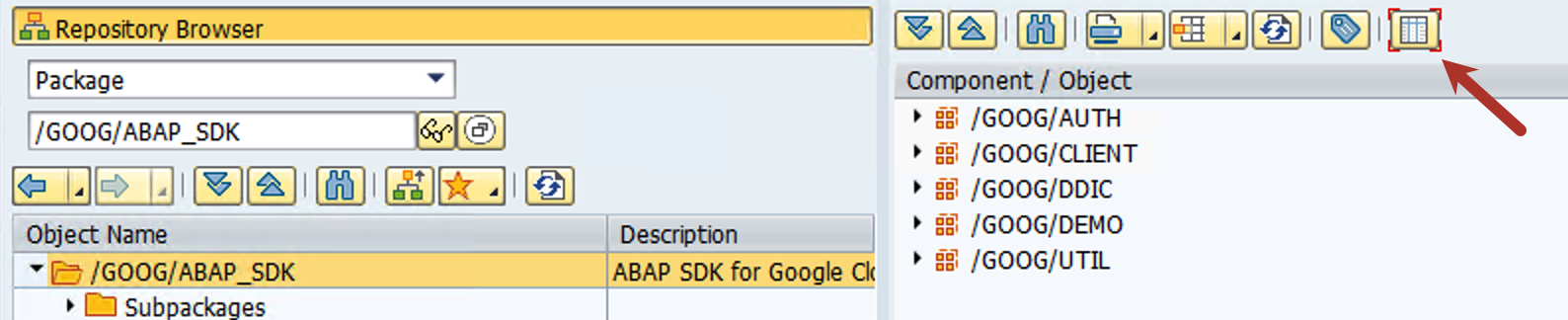
A green check in the **Result of Package Check** column indicates that all
objects passed the package check.
## Configure SAP security settings
Follow these steps to securely connect the ABAP SDK for Google Cloud
to Google Cloud APIs.
### Set up TLS/SSL certificates
Download and import the required Google certificates into `STRUST`.
1. For connecting to Google services, follow the [Google Trust Services advice](https://pki.goog/faq/#connecting-to-google).
At a minimum, you must download all
root CA certificates from the [Google Trust Services repository](https://pki.goog/repository/).
To make sure that you're using the latest trusted root CA certificates, we
recommend that you update your system's root certificate store every six
months. Google announces new and removed root CA certificates at [Google Trust Services](https://pki.goog/updates/).
For receiving automatic notifications, subscribe to the RSS feed on [Google Trust Services](https://pki.goog/updates/).
`PEM` and `DER` are commonly used certificate formats. You can download the
certificates in a format that is compatible with your SAP system.
If the required format is not available, then refer to the SAP Note [2755238 - How to convert a certificate into the appropriate format with OpenSSL](https://me.sap.com/notes/2755238/E)
for converting the certificates to the required format.
2. In the SAP GUI, enter transaction code `STRUST`.
3. Switch to change mode.
4. Double-click **SSL client SSL Client (Standard)**.
5. Click **Certificate \> Import** and then import the certificates
that you downloaded from the Google Trust Services repository.
6. Click the button with the green check.
7. Click **Edit \> Add to certificate list** . Make sure that the certificate information
is visible in the **Certificate** area in the lower right panel.
8. Save the entry.
For more information from SAP about importing certificates into `STRUST`, see [SAP Note 3238733 - How to Import a Certificate Into a STRUST PSE's Certificate List In a NetWeaver AS ABAP](https://me.sap.com/notes/0003238733).
### Verify outbound network egress
The SAP application server must connect to Google Cloud
APIs through HTTPS.
- For your SAP host system, confirm that the [firewall rules](https://docs.cloud.google.com/firewall/docs/firewalls.md.txt) and proxies allow HTTPS connection from servers outside the Compute Engine VM instances. For more information, see [Create and start a VM instance](https://docs.cloud.google.com/compute/docs/instances/create-start-instance.md.txt#publicimage).
- Make sure that the access to reach the Google Cloud APIs is not restricted from a networking perspective.
- If you use a proxy server for accessing Google Cloud APIs, then add the
following to your proxy's allowlist:
- `*.googleapis.com`
- `*.gserviceaccount.com`
### Manage authorizations
To access the ABAP SDK for Google Cloud specific transactions, you need to grant
users access to the SDK authorization object. The SDK transport files
include the SDK authorization object `ZGOOG_SDK` and authorization group `ZSGC`.
To grant access to the SDK transactions, do the following:
1. In the SAP GUI, enter transaction code `PFCG`.
2. Define a role for the SDK.
3. For the authorization object `ZGOOG_SDK`, grant the role access to the authorization `Activity 16`.
To limit access to the SDK configuration tables, do the following:
1. In the SAP GUI, enter transaction code `PFCG`.
2. Define a role for restricting access to the SDK configuration tables.
3. To restrict the access to authorization object `S_TABU_DIS`, exclude the authorization group `ZSGC`.
> [!CAUTION]
> **Caution:** To prevent unauthorized users from accessing your Google Cloud resources, we recommend that you control access to ABAP SDK for Google Cloud components (Settings, Utilities, and Demos) in line with your organization's security policies.
### Set up Google Cloud security
If your SAP system is hosted on Google Cloud, then configure the following
on the host Compute Engine VM instance:
- Create an IAM service account
for the host VM instance. For instructions, see [Create a service account](https://docs.cloud.google.com/iam/docs/service-accounts-create.md.txt#creating).
- Grant the [`Service Account Token Creator`](https://docs.cloud.google.com/compute/docs/access/iam.md.txt#iam.serviceAccountTokenCreator) role to the service account. For instructions, see [Grant a single role](https://docs.cloud.google.com/iam/docs/granting-changing-revoking-access.md.txt#grant-single-role).
- Attach the service account to the VM instance. Also, set the VM's access
scope to `cloud-platform` so that the
IAM permissions of the VM are completely determined
by the IAM roles that you grant to the VM's service account.
For instructions, see [Create a VM and attach the service account](https://docs.cloud.google.com/compute/docs/access/create-enable-service-accounts-for-instances.md.txt#using).
- Create a dedicated IAM service account to access Google Cloud APIs. For instructions, see [Create a service account](https://docs.cloud.google.com/iam/docs/service-accounts-create.md.txt#creating).
- Grant the service account the required IAM roles to access the API functionality.
To understand the role requirement for Google Cloud APIs,
see the individual API documentation and follow the principle of [least privilege](https://docs.cloud.google.com/iam/docs/using-iam-securely.md.txt#least_privilege). For more
information about API specific predefined roles, see [IAM basic and predefined roles reference](https://docs.cloud.google.com/iam/docs/understanding-roles).
## Set up authentication
To use the Google Cloud APIs, you must confirm your identity by authentication.
For information about authentication options to Google Cloud and setup
steps, see [Authentication](https://docs.cloud.google.com/sap/docs/abap-sdk/on-premises-or-any-cloud/latest/authentication.md.txt).
After you complete the authentication setup, you can start using the
[Quickstarts](https://docs.cloud.google.com/sap/docs/abap-sdk/on-premises-or-any-cloud/latest/quickstart.md.txt)
to create sample programs.
## Configure the ABAP SDK for Google Cloud
This section explains the configurations for the
ABAP SDK for Google Cloud.
### Specify Google Cloud endpoint
The ABAP SDK for Google Cloud provides the following options for specifying the
API endpoint when calling a Google Cloud API using the API client library
class:
- [Default endpoints](https://docs.cloud.google.com/sap/docs/abap-sdk/on-premises-or-any-cloud/latest/install-config.md.txt#default_endpoint)
- [Use RFC destinations for endpoints](https://docs.cloud.google.com/sap/docs/abap-sdk/on-premises-or-any-cloud/latest/install-config.md.txt#create_rfc_destinations)
#### Default endpoints
By default, the constructor method of the API client library class contains
HTTP endpoints for the [supported Google Cloud APIs](https://docs.cloud.google.com/sap/docs/abap-sdk/on-premises-or-any-cloud/latest/install-config.md.txt#sdk_overview). The client library uses these endpoints when
a method is called to perform an operation on API resources.
#### Use RFC destinations for endpoints
If you need to utilize any of the following features, then
use RFC destinations to establish connection to Google Cloud:
- If you use a proxy server in your SAP landscape and want to use the same to send the HTTP requests to Google Cloud.
- If you want the SDK to access Google Cloud APIs through Private Service Connect endpoints in your VPC network.
- If you want to use HTTP compression.
- If you want to access region specific endpoint of an API.
The transport files of the ABAP SDK for Google Cloud contain the following sample
RFC destinations for the Google Cloud API endpoints:
| Sample RFC destination name | Notes |
|---|---|
| `GOOG_IAMCREDENTIALS` | This RFC destination targets the IAM API. |
| `GOOG_OAUTH2_TOKEN` | This RFC destination targets Google Cloud endpoint for token based authentication. |
| `GOOG_PUBSUB_V1` | This RFC destination targets the Pub/Sub API. |
| `GOOG_TRANSLATION_EU_V3` | This RFC destination targets the Cloud Translation v3 API. |
> [!NOTE]
> **Note:** You must create your own RFC destinations using the sample RFC destinations as templates. Don't modify the sample RFC destinations because importing new transport for the ABAP SDK for Google Cloud overwrites these sample destinations.
To create an RFC destination, do the following:
1. In the SAP GUI, enter transaction code `SM59`.
2. Create new RFC destinations by copying the sample RFC
destinations.
3. For the RFC destinations that you created, make sure the **Connection Type**
is set as follows: `G - HTTP connection to external server`.
4. Go to the **Technical Settings** tab and enter the following details:
- **Target Host** : enter the Google Cloud API hostname. For example, you can use `translation.googleapis.com`.
- **Path Prefix** : enter the resource path. For example, you can use `/language/translate/`.
- **Service No.** : enter `443`. This port number used for secure communication.
To gather the Google Cloud API specific details that you need
for creating an RFC destination, see [Gather details for creating an RFC destination](https://docs.cloud.google.com/sap/docs/abap-sdk/on-premises-or-any-cloud/latest/install-config.md.txt#rfc_get_info).
5. Go to the **Logon \& Security** tab and make sure that the **SSL Certificate**
field is set with the option **DFAULT SSL Client (Standard)**.
6. Optional: You can [configure proxy settings](https://docs.cloud.google.com/sap/docs/abap-sdk/on-premises-or-any-cloud/latest/install-config.md.txt#configure_proxy),
[enable HTTP compression](https://docs.cloud.google.com/sap/docs/abap-sdk/on-premises-or-any-cloud/latest/install-config.md.txt#enable_http_compression), and
[specify Private Service Connect endpoints](https://docs.cloud.google.com/sap/docs/abap-sdk/on-premises-or-any-cloud/latest/install-config.md.txt#specify_psc_endpoints).
7. Save your changes.
To use RFC destinations to connect to Google Cloud APIs,
you need to configure RFC destinations in the service mapping table that map
RFC destinations to a client key. For more information about the
service mapping table, see [Table `/GOOG/SERVIC_MAP`](https://docs.cloud.google.com/sap/docs/abap-sdk/on-premises-or-any-cloud/latest/install-config.md.txt#service_mapping_config).
#### Gather details to create an RFC destination
To get the details that you need to create an RFC destination,
do the following:
1. In SAP GUI, execute the transaction code `/GOOG/SDK_IMG`.
Alternatively, execute the transaction code `SPRO`, and then click **SAP Reference IMG**.
2. Click **ABAP SDK for Google Cloud \> Utilities \> Get RFC Settings for Google Cloud Services**.
3. Specify the Google Cloud service name.
4. Click **Execute** to view the details.
##### Configure proxy settings
When you use [RFC destinations](https://docs.cloud.google.com/sap/docs/abap-sdk/on-premises-or-any-cloud/latest/install-config.md.txt#create_rfc_destinations)
to connect to Google Cloud, you can route communication from
the SDK through the proxy server that you're using in your SAP
landscape.
If you don't want to use a proxy server or don't have one in your SAP
landscape, then you can skip this step.
To configure proxy server settings, do the following:
1. In the SAP GUI, enter transaction code `SM59`.
2. Select your RFC destination that targets the required API.
3. Go to the **Technical Settings** tab, and then enter values for the fields in
the **HTTP Proxy Options** section.
You need to configure proxy server settings for each API
that you plan to access using the SDK.
##### Enable HTTP compression
When you use [RFC destinations](https://docs.cloud.google.com/sap/docs/abap-sdk/on-premises-or-any-cloud/latest/install-config.md.txt#create_rfc_destinations)
to connect to Google Cloud, you can enable HTTP compression.
We recommend enabling HTTP compression if your SAP system is not running on
Google Cloud. Before you enable HTTP compression in your production
environment, test and compare the
benefits based on your landscape setup, as HTTP compression might involve
compression and decompression overhead. For more information from SAP, see [SAP Note 1037677 - HTTP compression compresses certain documents only](https://launchpad.support.sap.com/#/notes/1037677).
If you don't want to enable this feature, then you can skip this step.
To enable HTTP compression, do the following:
1. In the SAP GUI, enter transaction code `SM59`.
2. Select your RFC destination that targets the required API.
3. Go to the **Special Options** tab.
4. For the **HTTP Version** field, select **HTTP 1.1**.
5. For the **Compression** field, select an appropriate value.
##### Specify Private Service Connect endpoints
If you want the ABAP SDK for Google Cloud to use
[Private Service Connect](https://docs.cloud.google.com/vpc/docs/private-service-connect.md.txt)
endpoints to allow private consumption of Google Cloud APIs and
IAM, then you
need to create those endpoints in your Google Cloud project and specify them
in the respective [RFC destinations](https://docs.cloud.google.com/sap/docs/abap-sdk/on-premises-or-any-cloud/latest/install-config.md.txt#create_rfc_destinations).
If you want the SDK to continue using the default, public
API endpoints to connect to Google Cloud APIs and IAM,
then skip this step.
To configure the SDK to use your
Private Service Connect endpoints, perform the following
steps:
1. In the SAP GUI, enter transaction code `SM59`.
2. Validate that you have created new RFC destinations for
required Google Cloud APIs and IAM. For instructions to
create these RFC destinations, see [Create RFC destinations](https://docs.cloud.google.com/sap/docs/abap-sdk/on-premises-or-any-cloud/latest/install-config.md.txt#create_rfc_destinations).
3. Select the RFC destination that targets specific Google Cloud API and then
complete the following steps:
1. Go to the **Technical Settings** tab.
2. For the **Target Host** field, enter the name of the
Private Service Connect endpoint that you created to
access the API.
3. For the **Service No.** field, make sure that value `443` is specified.
4. Go to the **Logon and Security** tab.
5. For the **SSL Certificate** field, make sure that the option
**DFAULT SSL Client (Standard)** is selected.
4. Select the RFC destination that targets IAM and then
complete the following steps:
1. Go to the **Technical Settings** tab.
2. For the **Target Host** field, enter the name of the
Private Service Connect endpoint that you created to
access IAM.
3. For the **Service No.** field, make sure that value `443` is specified.
4. Go to the **Logon and Security** tab.
5. For the **SSL Certificate** field, make sure that the option
**DFAULT SSL Client (Standard)** is selected.
5. Configure the service mapping table for IAM API, and other APIs
that you plan to consume using the ABAP SDK for Google Cloud.
1.
In SAP GUI, execute the transaction code `/GOOG/SDK_IMG`.
Alternatively, execute the transaction code `SPRO`, and then click **SAP Reference IMG**.
2. Click **ABAP SDK for Google Cloud \> Basic Settings \> Configure Service Map**.
3. Click **New Entries**.
4. Specify RFC destinations for IAM API and other APIs,
for example, `Cloud Pub/Sub API v1`.
| Field | Description |
|---|---|
| **Google Cloud Key Name** | Specify the name of the client key configuration. |
| **Google Service Name** | Specify the Google Cloud service for which you're mapping a RFC destination. |
| **RFC Destination** | Specify the name of the RFC destination. |
The RFC destination specified in the service mapping table is used by
the SDK when a client library class is instantiated and used
by ABAP source code to call a Google Cloud API.
### Application logging
To write application logs, the ABAP SDK for Google Cloud comes with an embedded
logging framework. The log object `ZGOOG` and subobject `ZABAP_SDK`
are shipped with the SDK transport files that you can use as default objects
for log configurations. You can also add your own custom log objects
and subobjects to the SDK logging framework.
You can view standard SAP application logs using transaction `SLG1`.
For more information, see [Logging](https://docs.cloud.google.com/sap/docs/abap-sdk/on-premises-or-any-cloud/latest/troubleshooting.md.txt#logging).
#### Configure logging using the log object and subobject shipped with the SDK
You can use the log object `ZGOOG` and subobject `ZABAP_SDK`
that are shipped with the SDK as default objects for log configurations.
To configure logging, do the following:
1.
In SAP GUI, execute the transaction code `/GOOG/SDK_IMG`.
Alternatively, execute the transaction code `SPRO`, and then click **SAP Reference IMG**.
2. Click **ABAP SDK for Google Cloud \> Basic Settings \> Configure Logging Framework**.
3. Click **New Entries**.
4. Enter values for the following fields:
| Field | Description |
|---|---|
| **Object** | Enter `ZGOOG`. |
| **Subobject** | Enter `ZABAP_SDK`. |
| **Log Level** | Specify the minimum log level. The supported values are: - `I`: Information, Warnings, and Errors - `W`: Warnings and Errors - `E`: Errors Only We recommend that you set the log level to `I`, so that most of the log messages are logged. |
| **Retention** | Specify the number of days logs are going to be retained. |
| **End At** | Specify the end date till which this log configuration is going to be active. The default end date is `9999/12/31`. |
| **Is Default** | To set this log configuration as the default, select the checkbox. |
#### Add custom log objects
You can also add your own custom log objects and subobjects to the SDK logging
framework.
To add a custom log object and subobject, do the following:
1.
In SAP GUI, execute the transaction code `/GOOG/SDK_IMG`.
Alternatively, execute the transaction code `SPRO`, and then click **SAP Reference IMG**.
2. Click **ABAP SDK for Google Cloud \> Basic Settings \> Configure Logging Framework**.
3. Click **New Entries**.
4. Enter values for the following fields:
| Field | Description |
|---|---|
| **Object** | Enter a name of the log object. |
| **Subobject** | Enter a name of the log subobject. |
| **Log Level** | Specify the minimum log level. The possible values are: - `I`: Information, Warnings, and Errors - `W`: Warnings and Errors - `E`: Errors Only We recommend that you set the log level to `I`, so that most of the log messages are logged. |
| **Retention** | Specify the number of days logs are going to be retained. |
| **End At** | End date till which this log configuration is going to be active. The default end date is `9999/12/31`. |
| **Is Default** | Specify if this is your default log configuration. |
If you need to set any custom log object and subobject as default logging
configuration, then clear the **Is Default** field for the current default entry,
and then select the **Is Default** field for the new entry that
you need to make as default.
You can keep only one log configuration as a default entry at any given time.
You can also use your custom log objects and subobjects even without
making them default. To do so, once you create your custom log objects and subobjects
in the logging framework, you need to pass the log objects and subobjects when
instantiating the API client stubs. For more information, see [Logging](https://docs.cloud.google.com/sap/docs/abap-sdk/on-premises-or-any-cloud/latest/developer.md.txt#logging).
If a log configuration is no longer required, then you can disable it.
To disable a log configuration, do the following:
1.
In SAP GUI, execute the transaction code `/GOOG/SDK_IMG`.
Alternatively, execute the transaction code `SPRO`, and then click **SAP Reference IMG**.
2. Click **ABAP SDK for Google Cloud \> Basic Settings \> Configure Logging Framework**.
3. Set the **End At** field to a past date.
### Key configuration tables in ABAP SDK for Google Cloud
This section details the configuration tables within the ABAP SDK for Google Cloud.
#### Table `/GOOG/CLIENT_KEY`
For authentication and connectivity related configuration,
the ABAP SDK for Google Cloud uses the table `/GOOG/CLIENT_KEY`. In table
`/GOOG/CLIENT_KEY`, you configure
client keys using the details specific to your authentication method. For more
information about authentication methods and related client key configuration,
see [Authentication](https://docs.cloud.google.com/sap/docs/abap-sdk/on-premises-or-any-cloud/latest/authentication.md.txt).
To view the table `/GOOG/CLIENT_KEY` table, do the following:
1.
In SAP GUI, execute the transaction code `/GOOG/SDK_IMG`.
Alternatively, execute the transaction code `SPRO`, and then click **SAP Reference IMG**.
2. Click **ABAP SDK for Google Cloud \> Basic Settings \> Configure Client Key**.
The following table explains the client key table fields:
| Field | Data type | Length | Description |
|---|---|---|---|
| **Google Cloud Key Name** | CHAR | 20 | The name of the client key configuration. For example, `CLIENT_KEY_API_KEY` |
| **Google Cloud Service Account Name** | CHAR | 255 | The name of the service account, in email address format. |
| **Google Cloud Scope** | CHAR | 255 | The API access scope, `https://www.googleapis.com/auth/cloud-platform`. This access scope corresponds to the setting Allow full access to all Cloud APIs on the host VM. |
| **Project ID** | CHAR | 255 | The ID of the Google Cloud project that contains your target APIs. |
| **Command Name** | CHAR | 18 | OS command name. In general, you leave this field blank. |
| **Authorization Class** | CHAR | 30 | The authorization class to use for communication with Google Cloud. |
| **Token Caching** | CHAR | 1 | The flag that determines whether or not the access tokens retrieved from Google Cloud are cached. We recommend that you enable token caching after you are done configuring and testing your connection to Google Cloud. For more information about token caching, see [Enable token caching](https://docs.cloud.google.com/sap/docs/abap-sdk/on-premises-or-any-cloud/latest/install-config.md.txt#token_caching). |
| **Token Refresh Seconds** | INT4 | 10 | The amount of time, in seconds, before an access token expires and must be refreshed. Specifying a value from `1` to `3599` overrides the default expiration time of `3500` seconds. If you specify `0`, then the SDK uses the default value. The default value is `3500`. |
| **Authorization Parameter 1** | CHAR | 255 | This is an additional authorization parameter that requires configuration in specific situations. In general, you leave this field blank. |
| **Authorization Parameter 2** | CHAR | 255 | This is an additional authorization parameter that requires configuration in specific situations. In general, you leave this field blank. |
#### Table `/GOOG/SERVIC_MAP`
For mapping the service configuration to the RFC
destinations, the ABAP SDK for Google Cloud uses the table `/GOOG/SERVIC_MAP`.
Depending on the authentication methods, this table contains some mandatory and
recommended entries.
To view the table `/GOOG/SERVIC_MAP` table, do the following:
1.
In SAP GUI, execute the transaction code `/GOOG/SDK_IMG`.
Alternatively, execute the transaction code `SPRO`, and then click **SAP Reference IMG**.
2. Click **ABAP SDK for Google Cloud \> Basic Settings \> Configure Service Mapping**.
The following table explains the service mapping table fields:
| Field | Data type | Length | Description |
|---|---|---|---|
| **Google Cloud Key Name** | CHAR | 20 | The name of the client key configuration. |
| **Google Service Name** | CHAR | 255 | The name of the Google Cloud service. To find a service, use the search help. |
| **RFC Destination** | CHAR | 32 | The name of the RFC destination. To find a relevant RFC destination, use the search help. |
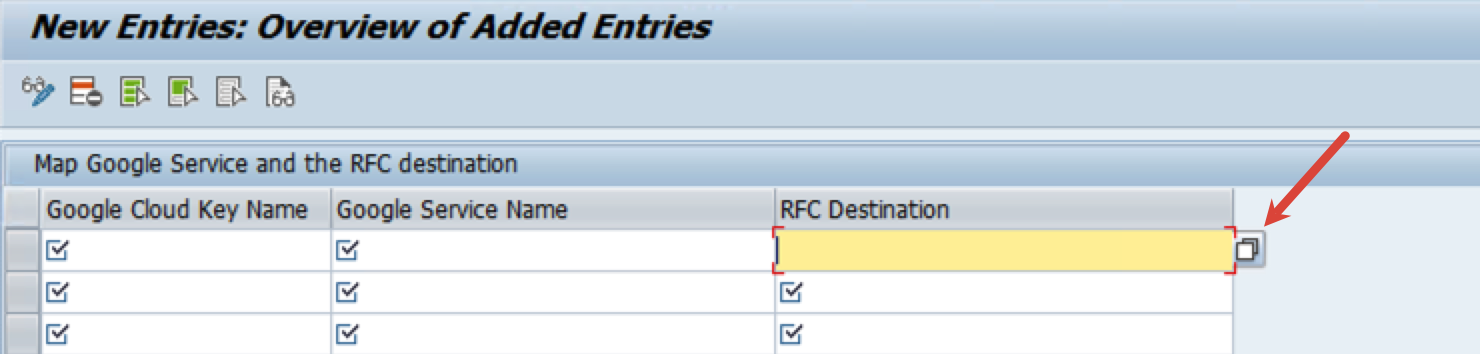
**Search help**
To find the available values for a field, click the icon as shown
in the following screenshot:
#### Table `/GOOG/LOG_CONFIG`
For writing application logs, the ABAP SDK for Google Cloud
uses the table `/GOOG/LOG_CONFIG`.
To view the table `/GOOG/LOG_CONFIG`, do the following:
1.
In SAP GUI, execute the transaction code `/GOOG/SDK_IMG`.
Alternatively, execute the transaction code `SPRO`, and then click **SAP Reference IMG**.
2. Click **ABAP SDK for Google Cloud \> Basic Settings \> Configure Logging Framework**.
The following table explains the logging configuration table fields:
| Field | Description |
|---|---|
| **Object** | The name of the log object. |
| **Subobject** | The name of the log subobject. |
| **Log Level** | Shows the minimum log level. The possible values are: - `I`: Information, Warnings, and Errors - `W`: Warnings and Errors - `E`: Errors Only |
| **Retention** | Number of days logs are going to be retained. After the retention period, you can consider the logs for deletion using transaction `SLG2`. |
| **End At** | End date till which this log configuration is going to be active. The default end date is `9999/12/31`. |
| **Is Default** | Indicates if this is the default log configuration. |
| **Changed by** | Username who changed the log configuration. |
| **Changed on** | Date when the log configuration was changed. |
| **Changed at** | Time when the log configuration was changed. |
### Token caching
If the SDK is used in a high call volume use case where multiple API method calls
are performed in a short duration, then enable caching for the access token
or API key that the client key configuration obtains to access Google Cloud
APIs.
Enabling token caching makes sure that an access token or API Key is reused until
it expires or is revoked, which in turn reduces the number of HTTP calls made to
retrieve new access tokens or API keys.
To enable token caching, select the **Token Caching** flag in the client key table.
When you enable token caching, the access token is cached in the Shared Memory
of the application server for the duration that is set for
the **Token Refresh Seconds** field in the client key table.
If **Token Refresh Seconds** is not specified or is set to 0, then the access
token is cached for the value specified in the `CMD_SECS_DEFLT` parameter
in [advanced settings](https://docs.cloud.google.com/sap/docs/abap-sdk/on-premises-or-any-cloud/latest/install-config.md.txt#advanced_settings).
##### Clear the cached access token
When token caching is enabled and you update the roles assigned to the
service account that the ABAP SDK for Google Cloud uses to access the relevant APIs,
the new access token that corresponds to the updated roles is retrieved
only after the existing cached token expires.
In such situations, you can clear the access token manually.
To clear the cached access token, do the following:
1.
In SAP GUI, execute the transaction code `/GOOG/SDK_IMG`.
Alternatively, execute the transaction code `SPRO`, and then click **SAP Reference IMG**.
2. Click **ABAP SDK for Google Cloud \> Utilities \> Clear Cache**.
3. Select an option as appropriate:
- Clear shared memory area: to clear the entire cache.
- Clear instance from memory: to clear cached access token for a particular instance. With this option, you also specify an instance name.
4. Run the report.
### Find IAM roles for Google Cloud APIs
For implementing the principle of [least privilege](https://docs.cloud.google.com/iam/docs/using-iam-securely.md.txt#least_privilege),
it is essential for you to know the appropriate IAM roles for the
Google Cloud APIs that you plan to use in your ABAP program. By granting
only the necessary roles, you can limit access for a service account.
The Role Finder utility, integrated within the SDK, lets you conveniently
identify the IAM roles associated with various Google Cloud APIs.
To find the IAM roles, do the following:
1.
In SAP GUI, execute the transaction code `/GOOG/SDK_IMG`.
Alternatively, execute the transaction code `SPRO`, and then click **SAP Reference IMG**.
2. Click **ABAP SDK for Google Cloud \> Utilities \> Fetch API Relevant Roles**.
Alternatively, you can access the Role Finder utility by executing
the transaction code `/GOOG/ROLE_FINDER`.
3. In the **Client key** field, enter a valid client key name configured
in the table `/GOOG/CLIENT_KEY`.
4. In the **Google Service Name** field, specify the Google Cloud API
for which you need to check the IAM roles.
5. Optionally, to view the associated IAM permissions within the
IAM role, select the **Full Details** field.
6. Click **Execute**. The IAM roles are displayed.
### Advanced settings
Optionally, you can modify the advanced settings parameters for the SDK in
`/GOOG/SDK_PARAM` table. These parameter values are applied at system level
and are common across all SDK components.
The SDK internally applies default values for these parameters. Use advanced
settings only if you want to override the default values.
We recommend that you modify the advanced settings parameters only after a
comprehensive analysis and impact of new values on SDK performance.
You are responsible for making sure that the new advanced settings don't cause
failures and performance issues.
To modify advanced settings parameters, do the following:
1.
In SAP GUI, execute the transaction code `/GOOG/SDK_IMG`.
Alternatively, execute the transaction code `SPRO`, and then click **SAP Reference IMG**.
2. Click **ABAP SDK for Google Cloud \> Basic Settings \> Configure Parameters**.
3. Click **New Entries**.
4. In the displayed row, specify the following settings:
1. In the **Parameter Name** field, enter the name of the parameter. The parameter description is automatically populated.
2. In the **Parameter Value** field, enter a value.
To know about the Advanced settings parameters, see [Advanced settings parameters](https://docs.cloud.google.com/sap/docs/abap-sdk/on-premises-or-any-cloud/latest/install-config.md.txt#advanced-settings-parameters).
5. Save the new entry.
##### Advanced settings parameters
The following table shows the advanced settings parameters
for ABAP SDK for Google Cloud.
| **Parameter name** | **Description** | **Default value** | **Valid value** |
|---|---|---|---|
| `CMD_SECS_DEFLT` | If you have enabled token caching, then this is the duration in seconds after which the cached token expires. | 3500 | The value must be from 1 to 3599. |
## Update the ABAP SDK for Google Cloud
Google Cloud delivers new releases of the
ABAP SDK for Google Cloud as transport files. To update the ABAP SDK for Google Cloud,
you need to import the SDK transport files into SAP NetWeaver.
If you encounter challenges while importing the transport files of the
ABAP SDK for Google Cloud into your SAP environment, such as issues with transport
review by SAP or import queue management, then contact Cloud Customer Care
for assistance. For information about contacting Customer Care, see
[Getting support for SAP on Google Cloud](https://docs.cloud.google.com/sap/docs/getting-support.md.txt).
To update the ABAP SDK for Google Cloud, do the following:
1. In your SAP environment, do the following:
- Stop the background jobs that use any existing [API client stubs](https://docs.cloud.google.com/sap/docs/abap-sdk/on-premises-or-any-cloud/latest/developer.md.txt#client_stub) of the ABAP SDK for Google Cloud.
- Stop the applications that use BigQuery Toolkit for SAP components. For example, if you are running a batch job that utilizes the BigQuery Toolkit for SAP, then stop the job.
2. Download the installation package that contains the transport files from
the [download portal](https://bq-slt-connector.appspot.com/abapsdk).
3. Copy the following SDK transport files into the SAP
Server transport import directories:
- If you're updating the SDK from version `1`, `1.5`, or `1.6` to the latest
version, then copy the following transport files:
- `/usr/sap/trans/cofiles/K900610.GM1`
- `/usr/sap/trans/data/R900610.GM1`
These transport files remove the artifacts associated with deprecated
features in ABAP SDK for Google Cloud. For information about the
additions, enhancements, and deprecated features, see [What's new with the on-premises or any cloud edition of ABAP SDK for Google Cloud](https://docs.cloud.google.com/sap/docs/abap-sdk/on-premises-or-any-cloud/whats-new.md.txt).
If you're updating the SDK from version `1.7` or later to the
latest version, then you can skip importing these transport files.
- To get the core ABAP SDK for Google Cloud functionality, you must copy the following
transport files:
- `/usr/sap/trans/cofiles/K900606.GM1`
- `/usr/sap/trans/data/R900606.GM1`
These transport files include [client library classes](https://docs.cloud.google.com/sap/docs/abap-sdk/on-premises-or-any-cloud/latest/reference/overview.md.txt),
[solutions and accelerators](https://docs.cloud.google.com/sap/docs/abap-sdk/on-premises-or-any-cloud/latest/install-config.md.txt#solutions-and-accelerators), and authentication classes for [tokens](https://docs.cloud.google.com/docs/authentication/tokens.md.txt),
[API keys](https://docs.cloud.google.com/docs/authentication/api-keys.md.txt), and [Workload Identity Federation](https://docs.cloud.google.com/iam/docs/workload-identity-federation.md.txt).
- To authenticate with OAuth 2.0 client credentials, copy the
following transport files:
- `/usr/sap/trans/cofiles/K900608.GM1`
- `/usr/sap/trans/data/R900608.GM1`
These transport files don't provide additional functionality,
other than the OAuth 2.0 client credentials based authentication. For
OAuth 2.0 client credentials based authentication, first
import the transport files for core ABAP SDK for Google Cloud functionality,
and then import the transport files for OAuth 2.0 client credentials.
To use OAuth 2.0 client credentials, your SAP system
must support OAuth 2.0. For information about the SAP systems
that support OAuth 2.0, see SAP Note
[3041322 - OAuth 2.0 Client: Downport of grant type Client Credentials](https://me.sap.com/notes/3041322).
4. To import the transport files into your SAP system, in the SAP GUI,
use the transaction code `STMS_IMPORT` or `STMS`.
5. After validating the successful import and object activation, resume the
background jobs.
## Usage metrics
The on-premises or any cloud edition of ABAP SDK for Google Cloud collects usage metrics
and sends them to Google for support purposes, in compliance with
[Google Cloud Privacy Notice (Service Data We Collect)](https://cloud.google.com/terms/cloud-privacy-notice).
These usage metrics are collected every time a Google Cloud API is
called from the ABAP SDK for Google Cloud.
The SDK collects the following usage metrics:
- Authentication method: information about the authentication method used for calling Google Cloud services.
- ABAP SDK version: version no. of the on-premises or any cloud edition of ABAP SDK for Google Cloud.
- SAP_ABA release: version of the SAP_ABA software component.
- Module identifier (Collected only for the Agent Platform SDK for ABAP): name of the module or feature being used within the SDK, such as Vector Search.
## Licensing
The on-premises or any cloud edition of ABAP SDK for Google Cloud is made available as "Software" under the
agreement governing your use of Google Cloud Platform, including
the Service Specific Terms available at
. Without limiting the
generality of the Service Specific Terms, you may not modify or distribute
ABAP SDK for Google Cloud without express written permission from Google.
ABAP SDK for Google Cloud software is offered at no cost. For
clarity, your use of other "Software" and "Services" under the agreement
governing your use of Google Cloud Platform, such as
Cloud Translation API and Pub/Sub API may incur a cost.
ABAP SDK for Google Cloud does not include any license to SAP software,
you need to separately procure an appropriate license to SAP software.
## Language support
The ABAP SDK for Google Cloud only supports English (`EN`).
The SDK defaults to English (`EN`) for the following SAP logon languages:
Chinese (`CH`), French (`FR`), German (`DE`), Japanese (`JA`), Portuguese (`PT`),
and Russian (`RU`).
Any error messages that you might encounter when working with the
SDK are generated in English irrespective of your current system language.
## Support lifecycle
Google Cloud supports and maintains the current major
version of ABAP SDK for Google Cloud for a period of at least
12 months following the publication of a notice of deprecation for the prior
major version at
[Release Notes page for SAP on Google Cloud](https://docs.cloud.google.com/sap/docs/release-notes.md.txt).
## Get support
If you need help resolving problems with the on-premises or any cloud edition of ABAP SDK for Google Cloud, then do
the following:
- Refer to the [on-premises or any cloud edition of ABAP SDK for Google Cloud troubleshooting guide](https://docs.cloud.google.com/sap/docs/abap-sdk/on-premises-or-any-cloud/latest/troubleshooting.md.txt).
- Ask your questions and discuss ABAP SDK for Google Cloud with the community
on
[Cloud Forums](https://discuss.google.dev/tags/c/google-cloud/14/abap-sdk).
- Collect all available [diagnostic information](https://docs.cloud.google.com/sap/docs/abap-sdk/on-premises-or-any-cloud/latest/getting-support-diag-info.md.txt)
and contact Cloud Customer Care. For information about contacting
Customer Care, see [Getting support for SAP on Google Cloud](https://docs.cloud.google.com/sap/docs/getting-support.md.txt).