- [SAP BTP edition v1.1](https://docs.cloud.google.com/sap/docs/abap-sdk/btp/latest/troubleshooting.md.txt)
- [On-premises or any cloud edition v1.15](https://docs.cloud.google.com/sap/docs/abap-sdk/on-premises-or-any-cloud/latest/troubleshooting.md.txt)
To troubleshoot issues with the SAP BTP edition of ABAP SDK for Google Cloud, the
first step is to figure out
where the problem might be coming from. The issue could be related to your
infrastructure, the SAP BTP environment and tools you're using, or the
ABAP SDK for Google Cloud itself.
If your analysis points to a problem with the ABAP SDK for Google Cloud,
then troubleshoot issues by using SAP application logs and error messages.
If you think the issue is within your
SAP environment or tools, then reach out to SAP for assistance.
## Check prerequisites
Make sure that all prerequisites are met for the installation of
SAP BTP edition of ABAP SDK for Google Cloud. For information about the SDK installation
prerequisites, see [Before you begin](https://docs.cloud.google.com/sap/docs/abap-sdk/btp/latest/install-config.md.txt#prerequisites).
## Read the SAP support documentation
If you have an SAP user account, then you can find the resolution to many
SAP software issues by reading the SAP Notes and SAP Knowledge Base Articles
that are available in the [SAP ONE Support Launchpad](https://launchpad.support.sap.com).
## View logs
When logging is configured, the SAP BTP edition of ABAP SDK for Google Cloud logs error messages
to SAP application logs. For more information about logging,
see [Configure logging](https://docs.cloud.google.com/sap/docs/abap-sdk/btp/latest/install-config.md.txt#configure_logging).
To view log messages, perform the following steps:
1. Access the SAP Fiori launchpad of the BTP ABAP system where the ABAP SDK for Google Cloud is installed.
2. Open the **Google SDK: Application Logs Display** app.
3. Provide the log filters as appropriate:
- **From**: select a starting date to filter logs from.
- **To**: select an end date to filter logs until.
- **Log objects**: select a log object for which logs have to be fetched.
- **Log subobject**: select a log subobject for which logs have to be fetched.
- **Service name**: select the API service names against which logs have to be fetched.
4. Click **Go**. The list of application log headers are displayed.
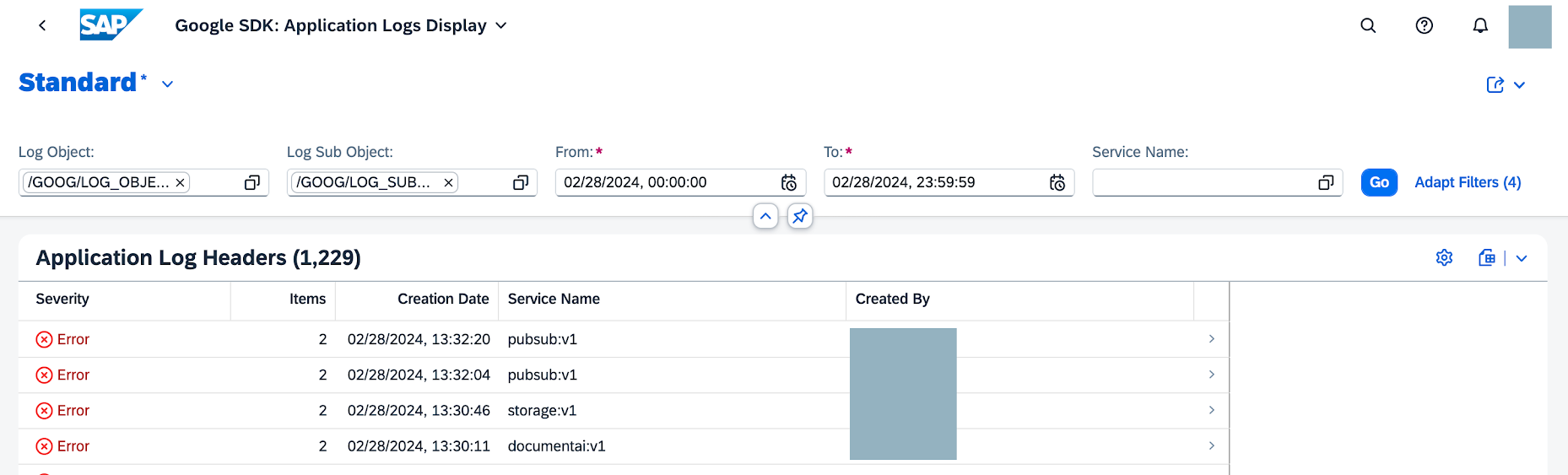
5. Click a log header to navigate to detailed item-level logs.
The log messages are displayed with severity and timestamp.
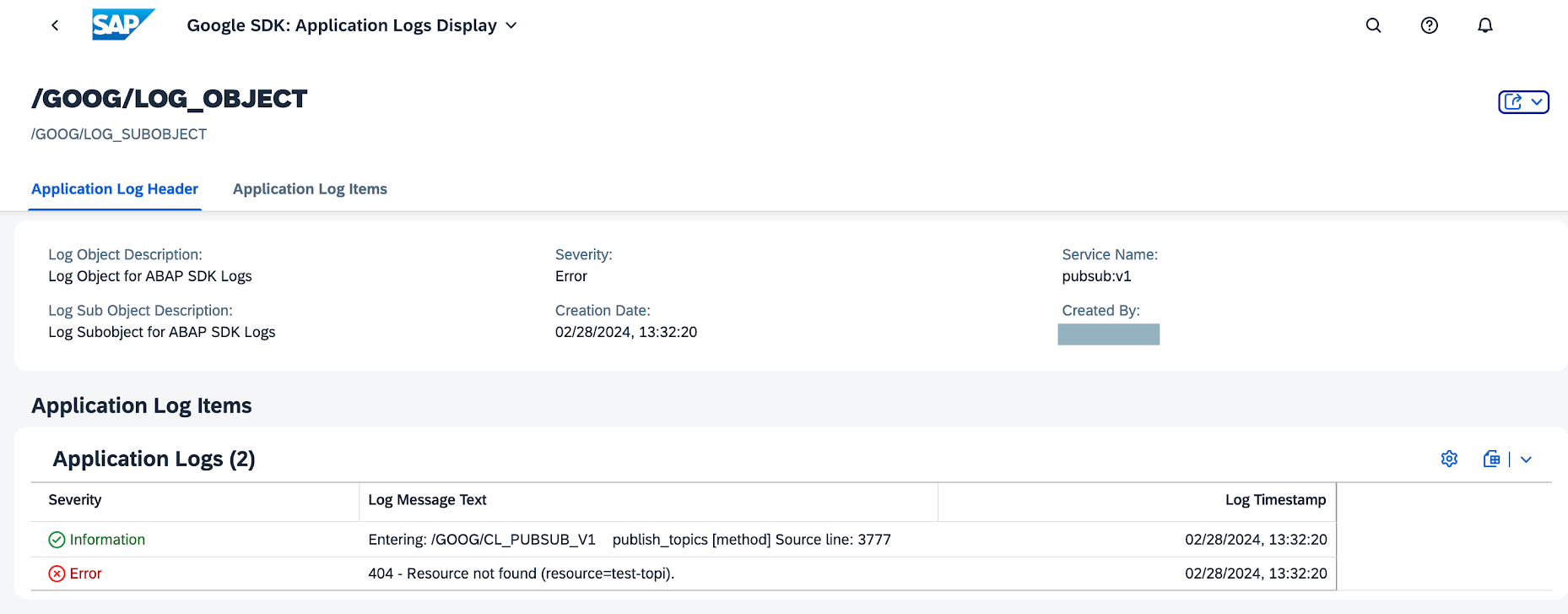
A log message typically consists of the following two entries:
- **Entering**: provides information about the code location where exactly the error occurred. For troubleshooting, you can use this code location as a breakpoint while debugging.
- **Error message**: provides information about an error that occurred while performing an operation.
## Debugging
If you have the required authorization, then you can debug the API client classes.
To debug the API client classes, use one of the following options:
- Add a breakpoint to the constructor of the class `/GOOG/CL_HTTP_CLIENT`,
and then run your program.
- Add a breakpoint to the method that you are using, and then run
your program.
## HTTP trace
While troubleshooting errors, you can check the HTTP call trace in
SAP Monitor System Outbound Connections. For more information, see the SAP page
[Monitoring System Outbound Communication in General](https://help.sap.com/docs/sap-btp-abap-environment/abap-environment/monitoring-system-outbound-communication-in-general).
## Common operational issues
When consuming Google Cloud APIs through the client stub public methods,
developers might encounter errors and exceptions. These errors and exceptions
are broadly classified into two categories:
- Errors and exceptions triggered by the ABAP SDK for Google Cloud
- [Errors returned by Google Cloud APIs](https://docs.cloud.google.com/sap/docs/abap-sdk/btp/latest/troubleshooting.md.txt#error_messages_api)
This section covers errors and exceptions triggered by the SDK.
### `/GOOG/MSG: 503 - HTTP Communication Failure exception occurred during the request sending`
**Issue:** The HTTP request to an API method failed.
**Cause:** This issue can be caused by connectivity issues.
**Resolution:** In the Google Cloud project from where you are trying to
access the Google Cloud APIs, enable the target APIs. For information about how to enable
Google Cloud APIs, see [Enabling APIs](https://docs.cloud.google.com/docs/getting-started#enabling_apis).
### `/GOOG/MSG:400 - Error generating STS token:Bad Request-invalid_request-Invalid value for " audience". This value should be the full resource name of the Identity Provider. See https://cloud.google.com/iam/docs/reference/sts/rest/v1/TopLevel/token for the list of possible formats.`
**Issue**: You cannot generate the Security Token Service (STS) token.
**Cause**: When you're authenticating to Google Cloud using tokens through
Workload Identity Federation or the API key stored in Secret Manager,
your authentication setup is missing necessary configurations.
**Resolution**: Verify and update the following details:
- In the **Communication Arrangement** app, update the
Workload Identity Federation pool ID and Workload Identity Federation
provider ID.
- In the **Google SDK: Main Configuration** app, for your communication map,
update the Google Cloud project ID and Google Cloud project number for the
client key.
For more information, see [Configure ABAP SDK for Google Cloud to use Workload Identity Federation](https://docs.cloud.google.com/sap/docs/abap-sdk/btp/latest/authentication.md.txt#configure_sdk_to_use_wif).
### `/GOOG/MSG:400 - Error generating STS token:Bad Request-invalid_scope-Invalid scope provided in the request`
**Issue**: You cannot authenticate to Google Cloud.
**Cause** : When you're authenticating to Google Cloud using tokens through
Workload Identity Federation or the API key stored in Secret Manager,
the **Google Cloud Scope** is invalid.
**Resolution** : In the **Google SDK: Main Configuration** app, for your
communication map make sure that the
**Google Cloud Scope** is `https://www.googleapis.com/auth/cloud-platform`.
### `/GOOG/MSG:461 - API Key not valid. Please pass a valid API Key`
**Issue**: You're not able to authenticate to Google Cloud using the
API key based authentication.
**Cause**: An invalid API key is provided in the communication arrangement.
**Resolution**: To resolve this issue, maintain a valid secret name and version
in the associated communication arrangement.
Also, make sure a valid API key is configured in the secret.
For more information, see [Configure ABAP SDK for Google Cloud to use API key
stored in Secret Manager](https://docs.cloud.google.com/sap/docs/abap-sdk/btp/latest/authentication#auth_scm_use_apikey)
### `/GOOG/MSG: 461 - Communication Map entry for authentication service not maintained`
**Issue**: The SDK cannot determine the communication artifacts for authentication.
**Cause**: There's no communication map maintained for the authentication service.
**Resolution** : In the **Google SDK: Main Configuration** app, create a
communication map and maintain the correct **Authentication type** for the
authentication method that you're using.
To create a communication map, see the instructions for authentication
methods in [Configure authentication for SAP BTP edition of ABAP SDK for Google Cloud](https://docs.cloud.google.com/sap/docs/abap-sdk/btp/latest/authentication.md.txt).
### `/GOOG/MSG: 461 - Communication Scenario not valid for default Google Authentication`
**Issue**: The SDK cannot determine the communication arrangement for authentication.
**Cause**: The entry maintained for the authentication service is invalid.
**Resolution** : In the **Google SDK: Main Configuration** app, for your
communication map entry, make sure that
the communication arrangement is configured with correct
and communication scenario and communication system.
To update a communication arrangement, see the instructions for
authentication methods in [Set up authentication for the SAP BTP edition of ABAP SDK for Google Cloud](https://docs.cloud.google.com/sap/docs/abap-sdk/btp/latest/authentication.md.txt).
### `/GOOG/MSG:400 - Error generating IDP token: Not found`
**Issue**: You cannot generate the identity provider token from the XSUAA service.
**Cause**: When you're authenticating to Google Cloud using tokens through
Workload Identity Federation or the API key stored in Secret Manager,
either the host name URL for the XSUAA service or the path value is invalid in
the communication system.
**Resolution**: Verify and update the following details:
- In the communication system for the XSUAA service or in the BTP destination that is used in the communication system, maintain the correct host name URL.
- In the communication arrangement, maintain a valid path.
### `/GOOG/MSG:400 - Error generating STS token: Not found`
**Issue**: You cannot generate the Security Token Service token required for authentication.
**Cause**: When you're authenticating to Google Cloud using tokens through
Workload Identity Federation or the API key stored in Secret Manager,
and you're using a communication arrangement for the STS service, the
communication system associated with the STS service is invalid.
**Resolution**: Verify and update the following details:
- In the communication system for the STS service or in the BTP destination that is used in the communication system, maintain the correct host name URL.
- In the communication arrangement, maintain a valid path.
### `/GOOG/MSG:400 - Error generating IAM token: Not found`
**Issue**: You cannot generate the IAM token required for authentication.
**Cause**: When you're authenticating to Google Cloud using tokens through
Workload Identity Federation or the API key stored in Secret Manager,
and you're using a communication arrangement for the IAM service, the
communication map and communication system associated with the IAM
service is invalid.
**Resolution**: Verify and update the following details:
- In the communication system for the IAM service or in the BTP destination that is used in the communication system, maintain the correct host name URL.
- In the communication arrangement, maintain a valid path.
## Configuration validation errors
### `G001 | Check communication scenario`
**Cause** : The communication scenario configured in the communication map
is not supported with the default authorization class `/GOOG/CL_AUTH_GOOGLE`.
**Resolution** : If you're using `/GOOG/CL_AUTH_GOOGLE` as the authorization class,
then make sure that one of the following communication scenario is specified in your
communication map depending of the authentication method:
| Communication scenario | Authentication |
|---|---|
| `/GOOG/COM_SDK_WIF` | Workload Identity Federation |
| `/GOOG/COM_SDK_APIKSM` | API key using Secret Manager |
To update a communication map, see the instructions for
authentication methods in [Set up authentication for the SAP BTP edition of ABAP SDK for Google Cloud](https://docs.cloud.google.com/sap/docs/abap-sdk/btp/latest/authentication.md.txt).
### `W001 | Check Comm. arrangement for WIF`
**Cause** : Communication arrangement cannot be identified
using the communication scenario and communication system specified in the
**Google SDK: Main Configuration** app.
**Resolution**: Make sure that the communication arrangement for
the authentication service uses a valid
communication scenario and communication system.
For more information, see [Configure ABAP SDK for Google Cloud to use Workload Identity Federation](https://docs.cloud.google.com/sap/docs/abap-sdk/btp/latest/authentication.md.txt#configure_sdk_to_use_wif).
### `W002 | Fetch XSUAA token`
**Cause**: The XSUAA token retrieval failed.
**Resolution**: Make sure that the XSUAA service instance is correctly configured.
For more information, see [Create an Authorization and Trust (XSUAA) service instance](https://docs.cloud.google.com/sap/docs/abap-sdk/btp/latest/authentication.md.txt#create_xsuaa_service).
### `W003 | Fetch WIF Pool ID`
**Cause**: Workload Identity Federation pool ID does not exist
in the communication arrangement.
**Resolution** : In the communication arrangement used
for the authentication service, make sure that the communication scenario
`/GOOG/COM_SDK_WIF` is used, and a valid workload
identity federation pool ID is specified.
For more information, see [Configure ABAP SDK for Google Cloud to use Workload Identity Federation](https://docs.cloud.google.com/sap/docs/abap-sdk/btp/latest/authentication.md.txt#configure_sdk_to_use_wif).
### `W004 | Fetch WIF Provider ID`
**Cause**: Workload Identity Federation provider ID does not exist in the
communication arrangement.
**Resolution** : In the communication arrangement used
for the authentication service, make sure that the communication scenario
`/GOOG/COM_SDK_WIF` is used, and a valid workload
identity federation provider ID is specified.
For more information, see [Configure ABAP SDK for Google Cloud to use Workload Identity Federation](https://docs.cloud.google.com/sap/docs/abap-sdk/btp/latest/authentication.md.txt#configure_sdk_to_use_wif).
### `W005 | Fetch STS token`
**Cause**: The STS token retrieval failed.
**Resolution**: To resolve this issue, perform the following:
- In the communication map, check if the Google Cloud project number is correctly maintained. For more information, see [Configure ABAP SDK for Google Cloud to use Workload Identity Federation](https://docs.cloud.google.com/sap/docs/abap-sdk/btp/latest/authentication.md.txt#configure_sdk_to_use_wif).
- Make sure that the Workload Identity Federation pool ID and provider ID are valid and correctly maintained in the communication arrangement used for the authentication service. For more information, see [Configure ABAP SDK for Google Cloud to use Workload Identity Federation](https://docs.cloud.google.com/sap/docs/abap-sdk/btp/latest/authentication.md.txt#configure_sdk_to_use_wif).
- In the communication map, if an entry is maintained for the `sts:v1` service, then make sure that the communication arrangement maintained is valid, available in the system, and uses the same communication scenario and communication system as maintained in the SDK configuration app.
### `W006 | Fetch IAM credential token`
**Cause**: The IAM token retrieval failed from the IAM Credentials API.
**Resolution**: To resolve this issue, perform the following:
- In the communication map, check if the Google Cloud project number is correctly maintained. For more information, see [Configure ABAP SDK for Google Cloud to use Workload Identity Federation](https://docs.cloud.google.com/sap/docs/abap-sdk/btp/latest/authentication.md.txt#configure_sdk_to_use_wif).
- In the communication map, if an entry is maintained for the `iamcredentials:v1` service, then make sure that the communication arrangement maintained is valid, available in the system, and uses the same communication scenario and communication system as specified in the SDK configuration app.
### `V001 | Check Comm. Arr. for API Key(SM)`
**Cause** : Communication arrangement cannot be identified
using the communication scenario and communication system specified in the
**Google SDK: Main Configuration** app.
**Resolution**: Make sure that the communication arrangement maintained for
the authentication service is valid, available in the system, and uses the same
communication scenario and communication system as maintained in the
SDK configuration app.
For more information, see [Configure ABAP SDK for Google Cloud to use API key from Secret Manager](https://docs.cloud.google.com/sap/docs/abap-sdk/btp/latest/authentication.md.txt#configure_sdk_to_use_secret).
### `V002 | Fetch Secret Name`
**Cause**: Secret name does not exist in the communication arrangement.
**Resolution** : In the communication arrangement used
for the authentication service, make sure that the communication scenario
`/GOOG/COM_SDK_APIKSM` is used, and a valid secret is specified.
For more information, see [Configure ABAP SDK for Google Cloud to use API key from Secret Manager](https://docs.cloud.google.com/sap/docs/abap-sdk/btp/latest/authentication.md.txt#configure_sdk_to_use_secret).
### `V003 | Fetch Secret Version`
**Cause** : The **Secret version** property
does not contain a valid value in the communication arrangement.
**Resolution** : In the communication arrangement used
for the authentication service, make sure that the communication scenario
`/GOOG/COM_SDK_APIKSM` is used, and a valid secret version is specified.
For more information, see [Configure ABAP SDK for Google Cloud to use API key from Secret Manager](https://docs.cloud.google.com/sap/docs/abap-sdk/btp/latest/authentication.md.txt#configure_sdk_to_use_secret).
### `V004 | Fetch Token from Secret Manager`
**Cause**: The Secret Manager API failed to retrieve the secret that contains the API key.
**Resolution**: To resolve this issue, perform the following:
- Check if the service account has the required permissions to access the secret. For more information, see [Authentication using API key stored in Secret Manager](https://docs.cloud.google.com/sap/docs/abap-sdk/btp/latest/authentication.md.txt#auth_scm_use_apikey).
- Check if the Google Cloud project identifier is correctly maintained in the communication arrangement used for the authentication service. For more information, see [Configure ABAP SDK for Google Cloud to use API key from Secret Manager](https://docs.cloud.google.com/sap/docs/abap-sdk/btp/latest/authentication.md.txt#configure_sdk_to_use_secret).
- Make sure the Workload Identity Federation pool ID and provider ID are valid and correctly maintained in the communication arrangement used for the authentication service. For more information, see [Configure ABAP SDK for Google Cloud to use API key from Secret Manager](https://docs.cloud.google.com/sap/docs/abap-sdk/btp/latest/authentication.md.txt#configure_sdk_to_use_secret).
- Make sure that the secret name and secret version (if maintained) are valid and correctly maintained in the communication arrangement. For more information, see [Configure ABAP SDK for Google Cloud to use API key from Secret Manager](https://docs.cloud.google.com/sap/docs/abap-sdk/btp/latest/authentication.md.txt#configure_sdk_to_use_secret).
## Error messages returned by Google Cloud APIs
Every API client stub has the exporting parameters that provide API return
code and error messages.
- `ev_ret_code` contains the HTTP status codes. In case of an error returned by
an API, this parameter contains a value `4XX`.
- `ev_err_resp` contains the error category and error message returned by
an API.
The following example shows an API-returned error when you create a new
Pub/Sub topic with a topic name that already exists.
- `ERROR_TEXT`: Conflict
- `ERROR_DESCRIPTION`: Resource already exists in the project (resource=`SAMPLE_TOPIC_01`)
For errors returned by APIs, we recommend that you check the public documentation
of corresponding APIs.
## Get support from the community
Ask your questions and discuss ABAP SDK for Google Cloud with the community
on
[Cloud Forums](https://discuss.google.dev/tags/c/google-cloud/14/abap-sdk).
## Get support
If you need help resolving problems with the
SAP BTP edition of ABAP SDK for Google Cloud, then collect all available [diagnostic information](https://docs.cloud.google.com/sap/docs/abap-sdk/btp/latest/getting-support-diag-info.md.txt)
and contact Cloud Customer Care.
For information about contacting Cloud Customer Care, see [Getting support
for SAP on Google Cloud](https://docs.cloud.google.com/sap/docs/getting-support).