This page shows how to use Nginx as a frontend proxy for your application
container. This is useful if you want to process requests or responses. You can
add gzip compression, or translate HTTP/2 to HTTP/1 if your application
containers supports only HTTP/1 and you need to use HTTP/2 end-to-end for
performance reasons.
In the example provided in this page, an [Nginx container](https://hub.docker.com/_/nginx)
runs on every Cloud Run instance as the main serving container, and it
is configured to forward requests to the application container, which runs as a
sidecar container, as shown in this diagram:
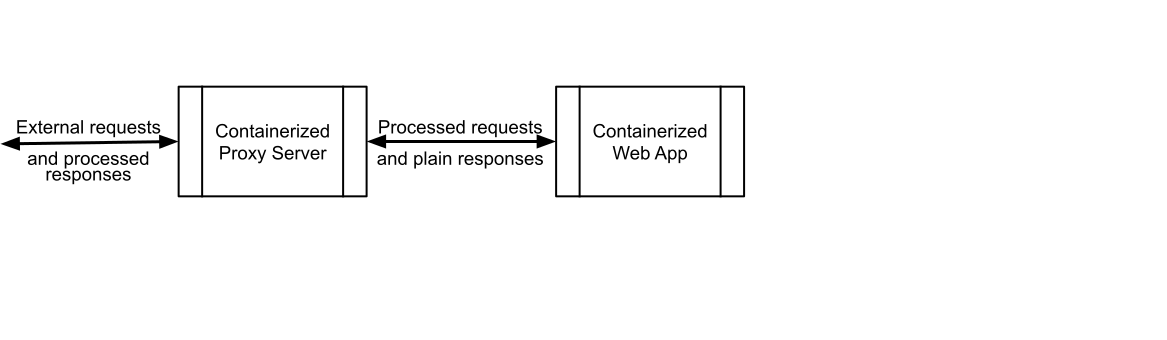
The most effective way to do frontend proxying in Cloud Run is to deploy the Nginx server
proxy server container and the web app container as a single Cloud Run service:
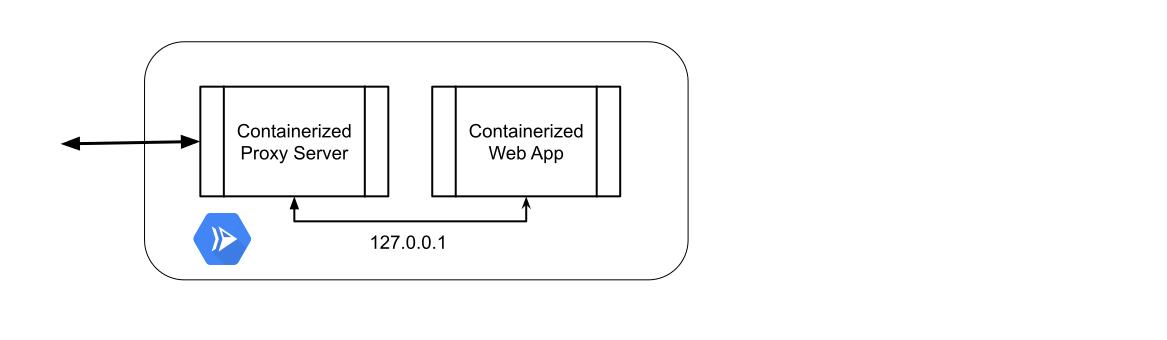
This single Cloud Run service accepts requests and delivers them to the ingress (serving) container, which
in this case is the proxy server. The proxy server then sends requests to the web app over the `localhost` network
interface, which avoids any external network.
Deploying as a single Cloud Run service reduces latencies, service management overhead, and eliminates exposure
to external networks. Cloud Run does not directly interact with the sidecar containers, other than to
start or stop them whenever the service is started or stopped.
The web app container and any sidecar containers can be written in different programming languages. For a sample written in
PHP, see the [PHP nginx sample](https://github.com/GoogleCloudPlatform/php-docs-samples/tree/main/run/multi-container/hello-php-nginx-sample)
in GitHub.
## Before you begin
1.
Enable the Cloud Run and Secret Manager APIs, if any are not already enabled.
**Roles required to enable APIs**
To enable APIs, you need the `serviceusage.services.enable` permission. If you
created the project, then you likely already have this permission through the
Owner role (`roles/owner`). Otherwise, you can get this permission through the
Service Usage Admin role (`roles/serviceusage.serviceUsageAdmin`).
[Learn how to grant roles](https://docs.cloud.google.com/iam/docs/granting-changing-revoking-access.md.txt).
[Enable the APIs](https://console.cloud.google.com/apis/enableflow?apiid=run.googleapis.com,secretmanager.googleapis.com)
2. [Install and initialize the gcloud CLI](https://docs.cloud.google.com/sdk/docs/install).
3. Update Google Cloud CLI: `gcloud components update`
4. Configure Google Cloud CLI: `gcloud init`
5. Authenticate with Google Cloud CLI: `gcloud auth login`
## Permissions required to deploy
You must have ONE of the following:
- Both the *Cloud Run Admin* and *Service Account User* roles
- Any custom role that includes this [specific list of permissions](https://docs.cloud.google.com/run/docs/reference/iam/roles.md.txt#additional-configuration)
## Configuration overview
These instructions use prebuilt container images, so the only thing required for
frontend proxying is to configure the containers and the service itself.
## Configure the Nginx ingress container
The container image is `nginx` [available at Docker Hub](https://hub.docker.com/_/nginx).
It is mostly ready to use as is, except it needs to be configured to run as a
proxy service, delivering the proxied requests to the port where the sidecar container is
listening on `localhost`. The example on this page also enables gzip compression for
requests and responses.
Configuration is provided using a text file mounted
at `/etc/nginx/conf.d/nginx.conf`. Because you can't directly edit files in the
container, you must mount a volume at `/etc/nginx/conf.d/` that contains
the configuration file. One way to mount a file at a specific location in a
container running on Cloud Run is to store the file content in a
Secret Manager secret, and mount that secret at the selected location.
Copy the following in a file named `nginx.conf` on the current directory of your local machine.
```javascript
server {
# Listen at port 8080
listen 8080;
# Server at localhost
server_name _;
# Enables gzip compression to make our app faster
gzip on;
location / {
# Passes initial requests to port 8080 to `hello` container at port 8888
proxy_pass http://127.0.0.1:8888;
}
}
```
In the configuration, do the following:
- Assign `nginx` to listen at the same Cloud Run default port `8080`, located on `localhost`.
- Apply gzip compression for performance enhancement.
- Instruct `proxy_pass` to deliver any requests to this ingress container to the web app sidecar container at localhost port `8888`.
Create a secret with the content of the `nginx.conf` file.
### Console
1. Go to the **Secret Manager** page of the Google Cloud console:
[Go to Secret Manager](https://console.cloud.google.com/security/secret-manager)
2. Click **Create secret**.
3. In the `name` form field, enter **nginx_config**.
4. Upload the `nginx.conf` file located at `multi-container/hello-nginx-sample/nginx.conf` as the secret value.
5. Keep the defaults (`Google-owned and Google-managed encryption key, etc`).
6. Click **Create secret**.
7. Grant the project compute service account access to this new secret. To do this, go to the **IAM** page in the Google Cloud console:
[Go to IAM](https://console.cloud.google.com/iam-admin/iam)
8. Locate the principal service account with name: `Compute Engine default service account` and click **Edit principal**.
9. Click **Add another role** and select **Secret Manager Secret Accessor**.
10. Click **Save**.
### gcloud
1. In a terminal, use the following command to create a new `nginx_config` secret in Secret Manager:
```bash
gcloud secrets create nginx_config --replication-policy='automatic' --data-file='./nginx.conf'
```
2. Grant the project compute service account access to this new secret using the command
```bash
export PROJECT_NUMBER=$(gcloud projects describe $(gcloud config get-value project) --format='value(projectNumber)')
gcloud secrets add-iam-policy-binding nginx_config --member=serviceAccount:$PROJECT_NUMBER-compute@developer.gserviceaccount.com --role='roles/secretmanager.secretAccessor'
```
3. Verify that your secret was created by running `gcloud secrets list`.
## About the web app sidecar sample image
These instructions use the sample container image at
`us-docker.pkg.dev/cloudrun/container/hello`. You need to
specify the port number the container will listen on and `localhost` as the host, as described under [Specify sidecar container configuration](https://docs.cloud.google.com/run/docs/internet-proxy-nginx-sidecar.md.txt#yaml_3), as described in the following sections.
## Configure the multi-container service
You can use the Google Cloud console or the [Cloud Run YAML file](https://docs.cloud.google.com/run/docs/reference/yaml/v1.md.txt) to configure a Cloud Run service
with more than one container.
In the service configuration, specify the Nginx proxy server as ingress (serving) container,
the port it will listen on, whether it accepts HTTP 1 or HTTP 2 requests, and the
container start order. The ingress container (proxy server) depends on the
web app sidecar, so the web app sidecar must be started first.
These configurations are shown in the next few sections.
### Add YAML metadata
### Console
Navigate to [Deploy the service](https://docs.cloud.google.com/run/docs/internet-proxy-nginx-sidecar.md.txt#deploy_the_service) for the full console instructions.
### YAML
1. If you are creating a new service, skip this step.
If you are updating an existing service, download its [YAML configuration](https://docs.cloud.google.com/run/docs/reference/yaml/v1.md.txt):
```bash
gcloud run services describe SERVICE --format export > service.yaml
```
2. In `service.yaml`, add the following:
```javascript
metadata:
name: "MC_SERVICE_NAME"
labels:
cloud.googleapis.com/location: "REGION"
annotations:
# Required to use Cloud Run multi-containers (preview feature)
run.googleapis.com/launch-stage: BETA
run.googleapis.com/description: sample tutorial service
# Externally available
run.googleapis.com/ingress: all
```
The section describes the revision of the service, which includes properties that could vary from revision to revision.
### Specify container start-up order
### Console
Navigate to [Deploy the service](https://docs.cloud.google.com/run/docs/internet-proxy-nginx-sidecar.md.txt#deploy_the_service) for the full console instructions.
### YAML
In `service.yaml`, append the following:
```javascript
spec:
template:
metadata:
annotations:
# Defines container startup order within multi-container service.
# Below requires hello container to spin up before nginx container,
# which depends on the hello container.
# https://cloud.google.com/run/docs/configuring/containers#container-ordering
run.googleapis.com/container-dependencies: "{nginx: [hello]}"
```
Note the `container-dependencies` annotation that tells Cloud Run to wait for the hello container to start up
before starting the nginx container. Otherwise, if the nginx container starts first, it could try to proxy a web request to the web app container that isn't ready, which would generate web error responses.
Each container can optionally have a name property defined for it, that can be used to refer to it in other directives.
The serving container runs the proxy server, named `nginx`. This is the container that Cloud Run delivers incoming requests to
so you must specify the version of `HTTP` and container port to deliver them to.
### Specify serving container configuration
### Console
Navigate to [Deploy the service](https://docs.cloud.google.com/run/docs/internet-proxy-nginx-sidecar.md.txt#deploy_the_service) for the full console instructions.
### YAML
In `service.yaml` file, append the following:
```javascript
spec:
containers:
# A) Serving ingress container "nginx" listening at PORT 8080
# Main entrypoint of multi-container service.
# Source is stored in nginx_config secret in Secret Manager.
# Any pings to this container will proxy over to hello container at PORT 8888.
# https://cloud.google.com/run/docs/container-contract#port
- image: nginx
name: nginx
ports:
- name: http1
containerPort: 8080
resources:
limits:
cpu: 500m
memory: 256Mi
# Referencing declared volume below,
# Declaring volume to mount in current ingress container's filesystem
# https://cloud.google.com/run/docs/reference/rest/v2/Container#volumemount
volumeMounts:
- name: nginx-conf-secret
readOnly: true
mountPath: /etc/nginx/conf.d/
startupProbe:
timeoutSeconds: 240
periodSeconds: 240
failureThreshold: 1
tcpSocket:
port: 8080
```
The `nginx` server requires a configuration file in the `/etc/nginx/conf.d/` directory. To do this, mount a volume containing the file at that location. The `volumeMount` section specifies a volume called `configuration` to be placed there. The volume itself is defined in its own section later in the file.
### Specify sidecar container configuration
### Console
Navigate to [Deploy the service](https://docs.cloud.google.com/run/docs/internet-proxy-nginx-sidecar.md.txt#deploy_the_service) for the full console instructions.
### YAML
In `service.yaml`, append the following:
```javascript
- image: us-docker.pkg.dev/cloudrun/container/hello
name: hello
env:
- name: PORT
value: "8888"
resources:
limits:
cpu: 1000m
memory: 512Mi
startupProbe:
timeoutSeconds: 240
periodSeconds: 240
failureThreshold: 1
tcpSocket:
port: 8888
```
The `hello` application also needs configuration information. It listens for incoming requests at the port specified in the `PORT` environment variable. That name and value are specified in the `env` section.
### Specify the secret volume
### Console
Navigate to [Deploy the service](https://docs.cloud.google.com/run/docs/internet-proxy-nginx-sidecar.md.txt#deploy_the_service) for the full console instructions.
### YAML
In `service.yaml` file, append the following:
```javascript
volumes:
- name: nginx-conf-secret
secret:
secretName: nginx_config
items:
- key: latest
path: default.conf
```
Specify the configuration `volume` mounted in the `volumeMount` section. It contains a single file called `nginx.conf` whose contents are defined
as the value of the secret named `nginx-conf-secret`.
> [!NOTE]
> **Note:** For another example that deploys multiple containers, see the sidecars section of the [deployment page](https://docs.cloud.google.com/run/docs/deploying.md.txt#sidecars).
## Deploy the service
### Console
1. Go to the **Cloud Run** page in the Google Cloud console:
[Go to Cloud Run](https://console.cloud.google.com/run)
2. Select **Services** from the menu, and click **Deploy container** to display the
**Create service** form.
1. Select **Deploy one revision from an existing container image** and enter `nginx` as **Container image URL**.
2. In the **Service name** field, supply a name for your service, for example, `hello-mc`.
3. From the **Region** list, select a location to deploy to, for example, `us-west1`.
4. Under **Authentication** , select **Allow public access**. If you don't have permissions (Cloud Run Admin role) to select this, the service will deploy and require authentication.
3. Click **Containers, Networking, Security** to expand the configuration form.
1. Click the **Volumes** tab.
2. Click **Add volume**.
3. From the **Volume type** list, select **Secret**.
4. In the **Volume name** field, enter `nginx-conf-secret`.
5. In the **Secret** field, enter **nginx_config**.
6. Under **Specified paths for secret versions** , specify **default.conf** as the path and **latest** as the version.
7. Click **Create** to create the secret volume.
4. Click the **Containers** tab to display the **Edit container** form.
1. Click **Settings** , then under **Resources** , change memory to **256MiB** and CPU to **1 CPU**.
2. Click **Volume mounts**.
3. Click **Mount volume**.
4. Select **nginx-conf-secret** from the name list.
5. For **Mount path** , enter **etc/nginx/conf.d**.
6. Click **Done** to complete configuration for the first container.
5. Click **Add container** to add the sidecar container and display the **New container** form.
1. Select the default container image URL **us-docker.pkg.dev/cloudrun/container/hello**
2. Click the **Settings** tab, then under **Resources** , change memory to **256MiB** and CPU to **1 CPU**.
3. Click **Variables \& Secrets**.
4. Click **Add variable**.
5. Enter **PORT** as the new environment variable name and **8888** as the value.
6. Click **Done**.
6. Navigate to the **Edit container** form for the first container (`nginx`).
1. Click the **Settings** tab.
2. Under **Container start up order** , select `nginx` from the **Depends on** list. This means the `nginx` container starts up only after the `hello` container starts up successfully.
3. Click **Create** and wait for your service to deploy.
### YAML
To deploy the proxy server container and web app container as a single service:
```bash
gcloud run services replace service.yaml
```
## Verify the deployed service
To verify successful deployment copy the generated Cloud Run URL
and open it in a browser, or use this command to send an authenticated request:
```bash
curl --header "Authorization: Bearer $(gcloud auth print-identity-token)" SERVICE_URL
```
You should be greeted with a nginx proxy that
has successfully ported to the hello sidecar container with
response status `200`.
## Try this yourself
To follow along with this tutorial:
### gcloud
1. In a terminal, clone the sample app repository to your local machine:
```bash
git clone https://github.com/GoogleCloudPlatform/cloud-run-samples
```
2. Change to the directory that contains the Cloud Run sample code:
```bash
cd cloud-run-samples/multi-container/hello-nginx-sample/
```
## What's next
To explore more about using sidecars in a Cloud Run service:
- [Cloud Run sidecars enable advanced multi-container patterns](https://cloud.google.com/blog/products/serverless/cloud-run-now-supports-multi-container-deployments)
- [Deploying to Cloud Run](https://docs.cloud.google.com/run/docs/deploying.md.txt#sidecars)