This guide shows how to host a
[Model Context Protocol](https://modelcontextprotocol.io/) (MCP) server with
streamable HTTP transport on Cloud Run, and provides guidance
for authenticating MCP clients. If you're new to MCP, read the following
resources:
- [What is the Model Context Protocol (MCP)?](https://modelcontextprotocol.io/)
- [What is the MCP and how does it work?](https://cloud.google.com/discover/what-is-model-context-protocol)
MCP is an open protocol that standardizes how AI agents interact with their
environment. The AI agent hosts an *MCP client* , and the tools and resources it
interacts with are *MCP servers*. The MCP client can communicate with the MCP
server over two distinct transport types:
- [Server Sent Events (SSE) or Streamable HTTP](https://modelcontextprotocol.io/specification/2025-03-26/basic/transports#streamable-http)
- [Standard Input/Output (stdio)](https://modelcontextprotocol.io/docs/concepts/transports#standard-input%2Foutput-stdio)
You can host MCP clients and servers on the same local machine, host an MCP
client locally and have it communicate with remote MCP servers hosted on a cloud
platform like Cloud Run, or host both the MCP client and server
on a cloud platform.
Cloud Run supports hosting MCP servers with streamable HTTP
transport, but not MCP servers with stdio transport.
The following diagram shows how the MCP client takes the AI agent's intent and
sends a standardized request to MCP servers, specifying the tool to be executed.
After the MCP server executes the action and retrieves the results, the MCP
server returns the result back to the MCP client in a consistent format.
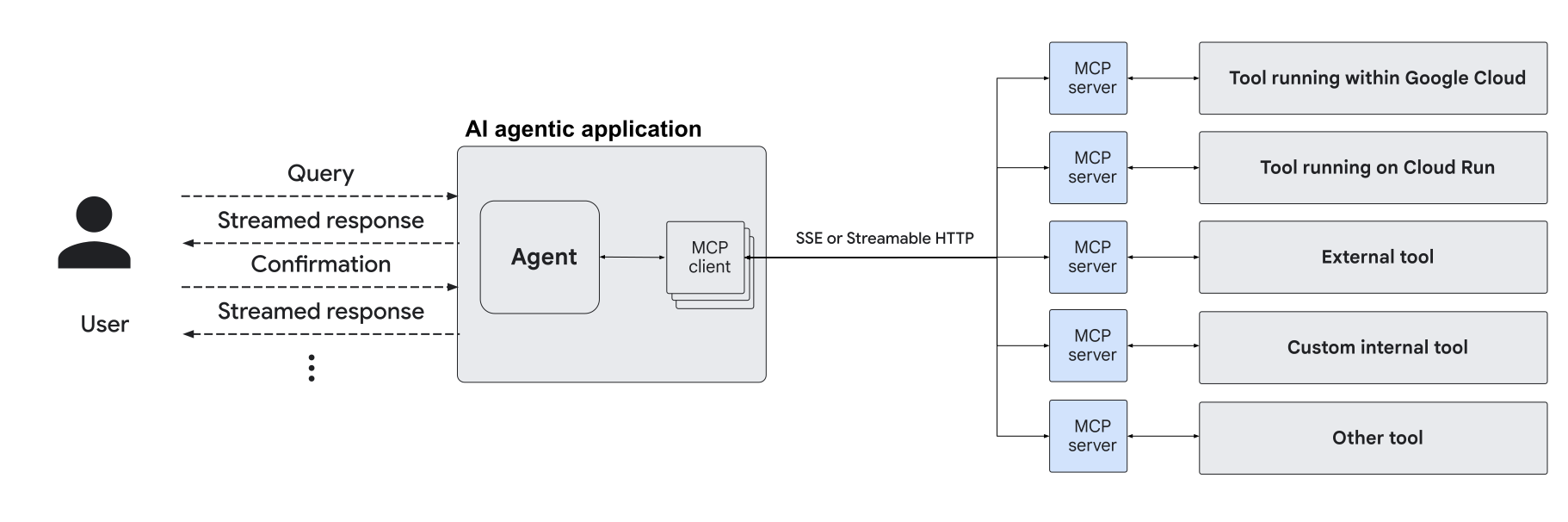 **Figure 1.**The MCP server hosted on Cloud Run interacts with the MCP client, which interacts with the AI agent.
The guidance on this page applies if you are developing your own MCP server or
if you are using an existing MCP server.
- If you are **developing your own MCP server** , we recommended that you use an MCP server SDK, such as the [official language SDKs](https://modelcontextprotocol.io/docs/sdk) (TypeScript, Python, Go, Kotlin, Java, C#, Ruby, or Rust) or [FastMCP](https://gofastmcp.com/).
- If you are **using an existing MCP server** , find a list of official and community MCP servers on the [MCP servers GitHub repository](https://github.com/modelcontextprotocol/servers#readme). Docker Hub also provides a [curated list of MCP servers](https://hub.docker.com/u/mcp).
## Before you begin
1. [Set up your Cloud Run development environment](https://docs.cloud.google.com/run/docs/setup) in your Google Cloud project.
2. Ensure you have the appropriate [permissions to deploy services](https://docs.cloud.google.com/run/docs/reference/iam/roles#additional-configuration), and the [Cloud Run Admin](https://docs.cloud.google.com/iam/docs/roles-permissions/run#run.admin) (`roles/run.admin`) and [Service Account User](https://docs.cloud.google.com/iam/docs/roles-permissions/iam#iam.serviceAccountUser) (`roles/iam.serviceAccountUser`) roles granted to your account.
#### Learn how to grant the roles
#### Console
1.
In the Google Cloud console, go to the **IAM** page.
[Go to IAM](https://console.cloud.google.com/projectselector/iam-admin/iam?supportedpurview=project)
2. Select the project.
3. Click **Grant access**.
4.
In the **New principals** field, enter your user identifier. This
is typically the email address that is used to deploy
the Cloud Run service.
5. In the **Select a role** list, select a role.
6. To grant additional roles, click **Add
another role** and add each additional role.
7. Click **Save**.
#### gcloud
To grant the required IAM roles to your account on your
project:
```bash
gcloud projects add-iam-policy-binding PROJECT_ID \
--member=PRINCIPAL \
--role=ROLE
```
Replace:
- PROJECT_NUMBER with your Google Cloud project number.
- PROJECT_ID with your Google Cloud project ID.
- PRINCIPAL with the account you are adding the binding for. This is typically the email address that is used to deploy the Cloud Run service.
- ROLE with the role you are adding to the deployer account.
3. Review [Cloud Run
pricing](https://cloud.google.com/run/pricing) or estimate costs with the [pricing calculator](https://cloud.google.com/products/calculator).
## Host remote SSE or streamable HTTP MCP servers
MCP servers that use the Server-sent events (SSE) or streamable HTTP transport
can be hosted remotely from their MCP clients.
To deploy this type of MCP server to Cloud Run, you can deploy
the MCP server as a container image or as source code (commonly Node.js or
Python), depending on how the MCP server is packaged.
### Container images
Remote MCP servers distributed as container images are web servers that listen
for HTTP requests on a specific port, which means they adhere to
Cloud Run's [container runtime contract](https://docs.cloud.google.com/run/docs/container-contract#port)
and can be deployed to a Cloud Run service.
To deploy an MCP server packaged as a container image, you need to have the
URL of the container image and the port on which it expects to receive
requests. These can be [deployed](https://docs.cloud.google.com/run/docs/deploying) using the following
gcloud CLI command:
```bash
gcloud run deploy --image IMAGE_URL --port PORT
```
Replace:
- `IMAGE_URL` with the container image URL, for example `us-docker.pkg.dev/cloudrun/container/mcp`.
- `PORT` with the port it listens on, for example `3000`.
### Sources
Remote MCP servers that are not provided as container images can be
deployed to Cloud Run [from their sources](https://docs.cloud.google.com/run/docs/deploying-source-code),
notably if they are written in Node.js or Python.
1. Clone the Git repository of the MCP server:
```bash
git clone https://github.com/ORGANIZATION/REPOSITORY.git
```
2. Navigate to the root of the MCP server:
```bash
cd REPOSITORY
```
3. Deploy to Cloud Run with the following gcloud CLI command:
```bash
gcloud run deploy --source .
```
After you deploy your HTTP MCP server to Cloud Run, the MCP
server gets a [HTTPS URL](https://docs.cloud.google.com/run/docs/triggering/https-request#url) and
communication can use Cloud Run's built in support for HTTP
response streaming.
## Authenticate MCP clients for AI agents
Depending on where you hosted the MCP client, see the section that is relevant
for you:
- [Authenticate local MCP clients](https://docs.cloud.google.com/run/docs/host-mcp-servers#authentic-local-mcp-clients)
- [Authenticate MCP clients running on Cloud Run](https://docs.cloud.google.com/run/docs/host-mcp-servers#authenticate-clients-running-on-cloud-run)
### Authenticate local MCP clients
If the AI agent hosting the MCP client runs on a local machine, use one of the
following methods to authenticate the MCP client:
- [IAM invoker permission](https://docs.cloud.google.com/run/docs/host-mcp-servers#iam-invoker)
- [OIDC ID token](https://docs.cloud.google.com/run/docs/host-mcp-servers#oidc-id-token)
- [Use IAP](https://docs.cloud.google.com/run/docs/host-mcp-servers#authenticate-local-mcp-iap)
For more information, refer to the
[MCP specification on Authentication](https://modelcontextprotocol.io/specification/2025-03-26/basic/authorization).
#### IAM invoker permission
By default, the URL of Cloud Run services requires all requests
to be authorized with the
[Cloud Run Invoker](https://docs.cloud.google.com/run/docs/securing/managing-access#invoker)
(`roles/run.invoker`) IAM role. This
IAM policy binding ensures that a strong security mechanism is
used to authenticate your local MCP client.
After deploying your MCP server to a Cloud Run service in a
region, run the
[Cloud Run proxy](https://docs.cloud.google.com/sdk/gcloud/reference/run/services/proxy) on
your local machine to securely expose the remote MCP server to your client using
your own credentials:
gcloud run services proxy MCP_SERVER_NAME --region REGION --port=3000
Replace:
- MCP_SERVER_NAME with the name of your Cloud Run service.
- REGION with the Google Cloud [region](https://docs.cloud.google.com/run/docs/locations) where you deployed your service. For example, `europe-west1`.
The Cloud Run proxy command creates a local proxy on port `3000`
that forwards requests to the remote MCP server and injects your identity.
Update the MCP configuration file of your MCP client with the following:
{
"mcpServers": {
"cloud-run": {
"url": "http://localhost:3000/sse"
}
}
}
If your MCP client does not support the `url` attribute, use the
[`mcp-remote` npm package](https://www.npmjs.com/package/mcp-remote):
{
"mcpServers": {
"cloud-run": {
"command": "npx",
"args": [
"-y",
"mcp-remote",
"http://localhost:3000/sse"
]
}
}
}
#### OIDC ID token
Depending on whether the MCP client exposes headers or uses a way of providing a
custom authenticated transport, you might consider authenticating the MCP client
with an [OIDC ID token](https://docs.cloud.google.com/docs/authentication/get-id-token).
You can use various Google authentication libraries to get an ID token from the
runtime environment, for example the
[Google Auth Library for Python](https://google-auth.readthedocs.io/en/stable/reference/google.oauth2.id_token.html).
This token must have the correct audience claim that matches the receiving
service's `*.run.app` URL, unless you use
[custom audiences](https://docs.cloud.google.com/run/docs/configuring/custom-audiences). You must also
include the ID token in client requests, such as
`Authorization: Bearer `.
If the MCP client does not expose either headers or transport, use a different
authentication method.
#### Authenticate local MCP clients with IAP
This section describes how to authenticate local MCP clients that are running on
Cloud Run.
To create the ingress policy, do the following:
1. Grant the Cloud Run Invoker (`roles/run.invoker`) role to the
IAP service agent.
```bash
gcloud run services add-iam-policy-binding SERVICE_NAME \
--member='serviceAccount:service-PROJECT_NUMBER@gcp-sa-iap.iam.gserviceaccount.com' \
--role='roles/run.invoker'
```
Replace the following:
- `SERVICE_NAME`: the name of the service to add the
policy binding to
- `PROJECT_NUMBER`: the project number of the project
that contains the service
2. Enable IAP on the Cloud Run service.
### Create
To enable IAP authentication for a new service, run the
following command:
```bash
gcloud run deploy SERVICE_NAME --image=MCP_SERVER_IMAGE
--functional-type=MCP_SERVER \
--region=REGION \
--iap
```
Replace the following:
- `SERVICE_NAME`: the name of the service to add the
policy binding to
- `MCP_SERVER_IMAGE`: the path of the MCP server image
- `REGION`: the Google Cloud [region](https://docs.cloud.google.com/run/docs/locations)
where you want to deploy your service---for example,
`europe-west1`
### Update
To enable IAP authentication for an existing service, run
the following command:
```bash
gcloud run services update SERVICE_NAME \
--region=REGION \
--functional-type=MCP_SERVER \
--iap
```
Replace the following:
- `SERVICE_NAME`: the name of the service to update
- `REGION`: the Google Cloud [region](https://docs.cloud.google.com/run/docs/locations)
where you deployed your service---for example,
`europe-west1`
### Authenticate MCP clients running on Cloud Run
If the AI agent hosting the MCP client runs on Cloud Run, use one
of the following methods to authenticate the MCP client:
- [Deploy as a sidecar](https://docs.cloud.google.com/run/docs/host-mcp-servers#deploy-as-sidecar)
- [Authenticate service to service](https://docs.cloud.google.com/run/docs/host-mcp-servers#authenticate-service-to-service)
- [Use Cloud Service Mesh](https://docs.cloud.google.com/run/docs/host-mcp-servers#use-service-mesh)
#### Deploy the MCP server as a sidecar
The MCP server can be [deployed as a sidecar](https://docs.cloud.google.com/run/docs/deploying#sidecars)
where the MCP client runs.
No specific authentication is required for this use case, since the MCP client
and MCP server are on the same instance. The client can connect to the MCP
server using a port on `http://localhost:PORT`. Replace
PORT with a different port than the one used to send
requests to the Cloud Run service.
#### Authenticate service to service
If the MCP server and MCP client run as distinct Cloud Run
services, see [Authenticating service-to-service](https://docs.cloud.google.com/run/docs/authenticating/service-to-service).
#### Use Cloud Service Mesh
An agent hosting an MCP client can connect to a remote MCP server using
[Cloud Service Mesh](https://docs.cloud.google.com/service-mesh/docs/configure-cloud-service-mesh-for-cloud-run).
Using a service mesh simplifies the orchestration of microservices by handling
authentication and traffic management automatically.
You can configure the MCP server service to have a short name on the mesh, and
the MCP client can communicate to the MCP server using the short name
`http://mcp-server`. Authentication is managed by the mesh.
## What's next
- [Host AI agents on Cloud Run](https://docs.cloud.google.com/run/docs/ai-agents).
- Follow a tutorial to [build and deploy a remote MCP server to Cloud Run](https://docs.cloud.google.com/run/docs/tutorials/deploy-remote-mcp-server).
- Follow these MCP codelabs:
- [How to deploy a secure MCP server on Cloud Run](https://codelabs.developers.google.com/codelabs/cloud-run/how-to-deploy-a-secure-mcp-server-on-cloud-run).
- [Use an MCP server on Cloud Run with an ADK agent](https://codelabs.developers.google.com/codelabs/cloud-run/use-mcp-server-on-cloud-run-with-an-adk-agent).