This page describes GPU configuration for your Cloud Run workerpools.
Google provides NVIDIA RTX PRO 6000 Blackwell GPU with 96 GB of GPU memory (VRAM)
and NVIDIA L4 GPUs with 24 GB of GPU memory (VRAM), which is
separate from the [instance memory](https://docs.cloud.google.com/run/docs/configuring/workerpools/memory-limits).
> [!IMPORTANT]
> **Important:** If you are using LLM with the Cloud Run GPU feature, make sure you *also* consult [Best practices: Cloud Run workerpools with GPUs](https://docs.cloud.google.com/run/docs/configuring/workerpools/gpu-best-practices).
GPU on Cloud Run is fully managed, with no extra drivers or [libraries](https://docs.cloud.google.com/run/docs/configuring/workerpools/gpu#libraries)
needed. The GPU feature offers on-demand availability with no reservations needed,
similar to the way on-demand [CPU](https://docs.cloud.google.com/run/docs/configuring/workerpools/cpu) and
on-demand [memory](https://docs.cloud.google.com/run/docs/configuring/workerpools/memory-limits) work
in Cloud Run.
Cloud Run instances with an attached NVIDIA RTX PRO 6000 Blackwell GPU
or L4 GPU with drivers pre-installed start in approximately 5 seconds, at which
point the processes running in your container can start to use the GPU.
You can configure one GPU per Cloud Run instance. If you use sidecar
containers, note that the GPU can only be attached to one container.
## Supported GPU types
Cloud Run supports two types of GPUs:
- [NVIDIA RTX PRO 6000 Blackwell GPU](https://www.nvidia.com/en-us/data-center/rtx-pro-6000-blackwell-server-edition/) with the current NVIDIA driver version: 580.x.x (13.0). For NVIDIA RTX PRO 6000 Blackwell GPU, you must use a minimum of 20 CPU and 80 GiB of memory.
- [L4 GPU](https://www.nvidia.com/en-us/data-center/l4/) with the current NVIDIA driver version: 580.x.x (13.0). For L4 GPUs, you must use a minimum of 4 CPU and 16 GiB of memory.
## Supported regions
The following regions are supported by the NVIDIA RTX PRO 6000 Blackwell GPU:
- `asia-southeast1` (Singapore).
- `asia-south2` (Delhi, India).
- `europe-west4` (Netherlands)  [Low CO~2~](https://cloud.google.com/sustainability/region-carbon#region-picker)
- `us-central1` (Iowa)  [Low CO~2~](https://cloud.google.com/sustainability/region-carbon#region-picker)
The following regions are supported by the L4 GPU:
- `asia-southeast1` (Singapore)
- `asia-south1` (Mumbai) . This region is available by invitation only. Contact your Google Account team if you are interested in this region.
- `europe-west1` (Belgium)  [Low CO~2~](https://cloud.google.com/sustainability/region-carbon#region-picker)
- `europe-west4` (Netherlands)  [Low CO~2~](https://cloud.google.com/sustainability/region-carbon#region-picker)
- `us-central1` (Iowa)  [Low CO~2~](https://cloud.google.com/sustainability/region-carbon#region-picker) . Additional resource scaling in this region might require a quota increase request. Contact your Google Account team if you are interested in this region.
- `us-east4` (Northern Virginia) . Additional resource scaling in this region might require a quota increase request. Contact your Google Account team if you are interested in this region.
## Pricing impact
See [Cloud Run pricing](https://cloud.google.com/run/pricing) for GPU pricing details. Note the
following requirements and considerations:
- There is a difference in cost between [GPU zonal redundancy](https://docs.cloud.google.com/run/docs/configuring/workerpools/gpu#zonal-redundancy) and non-zonal redundancy. See [Cloud Run pricing](https://docs.cloud.google.com/run/pricing) for GPU pricing details.
- GPU worker pools cannot be autoscaled. You are charged for the GPU even if the GPU is not running any process, and as long as the worker pool GPU instance is running.
- CPU and memory for worker pools is priced differently than services and jobs. However, GPU SKU is priced the same as services and jobs.
- The CPU and memory configurations of your resource.
- GPU is billed for the entire duration of the instance lifecycle.
## GPU zonal redundancy options
By default, Cloud Run deploys your worker pool across multiple zones
within a region. This architecture provides inherent resilience: if a zone
experiences an outage, Cloud Run automatically routes traffic away
from the affected zone to healthy zones within the same region.
When working with GPU resources, keep in mind GPU resources have specific
capacity constraints. During a zonal outage, the standard failover mechanism
for GPU workloads relies on sufficient unused GPU capacity being available in
the remaining healthy zones. Due to the constrained nature of GPUs, this
capacity might not always be available.
To increase the availability of your GPU-accelerated worker pools during zonal
outages, you can configure zonal redundancy specifically for GPUs:
- **Zonal Redundancy Turned On** (default): Cloud Run reserves GPU capacity
for your worker pool across multiple zones. This significantly increases the
probability that your worker pool can successfully handle traffic rerouted from
an affected zone, offering higher reliability during zonal failures with
additional cost per GPU second.
- **Zonal Redundancy Turned Off**: Cloud Run attempts failover for
GPU workloads on a best-effort basis. Traffic is routed to other zones only if
sufficient GPU capacity is available at that moment. This option does not
guarantee reserved capacity for failover scenarios but results in a lower cost
per GPU second.
## SLA
The SLA for Cloud Run GPU depends on whether the worker pool uses the
zonal redundancy or non-zonal redundancy [option](https://docs.cloud.google.com/run/docs/configuring/workerpools/gpu#zonal-redundancy).
Refer to the [SLA page](https://cloud.google.com/run/sla) for details.
## Request a quota increase
Quota for Cloud Run `nvidia-rtx-pro-6000` GPU is granted in milliGPUs.
Projects using `nvidia-rtx-pro-6000` GPU in a region for the first time will be
automatically granted 3,000 milliGPU quota (zonal redundancy off) when the first
deployment is created. This is equivalent to 3 GPUs. Projects using Cloud Run
`nvidia-l4` GPUs in a region for the first time are automatically granted 3 GPU
quota (zonal redundancy off) when the first deployment is created.
If you need additional Cloud Run GPUs, you must request a quota increase
for your Cloud Run worker pool. Use the links provided in the following
buttons to request the quota you need.
> [!IMPORTANT]
> **Important:** Quota increase for GPUs with zonal redundancy turned *off* are more likely to be granted and will be made available more quickly.
| Quota needed | Quota link |
|---|---|
| NVIDIA RTX PRO 6000 Blackwell GPU with zonal redundancy turned *off* (lower price) | [Request GPU quota without zonal redundancy](https://console.cloud.google.com/projectselector2/iam-admin/quotas?pageState=(%22allQuotasTable%22:(%22f%22:%22%255B%257B_22k_22_3A_22Metric_22_2C_22t_22_3A10_2C_22v_22_3A_22_5C_22run.googleapis.com%252Fnvidia_rtx_pro_6000_gpu_allocation_no_zonal_redundancy_5C_22_22_2C_22s_22_3Atrue_2C_22i_22_3A_22metricName_22%257D%255D%22))) |
| NVIDIA RTX PRO 6000 Blackwell GPU with zonal redundancy turned *on* (higher price) | [Request GPU quota with zonal redundancy](https://console.cloud.google.com/projectselector2/iam-admin/quotas?pageState=(%22allQuotasTable%22:(%22f%22:%22%255B%257B_22k_22_3A_22metric_22_2C_22t_22_3A10_2C_22v_22_3A_22_5C_22run.googleapis.com%252Fnvidia_rtx_pro_6000_gpu_allocation_5C_22_22_2C_22s_22_3Atrue_2C_22i_22_3A_22metricName_22%257D%255D%22))) |
| L4 GPU with zonal redundancy turned *off* (lower price) | [Request GPU quota without zonal redundancy](https://console.cloud.google.com/projectselector2/iam-admin/quotas?pageState=(%22allQuotasTable%22:(%22f%22:%22%255B%257B_22k_22_3A_22Metric_22_2C_22t_22_3A10_2C_22v_22_3A_22_5C_22run.googleapis.com%252Fnvidia_l4_gpu_allocation_no_zonal_redundancy_5C_22_22_2C_22s_22_3Atrue_2C_22i_22_3A_22metricName_22%257D%255D%22))) |
| L4 GPU with zonal redundancy turned *on* (higher price) | [Request GPU quota with zonal redundancy](https://console.cloud.google.com/projectselector2/iam-admin/quotas?pageState=(%22allQuotasTable%22:(%22f%22:%22%255B%257B_22k_22_3A_22Metric_22_2C_22t_22_3A10_2C_22v_22_3A_22_5C_22run.googleapis.com%252Fnvidia_l4_gpu_allocation_5C_22_22_2C_22s_22_3Atrue_2C_22i_22_3A_22metricName_22%257D%255D%22))) |
For more information on requesting quota increases, see
[How to increase quota](https://docs.cloud.google.com/run/quotas#increase).
## Before you begin
The following list describes requirements and limitations when using
GPUs in Cloud Run:
1.
Enable the Cloud Run API.
**Roles required to enable APIs**
To enable APIs, you need the `serviceusage.services.enable` permission. If you
created the project, then you likely already have this permission through the
Owner role (`roles/owner`). Otherwise, you can get this permission through the
Service Usage Admin role (`roles/serviceusage.serviceUsageAdmin`).
[Learn how to grant roles](https://docs.cloud.google.com/iam/docs/granting-changing-revoking-access).
[Enable the API](https://console.cloud.google.com/apis/enableflow?apiid=run.googleapis.com)
2. [Request required quota](https://docs.cloud.google.com/run/docs/configuring/workerpools/gpu#request-quota).
3. Consult [GPU Best practices: Cloud Run worker pools with GPUs](https://docs.cloud.google.com/run/docs/configuring/workerpools/gpu-best-practices) for recommendations on building your container image and loading large models.
4. Make sure your Cloud Run worker pool has the following configurations:
- Configure the billing settings to instance-based billing. Note that worker pools that are set to instance-based billing can still scale to zero.
- For NVIDIA RTX PRO 6000 Blackwell GPU, configure a minimum of [20 CPU](https://docs.cloud.google.com/run/docs/configuring/services/cpu) and a minimum of [80 GiB of memory](https://docs.cloud.google.com/run/docs/configuring/services/memory-limits).
- For L4 GPU, configure a minimum of [4 CPU](https://docs.cloud.google.com/run/docs/configuring/services/cpu) for your worker pool, with 8 CPU recommended, and a minimum of [16 GiB of memory](https://docs.cloud.google.com/run/docs/configuring/services/memory-limits), with 32 GiB recommended.
- Determine and set an optimal maximum concurrency for your GPU usage.
### Required roles
To get the permissions that
you need to configure and deploy Cloud Run worker pools,
ask your administrator to grant you the
following IAM roles on workerpools:
- Cloud Run Developer (`roles/run.developer`) - the Cloud Run worker pool
- Service Account User (`roles/iam.serviceAccountUser`) - the service identity
For a list of IAM roles and permissions that are associated with
Cloud Run, see
[Cloud Run IAM roles](https://docs.cloud.google.com/run/docs/reference/iam/roles)
and [Cloud Run IAM permissions](https://docs.cloud.google.com/run/docs/reference/iam/permissions).
If your Cloud Run worker pool interfaces with
Google Cloud APIs, such as Cloud Client Libraries, see the
[service identity configuration guide](https://docs.cloud.google.com/run/docs/configuring/workerpools/service-identity).
For more information about granting roles, see
[deployment permissions](https://docs.cloud.google.com/run/docs/reference/iam/roles#additional-configuration)
and [manage access](https://docs.cloud.google.com/iam/docs/granting-changing-revoking-access).
## Configure a Cloud Run worker pool with GPU
Any configuration change leads to the
creation of a new revision. Subsequent revisions will also automatically get
this configuration setting unless you make explicit updates to change it.
You can use the Google Cloud console, Google Cloud CLI or YAML to configure GPU.
### Console
1. In the Google Cloud console, go to Cloud Run:
[Go to Cloud Run](https://console.cloud.google.com/run)
2. Select **Worker Pools** from the Cloud Run navigation menu,
and click **Deploy container** to configure a new worker pool.
If you are configuring an existing worker pool, click the
worker pool, then click **Edit and deploy new revision**.
3. If you are configuring a new worker pool, fill out the initial worker pool
settings page, then click **Containers, Networking, Security** to expand the
worker pool configuration page.
4. Click the **Containers** tab.
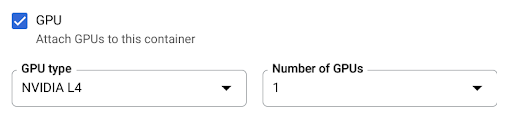
- Configure CPU, memory, concurrency, execution environment, and startup probe following the recommendations in [Before you begin](https://docs.cloud.google.com/run/docs/configuring/workerpools/gpu#before-you-begin)
- Check the GPU checkbox, then select the GPU type from the **GPU type** menu, and the number of GPUs from the **Number of GPUs** menu.
- By default, zonal redundancy is turned on. To change the current setting, select the GPU checkbox to show the **GPU redundancy** options.
- Select **No zonal redundancy** to turn off zonal redundancy
- Select **Zonal redundancy** to turn on zonal redundancy.
5. Click **Create** or **Deploy**.
### gcloud
To create a GPU-enabled worker pool, use the
[`gcloud run worker-pools deploy`](https://docs.cloud.google.com/sdk/gcloud/reference/run/worker-pools/deploy)
command:
```bash
gcloud run worker-pools deploy WORKER_POOL \
--image IMAGE_URL \
--gpu 1
```
Replace the following:
- WORKER_POOL: the name of your Cloud Run worker pool.
- `IMAGE_URL`: a reference to the container image that contains the worker pool, such as `us-docker.pkg.dev/cloudrun/container/worker-pool:latest`.
To update the GPU configuration for a worker pool, use the
[`gcloud run worker-pools update`](https://docs.cloud.google.com/sdk/gcloud/reference/run/worker-pools/update)
command:
```bash
gcloud run worker-pools update WORKER_POOL \
--image IMAGE_URL \
--cpu CPU \
--memory MEMORY \
--gpu GPU_NUMBER \
--gpu-type GPU_TYPE \
--GPU_ZONAL_REDUNDANCY
```
Replace the following:
- WORKER_POOL: the name of your Cloud Run worker pool.
- `IMAGE_URL`: a reference to the container image that contains the worker pool, such as `us-docker.pkg.dev/cloudrun/container/worker-pool:latest`.
- CPU: the number of CPU. For NVIDIA RTX PRO 6000 Blackwell GPU, you must specify at least `20` CPU. For NVIDIA L4 GPU, you must specify at least `4` CPU.
- MEMORY: the amount of memory. For NVIDIA RTX PRO 6000 Blackwell GPU, you must specify at least `80Gi` (80 GiB). For NVIDIA L4 GPU, you must specify at least `16Gi` (16 GiB).
- GPU_NUMBER: the value `1` (one). If this is unspecified but a GPU_TYPE is present, the default is `1`.
- GPU_TYPE: the GPU type. NVIDIA RTX PRO 6000 Blackwell GPU, enter `nvidia-rtx-pro-6000`. For L4 GPU, enter value `nvidia-l4` (nvidia-`L`4 lowercase L, not numeric value fourteen).
- GPU_ZONAL_REDUNDANCY: `no-gpu-zonal-redundancy` to turn off zonal redundancy, or `gpu-zonal-redundancy` to turn on zonal redundancy.
### YAML
1. If you are creating a new worker pool, skip this step.
If you are updating an existing worker pool, download its [YAML configuration](https://docs.cloud.google.com/run/docs/reference/yaml/v1):
```bash
gcloud run worker-pools describe WORKER_POOL --format export > worker-pool.yaml
```
2. Update the `nvidia.com/gpu:` attribute and
`nodeSelector:
run.googleapis.com/accelerator:`:
```yaml
apiVersion: run.googleapis.com/v1
kind: WorkerPool
metadata:
name: WORKER_POOL
spec:
template:
metadata:
annotations:
run.googleapis.com/gpu-zonal-redundancy-disabled: 'GPU_ZONAL_REDUNDANCY'
spec:
containers:
- image: IMAGE_URL
resources:
limits:
cpu: 'CPU'
memory: 'MEMORY'
nvidia.com/gpu: '1'
nodeSelector:
run.googleapis.com/accelerator: GPU_TYPE
```
Replace the following:
- WORKER_POOL: the name of your Cloud Run worker pool.
- `IMAGE_URL`: a reference to the container image that contains the worker pool, such as `us-docker.pkg.dev/cloudrun/container/worker-pool:latest`.
- CPU: the number of CPUs. For NVIDIA RTX PRO 6000 Blackwell GPU, you must specify at least `20` CPU. For L4 GPU, you must specify at least `4` CPU.
- MEMORY: the amount of memory. For NVIDIA RTX PRO 6000 Blackwell GPU, you must specify at least `80Gi` (80 GiB). For L4 GPU, you must specify at least `16Gi` (16 GiB).
- GPU_TYPE: the GPU type. For NVIDIA RTX PRO 6000 Blackwell GPU, enter `nvidia-rtx-pro-6000`. For L4 GPU, enter value `nvidia-l4` (nvidia-`L`4 lowercase L, not numeric value fourteen).
- GPU_ZONAL_REDUNDANCY: `false` to turn on GPU zonal redundancy, or `true` to turn it off.
3. Create or update the worker pool using the following command:
```bash
gcloud run worker-pools replace worker-pool.yaml
```
The `gcloud run worker-pools replace` command defaults to using `worker-pool.yaml` file if present.
### Terraform
To learn how to apply or remove a Terraform configuration, see
[Basic Terraform commands](https://docs.cloud.google.com/docs/terraform/basic-commands).
resource "google_cloud_run_v2_worker_pool" "default" {
provider = google-beta
name = "WORKER_POOL"
location = "REGION"
template {
gpu_zonal_redundancy_disabled = "GPU_ZONAL_REDUNDANCY"
containers {
image = "IMAGE_URL"
resources {
limits = {
"cpu" = "CPU"
"memory" = "MEMORY"
"nvidia.com/gpu" = "1"
}
}
}
node_selector {
accelerator = "GPU_TYPE"
}
}
}
Replace the following:
- WORKER_POOL: the name of your Cloud Run worker pool.
- GPU_ZONAL_REDUNDANCY: `false` to turn on GPU zonal redundancy, or `true` to turn it off.
- `IMAGE_URL`: a reference to the container image that contains the worker pool, such as `us-docker.pkg.dev/cloudrun/container/worker-pool:latest`.
- CPU: the number of CPUs. For NVIDIA RTX PRO 6000 Blackwell GPU, you must specify at least `20` CPU. For NVIDIA L4 GPU, you must specify at least `4` CPU.
- MEMORY: the amount of memory. For NVIDIA RTX PRO 6000 Blackwell GPU, you must specify at least `80Gi` (80 GiB). For NVIDIA L4 GPU, you must specify at least `16Gi` (16 GiB).
- GPU_TYPE: the GPU type. NVIDIA RTX PRO 6000 Blackwell GPU, enter `nvidia-rtx-pro-6000`. For L4 GPU, enter value `nvidia-l4` (nvidia-`L`4 lowercase L, not numeric value fourteen).
## View GPU settings
To view the current GPU settings for your
Cloud Run worker pool:
### Console
1. In the Google Cloud console, go to the Cloud Run worker pools
page:
[Go to Cloud Run worker pools](https://console.cloud.google.com/run/workerpools)
2. Click the worker pool you are interested in to open the
**Worker pools details** page.
3. Click **Edit and deploy new revision**.
4. Locate the GPU setting in the configuration
details.
### gcloud
1. Use the following command:
```bash
gcloud run worker-pools describe WORKER_POOL
```
2. Locate the GPU setting in the returned
configuration.
## Remove GPU
You can remove GPU using the Google Cloud console, the Google Cloud CLI, or YAML.
### Console
1. In the Google Cloud console, go to Cloud Run:
[Go to Cloud Run](https://console.cloud.google.com/run)
2. Select **Worker Pools** from the Cloud Run navigation menu, and click
**Deploy container** to configure a new worker pool.
If you are configuring an existing worker pool, click the
worker pool, then click **Edit and deploy new revision**.
3. If you are configuring a new worker pool, fill out the initial worker pool
settings page, then click **Containers, Networking, Security** to expand the
worker pool configuration page.
4. Click the **Containers** tab.

- Uncheck the GPU checkbox.
1. Click **Create** or **Deploy**.
### gcloud
To remove GPU, set the number of GPUs to `0`:
```bash
gcloud run worker-pools update WORKER_POOL --gpu 0
```
Replace WORKER_POOL with the name of your Cloud Run
worker pool.
### YAML
1. If you are creating a new worker pool, skip this step.
If you are updating an existing worker pool, download its [YAML configuration](https://docs.cloud.google.com/run/docs/reference/yaml/v1):
```bash
gcloud run worker-pools describe WORKER_POOL --format export > worker-pool.yaml
```
2. Delete the `nvidia.com/gpu:` and the
`nodeSelector:
run.googleapis.com/accelerator: GPU_TYPE` lines.
3. Create or update the worker pool using the following command:
```bash
gcloud run worker-pools replace worker-pool.yaml
```
The `gcloud run worker-pools replace` command defaults to using `worker-pool.yaml` file if present.
## Driver libraries
By default, all of the NVIDIA RTX PRO 6000 Blackwell GPU and NVIDIA L4 GPU driver libraries
are mounted under `/usr/local/nvidia/lib64`. Cloud Run automatically
appends this path to the `LD_LIBRARY_PATH` environment variable
(i.e. `${LD_LIBRARY_PATH}:/usr/local/nvidia/lib64`) of the container with the
GPU. This allows the dynamic linker to find the NVIDIA driver libraries. The
linker searches and resolves paths in the order you list in the `LD_LIBRARY_PATH`
environment variable. Any values you specify in this variable take precedence
over the default Cloud Run driver libraries path `/usr/local/nvidia/lib64`.
If you want to use a CUDA version greater than 13.0,
the easiest way is to depend on a newer [NVIDIA base image](https://catalog.ngc.nvidia.com/containers)
with forward compatibility packages already installed. Another option is to
manually [install the NVIDIA forward compatibility packages](https://docs.nvidia.com/deploy/cuda-compatibility/#installing-the-forward-compatibility-package)
and add them to `LD_LIBRARY_PATH`. Consult [NVIDIA's compatibility matrix](https://docs.nvidia.com/deeplearning/frameworks/support-matrix/index.html)
to determine which CUDA versions are forward compatible with the provided NVIDIA
driver version.