[Video](https://www.youtube.com/watch?v=WgUeNYFGFpo)
Session affinity lets you route sequential requests from a client to the same
Cloud Run revision instance. Routing client requests to the same
instance helps you use in-memory caching for stateful workloads. If the target
instance stops or reaches maximum concurrency or CPU limits, then
Cloud Run routes requests to another instance.
## How session affinity works
By default, session affinity is not enabled, so requests from
the same client might be handled by different instances, as shown
here:
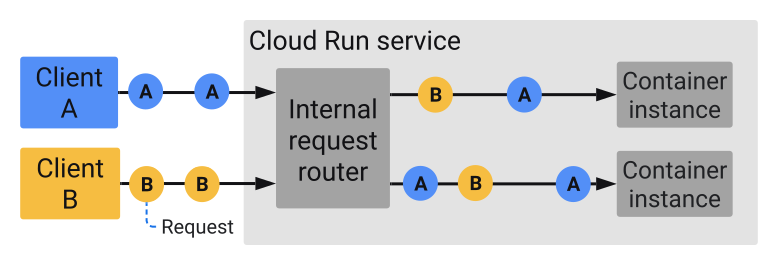
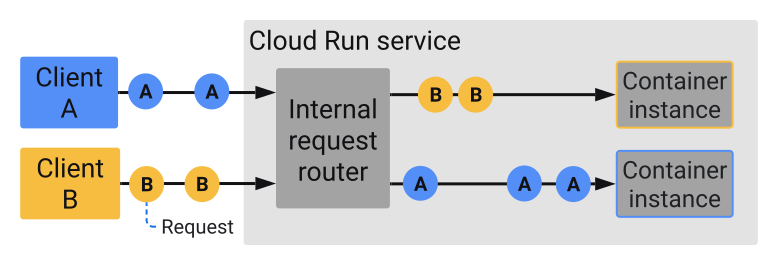
If you enable session affinity, Cloud Run routes sequential requests
for a given client to the same revision instance. Cloud Run
uses a session affinity cookie with a TTL of 30 days, and inspects its value to
identify multiple requests by the same client and directs all these requests to
the same instance, as shown here:
## Key behaviors to be aware of
As shown in the diagram above, with session affinity enabled, a client will reach the
same instance. However, note that the instance can receive
requests from different clients. Session affinity does not mean that the
instance is dedicated only to one client.
Due to the autoscaling behavior of Cloud Run, session affinity is
*best effort* affinity. If the instance is terminated for any reason, or reaches
maximum request concurrency or maximum CPU utilization, then session
affinity is broken and further requests are routed to a different instance.
Although you can cache client session data in memory of instances,
you cannot assume that a client will always reconnect to the same instance,
*even when session affinity is enabled*.
[Cloud Load Balancing session affinity](https://docs.cloud.google.com/load-balancing/docs/backend-service.md.txt#session_affinity) and Cloud Run session affinity are two separate and independent implementations of session affinity.
You can enable Cloud Run's session affinity on a Cloud Run service, even if it's behind a load balancer.
However, you shouldn't enable Cloud Load Balancing session affinity on a [serverless network endpoint group](https://docs.cloud.google.com/load-balancing/docs/negs/serverless-neg-concepts.md.txt#traffic-management), since it's
not supported.
## Session affinity and traffic splitting
You enable or disable session affinity at the revision level. If you
enable session affinity on a Cloud Run revision and also use
[traffic splitting](https://docs.cloud.google.com/run/docs/rollouts-rollbacks-traffic-migration.md.txt#split-traffic),
session affinity takes precedence over any traffic splitting. In extreme cases, if
a single client using session affinity is responsible for a vast majority of all
requests, all of those requests can be routed to a given revision regardless of
the traffic splitting configuration.
If you enable traffic splitting for revisions where some of the revisions have session
affinity enabled and some do not, the result is that requests are gradually shifted
towards revisions that have session affinity enabled, even though you do not explicitly
change the traffic split configuration. The reason for this is that every request
that doesn't have a session affinity cookie attached is subject to a random split,
where some will eventually be assigned to a revision with session affinity and
subsequently those requests will stay with that particular revision.
When updating the traffic splitting configuration for a Cloud Run
service, subsequent requests with session affinity
cookies attached might be assigned to a different revision.
Cloud Run minimizes the number of clients that are
redirected to a new revision.
For example, if a service was splitting traffic at 90%/10%, and the traffic
split is updated to 80%/20%, then 10% of the traffic will be redirected to
the revision that is now serving 20% of the traffic.
## Set session affinity
Any configuration change leads to the
creation of a new revision. Subsequent revisions will also automatically get
this configuration setting unless you make explicit updates to change it.
You can set session affinity using the Google Cloud console, the
gcloud command line, or using a .yaml file when you
[create a new service](https://docs.cloud.google.com/run/docs/deploying.md.txt#service) or
[deploy a new revision](https://docs.cloud.google.com/run/docs/deploying.md.txt#revision):
### Console
1. In the Google Cloud console, go to Cloud Run:
[Go to Cloud Run](https://console.cloud.google.com/run)
2. Select **Services** from the Cloud Run navigation menu:
1. If you are configuring a new service, click **Deploy container** and
fill out the initial service settings page. Then click
**Containers, Networking, Security** to expand the service configuration page.
2. If you are configuring an existing service, click the service.
3. Click the **Networking** tab.
4. Click the **Session affinity** box.
5. Click **Create** for a new service. Click **View diff \& redeploy** , then **Deploy changes** for an existing service.
### gcloud
To specify session affinity, use the following command:
```bash
gcloud run services update SERVICE --session-affinity
```
Replace
- SERVICE with the name of the service you are updating.
To remove session affinity, use the command
```bash
gcloud run services update SERVICE --no-session-affinity
```
### YAML
1. If you are creating a new service, skip this step.
If you are updating an existing service, download its [YAML configuration](https://docs.cloud.google.com/run/docs/reference/yaml/v1.md.txt):
```bash
gcloud run services describe SERVICE --format export > service.yaml
```
2. Add the `run.googleapis.com/sessionAffinity:` annotation:
```yaml
spec:
template:
metadata:
annotations:
run.googleapis.com/sessionAffinity: 'BOOL'
```
Replace
- 'BOOL' with value '`true`' to set session affinity, or '`false`' to remove session affinity.
3. Create or update the service using the following command:
```bash
gcloud run services replace service.yaml
```
The `gcloud run services replace` command defaults to using `service.yaml` file if present.
### Terraform
To learn how to apply or remove a Terraform configuration, see
[Basic Terraform commands](https://docs.cloud.google.com/docs/terraform/basic-commands.md.txt).
Add the following to a [`google_cloud_run_v2_service`](https://registry.terraform.io/providers/hashicorp/google/latest/docs/resources/cloud_run_v2_service) resource in your Terraform configuration:
```terraform
resource "google_cloud_run_v2_service" "default" {
name = "cloudrun-service-aff"
location = "REGION"
deletion_protection = false
ingress = "INGRESS_TRAFFIC_ALL"
template {
containers {
image = "us-docker.pkg.dev/cloudrun/container/hello"
}
session_affinity = BOOL
}
}
```
Replace:
- REGION with the Google Cloud region. For example, `europe-west1`.
- BOOL with value `true` to set session affinity, or `false` to remove session affinity.
## View session affinity settings
To view the current session affinity settings for your
Cloud Run service:
### Console
1. In the Google Cloud console, go to the Cloud Run **Services** page:
[Go to Cloud Run](https://console.cloud.google.com/run/services)
2. Click the service you are interested in to open the **Service details**
page.
3. Click the **Networking** tab to view the settings.
### gcloud
1. Use the following command:
```bash
gcloud run services describe SERVICE
```
2. Locate the session affinity setting in the returned
configuration.