Configuring automatic base image updates for Cloud Run enables Google
to make security patches to the operating system and language runtime components
of the base image automatically. You don't have to rebuild or redeploy your
service for the base image to be updated. No new revision is created when the
base image is updated.
To learn about setting security update policies on functions
created using [`gcloud functions`](https://docs.cloud.google.com/sdk/gcloud/reference/functions) commands or
the [Cloud Functions v2 API](https://docs.cloud.google.com/functions/docs/reference/rest.md.txt), see
[Execution environment security](https://docs.cloud.google.com/functions/docs/securing/execution-environment-security.md.txt).
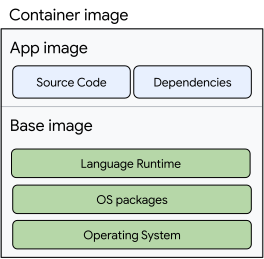
The following diagram shows how your application code and dependencies
("app image") are layered on top of the language runtime, OS packages and
Operating System ("base image").
The components of the base image are automatically updated by Google.
## Security update policy
- **Automatic updates**: Updates and security patches to the runtime environment
are published in new versions of the runtime image. After a period of testing for
stability and reliability, the updated runtime is rolled out to all services
resulting in a zero downtime update. To take on language-level security fixes,
you may need to rebuild functions or services that use compiled languages such
as Go or Java.
- **On deployment updates**: Updates and security patches are applied
to runtimes only when services are deployed or redeployed, unless
otherwise noted. Updates on deployment are available on both
Cloud Run functions (1st gen) and Cloud Run functions.
By default, automatic security updates are enabled for functions deployed using:
- [`gcloud functions`](https://docs.cloud.google.com/sdk/gcloud/reference/functions)
- [Cloud Functions v2 API](https://docs.cloud.google.com/functions/docs/reference/rest.md.txt)
- [`gcloud run`](https://docs.cloud.google.com/sdk/gcloud/reference/run) with the `--functions` flag and the `--base-image` flag
## Configuration overview
To configure automatic base image updates, do the following:
- [**Select**](https://docs.cloud.google.com/run/docs/configuring/services/automatic-base-image-updates.md.txt#base-image) a compatible Cloud Run base image.
- [**Build and deploy**](https://docs.cloud.google.com/run/docs/configuring/services/automatic-base-image-updates.md.txt#build-app-image) your application image in a way that preserves the ability to safely rebase your running service.
## Select a base image
A base image is the starting point for most container-based development
workflows. Developers start with a base image and layer on top of it the
necessary libraries, binaries, and configuration files used to run their
application.
[Google Cloud's buildpacks](https://docs.cloud.google.com/docs/buildpacks/overview.md.txt) publishes and maintains
base images for building Serverless applications. These base images are built on
top of the Ubuntu Linux distribution.
Cloud Run only supports automatic base images that use
[Google Cloud's buildpacks base images](https://docs.cloud.google.com/docs/buildpacks/overview.md.txt).
You must consider the following when choosing a buildpacks base
image:
- **Stack** : A [stack](https://docs.cloud.google.com/docs/buildpacks/stacks.md.txt) is made up of a Linux distribution version and system packages, such as OpenSSL and curl.
- **Language**: The specific version of the programming language used by your application.
Review [runtime base images](https://docs.cloud.google.com/run/docs/configuring/services/runtime-base-images.md.txt#how_to_obtain_base_images)
to learn more about base image variations.
## Build the application image
Services with automatic updates enabled will need to provide an application
image that omits the base operating system layers. There are two ways to do
this:
- Use Cloud Run deploy from source (recommended)
- Using a build system, copy your application onto a [`scratch` image](https://docs.cloud.google.com/run/docs/configuring/services/automatic-base-image-updates.md.txt#scratch)
### Deploy from source
You can use the Cloud Run
[source deployment](https://docs.cloud.google.com/run/docs/deploying-source-code.md.txt) option to build and
deploy your code so that your service is compatible with receiving automatic
updates. To do this, you must supply the `--base-image` flag when creating your
application.
For example, to deploy a Node.js service with automatic base image updates
enabled, you would use the following command:
```bash
gcloud run deploy \
--source . \
--base-image nodejs24 \
--automatic-updates
```
Note the following:
- To [deploy a function](https://docs.cloud.google.com/run/docs/deploy-functions.md.txt), you must specify the `--function` flag with the function entry point from your source code.
- Use the `--base-image` flag to specify the URL of your base image---for example `nodejs24` or `europe-west1-docker.pkg.dev/serverless-runtimes/google-24/runtimes/nodejs24`.
- Use the [`--automatic-updates`](https://docs.cloud.google.com/sdk/gcloud/reference/run/deploy.md.txt#--%5Bno-%5Dautomatic-updates) flag to enable automatic updates when you are deploying from source using buildpacks. This flag only applies when you are deploying from source; you don't need to use it when you deploy a prebuilt container image.
### Build on `scratch`
You can also use your build toolchain to create an application container image
that is compatible with automatic base image updates.
When you deploy a Cloud Run service with automatic base image updates,
your application container image is layered on top of a base container image.
The application container image should only include your application, not
the operating system or runtime, which are provided in the base container image.
To create the application container image, do the following:
1. Create a multi-stage Dockerfile that:
1. Builds the application using an appropriate base image with required dependencies.
2. Copies the built components onto a [scratch image](https://hub.docker.com/_/scratch).
2. Build the application container image and push it to Artifact Registry.
3. Deploy the application container image to Cloud Run and specify a base image.
#### Create a multi-stage Dockerfile
We will use a Node.js application for this guide. This guide is not language
specific, and can be customized for your application and language.
- Create a `Dockerfile` in the root directory of our project with the
following:
```docker
# This Dockerfile will produce an image that only includes the Node.js app and *not* the Node.js runtime.
# The resulting image will not run locally. It is intended at being layered on top of a Node.js base image.
FROM node:24-slim as builder
# Create and change to the app directory.
WORKDIR /usr/src/app
# Copy application dependency manifests to the container image and install
# production dependencies.
COPY package*.json ./
RUN npm install --only=production
# Copy local code to the container image.
COPY . ./
# Copy the application source code and dependencies onto a scratch image.
FROM scratch
WORKDIR /workspace
COPY --from=builder --chown=33:33 /usr/src/app/ ./
USER 33:33
# Run the web service on container startup.
CMD [ "node", "index.js" ]
```
This Dockerfile uses a
[multi-stage](https://docs.docker.com/build/building/multi-stage/) build to copy
the application source code and dependencies onto a `scratch` image that omits
the operating system, packages, and runtime components that will be supplied at
runtime by the Cloud Run managed base image.
#### Build your application image
Build your application image and upload it into Artifact Registry. Refer to [building
containers](https://docs.cloud.google.com/run/docs/building/containers) for details on how to build a
Dockerfile with Cloud Build and uploading it to Artifact Registry.
#### Deploy the application image
You are now ready to deploy your application image with automatic updates
enabled using the most compatible base image for your application. The following
example uses the `nodejs24` runtime and `europe-west1`
region. To learn more about base image variations, review
[runtime base images](https://docs.cloud.google.com/run/docs/configuring/services/runtime-base-images.md.txt#how_to_obtain_base_images).
Refer to [deploy from source code](https://docs.cloud.google.com/run/docs/deploying-source-code.md.txt#required_roles)
for additional details on required roles and permissions.
### gcloud
1. In the Google Cloud console, activate Cloud Shell.
[Activate Cloud Shell](https://console.cloud.google.com/?cloudshell=true)
At the bottom of the Google Cloud console, a
[Cloud Shell](https://docs.cloud.google.com/shell/docs/how-cloud-shell-works.md.txt)
session starts and displays a command-line prompt. Cloud Shell is a shell environment
with the Google Cloud CLI
already installed and with values already set for
your current project. It can take a few seconds for the session to initialize.
2. To enable automatic updates for the `nodejs24` runtime
while deploying your application image, run the following command:
```bash
gcloud run deploy SERVICE \
--image APP_IMAGE \
--base-image BASE_IMAGE
```
Replace the following:
- SERVICE: the name of the service you want to deploy to.
- APP_IMAGE: the URL of your application container image.
- BASE_IMAGE: the URL of your base image---for example `nodejs24` or `europe-west1-docker.pkg.dev/serverless-runtimes/google-24/runtimes/nodejs24` Review [Runtime base images](https://docs.cloud.google.com/run/docs/configuring/services/runtime-base-images.md.txt#how_to_obtain_base_images) to learn more about base image variations.
### YAML
1. If you are creating a new service, skip this step.
If you are updating an existing service, download its [YAML configuration](https://docs.cloud.google.com/run/docs/reference/yaml/v1.md.txt):
```bash
gcloud run services describe SERVICE --format export > service.yaml
```
2. Update `runtimeClassName` and the `run.googleapis.com/base-images`
annotations:
```yaml
apiVersion: serving.knative.dev/v1
kind: Service
metadata:
name: SERVICE
spec:
template:
metadata:
annotations:
run.googleapis.com/base-images: '{"NAME":"BASE_IMAGE"}'
spec:
containers:
- name: NAME
image: APP_IMAGE
runtimeClassName: run.googleapis.com/linux-base-image-update
```
Replace the following:
- SERVICE: the name of the service you want to deploy to.
- APP_IMAGE: the URL of your application container image.
- BASE_IMAGE: the URL of your base image---for example `europe-west1-docker.pkg.dev/serverless-runtimes/google-24/runtimes/nodejs24`. Review [Runtime base images](https://docs.cloud.google.com/run/docs/configuring/services/runtime-base-images.md.txt#how_to_obtain_base_images) to learn more about base image variations.
### Terraform
To learn how to apply or remove a Terraform configuration, see
[Basic Terraform commands](https://docs.cloud.google.com/docs/terraform/basic-commands.md.txt).
Add the following to a [`google_cloud_run_v2_service`](https://registry.terraform.io/providers/hashicorp/google/latest/docs/resources/cloud_run_v2_service) resource in your Terraform configuration:
```terraform
resource "google_cloud_run_v2_service" "default" {
name = "SERVICE"
location = "REGION"
template {
containers {
image = "IMAGE_URL"
base_image_uri = "BASE_IMAGE"
}
}
}
```
Replace the following:
- SERVICE: the name of the service you want to deploy to.
- REGION: the Google Cloud region.
- `IMAGE_URL`: a reference to the container image, for example, `us-docker.pkg.dev/cloudrun/container/hello:latest`. If you use Artifact Registry, the [repository](https://docs.cloud.google.com/artifact-registry/docs/repositories/create-repos.md.txt#docker) REPO_NAME must already be created. The URL follows the format of `LOCATION-docker.pkg.dev/PROJECT_ID/REPO_NAME/PATH:TAG` .
- BASE_IMAGE: the URL of your base image---for example `us-central1-docker.pkg.dev/serverless-runtimes/google-24/runtimes/nodejs24`. Review [Runtime base images](https://docs.cloud.google.com/run/docs/configuring/services/runtime-base-images.md.txt#how_to_obtain_base_images) to learn more about base image variations.
## Reassemble container images to run locally
Application container images used with automatic base image updates are built on `scratch`
and cannot be run outside of Cloud Run with base image updates enabled.
You can make your application image runnable by rebasing the application image on top of a compatible base image.
1. Install [Docker Community Edition (CE)](https://docs.docker.com/engine/installation/)
on your workstation.
2. Download the application image:
```bash
docker pull APP_IMAGE
```
Replace APP_IMAGE with the URL of your container
image.
3. Download the base image:
```bash
docker pull BASE_IMAGE
```
Replace BASE_IMAGE with the full image path of a
compatible base image. See
[Google Cloud's buildpacks base images](https://docs.cloud.google.com/docs/buildpacks/run-images) for a
list of available base images.
4. Re-assemble the image:
Use a `Dockerfile` to copy all the files from the app image back onto the base image:
```bash
ARG APP_IMAGE
ARG NEW_BASE_IMAGE
# first copy all files from the app image onto the builder image
FROM ${APP_IMAGE} AS app
FROM ${NEW_BASE_IMAGE} AS builder
COPY --from=app / /
# restore the app image config by copying everything from previous step back
# back onto the app image
FROM ${APP_IMAGE}
COPY --from=builder / /
```
Build the image:
```bash
docker build \
-t IMAGE \
--build-arg APP_IMAGE=APP_IMAGE \
--build-arg NEW_BASE_IMAGE=BASE_IMAGE \
.
```
Replace IMAGE with the name of your reassembled image.
If you see warnings that `ARG ${APP_IMAGE}` and `ARG ${NEW_BASE_IMAGE}`
are not valid base images, you can safely ignore those and run the image:
```bash
docker run -p 8080:8080 IMAGE
```
## Disable automatic updates
### When deploying from source
When deploying [from source](https://docs.cloud.google.com/run/docs/configuring/services/automatic-base-image-updates.md.txt#deploy_from_source), you can disable automatic
base image updates by using the `--no-automatic-updates` flag. The following
example shows how to disable automatic base image updates for a Node.js service:
### gcloud
```bash
gcloud run deploy SERVICE \
--source . \
--base-image nodejs24 \
--no-automatic-updates
```
### When deploying a container image
To disable base image updates for a service that uses a container image built on
[scratch](https://docs.cloud.google.com/run/docs/configuring/services/automatic-base-image-updates.md.txt#scratch), you must deploy a new container image that includes
the base image and remove the base image:
### gcloud
1. In the Google Cloud console, activate Cloud Shell.
[Activate Cloud Shell](https://console.cloud.google.com/?cloudshell=true)
At the bottom of the Google Cloud console, a
[Cloud Shell](https://docs.cloud.google.com/shell/docs/how-cloud-shell-works.md.txt)
session starts and displays a command-line prompt. Cloud Shell is a shell environment
with the Google Cloud CLI
already installed and with values already set for
your current project. It can take a few seconds for the session to initialize.
2. To disable automatic base image updates, run the following command:
```bash
gcloud run deploy SERVICE \
--image IMAGE \
--base-image ""
```
Replace the following:
- SERVICE: the name of the service you want to deploy to.
- IMAGE: the URL of your container image containing the app, runtime and OS.
### YAML
1. If you are creating a new service, skip this step.
If you are updating an existing service, download its [YAML configuration](https://docs.cloud.google.com/run/docs/reference/yaml/v1.md.txt):
```bash
gcloud run services describe SERVICE --format export > service.yaml
```
2. Delete the `run.googleapis.com/base-images` annotation.
3. Delete the `runtimeClassName` attribute.
4. In `image`, make sure to use a container image that includes the app, runtime, and OS.
5. Create or update the service using the following command:
```bash
gcloud run services replace service.yaml
```
The `gcloud run services replace` command defaults to using `service.yaml` file if present.
## View the base image version
To view the base image version that is used to serve your application, view the
[`LogEntry.labels.run.googleapis.com/base_image_versions` resource](https://docs.cloud.google.com/run/docs/logging.md.txt#log-resource_names)
in Cloud Run service logs.
## Known limitations
- Automatic base image updates only support [Google Cloud's buildpacks base images](https://docs.cloud.google.com/docs/buildpacks/overview.md.txt).
It is not possible to use your own base images.
- Applications using compiled languages won't be recompiled as a result of an
automatic base image update.
- Security scans on your application image might be incomplete. Because your
application image is now built on `scratch`, security scanners will only scan
the application portion of your image. To get a more complete image of your
container security, you must run scans on the corresponding
Google-provided base image as well. You can download the base image and use
open source tools to run a scan.