This page describes how to enable idle instances for a service by configuring
minimum instances using the default
[Cloud Run autoscaling](https://docs.cloud.google.com/run/docs/about-instance-autoscaling.md.txt) behavior.
To manually scale your service, see
[manual scaling](https://docs.cloud.google.com/run/docs/configuring/services/manual-scaling.md.txt).
If you need more control over your service's autoscaling behavior, you can set a
minimum number of instances to avoid slow container start times and reduce
service latency. For Cloud Run services, Cloud Run, by
default, [scales](https://docs.cloud.google.com/run/docs/about-instance-autoscaling.md.txt) in to the number of
instances based on the number of incoming requests.
However, if your service
[requires reduced latency](https://docs.cloud.google.com/run/docs/tips/general.md.txt#start_containers_quickly),
especially when scaling from zero active instances, you can change this default
behavior by specifying a minimum number of container instances to be kept warm
and ready to serve requests. Refer to
[General development tips](https://docs.cloud.google.com/run/docs/tips/general.md.txt#use_minimum_instances_to_reduce_cold_starts)
for more details on this optimization.
Cloud Run removes instances that are not processing requests (idle).
With minimum instances set, Cloud Run keeps at least the number of
minimum instances running, even if they're not processing requests. Active
instances above the `min-instances` number
[might become idle](https://docs.cloud.google.com/run/docs/about-instance-autoscaling.md.txt#idle-instance), if they
are not receiving requests.
For example, if `min-instances` is `10`, and the number of active instances is
`0`, then the number of idle instances is `10`. When the number of active
instances increases to `6`, then the number of idle instances decreases to `4`.
Note that if a service has not recently served traffic, the
[active instances metric](https://docs.cloud.google.com/monitoring/api/metrics_gcp_c.md.txt#cloudfunctions/function/active_instances)
can indicate that no instances are active, even if you specified one or more for
minimum instances.
Minimum instances can be [restarted](https://docs.cloud.google.com/run/docs/reference/container-contract#lifecycle)
at any time.
### Best practices for high availability
To ensure your service remains highly available, consider configuring at least 3 minimum instances.
### Limitations of minimum instances
Minimum instances are a best-effort target to keep instances warm and ready. You might experience temporary drops below your configured minimum instances due to the following unmitigated risks, even if you configure 3 or more instances:
- **Zone or region capacity:** In the event of severe capacity exhaustion in a zone or region, the system might not be able to start or run instances.
- **Infrastructure rebalancing:** Occasionally, underlying infrastructure is rebalanced, which may cause a temporary delay to spin up replacement instances. You can learn more about how instances are terminated in the [instance shutdown](https://docs.cloud.google.com/run/docs/reference/container-contract#instance-shutdown) documentation.
- **Application crashes:** If your container crashes on startup or consistently fails health checks, the system continuously attempts to start instances to meet the minimum, but the number of healthy, ready-to-serve instances remains below the configured floor.
- **Quota and billing limits:** If your project hits CPU or memory quota limits, or if billing is disabled, the platform halts scaling and might terminate instances regardless of your minimum instance setting.
## Billing
Instances kept running using the minimum instances feature do incur
[billing costs](https://cloud.google.com/run/pricing).
The following diagram shows how billing works during an
[instance lifecycle](https://docs.cloud.google.com/run/docs/reference/container-contract#lifecycle)
when you configure minimum instances for a service or revision:
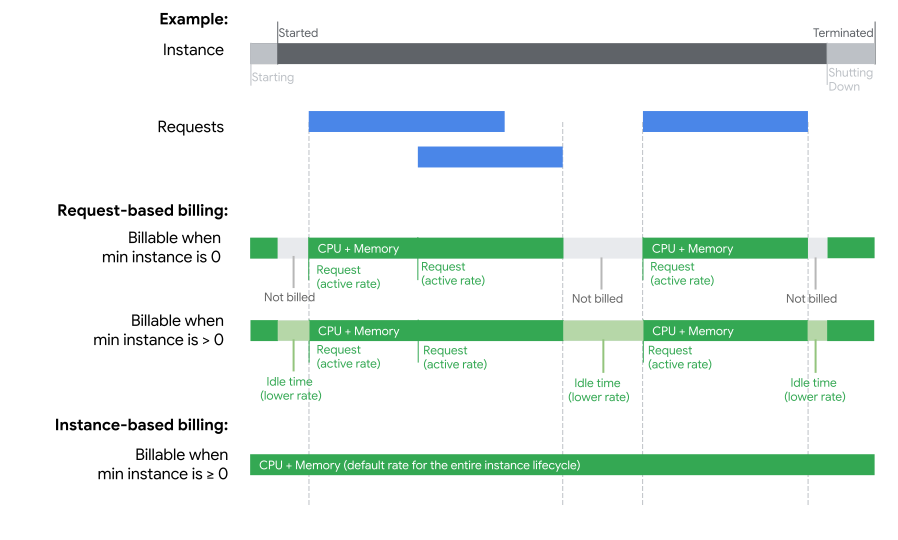 **Figure 1.** An example instance that receives and processes three requests.
Depending on the [billing settings](https://docs.cloud.google.com/run/docs/configuring/billing-settings.md.txt)
configured, the service is billed as follows:
- For **request-based billing** , you are billed at a lower rate when instances are idle and waiting to process requests. If min instances is set to `0`, you are not billed when instances are idle.
- For **instance-based billing** , you are billed the default rate for the entire instance lifecycle. The time from starting and shutting down includes when an instance is processing requests or idle. In other words, even if min instances is set to `0`, you are still billed the default rate. This option works well if you need [CPU outside of requests](https://docs.cloud.google.com/run/docs/about-instance-autoscaling.md.txt). If min instances is set to `0`, you are billed the default rate.
Since these charges are predictable, Google recommends purchasing a [Committed use discount](https://docs.cloud.google.com/run/cud.md.txt).
## Apply minimum instances at service-level versus revision-level
You can configure minimum instances at the [service](https://docs.cloud.google.com/run/docs/resource-model.md.txt#services)
level or at the [revision](https://docs.cloud.google.com/run/docs/resource-model.md.txt#revisions) level. Google
recommends that you apply minimum instances at the service level and avoid
combining service-level and revision-level minimum instances. Learn more about
the behavior when you
[configure both service-level and revision-level scaling settings](https://docs.cloud.google.com/run/docs/configuring/min-instances.md.txt#service-and-revision-level-min-instances).
If you apply minimum instances at the revision-level, the settings go into
effect upon deployment of the revision. If you apply this feature at the
service-level, the setting goes into effect without needing to deploy a new
revision.
### Revisions and minimum instances
When minimum instances are set at the service level, incoming requests are
distributed to all revisions that are serving traffic
[proportionally to the traffic split](https://docs.cloud.google.com/run/docs/configuring/min-instances.md.txt#traffic-splitting).
When minimum instances are set at the revision level, minimum instances are
started whenever the revision is
[referenced in a traffic split](https://docs.cloud.google.com/run/docs/reference/rest/v2/projects.locations.services.md.txt#traffictarget)
or has a [traffic tag](https://docs.cloud.google.com/run/docs/rollouts-rollbacks-traffic-migration.md.txt#tags)
assigned. This means that the instance is billed when processing requests and
also when it is waiting for incoming requests.
> [!IMPORTANT]
> **Important:** Having revision-level minimum instances and traffic tags configured means that all tagged revisions are started and then kept active, even when there are no incoming requests. To avoid incurring billing costs for tagged revisions, use service-level minimum instances or remove tags on revisions when you don't need them anymore.
#### Tagged revisions and service-level minimum instances
If a revision with a [tag assigned](https://docs.cloud.google.com/run/docs/rollouts-rollbacks-traffic-migration.md.txt#tags)
is started, the instance is counted towards the service-level minimum instances
if they are a part of a traffic split.
### Request routing with minimum instances
When you set minimum instances, Cloud Run distributes incoming requests
evenly across all these provisioned instances. Understanding this behavior is
important for managing costs, especially with request-based billing or if you
intend to maintain idle [hot spare](https://en.wikipedia.org/wiki/Hot_spare)
instances. To minimize costs, set the number of minimum instances to the
[number of instances needed](https://docs.cloud.google.com/run/docs/configuring/min-instances.md.txt#number-of-min-instances-needed) to serve your
typical traffic.
## Required roles
To get the permissions that
you need to configure and deploy Cloud Run services,
ask your administrator to grant you the
following IAM roles:
- [Cloud Run Developer](https://docs.cloud.google.com/iam/docs/roles-permissions/run.md.txt#run.developer) (`roles/run.developer`) on the Cloud Run service
- [Service Account User](https://docs.cloud.google.com/iam/docs/roles-permissions/iam.md.txt#iam.serviceAccountUser) (`roles/iam.serviceAccountUser`) on the service identity
If you are deploying a [service](https://docs.cloud.google.com/run/docs/deploying-source-code.md.txt#required_roles)
or [function](https://docs.cloud.google.com/run/docs/deploy-functions.md.txt#required-roles) from source code, you
must also have additional roles granted to you on your project and
Cloud Build service account.
For a list of IAM roles and permissions that are associated with
Cloud Run, see
[Cloud Run IAM roles](https://docs.cloud.google.com/run/docs/reference/iam/roles.md.txt)
and [Cloud Run IAM permissions](https://docs.cloud.google.com/run/docs/reference/iam/permissions.md.txt).
If your Cloud Run service interfaces with
Google Cloud APIs, such as Cloud Client Libraries, see the
[service identity configuration guide](https://docs.cloud.google.com/run/docs/configuring/services/service-identity.md.txt).
For more information about granting roles, see
[deployment permissions](https://docs.cloud.google.com/run/docs/reference/iam/roles.md.txt#additional-configuration)
and [manage access](https://docs.cloud.google.com/iam/docs/granting-changing-revoking-access.md.txt).
## Configure service-level minimum instances
By default, container instances have service-level minimum instances turned off,
with a setting of `0`. You can change this default using the
Google Cloud console, the Google Cloud CLI, or a YAML file:
### Console
1. In the Google Cloud console, go to Cloud Run:
[Go to Cloud Run](https://console.cloud.google.com/run)
2. Select **Services** from the Cloud Run navigation menu:
1. If you are configuring a new service, click **Deploy container** and
fill out the initial service settings page.
2. If you are configuring an existing service, click the service, then
click the **Scaling** tab.
3. In the **Service scaling** section, specify the minimum number of container
instances in the **Minimum number of instances** field.
4. Click Click **Create** for a new service. Click **View diff \& redeploy** , then **Deploy changes** for an existing service.
### gcloud
[Update the minimum number of instances](https://docs.cloud.google.com/sdk/gcloud/reference/beta/run/services/update.md.txt)
for a given service using the following command:
```bash
gcloud run services update SERVICE --min MIN-VALUE
```
Replace the following:
- SERVICE: the name of your service.
- MIN-VALUE: the number of container instances to be kept warm, ready to receive requests. Specify `default` to clear any minimum instance setting.
Alternatively, you can set the minimum number of instances during
[deployment](https://docs.cloud.google.com/sdk/gcloud/reference/run/deploy.md.txt) using the command:
```bash
gcloud run deploy --image IMAGE_URL --min MIN-VALUE
```
Replace the following:
- `IMAGE_URL`: a reference to the container image, for example, `us-docker.pkg.dev/cloudrun/container/hello:latest`. If you use Artifact Registry, the [repository](https://docs.cloud.google.com/artifact-registry/docs/repositories/create-repos.md.txt#docker) REPO_NAME must already be created. The URL follows the format of `LOCATION-docker.pkg.dev/PROJECT_ID/REPO_NAME/PATH:TAG` .
- MIN-VALUE: the number of container instances to be kept warm, ready to receive requests. Specify `default` to clear any minimum instance setting.
### YAML
Any configuration change leads to the
creation of a new revision. Subsequent revisions will also automatically get
this configuration setting unless you make explicit updates to change it.
1. If you are creating a new service, skip this step.
If you are updating an existing service, download its [YAML configuration](https://docs.cloud.google.com/run/docs/reference/yaml/v1.md.txt):
```bash
gcloud run services describe SERVICE --format export > service.yaml
```
2. Update the `run.googleapis.com/minScale` attribute:
```yaml
apiVersion: serving.knative.dev/v1
kind: Service
metadata:
name: SERVICE
annotations:
run.googleapis.com/minScale: 'MIN_INSTANCE'
```
Replace the following:
- SERVICE: the name of your Cloud Run service
- MIN-INSTANCE: the number of instances to be kept warm, ready to receive requests.
3. Create or update the service using the following command:
```bash
gcloud run services replace service.yaml
```
The `gcloud run services replace` command defaults to using `service.yaml` file if present.
### Client libraries
To update service-level minimum instances for your service from code:
- [Go](https://docs.cloud.google.com/go/docs/reference/cloud.google.com/go/run/latest/apiv2.md.txt#cloud_google_com_go_run_apiv2_ServicesClient_UpdateService)
- [Java](https://docs.cloud.google.com/java/docs/reference/google-cloud-run/latest/com.google.cloud.run.v2.ServicesClient.md.txt#com_google_cloud_run_v2_ServicesClient_updateServiceAsync_com_google_cloud_run_v2_Service_)
- [Node.js](https://docs.cloud.google.com/nodejs/docs/reference/run/latest/run/v2.servicesclient.md.txt#_google_cloud_run_v2_ServicesClient_updateService_member_1_)
- [Python](https://docs.cloud.google.com/python/docs/reference/run/latest/google.cloud.run_v2.services.services.ServicesClient.md.txt#google_cloud_run_v2_services_services_ServicesClient_update_service)
- [Ruby](https://docs.cloud.google.com/ruby/docs/reference/google-cloud-run-v2/latest/Google-Cloud-Run-V2-Services-Client.md.txt#Google__Cloud__Run__V2__Services__Client_update_service_instance_)
- [PHP](https://docs.cloud.google.com/php/docs/reference/cloud-run/latest/V2.Client.ServicesClient.md.txt#_Google_Cloud_Run_V2_Client_ServicesClient__updateService__)
- [.NET](https://docs.cloud.google.com/dotnet/docs/reference/Google.Cloud.Run.V2/latest/Google.Cloud.Run.V2.ServicesClient.md.txt#Google_Cloud_Run_V2_ServicesClient_UpdateService_Google_Cloud_Run_V2_Service_Google_Api_Gax_Grpc_CallSettings_)
### REST API
To update service-level minimum instances for a given service, send a `PATCH`
HTTP request to the Cloud Run Admin API
[`service` endpoint](https://docs.cloud.google.com/run/docs/reference/rest/v2/projects.locations.services/patch.md.txt).
For example, using `curl`:
```bash
curl -H "Content-Type: application/json" \
-H "Authorization: Bearer ACCESS_TOKEN" \
-X PATCH \
-d '{ "scaling": { "minInstanceCount": MIN-VALUE }}' \
https://run.googleapis.com/v2/projects/PROJECT_ID/locations/REGION/services/SERVICE?update_mask=scaling.minInstanceCount
```
Replace the following:
- ACCESS_TOKEN: a valid access token for an account that has the [IAM permissions to update a service](https://docs.cloud.google.com/run/docs/reference/iam/permissions.md.txt). For example, if you are logged into `gcloud`, you can retrieve an access token using `gcloud auth print-access-token`. From within a Cloud Run container instance, you can retrieve an access token using the [container instance metadata server](https://docs.cloud.google.com/run/docs/container-contract.md.txt#metadata-server).
- MIN-VALUE: the number of container instances to be kept warm, ready to receive requests.
- SERVICE: the name of the service.
- REGION: the Google Cloud region of the service.
- PROJECT-ID: the Google Cloud project ID.
## View service-level minimum instances
To view the current service-level minimum instances settings for your
Cloud Run service:
### Console
1. In the Google Cloud console, go to the Cloud Run **Services** page:
[Go to Cloud Run](https://console.cloud.google.com/run/services)
2. Click the service you are interested in to open the **Service details**
panel.
3. Click the **Scaling** tab.
4. Find the **Minimum number of instances** setting under the
**Service scaling** section.
### gcloud
1. Use the following command:
```bash
gcloud run services describe SERVICE
```
2. Locate the value for **Scaling: Auto (Min: MIN_VALUE, Max: MAX_VALUE)** in the returned configuration.
## Configure revision-level minimum instances
Any configuration change leads to the
creation of a new revision. Subsequent revisions will also automatically get
this configuration setting unless you make explicit updates to change it.
By default, container instances have `min-instances` turned off, with a setting
of `0`.
Revision-level scaling is only available for services that
previously had the feature configured.
### Console
1. In the Google Cloud console, go to Cloud Run:
[Go to Cloud Run](https://console.cloud.google.com/run)
2. Select **Services** from the Cloud Run navigation menu:
1. If you are configuring a new service, click **Deploy container** and
fill out the initial service settings page. Then click
**Containers, Networking, Security** to expand the service configuration page.
2. If you are configuring an existing service, click the service, then
click the **Scaling** tab.
3. In the **Revision scaling** section, specify the minimum number of container
instances in the **Minimum number of instances** field.
4. Click **Create** for a new service. Click **View diff \& redeploy** , then **Deploy changes** for an existing service.
### gcloud
You can [update `min-instance`](https://docs.cloud.google.com/sdk/gcloud/reference/run/services/update.md.txt)
of a given service by using the following command:
```bash
gcloud run services update SERVICE --min-instances MIN-VALUE
```
Replace the following:
- SERVICE: the name of your service.
- MIN-VALUE: the number of container instances to be kept warm, ready to receive requests. Specify `default` to clear any minimum instance setting.
You can also set `min-instance` during
[deployment](https://docs.cloud.google.com/sdk/gcloud/reference/run/deploy.md.txt) using the command:
```bash
gcloud run deploy --image IMAGE_URL --min-instances MIN-VALUE
```
Replace the following:
- `IMAGE_URL`: a reference to the container image, for example, `us-docker.pkg.dev/cloudrun/container/hello:latest`. If you use Artifact Registry, the [repository](https://docs.cloud.google.com/artifact-registry/docs/repositories/create-repos.md.txt#docker) REPO_NAME must already be created. The URL follows the format of `LOCATION-docker.pkg.dev/PROJECT_ID/REPO_NAME/PATH:TAG` .
- MIN-VALUE: the number of container instances to be kept warm, ready to receive requests. Specify `default` to clear any minimum instance setting.
### YAML
1. If you are creating a new service, skip this step.
If you are updating an existing service, download its [YAML configuration](https://docs.cloud.google.com/run/docs/reference/yaml/v1.md.txt):
```bash
gcloud run services describe SERVICE --format export > service.yaml
```
2. Update the `autoscaling.knative.dev/minScale:` attribute:
```yaml
apiVersion: serving.knative.dev/v1
kind: Service
metadata:
name: SERVICE
spec:
template:
metadata:
annotations:
autoscaling.knative.dev/minScale: 'MIN-INSTANCE'
name: REVISION
```
Replace the following:
- SERVICE: the name of your Cloud Run service
- MIN-INSTANCE: the number of instances to be kept warm, ready to receive requests.
- `REVISION`: a new revision name or delete it (if present). If you supply a new revision name, it **must** meet the following criteria:
- Starts with `SERVICE-`
- Contains only lowercase letters, numbers and `-`
- Does not end with a `-`
- Does not exceed 63 characters
3. Create or update the service using the following command:
```bash
gcloud run services replace service.yaml
```
The `gcloud run services replace` command defaults to using `service.yaml` file if present.
### Terraform
To learn how to apply or remove a Terraform configuration, see
[Basic Terraform commands](https://docs.cloud.google.com/docs/terraform/basic-commands.md.txt).
Add the following to a [`google_cloud_run_v2_service`](https://registry.terraform.io/providers/hashicorp/google/latest/docs/resources/cloud_run_v2_service) resource in your Terraform configuration:
```terraform
resource "google_cloud_run_v2_service" "default" {
name = "cloudrun-service-min-instances"
location = "us-central1"
deletion_protection = false # set to "true" in production
template {
containers {
image = "us-docker.pkg.dev/cloudrun/container/hello"
}
scaling {
# Min instances
min_instance_count = 1
}
}
}
```
The preceding `google_cloud_run_v2_service` resource specifies a minimum
number of instances of `1` under `template.scaling`.
Replace `1` with your own minimum number of instances.
## View revision-level minimum instances
Revision-level scaling is only available for services that previously had the
feature configured.
To view the current revision-level minimum instances settings for your
Cloud Run service:
### Console
1. In the Google Cloud console, go to the Cloud Run **Services** page:
[Go to Cloud Run](https://console.cloud.google.com/run/services)
2. Click the service you are interested in to open the **Service details**
panel.
3. Click the **Scaling** tab.
4. Find the **Minimum number of instances** setting under the
**Revision scaling** section.
### gcloud
1. Use the following command:
```bash
gcloud run services describe SERVICE
```
2. Locate the value for **Min instances:** in the returned configuration.
## Examples
The following sections show the service behavior when configuring minimum
instances.
### Use both service-level and revision-level minimum or maximum instances
You can combine service-level and revision-level minimum or maximum instances.
When you configure both, the final instance limits are determined by the following
rules:
- **Maximum limits always cap minimum limits:** Any maximum limit you configure either at the service-level or revision-level strictly prevents the system from scaling past that value, regardless of any minimum settings.
- **For minimum limits, the largest wins:** When multiple minimum limits are active, and not blocked by a maximum limit, the autoscaler satisfies the highest minimum limit.
| Service | Revision | Resolution Rule | Resulting behavior |
|---|---|---|---|
| Min | Min | Highest min wins | If service min is 10 and revision min is 5, the revision runs 10 instances to satisfy the larger global minimum. |
| Min | Max | Revision max overrides service min | If service min is 10 but revision max is 5, the revision is strictly capped at 5 instances. |
| Max | Min | Service max overrides revision min | If service max is 5 but revision min is 10, the revision is strictly capped at 5 instances. |
| Max | Max | Lowest max wins | If service max is 5 and revision max is 10, the revision is capped at 5 instances. |
Cloud Run resolves capacity constraints by first
calculating the effective maximum instances (the smaller of service-level and
revision-level maximums). It then determines the effective minimum instances
(the larger of the revision-level minimum and the allocated service-level
minimum), capping the result at the effective maximum.
If you don't configure a value, the autoscaler uses the
defaults, such as, 0 for service-level and revision-level minimum instances
and 100 for revision-level maximum instances.
### Use service level minimum instances with traffic splitting
If you use [traffic splitting](https://docs.cloud.google.com/run/docs/rollouts-rollbacks-traffic-migration.md.txt#split-traffic),
the service-level minimum instances are divided across the revisions based on the
proportion of the traffic split. For example, if the service-level minimum
instances = 10, a 50/50 traffic split allocates 5 service-level minimum instances
to each revision.
The following table shows sample configuration scenarios:
| Sample use case | Service min | Revision A | Revision B | Traffic split | Resulting behavior |
|---|---|---|---|---|---|
| No revision-level settings | 10 | Min: 0 | Min: 0 | 60/40 | Revision A receives 6 instances from service-level minimum instances proportional to the traffic split. Revision B receives 4 instances from service-level minimum instances proportional to the traffic split. |
| Receiving more than the service-level minimum instances due to revision-level minimum instances | 10 | Min: 6 | Min: 0 | 50/50 | Revision A receives 6 instances from revision-level minimum instances. Revision B receives 5 instances from service-level minimum instances proportional to the traffic split. This exceeds service-level minimum instances and is intended. |
| Receiving less than service-level minimum instances due to revision-level maximum instances | 10 | Min: 0 Max: 3 | Min: 0 | 50/50 | Revision A receives 3 instances from service-level minimum instances driven by the traffic split, but is limited to its revision level maximum instances. Revision B receives 5 instances from service-level minimum instances proportional to the traffic split. This results in 8 service-level instances, as 2 are lost due to revision-level maximum instances of revision A. |
| Service-level minimum instances is greater than the number of revisions in the traffic split and there is a fractional amount of instances proportional to the traffic split | 3 | Min: 0 | Min: 0 | 50/50 | Fractional allocations (1.5 instances each) are rounded. The first-listed revision in the [traffic section](https://docs.cloud.google.com/run/docs/reference/rest/v2/projects.locations.services.md.txt#traffictarget) receives the rounded-up value: Revision B (listed first) gets 2 instances, and Revision A gets 1. Total instance count is 3. |
### Determine the number of minimum instances needed
If minimum instances is set higher than what is required for your typical
traffic, many instances may become slightly active, each processing a few
requests. For example, if your service generally requires 200 instances for peak
load but minimum instances is configured to 600, incoming requests will be
spread across all 600 instances. This results in many of these 600 instances
becoming somewhat active, each handling a small portion of the traffic, instead
of \~200 instances being highly active and the remaining 400 staying completely
idle.
To minimize costs (by having higher utilization on fewer instances), set minimum
instances to a value that closely aligns with the actual number of instances
needed to serve your typical traffic.
Additionally, when autoscaling provisions additional instances above the
configured minimum instances, Cloud Run prefers to route incoming
requests to the configured minimum instances first before sending requests to
the autoscaled instances. With request-based billing, this preferential routing
to the configured minimum instances reduces cost by filling the configured
minimum instances before using the autoscaled instances. Note that this
preferential routing can also lead to configured minimum instances having a
higher utilization than autoscaled instances, depending on the amount of
traffic.