Multiple Google Cloud organization resources let you maintain
business units or departments as isolated entities with no central
administration. For most use cases, use folders under a single organization
resource in the [Google Cloud resource
hierarchy](https://docs.cloud.google.com/resource-manager/docs/cloud-platform-resource-hierarchy). An
organization resource establishes ownership of the projects and folders
underneath it. Each Google Workspace or Cloud Identity account maps to a
primary domain, such as `example.com`, and creates one organization resource.
For more information about identity domain options, see [Add a user alias
domain or secondary domain](https://support.google.com/a/answer/7502379) and
[Change your primary domain for
Google Workspace](https://support.google.com/a/answer/7009324).
Alternatively, you can use [standalone
organizations](https://docs.cloud.google.com/resource-manager/docs/standalone-organization-overview), which
operate independently and don't require a Cloud Identity or
Google Workspace account.
## Effects of using multiple organization resources
Use multiple organization resources when you don't want users
from one Google Cloud, Google Workspace, or Cloud Identity account to access
resources created by users from another account. Separating resources into multiple organization
resources causes the following:
- By default, no single user has central visibility and control over all
resources.
- Policies that are common across sub-organizations need to be replicated
on each organization resource.
- Moving folders from one organization resource to another is not a supported
operation. For more information, see
[Migrate projects between organization resources](https://docs.cloud.google.com/resource-manager/docs/project-migration.md.txt).
- Each Cloud Identity organization resource requires a Google Workspace account. Operating
multiple Cloud Identity organization resources therefore requires multiple Google Workspace
accounts and the ability to manage identities across them.
> [!NOTE]
> **Note:** Standalone organizations don't require Cloud Identity. Additionally, if you have a Cloud Identity domain, a Google Workspace domain isn't required.
## Using a single organization resource
Most organizations that want to maintain separate sub-organizations can do so
using a single organization resource and folders. If you have a single
Google Workspace account, this account maps to the organization resource, and
sub-organizations map to folders.
### Choose an Organization Administrator
Google Workspace and Cloud Identity users can choose one or more users to act as the IAM Organization
Administrator for the organization resource using the following instructions.
For instructions on configuring IAM for Standalone organizations, see [Add Organization Owner](https://docs.cloud.google.com/resource-manager/docs/standalone-organization-overview.md.txt#add-organization-owner).
To add an Organization Administrator, you can use the Google Cloud console,
the Google Cloud CLI, or the Resource Manager API.
### Console
1. Sign in to the Google Cloud console as a Google Workspace or
Cloud Identity super administrator and navigate to the
**IAM \& Admin** page:
[Open the IAM \& admin page](https://console.cloud.google.com/iam-admin)
2. Select the organization resource you want to edit:
1. Click the project drop-down list at the top of the page.
2. In the **Select from** dialog, click the organization drop-down
list, and select the organization resource to which you want to add
an Organization Administrator.
3. On the list that appears, click the organization resource to open
its **IAM Permissions** page.
3. Click **Add**, and then enter the email address of one or more users you
want to set as Organization Administrators.
4. In the **Select a role** drop-down list, select **Resource Manager**
\> **Organization Administrator** , and then click **Save**.
The Organization Administrator can do the following:
- Take full control of the organization resource. Separation of
responsibilities between Google Workspace or
Cloud Identity super administrator and Google Cloud
administrator is established.
- Delegate responsibility over critical functions by assigning the
relevant IAM roles.
### gcloud
To add an Organization Administrator, run the
[`gcloud organizations add-iam-policy-binding`](https://docs.cloud.google.com/sdk/gcloud/reference/organizations/add-iam-policy-binding)
command:
```bash
gcloud organizations add-iam-policy-binding ORGANIZATION_ID \
--member="user:EMAIL_ADDRESS" \
--role="roles/resourcemanager.organizationAdmin"
```
Replace the following:
- `ORGANIZATION_ID`: the unique ID of your organization resource.
- `EMAIL_ADDRESS`: the email address of the user you want to add as an Organization Administrator.
### API
To add an Organization Administrator, call the
[`setIamPolicy`](https://docs.cloud.google.com/resource-manager/reference/rest/v3/organizations/setIamPolicy.md.txt)
method on the organization resource.
1. Get the current IAM policy for the organization resource:
```console
POST https://cloudresourcemanager.googleapis.com/v3/organizations/ORGANIZATION_ID:getIamPolicy
```
2. Update the returned policy to add the member to the
`roles/resourcemanager.organizationAdmin` role.
3. Set the updated policy:
```console
POST https://cloudresourcemanager.googleapis.com/v3/organizations/ORGANIZATION_ID:setIamPolicy
{
"policy": {
"bindings": [
{
"role": "roles/resourcemanager.organizationAdmin",
"members": [
"user:EMAIL_ADDRESS"
]
}
],
"etag": "ETAG_VALUE"
}
}
```
Replace the following:
- `ORGANIZATION_ID`: the unique ID of your organization resource.
- `EMAIL_ADDRESS`: the email address of the user you want to add as an Organization Administrator.
- `ETAG_VALUE`: the `etag` value from the policy returned in the first step.
### Create folders for sub-organizations
Create a folder under the organization resource for each sub-organization.
To create folders, you must have the **Folder Admin** or **Folder Creator** role
at the parent level. For example, to create folders at the organization level,
you must have one of these roles at the organization level.
As part of creating a folder, you must assign it a name. Folder names must meet
the following requirements:
- The name may contain letters, digits, spaces, hyphens and underscores.
- The folder's display name must start and end with a letter or digit.
- The name must be between 3 and 30 characters.
- The name must be distinct from all other folders that share its parent.
To create a folder, follow these steps:
### Console
To create folders, do the following:
1. Go to the **Manage resources** page in the Google Cloud console:
[Open the Manage resources
page](https://console.cloud.google.com/cloud-resource-manager)
2. Click **Create folder**, and select one of the following options:
- **Standard Google Cloud folder** : A standard [folder resource](https://docs.cloud.google.com/resource-manager/docs/cloud-platform-resource-hierarchy.md.txt#folders).
- **Compliant folder** : An [Assured Workloads folder](https://docs.cloud.google.com/assured-workloads/docs/key-concepts.md.txt#folders), which provides additional regulatory, regional, or sovereign controls for Google Cloud resources. Selecting this option will take you to Assured Workloads to [create a folder](https://docs.cloud.google.com/assured-workloads/docs/create-folder.md.txt).
3. In the **Folder name** box, enter your new folder's name.
4. Under **Parent resource** , click **Browse**, then select the organization
resource or folder under which you want to create your new folder.
1. Click **Create**.
### gcloud
Folders can be created programmatically using the
Google Cloud CLI.
To create a folder under the organization resource using the `gcloud`
command-line tool, run the following command.
gcloud resource-manager folders create \
--display-name=DISPLAY_NAME \
--organization=ORGANIZATION_ID
To create a folder whose parent is another folder:
gcloud resource-manager folders create \
--display-name=DISPLAY_NAME \
--folder=FOLDER_ID
Replace the following:
- DISPLAY_NAME: the folder's display name. No two folders with the same parent can share a display name. The display name must start and end with a letter or digit, may contain letters, digits, spaces, hyphens and underscores, and can be no longer than 30 characters.
- ORGANIZATION_ID: the ID of the parent organization resource if the parent is an organization resource.
- FOLDER_ID: the ID of the parent folder, if the parent is a folder.
### API
[Folders](https://docs.cloud.google.com/resource-manager/reference/rest/v3/folders.md.txt) can be
created with an API request.
The request JSON:
```json
request_json= '{
display_name: DISPLAY_NAME,
parent: ORGANIZATION_NAME
}'
```
The Create Folder curl request:
```console
curl -X POST -H "Content-Type: application/json" \
-H "Authorization: Bearer ${bearer_token}" \
-d "$request_json" \
https://cloudresourcemanager.googleapis.com/v3/folders
```
Where:
- DISPLAY_NAME: the new folder's display name, for example "My Awesome Folder."
- ORGANIZATION_NAME: the name of the organization resource under which you're creating the folder, for example `organizations/123`.
The Create Folder response:
If a call successfully registers an operation, the response body contains
an instance of Operation.
```json
{
"name": "operations/fc.123456789",
"metadata": {
"@type": "type.googleapis.com/google.cloud.resourcemanager.v3.FolderOperation",
"displayName": "DISPLAY_NAME",
"operationType": "CREATE"
}
}
```
The Get Operation curl request:
```console
curl -H "Authorization: Bearer ${bearer_token}" \
https://cloudresourcemanager.googleapis.com/v3/operations/fc.123456789
```
The Get Operation response:
```json
{
"name": "operations/fc.123456789",
"metadata": {
"@type": "type.googleapis.com/google.cloud.resourcemanager.v3.FolderOperation",
"displayName": "DISPLAY_NAME",
"operationType": "CREATE"
},
"done": true,
"response": {
"@type": "type.googleapis.com/google.cloud.resourcemanager.v3.Folder",
"name": "folders/12345",
"parent": "organizations/123",
"displayName": "DISPLAY_NAME",
"lifecycleState": "ACTIVE",
"createTime": "2017-07-19T23:29:26.018Z",
"updateTime": "2017-07-19T23:29:26.046Z"
}
}
```
### Grant folder administrator roles
For each sub-organization folder you create, grant one or more users the
**Folder Admin** role. These users have administrative control over the
**Folder Admin** role. These users have administrative control over the
folder and the sub-organization it represents.
To configure access to folders, you must have the **Folder IAM Administrator**
or **Folder Admin** role at the parent level.
### Console
1. In the Google Cloud console, open the **Manage Resources** page.
[Open the Manage Resources page](https://console.cloud.google.com/cloud-resource-manager)
2. Click the **Organization** drop-down list in the upper left and then
select your organization resource.
3. Select the checkbox next to the project for which you want to change
permissions.
1. On the right side **Info panel** , under **Permissions**, enter the
email addresses of the members you want to add.
2. In the **Select a role** drop-down list, select the role you want to
grant to those members.
3. Click **Add**. A notification appears to confirm the addition or update
of the members' new role.
### gcloud
You can configure access to folders programmatically using the
Google Cloud CLI or the REST API.
```bash
gcloud resource-manager folders \
add-iam-policy-binding FOLDER_ID \
--member=user:email1@example.com \
--role=roles/resourcemanager.folderEditor
```
```bash
gcloud resource-manager folders \
add-iam-policy-binding FOLDER_ID \
--member=user:email1@example.com \
--role=roles/resourcemanager.folderViewer
```
Alternatively:
```bash
gcloud resource-manager folders \
set-iam-policy FOLDER_ID POLICY_FILE
```
Replace the following:
- FOLDER_ID: the ID of the new folder
- POLICY_FILE: the path to a policy file for the folder
### API
The `setIamPolicy` method sets the access control policy on a folder,
replacing any existing policy. The `resource` field should be the folder's
resource name, for example, `folders/1234`.
```json
request_json= '{
policy: {
version: "1",
bindings: [
{
role: "roles/resourcemanager.folderEditor",
members: [
"user:email1@example.com",
"user:email2@example.com",
]
}
]
}
}'
```
The curl request:
```console
curl -X POST -H "Content-Type: application/json" \
-H "Authorization: Bearer ${bearer_token}" \
-d "$request_json" \
https://cloudresourcemanager.googleapis.com/v3/FOLDER_ID:setIamPolicy
```
Replace FOLDER_ID with the name of the folder whose IAM policy is being set,
for example folders/123.
### Restrict sub-organization roles
Each **Folder Admin** can restrict the **Project Creator** role to members of
its sub-organization. They can remove the domain from the **Project Creator**
role in the organization resource's allow policy as well.
Google Workspace super administrators have irrevocable Organization
Administrator privileges. These super admins typically manage the identities and
identity policies, rather than managing Google Cloud resources and
resource policies.
### Console
To remove the roles assigned to users by default using the Google Cloud console:
1. Go to the **Manage resources** page in the Google Cloud console:
[Open the Manage resources page](https://console.cloud.google.com/cloud-resource-manager)
2. Click the **Organization** drop-down list at the top of the page and then select
your organization resource.
3. Select the check box for the organization resource for which you want to
change permissions. If you do not have a Folder resource, the
organization resource will not be visible. To continue, see the
instructions for revoking roles through the
[IAM](https://docs.cloud.google.com/iam/docs/granting-changing-revoking-access.md.txt#revoke_access)
page.
4. On the right side **Info Panel** , under **Permissions**, click to expand the role
from which you want to remove users.
5. Under the expanded role list, next to the principal you want to remove from
the role, click remove.
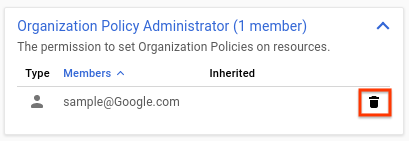
6. On the **Remove principal?** dialog that appears, click **Remove** to confirm removing the role from the specified principal.
7. Repeat the above two steps for each role you want to remove.
### Example
The following diagram illustrates an organization that has used folders to separate
two departments. The heads of the engineering and finance departments have
administrative control, and other users are prevented from creating projects.

## Manage multiple organizations under a primary organization resource
If your organization has multiple Google Workspace accounts, you have
multiple organization resources by default. To maintain central visibility and
control, you should choose one organization resource to be the primary
organization resource. The super administrators of the Google Workspace
account associated with your primary organization resource have administrative
control over all resources in that organization. They don't automatically
have control over resources in other organizations. Users from other
Google Workspace accounts can be granted access to a folder under the
primary organization resource, in which they can create projects.
### Choose an Organization Administrator
Choose one or more users to act as the IAM Organization
Administrator for the organization resource.
To add an Organization Administrator, you can use the Google Cloud console,
the Google Cloud CLI, or the Resource Manager API.
### Console
1. Sign in to the Google Cloud console as a Google Workspace or
Cloud Identity super administrator and navigate to the
**IAM \& Admin** page:
[Open the IAM \& admin page](https://console.cloud.google.com/iam-admin)
2. Select the organization resource you want to edit:
1. Click the project drop-down list at the top of the page.
2. In the **Select from** dialog, click the organization drop-down
list, and select the organization resource to which you want to add
an Organization Administrator.
3. On the list that appears, click the organization resource to open
its **IAM Permissions** page.
3. Click **Add**, and then enter the email address of one or more users you
want to set as Organization Administrators.
4. In the **Select a role** drop-down list, select **Resource Manager**
\> **Organization Administrator** , and then click **Save**.
The Organization Administrator can do the following:
- Take full control of the organization resource. Separation of
responsibilities between Google Workspace or
Cloud Identity super administrator and Google Cloud
administrator is established.
- Delegate responsibility over critical functions by assigning the
relevant IAM roles.
### gcloud
To add an Organization Administrator, run the
[`gcloud organizations add-iam-policy-binding`](https://docs.cloud.google.com/sdk/gcloud/reference/organizations/add-iam-policy-binding)
command:
```bash
gcloud organizations add-iam-policy-binding ORGANIZATION_ID \
--member="user:EMAIL_ADDRESS" \
--role="roles/resourcemanager.organizationAdmin"
```
Replace the following:
- `ORGANIZATION_ID`: the unique ID of your organization resource.
- `EMAIL_ADDRESS`: the email address of the user you want to add as an Organization Administrator.
### API
To add an Organization Administrator, call the
[`setIamPolicy`](https://docs.cloud.google.com/resource-manager/reference/rest/v3/organizations/setIamPolicy.md.txt)
method on the organization resource.
1. Get the current IAM policy for the organization resource:
```console
POST https://cloudresourcemanager.googleapis.com/v3/organizations/ORGANIZATION_ID:getIamPolicy
```
2. Update the returned policy to add the member to the
`roles/resourcemanager.organizationAdmin` role.
3. Set the updated policy:
```console
POST https://cloudresourcemanager.googleapis.com/v3/organizations/ORGANIZATION_ID:setIamPolicy
{
"policy": {
"bindings": [
{
"role": "roles/resourcemanager.organizationAdmin",
"members": [
"user:EMAIL_ADDRESS"
]
}
],
"etag": "ETAG_VALUE"
}
}
```
Replace the following:
- `ORGANIZATION_ID`: the unique ID of your organization resource.
- `EMAIL_ADDRESS`: the email address of the user you want to add as an Organization Administrator.
- `ETAG_VALUE`: the `etag` value from the policy returned in the first step.
### Remove Project Creator role
Remove the **Project Creator** role from the organization resource to ensure
that resources are not created in the other organization resources.
### Console
To remove the roles assigned to users by default using the Google Cloud console:
1. Go to the **Manage resources** page in the Google Cloud console:
[Open the Manage resources page](https://console.cloud.google.com/cloud-resource-manager)
2. Click the **Organization** drop-down list at the top of the page and then select
your organization resource.
3. Select the check box for the organization resource for which you want to
change permissions. If you do not have a Folder resource, the
organization resource will not be visible. To continue, see the
instructions for revoking roles through the
[IAM](https://docs.cloud.google.com/iam/docs/granting-changing-revoking-access.md.txt#revoke_access)
page.
4. On the right side **Info Panel** , under **Permissions**, click to expand the role
from which you want to remove users.
5. Under the expanded role list, next to the principal you want to remove from
the role, click remove.

6. On the **Remove principal?** dialog that appears, click **Remove** to confirm removing the role from the specified principal.
7. Repeat the above two steps for each role you want to remove.
### Create folders for Google Workspace accounts
Create a folder under the organization resource for each Google Workspace
account.
To create folders, you must have the **Folder Admin** or **Folder Creator** role
at the parent level. For example, to create folders at the organization level,
you must have one of these roles at the organization level.
As part of creating a folder, you must assign it a name. Folder names must meet
the following requirements:
- The name may contain letters, digits, spaces, hyphens and underscores.
- The folder's display name must start and end with a letter or digit.
- The name must be between 3 and 30 characters.
- The name must be distinct from all other folders that share its parent.
To create a folder, follow these steps:
### Console
To create folders, do the following:
1. Go to the **Manage resources** page in the Google Cloud console:
[Open the Manage resources
page](https://console.cloud.google.com/cloud-resource-manager)
2. Click **Create folder**, and select one of the following options:
- **Standard Google Cloud folder** : A standard [folder resource](https://docs.cloud.google.com/resource-manager/docs/cloud-platform-resource-hierarchy.md.txt#folders).
- **Compliant folder** : An [Assured Workloads folder](https://docs.cloud.google.com/assured-workloads/docs/key-concepts.md.txt#folders), which provides additional regulatory, regional, or sovereign controls for Google Cloud resources. Selecting this option will take you to Assured Workloads to [create a folder](https://docs.cloud.google.com/assured-workloads/docs/create-folder.md.txt).
3. In the **Folder name** box, enter your new folder's name.
4. Under **Parent resource** , click **Browse**, then select the organization
resource or folder under which you want to create your new folder.
1. Click **Create**.
### gcloud
Folders can be created programmatically using the
Google Cloud CLI.
To create a folder under the organization resource using the `gcloud`
command-line tool, run the following command.
gcloud resource-manager folders create \
--display-name=DISPLAY_NAME \
--organization=ORGANIZATION_ID
To create a folder whose parent is another folder:
gcloud resource-manager folders create \
--display-name=DISPLAY_NAME \
--folder=FOLDER_ID
Replace the following:
- DISPLAY_NAME: the folder's display name. No two folders with the same parent can share a display name. The display name must start and end with a letter or digit, may contain letters, digits, spaces, hyphens and underscores, and can be no longer than 30 characters.
- ORGANIZATION_ID: the ID of the parent organization resource if the parent is an organization resource.
- FOLDER_ID: the ID of the parent folder, if the parent is a folder.
### API
[Folders](https://docs.cloud.google.com/resource-manager/reference/rest/v3/folders.md.txt) can be
created with an API request.
The request JSON:
```json
request_json= '{
display_name: DISPLAY_NAME,
parent: ORGANIZATION_NAME
}'
```
The Create Folder curl request:
```console
curl -X POST -H "Content-Type: application/json" \
-H "Authorization: Bearer ${bearer_token}" \
-d "$request_json" \
https://cloudresourcemanager.googleapis.com/v3/folders
```
Where:
- DISPLAY_NAME: the new folder's display name, for example "My Awesome Folder."
- ORGANIZATION_NAME: the name of the organization resource under which you're creating the folder, for example `organizations/123`.
The Create Folder response:
If a call successfully registers an operation, the response body contains
an instance of Operation.
```json
{
"name": "operations/fc.123456789",
"metadata": {
"@type": "type.googleapis.com/google.cloud.resourcemanager.v3.FolderOperation",
"displayName": "DISPLAY_NAME",
"operationType": "CREATE"
}
}
```
The Get Operation curl request:
```console
curl -H "Authorization: Bearer ${bearer_token}" \
https://cloudresourcemanager.googleapis.com/v3/operations/fc.123456789
```
The Get Operation response:
```json
{
"name": "operations/fc.123456789",
"metadata": {
"@type": "type.googleapis.com/google.cloud.resourcemanager.v3.FolderOperation",
"displayName": "DISPLAY_NAME",
"operationType": "CREATE"
},
"done": true,
"response": {
"@type": "type.googleapis.com/google.cloud.resourcemanager.v3.Folder",
"name": "folders/12345",
"parent": "organizations/123",
"displayName": "DISPLAY_NAME",
"lifecycleState": "ACTIVE",
"createTime": "2017-07-19T23:29:26.018Z",
"updateTime": "2017-07-19T23:29:26.046Z"
}
}
```
### Grant folder administrator roles
For each of the folders created, grant one or more users the **Folder Admin**
role. These users are delegated administrative control over the folder and
the sub-organization it represents.
To configure access to folders, you must have the **Folder IAM Administrator**
or **Folder Admin** role at the parent level.
### Console
1. In the Google Cloud console, open the **Manage Resources** page.
[Open the Manage Resources page](https://console.cloud.google.com/cloud-resource-manager)
2. Click the **Organization** drop-down list in the upper left and then
select your organization resource.
3. Select the checkbox next to the project for which you want to change
permissions.
1. On the right side **Info panel** , under **Permissions**, enter the
email addresses of the members you want to add.
2. In the **Select a role** drop-down list, select the role you want to
grant to those members.
3. Click **Add**. A notification appears to confirm the addition or update
of the members' new role.
### gcloud
You can configure access to folders programmatically using the
Google Cloud CLI or the REST API.
```bash
gcloud resource-manager folders \
add-iam-policy-binding FOLDER_ID \
--member=user:email1@example.com \
--role=roles/resourcemanager.folderEditor
```
```bash
gcloud resource-manager folders \
add-iam-policy-binding FOLDER_ID \
--member=user:email1@example.com \
--role=roles/resourcemanager.folderViewer
```
Alternatively:
```bash
gcloud resource-manager folders \
set-iam-policy FOLDER_ID POLICY_FILE
```
Replace the following:
- FOLDER_ID: the ID of the new folder
- POLICY_FILE: the path to a policy file for the folder
### API
The `setIamPolicy` method sets the access control policy on a folder,
replacing any existing policy. The `resource` field should be the folder's
resource name, for example, `folders/1234`.
```json
request_json= '{
policy: {
version: "1",
bindings: [
{
role: "roles/resourcemanager.folderEditor",
members: [
"user:email1@example.com",
"user:email2@example.com",
]
}
]
}
}'
```
The curl request:
```console
curl -X POST -H "Content-Type: application/json" \
-H "Authorization: Bearer ${bearer_token}" \
-d "$request_json" \
https://cloudresourcemanager.googleapis.com/v3/FOLDER_ID:setIamPolicy
```
Replace FOLDER_ID with the name of the folder whose IAM policy is being set,
for example folders/123.
Each **Folder Admin** can then grant users from the associated domain
the **Project Creator** role.
### Example
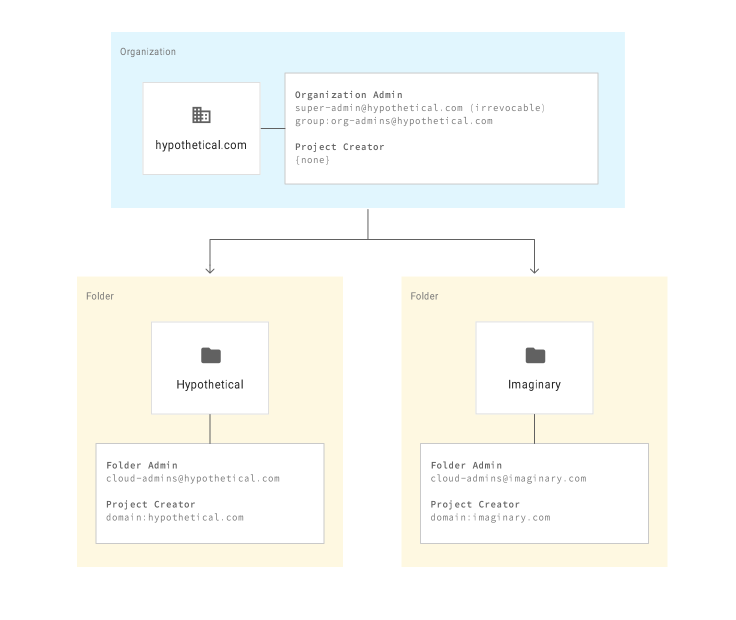
The following diagram illustrates an organization with a primary domain that is
kept isolated from an acquired secondary domain. Each of the two domains have
their own Google Workspace accounts, with `hypothetical.com` being the
primary organization resource.