You can set up an app-enabled folder to build, operate, and manage
[App Hub](https://docs.cloud.google.com/app-hub/docs/overview.md.txt) applications. This document is
intended for administrators and developers who configure and maintain these
applications.
## Overview
Google Cloud provides an application-centric approach for deploying and managing
your resources. Instead of focusing on individual infrastructure components, you
can manage your applications as a whole. For more information about this
application-centric model and its resource organization,
see [Application-centric Google Cloud](https://docs.cloud.google.com/app-hub/docs/application-centric-google-cloud.md.txt).
At the core of the application-centric experience is the [App Hub](https://docs.cloud.google.com/app-hub/docs/overview.md.txt)
application. An [application](https://docs.cloud.google.com/app-hub/docs/key-concepts.md.txt#application) is a
logical grouping of resources that work together to provide a specific business
function. These resources include the following:
- [Services](https://docs.cloud.google.com/app-hub/docs/key-concepts.md.txt#service): A network or API interface that exposes functionality to clients, like a load balancer's forwarding rule.
- [Workloads](https://docs.cloud.google.com/app-hub/docs/key-concepts.md.txt#workload): A compute resource running a binary deployment that performs a distinct business function, such as a managed instance group (MIG) or a Google Kubernetes Engine (GKE) deployment.
### What is an app-enabled folder?
An *app-enabled* folder is a folder within the Google Cloud resource hierarchy
that has been specially configured for application management. This folder
serves as the [application management boundary](https://docs.cloud.google.com/app-hub/docs/key-concepts.md.txt#app-mgmt-boundary)
for your applications and includes a
[management project](https://docs.cloud.google.com/app-hub/docs/key-concepts.md.txt#mgmt-project) to store the
application's metadata and configuration. You can design, configure, test,
validate, and deploy [App Hub](https://docs.cloud.google.com/app-hub/docs/overview.md.txt) applications in
one or multiple projects within the folder.
App-enabled folders streamline application management in the following ways:
- **Organize components:** They group related services and workloads, defined within App Hub, into a single application.
- **Provide centralized monitoring and management:** Instead of tracking individual components across different projects or products, you can monitor and manage the overall health and performance of your applications at the folder level.
- **Simplify administration:** By designating a folder as *app-enabled*, you create a folder-level boundary that simplifies creating and managing applications within your organization.
- **Provide an application-centric view:** They shift the focus from individual resources to the application itself, providing a holistic view of its performance.
For more information about folder-level boundaries and a comparison between
projects and folders for your application management boundary, see
[Choose your application setup model](https://docs.cloud.google.com/app-hub/docs/set-up-app-hub.md.txt).
### Overview of management projects
The [management project](https://docs.cloud.google.com/app-hub/docs/key-concepts.md.txt#mgmt-project) is a
Google Cloud project in the app-enabled folder that acts as a central repository for
all your application-centric metadata. Each folder contains only one
management project. The management project provides the infrastructure for
application libraries and APIs, including billing, quotas, and access control.
For more information about these APIs, see
[Enable APIs on a management project](https://docs.cloud.google.com/app-hub/docs/enabled-apis.md.txt).
The management project holds the complete application model, which
includes the following:
- App Hub data: The logical model of your applications, including their relationships to services and workloads, as well as metadata like owners and criticality.
- Application Design Center data: Resources like templates, catalogs, and spaces used to design and deploy new applications.
The management project can also discover resources within the resource hierarchy
of the app-enabled folder. If the management project is ever deleted, all of
this application model data is permanently lost. Although your underlying
infrastructure, such as GKE clusters or load balancers, remains
intact, its logical grouping within App Hub is permanently deleted.
## Configure a folder for application management
You can enable application management on both new and existing folders. We
recommend that you test application management within a newly created, dedicated
folder. This allows safe experimentation before applying it to existing critical
folders.
Within an app-enabled folder, authorized users can aggregate workloads and
services from any project in applications directly within that folder.
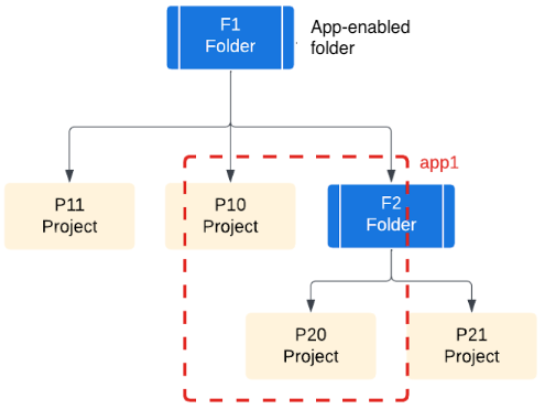
Consider a resource hierarchy with the following structure:
Folder F1 contains the following three items:
- Projects P10 and P11
- Folder F2
Folder F2 contains the following two items:
- Project P20 and P21
Enable application management on folder F1 to create an application that
includes resources from multiple folder levels. For example, an application can
include resources from projects P10 and P20.
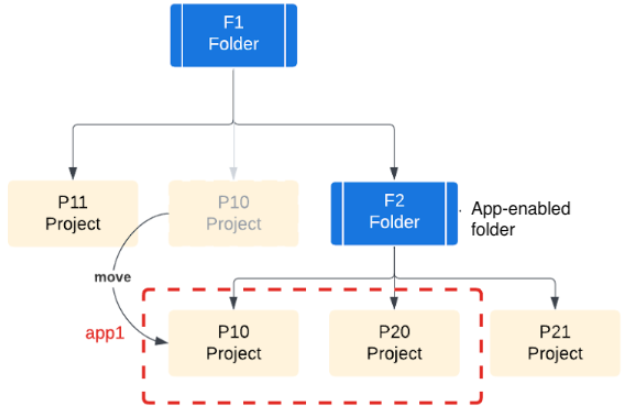
If you enable application management only on folder F2, then project P10 is
unavailable for creating applications. To create applications in project P10,
move project P10 under folder F2.
Consider your organizational structure, team responsibilities, and resources
when planning your application management strategy. The way that your teams and
resources are structured has a direct impact on how you use app-enabled folders.
### Required roles
Based on the responsibilities identified during the application lifecycle, you
and your users will require a variety of roles to configure the various aspects
of the application management process.
To get the permissions that
you need to configure an app-enabled folder,
ask your administrator to grant you the
following IAM roles:
- Enable application management: [Folder Admin](https://docs.cloud.google.com/iam/docs/roles-permissions/resourcemanager.md.txt#resourcemanager.folderAdmin) (`roles/resourcemanager.folderAdmin`) on the parent resource for the folder
- Enable APIs: [Service Usage Admin](https://docs.cloud.google.com/iam/docs/roles-permissions/serviceusage.md.txt#serviceusage.serviceUsageAdmin) (`roles/serviceusage.serviceUsageAdmin`) on the target folder (to enable required and recommended APIs)
- Link a billing account to the management project:
- [Project Billing Manager](https://docs.cloud.google.com/iam/docs/roles-permissions/billing.md.txt#billing.projectManager) (`roles/billing.projectManager`) on the management project
- [Billing Account User](https://docs.cloud.google.com/iam/docs/roles-permissions/billing.md.txt#billing.user) (`roles/billing.user`) on the target billing account
- Grant application-centric roles to users: [Project IAM Admin](https://docs.cloud.google.com/iam/docs/roles-permissions/resourcemanager.md.txt#resourcemanager.projectIamAdmin) (`roles/resourcemanager.projectIamAdmin`) on the management project
- Configure the observability scope:
- [Observability Editor](https://docs.cloud.google.com/iam/docs/roles-permissions/observability.md.txt#observability.editor) (`roles/observability.editor`) on the management project
- [Logs Configuration Writer](https://docs.cloud.google.com/iam/docs/roles-permissions/logging.md.txt#logging.configWriter) (`roles/logging.configWriter`) on the management project
- [Monitoring Admin](https://docs.cloud.google.com/iam/docs/roles-permissions/monitoring.md.txt#monitoring.admin) (`roles/monitoring.admin`) on the management project and on each project that you want to add to the metrics scope
- [Cloud Trace User](https://docs.cloud.google.com/iam/docs/roles-permissions/cloudtrace.md.txt#cloudtrace.user) (`roles/cloudtrace.user`) on the management project
- [App Hub Viewer](https://docs.cloud.google.com/iam/docs/roles-permissions/apphub.md.txt#apphub.viewer) (`roles/apphub.viewer`) on the management project
- View application-level and project-level data in Cloud Hub: [Cloud Hub Operator](https://docs.cloud.google.com/iam/docs/roles-permissions/cloudhub.md.txt#cloudhub.operator) (`roles/cloudhub.operator`) on the app-enabled folder
For more information about granting roles, see [Manage access to projects, folders, and organizations](https://docs.cloud.google.com/iam/docs/granting-changing-revoking-access.md.txt).
You might also be able to get
the required permissions through [custom
roles](https://docs.cloud.google.com/iam/docs/creating-custom-roles) or other [predefined
roles](https://docs.cloud.google.com/iam/docs/roles-overview#predefined).
### Enable application management
Application management lets you shift your focus from individual infrastructure
components to your application as a whole.
When you enable application management on a folder, the folder is called
app-enabled folder and the following occurs:
- A project is defined as the [management project](https://docs.cloud.google.com/app-hub/docs/key-concepts.md.txt#mgmt-project) in the folder.
- The system enables required APIs on the management project.
- The management project stores application data, including enabled APIs, billing, quotas, and access controls.
To enable application management on a folder, do the following:
### Console
1. Select or create the Google Cloud folder that you want to configure as an
app-enabled folder. To create a new folder, see
[Creating folders](https://docs.cloud.google.com/resource-manager/docs/creating-managing-folders.md.txt#creating-folders).
2. In the Google Cloud console, open the **Manage resources** page.
[Go to Manage resources](https://console.cloud.google.com/cloud-resource-manager)
3. From the list of projects and folders, locate the folder that you want to
configure.
If a folder has the

app-enabled folder icon, application management is already enabled.
4. In the folder row, open the
**Actions** menu and click
**Settings**.
If application management has not been enabled on the folder, the
**Application management** setting displays *Not enabled*.
5. In the **Enable application management** area, click **Create project**.
The **Create management project and enable required APIs** panel opens.
6. Review the list of [required APIs](https://docs.cloud.google.com/app-hub/docs/enabled-apis.md.txt). These APIs manage your
application lifecycle. For APIs that have associated costs, click the API
name to learn more about pricing.
7. To enable application management, click **Create project and enable APIs**.
The system creates the management project in the folder.
> [!WARNING]
> **Warning:** If API enablement fails, you must restart the application management enablement process. The error is displayed in **Notifications**.
8. Make note of the project name and ID of the management project. You'll
use these values to grant access.
Alternatively, to get the management project ID, you can use the
following Google Cloud CLI command:
```bash
gcloud resource-manager folders describe FOLDER_ID
--format="value(managementProject.split('/').slice(-1))"
```
Replace `FOLDER_ID` with the ID of the
app-enabled folder.
For more information, see
[Find the project name, number, and ID](https://docs.cloud.google.com/resource-manager/docs/creating-managing-projects.md.txt#identifying_projects).
### gcloud
1. In the Google Cloud console, activate Cloud Shell.
[Activate Cloud Shell](https://console.cloud.google.com/?cloudshell=true)
At the bottom of the Google Cloud console, a
[Cloud Shell](https://docs.cloud.google.com/shell/docs/how-cloud-shell-works.md.txt)
session starts and displays a command-line prompt. Cloud Shell is a shell environment
with the Google Cloud CLI
already installed and with values already set for
your current project. It can take a few seconds for the session to initialize.
2. Make sure that the most recent version of Google Cloud CLI is installed:
```bash
gcloud components update
```
3. To enable application management on a specific folder, use the
`gcloud resource-manager capabilities update` command with the
`--enable` flag.
```bash
gcloud resource-manager capabilities update folders/FOLDER_ID/capabilities/app-management \
--enable
```
Replace `FOLDER_ID` with the ID of the folder.
This command enables the application management capability on the
specified folder and automatically provisions a new Google Cloud project
within that folder to serve as the management project.
4. Optionally, to enable [recommended APIs](https://docs.cloud.google.com/app-hub/docs/enabled-apis.md.txt) on the
management project, follow the instructions to
[enable Google Cloud services on a project](https://docs.cloud.google.com/sdk/gcloud/reference/services/enable).
### Terraform
To enable application management on a folder using Terraform, use
[the `google_resource_manager_capability` resource](https://registry.terraform.io/providers/hashicorp/google/latest/docs/resources/resource_manager_capability),
for example:
```terraform
resource "google_folder" "folder" {
display_name = "my-folder"
parent = "organizations/123456789"
deletion_protection = false
}
resource "time_sleep" "wait_60s" {
depends_on = [google_folder.folder]
create_duration = "60s"
}
resource "google_resource_manager_capability" "capability" {
value = true
parent = "${google_folder.folder.name}"
capability_name = "app-management"
depends_on = [time_sleep.wait_60s]
}
```
This command enables the application management capability on the specified
folder and automatically provisions a new Google Cloud project within that
folder to serve as the management project. To enable the list of
[recommended APIs](https://docs.cloud.google.com/app-hub/docs/enabled-apis.md.txt) on the management project, follow the
instructions to
[enable an API service on a Google Cloud project](https://registry.terraform.io/providers/hashicorp/google/latest/docs/resources/google_project_service).
> [!IMPORTANT]
> **Important:** When you create an app-enabled folder, it is important to understand the [resource hierarchy](https://docs.cloud.google.com/resource-manager/docs/cloud-platform-resource-hierarchy.md.txt) in the folder. If a descendant project or subfolder that contains services and workloads is moved out of an app-enabled folder after an application is created, the application remains in the app-enabled folder. However, the [registration status of services and workloads](https://docs.cloud.google.com/app-hub/docs/overview.md.txt#registration-status) changes to *detached*.
After creating the management project and enabling required APIs, you can start
using App Hub to group existing services and workloads in
applications. However, we highly recommend
[linking a billing account to the management project](https://docs.cloud.google.com/resource-manager/docs/manage-applications.md.txt#billing) and
[granting application-centric roles to your users](https://docs.cloud.google.com/resource-manager/docs/manage-applications.md.txt#assign-roles) to
unlock advanced features from other Application-centric Google Cloud products. These actions
let your users manage various aspects of the application deployment process and
operations, which might [require different roles](https://docs.cloud.google.com/resource-manager/docs/manage-applications.md.txt#roles).
### Optional: Link a billing account to the management project
To use advanced Application-centric Google Cloud features, you must link an active billing account to the
management project. For example, a linked billing account helps you do the
following:
- Manage workloads that exceed App Hub resource quotas.
- Use Application Design Center to create templates and deploy applications.
For an overview of potential costs associated with application management and
the enabled APIs, see [Understanding costs](https://docs.cloud.google.com/app-hub/docs/enabled-apis.md.txt#costs).
> [!NOTE]
> **Note:** If you don't link a billing account, you can still use App Hub and Application Monitoring. You can model your applications with underlying services and workloads at no cost and use the [free data usage allotments](https://docs.cloud.google.com/stackdriver/pricing) for Google Cloud Observability usage in the management project.
Follow these steps to link an active billing account to your
management project:
### Console
1. Verify the billing account that you want to use for application
management exists. To create a billing account, see
[Create a new self-serve Cloud Billing account](https://docs.cloud.google.com/billing/docs/how-to/create-billing-account.md.txt).
2. In the Google Cloud console, open the **Billing** page.
[Go to Billing](https://console.cloud.google.com/billing)
3. In the **My projects** tab, locate the management project.
4. In the project row, open the
**Actions** menu, select
**Change billing**, and then choose the Cloud Billing account.
For more information about enabling billing for a project, see
[Enabling billing for a project](https://docs.cloud.google.com/billing/docs/how-to/modify-project.md.txt#enable_billing_for_a_project).
### gcloud
```
gcloud billing projects link PROJECT_ID \
--billing-account ACCOUNT_ID
```
Replace the following:
- `PROJECT_ID`: the ID of the management project.
- `ACCOUNT_ID`: the ID of the billing account. Billing account IDs are in the format `0X0X0X-0X0X0X-0X0X0X`.
### Optional: Enable recommended APIs
In addition to the automatically enabled APIs on the management project, you can
enable recommended APIs to support the creation of applications.
[Review the recommended APIs](https://docs.cloud.google.com/app-hub/docs/enabled-apis.md.txt) to understand their
benefits and any associated costs.
### Grant application-centric roles to your users
You can grant access to users depending on their responsibilities during the
application lifecycle. To learn how to grant permissions for varying levels of
application access, see
[Grant permissions to applications](https://docs.cloud.google.com/app-hub/docs/grant-access-applications.md.txt).
The following table provides general guidelines and recommended
IAM roles for granting different application-centric user
responsibilities at the project or folder level. The table includes roles for
managing applications with App Hub and
App Design Center, as well as viewing data in
Cloud Hub.
For more information about these and other product-specific roles, refer to
their documentation.
| User responsibilities | IAM roles | Where to grant roles |
|---|---|---|
| **Platform administrators** Perform administrator tasks for the management project. | Project IAM Admin (`roles/resourcemanager.projectIamAdmin`) | management project |
| **Platform engineers** Perform administrator tasks for App Hub and App Design Center. | - App Hub Admin (`roles/apphub.admin`) - App Design Center Admin (`roles/designcenter.admin`) | management project |
| **Application developers** Develop applications. | - App Hub Editor (`roles/apphub.editor`) - App Design Center User (`roles/designcenter.user`) | management project |
| **SREs, operators, and Cloud Hub users** View application-level and project-level data in Cloud Hub. | Cloud Hub Operator (`roles/cloudhub.operator`) | app-enabled folder |
## Configure the observability scope
The [observability scope](https://docs.cloud.google.com/stackdriver/docs/observability/scopes.md.txt#about-obs-scope) determines where the Google Cloud console
searches for telemetry data to display. Each Google Cloud project has a
single observability scope, which identifies the default log and trace scopes.
For metric data, the project's metrics scope determines where the
Google Cloud console searches for data.
To view or analyze all of your application's telemetry data, configure the
observability scope and the metrics scope for the management project. By
configuring these scopes, Cloud Hub and other services can find
and display your application's log, metric, and trace data, even when that
data is stored in multiple projects.
This section summarizes the required configuration. For detailed instructions,
see [Set up application monitoring](https://docs.cloud.google.com/stackdriver/docs/observability/setup-application-monitoring.md.txt). The following table shows the
required configuration scopes.
| Scope component | Configuration scenario | Key actions and considerations |
|---|---|---|
| **Log scope** | You use an [aggregated sink](https://docs.cloud.google.com/logging/docs/export/aggregated_sinks_overview.md.txt) to route all logs in the organization to a central log bucket. | 1. Create a log view that only includes application logs stored in the bucket. 2. Configure the default log scope on the management project to include the log view. |
| **Log scope** | You don't have an organization-level aggregated sink, and the app-enabled folder doesn't have nested folders. | 1. Configure an aggregated sink to route application logs to the `_Default` log bucket of the management project. 2. Make sure that the log scope named `_Default` is the default log scope. |
| **Log scope** | You don't want to use an aggregated sink. | Configure the default log scope on the management project to list the storage locations of your application's log data. |
| **Metrics scope** | You configured an app-enabled folder containing all the projects that store the metric data you want to view. | Google Cloud Observability attempts to synchronize the list of projects in your app-enabled folder with the list of projects on the scope of the metrics. As long as the number of projects in the app-enabled folder doesn't exceed your metric scope quota, Google Cloud Observability can keep the list of projects on the scope of the metrics updated when you add or remove projects in the app-enabled folder. |
| **Trace scope** | You want to monitor application trace data across multiple projects. | 1. Create a custom trace scope on the management project that lists the projects that store your application's trace data. 2. Set your custom trace scope as the default trace scope. |
## Disable application management
> [!WARNING]
> **Warning:** Disabling application management in a folder automatically and permanently deletes the management project and disables all APIs that were enabled during application management setup. You cannot recover the management project once it is deleted, and your logs and metrics will also be permanently lost.
If you no longer want a Google Cloud folder to be an
app-enabled folder, follow these steps to disable application management:
1. If a lien is protecting the management project in the app-enabled folder
against project deletion, you must remove the lien. For more information,
see [Protecting projects with liens](https://docs.cloud.google.com/resource-manager/docs/project-liens.md.txt).
2. Select the Google Cloud folder where you want to disable application
management.
3. In the Google Cloud console, open the **Manage resources** page.
[Go to Manage resources](https://console.cloud.google.com/cloud-resource-manager)
4. In the list of projects and folders, locate the app-enabled folder.
5. In the folder row, open the
**Actions** menu
and click **Settings**.
Folders with the

app-enabled folder icon are configured for application management.
6. Click **Disable** to
disable application management on the folder.
7. In the confirmation dialog, enter `Disable` in the **Disable** field.
8. If you are ready to disable application management, click **Disable**.
The system deletes the management project in the folder. The entire
application model is also deleted, including APIs and access controls.
## What's next
- [Learn more about App Hub](https://docs.cloud.google.com/app-hub/docs/overview.md.txt)
- [Create your applications](https://docs.cloud.google.com/app-hub/docs/register-resources.md.txt)
- [Learn about designing and deploying applications in App Design Center](https://docs.cloud.google.com/application-design-center/docs/overview.md.txt)