When an organization resource is created, Google Cloud grants all users in your domain the **Billing Account Creator** and **Project Creator** roles by default. These default roles let your users start using Google Cloud immediately, but they aren't intended for day-to-day operations. To prepare your organization for regular operations, you can grant the **Billing Account Creator** and **Project Creator** roles to specific principals and remove the default domain-wide role assignments from the organization resource.
## Adding a Billing Account Creator and Project Creator
To migrate existing billing accounts into an organization resource, a user must have the
Billing Account Creator IAM role. Users with the Project Creator
role are able to create and manage Project resources. To add additional Billing
Account Creators and Project Creators, follow these steps:
### Console
To grant the Billing Account Creator or Project Creator role using
Google Cloud console:
1. Go to the **Manage resources** page in the Google Cloud console:
[Open the Manage resources page](https://console.cloud.google.com/cloud-resource-manager)
2. On the **Organization** drop-down list, select your organization resource.
3. Select the check box for the organization resource. If you do not have a
Folder resource, the organization resource will not be visible. To
continue, see the instructions for granting roles through the
[IAM](https://docs.cloud.google.com/iam/docs/granting-changing-revoking-access.md.txt#grant_access)
page.
4. On the right side **Info Panel** , under **Permissions**, enter the
email address of the principal you want to add.
5. In the **Select a role** drop-down, select
**Billing \> Billing Account Creator** or **Resource Manager \> Project Creator**.
6. Click **Add**. A dialog will appear to confirm the addition or update of
the principal's new role.
## Removing default roles from the organization resource
After you designate your own Billing Account Creator and Project Creator roles,
you can remove these roles from the organization resource to restrict those
permissions to specifically designated users. To remove roles from the
organization resource, follow these steps:
### Console
To remove the roles assigned to users by default using the Google Cloud console:
1. Go to the **Manage resources** page in the Google Cloud console:
[Open the Manage resources page](https://console.cloud.google.com/cloud-resource-manager)
2. Click the **Organization** drop-down list at the top of the page and then select
your organization resource.
3. Select the check box for the organization resource for which you want to
change permissions. If you do not have a Folder resource, the
organization resource will not be visible. To continue, see the
instructions for revoking roles through the
[IAM](https://docs.cloud.google.com/iam/docs/granting-changing-revoking-access.md.txt#revoke_access)
page.
4. On the right side **Info Panel** , under **Permissions**, click to expand the role
from which you want to remove users.
5. Under the expanded role list, next to the principal you want to remove from
the role, click remove.
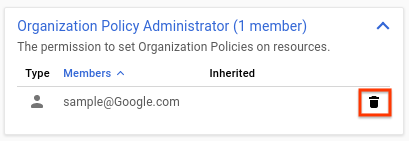
6. On the **Remove principal?** dialog that appears, click **Remove** to confirm removing the role from the specified principal.
7. Repeat the above two steps for each role you want to remove.