This document is intended for enterprise architects and software developers who want
to build an automation pipeline to use [Active Assist](https://docs.cloud.google.com/solutions/active-assist)
in their Google Cloud organization. It's part of a series that discusses
architectural patterns that enterprises can use to optimize their cloud footprint
at scale using Active Assist. The series consists of the following
parts:
- [Patterns for using Active Assist at scale](https://docs.cloud.google.com/recommender/docs/patterns-for-using-active-assist-at-scale.md.txt)
- Using serverless pipelines with Active Assist (this document)
- [Using the GKE Enterprise toolchain with Active Assist](https://docs.cloud.google.com/recommender/docs/using-anthos-toolchain-with-active-assist)
This tutorial shows you how to use Google Cloud serverless technologies
to build an automation pipeline to retrieve and process Active Assist
recommendations. You base the recommendations on the business rules set by your
enterprise. The automation pipeline that you set up in this tutorial helps
you to work with Active Assist at scale while still maintaining a team-led review
and actuation process. This approach is useful when your enterprise wants to scale
the use of the Active Assist portfolio but keep control of the review and actuation
process within teams. It offers an alternative to using a continuous integration
and continuous delivery (CI/CD) pipeline.
The architecture demonstrated in this tutorial is generic and you can extend it to
work with other serverless products. The tutorial assumes that you are familiar
with the following Google Cloud technologies:
- [Cloud Run](https://docs.cloud.google.com/run)
- [Pub/Sub](https://docs.cloud.google.com/pubsub)
- [Firestore](https://docs.cloud.google.com/firestore/docs)
To complete this tutorial, you must have an account for [Slack](https://slack.com/intl/en-gb/) or a similar notification
or ticket processing tool. The tool must be set up on your machine and ready to use.
## Architecture
Because the architecture demonstrated in this tutorial is modular, you can
adapt the notifications component to match the requirements of your business.
This tutorial demonstrates how to generate notifications and send them to Slack.
You can also choose to send notifications to Pub/Sub
or any other notification or ticket processing tool.
The following architectural diagram shows the components that you use in this
tutorial:
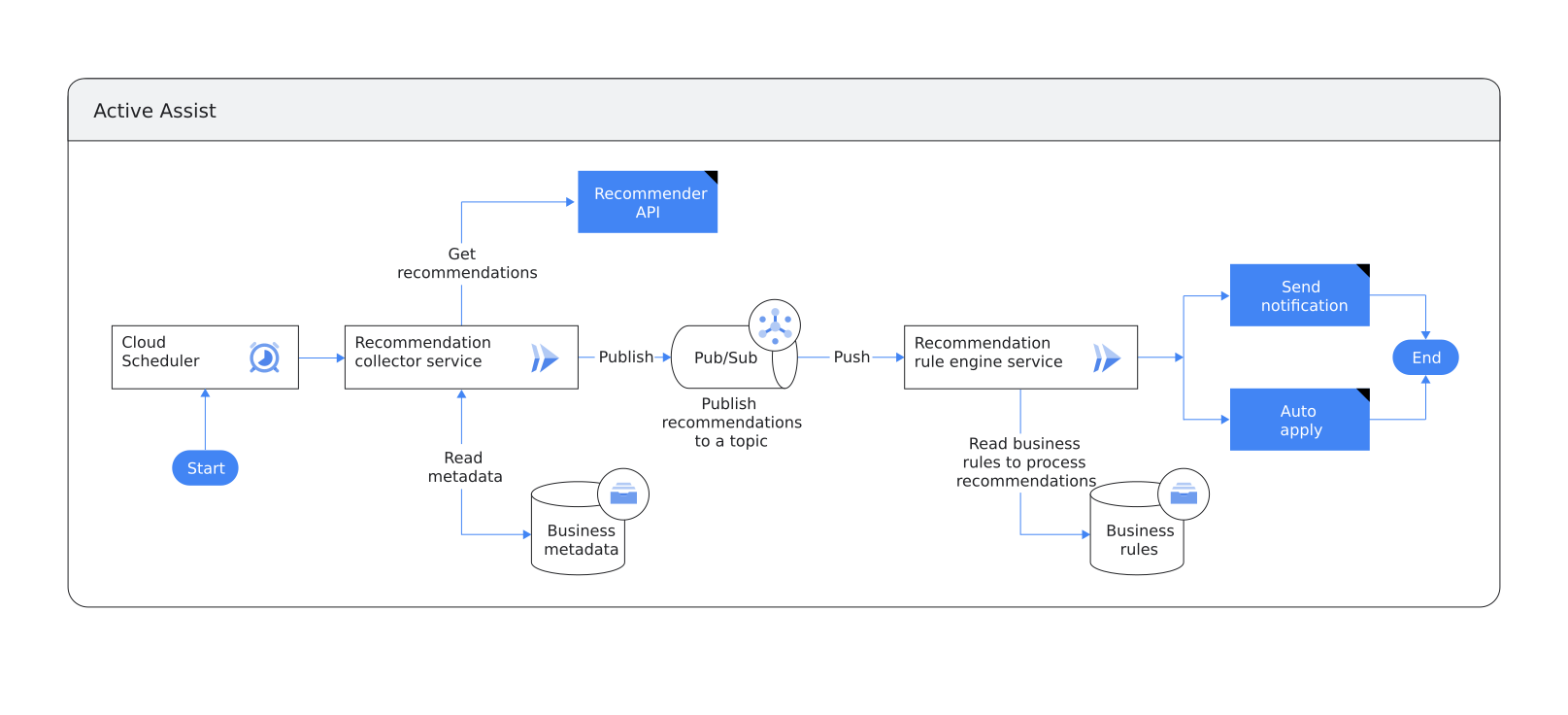
The architecture has the following components:
- A Cloud Run service that a scheduler triggers at fixed intervals. The service invokes the Recommender APIs by reading the metadata (project IDs and recommender types) that is defined and held in a Firestore collection.
- A Pub/Sub topic that the Active Assist recommendations are pushed into and processed in.
- A second Cloud Run service that parses Active Assist recommendations. This service determines how recommendations are processed based on the business rules defined by your enterprise and stored in a Firestore collection.
- Two Firestore collections to store the business metadata and business rules. The Firestore collections operate as follows:
- The first collection stores the business metadata relevant to retrieving Active Assist recommendations. In this tutorial, `recommendation type`, `Google Cloud project IDs`, and `locations` attributes are used as business metadata. These attributes are used by the `recommendation-collector` Cloud Run service to determine which recommendation types are fetched.
- The second collection stores business rules that are applied when recommendations are processed.
## Objectives
- Create a sample Cloud Run service to retrieve Active Assist recommendations for a sample project and push them into a Pub/Sub topic.
- Create two Firestore collections to store sample metadata and business rules respectively.
- Create a second Cloud Run service to process recommendations according to the sample business rules that you define in this tutorial.
- Create a Slack channel that the Cloud Run service sends sample Active Assist recommendations to.
- Test the end-to-end pipeline with sample Active Assist recommendations.
## Costs
In this document, you use the following billable components of Google Cloud:
- [Cloud Build](https://docs.cloud.google.com/cloud-build/pricing)
- [Cloud Run](https://docs.cloud.google.com/run/pricing)
- [Firestore](https://docs.cloud.google.com/firestore/pricing)
- [Pub/Sub](https://docs.cloud.google.com/pubsub/pricing)
- [Container Registry](https://docs.cloud.google.com/container-registry/pricing)
- [Cloud Scheduler](https://docs.cloud.google.com/scheduler)
To generate a cost estimate based on your projected usage,
use the [pricing calculator](https://docs.cloud.google.com/products/calculator).
New Google Cloud users might be eligible for a [free trial](https://docs.cloud.google.com/free).
When you finish the tasks that are described in this document, you can avoid
continued billing by deleting the resources that you created. For more information, see
[Clean up](https://docs.cloud.google.com/recommender/docs/use-serverless-pipelines-with-active-assist.md.txt#clean-up).
## Before you begin
1. In the Google Cloud console, go to the project selector page.
[Go to project selector](https://console.cloud.google.com/projectselector2/home/dashboard)
2. Select or create a Google Cloud project.
**Roles required to select or create a project**
- **Select a project**: Selecting a project doesn't require a specific IAM role---you can select any project that you've been granted a role on.
- **Create a project** : To create a project, you need the Project Creator role (`roles/resourcemanager.projectCreator`), which contains the `resourcemanager.projects.create` permission. [Learn how to grant
roles](https://docs.cloud.google.com/iam/docs/granting-changing-revoking-access).
> [!NOTE]
> **Note**: If you don't plan to keep the resources that you create in this procedure, create a project instead of selecting an existing project. After you finish these steps, you can delete the project, removing all resources associated with the project.
3. Make a note of the Google Cloud project ID for the recommendation manager project. You need this ID in the next section on setting up your environment.
4.
Enable the
Cloud Build, Firestore, App Engine,Pub/Sub,
Cloud Run, Cloud Scheduler, and Cloud Source Repositories
APIs, if any are not already enabled.
**Roles required to enable APIs**
To enable APIs, you need the `serviceusage.services.enable` permission. If you
created the project, then you likely already have this permission through the
Owner role (`roles/owner`). Otherwise, you can get this permission through the
Service Usage Admin role (`roles/serviceusage.serviceUsageAdmin`).
[Learn how to grant roles](https://docs.cloud.google.com/iam/docs/granting-changing-revoking-access.md.txt).
[Enable the APIs](https://console.cloud.google.com/apis/enableflow?apiid=sourcerepo.googleapis.com,cloudscheduler.googleapis.com,%0Afirestore.googleapis.com,pubsub.googleapis.com,appengine.googleapis.com)
You use the default application credentials for this tutorial. If you are prompted to create credentials on the **Add credentials to your
project** page, click **Cancel.**
5.
[Verify that billing is enabled for your Google Cloud project](https://docs.cloud.google.com/billing/docs/how-to/verify-billing-enabled.md.txt#confirm_billing_is_enabled_on_a_project).
6. Create the following:
- A sample Slack channel.
- A sample Slack app and incoming webhook to receive notifications generated by an engine named `recommendation-rules-engine`. You set up the engine later in this tutorial.
For more information, see [Create a Slack channel](https://slack.com/intl/en-gb/help/articles/201402297-Create-a-channel) and [Sending messages using Incoming Webhooks](https://api.slack.com/messaging/webhooks).
When you've created a Slack app and an incoming webhook URL, make a note of the URL as you need it later in this tutorial.
## Building the serverless pipeline
In this section, you create the components that you need to build the serverless pipeline.
The platform generates Active Assist recommendations based on usage patterns and
system metrics. Depending on the recommendations that are generated, each
recommendation category might use a different default time period from the past
to analyze usage data and metrics.
If you have a sample Google Cloud project that has existing resources and
Active Assist recommendations, you can run the pipeline to process those
recommendations after you make the appropriate changes to the sample code
provided.
### Create the Firestore collections
In this section, you create two Firestore
[collections](https://docs.cloud.google.com/firestore/docs/data-model).
The first, the `activeassist-metadata` collection, stores the business metadata
relevant to retrieving Active Assist recommendations. The second, the
`activeassist-business-rules` collection, stores the business rules that are
applied when the pipeline processes recommendations.
When Active Assist recommendations are parsed, based on the business rules in
the Firestore collection, either a notification is generated and
sent, or the recommendation is automatically applied to the relevant Google Cloud
resource.
### Create the `activeassist-metadata` collection
1. In the Google Cloud console, go to the Firestore page.
[Open Firestore](https://console.cloud.google.com/firestore)
2. Create a Firestore database if you don't already have
one. Alternatively, if you already have a Firestore
database, skip to the next step.
Create the database:
1. Click **Select Native mode** to activate Firestore.
2. Select a region location close to the region where your Cloud Run services run.
3. Click **Create Database**. It takes a few moments to complete the configuration.
3. On the Firestore page, click **Start Collection**.
4. In the **Collection ID** field, enter the following: `activeassist-metadata`.
5. Populate the fields as shown in the following table. To add the next field,
click **Add Field**.
| Field name | Field type | Field value | Note |
|---|---|---|---|
| `project` | `string` | `Stub-Project-ID` | This tutorial uses a stub for the field value. If you want to use recommendations from an existing Google Cloud project, enter the project ID instead. |
| `locations` | `array` | `global` | Some recommendations might be region-specific or zone-specific, such as VM rightsizing recommendations. Other recommendations are global, for example, IAM recommendations. |
| `recommenderType` | `string` | `google.iam.policy.Recommender` | Not applicable. |
6. When the fields are populated, click **Save**.
### Create the `activeassist-business-rules` collection
1. Click **Start Collection**.
2. In the **Collection ID** field, enter the following: `activeassist-business-rules`
Populate the document as shown in the following table. To add the next field,
click **Add Field**.
| Field name | Field type | Field value | Note |
|---|---|---|---|
| `action` | `string` | `Notify` | Setting the value to `Apply` causes the service to apply the recommendation and remove the unused role. |
| `projectId` | `string` | `Stub-Project-ID` | This tutorial uses a stub recommendation. If you want to use recommendations from an existing Google Cloud project, enter the project ID instead. |
| `projectNumber` | `string` | `999999999` | This tutorial uses a stub recommendation.
If you're using a recommendation from an existing Google Cloud project, enter the project number instead. You can find the project number in the [Google Cloud console welcome page](https://console.cloud.google.com/welcome) |
| `recommenderType` | `string` | `google.iam.policy.Recommender` | Not applicable. |
| `recommenderSubtype` | `string` | `REMOVE_ROLE` | Not applicable. |
| `slackWebhookURL` | `string` | | Enter the Slack webhook URL that you generated in a previous step. The URL resembles the following:
`https://hooks.slack.com/services/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` |
This tutorial shows you how to construct a rule to determine if a
recommendation is automatically applied or if a notification is generated
and sent to a platform such as Slack. To learn how a recommendation can be
automatically applied based on the evaluation of sample business rules that
you set up, see the associated [repository](https://github.com/GoogleCloudPlatform/activeassist-serverless-pipeline.git).
3. When the document is populated, click **Save**.
## Creating a scheduled Cloud Run service
In this section, you create a scheduled Cloud Run service called
`recommendation-collector` that invokes the Recommender API and
retrieves active recommendations. The Identity and Access Management
[Recommender API](https://docs.cloud.google.com/iam/docs/recommender-managing#review-apply-rest)
is used in this tutorial as the Recommender API. The service reads
metadata from the `activeassist-metadata` Firestore
collection that you created to determine which recommendations to retrieve.
1. Click **Open in Cloud Shell** to open Cloud Shell for the
recommendation manager project.
[Open in Cloud Shell](https://ssh.cloud.google.com/cloudshell/editor?cloudshell_git_repo=https://github.com/GoogleCloudPlatform/activeassist-serverless-pipeline&shellonly=true&cloudshell_workspace=recommendation-collector)
When Cloud Shell opens, the following commands execute:
- The [GitHub repository](https://github.com/GoogleCloudPlatform/activeassist-serverless-pipeline) cloning command.
- The change directory command.
When the **Open in Cloud Shell** dialog appears, select **Trust** and
then click **Confirm**.
2. Set the project ID and the project number of the current recommendation
manager project as variables:
export RECO_MGR_PROJECT=PROJECT_ID
gcloud config set project $RECO_MGR_PROJECT
export RECO_MGR_PROJECT_NUMBER=$(gcloud projects describe $DEVSHELL_PROJECT_ID --format='value(projectNumber)')
Replace `PROJECT_ID` with your project ID. Once you have entered the
commands, click **Authorize** when you're prompted.
3. Set the variable for the deployment region:
export REGION=us-central1
Although this tutorial uses the `us-central1` region, you can use
[any region where Cloud Run is available](https://docs.cloud.google.com/run/docs/locations.md.txt).
4. Create an environment variable for your Docker image:
export RECOMMENDER_IMAGE=gcr.io/$RECO_MGR_PROJECT/recommendation-collector:1.0
5. Build the Docker image and upload it to
[Container Registry](https://docs.cloud.google.com/container-registry):
gcloud builds submit --tag $RECOMMENDER_IMAGE
6. Create a service account for the `recommendation-collector` service to
interact with other Google Cloud services in the pipeline:
gcloud iam service-accounts create recommendation-collector-sa \
--description "Service Account that the recommendation-collector service uses to invoke other Google Cloud services" \
--display-name "recommendation-collector-sa" \
--project $RECO_MGR_PROJECT
It's a good practice to grant granular permissions to your
Cloud Run services by assigning predefined roles to the
service account. To learn more, see
[Service identity](https://docs.cloud.google.com/run/docs/securing/service-identity.md.txt).
7. Give the service account for the `recommendation-collector` service
access to Firestore and the Recommender API:
gcloud projects add-iam-policy-binding $RECO_MGR_PROJECT \
--member serviceAccount:recommendation-collector-sa@$RECO_MGR_PROJECT.iam.gserviceaccount.com \
--role roles/datastore.user
gcloud projects add-iam-policy-binding $RECO_MGR_PROJECT \
--member serviceAccount:recommendation-collector-sa@$RECO_MGR_PROJECT.iam.gserviceaccount.com \
--role roles/pubsub.publisher
8. If you're running this tutorial using the sample `stub` provided in
the repository that you cloned, skip to the next step.
If you're building the pipeline in this tutorial using recommendations generated
for an existing Google Cloud project, you must assign IAM permissions to the
service accounts that you created to run the two Cloud Run services.
Set an environment variable, `TEST_PROJECT_ID`, with the
ID of the project that you run this pipeline for before you execute the commands:
export TEST_PROJECT_ID=TEST_PROJECT_ID
gcloud projects add-iam-policy-binding $TEST_PROJECT_ID \
--member serviceAccount:recommendation-collector-sa@$RECO_MGR_PROJECT.iam.gserviceaccount.com \
--role roles/recommender.iamAdmin
gcloud projects add-iam-policy-binding $TEST_PROJECT_ID \
--member serviceAccount:recommendation-collector-sa@$RECO_MGR_PROJECT.iam.gserviceaccount.com \
--role roles/serviceusage.serviceUsageConsumer
gcloud services enable recommender.googleapis.com --project $TEST_PROJECT_ID
Make sure the Project ID you use matches the one you entered in
[creating the Firestore collections](https://docs.cloud.google.com/recommender/docs/use-serverless-pipelines-with-active-assist.md.txt#creating-the-firestore-collections).
> [!NOTE]
> **Note:** If you are running this pipeline for recommender types that aren't used in this tutorial, make sure that you [identify and assign](https://docs.cloud.google.com/iam/docs/permissions-reference) the correct set of additional permissions. The service accounts that you create to run the two Cloud Run services need these permissions.
9. For this tutorial, you deploy the service with an environment variable
called `STUB_RECOMMENDATIONS`. This variable lets you use a stub to test the
pipeline.
Deploy the Cloud Run service:
gcloud run deploy recommendation-collector \
--image=$RECOMMENDER_IMAGE \
--no-allow-unauthenticated \
--region $REGION \
--platform managed \
--service-account recommendation-collector-sa@$RECO_MGR_PROJECT.iam.gserviceaccount.com \
--set-env-vars="STUB_RECOMMENDATIONS=true" \
--project $RECO_MGR_PROJECT \
Accept any system prompts.
If you want to run the pipeline using Active Assist recommendations
generated for a Google Cloud project, remove the following line from the
command before you deploy it:
--set-env-vars="STUB_RECOMMENDATIONS=true"
### Set up a Cloud Scheduler job to run the `recommender-collector service`
1. In Cloud Shell, create a service account for Cloud Scheduler
jobs to use to run the `recommendation-collector` service:
gcloud iam service-accounts create recommender-scheduler-sa \
--description "Service Account used by Cloud Scheduler to invoke the recommender-parser service" \
--display-name "recommender-scheduler-sa" \
--project $RECO_MGR_PROJECT
2. Give the service account the `run/invoker` role to enable it to invoke
the Cloud Run service:
gcloud run services add-iam-policy-binding recommendation-collector \
--member=serviceAccount:recommender-scheduler-sa@$RECO_MGR_PROJECT.iam.gserviceaccount.com \
--role=roles/run.invoker \
--region=$REGION \
--platform=managed
3. Get the `recommendation-collector` service URL:
export RECOMMENDER_SERVICE_URI=`gcloud run services describe recommendation-collector \
--platform managed \
--project $RECO_MGR_PROJECT \
--region $REGION \
--format="value(status.url)"`/run
4. Create a Cloud Scheduler job called `recommender-iam-scheduler`:
gcloud scheduler jobs create http recommender-iam-scheduler \
--project $RECO_MGR_PROJECT \
--time-zone "America/Los_Angeles" \
--schedule="0 */3 * * *" \
--uri=$RECOMMENDER_SERVICE_URI \
--description="Scheduler job to invoke recommendation pipeline" \
--oidc-service-account-email="recommender-scheduler-sa@$RECO_MGR_PROJECT.iam.gserviceaccount.com" \
--headers="Content-Type=application/json" \
--http-method="POST"
Set the time-zone to match your location. The time-zone value format is
based on the [tz database](http://www.iana.org/time-zones).
For more information, see [gcloud scheduler jobs create http](https://docs.cloud.google.com/sdk/gcloud/reference/scheduler/jobs/create/http#--time-zone).
Your Cloud Scheduler job invokes the `/run` route for the
`recommendation-collector` service.
Setting the `--schedule="0 */3 * * *"` flag runs the Scheduler
job every three hours. You can change this setting according to your
requirements. For more information, see [Configuring cron job schedules](https://docs.cloud.google.com/scheduler/docs/configuring/cron-job-schedules.md.txt).
### Create the recommendation rules engine to process recommendations
In this section, you create a second Cloud Run service named
`recommendation-rules-engine` to process recommendations that the `recommendation-collector`
service collects. The `recommendation-rules-engine` service is invoked by
Pub/Sub when new recommendations are pushed into the
`activeassist-recommendations` topic.
This service parses recommendations based on the business rules that you
defined in the `activeassist-business-rules` collection.
1. In Cloud Shell, open the `recommendation-rules-engine`
directory:
cd ../recommendation-rules-engine
> [!NOTE]
> **Note:** If you get disconnected from your Cloud Shell session and need to reconnect, you can find the cloned repository directory at `~/cloudshell_open/activeassist-serverless-pipeline`.
2. Create an environment variable for your Docker image:
export RULES_ENGINE_IMAGE=gcr.io/$RECO_MGR_PROJECT/recommendation-rules-engine:1.0
3. Build the Docker image and upload it to
[Container Registry](https://docs.cloud.google.com/container-registry):
gcloud builds submit --tag $RULES_ENGINE_IMAGE
4. Create a service account for the `recommendation-rules-engine` service
to interact with other Google Cloud services in the pipeline:
gcloud iam service-accounts create recommendation-rules-sa \
--description "Service Account that recommendation-rules-engine uses to invoke other Google Cloud services" \
--display-name "recommendation-rules-sa" \
--project $RECO_MGR_PROJECT
5. Give the service account for the `recommendation-rules-engine` service
access to Firestore:
gcloud projects add-iam-policy-binding $RECO_MGR_PROJECT \
--member serviceAccount:recommendation-rules-sa@$RECO_MGR_PROJECT.iam.gserviceaccount.com \
--role roles/datastore.user
If you are using the stubs provided for this tutorial, proceed to the next
step.
If you are testing the pipeline using recommendations generated for a
Google Cloud project instead of the stubs provided for this tutorial, run
the following commands to permit the rules engine service account access to
your project:
gcloud projects add-iam-policy-binding $TEST_PROJECT_ID \
--member serviceAccount:recommendation-rules-sa@$RECO_MGR_PROJECT.iam.gserviceaccount.com \
--role roles/serviceusage.serviceUsageConsumer
gcloud projects add-iam-policy-binding $TEST_PROJECT_ID \
--member serviceAccount:recommendation-rules-sa@$RECO_MGR_PROJECT.iam.gserviceaccount.com \
--role roles/recommender.iamAdmin
gcloud projects add-iam-policy-binding $TEST_PROJECT_ID \
--member serviceAccount:recommendation-rules-sa@$RECO_MGR_PROJECT.iam.gserviceaccount.com \
--role roles/resourcemanager.projectIamAdmin
6. Deploy the Cloud Run service:
gcloud run deploy recommendation-rules-engine \
--image=$RULES_ENGINE_IMAGE \
--no-allow-unauthenticated \
--region $REGION \
--platform managed \
--service-account recommendation-rules-sa@$RECO_MGR_PROJECT.iam.gserviceaccount.com \
--project $RECO_MGR_PROJECT
Accept any system prompts.
7. Get the `recommendation-rules-engine` URL:
export RECOMMENDER_SERVICE_RULES_URI=`gcloud run services describe recommendation-rules-engine \
--platform managed \
--project $RECO_MGR_PROJECT \
--region $REGION \
--format="value(status.url)"`/process
The URL that you retrieve in this step is invoked when new
recommendations become available by the Pub/Sub topic that
you create in the next step.
### Create a Pub/Sub topic for active recommendations
In this section, you create a Pub/Sub topic for the Active Assist
recommendations that the `recommender-collector` service retrieves by invoking
the Recommender API.
1. In Cloud Shell, create a Pub/Sub topic:
gcloud pubsub topics create activeassist-recommendations
2. Create a service account for Pub/Sub to use to invoke
the `recommendation-rules-engine` Cloud Run service:
gcloud iam service-accounts create recommendation-engine-sub-sa \
--description "Service Account used by Pub/Sub to push recommendations to the recommendation-rules-engine service" \
--display-name "recommendation-engine-sub-sa" \
--project $RECO_MGR_PROJECT
3. The Pub/Sub service account must be associated with the
roles that it needs to publish messages and to invoke the
`recommendation-rules-engine` service:
gcloud projects add-iam-policy-binding $RECO_MGR_PROJECT \
--member serviceAccount:recommendation-engine-sub-sa@$RECO_MGR_PROJECT.iam.gserviceaccount.com \
--role roles/run.invoker \
--project $RECO_MGR_PROJECT
### Create a subscription for the Pub/Sub topic
1. Create a subscription for the `recommendation-rules-engine` service:
# grant Pub/Sub the permission to create tokens
PUBSUB_SERVICE_ACCOUNT="service-$RECO_MGR_PROJECT_NUMBER@gcp-sa-pubsub.iam.gserviceaccount.com"
gcloud projects add-iam-policy-binding $RECO_MGR_PROJECT \
--member="serviceAccount:$PUBSUB_SERVICE_ACCOUNT"\
--role='roles/iam.serviceAccountTokenCreator'
# configure the subscription push identity
gcloud pubsub subscriptions create active-assist-recommendations-for-rules-engine \
--topic=activeassist-recommendations \
--topic-project=$RECO_MGR_PROJECT \
--push-auth-service-account=recommendation-engine-sub-sa@$RECO_MGR_PROJECT.iam.gserviceaccount.com \
--ack-deadline=60 \
--push-endpoint=$RECOMMENDER_SERVICE_RULES_URI
2. Allow the `recommendation-engine-sub-sa` service account that
you created to invoke the `recommendation-rules-engine` service:
gcloud run services add-iam-policy-binding recommendation-rules-engine \
--member=serviceAccount:recommendation-engine-sub-sa@$RECO_MGR_PROJECT.iam.gserviceaccount.com \
--role=roles/run.invoker \
--region=$REGION \
--platform=managed
## Running end-to-end tests using stubs
Active Assist recommendations are generated by the platform based on usage
patterns and system metrics. Each recommendation category might use a different
default window of time in the past to analyze usage data and metrics based on
which recommendations are generated. For example, IAM recommendations are
generated by the platform based on usage patterns from the past 90 days.
To test the end-to-end pipeline, the repository you cloned for this tutorial
provides sample recommendations (stubs) that you use to run the end-to-end
pipeline.
In this section, you do the following:
- Inspect the stub recommendations.
- Invoke the pipeline manually.
- Check if a notification is generated and sent to the Slack channel that you created.
1. Review the sample recommendations provided in the repository:
cat ../recommendation-collector/stub.json
This file provides a sample recommendation with a `REMOVE` action for a
sample role called `roles/gkehub.connect`.
2. Execute the following command to get Cloud Scheduler to run
the job immediately, instead of waiting for the next scheduled run:
gcloud scheduler jobs run recommender-iam-scheduler
3. On the [Cloud Scheduler](https://console.cloud.google.com/cloudscheduler)
console page, in the **Result** column for the `recommender-iam-scheduler`
job, verify that the result is **Success**.
To get a detailed view of the steps that each of the services execute,
you can also [view the Cloud Run service logs](https://docs.cloud.google.com/run/docs/logging.md.txt#viewing-logs-cloud-run) for the `recommendation-collector` service and the
`recommendation-rules-engine` service.
4. When the serverless end-to-end pipeline that you build in this tutorial runs
successfully, it generates a Slack notification that contains
details of the recommended role binding for you to remove. The following is
an example of the notification that you receive:
Project xxxxxxxx\
**Impact**: SECURITY\
This role has not been used during the observation window.\
**Role**: roles/gkehub.connect\
**Member**:
serviceAccount:sample-sa@recommendation-sample.iam.gserviceaccount.com\
**Action**: remove
## Clean up
To avoid incurring charges to your Google Cloud account for the resources used in this
tutorial, either delete the project that contains the resources, or keep the project and
delete the individual resources.
> [!CAUTION]
> **Caution** : Deleting a project has the following effects:
>
> - **Everything in the project is deleted.** If you used an existing project for the tasks in this document, when you delete it, you also delete any other work you've done in the project.
> - **Custom project IDs are lost.** When you created this project, you might have created a custom project ID that you want to use in the future. To preserve the URLs that use the project ID, such as an `appspot.com` URL, delete selected resources inside the project instead of deleting the whole project.
- In the Google Cloud console, go to the **Manage resources** page.
[Go to Manage resources](https://console.cloud.google.com/iam-admin/projects)
- In the project list, select the project that you want to delete, and then click **Delete**.
- In the dialog, type the project ID, and then click **Shut down** to delete the project.
## What's next
- Learn more about [Google Cloud serverless](https://docs.cloud.google.com/serverless) technologies.
- Read about how to [integrate Policy Intelligence recommendations into an IaC pipeline](https://github.com/GoogleCloudPlatform/recommender-iac-pipeline-nodejs-tutorial).