# Export recommendations to BigQuery
## Overview
With BigQuery export, you can view daily snapshots of recommendations
for your organization. This is done using the BigQuery Data Transfer Service. See
[Recommenders](https://docs.cloud.google.com/recommender/docs/recommenders.md.txt) to see which recommenders are
included in BigQuery export today.
BigQuery export supports the following:
- Exporting recommendations and insights for all projects, folders, and billing
accounts for an organization (including organization-level recommendations
and insights)
- Exporting negotiated pricing instead of standard pricing for cost savings
recommendations.
## Before you begin
Complete the following steps before you create a data transfer for recommendations:
- Allow the BigQuery Data Transfer Service permission to manage your data transfer. If you use the BigQuery web UI to create the transfer, you must allow pop-ups from `console.cloud.google.com` on your browser to be able to view the permissions. For more details, see [enable a BigQuery Data Transfer Service.](https://cloud.google.com/bigquery-transfer/docs/enable-transfer-service)
- Create a [BigQuery dataset](https://cloud.google.com/bigquery/docs/datasets) to store data.
- The data transfer uses the same region where the dataset is created. The location is immutable once the dataset and transfer are created.
- The dataset will contain insights and recommendations from all regions across the globe. Thus this operation would aggregate all those data into a global region during the process. Please refer to [Google Cloud Customer Care](https://cloud.google.com/support) if there are any data residency concerns.
- If the dataset location is newly launched, there may be a delay in initial export data availability.
## Pricing
Exporting recommendations to BigQuery is available to all
Recommender customers based on their [Recommender pricing tier](https://cloud.google.com/recommender/pricing).
## Required permissions
While setting up the data transfer, you require the following permissions at the
project level where you create a data transfer:
- `bigquery.transfers.update` - Allows you to create the transfer
- `bigquery.datasets.update` - Allows you to update actions on the target dataset
- `resourcemanager.projects.update` - Allows you to select a project where you'd like the export data to be stored
- `pubsub.topics.list` - Allows you to select a Pub/Sub topic in order to [receive notifications](https://cloud.google.com/bigquery-transfer/docs/transfer-run-notifications#before_you_begin) about your export
The following permission is required at the organization level. This organization
corresponds to the one that the export is being set up for.
- `recommender.resources.export` - Allows you to export recommendations to BigQuery
The following permissions are required to export negotiated prices for cost savings
recommendations:
- `billing.resourceCosts.get at project level` - Allows exporting negotiated prices for project level recommendations
- `billing.accounts.getSpendingInformation at billing account level` - Allows exporting negotiated prices for billing account level recommendations
Without these permissions, cost savings recommendations will be exported with
standard prices instead of negotiated prices.
> [!NOTE]
> **Note:** The latest available permissions are used to determine whether negotiated prices are exported. If you have recently added or removed permissions, there may be a few days delay before prices are updated in the export.
> [!NOTE]
> **Note:** Service accounts are currently not supported via the UI - see [instructions
> below](https://cloud.google.com/recommender/docs/bq-export/export-recommendations-to-bq#set_up_the_export_using_bigquery_command_line_rest_api)on using the API/CLI if you want to set up an export using a service account.
## Grant permissions
The following roles have to be granted on the project where you create the
data transfer:
- To allow you to create a transfer and update actions on the target dataset, you must grant the following role:
- **BigQuery admin** role - `roles/bigquery.admin`
- There are multiple roles that contain permissions to select a project for storing your export data and for selecting a Pub/Sub topic to receive notifications. To have both these permissions available, you can grant the following role:
- **Project owner** role - `roles/owner`
- There are multiple roles that contain the permission billing.resourceCosts.get to export negotiated prices for cost savings project level recommendations - you can grant any one of them:
- **Project Owner** role - `roles/owner`
- **Project Viewer** role - `roles/viewer`
- **Project Editor** role - `roles/editor`
- There are multiple roles that contain the permission billing.accounts.getSpendingInformation to export negotiated prices for cost savings billing account level recommendations - you can grant any one of them:
- **Billing Account Administrator** role - `roles/billing.admin`
- **Billing Account Costs Manager** role - `roles/billing.costsManager`
- **Billing Account Viewer** role - `roles/billing.viewer`
You must grant the following role at the organization level:
- **Recommendations Exporter** (`roles/recommender.exporter`) role on the Google Cloud console.
> [!NOTE]
> **Note:** If you do not have this permission granted, the daily [run history](https://docs.cloud.google.com/recommender/docs/bq-export/export-recommendations-to-bq.md.txt#viewing_the_run_history_for_a_transfer) status shows that the permission is missing. Upon granting this permission, the future exports will run successfully. You also have the option to retry the export for the runs that didn't have the permission granted.
You can also create [Custom](https://cloud.google.com/iam/docs/understanding-custom-roles)
roles containing the [required permissions](https://docs.cloud.google.com/recommender/docs/bq-export/export-recommendations-to-bq.md.txt#requiredpermissions).
## Create a data transfer for recommendations
1. Go to the BigQuery export form for Active Assist.
[Go to BigQuery export form](https://console.cloud.google.com/active-assist/export/create)
2. Select a **Destination Project** to store the recommendation data.
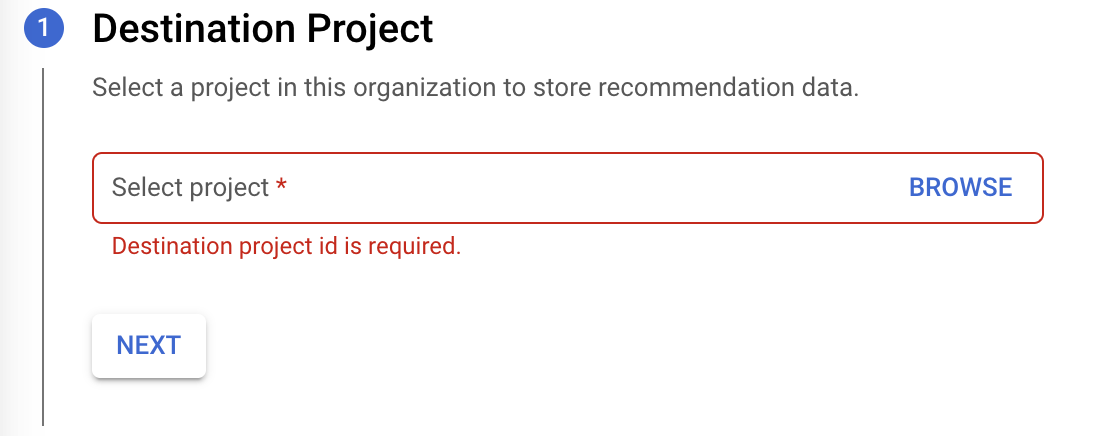

> [!NOTE]
> **Note:** If you can't find the project, then you either don't have the necessary [permissions](https://docs.cloud.google.com/recommender/docs/bq-export/export-recommendations-to-bq.md.txt#requiredpermissions), or there aren't any projects available.
3. Click **Next**.
4. Click **Enable APIs** to enable the BigQuery APIs for the export.
This can take a several seconds to complete. Once done, click **Continue**.
> [!NOTE]
> **Note:** If the APIs are already enabled for this project, this step is skipped.
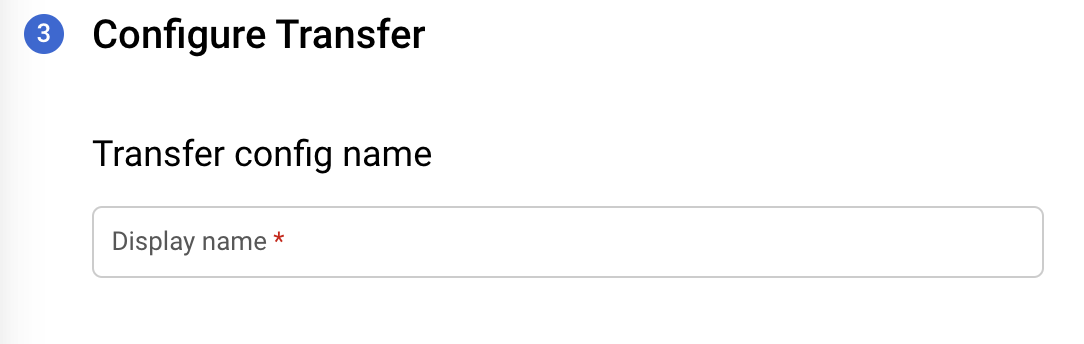
5. On the **Configure Transfer** form, provide the following details:
- In the **Transfer config name** section, for **Display name** , enter a name
for the transfer. The transfer name can be any value that allows you to easily
identify the transfer if you need to modify it later.

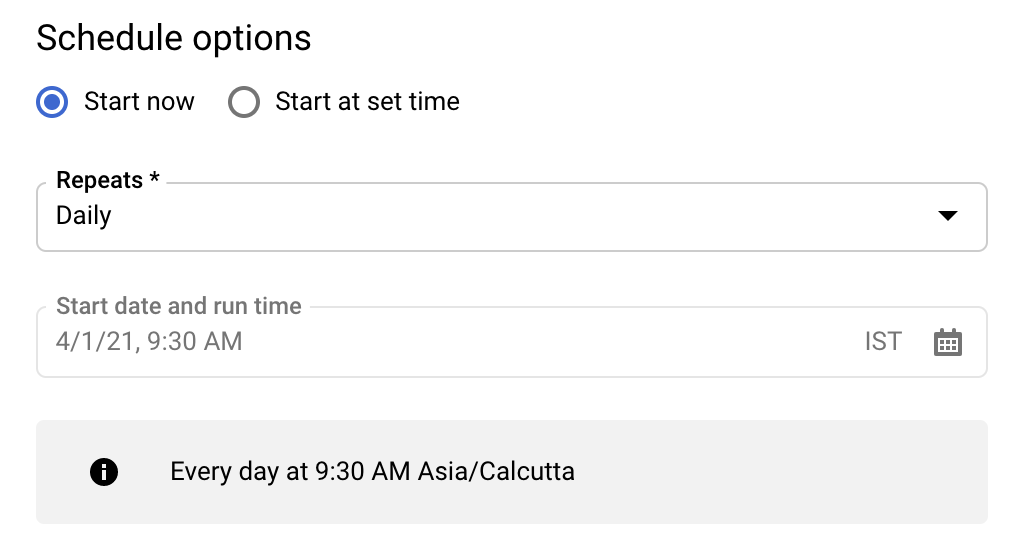
- In the **Schedule options** section, for **Schedule** , leave the
default value (**Start now** ) or click **Start at a set time**.
- For **Repeats**, choose an option for how often to run the
transfer.
- Daily (default)
- Weekly
- Monthly
- Custom
- On-demand
- For **Start date and run time** , enter the date and time to start
the transfer. If you choose **Start now**, this option is disabled.

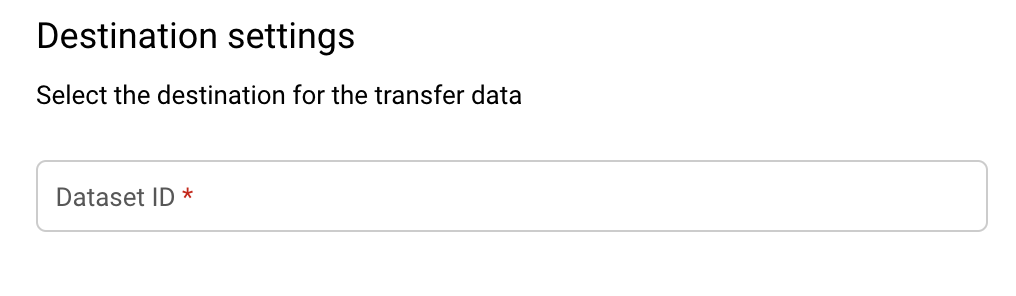
- In the **Destination settings** section, for **Destination dataset**,
choose the dataset ID you created to store your data.

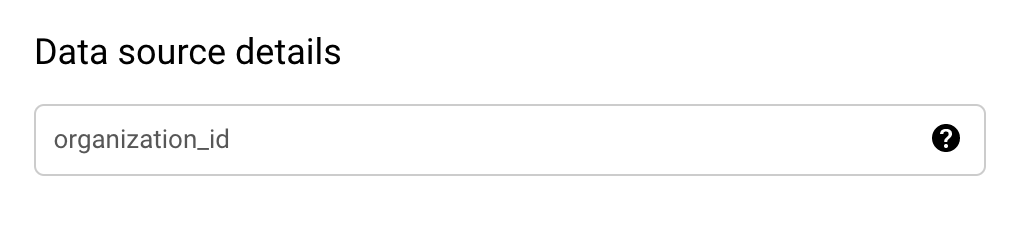
- In the **Data source details** section:
- The default value for **organization_id** is the organization that you
are currently viewing recommendations for. If you want to export
recommendations to another organization, you can change this on top of
the console in the organization viewer.
> [!NOTE]
> **Note:** Recommendations for projects without organizations are not exported.

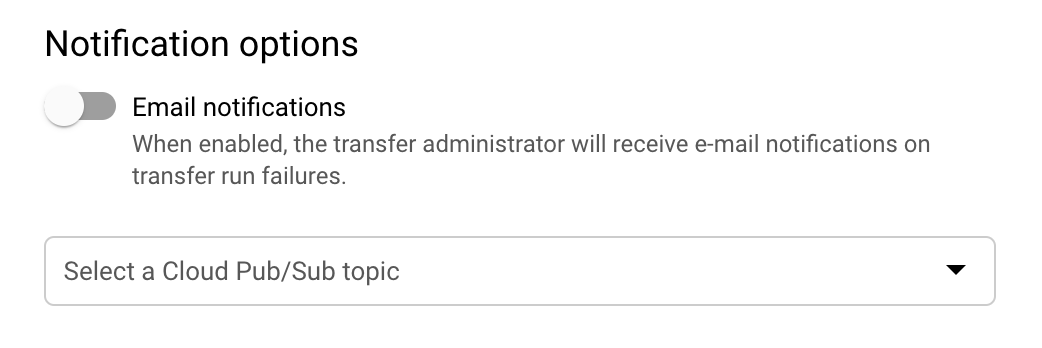
- (Optional) In the **Notification options** section:
- Click the toggle to enable email notifications. When you enable this option, the transfer administrator receives an email notification when a transfer run fails.
- For **Select a Pub/Sub topic** , choose your [topic](https://docs.cloud.google.com/pubsub/docs/overview.md.txt#types) name or click **Create a topic** . This option configures Pub/Sub run [notifications](https://docs.cloud.google.com/bigquery-transfer/docs/transfer-run-notifications) for your transfer.

6. Click **Create** to create the transfer.
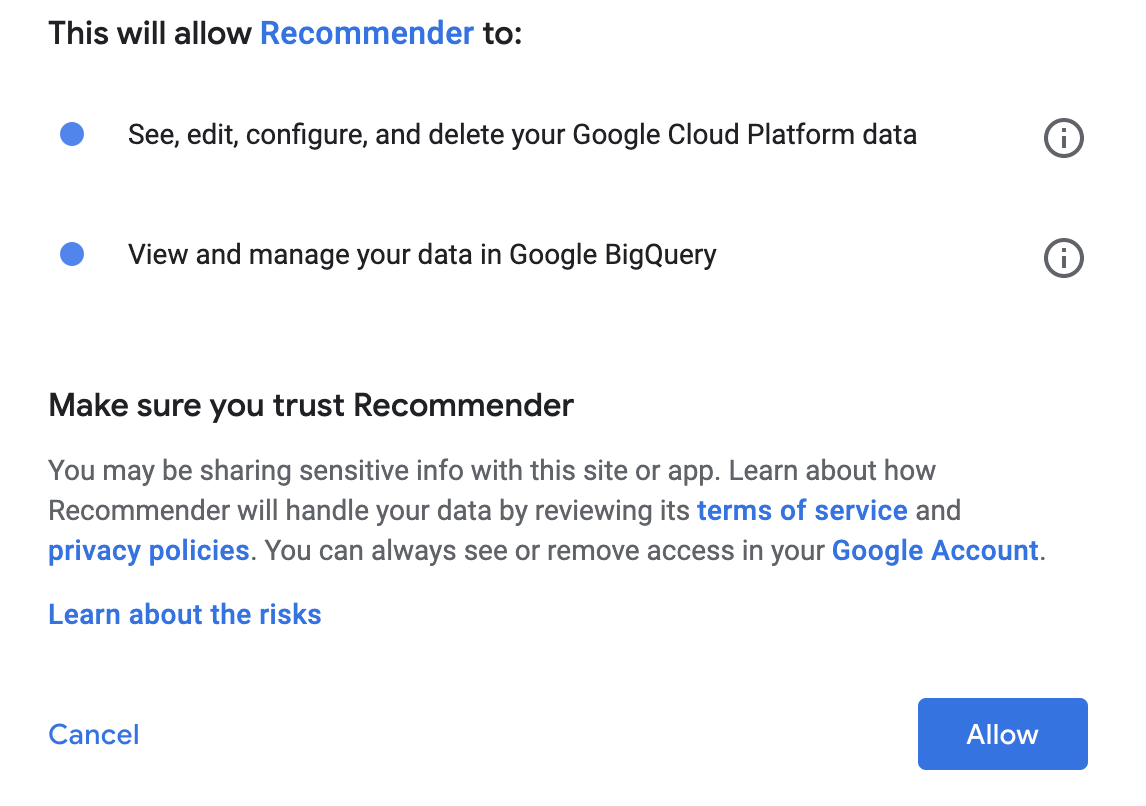
7. Click **Allow** on the consent pop-up.

> [!NOTE]
> **Note:** By allowing consent, this permits the usage of scopes BigQuery and Google Cloud Platform APIs in your data transfer. These APIs are used to view and manage your data in `https://www.googleapis.com/auth/bigquery` and `https://www.googleapis.com/auth/cloud-platform`. These APIs are only used for projects and organizations that you have access to based on the [permissions](https://docs.cloud.google.com/recommender/docs/bq-export/export-recommendations-to-bq.md.txt#requiredpermissions) set.
8. Once the transfer is created, you are directed back to the Active Assist.
You can click the link to access the transfer configuration details.
Alternatively, you can access the transfers by doing the following:
- Go to the BigQuery page in the Google Cloud console.
[Go to the BigQuery page](https://console.cloud.google.com/bigquery)
- Click **Data Transfers**. You can view all the available data transfers.
## View the run history for a transfer
To view the run history for a transfer, do the following:
1. Go to the BigQuery page in the Google Cloud console.
[Go to the BigQuery page](https://console.cloud.google.com/bigquery)
2. Click **Data Transfers**. You can view all the available data transfers.
> [!NOTE]
> **Note:** A transfer is complete when the status appears green.
3. Click the appropriate transfer in the list.
4. In the list of run transfers displayed under the **RUN HISTORY** tab, select the transfer you want to view the details for.
5. The **Run details** panel is displayed for the individual run transfer you selected.
Some of the possible run details displayed are:
- Deferred transfer due to unavailable source data.
- Job indicating the number of rows exported to a table
- Missing permissions for a datasource that you must grant and later schedule a backfill.
### When does your data get exported?
When you create a data transfer, the first export occurs in two days.
After the first export, the export jobs run at the cadence you have requested at set up time. The following conditions apply:
- The export job for a specific day (D) exports the *end-of-day*'s (D) data to your BigQuery dataset, which usually finishes by the end-of-next-day (D+1). The export job runs in PST time zone and may appear to have additional delay for other time zones.
- The daily export job does not run until all the data for export is available. This can result in variations, and sometimes delays, in the day and time that your
dataset is updated. Therefore, it is best to use the latest available snapshot of data rather
than having a hard time sensitive dependency on specific dated tables.
- The export job transfers latest available data per region - this means there could be a difference
in the latest date that different regions recommendations are available for.
## Common status messages on an export
Learn about common status messages you can see exporting recommendations to BigQuery.
### User does not have required permission
The following message occurs when user does not have required permission `recommender.resources.export`. You will see the following message:
`User does not have required permission "recommender.resources.export". Please, obtain the required permissions for the datasource and try again by triggering a backfill for this date`
To resolve this issue grant the IAM role `roles/recommender.exporter` to `user/service account` setting up the export at organizational level for the organization for which the export was set up for. It can be given through the gcloud commands below:
- In case of User:
```bash
gcloud organizations add-iam-policy-binding ** --member='user:**' --role='roles/recommender.exporter'
```
- In case of Service Account:
```bash
gcloud organizations add-iam-policy-binding ** --member='serviceAccount:**' --role='roles/recommender.exporter'
```
> [!NOTE]
> **Note:** Granting permissions to Service accounts are currently not supported via the UI.
### Transfer deferred due to source data not being available
The following message occurs when the transfer is rescheduled because the source data is not yet available. This is not an error. It means the export pipelines have not completed yet for the day. The transfer will re-run at the new scheduled time and will succeed once the export pipelines have completed. You will see the following message:
`Transfer deferred due to source data not being available`
### Source data not found
The following message occurs when the export pipelines have completed, but no *recommendations or insights* were found for the organization that the export was set up for. You will see the following message:
`Source data not found for 'recommendations_export$'insights_export$`
This message occurs due to following reasons:
- The user set up the export less than 2 days ago. The customer guide lets customers know that there is a day's delay before their export will be available.
- There are no recommendations or insights available for their organization for the specific day. This could be the actual case or the pipelines may have run before all recommendations or insights were available for the day.
## View tables for a transfer
When you export recommendations to BigQuery, the dataset contains
two tables that are [partitioned](https://docs.cloud.google.com/bigquery/docs/partitioned-tables.md.txt) by date:
- recommendations_export
- insight_export
For more details on tables and schema, see [Creating and using tables](https://docs.cloud.google.com/bigquery/docs/tables.md.txt) and [Specifying a schema](https://docs.cloud.google.com/bigquery/docs/schemas.md.txt).
To view the tables for a data transfer, do the following:
1. Go to the BigQuery page in the Google Cloud console.
[Go to the BigQuery page](https://console.cloud.google.com/bigquery)
2. Click **Data Transfers**. You can view all the available data transfers.
3. Click the appropriate transfer in the list.
4. Click the **CONFIGURATION** tab and click the dataset.
5. In the **Explorer** panel, expand your project and select a dataset.
The description and details appear in the details panel. The tables for a dataset are listed with the dataset name in the Explorer panel.
## Schedule a backfill
Recommendations for a date in the past (this date being later than the date when the organization
was opted in for the export) can be exported by scheduling a backfill.
To schedule a backfill, do the following:
1. Go to the BigQuery page in the Google Cloud console.
[Go to the BigQuery page](https://console.cloud.google.com/bigquery)
2. Click **Data Transfers**.
3. On the **Transfers** page, click on an appropriate transfer in the list.
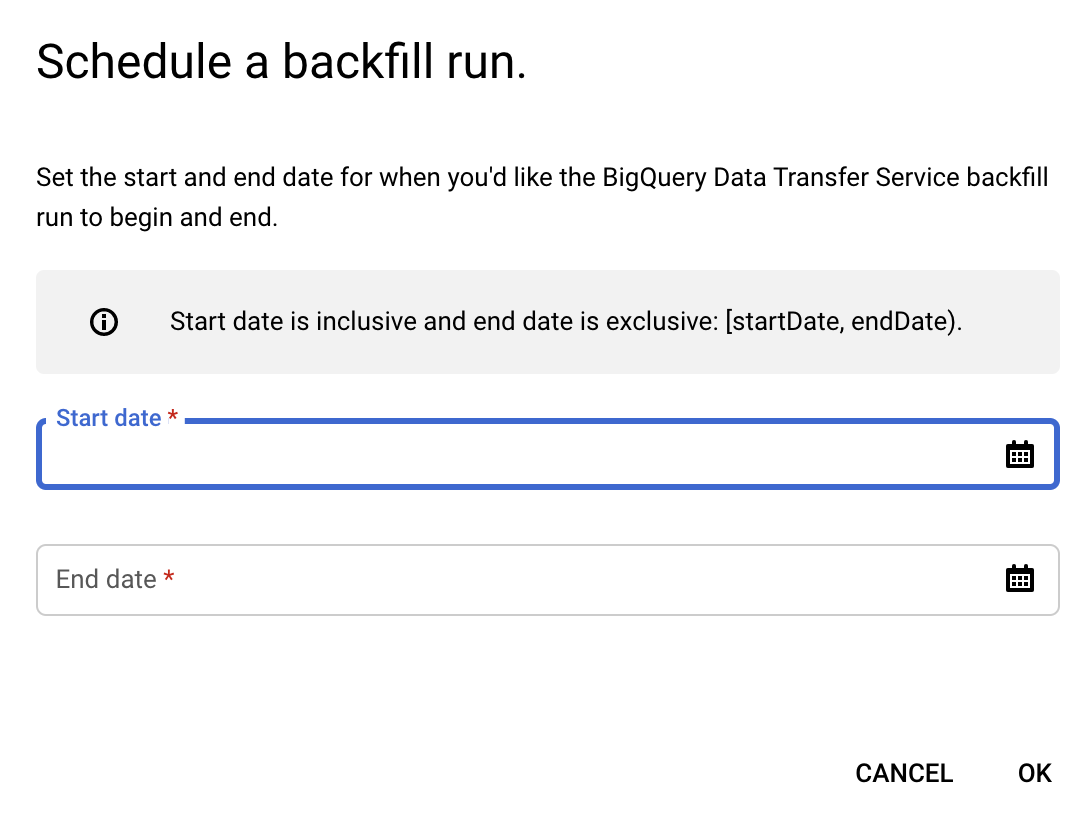
1. Click **Schedule backfill**.
2. In the **Schedule backfill** dialog, choose your **Start date** and
**End date**.

For more information on working with transfers, see [Working with transfers](https://docs.cloud.google.com/bigquery/docs/working-with-transfers.md.txt).
## Export schema
### Recommendations Export table:
schema:
fields:
- name: cloud_entity_type
type: STRING
description: |
Represents what cloud entity type the recommendation was generated for - eg: project number, billing account
- name: cloud_entity_id
type: STRING
description: |
Value of the project number or billing account id
- name: name
type: STRING
description: |
Name of recommendation. A project recommendation is represented as
projects/[PROJECT_NUMBER]/locations/[LOCATION]/recommenders/[RECOMMENDER_ID]/recommendations/[RECOMMENDATION_ID]
- name: location
type: STRING
description: |
Location for which this recommendation is generated
- name: recommender
type: STRING
description: |
Recommender ID of the recommender that has produced this recommendation
- name: recommender_subtype
type: STRING
description: |
Contains an identifier for a subtype of recommendations produced for the
same recommender. Subtype is a function of content and impact, meaning a
new subtype will be added when either content or primary impact category
changes.
Examples:
For recommender = "google.iam.policy.Recommender",
recommender_subtype can be one of "REMOVE_ROLE"/"REPLACE_ROLE"
- name: target_resources
type: STRING
mode: REPEATED
description: |
Contains the fully qualified resource names for resources changed by the
operations in this recommendation. This field is always populated. ex:
[//cloudresourcemanager.googleapis.com/projects/foo].
- name: description
type: STRING
description: |
Required. Free-form human readable summary in English.
The maximum length is 500 characters.
- name: last_refresh_time
type: TIMESTAMP
description: |
Output only. Last time this recommendation was refreshed by the system that created it in the first place.
- name: primary_impact
type: RECORD
description: |
Required. The primary impact that this recommendation can have while trying to optimize
for one category.
schema:
fields:
- name: category
type: STRING
description: |
Category that is being targeted.
Values can be the following:
CATEGORY_UNSPECIFIED:
Default unspecified category. Do not use directly.
COST:
Indicates a potential increase or decrease in cost.
SECURITY:
Indicates a potential increase or decrease in security.
PERFORMANCE:
Indicates a potential increase or decrease in performance.
RELIABILITY:
Indicates a potential increase or decrease in reliability.
- name: cost_projection
type: RECORD
description: Optional. Use with CategoryType.COST
schema:
fields:
- name: cost
type: RECORD
description: |
An approximate projection on amount saved or amount incurred.
Negative cost units indicate cost savings and positive cost units indicate
increase. See google.type.Money documentation for positive/negative units.
schema:
fields:
- name: currency_code
type: STRING
description: The 3-letter currency code defined in ISO 4217.
- name: units
type: INTEGER
description: |
The whole units of the amount. For example if `currencyCode` is `"USD"`,
then 1 unit is one US dollar.
- name: nanos
type: INTEGER
description: |
Number of nano (10^-9) units of the amount.
The value must be between -999,999,999 and +999,999,999 inclusive.
If `units` is positive, `nanos` must be positive or zero.
If `units` is zero, `nanos` can be positive, zero, or negative.
If `units` is negative, `nanos` must be negative or zero.
For example $-1.75 is represented as `units`=-1 and `nanos`=-750,000,000.
- name: cost_in_local_currency
type: RECORD
description: |
An approximate projection on amount saved or amount incurred in the local currency.
Negative cost units indicate cost savings and positive cost units indicate
increase. See google.type.Money documentation for positive/negative units.
schema:
fields:
- name: currency_code
type: STRING
description: The 3-letter currency code defined in ISO 4217.
- name: units
type: INTEGER
description: |
The whole units of the amount. For example if `currencyCode` is `"USD"`,
then 1 unit is one US dollar.
- name: nanos
type: INTEGER
description: |
Number of nano (10^-9) units of the amount.
The value must be between -999,999,999 and +999,999,999 inclusive.
If `units` is positive, `nanos` must be positive or zero.
If `units` is zero, `nanos` can be positive, zero, or negative.
If `units` is negative, `nanos` must be negative or zero.
For example $-1.75 is represented as `units`=-1 and `nanos`=-750,000,000.
- name: duration
type: RECORD
description: Duration for which this cost applies.
schema:
fields:
- name: seconds
type: INTEGER
description: |
Signed seconds of the span of time. Must be from -315,576,000,000
to +315,576,000,000 inclusive. Note: these bounds are computed from:
60 sec/min * 60 min/hr * 24 hr/day * 365.25 days/year * 10000 years
- name: nanos
type: INTEGER
description: |
Signed fractions of a second at nanosecond resolution of the span
of time. Durations less than one second are represented with a 0
`seconds` field and a positive or negative `nanos` field. For durations
of one second or more, a non-zero value for the `nanos` field must be
of the same sign as the `seconds` field. Must be from -999,999,999
to +999,999,999 inclusive.
- name: pricing_type_name
type: STRING
description: |
A pricing type can either be based on the price listed on GCP (LIST) or a custom
price based on past usage (CUSTOM).
- name: reliability_projection
type: RECORD
description: Optional. Use with CategoryType.RELIABILITY
schema:
fields:
- name: risk_types
type: STRING
mode: REPEATED
description: |
The risk associated with the reliability issue.
RISK_TYPE_UNSPECIFIED:
Default unspecified risk. Do not use directly.
SERVICE_DISRUPTION:
Potential service downtime.
DATA_LOSS:
Potential data loss.
ACCESS_DENY:
Potential access denial. The service is still up but some or all clients
can not access it.
- name: details_json
type: STRING
description: |
Additional reliability impact details that is provided by the recommender in JSON
format.
- name: state
type: STRING
description: |
Output only. The state of the recommendation:
STATE_UNSPECIFIED:
Default state. Do not use directly.
ACTIVE:
Recommendation is active and can be applied. Recommendations content can
be updated by Google.
ACTIVE recommendations can be marked as CLAIMED, SUCCEEDED, or FAILED.
CLAIMED:
Recommendation is in claimed state. Recommendations content is
immutable and cannot be updated by Google.
CLAIMED recommendations can be marked as CLAIMED, SUCCEEDED, or FAILED.
SUCCEEDED:
Recommendation is in succeeded state. Recommendations content is
immutable and cannot be updated by Google.
SUCCEEDED recommendations can be marked as SUCCEEDED, or FAILED.
FAILED:
Recommendation is in failed state. Recommendations content is immutable
and cannot be updated by Google.
FAILED recommendations can be marked as SUCCEEDED, or FAILED.
DISMISSED:
Recommendation is in dismissed state.
DISMISSED recommendations can be marked as ACTIVE.
- name: ancestors
type: RECORD
description: |
Ancestry for the recommendation entity
schema:
fields:
- name: organization_id
type: STRING
description: |
Organization to which the recommendation project
- name: folder_ids
type: STRING
mode: REPEATED
description: |
Up to 5 levels of parent folders for the recommendation project
- name: associated_insights
type: STRING
mode: REPEATED
description: |
Insights associated with this recommendation. A project insight is represented as
projects/[PROJECT_NUMBER]/locations/[LOCATION]/insightTypes/[INSIGHT_TYPE_ID]/insights/[insight_id]
- name: recommendation_details
type: STRING
description: |
Additional details about the recommendation in JSON format.
schema:
- name: overview
type: RECORD
description: Overview of the recommendation in JSON format
- name: operation_groups
type: OperationGroup
mode: REPEATED
description: Operations to one or more Google Cloud resources grouped in such a way
that, all operations within one group are expected to be performed
atomically and in an order. More here: https://cloud.google.com/recommender/docs/key-concepts#operation_groups
- name: operations
type: Operation
description: An Operation is the individual action that must be performed as one of the atomic steps in a suggested recommendation. More here: https://cloud.google.com/recommender/docs/key-concepts?#operation
- name: state_metadata
type: map with key: STRING, value: STRING
description: A map of STRING key, STRING value of metadata for the state, provided by user or automations systems.
- name: additional_impact
type: Impact
mode: REPEATED
description: Optional set of additional impact that this recommendation may have when
trying to optimize for the primary category. These may be positive
or negative. More here: https://cloud.google.com/recommender/docs/key-concepts?#recommender_impact
- name: priority
type: STRING
description: |
Priority of the recommendation:
PRIORITY_UNSPECIFIED:
Default unspecified priority. Do not use directly.
P4:
Lowest priority.
P3:
Second lowest priority.
P2:
Second highest priority.
P1:
Highest priority.
### Insights Export table:
schema:
- fields:
- name: cloud_entity_type
type: STRING
description: |
Represents what cloud entity type the recommendation was generated for - eg: project number, billing account
- name: cloud_entity_id
type: STRING
description: |
Value of the project number or billing account id
- name: name
type: STRING
description: |
Name of recommendation. A project recommendation is represented as
projects/[PROJECT_NUMBER]/locations/[LOCATION]/recommenders/[RECOMMENDER_ID]/recommendations/[RECOMMENDATION_ID]
- name: location
type: STRING
description: |
Location for which this recommendation is generated
- name: insight_type
type: STRING
description: |
Recommender ID of the recommender that has produced this recommendation
- name: insight_subtype
type: STRING
description: |
Contains an identifier for a subtype of recommendations produced for the
same recommender. Subtype is a function of content and impact, meaning a
new subtype will be added when either content or primary impact category
changes.
Examples:
For recommender = "google.iam.policy.Recommender",
recommender_subtype can be one of "REMOVE_ROLE"/"REPLACE_ROLE"
- name: target_resources
type: STRING
mode: REPEATED
description: |
Contains the fully qualified resource names for resources changed by the
operations in this recommendation. This field is always populated. ex:
[//cloudresourcemanager.googleapis.com/projects/foo].
- name: description
type: STRING
description: |
Required. Free-form human readable summary in English.
The maximum length is 500 characters.
- name: last_refresh_time
type: TIMESTAMP
description: |
Output only. Last time this recommendation was refreshed by the system that created it in the first place.
- name: category
type: STRING
description: |
Category being targeted by the insight. Can be one of:
Unspecified category.
CATEGORY_UNSPECIFIED = Unspecified category.
COST = The insight is related to cost.
SECURITY = The insight is related to security.
PERFORMANCE = The insight is related to performance.
MANAGEABILITY = The insight is related to manageability.
RELIABILITY = The insight is related to reliability.;
- name: state
type: STRING
description: |
Output only. The state of the recommendation:
STATE_UNSPECIFIED:
Default state. Do not use directly.
ACTIVE:
Recommendation is active and can be applied. Recommendations content can
be updated by Google.
ACTIVE recommendations can be marked as CLAIMED, SUCCEEDED, or FAILED.
CLAIMED:
Recommendation is in claimed state. Recommendations content is
immutable and cannot be updated by Google.
CLAIMED recommendations can be marked as CLAIMED, SUCCEEDED, or FAILED.
SUCCEEDED:
Recommendation is in succeeded state. Recommendations content is
immutable and cannot be updated by Google.
SUCCEEDED recommendations can be marked as SUCCEEDED, or FAILED.
FAILED:
Recommendation is in failed state. Recommendations content is immutable
and cannot be updated by Google.
FAILED recommendations can be marked as SUCCEEDED, or FAILED.
DISMISSED:
Recommendation is in dismissed state.
DISMISSED recommendations can be marked as ACTIVE.
- name: ancestors
type: RECORD
description: |
Ancestry for the recommendation entity
schema:
fields:
- name: organization_id
type: STRING
description: |
Organization to which the recommendation project
- name: folder_ids
type: STRING
mode: REPEATED
description: |
Up to 5 levels of parent folders for the recommendation project
- name: associated_recommendations
type: STRING
mode: REPEATED
description: |
Insights associated with this recommendation. A project insight is represented as
projects/[PROJECT_NUMBER]/locations/[LOCATION]/insightTypes/[INSIGHT_TYPE_ID]/insights/[insight_id]
- name: insight_details
type: STRING
description: |
Additional details about the insight in JSON format
schema:
fields:
- name: content
type: STRING
description: |
A struct of custom fields to explain the insight.
Example: "grantedPermissionsCount": "1000"
- name: observation_period
type: TIMESTAMP
description: |
Observation period that led to the insight. The source data used to
generate the insight ends at last_refresh_time and begins at
(last_refresh_time - observation_period).
- name: state_metadata
type: STRING
description: |
A map of metadata for the state, provided by user or automations systems.
- name: severity
type: STRING
description: |
Severity of the insight:
SEVERITY_UNSPECIFIED:
Default unspecified severity. Do not use directly.
LOW:
Lowest severity.
MEDIUM:
Second lowest severity.
HIGH:
Second highest severity.
CRITICAL:
Highest severity.
## Example queries
You can use the following sample queries to analyze your exported data.
**Viewing cost savings for recommendations where the recommendation duration is
displayed in days**
```sql
SELECT name, recommender, target_resources,
case primary_impact.cost_projection.cost.units is null
when true then round(primary_impact.cost_projection.cost.nanos * power(10,-9),2)
else
round( primary_impact.cost_projection.cost.units +
(primary_impact.cost_projection.cost.nanos * power(10,-9)), 2)
end
as dollar_amt,
primary_impact.cost_projection.duration.seconds/(60*60*24) as duration_in_days
FROM `..recommendations_export`
WHERE DATE(_PARTITIONTIME) = ""
and primary_impact.category = "COST"
```
**Viewing the list of unused IAM roles**
```sql
SELECT *
FROM `..recommendations_export`
WHERE DATE(_PARTITIONTIME) = ""
and recommender = "google.iam.policy.Recommender"
and recommender_subtype = "REMOVE_ROLE"
```
**Viewing a list of granted roles that must be replaced by smaller roles**
```sql
SELECT *
FROM `..recommendations_export`
WHERE DATE(_PARTITIONTIME) = ""
and recommender = "google.iam.policy.Recommender"
and recommender_subtype = "REPLACE_ROLE"
```
**Viewing insights for a recommendation**
```sql
SELECT recommendations.name as recommendation_name,
insights.name as insight_name,
recommendations.cloud_entity_id,
recommendations.cloud_entity_type,
recommendations.recommender,
recommendations.recommender_subtype,
recommendations.description,
recommendations.target_resources,
recommendations.recommendation_details,
recommendations.state,
recommendations.last_refresh_time as recommendation_last_refresh_time,
insights.insight_type,
insights.insight_subtype,
insights.category,
insights.description,
insights.insight_details,
insights.state,
insights.last_refresh_time as insight_last_refresh_time
FROM `..recommendations_export` as recommendations,
`..insights_export` as insights
WHERE DATE(recommendations._PARTITIONTIME) = ""
and DATE(insights._PARTITIONTIME) = ""
and insights.name in unnest(recommendations.associated_insights)
```
**Viewing recommendations for projects belonging to a specific folder**
This query returns parent folders up to five levels from the project.
```sql
SELECT *
FROM `..recommendations_export`
WHERE DATE(_PARTITIONTIME) = ""
and "" in unnest(ancestors.folder_ids)
```
**Viewing recommendations for the latest available date exported so far**
```sql
DECLARE max_date TIMESTAMP;
SET max_date = (
SELECT MAX(_PARTITIONTIME) FROM
`..recommendations_export`
);
SELECT *
FROM `..recommendations_export`
WHERE _PARTITIONTIME = max_date
```
## Use Sheets to explore BigQuery data
As an alternative to executing queries on BigQuery, you can access,
analyze, visualize, and share billions of rows of BigQuery data from
your spreadsheet with Connected Sheets, the new BigQuery data connector.
For more information, refer to [Get started with BigQuery data in Google Sheets](https://support.google.com/docs/answer/9702507?hl=en).
## Set up the Export Using BigQuery Command Line \& REST API
- [Get required permissions](https://cloud.google.com/recommender/docs/bq-export/export-recommendations-to-bq#requiredpermissions):
You can get the required Identity and Access Management permissions via the [Google Cloud console](https://console.cloud.google.com/iam-admin/iam) or command line.
- [Command Line for Service Accounts](https://cloud.google.com/sdk/gcloud/reference/iam/service-accounts/add-iam-policy-binding)
- Command Line for Users:
- [Project level permissions](https://cloud.google.com/sdk/gcloud/reference/projects/add-iam-policy-binding)
- [Organization level permissions](https://cloud.google.com/sdk/gcloud/reference/organizations/add-iam-policy-binding)
For example, to use Command Line to get organization level recommender.resources.export permission for the service account:
`gcloud organizations add-iam-policy-binding ** --member=serviceAccount:**' --role='roles/recommender.exporter'`
- [Create dataset \& enable BigQuery API](https://cloud.google.com/recommender/docs/bq-export/export-recommendations-to-bq#before_you_begin)
- [Enroll project in BigQuery data source](https://cloud.google.com/bigquery-transfer/docs/reference/datatransfer/rest/v1/projects/enrollDataSources)
`Datasource to use: 6063d10f-0000-2c12-a706-f403045e6250`
- Create the export:
- [Using Rest API](https://cloud.google.com/bigquery-transfer/docs/reference/datatransfer/rest/v1/projects.locations.transferConfigs/create)
- Using BigQuery Command Line:
```bash
bq mk \
--transfer_config \
--project_id=project_id \
--target_dataset=dataset_id \
--display_name=name \
--params='parameters' \
--data_source=data_source \
--service_account_name=service_account_name
```
Where:
- project_id is your project ID.
- dataset is the target dataset id for the transfer configuration.
- name is the display name for the transfer configuration. The transfer name can be any value that allows you to easily identify the transfer if you need to modify it later.
- parameters contains the parameters for the created transfer configuration in JSON format. For Recommendations and Insights BigQuery Export, you must supply the organization_id for which recommendations and insights need to be exported. Parameters format: '{"organization_id":"\"}'
- data_source Datasource to use: '6063d10f-0000-2c12-a706-f403045e6250'
- service_account_name is the service account name used for authenticating your export. The service account should be owned by the same `project_id` used for creating the transfer and it should have all the [required permissions](https://docs.cloud.google.com/recommender/docs/bq-export/export-recommendations-to-bq.md.txt#requiredpermissions) listed above.
- Manage an existing export via UI or BigQuery Command Line:
- [Viewing the export](https://cloud.google.com/recommender/docs/bq-export/export-recommendations-to-bq#view_the_run_history_for_a_transfer)
- [Working with transfers](https://cloud.google.com/bigquery/docs/working-with-transfers)
- Note - the export runs as the user that set up the account, irrespective of who updates the export configuration in future. For example, if the export is set up using a service account, and later a human user updates the export configuration via the BigQuery Data Transfer Service UI, the export will continue to run as the service account. The permission check for 'recommender.resources.export' in this case is done for the service account every time the export runs.