Many apps need to do background processing outside of the context of a
web request. This tutorial creates a web app that lets users input text
to translate, and then displays a list of previous translations. The translation
is done in a background process to avoid blocking the user's request.
The following diagram illustrates the translation request process.
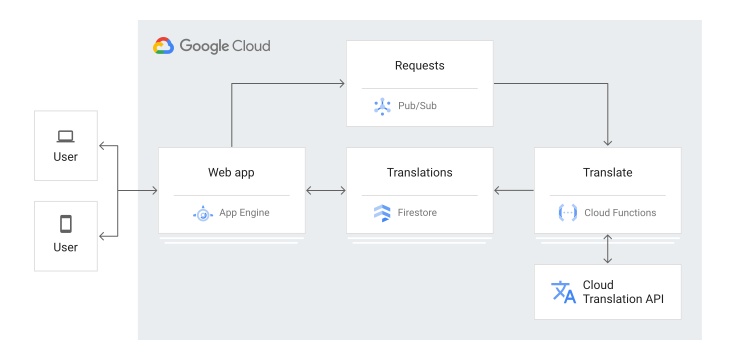
Here is the sequence of events for how the tutorial app works:
1. Visit the web page to see a list of previous translations, stored in Firestore.
2. Request a translation of text by entering an HTML form.
3. The translation request is published to Pub/Sub.
4. A Cloud Run function subscribed to that Pub/Sub topic is triggered.
5. The Cloud Run function uses Cloud Translation to translate the text.
6. The Cloud Run function stores the result in Firestore.
This tutorial is intended for anyone who is interested in learning about
background processing with Google Cloud. No prior experience is
required with Pub/Sub, Firestore, App Engine, or
Cloud Run functions. However, to understand all of the code, some experience with
Python, JavaScript, and HTML is helpful.
## Objectives
- Understand and deploy a Cloud Run function.
- Understand and deploy an App Engine app.
- Try the app.
## Costs
In this document, you use the following billable components of Google Cloud:
- [App Engine](https://docs.cloud.google.com/appengine/pricing)
- [Cloud Run functions](https://docs.cloud.google.com/functions/pricing)
- [Firestore](https://docs.cloud.google.com/firestore/pricing)
- [Pub/Sub](https://docs.cloud.google.com/pubsub/pricing)
- [Cloud Translation](https://docs.cloud.google.com/translate/pricing)
To generate a cost estimate based on your projected usage,
use the [pricing calculator](https://docs.cloud.google.com/products/calculator).
New Google Cloud users might be eligible for a [free trial](https://docs.cloud.google.com/free).
When you finish the tasks that are described in this document, you can avoid
continued billing by deleting the resources that you created. For more information, see
[Clean up](https://docs.cloud.google.com/python/docs/getting-started/background-processing#clean-up).
## Before you begin
1.
In the Google Cloud console, open the app in [Cloud Shell](https://docs.cloud.google.com/shell).
[Go to Cloud Shell](https://docs.cloud.google.com/console/cloudshell/open?git_repo=https://github.com/GoogleCloudPlatform/getting-started-python&working_dir=background)
Cloud Shell provides command-line access to your cloud resources directly from the
browser. Open Cloud Shell in your browser and click **Proceed** to download the
sample code and change into the app directory.
2. In Cloud Shell, configure the `gcloud` tool to use your Google Cloud project:
```bash
# Configure gcloud for your project
gcloud config set project YOUR_PROJECT_ID
```
## Understanding the Cloud Run function
- The function starts by importing several dependencies like Firestore and Translation.
import base64
import hashlib
import json
from google.cloud import firestore
from google.cloud import translate_v2 as translate
- The global Firestore and Translation clients are initialized so they can be reused between function invocations. That way, you don't have to initialize new clients for every function invocation, which would slow down execution.
# Get client objects once to reuse over multiple invocations.
xlate = translate.Client()
db = firestore.Client()
- The Translation API translates the string to the language you selected.
def translate_string(from_string, to_language):
""" Translates a string to a specified language.
from_string - the original string before translation
to_language - the language to translate to, as a two-letter code (e.g.,
'en' for english, 'de' for german)
Returns the translated string and the code for original language
"""
result = xlate.translate(from_string, target_language=to_language)
return result['translatedText'], result['detectedSourceLanguage']
-
The Cloud Run function starts by parsing the Pub/Sub
message to get the text to translate and the desired target language.
Then, the Cloud Run function translates the text and stores it in
Firestore, using a transaction to make sure there are no
duplicate translations.
def document_name(message):
""" Messages are saved in a Firestore database with document IDs generated
from the original string and destination language. If the exact same
translation is requested a second time, the result will overwrite the
prior result.
message - a dictionary with fields named Language and Original, and
optionally other fields with any names
Returns a unique name that is an allowed Firestore document ID
"""
key = '{}/{}'.format(message['Language'], message['Original'])
hashed = hashlib.sha512(key.encode()).digest()
# Note that document IDs should not contain the '/' character
name = base64.b64encode(hashed, altchars=b'+-').decode('utf-8')
return name
@firestore.transactional
def update_database(transaction, message):
name = document_name(message)
doc_ref = db.collection('translations').document(document_id=name)
try:
doc_ref.get(transaction=transaction)
except firestore.NotFound:
return # Don't replace an existing translation
transaction.set(doc_ref, message)
def translate_message(event, context):
""" Process a pubsub message requesting a translation
"""
message_data = base64.b64decode(event['data']).decode('utf-8')
message = json.loads(message_data)
from_string = message['Original']
to_language = message['Language']
to_string, from_language = translate_string(from_string, to_language)
message['Translated'] = to_string
message['OriginalLanguage'] = from_language
transaction = db.transaction()
update_database(transaction, message)
## Deploying the Cloud Run function
- In Cloud Shell, in the `function` directory, deploy the
Cloud Run function with a Pub/Sub trigger:
```bash
gcloud functions deploy Translate --runtime=python37 \
--entry-point=translate_message --trigger-topic=translate \
--set-env-vars GOOGLE_CLOUD_PROJECT=YOUR_GOOGLE_CLOUD_PROJECT
```
where `YOUR_GOOGLE_CLOUD_PROJECT` is your Google Cloud project ID.
## Understanding the app
There are two main components for the web app:
- A Python HTTP server to handle web requests. The server has the following two endpoints:
- `/`: Lists all of the existing translations and shows a form users can submit to request new translations.
- `/request-translation`: Form submissions are sent to this endpoint, which publishes the request to Pub/Sub to be translated asynchronously.
- An HTML template that is filled in with the existing translations by the Python server.
### The HTTP server
- In the `app` directory, `main.py` starts by importing dependencies, creating
a Flask app, initializing Firestore and
Translation clients, and defining a list of supported languages:
import json
import os
from flask import Flask, redirect, render_template, request
from google.cloud import firestore, pubsub
from markupsafe import escape
app = Flask(__name__)
# Get client objects to reuse over multiple invocations
db = firestore.https://docs.cloud.google.com/python/docs/reference/firestore/latest/google.cloud.firestore_v1.client.Client.html()
publisher = pubsub.https://docs.cloud.google.com/python/docs/reference/pubsublite/latest/google.cloud.pubsublite.cloudpubsub.publisher_client.PublisherClient.html()
# Keep this list of supported languages up to date
ACCEPTABLE_LANGUAGES = ("de", "en", "es", "fr", "ja", "sw")
- The index handler (`/`) gets all existing translations from
Firestore and fills an HTML template with the list:
@app.route("/", methods=["GET"])
def index():
"""The home page has a list of prior translations and a form to
ask for a new translation.
"""
doc_list = []
docs = db.collection("translations").stream()
for doc in docs:
doc_list.append(doc.to_dict())
return render_template("index.html", translations=doc_list)
- New translations are requested by submitting an HTML form. The request
translation handler, registered at `/request-translation`, parses
the form submission, validates the request, and publishes a
message to Pub/Sub:
@app.route("/request-translation", methods=["POST"])
def translate():
"""Handle a request to translate a string (form field 'v') to a given
language (form field 'lang'), by sending a PubSub message to a topic.
"""
source_string = request.form.get("v", "")
to_language = escape(request.form.get("lang", ""))
if source_string == "":
return "Invalid request, you must provide a value.", 400
if to_language not in ACCEPTABLE_LANGUAGES:
return f"Unsupported language: {to_language}", 400
message = {
"Original": source_string,
"Language": to_language,
"Translated": "",
"OriginalLanguage": "",
}
topic_name = (
f"projects/{os.getenv('GOOGLE_CLOUD_PROJECT')}/topics/translate"
)
publisher.publish(
topic=topic_name, data=json.dumps(message).encode("utf-8")
)
return redirect("/")
### The HTML template
The HTML template is the basis for the HTML page shown to the user so they can
see previous translations and request new ones. The template is filled in by the
HTTP server with the list of existing translations.
- The `` element of the HTML template includes metadata, style sheets, and JavaScript for the page:
Translations
The page pulls in
[Material Design Lite (MDL)](https://getmdl.io/)
CSS and JavaScript assets. MDL lets you add a
[Material Design](https://material.io/design/)
look and feel to your websites.
The page uses
[JQuery](https://jquery.com/)
to wait for the document to finish loading and set a form submission handler.
Whenever the request translation form is submitted, the page does minimal form
validation to check that the value isn't empty, and then sends an asynchronous
request to the `/request-translation` endpoint.
Finally, an
[MDL snackbar](https://getmdl.io/components/#snackbar-section)
appears to indicate if the request was successful or if it encountered an error.
- The HTML body of the page uses an [MDL layout](https://getmdl.io/components/index.html#layout-section) and several [MDL components](https://getmdl.io/components/index.html) to display a list of translations and a form to request additional translations:
## Deploying the web app
You can use the
[App Engine standard environment](https://docs.cloud.google.com/appengine/docs/standard/python)
to build and deploy an app that runs reliably under heavy load and with large amounts of data.
This tutorial uses the App Engine standard environment to deploy the HTTP frontend.
The `app.yaml` configures the App Engine app:
runtime: python312
- From the same directory as the `app.yaml` file, deploy your app to the App Engine standard environment:
```
gcloud app deploy
```
## Testing the app
After you've deployed the Cloud Run function and App Engine app, try
requesting a translation.
1.
To view the app in your browser,enter the following URL:
`https://PROJECT_ID.REGION_ID.r.appspot.com`
Replace the following:
- `PROJECT_ID`: Your Google Cloud project ID
- `REGION_ID`: A [code that
App Engine assigns to your app](https://docs.cloud.google.com/appengine/docs/standard/python/how-requests-are-routed#region-id)
There is a page with an empty list of translations and a form to request
new translations.
2. In the **Text to translate** field, enter some text to translate, for example, `Hello, World`.
3. Select a language from the drop-down list that you want to translate the text to.
4. Click **Submit**.
5. To refresh the page, click **Refresh** . There is a new row in the translation list. If you don't see a translation, wait a few more seconds and try again. If you still don't see a translation, see the next section about debugging the app.
## Debugging the app
If you cannot connect to your App Engine app or don't see new
translations, check the following:
1. Check that the `gcloud` deploy commands successfully completed and didn't output any errors. If there were errors, fix them, and try [deploying the Cloud Run function](https://docs.cloud.google.com/python/docs/getting-started/background-processing#deploying-the-cloud-function) and [the App Engine app](https://docs.cloud.google.com/python/docs/getting-started/background-processing#deploying-the-web-app) again.
2.
In the Google Cloud console, go to the Logs Viewer page.
[Go to Logs Viewer page](https://console.cloud.google.com/logs/query)
1. In the **Recently selected resources** drop-down list, click **GAE Application** , and then click **All module_id** . You see a list of requests from when you visited your app. If you don't see a list of requests, confirm you selected **All module_id** from the drop-down list. If you see error messages printed to the Google Cloud console, check that your app's code matches [the code in the section about understanding the app](https://docs.cloud.google.com/python/docs/getting-started/background-processing#understanding-the-app).
2. In the **Recently selected resources** drop-down list, click **Cloud Function** , and then click **All function name** . You see a function listed for each requested translation. If not, check that the Cloud Run function and App Engine app are using the same Pub/Sub topic:
- In the `background/main.py` file, check that the `topic_name` is `"translate"`.
- When you [deploy the Cloud Run function](https://docs.cloud.google.com/python/docs/getting-started/background-processing#deploying-the-cloud-function), be sure to include the `--trigger-topic=translate` flag.
## Clean up
To avoid incurring charges to your Google Cloud account for the resources used in this
tutorial, either delete the project that contains the resources, or keep the project and
delete the individual resources.
### Delete the Google Cloud project
> [!CAUTION]
> **Caution** : Deleting a project has the following effects:
>
> - **Everything in the project is deleted.** If you used an existing project for the tasks in this document, when you delete it, you also delete any other work you've done in the project.
> - **Custom project IDs are lost.** When you created this project, you might have created a custom project ID that you want to use in the future. To preserve the URLs that use the project ID, such as an `appspot.com` URL, delete selected resources inside the project instead of deleting the whole project.
1. In the Google Cloud console, go to the **Manage resources** page.
[Go to Manage resources](https://console.cloud.google.com/iam-admin/projects)
2. In the project list, select the project that you want to delete, and then click **Delete**.
3. In the dialog, type the project ID, and then click **Shut down** to delete the project.
### Delete the App Engine instance
1. In the Google Cloud console, go to the **Versions** page for App Engine.
[Go to Versions](https://console.cloud.google.com/appengine/versions)
2. Select the checkbox for the non-default app version that you want to delete.
> [!NOTE]
> **Note:** The only way you can delete the default version of your App Engine app is by deleting your project. However, you can [stop the default version in the
> Google Cloud console](https://console.cloud.google.com/appengine/versions). This action shuts down all instances associated with the version. You can restart these instances later if needed.
>
>
>
> In the App Engine standard environment, you can stop the default version only if your app has
> manual or basic scaling.
>
3. To delete the app version, click **Delete**.
### Delete the Cloud Run function
- Delete the Cloud Run function you created in this tutorial:
```bash
gcloud functions delete Translate
```
## What's next
- Try additional [Cloud Run functions tutorials](https://docs.cloud.google.com/functions/docs/tutorials).
- [Learn more about App Engine](https://docs.cloud.google.com/appengine/docs).
- [Try Cloud Run](https://docs.cloud.google.com/run/docs/quickstarts/deploy-container), which lets you run stateless containers on a fully managed environment or in your own Google Kubernetes Engine cluster.