This page describes how to simulate a change to an IAM [allow
policy](https://docs.cloud.google.com/iam/docs/policies) using Policy Simulator. It also explains how to
interpret the results of the simulation, and how to apply the simulated allow
policy if you choose to.
This feature only evaluates access based on allow policies.
To learn how to simulate changes to other types of policies, see the following:
- [Test deny policy changes with Policy Simulator](https://docs.cloud.google.com/policy-intelligence/docs/simulate-deny-policies.md.txt)
- [Test organization policy changes with
Policy Simulator](https://docs.cloud.google.com/policy-intelligence/docs/test-organization-policies)
- [Test Principal Access Boundary policy changes with
Policy Simulator](https://docs.cloud.google.com/policy-intelligence/docs/simulate-pab-policies)
## Before you begin
-
Enable the Policy Simulator and Resource Manager APIs, if any are not already enabled.
**Roles required to enable APIs**
To enable APIs, you need the `serviceusage.services.enable` permission. If you
created the project, then you likely already have this permission through the
Owner role (`roles/owner`). Otherwise, you can get this permission through the
Service Usage Admin role (`roles/serviceusage.serviceUsageAdmin`).
[Learn how to grant roles](https://docs.cloud.google.com/iam/docs/granting-changing-revoking-access.md.txt).
[Enable the APIs](https://console.cloud.google.com/apis/enableflow?apiid=policysimulator.googleapis.com,cloudresourcemanager.googleapis.com)
- Optional: Learn [how
Policy Simulator for allow policies works](https://docs.cloud.google.com/policy-intelligence/docs/iam-simulator-overview).
## Required permissions
Before you simulate a change to an allow policy, you need to make sure you have
the appropriate permissions. Certain permissions are required to run a
simulation; others are not required, but help you get the most complete results
from the simulation.
To learn more about Identity and Access Management (IAM) roles, see
[Understanding roles](https://docs.cloud.google.com/iam/docs/understanding-roles).
### Required target resource permissions
The *target resource* of the simulation is the resource whose allow policies
you're simulating.
To get the permissions that
you need to run a simulation,
ask your administrator to grant you the
following IAM roles on the target resource:
- [Cloud Asset Viewer](https://docs.cloud.google.com/iam/docs/roles-permissions/cloudasset.md.txt#cloudasset.viewer) (`roles/cloudasset.viewer`)
- [Simulator Admin](https://docs.cloud.google.com/iam/docs/roles-permissions/policysimulator.md.txt#policysimulator.admin) (`roles/policysimulator.admin`)
- [Security Reviewer](https://docs.cloud.google.com/iam/docs/roles-permissions/iam.md.txt#iam.securityReviewer) (`roles/iam.securityReviewer`)
- Apply simulated policy changes: [Security Admin](https://docs.cloud.google.com/iam/docs/roles-permissions/iam.md.txt#iam.securityAdmin) (`roles/iam.securityAdmin`)
For more information about granting roles, see [Manage access to projects, folders, and organizations](https://docs.cloud.google.com/iam/docs/granting-changing-revoking-access.md.txt).
These predefined roles contain
the permissions required to run a simulation. To see the exact permissions that are
required, expand the **Required permissions** section:
#### Required permissions
The following permissions are required to run a simulation:
- `cloudasset.assets.searchAllResources`
- `policysimulator.replays.run`
- `service.resource.getIamPolicy`, where `resource` is the resource type of the target resource and `service` is the name of the Google Cloud service that owns that resource.
- Apply simulated policy changes: `service.resource.setIamPolicy`, where `resource` is the resource type of the target resource and `service` is the name of the Google Cloud service that owns that resource.
You might also be able to get
these permissions
with [custom roles](https://docs.cloud.google.com/iam/docs/creating-custom-roles.md.txt) or
other [predefined roles](https://docs.cloud.google.com/iam/docs/roles-overview.md.txt#predefined).
### Required host resource permissions
The *host resource* of a simulation is the project, folder, or organization that
creates and runs the simulation. The host resource does not need to be related
to the target resource in any way.
The way you set the host resource depends on the platform you're using.
### Console
The host resource is the project, folder, or organization
that appears in the resource selector.
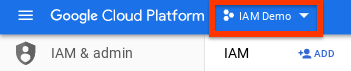

To change the host resource, choose a different project, folder, or
organization in the resource selector.
### gcloud
The host resource is the current quota project. To set the quota project,
use the
[`gcloud auth application-default set-quota-project`](https://docs.cloud.google.com/sdk/gcloud/reference/auth/application-default/set-quota-project.md.txt) command.
### REST
You manually specify the host resource each time you send a request.
See [Simulating a policy change](https://docs.cloud.google.com/policy-intelligence/docs/simulate-iam-policies.md.txt#simulating) on this page for details.
To get the permissions that
you need to run a simulation,
ask your administrator to grant you the
[Simulator Admin](https://docs.cloud.google.com/iam/docs/roles-permissions/policysimulator.md.txt#policysimulator.admin) (`roles/policysimulator.admin`) IAM role on the host resource.
For more information about granting roles, see [Manage access to projects, folders, and organizations](https://docs.cloud.google.com/iam/docs/granting-changing-revoking-access.md.txt).
This predefined role contains
the permissions required to run a simulation. To see the exact permissions that are
required, expand the **Required permissions** section:
#### Required permissions
The following permissions are required to run a simulation:
- `policysimulator.replayResults.list`
- `policysimulator.replays.create`
- `policysimulator.replays.get`
You might also be able to get
these permissions
with [custom roles](https://docs.cloud.google.com/iam/docs/creating-custom-roles.md.txt) or
other [predefined roles](https://docs.cloud.google.com/iam/docs/roles-overview.md.txt#predefined).
### Recommended permissions
To get the most complete results from a simulation, we recommend that you have
certain IAM and Google Workspace permissions. If you don't
have some or all of these permissions, you can still run a simulation. However,
running a simulation without these permissions could result in an increased
number of unknown access changes, because you might not be able to retrieve
information that could impact the results of the simulation.
#### Recommended IAM permissions
We recommend that you have the Security Reviewer role
(`roles/iam.securityReviewer`) for your organization when running a simulation.
Alternatively, if you already have the Security Admin role
(`roles/iam.securityAdmin`), you don't need to be granted any additional roles.
These roles give you the following permissions, which help you get the most
complete results from the simulation:
- `iam.roles.get` and `iam.roles.list` on any relevant projects, folders, or organizations where custom roles are defined. A project, folder, or organization is relevant if it is an ancestor or descendant of the resource whose allow policy you're simulating.
- `service.resource.getIamPolicy`,
where `resource` is the name of a resource type that can
have an allow policy and `service` is the name of the
Google Cloud service that owns that resource.
When you run a simulation, we recommend that you have this permission on
each resource that fits these criteria:
- Policy Simulator [supports the resource](https://docs.cloud.google.com/policy-intelligence/docs/iam-simulator-overview.md.txt#support-levels).
- The resource [has an allow policy](https://docs.cloud.google.com/iam/docs/resource-types-with-policies.md.txt) that might
impact the user's access. This is true if one of the following applies:
- The resource is a descendant of the resource whose allow policy you're simulating, and it appears in the [relevant access logs](https://docs.cloud.google.com/policy-intelligence/docs/iam-simulator-overview.md.txt#how-simulator-works).
- The resource is an ancestor of the resource whose allow policy you're simulating.
For example, imagine that you want to simulate an allow policy for a
project. If the access logs include an access attempt for a
Cloud Storage bucket in the project, you need the
`storage.buckets.getIamPolicy` permission on that bucket. If the project has
a parent folder with an allow policy, you also need the
`resourcemanager.folders.getIamPolicy` permission on that folder.
> [!NOTE]
> **Note:** Because of [allow policy inheritance](https://docs.cloud.google.com/iam/docs/resource-hierarchy-access-control.md.txt), you don't need a role on every relevant resource to get these permissions. Instead, you can have a role on a common ancestor resource.
#### Recommended Google Workspace permissions
We recommend that you have permission to retrieve group membership information
for each Google group in the original allow policy and the proposed allow
policy.
Google Workspace Super Admins and Group Admins typically have access to
view group membership. If you are not a Super Admin or Group Admin, ask your
Google Workspace administrator to
[create a custom Google Workspace administrator role](https://support.google.com/a/answer/2406043)
that contains the `groups.read` privilege (located under **Admin API
Privileges**) and grant it to you. This allows you to view the membership
of all groups within your domain, and more effectively simulate changes to an
allow policy.
## Simulate a policy change
Simulate a change to an allow policy by following these steps.
> [!NOTE]
> **Note:** Policy Simulator cannot simulate changes to conditional role bindings. For more information about conditional role bindings, see the [Overview of IAM Conditions](https://docs.cloud.google.com/iam/docs/conditions-overview.md.txt).
### Console
The following example demonstrates how to simulate a change to an allow policy
for a project. However, you can simulate a change to an allow policy for any
resource that has an allow policy.
Edit a principal's permissions, then, instead of clicking **Save** , click
**Test changes**:
1. In the Google Cloud console, go to the **IAM** page.
[Go
to the IAM page](https://console.cloud.google.com/iam-admin/iam)
2. Create a proposed change to the allow policy by editing an existing
principal's permissions:
1. Locate the principal whose access you want to edit and click the **Edit** button on the right.
2. Edit the principal's access by adding a new role, or by revoking or changing an existing role.
3. To simulate the proposed change, click **Test changes**.
> [!NOTE]
> **Note:** The simulation might take several minutes to complete. Leaving the page while the simulation is running will terminate the simulation.
4. After several minutes, the Google Cloud console will display the results
of the simulation as a list of *access changes* . See [Understanding
Policy Simulator results](https://docs.cloud.google.com/policy-intelligence/docs/simulate-iam-policies#understanding-results) on this page for more
information.
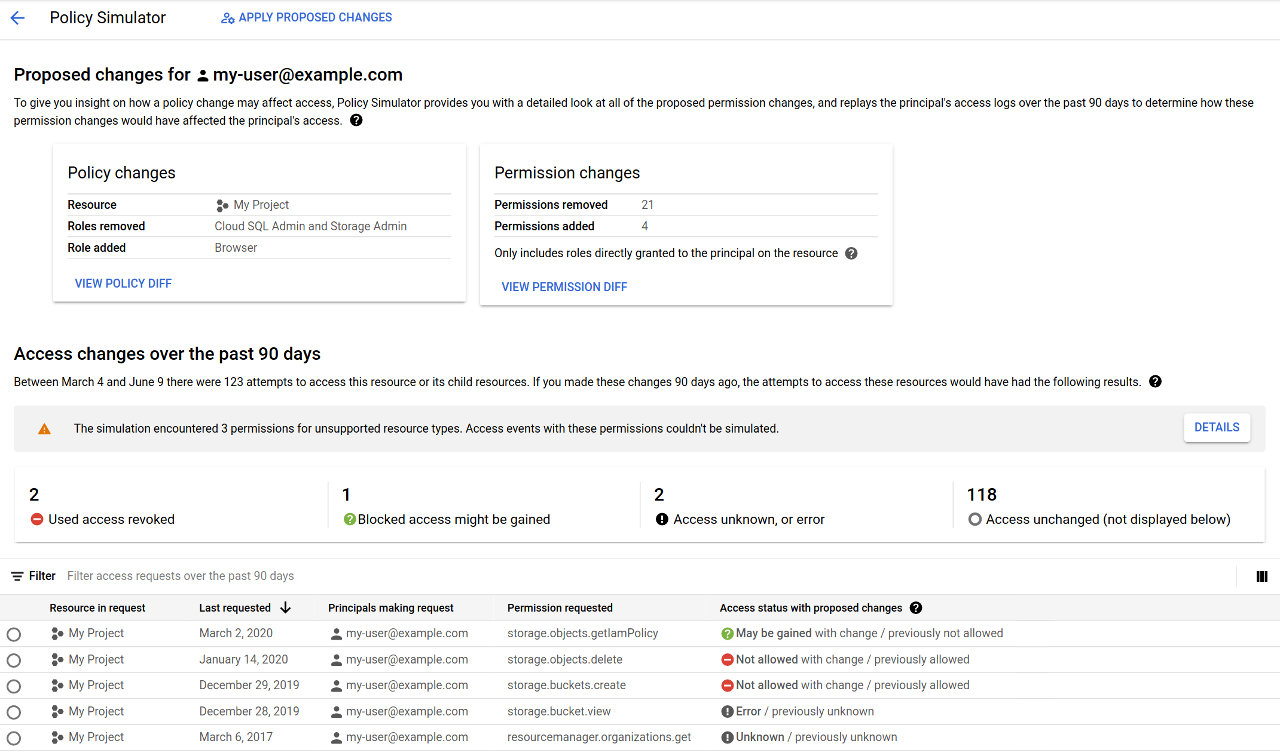

If there was no change in access between the existing allow policy and the
simulated allow policy, the Google Cloud console will not display any
access changes.
### gcloud
To simulate a change to an allow policy, follow the
[read-modify-write](https://docs.cloud.google.com/iam/docs/granting-changing-revoking-access.md.txt#policy-overview) pattern, but simulate the allow policy
instead of writing it.
1. Read the current allow policy by running the following command:
```bash
gcloud resource-type get-iam-policy resource-id --format=format > filepath
```
Replace the following values:
- `resource-type`: The type of resource that you want to simulate an allow policy for. For example, `projects`.
- `resource-id`: The ID of the resource whose allow policy you want to simulate. For example, `my-project`.
- `format`: The format of the response. Use the value `json` or `yaml`.
- `filepath`: The path to a new output file for the allow policy.
For example, the following command gets the allow policy for the project
`my-project` in JSON format and saves it to the user's home directory:
```bash
gcloud projects get-iam-policy my-project --format=json > ~/policy.json
```
2. Modify the JSON or YAML allow policy returned by the `get-iam-policy` command
to reflect the changes you want to simulate.
There are multiple types of changes you can make to the allow policy. For
example, you could add or remove a principal from a role binding, or remove
a role binding from the allow policy.
3. Run the following command to simulate the change to the allow policy:
```bash
gcloud iam simulator replay-recent-access \
full-resource-name \
filepath \
--format=format
```
Replace the following values:
- `full-resource-name`: The full resource name of the
resource whose allow policy you want to simulate.
The full resource name is a URI consisting of the service name and the
path to the resource. For example, if you are simulating an allow policy
for a project, you would use
`//cloudresourcemanager.googleapis.com/projects/project-
id`, where `project-id` is the ID of
the project whose allow policy you're simulating.
For a list of full resource name formats, see [Full resource
names](https://docs.cloud.google.com/iam/docs/full-resource-names).
- `filepath`: The path to the file containing the
modified allow policy that you want to simulate. For example,
`~/proposed_policy.json`.
> [!NOTE]
> **Note:** Policy Simulator automatically takes into account inherited allow policies and allow policies set on descendant resources. For more information, see [How Policy Simulator works](https://docs.cloud.google.com/policy-intelligence/docs/iam-simulator-overview.md.txt).
- `format`: The format for the response. For example,
`json` or `yaml`.
After several minutes, the command prints a list of replay results
explaining how the principal's access would change if the proposed allow
policy were applied. These results also list any errors that occurred during
the simulation, including any errors due to
[unsupported resource types](https://docs.cloud.google.com/policy-intelligence/docs/iam-simulator-overview.md.txt#support-levels).
See [Understanding Policy Simulator results](https://docs.cloud.google.com/policy-intelligence/docs/simulate-iam-policies.md.txt#understanding-results)
on this page to learn how to read the results. To learn how to save the
simulation results rather than printing them, see
[Saving simulation results](https://docs.cloud.google.com/policy-intelligence/docs/simulate-iam-policies.md.txt#saving).
The following is a sample response for an allow policy simulation involving
the user `my-user@example.com`. In this case, if the proposed change were
applied, `my-user@example.com` would potentially no longer have the
`resourcemanager.projects.list` and `resourcemanager.projects.get`
permissions for the project `my-project`, and would certainly no longer have
the `resourcemanager.projects.update` permission for the project
`my-project`:
```json
[
{
"accessTuple": {
"fullResourceName": "//cloudresourcemanager.googleapis.com/projects/my-project",
"permission": "resourcemanager.projects.list",
"principal": "my-user@example.com"
},
"diff": {
"accessDiff": {
"accessChange": "ACCESS_MAYBE_REVOKED",
"baseline": {
"accessState": "GRANTED"
},
"simulated": {
"accessState": "UNKNOWN_INFO_DENIED",
"errors": [
{
"code": 7,
"details": [
{
"@type": "type.googleapis.com/google.rpc.ResourceInfo",
"description": "Missing permission to retrieve IAM policies above the resource in hierarchy.",
"resourceName": "//cloudresourcemanager.googleapis.com/projects/my-project",
"resourceType": "cloudresourcemanager.googleapis.com/projects"
}
],
"message": "Missing permission to get relevant IAM policies."
}
],
"policies": [
{
"access": "UNKNOWN_INFO_DENIED",
"policy": {}
}
]
}
}
},
"lastSeenDate": {
"day": 12,
"month": 1,
"year": 2021
}
},
{
"accessTuple": {
"fullResourceName": "//cloudresourcemanager.googleapis.com/projects/my-project",
"permission": "resourcemanager.projects.get",
"principal": "my-user@example.com"
},
"diff": {
"accessDiff": {
"accessChange": "ACCESS_MAYBE_REVOKED",
"baseline": {
"accessState": "GRANTED"
},
"simulated": {
"accessState": "UNKNOWN_INFO_DENIED",
"errors": [
{
"code": 7,
"details": [
{
"@type": "type.googleapis.com/google.rpc.ResourceInfo",
"description": "Missing permission to view group membership.",
"resourceName": "group:everyone@example.com",
"resourceType": "Google group"
}
],
"message": "Missing permission to view group membership."
},
{
"code": 7,
"details": [
{
"@type": "type.googleapis.com/google.rpc.ResourceInfo",
"description": "Missing permission to retrieve IAM policies above the resource in hierarchy.",
"resourceName": "//cloudresourcemanager.googleapis.com/projects/my-project",
"resourceType": "cloudresourcemanager.googleapis.com/projects"
}
],
"message": "Missing permission to get relevant IAM policies."
}
],
"policies": [
{
"access": "UNKNOWN_INFO_DENIED",
"bindingExplanations": [
{
"access": "UNKNOWN_INFO_DENIED",
"memberships": {
"group:everyone@example.com": {
"membership": "MEMBERSHIP_UNKNOWN_INFO_DENIED"
}
},
"role": "roles/owner"
}
],
"fullResourceName": "//cloudresourcemanager.googleapis.com/projects/my-project",
"policy": {
"bindings": [
{
"members": [
"group:everyone@example.com"
],
"role": "roles/owner"
}
],
"etag": "BwWgJSIInYA=",
"version": 3
}
},
{
"access": "UNKNOWN_INFO_DENIED",
"policy": {}
}
]
}
}
},
"lastSeenDate": {
"day": 10,
"month": 1,
"year": 2021
}
},
{
"accessTuple": {
"fullResourceName": "//cloudresourcemanager.googleapis.com/projects/my-project",
"permission": "resourcemanager.projects.update",
"principal": "my-user@example.com"
},
"diff": {
"accessDiff": {
"accessChange": "ACCESS_REVOKED",
"baseline": {
"accessState": "GRANTED"
},
"simulated": {
"accessState": "NOT_GRANTED"
}
}
},
"lastSeenDate": {
"day": 15,
"month": 1,
"year": 2021
}
},
{
"accessTuple": {},
"error": {
"code": 12,
"details": [
{
"@type": "type.googleapis.com/google.rpc.ErrorInfo",
"domain": "policysimulator.googleapis.com",
"metadata": {
"permission": "storage.objects.create"
},
"reason": "UNSUPPORTED_RESOURCE"
},
{
"@type": "type.googleapis.com/google.rpc.ErrorInfo",
"domain": "policysimulator.googleapis.com",
"metadata": {
"permission": "storage.objects.setIamPolicy"
},
"reason": "UNSUPPORTED_RESOURCE"
},
{
"@type": "type.googleapis.com/google.rpc.ErrorInfo",
"domain": "policysimulator.googleapis.com",
"metadata": {
"permission": "storage.objects.delete"
},
"reason": "UNSUPPORTED_RESOURCE"
},
{
"@type": "type.googleapis.com/google.rpc.ErrorInfo",
"domain": "policysimulator.googleapis.com",
"metadata": {
"permission": "storage.objects.update"
},
"reason": "UNSUPPORTED_RESOURCE"
},
{
"@type": "type.googleapis.com/google.rpc.ErrorInfo",
"domain": "policysimulator.googleapis.com",
"metadata": {
"permission": "pubsub.topics.publish"
},
"reason": "UNSUPPORTED_RESOURCE"
},
{
"@type": "type.googleapis.com/google.rpc.ErrorInfo",
"domain": "policysimulator.googleapis.com",
"metadata": {
"permission": "storage.objects.list"
},
"reason": "UNSUPPORTED_RESOURCE"
},
{
"@type": "type.googleapis.com/google.rpc.ErrorInfo",
"domain": "policysimulator.googleapis.com",
"metadata": {
"permission": "storage.objects.getIamPolicy"
},
"reason": "UNSUPPORTED_RESOURCE"
},
{
"@type": "type.googleapis.com/google.rpc.ErrorInfo",
"domain": "policysimulator.googleapis.com",
"metadata": {
"permission": "storage.objects.get"
},
"reason": "UNSUPPORTED_RESOURCE"
}
],
"message": "Simulator does not yet support all resource types for 8 removed permissions."
}
}
]
```
If there was no change in access between the existing allow policy and the
simulated allow policy, the command prints `No access changes found in the
replay`.
### REST
To simulate a change to an allow policy, follow the
[read-modify-write](https://docs.cloud.google.com/iam/docs/granting-changing-revoking-access.md.txt#policy-overview) pattern, but instead of writing the allow
policy, create and run a simulation.
1. Read the allow policy for the resource.
> [!NOTE]
> **Note:** The following example shows how to get the allow policy for a [project](https://docs.cloud.google.com/resource-manager/docs/cloud-platform-resource-hierarchy.md.txt#projects). To get the allow policy for another resource type, use that resource's `getIamPolicy` method.
To get a project's allow policy, use the Resource Manager API's
`projects.getIamPolicy`
method.
Before using any of the request data,
make the following replacements:
- `PROJECT_ID`: Your Google Cloud project ID. Project IDs are alphanumeric strings, like `my-project`.
- `POLICY_VERSION`: The policy version to be returned. Requests should specify the most recent policy version, which is policy version 3. See [Specifying
a policy version when getting a policy](https://docs.cloud.google.com/iam/docs/policies#specifying-version-get) for details.
HTTP method and URL:
```
POST https://cloudresourcemanager.googleapis.com/v1/projects/PROJECT_ID:getIamPolicy
```
Request JSON body:
```
{
"options": {
"requestedPolicyVersion": POLICY_VERSION
}
}
```
To send your request, expand one of these options:
#### curl (Linux, macOS, or Cloud Shell)
> [!NOTE]
> **Note:** The following command assumes that you have logged in to the `gcloud` CLI with your user account by running [`gcloud init`](https://docs.cloud.google.com/sdk/gcloud/reference/init) or [`gcloud auth login`](https://docs.cloud.google.com/sdk/gcloud/reference/auth/login.md.txt) , or by using [Cloud Shell](https://docs.cloud.google.com/shell/docs.md.txt), which automatically logs you into the `gcloud` CLI . You can check the currently active account by running [`gcloud auth list`](https://docs.cloud.google.com/sdk/gcloud/reference/auth/list.md.txt).
Save the request body in a file named `request.json`,
and execute the following command:
```
curl -X POST \
-H "Authorization: Bearer $(gcloud auth print-access-token)" \
-H "Content-Type: application/json; charset=utf-8" \
-d @request.json \
"https://cloudresourcemanager.googleapis.com/v1/projects/PROJECT_ID:getIamPolicy"
```
#### PowerShell (Windows)
> [!NOTE]
> **Note:** The following command assumes that you have logged in to the `gcloud` CLI with your user account by running [`gcloud init`](https://docs.cloud.google.com/sdk/gcloud/reference/init) or [`gcloud auth login`](https://docs.cloud.google.com/sdk/gcloud/reference/auth/login.md.txt) . You can check the currently active account by running [`gcloud auth list`](https://docs.cloud.google.com/sdk/gcloud/reference/auth/list.md.txt).
Save the request body in a file named `request.json`,
and execute the following command:
```
$cred = gcloud auth print-access-token
$headers = @{ "Authorization" = "Bearer $cred" }
Invoke-WebRequest `
-Method POST `
-Headers $headers `
-ContentType: "application/json; charset=utf-8" `
-InFile request.json `
-Uri "https://cloudresourcemanager.googleapis.com/v1/projects/PROJECT_ID:getIamPolicy" | Select-Object -Expand Content
```
#### APIs Explorer (browser)
Copy the request body and open the
[method reference page](https://docs.cloud.google.com/resource-manager/reference/rest/v1/projects/getIamPolicy.md.txt).
The APIs Explorer panel opens on the right side of the page.
You can interact with this tool to send requests.
Paste the request body in this tool, complete any other required fields, and click **Execute**.
You should receive a JSON response similar to the following:
```
{
"version": 1,
"etag": "BwWKmjvelug=",
"bindings": [
{
"role": "roles/owner",
"members": [
"user:project-owner@example.com"
]
},
{
"role": "roles/iam.securityReviewer",
"members": [
"user:fatima@example.com"
]
}
]
}
```
2. Modify the returned allow policy to reflect the changes that you want to
simulate.
There are multiple types of changes you can make to the allow policy. For
example, you could add or remove a principal from a role binding, or remove
a role binding from the allow policy.
3. Create a simulation, or *Replay*, with the modified allow policy.
To create a Replay for a project, folder, or organization, use the Policy Simulator API's
`replays.create`
method.
Before using any of the request data,
make the following replacements:
- `HOST_RESOURCE_TYPE`: The type of the resource that will host the Replay. This value must be `projects`, `folders`, or `organizations`.
- `HOST_RESOURCE_ID`: The ID of the host resource, for example, `my-project`.
-
`TARGET_FULL_RESOURCE_NAME`: The full resource name of the resource
whose policy you want to simulate. This resource can be any
[resource that accepts IAM
policies](https://docs.cloud.google.com/iam/docs/resource-types-with-policies), and does not need to be related to the host resource in any way.
The full resource name is a URI consisting of the service name and the
path to the resource. For example, if you are simulating a policy for a
project, you would use
`//cloudresourcemanager.googleapis.com/projects/PROJECT_ID`, where
`PROJECT_ID` is the ID of the project whose policy you're
simulating.
For a full list of resource name formats, see
[Full resource names](https://docs.cloud.google.com/iam/docs/full-resource-names.md.txt).
-
`POLICY`: The policy that you want to simulate. For an example of a
policy, see the
[policy reference](https://docs.cloud.google.com/policy-intelligence/docs/reference/policysimulator/rest/v1/Policy.md.txt).
To simulate multiple policies, include multiple
`"OBJECT_FULL_RESOURCE_NAME" : POLICY` pairs in the request
body.
> [!NOTE]
> Policy Simulator automatically takes into account inherited policies and policies on child resources. For more information, see [How the
> Policy Simulator works](https://docs.cloud.google.com/policy-intelligence/docs/iam-simulator-overview#how-simulator-works).
- `PROJECT_ID`: Your Google Cloud project ID. Project IDs are alphanumeric strings, like `my-project`.
HTTP method and URL:
```
POST https://policysimulator.googleapis.com/v1/HOST_RESOURCE_TYPE/HOST_RESOURCE_ID/locations/global/replays
```
Request JSON body:
```
{
"config": {
"policyOverlay": {
"TARGET_FULL_RESOURCE_NAME" : POLICY
}
}
}
```
To send your request, expand one of these options:
#### curl (Linux, macOS, or Cloud Shell)
> [!NOTE]
> **Note:** The following command assumes that you have logged in to the `gcloud` CLI with your user account by running [`gcloud init`](https://docs.cloud.google.com/sdk/gcloud/reference/init) or [`gcloud auth login`](https://docs.cloud.google.com/sdk/gcloud/reference/auth/login.md.txt) , or by using [Cloud Shell](https://docs.cloud.google.com/shell/docs.md.txt), which automatically logs you into the `gcloud` CLI . You can check the currently active account by running [`gcloud auth list`](https://docs.cloud.google.com/sdk/gcloud/reference/auth/list.md.txt).
Save the request body in a file named `request.json`,
and execute the following command:
```
curl -X POST \
-H "Authorization: Bearer $(gcloud auth print-access-token)" \
-H "x-goog-user-project: PROJECT_ID" \
-H "Content-Type: application/json; charset=utf-8" \
-d @request.json \
"https://policysimulator.googleapis.com/v1/HOST_RESOURCE_TYPE/HOST_RESOURCE_ID/locations/global/replays"
```
#### PowerShell (Windows)
> [!NOTE]
> **Note:** The following command assumes that you have logged in to the `gcloud` CLI with your user account by running [`gcloud init`](https://docs.cloud.google.com/sdk/gcloud/reference/init) or [`gcloud auth login`](https://docs.cloud.google.com/sdk/gcloud/reference/auth/login.md.txt) . You can check the currently active account by running [`gcloud auth list`](https://docs.cloud.google.com/sdk/gcloud/reference/auth/list.md.txt).
Save the request body in a file named `request.json`,
and execute the following command:
```
$cred = gcloud auth print-access-token
$headers = @{ "Authorization" = "Bearer $cred"; "x-goog-user-project" = "PROJECT_ID" }
Invoke-WebRequest `
-Method POST `
-Headers $headers `
-ContentType: "application/json; charset=utf-8" `
-InFile request.json `
-Uri "https://policysimulator.googleapis.com/v1/HOST_RESOURCE_TYPE/HOST_RESOURCE_ID/locations/global/replays" | Select-Object -Expand Content
```
#### APIs Explorer (browser)
Copy the request body and open the
[method reference page](https://docs.cloud.google.com/policy-intelligence/docs/reference/policysimulator/rest/v1/projects.locations.replays/create.md.txt).
The APIs Explorer panel opens on the right side of the page.
You can interact with this tool to send requests.
Paste the request body in this tool, complete any other required fields, and click **Execute**.
The response contains the name of an operation representing your Replay:
```
{
"name": "operations/6de23e63-f61a-4b8c-b502-34d717d2d7f8",
"metadata": {
"type_url": "type.googleapis.com/google.cloud.policysimulator.v1.ReplayOperationMetadata"
}
}
```
4. Poll the `operations.get` method until the Replay is complete.
To poll an operation, we recommended that you repeatedly invoke the
`operations.get` method until the response includes the field `"done": true`
and a `name` field with the name of the completed Replay. Use [truncated
exponential backoff](https://docs.cloud.google.com/iam/docs/retry-strategy) to introduce a delay between each
request.
To get the state of a Replay, use the Policy Simulator API's
`operations.get`
method.
Before using any of the request data,
make the following replacements:
- `OPERATION_NAME`: The name of a Replay operation, including the `operations` prefix. Copy this value from the `name` field of a `replays.create` response. For example: `operations/6de23e63-f61a-4b8c-b502-34d717d2d7f8`
- `PROJECT_ID`: Your Google Cloud project ID. Project IDs are alphanumeric strings, like `my-project`.
HTTP method and URL:
```
GET https://policysimulator.googleapis.com/v1/OPERATION_NAME
```
To send your request, expand one of these options:
#### curl (Linux, macOS, or Cloud Shell)
> [!NOTE]
> **Note:** The following command assumes that you have logged in to the `gcloud` CLI with your user account by running [`gcloud init`](https://docs.cloud.google.com/sdk/gcloud/reference/init) or [`gcloud auth login`](https://docs.cloud.google.com/sdk/gcloud/reference/auth/login.md.txt) , or by using [Cloud Shell](https://docs.cloud.google.com/shell/docs.md.txt), which automatically logs you into the `gcloud` CLI . You can check the currently active account by running [`gcloud auth list`](https://docs.cloud.google.com/sdk/gcloud/reference/auth/list.md.txt).
Execute the following command:
```
curl -X GET \
-H "Authorization: Bearer $(gcloud auth print-access-token)" \
-H "x-goog-user-project: PROJECT_ID" \
"https://policysimulator.googleapis.com/v1/OPERATION_NAME"
```
#### PowerShell (Windows)
> [!NOTE]
> **Note:** The following command assumes that you have logged in to the `gcloud` CLI with your user account by running [`gcloud init`](https://docs.cloud.google.com/sdk/gcloud/reference/init) or [`gcloud auth login`](https://docs.cloud.google.com/sdk/gcloud/reference/auth/login.md.txt) . You can check the currently active account by running [`gcloud auth list`](https://docs.cloud.google.com/sdk/gcloud/reference/auth/list.md.txt).
Execute the following command:
```
$cred = gcloud auth print-access-token
$headers = @{ "Authorization" = "Bearer $cred"; "x-goog-user-project" = "PROJECT_ID" }
Invoke-WebRequest `
-Method GET `
-Headers $headers `
-Uri "https://policysimulator.googleapis.com/v1/OPERATION_NAME" | Select-Object -Expand Content
```
#### APIs Explorer (browser)
Open the
[method reference page](https://docs.cloud.google.com/policy-intelligence/docs/reference/policysimulator/rest/v1/operations/get.md.txt).
The APIs Explorer panel opens on the right side of the page.
You can interact with this tool to send requests.
Complete any required fields and click **Execute**.
Ongoing operations return a response like the following:
```
{
"name": "operations/42083b6b-3788-41b9-ae39-e97d7615a22d",
"metadata": {
"@type": "type.googleapis.com/google.cloud.policysimulator.v1.ReplayOperationMetadata",
"startTime": "2021-01-15T05:34:14.732Z"
}
}
```
Completed operations return a response like the following:
```
{
"name": "operations/89ab4892-9605-4c84-aedb-4fce4fc5195b",
"metadata": {
"@type": "type.googleapis.com/google.cloud.policysimulator.v1.ReplayOperationMetadata",
"startTime": "2021-01-15T05:40:15.922Z"
},
"done": true,
"response": {
"@type": "type.googleapis.com/google.cloud.policysimulator.v1.Replay",
"replay": {
"name": "projects/my-project/locations/global/replays/89ab4892-9605-4c84-aedb-4fce4fc5195b",
"state": SUCCEEDED,
"config": {},
"resultsSummary": {
"logCount": 1319,
"unchangedCount": 1169,
"differenceCount": 149,
"errorCount": 1,
"oldestDate": {
"year": 2020,
"month": 10,
"day": 15
},
"newestDate": {
"year": 2021,
"month": 1,
"day": 12
}
}
}
}
}
```
5. Get the results of the Replay.
To get the results of a Replay, use the Policy Simulator API's
`replays.results.list`
method.
Before using any of the request data,
make the following replacements:
- `REPLAY_NAME`: The name of the Replay that you want to retrieve results for. Copy this value from the `response.replay.name` field of an `operations.get` response. Include any resource type and location prefixes. For example, `"projects/my-project/locations/global/replays/89ab4892-9605-4c84-aedb-4fce4fc5195b"`
- `PAGE_SIZE`: Optional. The maximum number of results to return from this request. If not specified, the server will determine the number of results to return. If the number of results is greater than the page size, the response contains a pagination token that you can use to retrieve the next page of results.
- `PAGE_TOKEN`: Optional. The pagination token returned in an earlier response from this method. If specified, the list of results will start where the previous request ended.
- `PROJECT_ID`: Your Google Cloud project ID. Project IDs are alphanumeric strings, like `my-project`.
HTTP method and URL:
```
GET https://policysimulator.googleapis.com/v1/REPLAY_NAME/results?pageSize=page-size&pageToken=PAGE_TOKEN
```
To send your request, expand one of these options:
#### curl (Linux, macOS, or Cloud Shell)
> [!NOTE]
> **Note:** The following command assumes that you have logged in to the `gcloud` CLI with your user account by running [`gcloud init`](https://docs.cloud.google.com/sdk/gcloud/reference/init) or [`gcloud auth login`](https://docs.cloud.google.com/sdk/gcloud/reference/auth/login.md.txt) , or by using [Cloud Shell](https://docs.cloud.google.com/shell/docs.md.txt), which automatically logs you into the `gcloud` CLI . You can check the currently active account by running [`gcloud auth list`](https://docs.cloud.google.com/sdk/gcloud/reference/auth/list.md.txt).
Execute the following command:
```
curl -X GET \
-H "Authorization: Bearer $(gcloud auth print-access-token)" \
-H "x-goog-user-project: PROJECT_ID" \
"https://policysimulator.googleapis.com/v1/REPLAY_NAME/results?pageSize=page-size&pageToken=PAGE_TOKEN"
```
#### PowerShell (Windows)
> [!NOTE]
> **Note:** The following command assumes that you have logged in to the `gcloud` CLI with your user account by running [`gcloud init`](https://docs.cloud.google.com/sdk/gcloud/reference/init) or [`gcloud auth login`](https://docs.cloud.google.com/sdk/gcloud/reference/auth/login.md.txt) . You can check the currently active account by running [`gcloud auth list`](https://docs.cloud.google.com/sdk/gcloud/reference/auth/list.md.txt).
Execute the following command:
```
$cred = gcloud auth print-access-token
$headers = @{ "Authorization" = "Bearer $cred"; "x-goog-user-project" = "PROJECT_ID" }
Invoke-WebRequest `
-Method GET `
-Headers $headers `
-Uri "https://policysimulator.googleapis.com/v1/REPLAY_NAME/results?pageSize=page-size&pageToken=PAGE_TOKEN" | Select-Object -Expand Content
```
#### APIs Explorer (browser)
Open the
[method reference page](https://docs.cloud.google.com/policy-intelligence/docs/reference/policysimulator/rest/v1/projects.locations.replays.results/list.md.txt).
The APIs Explorer panel opens on the right side of the page.
You can interact with this tool to send requests.
Complete any required fields and click **Execute**.
The response contains a list of results explaining how the principal's access would change if the
proposed policy were applied. These results also list any errors that occurred during the
simulation, most notably, any errors due to
[unsupported resource types](https://docs.cloud.google.com/policy-intelligence/docs/iam-simulator-overview.md.txt#support-levels)
See
[Understanding Policy Simulator results](https://docs.cloud.google.com/policy-intelligence/docs/simulate-iam-policies.md.txt#understanding-results) on
this page to learn how to read the results.
The following is a sample response for a policy simulation involving the
user `my-user@example.com`. In this case, if the proposed change were applied,
`my-user@example.com `would potentially no longer have the
`resourcemanager.projects.list` and `resourcemanager.projects.get`
permissions for the project `my-project`, and would certainly no longer have
the `resourcemanager.projects.update` permission for the project
`my-project`:
```
{
"replayResults": [
{
"accessTuple": {
"fullResourceName": "//cloudresourcemanager.googleapis.com/projects/my-project",
"permission": "resourcemanager.projects.list",
"principal": "my-user@example.com"
},
"lastSeenDate": {
"day": 27,
"month": 3,
"year": 2020
},
"diff": {
"accessDiff": {
"accessChange": "ACCESS_MAYBE_REVOKED",
"baseline": {
"accessState": "GRANTED"
},
"simulated": {
"accessState": "UNKNOWN_INFO_DENIED",
"errors": [
{
"code": 7,
"message": "Missing permission to get relevant IAM policies.",
"details": [
{
"@type": "type.googleapis.com/google.rpc.ResourceInfo",
"description": "Missing permission to retrieve IAM policies above the resource in hierarchy.",
"resourceName": "//cloudresourcemanager.googleapis.com/projects/my-project",
"resourceType": "cloudresourcemanager.googleapis.com/projects"
}
]
}
],
"policies": [
{
"access": "UNKNOWN_INFO_DENIED",
"policy": {}
}
]
}
}
}
},
{
"accessTuple": {
"fullResourceName": "//cloudresourcemanager.googleapis.com/projects/my-project",
"permission": "resourcemanager.projects.get",
"principal": "my-user@example.com"
},
"lastSeenDate": {
"day": 27,
"month": 3,
"year": 2020
},
"diff": {
"accessDiff": {
"accessChange": "ACCESS_MAYBE_REVOKED",
"baseline": {
"accessState": "GRANTED"
},
"simulated": {
"accessState": "UNKNOWN_INFO_DENIED",
"errors": [
{
"code": 7,
"message": "Missing permission to view group membership.",
"details": [
{
"@type": "type.googleapis.com/google.rpc.ResourceInfo",
"description": "Missing permission to view group membership.",
"resourceName": "group:everyone@example.com",
"resourceType": "Google group"
}
]
},
{
"code": 7,
"message": "Missing permission to get relevant IAM policies.",
"details": [
{
"@type": "type.googleapis.com/google.rpc.ResourceInfo",
"description": "Missing permission to retrieve IAM policies above the resource in hierarchy.",
"resourceName": "//cloudresourcemanager.googleapis.com/projects/my-project",
"resourceType": "cloudresourcemanager.googleapis.com/projects"
}
]
}
],
"policies": [
{
"access": "UNKNOWN_INFO_DENIED",
"bindingExplanations": [
{
"access": "UNKNOWN_INFO_DENIED",
"memberships": {
"group:everyone@example.com": {
"membership": "MEMBERSHIP_UNKNOWN_INFO_DENIED"
}
},
"role": "roles/owner"
}
],
"fullResourceName": "//cloudresourcemanager.googleapis.com/projects/my-project",
"policy": {
"bindings": [
{
"members": [
"group:everyone@example.com"
],
"role": "roles/owner"
}
],
"etag": "BwWgJSIInYA=",
"version": 3
}
},
{
"access": "UNKNOWN_INFO_DENIED",
"policy": {}
}
]
}
}
}
},
{
"accessTuple": {
"fullResourceName": "//cloudresourcemanager.googleapis.com/projects/my-project",
"permission": "resourcemanager.projects.update",
"principal": "my-user@example.com"
},
"lastSeenDate": {
"day": 27,
"month": 3,
"year": 2020
},
"diff": {
"accessDiff": {
"accessChange": "ACCESS_REVOKED",
"baseline": {
"accessState": "GRANTED"
},
"simulated": {
"accessState": "NOT_GRANTED"
}
}
}
},
{
"accessTuple": {},
"error": {
"code": 12,
"message": "Simulator does not yet support all resource types for 8 removed permissions.",
"details": [
{
"@type": "type.googleapis.com/google.rpc.Status",
"code": 12,
"message": "Simulator does not yet support all resource types for 8 removed permissions.",
"details": [
{
"@type": "type.googleapis.com/google.rpc.ErrorInfo",
"domain": "policysimulator.googleapis.com",
"metadata": {
"permission": "storage.objects.create"
},
"reason": "UNSUPPORTED_RESOURCE"
},
{
"@type": "type.googleapis.com/google.rpc.ErrorInfo",
"domain": "policysimulator.googleapis.com",
"metadata": {
"permission": "storage.objects.setIamPolicy"
},
"reason": "UNSUPPORTED_RESOURCE"
},
{
"@type": "type.googleapis.com/google.rpc.ErrorInfo",
"domain": "policysimulator.googleapis.com",
"metadata": {
"permission": "storage.objects.delete"
},
"reason": "UNSUPPORTED_RESOURCE"
},
{
"@type": "type.googleapis.com/google.rpc.ErrorInfo",
"domain": "policysimulator.googleapis.com",
"metadata": {
"permission": "storage.objects.update"
},
"reason": "UNSUPPORTED_RESOURCE"
},
{
"@type": "type.googleapis.com/google.rpc.ErrorInfo",
"domain": "policysimulator.googleapis.com",
"metadata": {
"permission": "pubsub.topics.publish"
},
"reason": "UNSUPPORTED_RESOURCE"
},
{
"@type": "type.googleapis.com/google.rpc.ErrorInfo",
"domain": "policysimulator.googleapis.com",
"metadata": {
"permission": "storage.objects.list"
},
"reason": "UNSUPPORTED_RESOURCE"
},
{
"@type": "type.googleapis.com/google.rpc.ErrorInfo",
"domain": "policysimulator.googleapis.com",
"metadata": {
"permission": "storage.objects.getIamPolicy"
},
"reason": "UNSUPPORTED_RESOURCE"
},
{
"@type": "type.googleapis.com/google.rpc.ErrorInfo",
"domain": "policysimulator.googleapis.com",
"metadata": {
"permission": "storage.objects.get"
},
"reason": "UNSUPPORTED_RESOURCE"
}
]
}
]
}
}
],
"nextPageToken": "AWukk3zjv80La+chWx6WNt7X8czGPLtP792gRpkNVEV/URZ/VdWzxmuJKr"
}
```
If there was no change in access between the existing allow policy and the
simulated allow policy, the request returns an empty list (`{}`).
## Understand Policy Simulator results
Policy Simulator reports the impact of a proposed change to an allow
policy as a list of access changes. Each access change represents an access
attempt from the last 90 days that would have a different outcome
under the proposed allow policy than under the current allow policy.
Policy Simulator also lists any errors that occurred during the
simulation, which helps you identify potential gaps in the simulation.
The presentation of these changes and errors depends on the platform you're
using.
### Console
The Policy Simulator results page displays the results of the simulation
in several different sections:
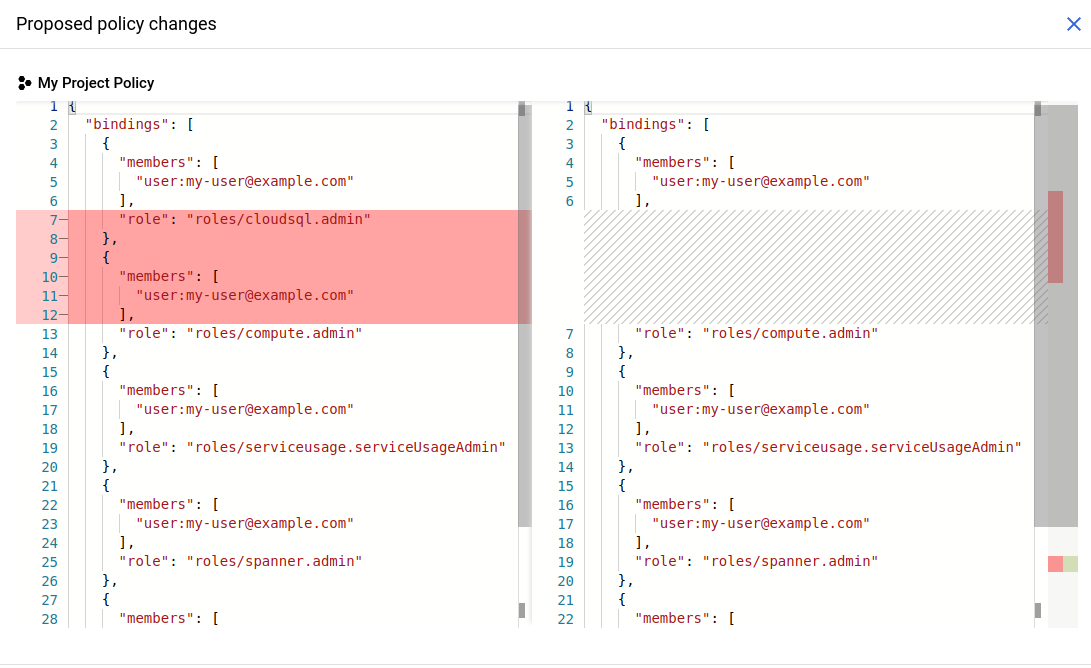
- **Policy changes**: This section lists the resource whose allow policy you're
proposing changes for, the roles that you're proposing to remove, and the
roles that you're proposing to add.
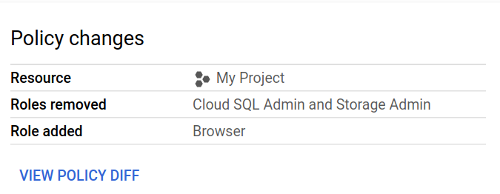
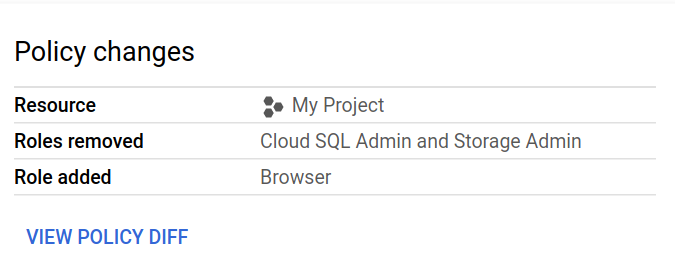
This section also contains a **View policy diff** button. If you click this
button, you can view what the resource's allow policy looks like before and
after the proposed changes.

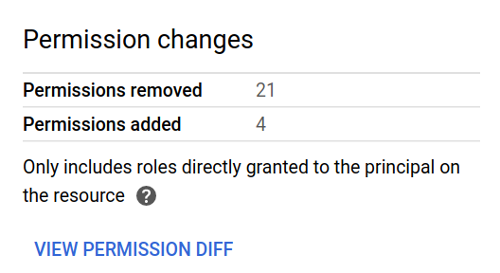
- **Permission changes**: This section contains counts of removed and added
permissions, which describe how the principal's permissions would change if
you applied the proposed changes. These permission counts are calculated by
comparing the permissions in the principal's current roles with the
permissions in the principal's proposed roles, ignoring inherited roles.
This section also contains a **View permission diff** button. If you click
this button, you can view a side-by-side comparison of the permissions in
the principal's current and proposed roles.
- **Access changes over the past 90 days**: This section shows
which access attempts from the last 90 days have different
results under the proposed allow policy and the current allow policy. This
section includes both a summary of the access changes, and a table with more
detailed results.
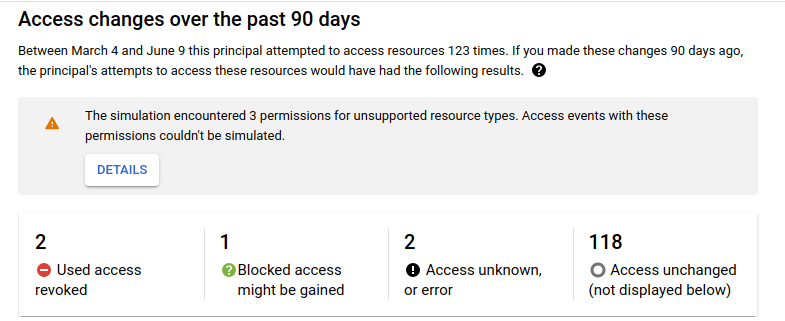
The summary of access changes lists the number of each type of access
change, the number of errors and unknown results, and the number of access
attempts that have the same result under the proposed allow policy and the
current allow policy. The summary also shows how many permissions could not
be simulated. For more information, see [Errors](https://docs.cloud.google.com/policy-intelligence/docs/simulate-iam-policies.md.txt#errors) on this page.

This section also contains a table of access changes. This table lists each
access attempt from the past 90 days that has a different
result under the proposed allow policy and under the current allow policy.
Each entry includes the resource that the principal was trying to access,
the date of the request, the principal making the request, the permission in
the request, and the access status under the proposed allow policy as
compared to the access status under the current allow policy.
> [!NOTE]
> **Note:** Google groups do not appear in simulation results, because it is group members, not the groups themselves, that attempt to access resources. Rather, group members whose access might be impacted appear in the simulation results.


There are several different types of access changes:
| Access change | Details |
|---|---|
| **Access revoked** | The principal had access under the current allow policy, but will no longer have access after the proposed change. |
| **Access potentially revoked** | This result can occur for the following reasons: - The principal had access under the current allow policy, but their access under the proposed allow policy is [unknown](https://docs.cloud.google.com/policy-intelligence/docs/simulate-iam-policies.md.txt#unknown). - The principal's access under the current allow policy is [unknown](https://docs.cloud.google.com/policy-intelligence/docs/simulate-iam-policies.md.txt#unknown), but they will not have access after the proposed change. |
| **Access gained** | The principal did not have access under the current allow policy, but will have access after the proposed change. |
| **Access potentially gained** | This result can occur for the following reasons: - The principal did not have access under the current allow policy, but their access after the proposed change is [unknown](https://docs.cloud.google.com/policy-intelligence/docs/simulate-iam-policies.md.txt#unknown). - The principal's access under the current allow policy is [unknown](https://docs.cloud.google.com/policy-intelligence/docs/simulate-iam-policies.md.txt#unknown), but they will have access after the proposed change. |
| **Access unknown** | The principal's access under both the current allow policy and proposed allow policy is [unknown](https://docs.cloud.google.com/policy-intelligence/docs/simulate-iam-policies.md.txt#unknown), and the proposed changes might affect the principal's access. |
| **Error** | An error occurred during the simulation. |
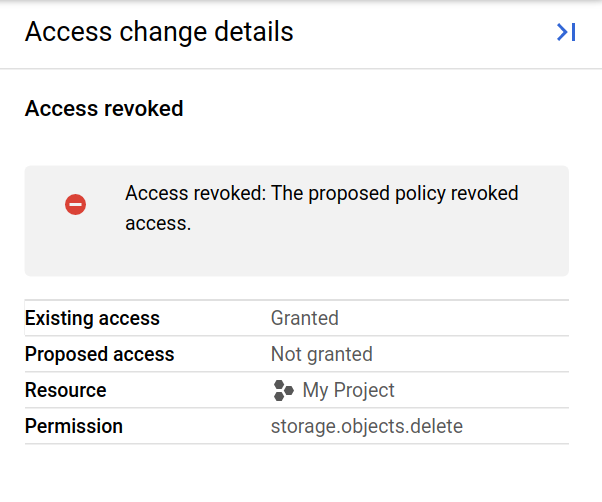
To view additional details about an access change, click on the access
change. This opens the **Access change details** panel, which displays
additional information about the access change, including the principal's
existing access, the principal's proposed access, and additional details about
the access change result.

### gcloud
When you use the `replay-recent-access` command, the
gcloud CLI's response contains a list of `replayResults`.
Each replay result describes an access attempt whose result would have been
different if the proposed allow policy had been in place at the time of the
attempt. For example, the following replay result shows that
`my-user@example.com` used the `resourcemanager.projects.update` permission in
the past to perform an action in the project `my-project`. However, if the
proposed allow policy had been in place, they would have been denied access.
```json
{
"accessTuple": {
"fullResourceName": "//cloudresourcemanager.googleapis.com/projects/my-project",
"permission": "resourcemanager.projects.update",
"principal": "my-user@example.com"
},
"lastSeenDate": {
"day": 15,
"month": 1,
"year": 2021
},
"diff": {
"accessDiff": {
"baseline": {
"accessState": "GRANTED"
},
"simulated": {
"accessState": "NOT_GRANTED"
},
"accessChange": "ACCESS_REVOKED"
}
}
}
```
Each replay result has the following fields:
- **`accessTuple`**: The access attempt that the result relates to. This field
includes the resource, permission, and principal that were involved in the
access attempt.
> [!NOTE]
> **Note:** Google groups do not appear in simulation results, because it is group members, not the groups themselves, that attempt to access resources. Rather, group members whose access might be impacted appear in the simulation results.
- **`lastSeenDate`**: The date that the access attempt was last made.
- **`diff.accessDiff`** *or* **`error`** : If the replay of an access
attempt is successful, the result contains a `diff.accessDiff` field that
reports the difference between the results of the access attempt under the
current allow policy and under the proposed allow policy. If the replay
attempt is not successful, the replay result contains an `error` field with a
description of the error. To learn more about simulation errors, see
[Errors](https://docs.cloud.google.com/policy-intelligence/docs/simulate-iam-policies.md.txt#errors) on this page.
Each access diff has the following components:
- **`baseline`** : The access result when using the current allow policy. This is reported as one of the following values: `GRANTED`, `NOT_GRANTED`, `UNKNOWN_CONDITIONAL`, or `UNKNOWN_INFO_DENIED`. If the result is `UNKNOWN_CONDITIONAL` or `UNKNOWN_INFO_DENIED`, the response will also list any errors associated with the unknown information, as well as the allow policies associated with that error. For more information about `UNKNOWN` values, see [Unknown results](https://docs.cloud.google.com/policy-intelligence/docs/simulate-iam-policies.md.txt#unknown) on this page.
- **`simulated`** : The access result when using the proposed allow policy. This is reported as one of the following values: `GRANTED`, `NOT_GRANTED`, `UNKNOWN_CONDITIONAL`, or `UNKNOWN_INFO_DENIED`. If the result is `UNKNOWN_CONDITIONAL` or `UNKNOWN_INFO_DENIED`, the response will also list any errors associated with the unknown information, as well as the allow policies associated with that error. For more information about `UNKNOWN` values, see [Unknown results](https://docs.cloud.google.com/policy-intelligence/docs/simulate-iam-policies.md.txt#unknown) on this page.
- **`accessChange`**: The change between the baseline access state and the
simulated access state. Refer to the following table for a list of
potential values:
| Access change | Details |
|---|---|
| `ACCESS_REVOKED` | The principal had access under the current allow policy, but will no longer have access after the proposed change. |
| `ACCESS_MAYBE_REVOKED` | This result can occur for the following reasons: - The principal had access under the current allow policy, but their access under the proposed allow policy is [unknown](https://docs.cloud.google.com/policy-intelligence/docs/simulate-iam-policies.md.txt#unknown). - The principal's access under the current allow policy is [unknown](https://docs.cloud.google.com/policy-intelligence/docs/simulate-iam-policies.md.txt#unknown), but they will not have access after the proposed change. |
| `ACCESS_GAINED` | The principal did not have access under the current allow policy, but will have access after the proposed change. |
| `ACCESS_MAYBE_GAINED` | This result can occur for the following reasons: - The principal did not have access under the current allow policy, but their access after the proposed change is [unknown](https://docs.cloud.google.com/policy-intelligence/docs/simulate-iam-policies.md.txt#unknown). - The principal's access under the current allow policy is [unknown](https://docs.cloud.google.com/policy-intelligence/docs/simulate-iam-policies.md.txt#unknown), but they will have access after the proposed change. |
| `UNKNOWN_CHANGE` | The principal's access under both the current allow policy and proposed allow policy is [unknown](https://docs.cloud.google.com/policy-intelligence/docs/simulate-iam-policies.md.txt#unknown), and the proposed changes might affect the principal's access. |
### REST
When you call the `replays.results.list` method, the response contains a list of
`replayResults`.
Each replay result describes an access attempt whose result would have been
different if the proposed allow policy had been in place at the time of the
attempt. For example, the following replay result shows that
`my-user@example.com` used the `resourcemanager.projects.update` permission in
the past to perform an action in the project `my-project`. However, if the
proposed allow policy had been in place, they would have been denied access.
```json
{
"accessTuple": {
"fullResourceName": "//cloudresourcemanager.googleapis.com/projects/my-project",
"permission": "resourcemanager.projects.update",
"principal": "my-user@example.com"
},
"lastSeenDate": {
"day": 15,
"month": 1,
"year": 2021
},
"diff": {
"accessDiff": {
"baseline": {
"accessState": "GRANTED"
},
"simulated": {
"accessState": "NOT_GRANTED"
},
"accessChange": "ACCESS_REVOKED"
}
}
}
```
Each replay result has the following fields:
- **`accessTuple`**: The access attempt that the result relates to. This field
includes the resource, permission, and principal that were involved in the
access attempt.
> [!NOTE]
> **Note:** Google groups do not appear in simulation results, because it is group members, not the groups themselves, that attempt to access resources. Rather, group members whose access might be impacted appear in the simulation results.
- **`lastSeenDate`**: The date that the access attempt was last made.
- **`diff.accessDiff`** *or* **`error`** : If the replay of an access
attempt is successful, the result contains a `diff.accessDiff` field that
reports the difference between the results of the access attempt under the
current allow policy and under the proposed allow policy. If the replay
attempt is not successful, the replay result contains an `error` field with a
description of the error. To learn more about simulation errors, see
[Errors](https://docs.cloud.google.com/policy-intelligence/docs/simulate-iam-policies.md.txt#errors) on this page.
Each access diff has the following components:
- **`baseline`** : The access result when using the current allow policy. This is reported as one of the following values: `GRANTED`, `NOT_GRANTED`, `UNKNOWN_CONDITIONAL`, or `UNKNOWN_INFO_DENIED`. If the result is `UNKNOWN_CONDITIONAL` or `UNKNOWN_INFO_DENIED`, the response will also list any errors associated with the unknown information, as well as the allow policies associated with that error. For more information about `UNKNOWN` values, see [Unknown results](https://docs.cloud.google.com/policy-intelligence/docs/simulate-iam-policies.md.txt#unknown) on this page.
- **`simulated`** : The access result when using the proposed allow policy. This is reported as one of the following values: `GRANTED`, `NOT_GRANTED`, `UNKNOWN_CONDITIONAL`, or `UNKNOWN_INFO_DENIED`. If the result is `UNKNOWN_CONDITIONAL` or `UNKNOWN_INFO_DENIED`, the response will also list any errors associated with the unknown information, as well as the allow policies associated with that error. For more information about `UNKNOWN` values, see [Unknown results](https://docs.cloud.google.com/policy-intelligence/docs/simulate-iam-policies.md.txt#unknown) on this page.
- **`accessChange`**: The change between the baseline access state and the
simulated access state. Refer to the following table for a list of
potential values:
| Access change | Details |
|---|---|
| `ACCESS_REVOKED` | The principal had access under the current allow policy, but will no longer have access after the proposed change. |
| `ACCESS_MAYBE_REVOKED` | This result can occur for the following reasons: - The principal had access under the current allow policy, but their access under the proposed allow policy is [unknown](https://docs.cloud.google.com/policy-intelligence/docs/simulate-iam-policies.md.txt#unknown). - The principal's access under the current allow policy is [unknown](https://docs.cloud.google.com/policy-intelligence/docs/simulate-iam-policies.md.txt#unknown), but they will not have access after the proposed change. |
| `ACCESS_GAINED` | The principal did not have access under the current allow policy, but will have access after the proposed change. |
| `ACCESS_MAYBE_GAINED` | This result can occur for the following reasons: - The principal did not have access under the current allow policy, but their access after the proposed change is [unknown](https://docs.cloud.google.com/policy-intelligence/docs/simulate-iam-policies.md.txt#unknown). - The principal's access under the current allow policy is [unknown](https://docs.cloud.google.com/policy-intelligence/docs/simulate-iam-policies.md.txt#unknown), but they will have access after the proposed change. |
| `UNKNOWN_CHANGE` | The principal's access under both the current allow policy and proposed allow policy is [unknown](https://docs.cloud.google.com/policy-intelligence/docs/simulate-iam-policies.md.txt#unknown), and the proposed changes might affect the principal's access. |
### Unknown results
If an access result is *unknown*, it means that Policy Simulator did not
have enough information to fully evaluate the access attempt.
### Console
If an access result is unknown, the access change details panel reports the
reason it was unknown, plus the specific roles, allow policies, group
memberships, and conditions it was unable to access or evaluate.
There are several reasons that a result can be unknown:
- **Role info denied**: The principal running the simulation did not have permission to see the role details for one or more of the roles being simulated.
- **Unable to access policy**: The principal running the simulation did not have permission to get the allow policy for one or more of the resources involved in the simulation.
- **Membership info denied**: The principal running the simulation did not have permission to view the members of one or more of the groups included in the proposed allow policy.
- **Unsupported condition**: There is a conditional role binding in the allow policy that is being tested. Policy Simulator does not support conditions, so the binding could not be evaluated.
### gcloud
In the gcloud CLI, the simulation results will report the reason
that the result is unknown in the access diff.
The reason that the access result is unknown will be one of the following:
- **`UNKNOWN_INFO_DENIED`**: The user does not have permission to access
information that is necessary for evaluating the access state. This can
happen for any of the following reasons:
- The user does not have permission to retrieve the allow policy that is being simulated, or they don't have permission to retrieve allow policies for resources in the access logs.
- The user does not have permission to see into a group membership.
- The user can't retrieve the necessary role information.
To learn what information was missing, see the error information following the
reported access state.
- **`UNKNOWN_CONDITIONAL`**: There is a conditional role binding in the allow
policy that is being tested. Policy Simulator does not support
conditions, so the binding could not be evaluated.
If the result is unknown, the field for the allow policy (`baseline` or
`simulated`) contains an `errors` field describing why the information was
unknown, and a `policies` field listing the allow policies associated with the
errors. For more information about errors, see [Errors](https://docs.cloud.google.com/policy-intelligence/docs/simulate-iam-policies.md.txt#errors) on this page.
### REST
In the REST API, the simulation results will report the reason
that the result is unknown in the access diff.
The reason that the access result is unknown will be one of the following:
- **`UNKNOWN_INFO_DENIED`**: The user does not have permission to access
information that is necessary for evaluating the access state. This can
happen for any of the following reasons:
- The user does not have permission to retrieve the allow policy that is being simulated, or they don't have permission to retrieve allow policies for resources in the access logs.
- The user does not have permission to see into a group membership.
- The user can't retrieve the necessary role information.
To learn what information was missing, see the error information following the
reported access state.
- **`UNKNOWN_CONDITIONAL`**: There is a conditional role binding in the allow
policy that is being tested. Policy Simulator does not support
conditions, so the binding could not be evaluated.
If the result is unknown, the field for the allow policy (`baseline` or
`simulated`) contains an `errors` field describing why the information was
unknown, and a `policies` field listing the allow policies associated with the
errors. For more information about errors, see [Errors](https://docs.cloud.google.com/policy-intelligence/docs/simulate-iam-policies.md.txt#errors) on this page.
### Errors
Policy Simulator also reports any errors that occurred during the
simulation. It's important to review these errors so that you understand
the potential gaps in the simulation.
### Console
There are several types of errors that Policy Simulator might report:
- **Operation errors**: The simulation could not be run.
Policy Simulator reports operation errors at the top of the results
page.
If the error message states the simulation could not be run because there are
[too many logs](https://docs.cloud.google.com/policy-intelligence/docs/iam-simulator-overview.md.txt#max-log-size) in your project or organization, then you cannot run
a simulation on the resource.


If you get this error for another reason, try
running the simulation again. If you still cannot run the simulation, contact
policy-simulator-feedback@google.com.
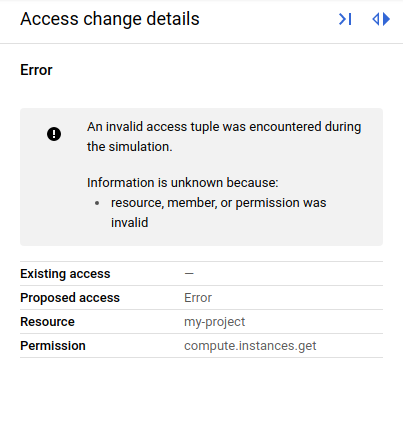
- **Replay errors**: A replay of a single access attempt was
unsuccessful, so Policy Simulator could not determine if the result
of the access attempt would change under the proposed allow policy.
The Google Cloud console lists replay errors in the **Access changes over
the past 90 days** table. The **Access change details** panel for each error
includes an error message to help you understand the issue, as well as the
resource and permission that were being simulated when the error occurred.

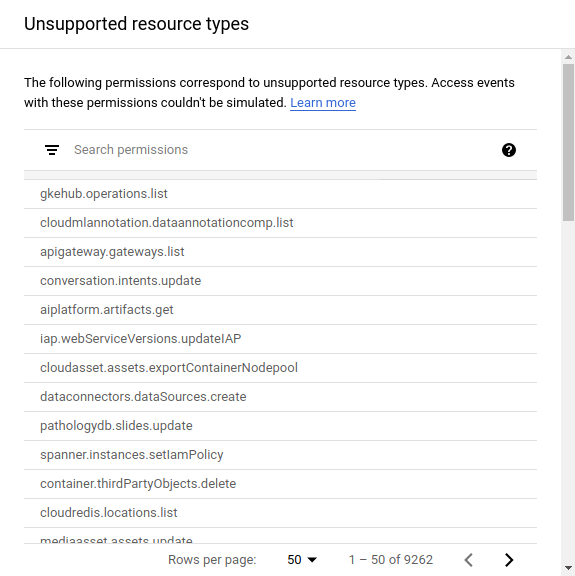
- **Unsupported resource type errors** : The proposed allow policy affects
permissions associated with an [unsupported resource type](https://docs.cloud.google.com/policy-intelligence/docs/iam-simulator-overview.md.txt#support-levels),
which Policy Simulator cannot simulate.


Policy Simulator lists these permissions in the simulation results so
that you know which permissions it was unable to simulate.

### gcloud
In the gcloud CLI's simulation results, errors can appear in two
places:
- The `replayResult.error` field: If the replay attempt was not successful, Policy Simulator reports the error in the `replayResult.error` field. If a replay result contains this field, it does not contain a `diff` field.
- The `replayResult.diff.accessDiff.policy-type.errors` field, where policy-type is `baseline` or `simulated`. If the replay attempt was successful, but the result was `UNKNOWN_INFO_DENIED` or `UNKNOWN_CONDITIONAL`, Policy Simulator reports the reason that the result was unknown in this field.
Policy Simulator generates the following types of errors:
| Error | Error code | Details |
|---|---|---|
| `GENERIC_INTERNAL_ERROR` | 13 | The simulation failed due to an internal error. To resolve, try running the simulation again. If the simulation still fails, contact policy-simulator-feedback@google.com. |
| `INVALID_ACCESS_TUPLE` | 3 | Policy Simulator could not replay the access attempt because it contained an invalid permission, resource name, or principal. |
| `OUT_OF_RANGE_GROUP_TOO_LARGE` | 11 | Policy Simulator could not evaluate the principal's membership in the group because the group has too many subgroups. This error is associated with `UNKNOWN_INFO_DENIED` access changes. |
| `PERMISSION_DENIED_ON_GROUP_MEMBERSHIP` | 7 | Policy Simulator could not evaluate a user's access because the caller does not have permission to view group membership. This error is associated with `UNKNOWN_INFO_DENIED` access changes. |
| `PERMISSION_DENIED_ON_IAM_POLICY` | 7 | Policy Simulator could not evaluate a user's access because the caller does not have permission to retrieve an allow policy. This type of error is associated with `UNKNOWN_INFO_DENIED` access changes. |
| `PERMISSION_DENIED_ON_IAM_ROLE` | 7 | Policy Simulator could not evaluate a user's access because the caller does not have permission to retrieve the permissions in an IAM role. This type of error is associated with `UNKNOWN_INFO_DENIED` access changes. |
| `PERMISSION_DENIED_ON_PARENT_IAM_POLICY` | 7 | Policy Simulator could not evaluate a user's access because the caller does not have permission to retrieve an ancestor resource's allow policy. This type of error is associated with `UNKNOWN_INFO_DENIED` access changes. |
| `UNIMPLEMENTED_MEMBER_TYPE` | 12 | The access tuple contains a principal type that Policy Simulator does not support. |
| `UNIMPLEMENTED_MEMBER` | 12 | The access tuple contains a principal that Policy Simulator does not support. |
| `UNIMPLEMENTED_CONDITION` | 12 | The access tuple contains a condition, which Policy Simulator does not support. This type of error is associated with `UNKNOWN_CONDITIONAL` access changes. |
| `LOG_SIZE_TOO_LARGE` | 8 | The resource is associated with too many access logs, so Policy Simulator could not run the simulation. See [Maximum log replay size](https://docs.cloud.google.com/policy-intelligence/docs/iam-simulator-overview.md.txt#max-log-size) on the Policy Simulator concepts page for details. |
| `UNSUPPORTED_RESOURCE` | 12 | The proposed allow policy changes permissions associated with unsupported resource types. This error appears in the `replayResult.error` field and contains a list of the permissions associated with unsupported resource types. For example: ```json "error": { "code": 12, "details": [ { "@type": "type.googleapis.com/google.rpc.ErrorInfo", "domain": "policysimulator.googleapis.com", "metadata": { "permission": "storage.objects.create" }, "reason": "UNSUPPORTED_RESOURCE" }, { "@type": "type.googleapis.com/google.rpc.ErrorInfo", "domain": "policysimulator.googleapis.com", "metadata": { "permission": "storage.objects.setIamPolicy" }, "reason": "UNSUPPORTED_RESOURCE" }, { "@type": "type.googleapis.com/google.rpc.ErrorInfo", "domain": "policysimulator.googleapis.com", "metadata": { "permission": "storage.objects.get" }, "reason": "UNSUPPORTED_RESOURCE" } ], "message": "unsupported-permissions-error-message" } ``` For more information about unsupported resource types, see [Support levels for resource types](https://docs.cloud.google.com/policy-intelligence/docs/iam-simulator-overview.md.txt#support-levels) on the Policy Simulator concepts page. |
### REST
In REST API simulation results, errors can appear in two places:
- The `replayResult.error` field: If the replay attempt was not successful, Policy Simulator reports the error in the `replayResult.error` field. If a replay result contains this field, it does not contain a `diff` field.
- The `replayResult.diff.accessDiff.policy-type.errors` field, where policy-type is `baseline` or `simulated`. If the replay attempt was successful, but the result was `UNKNOWN_INFO_DENIED` or `UNKNOWN_CONDITIONAL`, Policy Simulator reports the reason that the result was unknown in this field.
Policy Simulator generates the following types of errors:
| Error | Error code | Details |
|---|---|---|
| `GENERIC_INTERNAL_ERROR` | 13 | The simulation failed due to an internal error. To resolve, try running the simulation again. If the simulation still fails, contact policy-simulator-feedback@google.com. |
| `INVALID_ACCESS_TUPLE` | 3 | Policy Simulator could not replay the access attempt because it contained an invalid permission, resource name, or principal. |
| `OUT_OF_RANGE_GROUP_TOO_LARGE` | 11 | Policy Simulator could not evaluate the principal's membership in the group because the group has too many subgroups. This error is associated with `UNKNOWN_INFO_DENIED` access changes. |
| `PERMISSION_DENIED_ON_GROUP_MEMBERSHIP` | 7 | Policy Simulator could not evaluate a user's access because the caller does not have permission to view group membership. This error is associated with `UNKNOWN_INFO_DENIED` access changes. |
| `PERMISSION_DENIED_ON_IAM_POLICY` | 7 | Policy Simulator could not evaluate a user's access because the caller does not have permission to retrieve an allow policy. This type of error is associated with `UNKNOWN_INFO_DENIED` access changes. |
| `PERMISSION_DENIED_ON_IAM_ROLE` | 7 | Policy Simulator could not evaluate a user's access because the caller does not have permission to retrieve the permissions in an IAM role. This type of error is associated with `UNKNOWN_INFO_DENIED` access changes. |
| `PERMISSION_DENIED_ON_PARENT_IAM_POLICY` | 7 | Policy Simulator could not evaluate a user's access because the caller does not have permission to retrieve an ancestor resource's allow policy. This type of error is associated with `UNKNOWN_INFO_DENIED` access changes. |
| `UNIMPLEMENTED_MEMBER_TYPE` | 12 | The access tuple contains a principal type that Policy Simulator does not support. |
| `UNIMPLEMENTED_MEMBER` | 12 | The access tuple contains a principal that Policy Simulator does not support. |
| `UNIMPLEMENTED_CONDITION` | 12 | The access tuple contains a condition, which Policy Simulator does not support. This type of error is associated with `UNKNOWN_CONDITIONAL` access changes. |
| `LOG_SIZE_TOO_LARGE` | 8 | The resource is associated with too many access logs, so Policy Simulator could not run the simulation. See [Maximum log replay size](https://docs.cloud.google.com/policy-intelligence/docs/iam-simulator-overview.md.txt#max-log-size) on the Policy Simulator concepts page for details. |
| `UNSUPPORTED_RESOURCE` | 12 | The proposed allow policy changes permissions associated with unsupported resource types. This error appears in the `replayResult.error` field and contains a list of the permissions associated with unsupported resource types. For example: ```json "error": { "code": 12, "details": [ { "@type": "type.googleapis.com/google.rpc.ErrorInfo", "domain": "policysimulator.googleapis.com", "metadata": { "permission": "storage.objects.create" }, "reason": "UNSUPPORTED_RESOURCE" }, { "@type": "type.googleapis.com/google.rpc.ErrorInfo", "domain": "policysimulator.googleapis.com", "metadata": { "permission": "storage.objects.setIamPolicy" }, "reason": "UNSUPPORTED_RESOURCE" }, { "@type": "type.googleapis.com/google.rpc.ErrorInfo", "domain": "policysimulator.googleapis.com", "metadata": { "permission": "storage.objects.get" }, "reason": "UNSUPPORTED_RESOURCE" } ], "message": "unsupported-permissions-error-message" } ``` For more information about unsupported resource types, see [Support levels for resource types](https://docs.cloud.google.com/policy-intelligence/docs/iam-simulator-overview.md.txt#support-levels) on the Policy Simulator concepts page. |
## Apply a simulated policy change
To apply a simulated change to an allow policy, follow these steps:
### Console
1. Click **Apply proposed changes**.
2. In the confirmation dialog, click **Apply** to confirm the change.
### gcloud
Use the [`set-iam-policy`](https://docs.cloud.google.com/sdk/gcloud/reference/projects/set-iam-policy)
command, and provide a path to the JSON file that contains the simulated allow
policy that you want to apply:
```bash
gcloud resource-type set-iam-policy resource-id filepath
```
Provide the following values:
- `resource-type`: The resource type whose allow policy you want to update. For example, `projects`.
- `resource-id`: The ID of the resource whose allow policy you want to update. For example, `my-project`.
- `filepath`: The path to a file that contains the updated allow policy.
The response contains the updated allow policy. If you treat IAM
allow policies as code and store them in a version-control system, you should
store the allow policy that the gcloud CLI returns, not the JSON file
that contains the simulated allow policy.
### REST
Set the proposed allow policy as the resource's new allow policy.
> [!NOTE]
> **Note:** The following example shows how to set the allow policy of a [project](https://docs.cloud.google.com/resource-manager/docs/cloud-platform-resource-hierarchy.md.txt#projects). To set the allow policy of another resource type, use that resource's `setIamPolicy` method.
To set the allow policy in the request as the project's new allow policy, use the Resource Manager API's
`projects.setIamPolicy`
method.
Before using any of the request data,
make the following replacements:
- `PROJECT_ID`: Your Google Cloud project ID. Project IDs are alphanumeric strings, like `my-project`.
- `POLICY`: A JSON representation of the policy that you want to set. For more information about the format of a policy, see the [Policy reference](https://docs.cloud.google.com/iam/docs/reference/rest/v1/Policy.md.txt).
HTTP method and URL:
```
POST https://cloudresourcemanager.googleapis.com/v1/projects/PROJECT_ID:setIamPolicy
```
Request JSON body:
```
{
"policy": {
POLICY
}
}
```
To send your request, expand one of these options:
#### curl (Linux, macOS, or Cloud Shell)
> [!NOTE]
> **Note:** The following command assumes that you have logged in to the `gcloud` CLI with your user account by running [`gcloud init`](https://docs.cloud.google.com/sdk/gcloud/reference/init) or [`gcloud auth login`](https://docs.cloud.google.com/sdk/gcloud/reference/auth/login.md.txt) , or by using [Cloud Shell](https://docs.cloud.google.com/shell/docs.md.txt), which automatically logs you into the `gcloud` CLI . You can check the currently active account by running [`gcloud auth list`](https://docs.cloud.google.com/sdk/gcloud/reference/auth/list.md.txt).
Save the request body in a file named `request.json`,
and execute the following command:
```
curl -X POST \
-H "Authorization: Bearer $(gcloud auth print-access-token)" \
-H "Content-Type: application/json; charset=utf-8" \
-d @request.json \
"https://cloudresourcemanager.googleapis.com/v1/projects/PROJECT_ID:setIamPolicy"
```
#### PowerShell (Windows)
> [!NOTE]
> **Note:** The following command assumes that you have logged in to the `gcloud` CLI with your user account by running [`gcloud init`](https://docs.cloud.google.com/sdk/gcloud/reference/init) or [`gcloud auth login`](https://docs.cloud.google.com/sdk/gcloud/reference/auth/login.md.txt) . You can check the currently active account by running [`gcloud auth list`](https://docs.cloud.google.com/sdk/gcloud/reference/auth/list.md.txt).
Save the request body in a file named `request.json`,
and execute the following command:
```
$cred = gcloud auth print-access-token
$headers = @{ "Authorization" = "Bearer $cred" }
Invoke-WebRequest `
-Method POST `
-Headers $headers `
-ContentType: "application/json; charset=utf-8" `
-InFile request.json `
-Uri "https://cloudresourcemanager.googleapis.com/v1/projects/PROJECT_ID:setIamPolicy" | Select-Object -Expand Content
```
#### APIs Explorer (browser)
Copy the request body and open the
[method reference page](https://docs.cloud.google.com/resource-manager/reference/rest/v1/projects/setIamPolicy.md.txt).
The APIs Explorer panel opens on the right side of the page.
You can interact with this tool to send requests.
Paste the request body in this tool, complete any other required fields, and click **Execute**.
The response contains the updated allow policy.
> [!NOTE]
> **Note:** If you treat policies as code and store them in a version-control system, you should store the policy that is returned, not the policy that you sent in the request.
## Save simulation results
If you are using the gcloud CLI, you can save
Policy Simulator results as JSON, YAML, or CSV files.
### Save as JSON or YAML
To save a simulation's results as a JSON or YAML file, add the following flag
to the `replay-recent-access` command when running the simulation:
```bash
--output=output-format > filename
```
Replace the following values:
- `output-format`: The language of the exported file, either `json` or `yaml`.
- `filename`: A name for the exported file.
### Save as CSV
To save a CSV file, add the following flag to the `replay-recent-access`
command when running the simulation:
```bash
--flatten="diffs[]" --format=csv(output-fields) > filename
```
Replace the following values:
- `output-fields`: A comma-separated list of the fields that you want to include in the exported results. For example, `diffs.accessTuple.principal, diffs.accessTuple.permission`.
- `filename`: A name for the exported file.
Optionally, you can add additional fields, such as `errors[]` to the
[`--flatten` flag](https://docs.cloud.google.com/sdk/gcloud/reference.md.txt#--flatten). Adding fields to the `--flatten` flag allows the
elements in those fields to be listed on separate lines in the CSV file.
The following is an example of a `replay-recent-access` command that saves
the most important fields of the simulation results as the CSV file
`simulation-results.csv`:
```bash
gcloud iam simulator replay-recent-access --flatten="diffs[]" \
--format="csv(diffs.accessTuple.principal, diffs.accessTuple.permission, \
diffs.accessTuple.fullResourceName, diffs.diff.accessDiff.accessChange, \
diffs.diff.accessDiff.baseline.accessState, \
diffs.diff.accessDiff.simulated.accessState)" \
//cloudresourcemanager.googleapis.com/projects/my-project \
proposed-policy.json > simulation-results.csv
```
This example simulates `proposed-policy.json` for the project `my-project` and
saves the results as `simulation-results.csv`. This CSV file contains the
following fields: principal, permission, resource, access change, baseline
access state, and simulated access state.
For more information on formatting with the gcloud CLI, see
[formats](https://docs.cloud.google.com/sdk/gcloud/reference/topic/formats).
## What's next
- Learn how to [troubleshoot access](https://docs.cloud.google.com/policy-intelligence/docs/troubleshoot-access.md.txt) for existing principals.
- Learn about [enforcing least privilege with role
recommendations](https://docs.cloud.google.com/policy-intelligence/docs/role-recommendations-overview).