This page explains how to view, understand, and apply IAM role
recommendations for Cloud Storage buckets. Role recommendations help
you enforce the principle of least privilege by ensuring that principals have
only the permissions that they actually need.
## Before you begin
-
Enable the IAM and Recommender APIs, if any are not already enabled.
**Roles required to enable APIs**
To enable APIs, you need the `serviceusage.services.enable` permission. If you
created the project, then you likely already have this permission through the
Owner role (`roles/owner`). Otherwise, you can get this permission through the
Service Usage Admin role (`roles/serviceusage.serviceUsageAdmin`).
[Learn how to grant roles](https://docs.cloud.google.com/iam/docs/granting-changing-revoking-access.md.txt).
[Enable the APIs](https://console.cloud.google.com/apis/enableflow?apiid=iam.googleapis.com,recommender.googleapis.com&redirect=https://console.cloud.google.com)
- Ensure that you have an organization-level or project-level activation of
[the Premium or Enterprise tier of Security Command Center](https://docs.cloud.google.com/security-command-center/pricing#security-command-center-pricing). For more
information, see [Billing questions](https://docs.cloud.google.com/policy-intelligence/docs/billing-questions.md.txt).
- Understand [role recommendations](https://docs.cloud.google.com/policy-intelligence/docs/role-recommendations-overview.md.txt).
- Set up authentication.
Select the tab for how you plan to use the samples on this page:
### Console
When you use the Google Cloud console to access Google Cloud services and
APIs, you don't need to set up authentication.
### gcloud
In the Google Cloud console, activate Cloud Shell.
[Activate Cloud Shell](https://console.cloud.google.com/?cloudshell=true)
At the bottom of the Google Cloud console, a
[Cloud Shell](https://docs.cloud.google.com/shell/docs/how-cloud-shell-works.md.txt)
session starts and displays a command-line prompt. Cloud Shell is a shell environment
with the Google Cloud CLI
already installed and with values already set for
your current project. It can take a few seconds for the session to initialize.
### REST
To use the REST API samples on this page in a local development environment, you use the
credentials you provide to the gcloud CLI.
1. [Install](https://docs.cloud.google.com/sdk/docs/install) the Google Cloud CLI.
2. If you're using an external identity provider (IdP), you must first [sign in to the gcloud CLI with your federated identity](https://docs.cloud.google.com/iam/docs/workforce-log-in-gcloud.md.txt).
For more information, see
[Authenticate for using REST](https://docs.cloud.google.com/docs/authentication/rest.md.txt)
in the Google Cloud authentication documentation.
### Required IAM roles
To get the permissions that
you need to manage bucket-level role recommendations,
ask your administrator to grant you the
following IAM roles on the project:
- [Role Viewer](https://docs.cloud.google.com/iam/docs/roles-permissions/iam.md.txt#iam.roleViewer) (`roles/iam.roleViewer`)
- [Storage Admin](https://docs.cloud.google.com/iam/docs/roles-permissions/storage.md.txt#storage.admin) (`roles/storage.admin`)
For more information about granting roles, see [Manage access to projects, folders, and organizations](https://docs.cloud.google.com/iam/docs/granting-changing-revoking-access.md.txt).
These predefined roles contain
the permissions required to manage bucket-level role recommendations. To see the exact permissions that are
required, expand the **Required permissions** section:
#### Required permissions
The following permissions are required to manage bucket-level role recommendations:
- To view recommendations:
- `iam.roles.get`
- `iam.roles.list`
- `recommender.iamPolicyRecommendations.get`
- `recommender.iamPolicyRecommendations.list`
- `recommender.iamPolicyInsights.get`
- `recommender.iamPolicyInsights.list`
- `storage.buckets.getIamPolicy`
- To apply and dismiss recommendations:
- `recommender.iamPolicyRecommendations.update`
- `storage.buckets.setIamPolicy`
You might also be able to get
these permissions
with [custom roles](https://docs.cloud.google.com/iam/docs/creating-custom-roles.md.txt) or
other [predefined roles](https://docs.cloud.google.com/iam/docs/roles-overview.md.txt#predefined).
## Review and apply recommendations
You can review and apply bucket-level role recommendations with the
Google Cloud CLI and the Recommender API.
> [!NOTE]
> **Note:** The IAM recommender does not take other forms of access controls into account when making recommendations. If you use access controls that are separate from IAM, such as Cloud Storage [access control lists (ACLs)](https://docs.cloud.google.com/storage/docs/access-control/lists.md.txt) or Kubernetes [role-based access control (RBAC)](https://docs.cloud.google.com/kubernetes-engine/docs/how-to/role-based-access-control.md.txt), ensure that each recommendation will not disrupt those access controls before you apply the recommendation.
### Console
1. In the Google Cloud console, go to the Cloud Storage **Buckets** page.
[Go to Buckets](https://console.cloud.google.com/storage/browser)
2. Find the **Security insights** column. If the column is not
visible, click **Column display options**
and select **Security insights**.
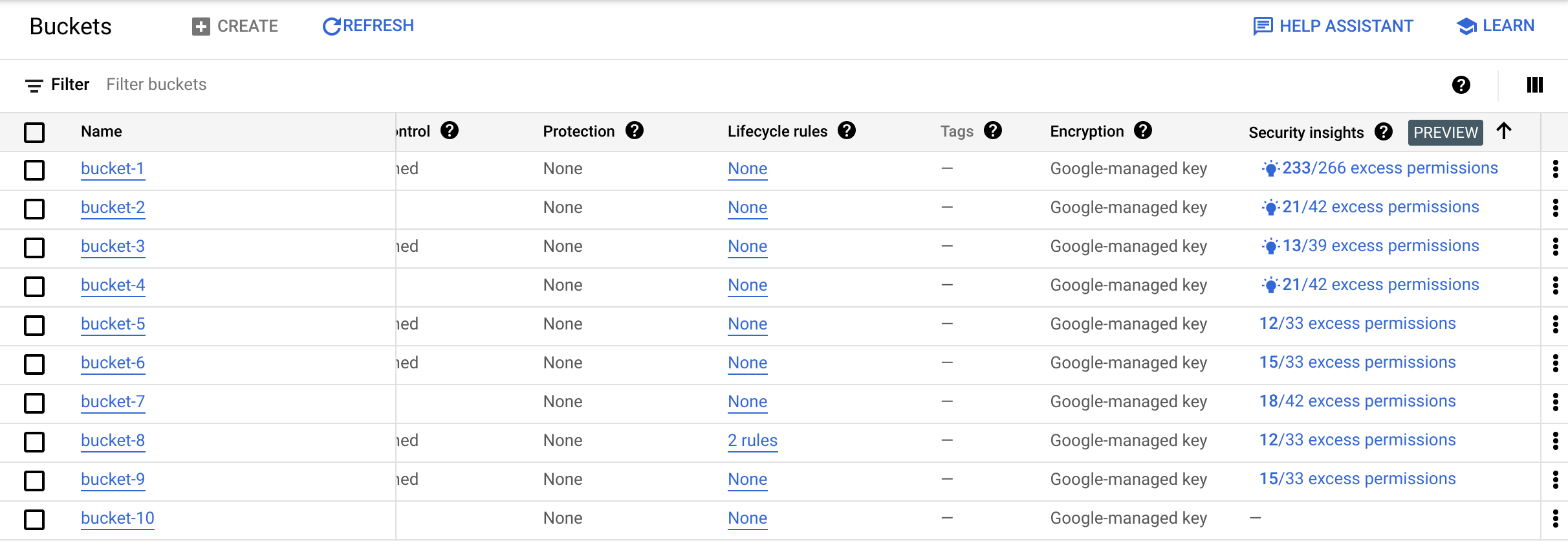
The **Security insights** column shows a summary of all policy insights for
a bucket. Each summary indicates the total number of excess permissions for
all roles granted on that bucket.
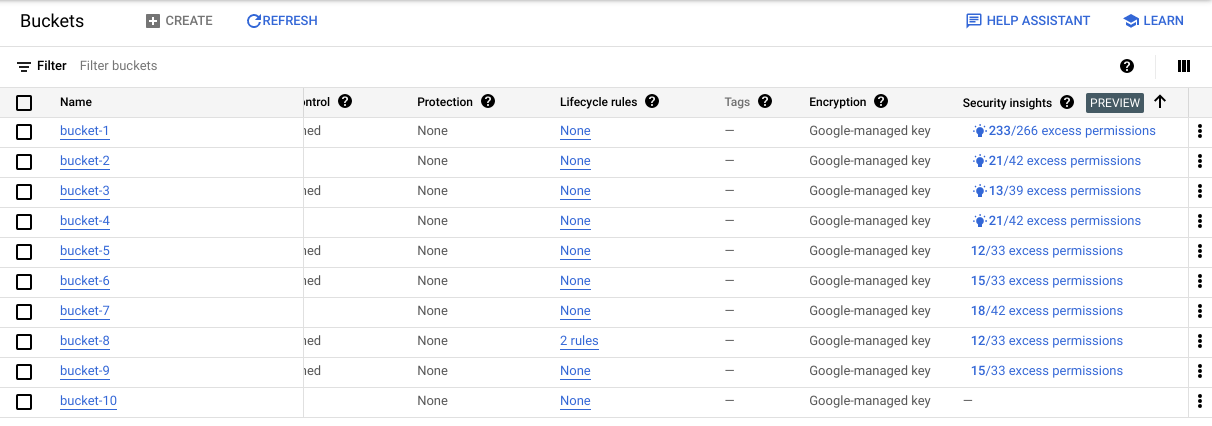
If there is a recommendation available to address any of the insights for
the bucket, the Google Cloud console displays the
**Recommendation available**
 icon.
> [!NOTE]
> **Note:** Recommender does not analyze permissions for all roles. To learn which roles Recommender analyzes, see [Availability of IAM policy recommendations](https://docs.cloud.google.com/policy-intelligence/docs/role-recommendations-overview.md.txt#availability).
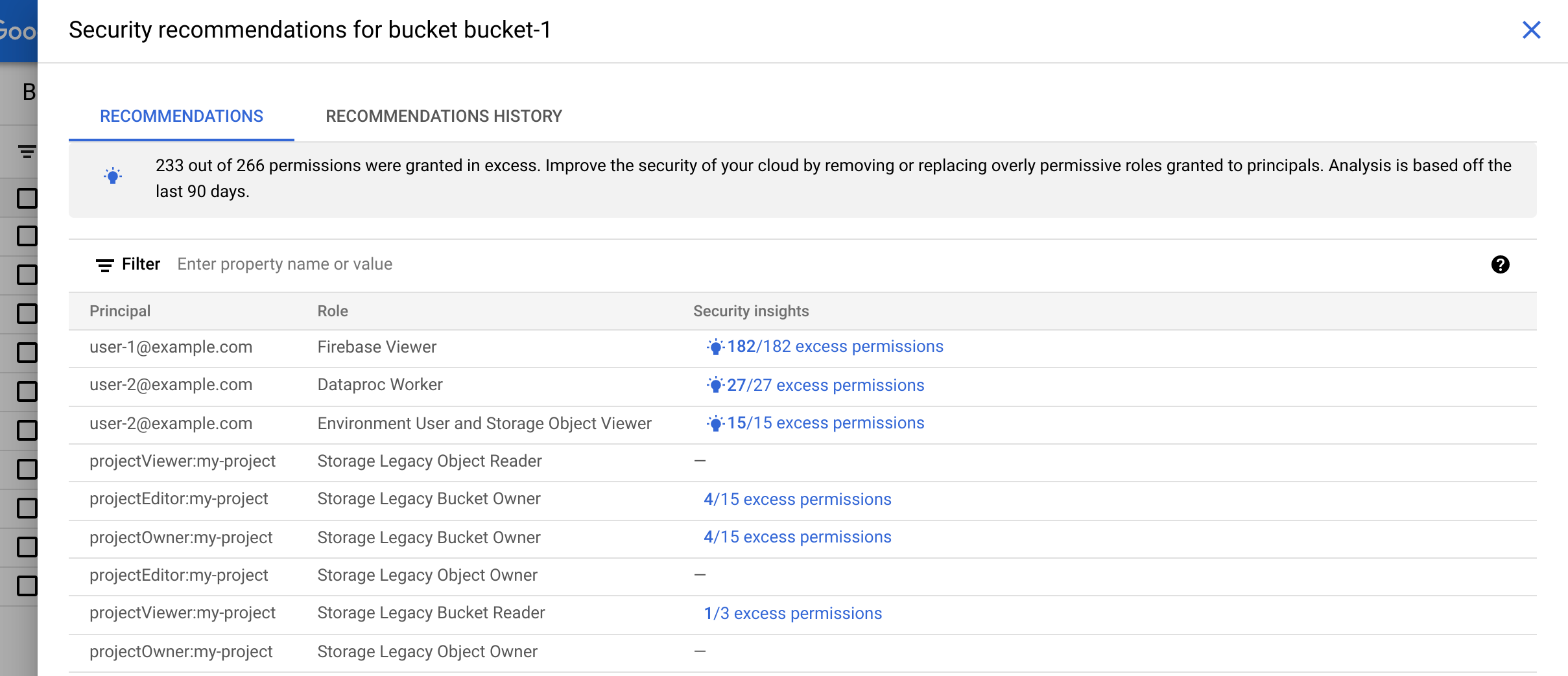
3. If there are recommendations to review, click a policy insight summary to
open the **Security recommendations** pane. This pane lists all principals
who have a role on the bucket, their roles, and any policy insights
associated with those roles.

4. Click a
**Recommendation available** 
icon to get details about the recommendation.
If the recommendation is to replace the role, the role recommendation
always suggests a set of [predefined roles](https://docs.cloud.google.com/iam/docs/understanding-roles) that you
can apply.
In some cases, the role recommendation also suggests creating a new
[custom role](https://docs.cloud.google.com/iam/docs/understanding-custom-roles) at the project level. If a custom
role recommendation is available, the Google Cloud console shows it by
default. To switch to the predefined role recommendation, click **View
recommended predefined role**.
5. Review the recommendation carefully and make sure you understand when it was
last refreshed and how it will change the principal's access to
Google Cloud resources. Except in the case of
[recommendations for service agents](https://docs.cloud.google.com/policy-intelligence/docs/role-recommendations-overview.md.txt#service-agents), a recommendation
will never increase a principal's level of access. For more information, see
[How role recommendations are generated](https://docs.cloud.google.com/policy-intelligence/docs/role-recommendations-overview.md.txt#how-recommender-works).
To learn how to review recommendations in the console, see [Review
recommendations](https://docs.cloud.google.com/policy-intelligence/docs/review-apply-role-recommendations-buckets#review) on this page.
6. Optional: If the recommendation is to create a custom role, update the
**Title** , **Description** , **ID** , and **Role launch stage** as needed.
If you need to add permissions to the custom role, click **Add
permissions**.
If you need to remove permissions from the custom role, clear the checkbox
for each permission that you want to remove.
7. Take action on the recommendation.
To apply the recommendation, click **Apply** or **Create and apply** . If you
change your mind in the next 90 days, use the
[recommendations history](https://docs.cloud.google.com/policy-intelligence/docs/review-apply-role-recommendations-buckets.md.txt#history) to revert your choice.
To dismiss the recommendation, click **Dismiss** , then confirm your choice.
You can [restore a dismissed recommendation](https://docs.cloud.google.com/policy-intelligence/docs/review-apply-role-recommendations-buckets.md.txt#history) as long as the
recommendation is still valid.
8. Repeat the previous steps until you have reviewed all of your
recommendations.
### gcloud
**Review your recommendations:**
To list your bucket-level recommendations, run the
[`gcloud recommender recommendations list`](https://docs.cloud.google.com/sdk/gcloud/reference/recommender/recommendations/list)
command, filtering for only Cloud Storage bucket recommendations:
```bash
gcloud recommender recommendations list \
--location=LOCATION \
--recommender=google.iam.policy.Recommender \
--project=PROJECT_ID \
--format=json \
--filter="recommenderSubtype:REMOVE_ROLE_STORAGE_BUCKET OR recommenderSubtype:REPLACE_ROLE_STORAGE_BUCKET"
```
Replace the following values:
- `LOCATION`: The region where your Cloud Storage buckets are located---for example, `us` or `us-central1`.
- `PROJECT_ID`: The ID of the Google Cloud project that contains your Cloud Storage buckets. Project IDs are alphanumeric strings, like `my-project`.
The response is similar to the following example. In this example, all
authenticated users (`allAuthenticatedUsers`) have the Storage Legacy Object
Reader role (`roles/storage.legacyObjectReader`) on the bucket `mybucket`.
However, this role hasn't been used in the past 90 days. As
a result, the role recommendation suggests that you revoke the role:
```json
[
{
"associatedInsights": [
{
"insight": "projects/123456789012/locations/us/insightTypes/google.iam.policy.Insight/insights/7849add9-73c0-419e-b169-42b3671173fb"
}
],
"associatedResourceNames": [
"//storage.googleapis.com/my-bucket"
],
"content": {
"operationGroups": [
{
"operations": [
{
"action": "remove",
"path": "/iamPolicy/bindings/*/members/*",
"pathFilters": {
"/iamPolicy/bindings/*/condition/expression": "",
"/iamPolicy/bindings/*/members/*": "allAuthenticatedUsers",
"/iamPolicy/bindings/*/role": "roles/storage.legacyObjectReader"
},
"resource": "//storage.googleapis.com/my-bucket",
"resourceType": "storage.googleapis.com/Bucket"
}
]
}
]
},
"description": "This role has not been used during the observation window.",
"etag": "\"7caf4103d7669e12\"",
"lastRefreshTime": "2022-05-24T07:00:00Z",
"name": "projects/123456789012/locations/us/recommenders/google.iam.policy.Recommender/recommendations/fbc885b7-f0a8-47e6-90fe-6141aa2c4257",
"primaryImpact": {
"category": "SECURITY",
"securityProjection": {
"details": {
"revokedIamPermissionsCount": 1
}
}
},
"priority": "P1",
"recommenderSubtype": "REMOVE_ROLE_STORAGE_BUCKET",
"stateInfo": {
"state": "ACTIVE"
}
}
]
```
Review each recommendation carefully and consider when it was last refreshed
and how it will change the principal's access to Google Cloud resources.
To learn how to review recommendations from the gcloud CLI, see
[Review recommendations](https://docs.cloud.google.com/policy-intelligence/docs/review-apply-role-recommendations-buckets.md.txt#review) on this page.
**To apply a recommendation:**
1. Use the
[`gcloud recommender recommendations mark-claimed` command](https://docs.cloud.google.com/sdk/gcloud/reference/recommender/recommendations/mark-claimed)
to change the recommendation's state to `CLAIMED,` which prevents the
recommendation from changing while you apply it:
```bash
gcloud recommender recommendations mark-claimed \
RECOMMENDATION_ID \
--location=LOCATION \
--recommender=google.iam.policy.Recommender \
--project=PROJECT_ID \
--format=FORMAT \
--etag=ETAG \
--state-metadata=STATE_METADATA
```
Replace the following values:
- `RECOMMENDATION_ID`: The unique identifier for the recommendation. This value appears at the end of the `name` field in the recommendation. For example, if the `name` field is `projects/example-project/locations/global/recommenders/google.iam.policy.Recommender/recommendations/fb927dc1-9695-4436-0000-f0f285007c0f`, the recommendation ID is `fb927dc1-9695-4436-0000-f0f285007c0f`.
- `LOCATION`: The region where your Cloud Storage bucket is located---for example, `us` or `us-central1`.
- `PROJECT_ID`: The ID of the Google Cloud project that contains your Cloud Storage buckets. Project IDs are alphanumeric strings, like `my-project`.
- `FORMAT`: The format of the response. Use `json` or `yaml`.
- `ETAG`: The value of the `etag` field in the recommendation, such as `"dd0686e7136a4cbb"`. Note that this value can include quotes.
- `STATE_METADATA`: Optional. Comma-separated key-value pairs that contain your choice of metadata about the recommendation. For example, `--state-metadata=reviewedBy=alice,priority=high`. The metadata replaces the `stateInfo.stateMetadata` field in the recommendation.
If the command succeeds, the response shows the recommendation in a
`CLAIMED` state, as shown in the following example. For clarity, the example
omits most fields:
```json
...
"priority": "P1",
"recommenderSubtype": "REMOVE_ROLE_STORAGE_BUCKET",
"stateInfo": {
"state": "CLAIMED"
}
...
```
2. [Get the allow policy](https://docs.cloud.google.com/iam/docs/manage-access-other-resources.md.txt#getting-policy) for the bucket, then
[modify and set the allow policy](https://docs.cloud.google.com/iam/docs/manage-access-other-resources.md.txt#modifying-policy) so that it reflects the
recommendation.
3. Update the recommendation's state to `SUCCEEDED`, if you were able to apply
the recommendation, or `FAILED`, if you could not apply the recommendation:
```bash
gcloud recommender recommendations COMMAND \
RECOMMENDATION_ID \
--location=LOCATION \
--recommender=google.iam.policy.Recommender \
--project=PROJECT_ID \
--format=FORMAT \
--etag=ETAG \
--state-metadata=STATE_METADATA
```
Replace the following values:
- `COMMAND`: Use `mark-succeeded`, if you were able to apply the recommendation, or `mark-failed`, if you could not apply the recommendation.
- `RECOMMENDATION_ID`: The unique identifier for the recommendation. This value appears at the end of the `name` field in the recommendation. For example, if the `name` field is `projects/example-project/locations/global/recommenders/google.iam.policy.Recommender/recommendations/fb927dc1-9695-4436-0000-f0f285007c0f`, the recommendation ID is `fb927dc1-9695-4436-0000-f0f285007c0f`.
- `LOCATION`: The region where your Cloud Storage bucket is located---for example, `us` or `us-central1`.
- `PROJECT_ID`: The ID of the Google Cloud project that contains your Cloud Storage buckets. Project IDs are alphanumeric strings, like `my-project`.
- `FORMAT`: The format of the response. Use `json` or `yaml`.
- `ETAG`: The value of the `etag` field in the recommendation, such as `"dd0686e7136a4cbb"`. Note that this value can include quotes.
- `STATE_METADATA`: Optional. Comma-separated key-value pairs that contain your choice of metadata about the recommendation. For example, `--state-metadata=reviewedBy=alice,priority=high`. The metadata replaces the `stateInfo.stateMetadata` field in the recommendation.
For example, if you marked the recommendation as having succeeded, the
response shows the recommendation in a `SUCCEEDED` state. For clarity, this
example omits most fields:
```json
...
"priority": "P1",
"recommenderSubtype": "REMOVE_ROLE_STORAGE_BUCKET",
"stateInfo": {
"state": "SUCCEEDED"
}
...
```
### REST
**Review your recommendations:**
To list all available recommendations for your Cloud Storage buckets, use the Recommender API's
`recommendations.list`
method.
Before using any of the request data,
make the following replacements:
- `PROJECT_ID`: The ID of the Google Cloud project that contains your Cloud Storage buckets. Project IDs are alphanumeric strings, like `my-project`.
- `LOCATION`: The region where your Cloud Storage buckets are located---for example, `us` or `us-central1`.
- `PAGE_SIZE`: Optional. The maximum number of results to return from this request. If not specified, the server will determine the number of results to return. If the number of recommendations is greater than the page size, the response contains a pagination token that you can use to retrieve the next page of results.
- `PAGE_TOKEN`: Optional. The pagination token returned in an earlier response from this method. If specified, the list of recommendations will start where the previous request ended.
- `PROJECT_ID`: Your Google Cloud project ID. Project IDs are alphanumeric strings, like `my-project`.
HTTP method and URL:
```
GET https://recommender.googleapis.com/v1/projects/PROJECT_ID/locations/LOCATION/recommenders/google.iam.policy.Recommender/recommendations?filter=recommenderSubtype%20%3D%20REMOVE_ROLE_STORAGE_BUCKET%20OR%20recommenderSubtype%20%3D%20REPLACE_ROLE_STORAGE_BUCKET&pageSize=PAGE_SIZE&pageToken=PAGE_TOKEN
```
To send your request, expand one of these options:
#### curl (Linux, macOS, or Cloud Shell)
> [!NOTE]
> **Note:** The following command assumes that you have logged in to the `gcloud` CLI with your user account by running [`gcloud init`](https://docs.cloud.google.com/sdk/gcloud/reference/init) or [`gcloud auth login`](https://docs.cloud.google.com/sdk/gcloud/reference/auth/login.md.txt) , or by using [Cloud Shell](https://docs.cloud.google.com/shell/docs.md.txt), which automatically logs you into the `gcloud` CLI . You can check the currently active account by running [`gcloud auth list`](https://docs.cloud.google.com/sdk/gcloud/reference/auth/list.md.txt).
Execute the following command:
```
curl -X GET \
-H "Authorization: Bearer $(gcloud auth print-access-token)" \
-H "x-goog-user-project: PROJECT_ID" \
"https://recommender.googleapis.com/v1/projects/PROJECT_ID/locations/LOCATION/recommenders/google.iam.policy.Recommender/recommendations?filter=recommenderSubtype%20%3D%20REMOVE_ROLE_STORAGE_BUCKET%20OR%20recommenderSubtype%20%3D%20REPLACE_ROLE_STORAGE_BUCKET&pageSize=PAGE_SIZE&pageToken=PAGE_TOKEN"
```
#### PowerShell (Windows)
> [!NOTE]
> **Note:** The following command assumes that you have logged in to the `gcloud` CLI with your user account by running [`gcloud init`](https://docs.cloud.google.com/sdk/gcloud/reference/init) or [`gcloud auth login`](https://docs.cloud.google.com/sdk/gcloud/reference/auth/login.md.txt) . You can check the currently active account by running [`gcloud auth list`](https://docs.cloud.google.com/sdk/gcloud/reference/auth/list.md.txt).
Execute the following command:
```
$cred = gcloud auth print-access-token
$headers = @{ "Authorization" = "Bearer $cred"; "x-goog-user-project" = "PROJECT_ID" }
Invoke-WebRequest `
-Method GET `
-Headers $headers `
-Uri "https://recommender.googleapis.com/v1/projects/PROJECT_ID/locations/LOCATION/recommenders/google.iam.policy.Recommender/recommendations?filter=recommenderSubtype%20%3D%20REMOVE_ROLE_STORAGE_BUCKET%20OR%20recommenderSubtype%20%3D%20REPLACE_ROLE_STORAGE_BUCKET&pageSize=PAGE_SIZE&pageToken=PAGE_TOKEN" | Select-Object -Expand Content
```
The response is similar to the following example. In this example, all
authenticated users (`allAuthenticatedUsers`) have the Storage Legacy Object
Reader role (`roles/storage.legacyObjectReader`) on the bucket `mybucket`.
However, this role hasn't been used in the past 90 days. As
a result, the role recommendation suggests that you revoke the role:
```
{
"recommendations": [
"name": "projects/123456789012/locations/us/recommenders/google.iam.policy.Recommender/recommendations/fbc885b7-f0a8-47e6-90fe-6141aa2c4257",
"description": "This role has not been used during the observation window.",
"lastRefreshTime": "2022-05-24T07:00:00Z",
"primaryImpact": {
"category": "SECURITY",
"securityProjection": {
"details": {
"revokedIamPermissionsCount": 1
}
}
},
"content": {
"operationGroups": [
{
"operations": [
{
"action": "remove",
"resourceType": "storage.googleapis.com/Bucket",
"resource": "//storage.googleapis.com/my-bucket",
"path": "/iamPolicy/bindings/*/members/*",
"pathFilters": {
"/iamPolicy/bindings/*/condition/expression": "",
"/iamPolicy/bindings/*/members/*": "allAuthenticatedUsers",
"/iamPolicy/bindings/*/role": "roles/storage.legacyObjectReader"
}
}
]
}
]
},
"stateInfo": {
"state": "ACTIVE"
},
"etag": "\"7caf4103d7669e12\"",
"recommenderSubtype": "REMOVE_ROLE_STORAGE_BUCKET",
"associatedInsights": [
{
"insight": "projects/123456789012/locations/us/insightTypes/google.iam.policy.Insight/insights/7849add9-73c0-419e-b169-42b3671173fb"
}
],
"priority": "P1"
]
}
```
Review each recommendation carefully and consider when it was last refreshed
and how it will change the principal's access to Google Cloud resources.
To learn how to review recommendations from the REST API, see
[Review recommendations](https://docs.cloud.google.com/policy-intelligence/docs/review-apply-role-recommendations-buckets.md.txt#review) on this page.
**To apply a recommendation:**
1. Mark the recommendation as `CLAIMED`:
To mark a recommendation as `CLAIMED`, which prevents the recommendation from changing while you apply it, use the Recommender API's
`recommendations.markClaimed`
method.
Before using any of the request data,
make the following replacements:
- `PROJECT_ID`: The ID of the Google Cloud project that contains your Cloud Storage buckets. Project IDs are alphanumeric strings, like `my-project`.
- `LOCATION`: The region where your Cloud Storage bucket is located---for example, `us` or `us-central1`.
- `RECOMMENDATION_ID`: The unique identifier for the recommendation. This value appears at the end of the `name` field in the recommendation. For example, if the `name` field is `projects/example-project/locations/global/recommenders/google.iam.policy.Recommender/recommendations/fb927dc1-9695-4436-0000-f0f285007c0f`, the recommendation ID is `fb927dc1-9695-4436-0000-f0f285007c0f`.
- `ETAG`: The value of the `etag` field in the recommendation, such as `"dd0686e7136a4cbb"`. Use backslashes to escape quotes, for example, `"\"df7308cca9719dcc\""`.
- `STATE_METADATA`: Optional. An object that contains key-value pairs with your choice of metadata about the recommendation. For example, `{"reviewedBy": "alice", "priority": "high"}`. The metadata replaces the `stateInfo.stateMetadata` field in the recommendation.
HTTP method and URL:
```
POST https://recommender.googleapis.com/v1/projects/PROJECT_ID/locations/LOCATION/recommenders/google.iam.policy.Recommender/recommendations/RECOMMENDATION_ID:markClaimed
```
Request JSON body:
```
{
"etag": "ETAG",
"stateMetadata": {
"STATE_METADATA"
}
}
```
To send your request, expand one of these options:
#### curl (Linux, macOS, or Cloud Shell)
> [!NOTE]
> **Note:** The following command assumes that you have logged in to the `gcloud` CLI with your user account by running [`gcloud init`](https://docs.cloud.google.com/sdk/gcloud/reference/init) or [`gcloud auth login`](https://docs.cloud.google.com/sdk/gcloud/reference/auth/login.md.txt) , or by using [Cloud Shell](https://docs.cloud.google.com/shell/docs.md.txt), which automatically logs you into the `gcloud` CLI . You can check the currently active account by running [`gcloud auth list`](https://docs.cloud.google.com/sdk/gcloud/reference/auth/list.md.txt).
Save the request body in a file named `request.json`,
and execute the following command:
```
curl -X POST \
-H "Authorization: Bearer $(gcloud auth print-access-token)" \
-H "x-goog-user-project: PROJECT_ID" \
-H "Content-Type: application/json; charset=utf-8" \
-d @request.json \
"https://recommender.googleapis.com/v1/projects/PROJECT_ID/locations/LOCATION/recommenders/google.iam.policy.Recommender/recommendations/RECOMMENDATION_ID:markClaimed"
```
#### PowerShell (Windows)
> [!NOTE]
> **Note:** The following command assumes that you have logged in to the `gcloud` CLI with your user account by running [`gcloud init`](https://docs.cloud.google.com/sdk/gcloud/reference/init) or [`gcloud auth login`](https://docs.cloud.google.com/sdk/gcloud/reference/auth/login.md.txt) . You can check the currently active account by running [`gcloud auth list`](https://docs.cloud.google.com/sdk/gcloud/reference/auth/list.md.txt).
Save the request body in a file named `request.json`,
and execute the following command:
```
$cred = gcloud auth print-access-token
$headers = @{ "Authorization" = "Bearer $cred"; "x-goog-user-project" = "PROJECT_ID" }
Invoke-WebRequest `
-Method POST `
-Headers $headers `
-ContentType: "application/json; charset=utf-8" `
-InFile request.json `
-Uri "https://recommender.googleapis.com/v1/projects/PROJECT_ID/locations/LOCATION/recommenders/google.iam.policy.Recommender/recommendations/RECOMMENDATION_ID:markClaimed" | Select-Object -Expand Content
```
The response shows the recommendation in a `CLAIMED` state, as shown in the following
example.
For clarity, this example omits most fields:
```
...
"stateInfo": {
"state": "CLAIMED"
},
"etag": "\"7caf4103d7669e12\"",
"recommenderSubtype": "REMOVE_ROLE_STORAGE_BUCKET",
...
```
2. [Get the allow policy](https://docs.cloud.google.com/iam/docs/manage-access-other-resources.md.txt#getting-policy) for the project, then
[modify the allow policy](https://docs.cloud.google.com/iam/docs/manage-access-other-resources.md.txt#modifying-policy) so that it reflects the
recommendation.
3. Update the recommendation's state to `SUCCEEDED`, if you were able to apply
the recommendation, or `FAILED`, if you could not apply the recommendation:
### `SUCCEEDED`
To mark a recommendation as `SUCCEEDED`, indicating that you were able to apply it, use the Recommender API's
`recommendations.markSucceeded`
method.
Before using any of the request data,
make the following replacements:
- `PROJECT_ID`: The ID of the Google Cloud project that contains your Cloud Storage buckets. Project IDs are alphanumeric strings, like `my-project`.
- `LOCATION`: The region where your Cloud Storage bucket is located---for example, `us` or `us-central1`.
- `RECOMMENDATION_ID`: The unique identifier for the recommendation. This value appears at the end of the `name` field in the recommendation. For example, if the `name` field is `projects/example-project/locations/global/recommenders/google.iam.policy.Recommender/recommendations/fb927dc1-9695-4436-0000-f0f285007c0f`, the recommendation ID is `fb927dc1-9695-4436-0000-f0f285007c0f`.
- `ETAG`: The value of the `etag` field in the recommendation, such as `"dd0686e7136a4cbb"`. Use backslashes to escape quotes, for example, `"\"df7308cca9719dcc\""`.
- `STATE_METADATA`: Optional. An object that contains key-value pairs with your choice of metadata about the recommendation. For example, `{"reviewedBy": "alice", "priority": "high"}`. The metadata replaces the `stateInfo.stateMetadata` field in the recommendation.
HTTP method and URL:
```
POST https://recommender.googleapis.com/v1/projects/PROJECT_ID/locations/LOCATION/recommenders/google.iam.policy.Recommender/recommendations/RECOMMENDATION_ID:markSucceeded
```
Request JSON body:
```
{
"etag": "ETAG",
"stateMetadata": {
"STATE_METADATA"
}
}
```
To send your request, expand one of these options:
#### curl (Linux, macOS, or Cloud Shell)
> [!NOTE]
> **Note:** The following command assumes that you have logged in to the `gcloud` CLI with your user account by running [`gcloud init`](https://docs.cloud.google.com/sdk/gcloud/reference/init) or [`gcloud auth login`](https://docs.cloud.google.com/sdk/gcloud/reference/auth/login.md.txt) , or by using [Cloud Shell](https://docs.cloud.google.com/shell/docs.md.txt), which automatically logs you into the `gcloud` CLI . You can check the currently active account by running [`gcloud auth list`](https://docs.cloud.google.com/sdk/gcloud/reference/auth/list.md.txt).
Save the request body in a file named `request.json`,
and execute the following command:
```
curl -X POST \
-H "Authorization: Bearer $(gcloud auth print-access-token)" \
-H "x-goog-user-project: PROJECT_ID" \
-H "Content-Type: application/json; charset=utf-8" \
-d @request.json \
"https://recommender.googleapis.com/v1/projects/PROJECT_ID/locations/LOCATION/recommenders/google.iam.policy.Recommender/recommendations/RECOMMENDATION_ID:markSucceeded"
```
#### PowerShell (Windows)
> [!NOTE]
> **Note:** The following command assumes that you have logged in to the `gcloud` CLI with your user account by running [`gcloud init`](https://docs.cloud.google.com/sdk/gcloud/reference/init) or [`gcloud auth login`](https://docs.cloud.google.com/sdk/gcloud/reference/auth/login.md.txt) . You can check the currently active account by running [`gcloud auth list`](https://docs.cloud.google.com/sdk/gcloud/reference/auth/list.md.txt).
Save the request body in a file named `request.json`,
and execute the following command:
```
$cred = gcloud auth print-access-token
$headers = @{ "Authorization" = "Bearer $cred"; "x-goog-user-project" = "PROJECT_ID" }
Invoke-WebRequest `
-Method POST `
-Headers $headers `
-ContentType: "application/json; charset=utf-8" `
-InFile request.json `
-Uri "https://recommender.googleapis.com/v1/projects/PROJECT_ID/locations/LOCATION/recommenders/google.iam.policy.Recommender/recommendations/RECOMMENDATION_ID:markSucceeded" | Select-Object -Expand Content
```
The response shows the recommendation in a `SUCCEEDED` state, as shown in the following
example.
For clarity, this example omits most fields:
```
...
"stateInfo": {
"state": "SUCCEEDED"
},
"etag": "\"7caf4103d7669e12\"",
"recommenderSubtype": "REMOVE_ROLE_STORAGE_BUCKET",
...
```
### `FAILED`
To mark a recommendation as `FAILED`, indicating that you were not able to apply it, use the Recommender API's
`recommendations.markFailed`
method.
Before using any of the request data,
make the following replacements:
- `PROJECT_ID`: The ID of the Google Cloud project that contains your Cloud Storage buckets. Project IDs are alphanumeric strings, like `my-project`.
- `LOCATION`: The region where your Cloud Storage bucket is located---for example, `us` or `us-central1`.
- `RECOMMENDATION_ID`: The unique identifier for the recommendation. This value appears at the end of the `name` field in the recommendation. For example, if the `name` field is `projects/example-project/locations/global/recommenders/google.iam.policy.Recommender/recommendations/fb927dc1-9695-4436-0000-f0f285007c0f`, the recommendation ID is `fb927dc1-9695-4436-0000-f0f285007c0f`.
- `ETAG`: The value of the `etag` field in the recommendation, such as `"dd0686e7136a4cbb"`. Use backslashes to escape quotes, for example, `"\"df7308cca9719dcc\""`.
- `STATE_METADATA`: Optional. An object that contains key-value pairs with your choice of metadata about the recommendation. For example, `{"reviewedBy": "alice", "priority": "high"}`. The metadata replaces the `stateInfo.stateMetadata` field in the recommendation.
HTTP method and URL:
```
POST https://recommender.googleapis.com/v1/projects/PROJECT_ID/locations/LOCATION/recommenders/google.iam.policy.Recommender/recommendations/RECOMMENDATION_ID:markFailed
```
Request JSON body:
```
{
"etag": "ETAG",
"stateMetadata": {
"STATE_METADATA"
}
}
```
To send your request, expand one of these options:
#### curl (Linux, macOS, or Cloud Shell)
> [!NOTE]
> **Note:** The following command assumes that you have logged in to the `gcloud` CLI with your user account by running [`gcloud init`](https://docs.cloud.google.com/sdk/gcloud/reference/init) or [`gcloud auth login`](https://docs.cloud.google.com/sdk/gcloud/reference/auth/login.md.txt) , or by using [Cloud Shell](https://docs.cloud.google.com/shell/docs.md.txt), which automatically logs you into the `gcloud` CLI . You can check the currently active account by running [`gcloud auth list`](https://docs.cloud.google.com/sdk/gcloud/reference/auth/list.md.txt).
Save the request body in a file named `request.json`,
and execute the following command:
```
curl -X POST \
-H "Authorization: Bearer $(gcloud auth print-access-token)" \
-H "x-goog-user-project: PROJECT_ID" \
-H "Content-Type: application/json; charset=utf-8" \
-d @request.json \
"https://recommender.googleapis.com/v1/projects/PROJECT_ID/locations/LOCATION/recommenders/google.iam.policy.Recommender/recommendations/RECOMMENDATION_ID:markFailed"
```
#### PowerShell (Windows)
> [!NOTE]
> **Note:** The following command assumes that you have logged in to the `gcloud` CLI with your user account by running [`gcloud init`](https://docs.cloud.google.com/sdk/gcloud/reference/init) or [`gcloud auth login`](https://docs.cloud.google.com/sdk/gcloud/reference/auth/login.md.txt) . You can check the currently active account by running [`gcloud auth list`](https://docs.cloud.google.com/sdk/gcloud/reference/auth/list.md.txt).
Save the request body in a file named `request.json`,
and execute the following command:
```
$cred = gcloud auth print-access-token
$headers = @{ "Authorization" = "Bearer $cred"; "x-goog-user-project" = "PROJECT_ID" }
Invoke-WebRequest `
-Method POST `
-Headers $headers `
-ContentType: "application/json; charset=utf-8" `
-InFile request.json `
-Uri "https://recommender.googleapis.com/v1/projects/PROJECT_ID/locations/LOCATION/recommenders/google.iam.policy.Recommender/recommendations/RECOMMENDATION_ID:markFailed" | Select-Object -Expand Content
```
The response shows the recommendation in a `FAILED` state, as shown in the following
example.
For clarity, this example omits most fields:
```
...
"stateInfo": {
"state": "FAILED"
},
"etag": "\"7caf4103d7669e12\"",
"recommenderSubtype": "REMOVE_ROLE_STORAGE_BUCKET",
...
```
## Understand recommendations
Each recommendation includes information to help you understand why the
recommendation was made.
### Console
To help you understand why the recommendation was made, the
Google Cloud console shows the principal's permission usage, as reported by
the [policy insight](https://docs.cloud.google.com/policy-intelligence/docs/role-recommendations-overview.md.txt#how-policy-insights-work) associated with the recommendation.
> [!NOTE]
>
> **Note** : If a recommendation is for a [basic role](https://docs.cloud.google.com/iam/docs/roles-overview.md.txt#basic), the list of
> permissions in the Google Cloud console might not include all of the
> permissions that a principal needs. This is because some services use basic
> roles to indirectly grant additional roles. The list of permissions might
> not include permissions from these additional roles, even if a principal
> used them. Role recommendations automatically account for this discrepancy.
>
>
> Indirectly granted roles include roles granted through
> [Cloud Storage convenience
> values](https://docs.cloud.google.com/storage/docs/access-control/iam#convenience-values) and
> [BigQuery special group
> membership](https://docs.cloud.google.com/bigquery/docs/access-control-basic-roles).
To help you understand the impact of applying the recommendation, the
Google Cloud console also shows a color- and symbol-coded list of permissions.
This list indicates how the principal's permissions will change if you apply the
recommendation. For example, it might show a list like the following:
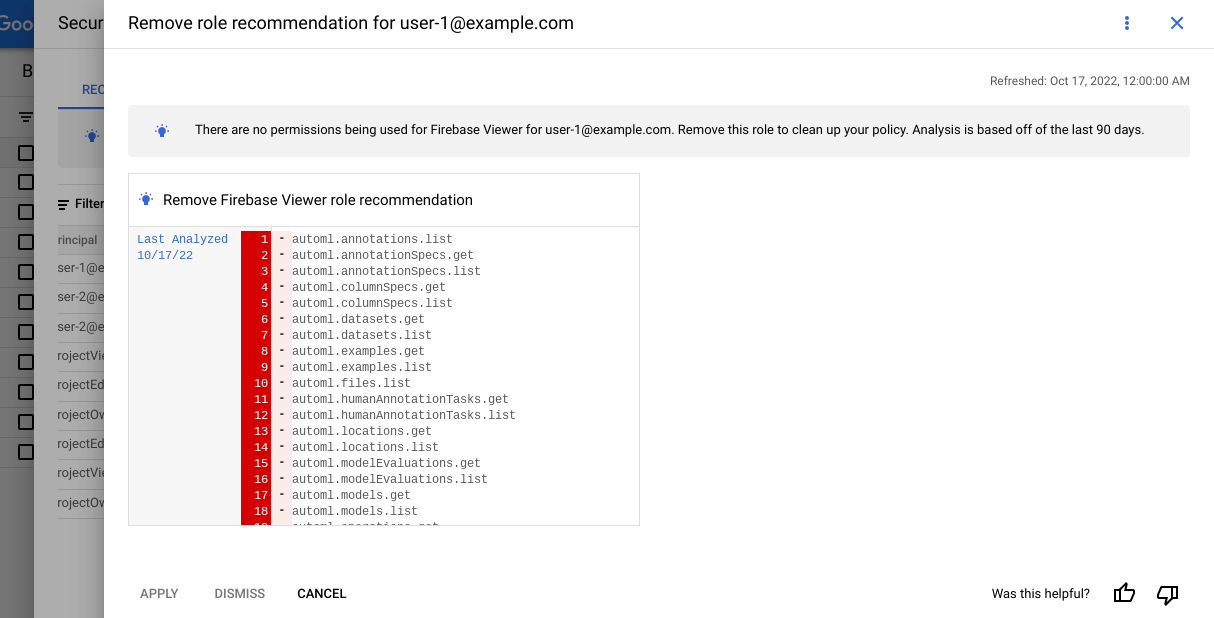

The types of permissions associated with each color and symbol are as follows:
- **Gray with no symbol**: Permissions that are in both the principal's current
role and the recommended roles.

- **Red with a minus sign**: Permissions
that are in the principal's current role, but not in the recommended roles
because the principal hasn't used them in the past
90 days.

- **Green with a plus sign** : Permissions
that are not in the principal's current role, but are in the recommended
roles. This type of permission appears only in [recommendations for service
agents](https://docs.cloud.google.com/policy-intelligence/docs/role-recommendations-overview#service-agents).

- **Blue with a *Machine learning* icon** :
Permissions that are in both the principal's current role and the recommended
roles, not because the principal has used the permissions in the past
90 days, but because Recommender has
determined through [machine learning](https://docs.cloud.google.com/policy-intelligence/docs/role-recommendations-overview.md.txt#ml) that they are likely
to need those permissions in the future.

### gcloud
Each recommendation includes information to help you understand why the
recommendation was made.
For details on the fields of a recommendation, see the
[`Recommendation` reference](https://docs.cloud.google.com/recommender/docs/reference/rest/v1/projects.locations.recommenders.recommendations.md.txt#resource-recommendation).
To see the permission usage that this recommendation is based on, view the
[policy insights](https://docs.cloud.google.com/policy-intelligence/docs/role-recommendations-overview.md.txt#how-policy-insights-work) that are associated with the recommendation.
These insights are listed in the `associatedInsights` field. To view a policy
insight that is associated with the recommendation, do the following:
1. Copy the associated insight's ID. The ID is everything after `insights/` in the `insight` field. For example, if the `insight` field reads `projects/123456789012/locations/us/insightTypes/google.iam.policy.Insight/insights/7849add9-73c0-419e-b169-42b3671173fb`, the insight ID is `7849add9-73c0-419e-b169-42b3671173fb`.
2. Follow the instructions to [get a policy insight](https://docs.cloud.google.com/policy-intelligence/docs/policy-insights-buckets.md.txt#get-insight), using the insight ID you copied.
### REST
Each recommendation includes information to help you understand why the
recommendation was made.
For details on the fields of a recommendation, see the
[`Recommendation` reference](https://docs.cloud.google.com/recommender/docs/reference/rest/v1/projects.locations.recommenders.recommendations.md.txt#resource-recommendation).
To see the permission usage that this recommendation is based on, view the
[policy insights](https://docs.cloud.google.com/policy-intelligence/docs/role-recommendations-overview.md.txt#how-policy-insights-work) that are associated with the recommendation.
These insights are listed in the `associatedInsights` field. To view a policy
insight that is associated with the recommendation, do the following:
1. Copy the associated insight's ID. The ID is everything after `insights/` in the `insight` field. For example, if the `insight` field reads `projects/123456789012/locations/us/insightTypes/google.iam.policy.Insight/insights/7849add9-73c0-419e-b169-42b3671173fb`, the insight ID is `7849add9-73c0-419e-b169-42b3671173fb`.
2. Follow the instructions to [get a policy insight](https://docs.cloud.google.com/policy-intelligence/docs/policy-insights-buckets.md.txt#get-insight), using the insight ID you copied.
## View, revert, and restore changes
After you apply or dismiss a recommendation for a project-level role binding,
that action appears in the recommendations history.
You can view the recommendations history for a bucket in the
Google Cloud console:
1. In the Google Cloud console, go to the **Buckets** page.
[Go to Buckets](https://console.cloud.google.com/storage/browser)
2. Find the **Security insights** column. If the column is not
visible, click **Column display options**
and select **Security insights**.
3. Find the bucket whose recommendation history you want to view, then
click the security insight summary in that row.
4. In the **Security recommendations** pane that appears, click the
**Recommendations history** tab.
The Google Cloud console shows a list of previous actions on your
role recommendations.
5. To view details about a recommendation, click the
expander
arrow.
The Google Cloud console shows details about the action that was taken,
including the principal that took the action:
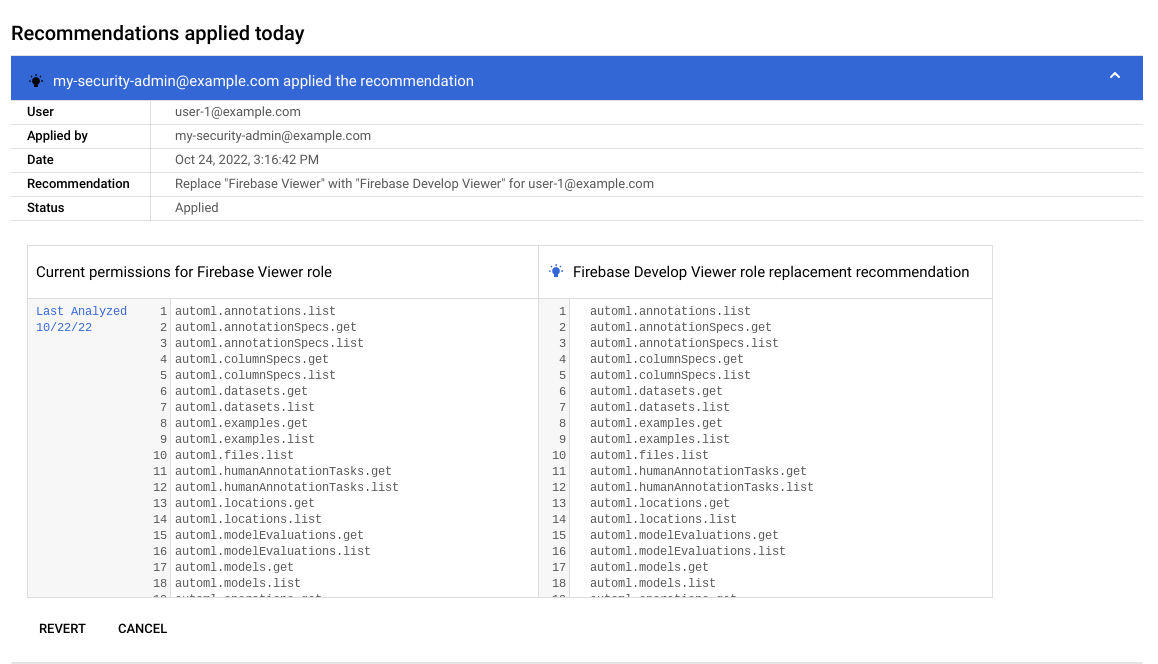

6. Optional: If necessary, you can revert the recommendation, which undoes the
changes in the recommendation, or restore a recommendation that you
dismissed.
To revert a previously applied change for a recommendation, click
**Revert**. The Google Cloud console reverts the changes to the
principal's roles. The recommendation no longer appears in the
Google Cloud console.
To restore a recommendation that was dismissed, click **Restore** . The
recommendation becomes visible on the **IAM** page in the
Google Cloud console. No roles or permissions are changed.
## What's next
- Learn more about [Recommender](https://docs.cloud.google.com/recommender/docs/overview).
- Learn how to use [allow policy insights for Cloud Storage
buckets](https://docs.cloud.google.com/policy-intelligence/docs/policy-insights-buckets).