This page contains information about analyzing your organization policy settings
to see which resources are covered by which organization policy. Using
Policy Analyzer for Organization Policy, you can create an analysis
query to get information on both custom and predefined organization policies.
An analysis query is composed of a scope and a constraint.
- Constraint: specifies the resource name of a constraint.
- Scope: specifies an organization to scope the analysis. All organization
policies with the specified constraint defined in this scope are included in
the analysis.
- For more information about organization policies, see the
[Introduction to the Organization Policy Service](https://docs.cloud.google.com/resource-manager/docs/organization-policy/overview).
- For more information about how to create custom constraints, see
[Creating and managing custom constraints](https://docs.cloud.google.com/resource-manager/docs/organization-policy/creating-managing-custom-constraints).
- For more information about managed constraints, see
[Using constraints](https://docs.cloud.google.com/resource-manager/docs/organization-policy/using-constraints#managed-constraints).
## Before you begin
-
Enable the Cloud Asset API, if it is not already enabled.
**Roles required to enable APIs**
To enable APIs, you need the `serviceusage.services.enable` permission. If you
created the project, then you likely already have this permission through the
Owner role (`roles/owner`). Otherwise, you can get this permission through the
Service Usage Admin role (`roles/serviceusage.serviceUsageAdmin`).
[Learn how to grant roles](https://docs.cloud.google.com/iam/docs/granting-changing-revoking-access.md.txt).
[Enable the API](https://console.cloud.google.com/apis/enableflow?apiid=cloudasset.googleapis.com&redirect=https://console.cloud.google.com)
You must enable the API in the project you will use to send the query. This
doesn't have to be the same resource that you scope your query to.
- Optional: If you want to execute more than
20 policy analysis queries per organization
per day, ensure that you have an [organization-level activation of the Premium
or Enterprise tier of
Security Command Center](https://cloud.google.com/security-command-center/pricing#organization-level-activations).
For more information, see [Billing
questions](https://docs.cloud.google.com/policy-intelligence/docs/billing-questions).
### Required roles and permissions
To get the permissions that
you need to run an organization policy analysis,
ask your administrator to grant you the
following IAM roles on the organization resource in which you want to conduct your analysis:
- To conduct the analysis: [Cloud Asset Viewer](https://docs.cloud.google.com/iam/docs/roles-permissions/cloudasset.md.txt#cloudasset.viewer) (`roles/cloudasset.viewer`)
- To view constraints: [Organization Policy Viewer](https://docs.cloud.google.com/iam/docs/roles-permissions/orgpolicy.md.txt#orgpolicy.policyViewer) (`roles/orgpolicy.policyViewer`)
For more information about granting roles, see [Manage access to projects, folders, and organizations](https://docs.cloud.google.com/iam/docs/granting-changing-revoking-access.md.txt).
These predefined roles contain
the permissions required to run an organization policy analysis. To see the exact permissions that are
required, expand the **Required permissions** section:
#### Required permissions
The following permissions are required to run an organization policy analysis:
- To conduct the analysis:
- `cloudasset.assets.analyzeOrgPolicy`
- `cloudasset.assets.searchAllResources`
- `cloudasset.assets.searchAllIamPolicies`
- To view custom and managed constraints: `orgpolicy.customConstraints.get`
You might also be able to get
these permissions
with [custom roles](https://docs.cloud.google.com/iam/docs/creating-custom-roles.md.txt) or
other [predefined roles](https://docs.cloud.google.com/iam/docs/roles-overview.md.txt#predefined).
## Pricing and quota
Policy Analyzer for Organization Policy at scale (above 20 queries
per organization per day) and
[inheritance visualizations](https://docs.cloud.google.com/policy-intelligence/docs/analyze-organization-policies.md.txt#visualize_inheritance) are only available for
customers with
[organization-level activations of Security Command Center](https://cloud.google.com/security-command-center/pricing#organization-level-activations).
Quota for Policy Analyzer for Organization Policy is shared among all
Policy Analyzer tools. For more information, see
[Billing questions](https://docs.cloud.google.com/policy-intelligence/docs/billing-questions.md.txt).
## Analyze configured policies
An organization policy is built from a constraint and optional conditions
under which that constraint is enforced. You can use
Policy Analyzer to return a list of organization policies with a
particular constraint and the resources to which those policies are attached.
For each organization policy that is detected in the query's scope,
Policy Analyzer returns a result entry. A result entry contains
the following fields:
- `consolidatedPolicy`: the resource to which the organization policy is
attached, and the effective policy enforcement on that resource with respect to
[hierarchy evaluation rules](https://docs.cloud.google.com/resource-manager/docs/organization-policy/understanding-hierarchy).
- `project`: the ID of the project resource to which this consolidated policy
belongs.
- `folders`: the ID of any folder resources that are ancestors of the resource
to which the organization policy is attached.
- `organization`: the ID of the organization resource that is the ancestor of
the resource to which the organization policy is attached.
- `policyBundle`: the full configured organization policy attached to the above
resource, and the organization policies defined on its ancestors in the
resource hierarchy.
If your resources are protected by a VPC Service Controls service perimeter, you
must create an [egress rule](https://docs.cloud.google.com/vpc-service-controls/docs/ingress-egress-rules.md.txt)
in the perimeter of your organization resource that allows access to the
`cloudasset.googleapis.com` service. Because method-level restrictions aren't
supported for Cloud Asset API, you must allow all Cloud Asset API methods by specifying
`method: *` in the egress rule. If you don't have an egress rule, the request
fails with a `NETWORK_NOT_IN_SAME_SERVICE_PERIMETER` error. For more
information, see
[Debugging requests blocked by VPC Service Controls](https://docs.cloud.google.com/vpc-service-controls/docs/troubleshooting.md.txt#debugging).
### Console
1. In the Google Cloud console, go to the **Policy Analyzer** page.
[Go to Policy Analyzer](https://console.cloud.google.com/iam-admin/analyzer)
2. In the **Analyze organization policy** section, find the pane labeled
**Where are specific organization policies configured?** and click **Create
query** in that pane.
3. In the **Select query organization** box, select the organization for which
you want to analyze organization policies.
4. Select the type of constraint you want to analyze. For a predefined or
managed constraint, select **Built-in constraint** .
For a custom constraint, select **Custom constraint**.
5. Enter the name of the constraint you want to analyze. The prefix for the
type of constraint you are analyzing is already included. For example,
for the predefined domain restriction constraint, enter
`iam.allowedPolicyMemberDomains`, for the service account creation managed
constraint, enter `iam.managed.disableServiceAccountKeyCreation`, and for a
custom constraint, enter its name, such as `disableGkeAutoUpgrade`.
6. Click **Analyze** , and then **Run query**. The report page shows the query
parameters you entered, and a results table of all resources to which this
constraint is directly applied.
7. You can save this query to view again later by clicking **Copy query URL**.
To view this query, navigate to the generated URL.
8. You can visualize the inheritance of the constraint you analyzed by
selecting at least one resource from the list, and then clicking
**View inheritance** . You can also immediately go to the visualization
view when you create your analysis query by clicking **Analyze** and then
**Visualize** . See [Visualize inheritance](https://docs.cloud.google.com/policy-intelligence/docs/analyze-organization-policies.md.txt#visualize_inheritance)
for more information.
### gcloud
To get an analysis of how an organization policy constraint is enforced
within an organization, use the
[`gcloud asset analyze-org-policies` command](https://docs.cloud.google.com/sdk/gcloud/reference/asset/analyze-org-policies.md.txt):
```bash
gcloud asset analyze-org-policies \
--constraint=CONSTRAINT_NAME \
--scope=organizations/ORGANIZATION_ID \
--limit=LIMIT_POLICIES \
--filter=FILTER_QUERY
```
Replace the following:
- CONSTRAINT_NAME: the name of the organization policy
constraint you want to analyze. For a list of constraints, see
[Organization policy constraints](https://docs.cloud.google.com/resource-manager/docs/organization-policy/org-policy-constraints).
- ORGANIZATION_ID: the ID of your organization
resource. For more information about finding your organization ID, see
[Creating and managing organizations](https://docs.cloud.google.com/resource-manager/docs/creating-managing-organization.md.txt#retrieving_your_organization_id).
- LIMIT_POLICIES: the number of result entries you want
to view. To see unlimited entries, enter `unlimited`.
- FILTER_QUERY: a filter query to see only policies
that match your filtering expression. The only available field for
filtering is `consolidated_policy.attached_resource`. For example,
`consolidated_policy.attached_resource="//cloudresourcemanager.googleapis.com/projects/1234567890"`
would only return policies that were attached to the project with the
project ID `1234567890`.
The YAML response is similar to the following:
#### Sample YAML response
```yaml
---
consolidatedPolicy:
appliedResource: //cloudresourcemanager.googleapis.com/projects/opa-test-project-1-364621
attachedResource: //cloudresourcemanager.googleapis.com/projects/opa-test-project-1-364621
rules:
- enforce: true
policyBundle:
- appliedResource: //cloudresourcemanager.googleapis.com/projects/opa-test-project-1-364621
attachedResource: //cloudresourcemanager.googleapis.com/projects/opa-test-project-1-364621
reset: true
- appliedResource: //cloudresourcemanager.googleapis.com/organizations/474566717491
rules:
- enforce: true
---
consolidatedPolicy:
appliedResource: //cloudresourcemanager.googleapis.com/organizations/474566717491
rules:
- enforce: true
policyBundle:
- appliedResource: //cloudresourcemanager.googleapis.com/organizations/474566717491
rules:
- enforce: true
```
### REST
To get an analysis of how an organization policy constraint is enforced
within an organization, use the Cloud Asset API's
[`analyzeOrgPolicies` method](https://docs.cloud.google.com/asset-inventory/docs/reference/rest/v1/TopLevel/analyzeOrgPolicies.md.txt).
HTTP method and URL:
```
GET https://cloudasset.googleapis.com/v1/organizations/ORGANIZATION_ID:analyzeOrgPolicies
```
Request JSON body:
```json
JSON_REQUEST="{
'constraint': 'CONSTRAINT_NAME',
'filter': 'FILTER_QUERY',
'page_size': PAGE_SIZE,
'page_token': PAGE_TOKEN
}"
```
Replace the following:
- ORGANIZATION_ID: the ID of your organization
resource. For more information about finding your organization ID, see
[Creating and managing organizations](https://docs.cloud.google.com/resource-manager/docs/creating-managing-organization.md.txt#retrieving_your_organization_id).
- CONSTRAINT_NAME: the name of the organization policy
constraint you want to analyze. For a list of constraints, see
[Organization policy constraints](https://docs.cloud.google.com/resource-manager/docs/organization-policy/org-policy-constraints).
- FILTER_QUERY: a filter query to see only policies
that match your filtering expression. The only available field for
filtering is `consolidated_policy.attached_resource`. For example,
`consolidated_policy.attached_resource="//cloudresourcemanager.googleapis.com/projects/1234567890"`
would only return policies that were attached to the project with the
project ID `1234567890`.
- PAGE_SIZE: the number of result entries per page you want
to view. To see unlimited entries, enter `unlimited`. A request made with
this flag set returns a `nextPageToken` value if the total number of
result entries is greater than the PAGE_SIZE.
- PAGE_TOKEN: only to be set on requests after the first
request that includes the `page_size` flag. You can use the
`nextPageToken` values received from previous responses to return a
particular page of results.
The JSON response is similar to the following:
#### Sample JSON response
```json
{
"orgPolicyResults": [
{
"consolidatedPolicy": {
"attachedResource": "//cloudresourcemanager.googleapis.com/folders/123456789012",
"rules": [
{
"values": {
"allowedValues": [
"C0265whk2"
]
}
},
{
"values": {
"allowedValues": [
"C03kd36xr"
]
}
}
],
"appliedResource": "//cloudresourcemanager.googleapis.com/folders/123456789012"
},
"policyBundle": [
{
"attachedResource": "//cloudresourcemanager.googleapis.com/folders/123456789012",
"rules": [
{
"values": {
"allowedValues": [
"C03kd36xr"
]
}
}
],
"inheritFromParent": true,
"appliedResource": "//cloudresourcemanager.googleapis.com/folders/123456789012"
},
{
"attachedResource": "//cloudresourcemanager.googleapis.com/folders/234567890123",
"rules": [
{
"values": {
"allowedValues": [
"C0265whk2"
]
}
}
],
"appliedResource": "//cloudresourcemanager.googleapis.com/folders/234567890123"
}
]
},
{
"consolidatedPolicy": {
"attachedResource": "//cloudresourcemanager.googleapis.com/folders/234567890123",
"rules": [
{
"values": {
"allowedValues": [
"C0265whk2"
]
}
}
],
"appliedResource": "//cloudresourcemanager.googleapis.com/folders/234567890123"
},
"policyBundle": [
{
"attachedResource": "//cloudresourcemanager.googleapis.com/folders/234567890123",
"rules": [
{
"values": {
"allowedValues": [
"C0265whk2"
]
}
}
],
"appliedResource": "//cloudresourcemanager.googleapis.com/folders/234567890123"
}
]
}
]
"constraint": {
"googleDefinedConstraint": {
"name": "constraints/iam.allowedPolicyMemberDomains",
"displayName": "Domain restricted sharing",
"description": "This list constraint defines one or more Cloud Identity or Google Workspace customer IDs whose principals can be added to IAM policies. \u003cbr\u003eBy default, all user identities are allowed to be added to IAM policies. Only allowed values can be defined in this constraint, denied values are not supported. \u003cbr\u003eIf this constraint is active, only principals that belong to the allowed customer IDs can be added to IAM policies.",
"constraintDefault": "ALLOW",
"listConstraint": {}
}
}
}
```
## Analyze containers
A container in this context is a project, folder, or organization resource.
You can use Policy Analyzer to return a list of all containers
that have organization policies with a particular constraint enforced on them.
Policy Analyzer also returns the full name of each container, the
container's parent in the hierarchy, and the tags inherited by or attached to
the container.
For each container that is detected in the query's scope,
Policy Analyzer returns a result entry. A result entry contains
the following fields:
- `consolidatedPolicy`: the container to which the organization policy is
attached, and the effective policy enforcement on that container with respect to
[hierarchy evaluation rules](https://docs.cloud.google.com/resource-manager/docs/organization-policy/understanding-hierarchy).
- `conditionEvaluation`: if the included conditions result in enforcement of the
organization policy, `evaluationValue` is `TRUE`. If the conditions
result in the organization policy not being enforced, `evaluationValue` is
`FALSE`. If the condition is not supported by one or more of the resources on
which the organization policy is enforced, the condition itself is returned.
- `effectiveTags`: all tags that are directly attached to or inherited by the
container and the container's parents in the hierarchy.
- `folders`: the ID of any folder resources that contain the container to which
the organization policy is attached.
- `fullResourceName`: the full name of the container.
- `organization`: the ID of the organization resource that is the ancestor of
the container to which the organization policy is attached.
- `parent`: the full resource name of the parent of this container.
- `policyBundle`: the organization policy configured directly on the container,
if one exists, and the organization policies defined on the ancestors of the
container in the resource hierarchy.
- `project`: the ID of the container to which the organization policy is
attached, if it is a project resource.
If your resources are protected by a VPC Service Controls service perimeter, you
must create an [egress rule](https://docs.cloud.google.com/vpc-service-controls/docs/ingress-egress-rules.md.txt)
in the perimeter of your organization resource that allows access to the
`cloudasset.googleapis.com` service. Because method-level restrictions aren't
supported for Cloud Asset API, you must allow all Cloud Asset API methods by specifying
`method: *` in the egress rule. If you don't have an egress rule, the request
fails with a `NETWORK_NOT_IN_SAME_SERVICE_PERIMETER` error. For more
information, see
[Debugging requests blocked by VPC Service Controls](https://docs.cloud.google.com/vpc-service-controls/docs/troubleshooting.md.txt#debugging).
### Console
1. In the Google Cloud console, go to the **Policy Analyzer** page.
[Go to Policy Analyzer](https://console.cloud.google.com/iam-admin/analyzer)
2. In the **Analyze organization policy** section, find the pane labeled
**Which projects or folders are affected by an organization policy
constraint?** and click **Create query** in that pane.
3. In the **Select query organization** box, select the organization for which
you want to analyze organization policies.
4. Select the type of constraint you want to analyze. For a predefined
or managed constraint, select **Built-in constraint** . For a custom
constraint, select **Custom constraint**.
5. Enter the name of the constraint you want to analyze. The prefix for the
type of constraint you are analyzing is already included. For example,
for the predefined domain restriction constraint, enter
`iam.allowedPolicyMemberDomains`, for the service account creation managed
constraint, enter `iam.managed.disableServiceAccountKeyCreation`, and for a
custom constraint, enter its name, such as `disableGkeAutoUpgrade`.
6. Click **Run query**. The report page shows the query parameters you
entered, and a results table of all containers that this constraint is
enforced on or inherited by.
7. You can save this query to view again later by clicking **Copy query URL**.
To view this query, navigate to the generated URL.
8. You can visualize the inheritance of the constraint you analyzed by
selecting at least one container from the list, and then clicking
**View inheritance** . You can also immediately go to the visualization
view when you create your analysis query by clicking **Analyze** and then
**Visualize** . See [Visualize inheritance](https://docs.cloud.google.com/policy-intelligence/docs/analyze-organization-policies.md.txt#visualize_inheritance)
for more information.
### gcloud
To get an analysis of how an organization policy constraint is enforced on
containers within an organization, use the
[`gcloud asset analyze-org-policy-governed-containers` command](https://docs.cloud.google.com/sdk/gcloud/reference/asset/analyze-org-policy-governed-containers.md.txt):
```bash
gcloud asset analyze-org-policy-governed-containers \
--constraint=CONSTRAINT_NAME \
--scope=organizations/ORGANIZATION_ID \
--limit=LIMIT_CONTAINERS \
--filter=FILTER_QUERY
```
Replace the following:
- CONSTRAINT_NAME: the name of the organization policy
constraint you want to analyze. For a list of constraints, see
[Organization policy constraints](https://docs.cloud.google.com/resource-manager/docs/organization-policy/org-policy-constraints).
- ORGANIZATION_ID: the ID of your organization
resource. For more information about finding your organization ID, see
[Creating and managing organizations](https://docs.cloud.google.com/resource-manager/docs/creating-managing-organization.md.txt#retrieving_your_organization_id).
- LIMIT_CONTAINERS: the number of result entries you
want to view. To see unlimited entries, enter `unlimited`.
- FILTER_QUERY: a filter query to see only containers
that match your filtering expression. The only available field for
filtering is `parent`. For example, `parent="//cloudresourcemanager.googleapis.com/organizations/012345678901"`
would only return containers that were children of the organization with
the organization ID `012345678901`.
The YAML response is similar to the following:
#### Sample YAML response
```yaml
---
consolidatedPolicy:
appliedResource: //cloudresourcemanager.googleapis.com/projects/donghe-project1
attachedResource: //cloudresourcemanager.googleapis.com/projects/donghe-project1
rules:
- values:
allowedValues:
- projects/donghe-project1/zones/us-central1-a/instances/instance-1
fullResourceName: //cloudresourcemanager.googleapis.com/projects/donghe-project1
parent: //cloudresourcemanager.googleapis.com/folders/86513245445
policyBundle:
- appliedResource: //cloudresourcemanager.googleapis.com/projects/donghe-project1
attachedResource: //cloudresourcemanager.googleapis.com/projects/donghe-project1
inheritFromParent: true
rules:
- values:
allowedValues:
- projects/donghe-project1/zones/us-central1-a/instances/instance-1
---
consolidatedPolicy:
appliedResource: //cloudresourcemanager.googleapis.com/projects/jeffreyai-prj01-on-ipa1
attachedResource: //cloudresourcemanager.googleapis.com/projects/jeffreyai-prj01-on-ipa1
rules:
- denyAll: true
fullResourceName: //cloudresourcemanager.googleapis.com/projects/jeffreyai-prj01-on-ipa1
parent: //cloudresourcemanager.googleapis.com/organizations/474566717491
policyBundle:
- appliedResource: //cloudresourcemanager.googleapis.com/projects/jeffreyai-prj01-on-ipa1
attachedResource: //cloudresourcemanager.googleapis.com/projects/jeffreyai-prj01-on-ipa1
inheritFromParent: true
rules:
- denyAll: true
---
consolidatedPolicy:
appliedResource: //cloudresourcemanager.googleapis.com/projects/opa-test-project-1-364621
attachedResource: //cloudresourcemanager.googleapis.com/projects/opa-test-project-1-364621
rules:
- values:
allowedValues:
- projects/opa-test-project-1-364621/zones/us-central1-a/instances/instance-1
fullResourceName: //cloudresourcemanager.googleapis.com/projects/opa-test-project-1-364621
parent: //cloudresourcemanager.googleapis.com/folders/666681422980
policyBundle:
- appliedResource: //cloudresourcemanager.googleapis.com/projects/opa-test-project-1-364621
attachedResource: //cloudresourcemanager.googleapis.com/projects/opa-test-project-1-364621
rules:
- values:
allowedValues:
- projects/opa-test-project-1-364621/zones/us-central1-a/instances/instance-1
```
### REST
To get an analysis of how an organization policy constraint is enforced on
containers within an organization, use the Cloud Asset API's
[`analyzeOrgPolicyGovernedContainers` method](https://docs.cloud.google.com/asset-inventory/docs/reference/rest/v1/TopLevel/analyzeOrgPolicyGovernedContainers.md.txt).
HTTP method and URL:
```
GET https://cloudasset.googleapis.com/v1/organizations/ORGANIZATION_ID:analyzeOrgPolicyGovernedContainers
```
Request JSON body:
```json
JSON_REQUEST="{
'constraint': 'CONSTRAINT_NAME',
'filter': '"FILTER_QUERY"',
'page_size': PAGE_SIZE,
'page_token': PAGE_TOKEN
}"
```
Replace the following:
- ORGANIZATION_ID: the ID of your organization
resource. For more information about finding your organization ID, see
[Creating and managing organizations](https://docs.cloud.google.com/resource-manager/docs/creating-managing-organization.md.txt#retrieving_your_organization_id).
- CONSTRAINT_NAME: the name of the organization policy
constraint you want to analyze. For a list of constraints, see
[Organization policy constraints](https://docs.cloud.google.com/resource-manager/docs/organization-policy/org-policy-constraints).
- FILTER_QUERY: a filter query to see only containers
that match your filtering expression. The only available field for
filtering is `parent`. For example,
`parent="//cloudresourcemanager.googleapis.com/organizations/012345678901"` would
only return containers that were children of the organization with the
organization ID `012345678901`.
- PAGE_SIZE: the number of pages of result entries you want
to view. To see unlimited entries, enter `unlimited`. A request made with
this flag set returns a `nextPageToken` value if the total number of
result entries is greater than the PAGE_SIZE.
- PAGE_TOKEN: only to be set on requests after the first
request that includes the `page_size` flag. You can use the
`nextPageToken` values received from previous responses to return a
particular page of results.
The JSON response is similar to the following:
#### Sample JSON response
```json
{
"governedContainers": [
{
"fullResourceName": "//cloudresourcemanager.googleapis.com/projects/opa-test-project-2",
"parent": "//cloudresourcemanager.googleapis.com/folders/513502730678",
"consolidatedPolicy": {
"attachedResource": "//cloudresourcemanager.googleapis.com/folders/513502730678",
"rules": [
{
"enforce": false
}
],
"appliedResource": "//cloudresourcemanager.googleapis.com/folders/513502730678"
},
"policyBundle": [
{
"attachedResource": "//cloudresourcemanager.googleapis.com/folders/513502730678",
"rules": [
{
"enforce": false
}
],
"appliedResource": "//cloudresourcemanager.googleapis.com/folders/513502730678"
},
{
"attachedResource": "//cloudresourcemanager.googleapis.com/folders/666681422980",
"rules": [
{
"enforce": true
}
],
"appliedResource": "//cloudresourcemanager.googleapis.com/folders/666681422980"
}
]
},
{
"fullResourceName": "//cloudresourcemanager.googleapis.com/projects/opa-test-project-1",
"parent": "//cloudresourcemanager.googleapis.com/folders/513502730678",
"consolidatedPolicy": {
"attachedResource": "//cloudresourcemanager.googleapis.com/folders/513502730678",
"rules": [
{
"enforce": false
}
],
"appliedResource": "//cloudresourcemanager.googleapis.com/folders/513502730678"
},
"policyBundle": [
{
"attachedResource": "//cloudresourcemanager.googleapis.com/folders/513502730678",
"rules": [
{
"enforce": false
}
],
"appliedResource": "//cloudresourcemanager.googleapis.com/folders/513502730678"
},
{
"attachedResource": "//cloudresourcemanager.googleapis.com/folders/666681422980",
"rules": [
{
"enforce": true
}
],
"appliedResource": "//cloudresourcemanager.googleapis.com/folders/666681422980"
}
]
}
]
"constraint": {
"googleDefinedConstraint": {
"name": "constraints/compute.requireOsLogin",
"displayName": "Require OS Login",
"description": "This boolean constraint, when set to \u003ccode\u003etrue\u003c/code\u003e, enables OS Login on all newly created Projects. All VM instances created in new projects will have OS Login enabled. On new and existing projects, this constraint prevents metadata updates that disable OS Login at the project or instance level. \u003cbr\u003eBy default, the OS Login feature is disabled on Compute Engine projects.\u003cbr\u003eGKE instances in private clusters running node pool versions 1.20.5-gke.2000 and later support OS Login. GKE instances in public clusters do not currently support OS Login. If this constraint is applied to a Project running public clusters, GKE instances running in that Project may not function properly.",
"constraintDefault": "ALLOW",
"booleanConstraint": {}
}
}
}
```
## Analyze assets
An asset in this context is a Google Cloud resource or
Identity and Access Management (IAM) allow policy. You can use
Policy Analyzer to return a list of all assets that have
organization policies with a particular constraint enforced on them. Custom
constraints, managed constraints, and the following predefined
constraints are supported:
- `constraints/ainotebooks.accessMode`
- `constraints/ainotebooks.disableFileDownloads`
- `constraints/ainotebooks.disableRootAccess`
- `constraints/ainotebooks.disableTerminal`
- `constraints/ainotebooks.environmentOptions`
- `constraints/ainotebooks.requireAutoUpgradeSchedule`
- `constraints/ainotebooks.restrictVpcNetworks`
- `constraints/compute.disableGuestAttributesAccess`
- `constraints/compute.disableInstanceDataAccessApis`
- `constraints/compute.disableNestedVirtualization`
- `constraints/compute.disableSerialPortAccess`
- `constraints/compute.disableSerialPortLogging`
- `constraints/compute.disableVpcExternalIpv6`
- `constraints/compute.requireOsLogin`
- `constraints/compute.requireShieldedVm`
- `constraints/compute.restrictLoadBalancerCreationForTypes`
- `constraints/compute.restrictProtocolForwardingCreationForTypes`
- `constraints/compute.restrictXpnProjectLienRemoval`
- `constraints/compute.setNewProjectDefaultToZonalDNSOnly`
- `constraints/compute.skipDefaultNetworkCreation`
- `constraints/compute.trustedImageProjects`
- `constraints/compute.vmCanIpForward`
- `constraints/compute.vmExternalIpAccess`
- `constraints/gcp.detailedAuditLoggingMode`
- `constraints/gcp.resourceLocations`
- `constraints/iam.allowedPolicyMemberDomains`
- `constraints/iam.automaticIamGrantsForDefaultServiceAccounts`
- `constraints/iam.disableServiceAccountCreation`
- `constraints/iam.disableServiceAccountKeyCreation`
- `constraints/iam.disableServiceAccountKeyUpload`
- `constraints/iam.restrictCrossProjectServiceAccountLienRemoval`
- `constraints/iam.serviceAccountKeyExpiryHours`
- `constraints/resourcemanager.accessBoundaries`
- `constraints/resourcemanager.allowedExportDestinations`
- `constraints/sql.restrictAuthorizedNetworks`
- `constraints/sql.restrictNoncompliantDiagnosticDataAccess`
- `constraints/sql.restrictNoncompliantResourceCreation`
- `constraints/sql.restrictPublicIp`
- `constraints/storage.publicAccessPrevention`
- `constraints/storage.restrictAuthTypes`
- `constraints/storage.uniformBucketLevelAccess`
Policy Analyzer returns the full name of each asset, the asset's
parent in the hierarchy, and any ancestor project, folder, and organization
resources above the asset in the hierarchy.
For each asset that is detected in the query's scope,
Policy Analyzer returns a result entry.
A result entry for a resource contains the following fields:
- `consolidatedPolicy`: the resource to which the organization policy is
attached, and the effective policy enforcement on that resource with respect to
[hierarchy evaluation rules](https://docs.cloud.google.com/resource-manager/docs/organization-policy/understanding-hierarchy).
- `conditionEvaluation`: if the included conditions result in enforcement of the
organization policy, `evaluationValue` is `TRUE`. If the conditions
result in the organization policy not being enforced, `evaluationValue` is
`FALSE`. If the condition is not supported by one or more of the resources on
which the organization policy is enforced, the condition itself is returned.
- `assetType`: the resource type of the asset.
- `effectiveTags`: all tags that are directly attached to or inherited by the
resource to which the organization policy is attached and the resource's
parents in the hierarchy.
- `folders`: the ID of any folder resources that contain the resource to which
the organization policy is attached.
- `fullResourceName`: the full resource name of the resource.
- `organization`: the relative resource name of the organization that contains
the resource.
- `parent`: the full resource name of the parent of the resource.
- `project`: the ID of the project that contains the resource.
- `policyBundle`: the full configured organization policy attached to the above
resource, and the organization policies defined on its ancestors in the
resource hierarchy.
A result entry for an allow policy contains the following fields:
- `consolidatedPolicy`: the resource to which the organization policy is
attached, and the effective policy enforcement on that resource with respect to
[hierarchy evaluation rules](https://docs.cloud.google.com/resource-manager/docs/organization-policy/understanding-hierarchy).
- `assetType`: the resource type of the resource to which the allow policy is
attached.
- `attachedResource`: the full name of the resource to which the allow policy
is attached.
- `folders`: the relative resource name of any folders that contain the allow
policy.
- `organization`: the relative resource name of the organization that contains
the allow policy.
- `policy`: the allow policy.
- `project`: the relative resource name of the project that contains the allow
policy.
- `policyBundle`: the full configured organization policy attached to the above
resource, and the organization policies defined on its ancestors in the
resource hierarchy.
If your resources are protected by a VPC Service Controls service perimeter, you
must create an [egress rule](https://docs.cloud.google.com/vpc-service-controls/docs/ingress-egress-rules.md.txt)
in the perimeter of your organization resource that allows access to the
`cloudasset.googleapis.com` service. Because method-level restrictions aren't
supported for Cloud Asset API, you must allow all Cloud Asset API methods by specifying
`method: *` in the egress rule. If you don't have an egress rule, the request
fails with a `NETWORK_NOT_IN_SAME_SERVICE_PERIMETER` error. For more
information, see
[Debugging requests blocked by VPC Service Controls](https://docs.cloud.google.com/vpc-service-controls/docs/troubleshooting.md.txt#debugging).
### Console
1. In the Google Cloud console, go to the **Policy Analyzer** page.
[Go to Policy Analyzer](https://console.cloud.google.com/iam-admin/analyzer)
2. In the **Analyze organization policy** section, find the pane labeled
**Which resources are affected by an organization policy constraint?**
and click **Create query** in that pane.
3. In the **Select query organization** box, select the organization for which
you want to analyze organization policies.
4. Select the type of constraint you want to analyze. For a predefined or
managed constraint, select **Built-in constraint** . For a custom
constraint, select **Custom constraint**.
5. Enter the name of the constraint you want to analyze. The prefix for the
type of constraint you are analyzing is already included. For example,
for the predefined bucket-level access constraint, enter
`storage.uniformBucketLevelAccess`, for the service account creation
managed constraint, enter `iam.managed.disableServiceAccountKeyCreation`,
and for a custom constraint, enter its name, such as `disableGkeAccess`.
6. Click **Run query**. The report page shows the query parameters you
entered, and a results table of all assets that this constraint is
enforced on or inherited by.
7. You can save this query to view again later by clicking **Copy query URL**.
To view this query, navigate to the generated URL.
8. You can visualize the inheritance of the constraint you analyzed by
selecting at least one asset from the list, and then clicking
**View inheritance** . You can also immediately go to the visualization
view when you create your analysis query by clicking **Analyze** and then
**Visualize** . See [Visualize inheritance](https://docs.cloud.google.com/policy-intelligence/docs/analyze-organization-policies.md.txt#visualize_inheritance)
for more information.
### gcloud
To get an analysis of how an organization policy constraint is enforced on
assets within an organization, use the
[`gcloud asset analyze-org-policy-governed-assets` command](https://docs.cloud.google.com/sdk/gcloud/reference/asset/analyze-org-policy-governed-assets.md.txt):
```bash
gcloud asset analyze-org-policy-governed-assets \
--constraint=CONSTRAINT_NAME \
--scope=organizations/ORGANIZATION_ID \
--limit=LIMIT_ASSETS \
--filter=FILTER_QUERY
```
Replace the following:
- CONSTRAINT_NAME: the name of the organization policy
constraint you want to analyze. For a list of constraints, see
[Organization policy constraints](https://docs.cloud.google.com/resource-manager/docs/organization-policy/org-policy-constraints).
- ORGANIZATION_ID: the ID of your organization
resource. For more information about finding your organization ID, see
[Creating and managing organizations](https://docs.cloud.google.com/resource-manager/docs/creating-managing-organization.md.txt#retrieving_your_organization_id).
- LIMIT_ASSETS: the number of result entries you want
to view. To see unlimited entries, enter `unlimited`.
- FILTER_QUERY: a filter query to see only assets
that match your filtering expression. The available fields for
filtering are `governed_resource.folders`, `governed_resource.project`,
`governed_iam_policy.folders`, and `governed_iam_policy.project`. For
example, `governed_resource.project="projects/1234567890"` would only return
assets that were attached to the project with the project ID `1234567890`.
The YAML response is similar to the following:
#### Sample YAML response
```yaml
---
consolidatedPolicy:
appliedResource: //cloudresourcemanager.googleapis.com/projects/opa-test-project-2
attachedResource: //cloudresourcemanager.googleapis.com/projects/opa-test-project-2
rules:
- enforce: false
governedResource:
folders:
- folders/513502730678
- folders/666681422980
fullResourceName: //container.googleapis.com/projects/opa-test-project-2/zones/us-central1-c/clusters/opa-test-project-2-cluster-1/nodePools/default-pool
organization: organizations/474566717491
parent: //container.googleapis.com/projects/opa-test-project-2/zones/us-central1-c/clusters/opa-test-project-2-cluster-1
project: projects/892625391619
policyBundle:
- appliedResource: //cloudresourcemanager.googleapis.com/projects/opa-test-project-2
attachedResource: //cloudresourcemanager.googleapis.com/projects/opa-test-project-2
reset: true
- appliedResource: //cloudresourcemanager.googleapis.com/organizations/474566717491
attachedResource: //cloudresourcemanager.googleapis.com/organizations/474566717491
rules:
- enforce: true
---
consolidatedPolicy:
appliedResource: //cloudresourcemanager.googleapis.com/projects/project2-244918
attachedResource: //cloudresourcemanager.googleapis.com/projects/project2-244918
rules:
- enforce: false
governedResource:
folders:
- folders/800636178739
- folders/408342778736
fullResourceName: //container.googleapis.com/projects/project2-244918/zones/us-central1-c/clusters/cluster-1/nodePools/default-pool
organization: organizations/474566717491
parent: //container.googleapis.com/projects/project2-244918/zones/us-central1-c/clusters/cluster-1
project: projects/761097189269
policyBundle:
- appliedResource: //cloudresourcemanager.googleapis.com/projects/project2-244918
attachedResource: //cloudresourcemanager.googleapis.com/projects/project2-244918
rules:
- enforce: false
- appliedResource: //cloudresourcemanager.googleapis.com/folders/408342778736
attachedResource: //cloudresourcemanager.googleapis.com/folders/408342778736
rules:
- condition:
description: cond-desc1
expression: resource.matchTag("474566717491/env", "prod")
title: cond-title1
enforce: false
- enforce: true
- appliedResource: //cloudresourcemanager.googleapis.com/organizations/474566717491
attachedResource: //cloudresourcemanager.googleapis.com/organizations/474566717491
rules:
- enforce: true
---
consolidatedPolicy:
appliedResource: //cloudresourcemanager.googleapis.com/organizations/474566717491
attachedResource: //cloudresourcemanager.googleapis.com/organizations/474566717491
rules:
- enforce: true
governedResource:
fullResourceName: //container.googleapis.com/projects/probe-per-rt-project/zones/us-west1-a/clusters/test-cluster-for-backup/nodePools/default-pool
organization: organizations/474566717491
parent: //container.googleapis.com/projects/probe-per-rt-project/zones/us-west1-a/clusters/test-cluster-for-backup
project: projects/896190383908
policyBundle:
- appliedResource: //cloudresourcemanager.googleapis.com/organizations/474566717491
attachedResource: //cloudresourcemanager.googleapis.com/organizations/474566717491
rules:
- enforce: true
```
### REST
To get an analysis of how an organization policy constraint is enforced on
assets within an organization, use the Cloud Asset API's
[`analyzeOrgPolicyGovernedAssets` method](https://docs.cloud.google.com/asset-inventory/docs/reference/rest/v1/TopLevel/analyzeOrgPolicyGovernedAssets.md.txt).
HTTP method and URL:
```
GET https://cloudasset.googleapis.com/v1/organizations/ORGANIZATION_ID:analyzeOrgPolicyGovernedAssets
```
Request JSON body:
```json
JSON_REQUEST="{
'constraint': 'CONSTRAINT_NAME',
'filter': 'FILTER_QUERY',
'page_size': PAGE_SIZE,
'page_token': PAGE_TOKEN
}"
```
Replace the following:
- ORGANIZATION_ID: the ID of your organization
resource. For more information about finding your organization ID, see
[Creating and managing organizations](https://docs.cloud.google.com/resource-manager/docs/creating-managing-organization.md.txt#retrieving_your_organization_id).
- CONSTRAINT_NAME: the name of the organization policy
constraint you want to analyze. For a list of constraints, see
[Organization policy constraints](https://docs.cloud.google.com/resource-manager/docs/organization-policy/org-policy-constraints).
- FILTER_QUERY: a filter query to see only assets
that match your filtering expression. The available fields for
filtering are `governed_resource.folders`, `governed_resource.project`,
`governed_iam_policy.folders`, and `governed_iam_policy.project`. For
example, `governed_resource.project="projects/1234567890"` would only return
assets that were attached to the project with the project ID `1234567890`.
- PAGE_SIZE: the number of pages of result entries you want
to view. To see unlimited entries, enter `unlimited`. A request made with
this flag set returns a `nextPageToken` value if the total number of
result entries is greater than the PAGE_SIZE.
- PAGE_TOKEN: only to be set on requests after the first
request that includes the `page_size` flag. You can use the
`nextPageToken` values received from previous responses to return a
particular page of results.
The JSON response is similar to the following:
#### Sample JSON response
```json
{
"governedAssets": [
{
"governedResource": {
"fullResourceName": "//container.googleapis.com/projects/opa-test-project-2/zones/us-central1-c/clusters/opa-test-project-2-cluster-1/nodePools/default-pool",
"parent": "//container.googleapis.com/projects/opa-test-project-2/zones/us-central1-c/clusters/opa-test-project-2-cluster-1",
"project": "projects/892625391619",
"folders": [
"folders/513502730678",
"folders/666681422980"
],
"organization": "organizations/474566717491"
},
"consolidatedPolicy": {
"attachedResource": "//cloudresourcemanager.googleapis.com/projects/opa-test-project-2",
"rules": [
{
"enforce": false
}
],
"appliedResource": "//cloudresourcemanager.googleapis.com/projects/opa-test-project-2"
},
"policyBundle": [
{
"attachedResource": "//cloudresourcemanager.googleapis.com/projects/opa-test-project-2",
"reset": true,
"appliedResource": "//cloudresourcemanager.googleapis.com/projects/opa-test-project-2"
},
{
"attachedResource": "//cloudresourcemanager.googleapis.com/organizations/474566717491",
"rules": [
{
"enforce": true
}
],
"appliedResource": "//cloudresourcemanager.googleapis.com/organizations/474566717491"
}
]
},
{
"governedResource": {
"fullResourceName": "//container.googleapis.com/projects/project2-244918/zones/us-central1-c/clusters/cluster-1/nodePools/default-pool",
"parent": "//container.googleapis.com/projects/project2-244918/zones/us-central1-c/clusters/cluster-1",
"project": "projects/761097189269",
"folders": [
"folders/800636178739",
"folders/408342778736"
],
"organization": "organizations/474566717491"
},
"consolidatedPolicy": {
"attachedResource": "//cloudresourcemanager.googleapis.com/projects/project2-244918",
"rules": [
{
"enforce": false
}
],
"appliedResource": "//cloudresourcemanager.googleapis.com/projects/project2-244918"
},
"policyBundle": [
{
"attachedResource": "//cloudresourcemanager.googleapis.com/projects/project2-244918",
"rules": [
{
"enforce": false
}
],
"appliedResource": "//cloudresourcemanager.googleapis.com/projects/project2-244918"
},
{
"attachedResource": "//cloudresourcemanager.googleapis.com/folders/408342778736",
"rules": [
{
"enforce": false,
"condition": {
"expression": "resource.matchTag(\"474566717491/env\", \"prod\")",
"title": "cond-title1",
"description": "cond-desc1"
}
},
{
"enforce": true
}
],
"appliedResource": "//cloudresourcemanager.googleapis.com/folders/408342778736"
},
{
"attachedResource": "//cloudresourcemanager.googleapis.com/organizations/474566717491",
"rules": [
{
"enforce": true
}
],
"appliedResource": "//cloudresourcemanager.googleapis.com/organizations/474566717491"
}
]
}
]
"constraint": {
"customConstraint": {
"name": "organizations/474566717491/customConstraints/custom.disableGkeAutoUpgrade",
"resourceTypes": [
"container.googleapis.com/NodePool"
],
"methodTypes": [
"CREATE",
"UPDATE"
],
"condition": "resource.management.autoUpgrade == false",
"actionType": "ALLOW",
"displayName": "Disable GKE auto upgrade",
"description": "Only allow GKE NodePool resource create or updates if AutoUpgrade is not enabled"
}
}
}
```
## Visualize inheritance
If you have an [organization-level activation of the Premium or Enterprise tier
of
Security Command Center](https://cloud.google.com/security-command-center/pricing#security-command-center-pricing),
you can visualize the inheritance of organization policies you have analyzed
using the Google Cloud console.
To view the inheritance visualization, create an organization policy analysis
query for [configured policies](https://docs.cloud.google.com/policy-intelligence/docs/analyze-organization-policies.md.txt#analyze_policies),
[containers](https://docs.cloud.google.com/policy-intelligence/docs/analyze-organization-policies.md.txt#analyze_containers), or [assets](https://docs.cloud.google.com/policy-intelligence/docs/analyze-organization-policies.md.txt#analyze_assets). On the
**Run query analysis** page, click **Analyze** , and then select **Visualize**.
You can also navigate to the URL of a saved query, select the resources you
want to highlight, and then click
**View inheritance**.
The **Resource inheritance** page shows a visualization of the resource
hierarchy for the resources selected in your analysis query:
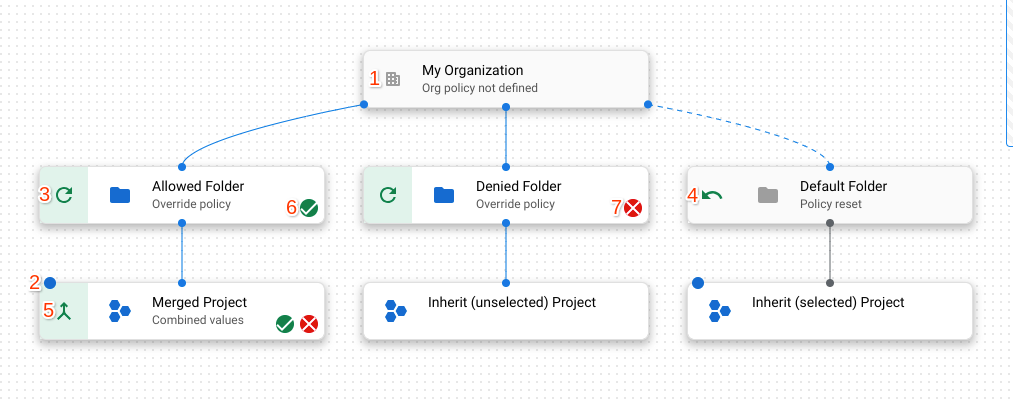

1. Indicates if the resource is an organization, folder, or project.
2. A blue dot indicates the resource is selected in the query.
3. Indicates the resource overrides the policy of its parent resource.
4. Indicates the resource resets the organization policy to the Google-managed
default for that policy. A resource that resets the policy to default has a
dotted line connecting it to its parent.
5. Indicates the resource merges policy with its parent.
6. Indicates that the organization policy on this resource enforces a either a
boolean constraint that is enforced, or a list constraint with allowed
values.
7. Indicates that the organization policy on this resource is a list constraint
with denied values.
8. Indicates that the organization policy on this resource is a boolean
constraint that is not enforced.
## What's next
- Learn more about [Using constraints](https://docs.cloud.google.com/resource-manager/docs/organization-policy/using-constraints).
- Learn how to [Create and manage custom constraints](https://docs.cloud.google.com/resource-manager/docs/organization-policy/creating-managing-custom-constraints).