This page shows how to use Policy Analyzer for allow policies
to find out which principals have what access to which Google Cloud resources.
Principals can include the following:
- Users, groups, or domains
- Service accounts
- Agent identities
- Workload identities
- Workforce identities
The examples on this page show how to run a Policy Analysis query and
immediately view the results. If you want to export the results for further
analysis, you can use
[`AnalyzeIamPolicyLongrunning`](https://docs.cloud.google.com/asset-inventory/docs/reference/rest/v1/TopLevel/analyzeIamPolicyLongrunning.md.txt) to write
query results to [BigQuery](https://docs.cloud.google.com/policy-intelligence/docs/policy-analyzer-write-to-bigquery.md.txt) or
[Cloud Storage](https://docs.cloud.google.com/policy-intelligence/docs/policy-analyzer-write-to-gcs.md.txt).
> [!NOTE]
> **Note:** Policy Analyzer uses the Cloud Asset API, which offers best-effort data freshness. While almost all policy updates appear in Policy Analyzer in minutes, it's possible that Policy Analyzer won't include the most recent policy updates.
## Before you begin
-
Enable the Cloud Asset API, if it is not already enabled.
**Roles required to enable APIs**
To enable APIs, you need the `serviceusage.services.enable` permission. If you
created the project, then you likely already have this permission through the
Owner role (`roles/owner`). Otherwise, you can get this permission through the
Service Usage Admin role (`roles/serviceusage.serviceUsageAdmin`).
[Learn how to grant roles](https://docs.cloud.google.com/iam/docs/granting-changing-revoking-access.md.txt).
[Enable the API](https://console.cloud.google.com/apis/enableflow?apiid=cloudasset.googleapis.com&redirect=https://console.cloud.google.com)
You must enable the API in the project you will use to send the query. This
doesn't have to be the same resource that you scope your query to.
- Optional: Understand [how Policy Analyzer
works](https://docs.cloud.google.com/policy-intelligence/docs/policy-analyzer-overview).
- Optional: If you want to execute more than
20 policy analysis queries per organization
per day, ensure that you have an [organization-level activation of the Premium
or Enterprise tier of
Security Command Center](https://cloud.google.com/security-command-center/pricing#security-command-center-pricing).
For more information, see [Billing
questions](https://docs.cloud.google.com/policy-intelligence/docs/billing-questions).
## Required roles and permissions
The following roles and permissions are required to analyze allow policies.
### Required IAM roles
To get the permissions that
you need to analyze an allow policy,
ask your administrator to grant you the
following IAM roles on the project, folder, or organization that you will scope
your query to:
- [Cloud Asset Viewer](https://docs.cloud.google.com/iam/docs/roles-permissions/cloudasset.md.txt#cloudasset.viewer) (`roles/cloudasset.viewer`)
- To analyze policies with [custom IAM roles](https://docs.cloud.google.com/iam/docs/understanding-custom-roles): [Role Viewer](https://docs.cloud.google.com/iam/docs/roles-permissions/iam.md.txt#iam.roleViewer) (`roles/iam.roleViewer`)
- To use the Google Cloud CLI to analyze policies: [Service Usage Consumer](https://docs.cloud.google.com/iam/docs/roles-permissions/serviceusage.md.txt#serviceusage.serviceUsageConsumer) (`roles/serviceusage.serviceUsageConsumer`)
For more information about granting roles, see [Manage access to projects, folders, and organizations](https://docs.cloud.google.com/iam/docs/granting-changing-revoking-access.md.txt).
These predefined roles contain
the permissions required to analyze an allow policy. To see the exact permissions that are
required, expand the **Required permissions** section:
#### Required permissions
The following permissions are required to analyze an allow policy:
- `cloudasset.assets.analyzeIamPolicy`
- `cloudasset.assets.searchAllResources`
- `cloudasset.assets.searchAllIamPolicies`
- To analyze policies with custom IAM roles: `iam.roles.get`
- To use the Google Cloud CLI to analyze policies: `serviceusage.services.use`
You might also be able to get
these permissions
with [custom roles](https://docs.cloud.google.com/iam/docs/creating-custom-roles.md.txt) or
other [predefined roles](https://docs.cloud.google.com/iam/docs/roles-overview.md.txt#predefined).
### Required Google Workspace permissions
If you want to [expand groups in query results](https://docs.cloud.google.com/policy-intelligence/docs/analyze-iam-policies.md.txt#options) to see if a principal
has certain roles or permissions as a result of their membership in a
Google Workspace group, you need the `groups.read` Google Workspace permission.
This permission is contained in the Groups Reader Admin role, and in more
powerful roles such as the Groups Admin or Super Admin roles. To learn how to
grant these roles, see [Assign specific admin roles](https://support.google.com/a/answer/9807615).
## Determine which principals can access a resource
You can use Policy Analyzer to check which principals have certain
roles or permissions on a specific resource in your project, folder, or
organization. To get this information, create a query that includes the resource
that you want to analyze access for and one or more roles or permissions to
check for.
> [!NOTE]
> **Note:** Policy Analyzer only supports [IAM allow policies](https://docs.cloud.google.com/iam/docs/policies). Results do
> not account for other access control mechanisms, like IAM deny
> policies. For more information, see [Supported
> policy types](https://docs.cloud.google.com/policy-intelligence/docs/policy-analyzer-overview#supported-policy-types).
### Console
1. In the Google Cloud console, go to the **Policy analyzer** page.
[Go to the Policy analyzer page](https://console.cloud.google.com/iam-admin/analyzer)
2. In the **Analyze policies** section, find the pane labeled **Custom query**
and click **Create custom query** in that pane.
3. In the **Select query scope** field, select the project, folder, or
organization that you want to scope the query to. Policy Analyzer
will analyze access for that project, folder, or organization, as well as any
resources within that project, folder, or organization.
4. Choose the resource to check and the role or permission to check for:
1. In the **Parameter 1** field, select **Resource** from the drop-down menu.
2. In the **Resource** field, enter the full resource name of the resource that you want to analyze access for. If you don't know the full resource name, start typing the display name of the resource, then select the resource from the list of resources provided.
3. Click **Add selector**.
4. In the **Parameter 2** field, select either **Role** or **Permission**.
5. In the **Select a role** or **Select a permission** field, select the role or permission that you want to check for.
6. Optional: To check for additional roles and permissions, continue adding **Role** and **Permission** selectors until all the roles and permissions that you want to check for are listed.
5. Optional: Click **Continue** , then select any [advanced options](https://docs.cloud.google.com/policy-intelligence/docs/analyze-iam-policies.md.txt#options)
that you want to enable for this query.
6. In the **Custom query** pane, click **Analyze \> Run query**.
The report page shows the query parameters you entered, and a results table
of all principals with the specified roles or permissions on the specified
resource.
Policy analysis queries in the Google Cloud console can take one minute to run. After
one minute, the Google Cloud console stops the query and displays all available results. If the
query didn't finish in that time, the Google Cloud console displays a banner indicating that the
results are incomplete. To get more results for these queries,
[export the
results to BigQuery](https://docs.cloud.google.com/policy-intelligence/docs/policy-analyzer-write-to-bigquery).
You can generate a visualization of your query by clicking **Visualize results** . For more
information, see
[Visualize results](https://docs.cloud.google.com/policy-intelligence/docs/analyze-iam-policies.md.txt#visualize-results)
([Preview](https://docs.cloud.google.com/products#product-launch-stages)).
### gcloud
Before using any of the command data below,
make the following replacements:
- `RESOURCE_TYPE`: The type of the resource that you want to scope your search to. Only IAM allow policies attached to this resource and to its descendants will be analyzed. Use the value `project`, `folder`, or `organization`.
- `RESOURCE_ID`: The ID of the Google Cloud project, folder, or organization that you want to scope your search to. Only IAM allow policies attached to this resource and to its descendants will be analyzed. Project IDs are alphanumeric strings, like `my-project`. Folder and organization IDs are numeric, like `123456789012`.
- `FULL_RESOURCE_NAME`: The full resource name of the resource that you want to analyze access for. For a list of full resource name formats, see [Resource name
format](https://docs.cloud.google.com/asset-inventory/docs/resource-name-format).
- `PERMISSIONS`: A comma-separated list of the permissions that you want to check for---for example, `compute.instances.get,compute.instances.start`. If you list multiple permissions, Policy Analyzer will check for any of the permissions listed.
> [!NOTE]
> **Note:** If you want more detailed query results, you can [enable advanced options](https://docs.cloud.google.com/policy-intelligence/docs/analyze-iam-policies.md.txt#options).
Execute the
[gcloud asset analyze-iam-policy](https://docs.cloud.google.com/sdk/gcloud/reference/asset/analyze-iam-policy.md.txt)
command:
#### Linux, macOS, or Cloud Shell
> [!NOTE]
> **Note:** Ensure you have initialized the Google Cloud CLI with authentication and a project by running either [gcloud init](https://docs.cloud.google.com/sdk/gcloud/reference/init); or [gcloud auth login](https://docs.cloud.google.com/sdk/gcloud/reference/auth/login.md.txt) and [gcloud config set project](https://docs.cloud.google.com/sdk/gcloud/reference/config/set.md.txt).
```bash
gcloud asset analyze-iam-policy --RESOURCE_TYPE=RESOURCE_ID \
--full-resource-name=FULL_RESOURCE_NAME \
--permissions='PERMISSIONS'
```
#### Windows (PowerShell)
> [!NOTE]
> **Note:** Ensure you have initialized the Google Cloud CLI with authentication and a project by running either [gcloud init](https://docs.cloud.google.com/sdk/gcloud/reference/init); or [gcloud auth login](https://docs.cloud.google.com/sdk/gcloud/reference/auth/login.md.txt) and [gcloud config set project](https://docs.cloud.google.com/sdk/gcloud/reference/config/set.md.txt).
```bash
gcloud asset analyze-iam-policy --RESOURCE_TYPE=RESOURCE_ID `
--full-resource-name=FULL_RESOURCE_NAME `
--permissions='PERMISSIONS'
```
#### Windows (cmd.exe)
> [!NOTE]
> **Note:** Ensure you have initialized the Google Cloud CLI with authentication and a project by running either [gcloud init](https://docs.cloud.google.com/sdk/gcloud/reference/init); or [gcloud auth login](https://docs.cloud.google.com/sdk/gcloud/reference/auth/login.md.txt) and [gcloud config set project](https://docs.cloud.google.com/sdk/gcloud/reference/config/set.md.txt).
> [!NOTE]
> **Note:** If this command uses `'` for quoting content, replace these single quotes with double quotes. If quoting is nested, use `\"` to escape the inner quotes.
```bash
gcloud asset analyze-iam-policy --RESOURCE_TYPE=RESOURCE_ID ^
--full-resource-name=FULL_RESOURCE_NAME ^
--permissions='PERMISSIONS'
```
You receive a YAML response with analysis results. Each analysis result lists a set of
accesses, identities, and resources that are relevant to your query, followed by the
related IAM role binding. If the role binding is conditional, the analysis result
also includes the result of the condition evaluation. If the condition couldn't be evaluated, the
result is `CONDITIONAL`.
The principals that have any of the specified permissions on the specified resource are listed in
the `identities` fields in the response. The following example shows a single analysis
result with the `identities` field highlighted.
```
...
---
ACLs:
- accesses:
- permission: compute.instances.get
- permission: compute.instances.start
identities:
- name: user:my-user@example.com
resources:
- fullResourceName: //cloudresourcemanager.googleapis.com/projects/my-project
policy:
attachedResource: //cloudresourcemanager.googleapis.com/projects/my-project
binding:
members:
- user: my-user@example.com
role: roles/compute.admin
---
...
```
If the request times out before the query finishes, you get a
`DEADLINE_EXCEEDED` error. To get more results for these queries, write
the results to either BigQuery or Cloud Storage using the long-running version
of `analyze-iam-policy`. For instructions, see
[Write policy analysis to
BigQuery](https://docs.cloud.google.com/policy-intelligence/docs/policy-analyzer-write-to-bigquery) or
[Write policy analysis to
Cloud Storage](https://docs.cloud.google.com/policy-intelligence/docs/policy-analyzer-write-to-gcs).
### REST
To determine which principals have certain permissions on a
resource, use the Cloud Asset Inventory API's
`analyzeIamPolicy`
method.
Before using any of the request data,
make the following replacements:
- `RESOURCE_TYPE`: The type of the resource that you want to scope your search to. Only IAM allow policies attached to this resource and to its descendants will be analyzed. Use the value `projects`, `folders`, or `organizations`.
- `RESOURCE_ID`: The ID of the Google Cloud project, folder, or organization that you want to scope your search to. Only IAM allow policies attached to this resource and to its descendants will be analyzed. Project IDs are alphanumeric strings, like `my-project`. Folder and organization IDs are numeric, like `123456789012`.
- `FULL_RESOURCE_NAME`: The full resource name of the resource that you want to analyze access for. For a list of full resource name formats, see [Resource name
format](https://docs.cloud.google.com/asset-inventory/docs/resource-name-format).
- `PERMISSION_1`, `PERMISSION_2`... `PERMISSION_N`: The permissions that you want to check for---for example, `compute.instances.get`. If you list multiple permissions, Policy Analyzer will check for any of the permissions listed.
> [!NOTE]
> **Note:** If you want more detailed query results, you can [enable advanced options](https://docs.cloud.google.com/policy-intelligence/docs/analyze-iam-policies.md.txt#options).
HTTP method and URL:
```
POST https://cloudasset.googleapis.com/v1/RESOURCE_TYPE/RESOURCE_ID:analyzeIamPolicy
```
Request JSON body:
```
{
"analysisQuery": {
"resourceSelector": {
"fullResourceName": "FULL_RESOURCE_NAME"
},
"accessSelector": {
"permissions": [
"PERMISSION_1",
"PERMISSION_2",
"PERMISSION_N"
]
}
}
}
```
To send your request, expand one of these options:
#### curl (Linux, macOS, or Cloud Shell)
> [!NOTE]
> **Note:** The following command assumes that you have logged in to the `gcloud` CLI with your user account by running [`gcloud init`](https://docs.cloud.google.com/sdk/gcloud/reference/init) or [`gcloud auth login`](https://docs.cloud.google.com/sdk/gcloud/reference/auth/login.md.txt) , or by using [Cloud Shell](https://docs.cloud.google.com/shell/docs.md.txt), which automatically logs you into the `gcloud` CLI . You can check the currently active account by running [`gcloud auth list`](https://docs.cloud.google.com/sdk/gcloud/reference/auth/list.md.txt).
Save the request body in a file named `request.json`,
and execute the following command:
```
curl -X POST \
-H "Authorization: Bearer $(gcloud auth print-access-token)" \
-H "X-HTTP-Method-Override: GET" \
-H "Content-Type: application/json; charset=utf-8" \
-d @request.json \
"https://cloudasset.googleapis.com/v1/RESOURCE_TYPE/RESOURCE_ID:analyzeIamPolicy"
```
#### PowerShell (Windows)
> [!NOTE]
> **Note:** The following command assumes that you have logged in to the `gcloud` CLI with your user account by running [`gcloud init`](https://docs.cloud.google.com/sdk/gcloud/reference/init) or [`gcloud auth login`](https://docs.cloud.google.com/sdk/gcloud/reference/auth/login.md.txt) . You can check the currently active account by running [`gcloud auth list`](https://docs.cloud.google.com/sdk/gcloud/reference/auth/list.md.txt).
Save the request body in a file named `request.json`,
and execute the following command:
```
$cred = gcloud auth print-access-token
$headers = @{ "Authorization" = "Bearer $cred"; "X-HTTP-Method-Override" = "GET" }
Invoke-WebRequest `
-Method POST `
-Headers $headers `
-ContentType: "application/json; charset=utf-8" `
-InFile request.json `
-Uri "https://cloudasset.googleapis.com/v1/RESOURCE_TYPE/RESOURCE_ID:analyzeIamPolicy" | Select-Object -Expand Content
```
#### APIs Explorer (browser)
Copy the request body and open the
[method reference page](https://docs.cloud.google.com/asset-inventory/docs/reference/rest/v1/TopLevel/analyzeIamPolicy.md.txt).
The APIs Explorer panel opens on the right side of the page.
You can interact with this tool to send requests.
Paste the request body in this tool, complete any other required fields, and click **Execute**.
You receive a JSON response with analysis results. Each analysis result describes a relevant
IAM role binding, then lists the resource, accesses, and principals in
that binding. If the role binding is conditional, the analysis result also includes the result
of the condition evaluation. If the condition couldn't be evaluated, the result is listed as
`CONDITIONAL`.
The principals that have any of the specified permissions on the specified resource are listed in
the `identities` fields in the response. The following example shows a single analysis
result with the `identities` field highlighted.
```
...
{
"attachedResourceFullName": "//cloudresourcemanager.googleapis.com/projects/my-project",
"iamBinding": {
"role": "roles/compute.admin",
"members": [
"user:my-user@example.com"
]
},
"accessControlLists": [
{
"resources": [
{
"fullResourceName": "//cloudresourcemanager.googleapis.com/projects/my-project"
}
],
"accesses": [
{
"permission": "compute.instances.get"
},
{
"permission": "compute.instances.start"
}
]
}
],
"identityList": {
"identities": [
{
"name": "user:my-user@example.com"
}
]
},
"fullyExplored": true
},
...
```
If the request times out before the query finishes, you get a
`DEADLINE_EXCEEDED` error. To get more results for these queries, write
the results to either BigQuery or Cloud Storage using the long-running version
of `analyzeIamPolicy`. For instructions, see
[Write policy analysis to
BigQuery](https://docs.cloud.google.com/policy-intelligence/docs/policy-analyzer-write-to-bigquery) or
[Write policy analysis to
Cloud Storage](https://docs.cloud.google.com/policy-intelligence/docs/policy-analyzer-write-to-gcs).
## Determine which principals have certain roles or permissions
You can use Policy Analyzer to check which principals have specific
roles or permissions on any Google Cloud resource in your organization. To
get this information, create a query that includes one or more roles or
permissions to check for, but does not specify a resource.
> [!NOTE]
> **Note:** Policy Analyzer only supports [IAM allow policies](https://docs.cloud.google.com/iam/docs/policies). Results do
> not account for other access control mechanisms, like IAM deny
> policies. For more information, see [Supported
> policy types](https://docs.cloud.google.com/policy-intelligence/docs/policy-analyzer-overview#supported-policy-types).
### Console
1. In the Google Cloud console, go to the **Policy analyzer** page.
[Go to the Policy analyzer page](https://console.cloud.google.com/iam-admin/analyzer)
2. In the **Analyze policies** section, find the pane labeled **Custom query**
and click **Create custom query** in that pane.
3. In the **Select query scope** field, select the project, folder, or
organization that you want to scope the query to. Policy Analyzer
will analyze access for that project, folder, or organization, as well as any
resources within that project, folder, or organization.
4. In the **Parameter 1** field, select either **Role** or **Permission**.
5. In the **Select a role** or **Select a permission** field, select the role
or permission that you want to check for.
6. Optional: To check for additional roles and permissions, do the following:
1. Click **Add selector**.
2. In the **Parameter 2** field, select either **Role** or **Permission**.
3. In the **Select a role** or **Select a permission** field, select the role or permission that you want to check for.
4. Continue adding **Role** and **Permission** selectors until all the roles and permissions that you want to check for are listed.
7. Optional: Click **Continue** , then select any [advanced options](https://docs.cloud.google.com/policy-intelligence/docs/analyze-iam-policies.md.txt#options)
that you want to enable for this query.
8. In the **Custom query** pane, click **Analyze \> Run query**.
The report page shows the query parameters you entered, and a results table
of all principals with the specified roles or permissions on any in-scope
resource.
Policy analysis queries in the Google Cloud console can take one minute to run. After
one minute, the Google Cloud console stops the query and displays all available results. If the
query didn't finish in that time, the Google Cloud console displays a banner indicating that the
results are incomplete. To get more results for these queries,
[export the
results to BigQuery](https://docs.cloud.google.com/policy-intelligence/docs/policy-analyzer-write-to-bigquery).
You can generate a visualization of your query by clicking **Visualize results** . For more
information, see
[Visualize results](https://docs.cloud.google.com/policy-intelligence/docs/analyze-iam-policies.md.txt#visualize-results)
([Preview](https://docs.cloud.google.com/products#product-launch-stages)).
### gcloud
Before using any of the command data below,
make the following replacements:
- `RESOURCE_TYPE`: The type of the resource that you want to scope your search to. Only IAM allow policies attached to this resource and to its descendants will be analyzed. Use the value `project`, `folder`, or `organization`.
- `RESOURCE_ID`: The ID of the Google Cloud project, folder, or organization that you want to scope your search to. Only IAM allow policies attached to this resource and to its descendants will be analyzed. Project IDs are alphanumeric strings, like `my-project`. Folder and organization IDs are numeric, like `123456789012`.
- `ROLES`: A comma-separated list of the roles that you want to check for---for example, `roles/compute.admin,roles/compute.imageUser`. If you list multiple roles, Policy Analyzer will check for any of the roles listed.
- `PERMISSIONS`: A comma-separated list of the permissions that you want to check for---for example, `compute.instances.get,compute.instances.start`. If you list multiple permissions, Policy Analyzer will check for any of the permissions listed.
> [!NOTE]
> **Note:** If you want more detailed query results, you can [enable advanced options](https://docs.cloud.google.com/policy-intelligence/docs/analyze-iam-policies.md.txt#options).
Execute the
[gcloud asset analyze-iam-policy](https://docs.cloud.google.com/sdk/gcloud/reference/asset/analyze-iam-policy.md.txt)
command:
#### Linux, macOS, or Cloud Shell
> [!NOTE]
> **Note:** Ensure you have initialized the Google Cloud CLI with authentication and a project by running either [gcloud init](https://docs.cloud.google.com/sdk/gcloud/reference/init); or [gcloud auth login](https://docs.cloud.google.com/sdk/gcloud/reference/auth/login.md.txt) and [gcloud config set project](https://docs.cloud.google.com/sdk/gcloud/reference/config/set.md.txt).
```bash
gcloud asset analyze-iam-policy --RESOURCE_TYPE=RESOURCE_ID \
--roles='ROLES' \
--permissions='PERMISSIONS'
```
#### Windows (PowerShell)
> [!NOTE]
> **Note:** Ensure you have initialized the Google Cloud CLI with authentication and a project by running either [gcloud init](https://docs.cloud.google.com/sdk/gcloud/reference/init); or [gcloud auth login](https://docs.cloud.google.com/sdk/gcloud/reference/auth/login.md.txt) and [gcloud config set project](https://docs.cloud.google.com/sdk/gcloud/reference/config/set.md.txt).
```bash
gcloud asset analyze-iam-policy --RESOURCE_TYPE=RESOURCE_ID `
--roles='ROLES' `
--permissions='PERMISSIONS'
```
#### Windows (cmd.exe)
> [!NOTE]
> **Note:** Ensure you have initialized the Google Cloud CLI with authentication and a project by running either [gcloud init](https://docs.cloud.google.com/sdk/gcloud/reference/init); or [gcloud auth login](https://docs.cloud.google.com/sdk/gcloud/reference/auth/login.md.txt) and [gcloud config set project](https://docs.cloud.google.com/sdk/gcloud/reference/config/set.md.txt).
> [!NOTE]
> **Note:** If this command uses `'` for quoting content, replace these single quotes with double quotes. If quoting is nested, use `\"` to escape the inner quotes.
```bash
gcloud asset analyze-iam-policy --RESOURCE_TYPE=RESOURCE_ID ^
--roles='ROLES' ^
--permissions='PERMISSIONS'
```
You receive a JSON response with analysis results. Each analysis result describes a relevant
IAM role binding, then lists the resource, accesses, and principals in
that binding. If the role binding is conditional, the analysis result also includes the result
of the condition evaluation. If the condition couldn't be evaluated, the result is listed as
`CONDITIONAL`.
The principals that have any of the specified roles or permissions are listed in the
`identities` fields in the response. The following example shows a single analysis
result with the `identities` field highlighted.
```
...
---
ACLs:
- accesses:
- permission: compute.instances.get
- permission: compute.instances.start
- role: roles/compute.admin
identities:
- name: user:my-user@example.com
resources:
- fullResourceName: //cloudresourcemanager.googleapis.com/projects/my-project
policy:
attachedResource: //cloudresourcemanager.googleapis.com/projects/my-project
binding:
members:
- user: my-user@example.com
role: roles/compute.admin
---
...
```
If the request times out before the query finishes, you get a
`DEADLINE_EXCEEDED` error. To get more results for these queries, write
the results to either BigQuery or Cloud Storage using the long-running version
of `analyze-iam-policy`. For instructions, see
[Write policy analysis to
BigQuery](https://docs.cloud.google.com/policy-intelligence/docs/policy-analyzer-write-to-bigquery) or
[Write policy analysis to
Cloud Storage](https://docs.cloud.google.com/policy-intelligence/docs/policy-analyzer-write-to-gcs).
### REST
To determine which principals have certain roles or permissions, use the Cloud Asset Inventory API's
`analyzeIamPolicy`
method.
Before using any of the request data,
make the following replacements:
- `RESOURCE_TYPE`: The type of the resource that you want to scope your search to. Only IAM allow policies attached to this resource and to its descendants will be analyzed. Use the value `projects`, `folders`, or `organizations`.
- `RESOURCE_ID`: The ID of the Google Cloud project, folder, or organization that you want to scope your search to. Only IAM allow policies attached to this resource and to its descendants will be analyzed. Project IDs are alphanumeric strings, like `my-project`. Folder and organization IDs are numeric, like `123456789012`.
- `ROLE_1`, `ROLE_2`... `ROLE_N`: The roles that you want to check for---for example, `roles/compute.admin`. If you list multiple roles, Policy Analyzer will check for any of the roles listed.
- `PERMISSION_1`, `PERMISSION_2`... `PERMISSION_N`: The permissions that you want to check for---for example, `compute.instances.get`. If you list multiple permissions, Policy Analyzer will check for any of the permissions listed.
> [!NOTE]
> **Note:** If you want more detailed query results, you can [enable advanced options](https://docs.cloud.google.com/policy-intelligence/docs/analyze-iam-policies.md.txt#options).
HTTP method and URL:
```
POST https://cloudasset.googleapis.com/v1/RESOURCE_TYPE/RESOURCE_ID:analyzeIamPolicy
```
Request JSON body:
```
{
"analysisQuery": {
"accessSelector": {
"roles": [
"ROLE_1",
"ROLE_2",
"ROLE_N"
],
"permissions": [
"PERMISSION_1",
"PERMISSION_2",
"PERMISSION_N"
]
}
}
}
```
To send your request, expand one of these options:
#### curl (Linux, macOS, or Cloud Shell)
> [!NOTE]
> **Note:** The following command assumes that you have logged in to the `gcloud` CLI with your user account by running [`gcloud init`](https://docs.cloud.google.com/sdk/gcloud/reference/init) or [`gcloud auth login`](https://docs.cloud.google.com/sdk/gcloud/reference/auth/login.md.txt) , or by using [Cloud Shell](https://docs.cloud.google.com/shell/docs.md.txt), which automatically logs you into the `gcloud` CLI . You can check the currently active account by running [`gcloud auth list`](https://docs.cloud.google.com/sdk/gcloud/reference/auth/list.md.txt).
Save the request body in a file named `request.json`,
and execute the following command:
```
curl -X POST \
-H "Authorization: Bearer $(gcloud auth print-access-token)" \
-H "X-HTTP-Method-Override: GET" \
-H "Content-Type: application/json; charset=utf-8" \
-d @request.json \
"https://cloudasset.googleapis.com/v1/RESOURCE_TYPE/RESOURCE_ID:analyzeIamPolicy"
```
#### PowerShell (Windows)
> [!NOTE]
> **Note:** The following command assumes that you have logged in to the `gcloud` CLI with your user account by running [`gcloud init`](https://docs.cloud.google.com/sdk/gcloud/reference/init) or [`gcloud auth login`](https://docs.cloud.google.com/sdk/gcloud/reference/auth/login.md.txt) . You can check the currently active account by running [`gcloud auth list`](https://docs.cloud.google.com/sdk/gcloud/reference/auth/list.md.txt).
Save the request body in a file named `request.json`,
and execute the following command:
```
$cred = gcloud auth print-access-token
$headers = @{ "Authorization" = "Bearer $cred"; "X-HTTP-Method-Override" = "GET" }
Invoke-WebRequest `
-Method POST `
-Headers $headers `
-ContentType: "application/json; charset=utf-8" `
-InFile request.json `
-Uri "https://cloudasset.googleapis.com/v1/RESOURCE_TYPE/RESOURCE_ID:analyzeIamPolicy" | Select-Object -Expand Content
```
#### APIs Explorer (browser)
Copy the request body and open the
[method reference page](https://docs.cloud.google.com/asset-inventory/docs/reference/rest/v1/TopLevel/analyzeIamPolicy.md.txt).
The APIs Explorer panel opens on the right side of the page.
You can interact with this tool to send requests.
Paste the request body in this tool, complete any other required fields, and click **Execute**.
You receive a JSON response with analysis results. Each analysis result describes a relevant
IAM role binding, then lists the resource, accesses, and principals in
that binding. If the role binding is conditional, the analysis result also includes the result
of the condition evaluation. If the condition couldn't be evaluated, the result is listed as
`CONDITIONAL`.
The principals that have any of the specified roles or permissions are listed in the
`identities` fields in the response. The following example shows a single analysis
result with the `identities` field highlighted.
```
...
{
"attachedResourceFullName": "//cloudresourcemanager.googleapis.com/projects/my-project",
"iamBinding": {
"role": "roles/compute.admin",
"members": [
"user:my-user@example.com"
]
},
"accessControlLists": [
{
"resources": [
{
"fullResourceName": "//cloudresourcemanager.googleapis.com/projects/my-project"
}
],
"accesses": [
{
"permission": "compute.instances.get"
},
{
"role": "roles/compute.admin"
}
]
}
],
"identityList": {
"identities": [
{
"name": "user:my-user@example.com"
}
]
},
"fullyExplored": true
},
...
```
If the request times out before the query finishes, you get a
`DEADLINE_EXCEEDED` error. To get more results for these queries, write
the results to either BigQuery or Cloud Storage using the long-running version
of `analyzeIamPolicy`. For instructions, see
[Write policy analysis to
BigQuery](https://docs.cloud.google.com/policy-intelligence/docs/policy-analyzer-write-to-bigquery) or
[Write policy analysis to
Cloud Storage](https://docs.cloud.google.com/policy-intelligence/docs/policy-analyzer-write-to-gcs).
## Determine what access a principal has on a resource
You can use Policy Analyzer to check what roles or permissions a principal
has on a resource in your organization. To get this information, create a query
that includes the principal whose access you want to analyze and the resource
that you want to analyze access for.
> [!NOTE]
> **Note:** Policy Analyzer only supports [IAM allow policies](https://docs.cloud.google.com/iam/docs/policies). Results do
> not account for other access control mechanisms, like IAM deny
> policies. For more information, see [Supported
> policy types](https://docs.cloud.google.com/policy-intelligence/docs/policy-analyzer-overview#supported-policy-types).
### Console
1. In the Google Cloud console, go to the **Policy analyzer** page.
[Go to the Policy analyzer page](https://console.cloud.google.com/iam-admin/analyzer)
2. In the **Analyze policies** section, find the pane labeled **Custom query**
and click **Create custom query** in that pane.
3. In the **Select query scope** field, select the project, folder, or
organization that you want to scope the query to. Policy Analyzer
will analyze access for that project, folder, or organization, as well as any
resources within that project, folder, or organization.
4. Choose the resource and principal to check:
1. In the **Parameter 1** field, select **Resource** from the drop-down menu.
2. In the **Resource** field, enter the full resource name of the resource that you want to analyze access for. If you don't know the full resource name, start typing the display name of the resource, then select the resource from the list of resources provided.
3. Click **Add selector**.
4. In the **Parameter 2** field, select **Principal** from the drop-down menu.
5. In the **Principal** field, start typing the name of a user, service account, or group. Then, select the user, service account, or group whose access you want to analyze from the list of principals provided.
5. Optional: Click **Continue** , then select any [advanced options](https://docs.cloud.google.com/policy-intelligence/docs/analyze-iam-policies.md.txt#options)
that you want to enable for this query.
6. In the **Custom query** pane, click **Analyze \> Run query**.
The report page shows the query parameters you entered, and a results table
of all roles that the specified principal has on the specified resource.
Policy analysis queries in the Google Cloud console can take one minute to run. After
one minute, the Google Cloud console stops the query and displays all available results. If the
query didn't finish in that time, the Google Cloud console displays a banner indicating that the
results are incomplete. To get more results for these queries,
[export the
results to BigQuery](https://docs.cloud.google.com/policy-intelligence/docs/policy-analyzer-write-to-bigquery).
You can generate a visualization of your query by clicking **Visualize results** . For more
information, see
[Visualize results](https://docs.cloud.google.com/policy-intelligence/docs/analyze-iam-policies.md.txt#visualize-results)
([Preview](https://docs.cloud.google.com/products#product-launch-stages)).
### gcloud
Before using any of the command data below,
make the following replacements:
- `RESOURCE_TYPE`: The type of the resource that you want to scope your search to. Only IAM allow policies attached to this resource and to its descendants will be analyzed. Use the value `project`, `folder`, or `organization`.
- `RESOURCE_ID`: The ID of the Google Cloud project, folder, or organization that you want to scope your search to. Only IAM allow policies attached to this resource and to its descendants will be analyzed. Project IDs are alphanumeric strings, like `my-project`. Folder and organization IDs are numeric, like `123456789012`.
- `FULL_RESOURCE_NAME`: The full resource name of the resource that you want to analyze access for. For a list of full resource name formats, see [Resource name
format](https://docs.cloud.google.com/asset-inventory/docs/resource-name-format).
- `PRINCIPAL`: The principal whose access you want to analyze, in the form `PRINCIPAL_TYPE:ID`---for example, `user:my-user@example.com`. For a full list of the principal types, see [Principal identifiers](https://docs.cloud.google.com/iam/docs/principal-identifiers.md.txt).
> [!NOTE]
> **Note:** If you want more detailed query results, you can [enable advanced options](https://docs.cloud.google.com/policy-intelligence/docs/analyze-iam-policies.md.txt#options).
Execute the
[gcloud asset analyze-iam-policy](https://docs.cloud.google.com/sdk/gcloud/reference/asset/analyze-iam-policy.md.txt)
command:
#### Linux, macOS, or Cloud Shell
> [!NOTE]
> **Note:** Ensure you have initialized the Google Cloud CLI with authentication and a project by running either [gcloud init](https://docs.cloud.google.com/sdk/gcloud/reference/init); or [gcloud auth login](https://docs.cloud.google.com/sdk/gcloud/reference/auth/login.md.txt) and [gcloud config set project](https://docs.cloud.google.com/sdk/gcloud/reference/config/set.md.txt).
```bash
gcloud asset analyze-iam-policy --RESOURCE_TYPE=RESOURCE_ID \
--full-resource-name=FULL_RESOURCE_NAME \
--identity=PRINCIPAL
```
#### Windows (PowerShell)
> [!NOTE]
> **Note:** Ensure you have initialized the Google Cloud CLI with authentication and a project by running either [gcloud init](https://docs.cloud.google.com/sdk/gcloud/reference/init); or [gcloud auth login](https://docs.cloud.google.com/sdk/gcloud/reference/auth/login.md.txt) and [gcloud config set project](https://docs.cloud.google.com/sdk/gcloud/reference/config/set.md.txt).
```bash
gcloud asset analyze-iam-policy --RESOURCE_TYPE=RESOURCE_ID `
--full-resource-name=FULL_RESOURCE_NAME `
--identity=PRINCIPAL
```
#### Windows (cmd.exe)
> [!NOTE]
> **Note:** Ensure you have initialized the Google Cloud CLI with authentication and a project by running either [gcloud init](https://docs.cloud.google.com/sdk/gcloud/reference/init); or [gcloud auth login](https://docs.cloud.google.com/sdk/gcloud/reference/auth/login.md.txt) and [gcloud config set project](https://docs.cloud.google.com/sdk/gcloud/reference/config/set.md.txt).
```bash
gcloud asset analyze-iam-policy --RESOURCE_TYPE=RESOURCE_ID ^
--full-resource-name=FULL_RESOURCE_NAME ^
--identity=PRINCIPAL
```
You receive a YAML response with analysis results. Each analysis result lists a set of
accesses, identities, and resources that are relevant to your query, followed by the
related IAM role binding. If the role binding is conditional, the analysis result
also includes the result of the condition evaluation. If the condition couldn't be evaluated, the
result is `CONDITIONAL`.
The roles that the principal has on the specified resource are listed in the `accesses`
fields in the response. The following example shows a single analysis
result with the `accesses` field highlighted.
```
...
---
ACLs:
- accesses:
- roles/iam.serviceAccountUser
identities:
- name: user:my-user@example.com
resources:
- fullResourceName: //cloudresourcemanager.googleapis.com/projects/my-project
policy:
attachedResource: //cloudresourcemanager.googleapis.com/projects/my-project
binding:
members:
- user: my-user@example.com
role: roles/iam.serviceAccountUser
---
...
```
If the request times out before the query finishes, you get a
`DEADLINE_EXCEEDED` error. To get more results for these queries, write
the results to either BigQuery or Cloud Storage using the long-running version
of `analyze-iam-policy`. For instructions, see
[Write policy analysis to
BigQuery](https://docs.cloud.google.com/policy-intelligence/docs/policy-analyzer-write-to-bigquery) or
[Write policy analysis to
Cloud Storage](https://docs.cloud.google.com/policy-intelligence/docs/policy-analyzer-write-to-gcs).
### REST
To determine what access a principal has on a resource, use the Cloud Asset Inventory API's
`analyzeIamPolicy`
method.
Before using any of the request data,
make the following replacements:
- `RESOURCE_TYPE`: The type of the resource that you want to scope your search to. Only IAM allow policies attached to this resource and to its descendants will be analyzed. Use the value `projects`, `folders`, or `organizations`.
- `RESOURCE_ID`: The ID of the Google Cloud project, folder, or organization that you want to scope your search to. Only IAM allow policies attached to this resource and to its descendants will be analyzed. Project IDs are alphanumeric strings, like `my-project`. Folder and organization IDs are numeric, like `123456789012`.
- `FULL_RESOURCE_NAME`: The full resource name of the resource that you want to analyze access for. For a list of full resource name formats, see [Resource name
format](https://docs.cloud.google.com/asset-inventory/docs/resource-name-format).
- `PRINCIPAL`: The principal whose access you want to analyze, in the form `PRINCIPAL_TYPE:ID`---for example, `user:my-user@example.com`. For a full list of the principal types, see [Principal identifiers](https://docs.cloud.google.com/iam/docs/principal-identifiers.md.txt).
> [!NOTE]
> **Note:** If you want more detailed query results, you can [enable advanced options](https://docs.cloud.google.com/policy-intelligence/docs/analyze-iam-policies.md.txt#options).
HTTP method and URL:
```
POST https://cloudasset.googleapis.com/v1/RESOURCE_TYPE/RESOURCE_ID:analyzeIamPolicy
```
Request JSON body:
```
{
"analysisQuery": {
"resourceSelector": {
"fullResourceName": "FULL_RESOURCE_NAME"
},
"identitySelector": {
"identity": "PRINCIPAL"
}
}
}
```
To send your request, expand one of these options:
#### curl (Linux, macOS, or Cloud Shell)
> [!NOTE]
> **Note:** The following command assumes that you have logged in to the `gcloud` CLI with your user account by running [`gcloud init`](https://docs.cloud.google.com/sdk/gcloud/reference/init) or [`gcloud auth login`](https://docs.cloud.google.com/sdk/gcloud/reference/auth/login.md.txt) , or by using [Cloud Shell](https://docs.cloud.google.com/shell/docs.md.txt), which automatically logs you into the `gcloud` CLI . You can check the currently active account by running [`gcloud auth list`](https://docs.cloud.google.com/sdk/gcloud/reference/auth/list.md.txt).
Save the request body in a file named `request.json`,
and execute the following command:
```
curl -X POST \
-H "Authorization: Bearer $(gcloud auth print-access-token)" \
-H "X-HTTP-Method-Override: GET" \
-H "Content-Type: application/json; charset=utf-8" \
-d @request.json \
"https://cloudasset.googleapis.com/v1/RESOURCE_TYPE/RESOURCE_ID:analyzeIamPolicy"
```
#### PowerShell (Windows)
> [!NOTE]
> **Note:** The following command assumes that you have logged in to the `gcloud` CLI with your user account by running [`gcloud init`](https://docs.cloud.google.com/sdk/gcloud/reference/init) or [`gcloud auth login`](https://docs.cloud.google.com/sdk/gcloud/reference/auth/login.md.txt) . You can check the currently active account by running [`gcloud auth list`](https://docs.cloud.google.com/sdk/gcloud/reference/auth/list.md.txt).
Save the request body in a file named `request.json`,
and execute the following command:
```
$cred = gcloud auth print-access-token
$headers = @{ "Authorization" = "Bearer $cred"; "X-HTTP-Method-Override" = "GET" }
Invoke-WebRequest `
-Method POST `
-Headers $headers `
-ContentType: "application/json; charset=utf-8" `
-InFile request.json `
-Uri "https://cloudasset.googleapis.com/v1/RESOURCE_TYPE/RESOURCE_ID:analyzeIamPolicy" | Select-Object -Expand Content
```
#### APIs Explorer (browser)
Copy the request body and open the
[method reference page](https://docs.cloud.google.com/asset-inventory/docs/reference/rest/v1/TopLevel/analyzeIamPolicy.md.txt).
The APIs Explorer panel opens on the right side of the page.
You can interact with this tool to send requests.
Paste the request body in this tool, complete any other required fields, and click **Execute**.
You receive a JSON response with analysis results. Each analysis result describes a relevant
IAM role binding, then lists the resource, accesses, and principals in
that binding. If the role binding is conditional, the analysis result also includes the result
of the condition evaluation. If the condition couldn't be evaluated, the result is listed as
`CONDITIONAL`.
The roles that the principal has on the specified resource are listed in the `accesses`
fields in the response. The following example shows a single analysis
result with the `accesses` field highlighted.
```
...
{
"attachedResourceFullName": "//cloudresourcemanager.googleapis.com/projects/my-project",
"iamBinding": {
"role": "roles/iam.serviceAccountUser",
"members": [
"user:my-user@example.com"
]
},
"accessControlLists": [
{
"resources": [
{
"fullResourceName": "//cloudresourcemanager.googleapis.com/projects/my-project"
}
],
"accesses": [
{
"roles": "iam.serviceAccountUser"
}
]
}
],
"identityList": {
"identities": [
{
"name": "user:my-user@example.com"
}
]
},
"fullyExplored": true
},
...
```
If the request times out before the query finishes, you get a
`DEADLINE_EXCEEDED` error. To get more results for these queries, write
the results to either BigQuery or Cloud Storage using the long-running version
of `analyzeIamPolicy`. For instructions, see
[Write policy analysis to
BigQuery](https://docs.cloud.google.com/policy-intelligence/docs/policy-analyzer-write-to-bigquery) or
[Write policy analysis to
Cloud Storage](https://docs.cloud.google.com/policy-intelligence/docs/policy-analyzer-write-to-gcs).
## Determine which resources a principal can access
You can use Policy Analyzer to check which resources within your
organization a principal has a certain roles or permissions on. To get this
information, create a query that includes the principal whose access you want to
analyze and one or more permissions or roles that you want to check for.
> [!NOTE]
> **Note:** Policy Analyzer only supports [IAM allow policies](https://docs.cloud.google.com/iam/docs/policies). Results do
> not account for other access control mechanisms, like IAM deny
> policies. For more information, see [Supported
> policy types](https://docs.cloud.google.com/policy-intelligence/docs/policy-analyzer-overview#supported-policy-types).
### Console
1. In the Google Cloud console, go to the **Policy analyzer** page.
[Go to the Policy analyzer page](https://console.cloud.google.com/iam-admin/analyzer)
2. In the **Analyze policies** section, find the pane labeled **Custom query**
and click **Create custom query** in that pane.
3. In the **Select query scope** field, select the project, folder, or
organization that you want to scope the query to. Policy Analyzer
will analyze access for that project, folder, or organization, as well as any
resources within that project, folder, or organization.
4. Choose the principal to check and the role or permission to check for:
1. In the **Parameter 1** field, select **Principal** from the drop-down menu.
2. In the **Principal** field, start typing the name of a user, service account, or group. Then, select the user, service account, or group whose access you want to analyze from the list of principals provided.
3. Click **Add selector**.
4. In the **Parameter 2** field, select either **Role** or **Permission**.
5. In the **Select a role** or **Select a permission** field, select the role or permission that you want to check for.
6. Optional: To check for additional roles and permissions, continue adding **Role** and **Permission** selectors until all the roles and permissions that you want to check for are listed.
5. Optional: Click **Continue** , then select any [advanced options](https://docs.cloud.google.com/policy-intelligence/docs/analyze-iam-policies.md.txt#options)
that you want to enable for this query.
6. In the **Custom query** pane, click **Analyze \> Run query**.
The report page shows the query parameters you entered, and a results table
of all the resources on which the specified principal has the specified roles
or permissions.
Policy analysis queries in the Google Cloud console can take one minute to run. After
one minute, the Google Cloud console stops the query and displays all available results. If the
query didn't finish in that time, the Google Cloud console displays a banner indicating that the
results are incomplete. To get more results for these queries,
[export the
results to BigQuery](https://docs.cloud.google.com/policy-intelligence/docs/policy-analyzer-write-to-bigquery).
You can generate a visualization of your query by clicking **Visualize results** . For more
information, see
[Visualize results](https://docs.cloud.google.com/policy-intelligence/docs/analyze-iam-policies.md.txt#visualize-results)
([Preview](https://docs.cloud.google.com/products#product-launch-stages)).
### gcloud
Before using any of the command data below,
make the following replacements:
- `RESOURCE_TYPE`: The type of the resource that you want to scope your search to. Only IAM allow policies attached to this resource and to its descendants will be analyzed. Use the value `project`, `folder`, or `organization`.
- `RESOURCE_ID`: The ID of the Google Cloud project, folder, or organization that you want to scope your search to. Only IAM allow policies attached to this resource and to its descendants will be analyzed. Project IDs are alphanumeric strings, like `my-project`. Folder and organization IDs are numeric, like `123456789012`.
- `PRINCIPAL`: The principal whose access you want to analyze, in the form `PRINCIPAL_TYPE:ID`---for example, `user:my-user@example.com`. For a full list of the principal types, see [Principal identifiers](https://docs.cloud.google.com/iam/docs/principal-identifiers.md.txt).
- `PERMISSIONS`: A comma-separated list of the permissions that you want to check for---for example, `compute.instances.get,compute.instances.start`. If you list multiple permissions, Policy Analyzer will check for any of the permissions listed.
> [!NOTE]
> **Note:** If you want more detailed query results, you can [enable advanced options](https://docs.cloud.google.com/policy-intelligence/docs/analyze-iam-policies.md.txt#options).
Execute the
[gcloud asset analyze-iam-policy](https://docs.cloud.google.com/sdk/gcloud/reference/asset/analyze-iam-policy.md.txt)
command:
#### Linux, macOS, or Cloud Shell
> [!NOTE]
> **Note:** Ensure you have initialized the Google Cloud CLI with authentication and a project by running either [gcloud init](https://docs.cloud.google.com/sdk/gcloud/reference/init); or [gcloud auth login](https://docs.cloud.google.com/sdk/gcloud/reference/auth/login.md.txt) and [gcloud config set project](https://docs.cloud.google.com/sdk/gcloud/reference/config/set.md.txt).
```bash
gcloud asset analyze-iam-policy --RESOURCE_TYPE=RESOURCE_ID \
--identity=PRINCIPAL \
--permissions='PERMISSIONS'
```
#### Windows (PowerShell)
> [!NOTE]
> **Note:** Ensure you have initialized the Google Cloud CLI with authentication and a project by running either [gcloud init](https://docs.cloud.google.com/sdk/gcloud/reference/init); or [gcloud auth login](https://docs.cloud.google.com/sdk/gcloud/reference/auth/login.md.txt) and [gcloud config set project](https://docs.cloud.google.com/sdk/gcloud/reference/config/set.md.txt).
```bash
gcloud asset analyze-iam-policy --RESOURCE_TYPE=RESOURCE_ID `
--identity=PRINCIPAL `
--permissions='PERMISSIONS'
```
#### Windows (cmd.exe)
> [!NOTE]
> **Note:** Ensure you have initialized the Google Cloud CLI with authentication and a project by running either [gcloud init](https://docs.cloud.google.com/sdk/gcloud/reference/init); or [gcloud auth login](https://docs.cloud.google.com/sdk/gcloud/reference/auth/login.md.txt) and [gcloud config set project](https://docs.cloud.google.com/sdk/gcloud/reference/config/set.md.txt).
> [!NOTE]
> **Note:** If this command uses `'` for quoting content, replace these single quotes with double quotes. If quoting is nested, use `\"` to escape the inner quotes.
```bash
gcloud asset analyze-iam-policy --RESOURCE_TYPE=RESOURCE_ID ^
--identity=PRINCIPAL ^
--permissions='PERMISSIONS'
```
You receive a YAML response with analysis results. Each analysis result lists a set of
accesses, identities, and resources that are relevant to your query, followed by the
related IAM role binding. If the role binding is conditional, the analysis result
also includes the result of the condition evaluation. If the condition couldn't be evaluated, the
result is `CONDITIONAL`.
The resources on which the specified principal has any of the specified permissions are listed in
the `resources` fields in the response. The following example shows a single analysis
result with the `resources` field highlighted.
```
...
---
ACLs:
- accesses:
- permission: compute.instances.get
- permission: compute.instances.start
identities:
- name: user:my-user@example.com
resources:
- fullResourceName: //compute.googleapis.com/projects/my-project/global/images/my-image
policy:
attachedResource: //compute.googleapis.com/projects/my-project/global/images/my-image
binding:
members:
- user: my-user@example.com
role: roles/compute.admin
---
...
```
If the request times out before the query finishes, you get a
`DEADLINE_EXCEEDED` error. To get more results for these queries, write
the results to either BigQuery or Cloud Storage using the long-running version
of `analyze-iam-policy`. For instructions, see
[Write policy analysis to
BigQuery](https://docs.cloud.google.com/policy-intelligence/docs/policy-analyzer-write-to-bigquery) or
[Write policy analysis to
Cloud Storage](https://docs.cloud.google.com/policy-intelligence/docs/policy-analyzer-write-to-gcs).
### REST
To determine which resources a principal can access, use the Cloud Asset Inventory API's
`analyzeIamPolicy`
method.
Before using any of the request data,
make the following replacements:
- `RESOURCE_TYPE`: The type of the resource that you want to scope your search to. Only IAM allow policies attached to this resource and to its descendants will be analyzed. Use the value `projects`, `folders`, or `organizations`.
- `RESOURCE_ID`: The ID of the Google Cloud project, folder, or organization that you want to scope your search to. Only IAM allow policies attached to this resource and to its descendants will be analyzed. Project IDs are alphanumeric strings, like `my-project`. Folder and organization IDs are numeric, like `123456789012`.
- `PRINCIPAL`: The principal whose access you want to analyze, in the form `PRINCIPAL_TYPE:ID`---for example, `user:my-user@example.com`. For a full list of the principal types, see [Principal identifiers](https://docs.cloud.google.com/iam/docs/principal-identifiers.md.txt).
- `PERMISSION_1`, `PERMISSION_2`... `PERMISSION_N`: The permissions that you want to check for---for example, `compute.instances.get`. If you list multiple permissions, Policy Analyzer will check for any of the permissions listed.
> [!NOTE]
> **Note:** If you want more detailed query results, you can [enable advanced options](https://docs.cloud.google.com/policy-intelligence/docs/analyze-iam-policies.md.txt#options).
HTTP method and URL:
```
POST https://cloudasset.googleapis.com/v1/RESOURCE_TYPE/RESOURCE_ID:analyzeIamPolicy
```
Request JSON body:
```
{
"analysisQuery": {
"identitySelector": {
"identity": "PRINCIPAL"
},
"accessSelector": {
"permissions": [
"PERMISSION_1",
"PERMISSION_2",
"PERMISSION_N"
]
}
}
}
```
To send your request, expand one of these options:
#### curl (Linux, macOS, or Cloud Shell)
> [!NOTE]
> **Note:** The following command assumes that you have logged in to the `gcloud` CLI with your user account by running [`gcloud init`](https://docs.cloud.google.com/sdk/gcloud/reference/init) or [`gcloud auth login`](https://docs.cloud.google.com/sdk/gcloud/reference/auth/login.md.txt) , or by using [Cloud Shell](https://docs.cloud.google.com/shell/docs.md.txt), which automatically logs you into the `gcloud` CLI . You can check the currently active account by running [`gcloud auth list`](https://docs.cloud.google.com/sdk/gcloud/reference/auth/list.md.txt).
Save the request body in a file named `request.json`,
and execute the following command:
```
curl -X POST \
-H "Authorization: Bearer $(gcloud auth print-access-token)" \
-H "X-HTTP-Method-Override: GET" \
-H "Content-Type: application/json; charset=utf-8" \
-d @request.json \
"https://cloudasset.googleapis.com/v1/RESOURCE_TYPE/RESOURCE_ID:analyzeIamPolicy"
```
#### PowerShell (Windows)
> [!NOTE]
> **Note:** The following command assumes that you have logged in to the `gcloud` CLI with your user account by running [`gcloud init`](https://docs.cloud.google.com/sdk/gcloud/reference/init) or [`gcloud auth login`](https://docs.cloud.google.com/sdk/gcloud/reference/auth/login.md.txt) . You can check the currently active account by running [`gcloud auth list`](https://docs.cloud.google.com/sdk/gcloud/reference/auth/list.md.txt).
Save the request body in a file named `request.json`,
and execute the following command:
```
$cred = gcloud auth print-access-token
$headers = @{ "Authorization" = "Bearer $cred"; "X-HTTP-Method-Override" = "GET" }
Invoke-WebRequest `
-Method POST `
-Headers $headers `
-ContentType: "application/json; charset=utf-8" `
-InFile request.json `
-Uri "https://cloudasset.googleapis.com/v1/RESOURCE_TYPE/RESOURCE_ID:analyzeIamPolicy" | Select-Object -Expand Content
```
#### APIs Explorer (browser)
Copy the request body and open the
[method reference page](https://docs.cloud.google.com/asset-inventory/docs/reference/rest/v1/TopLevel/analyzeIamPolicy.md.txt).
The APIs Explorer panel opens on the right side of the page.
You can interact with this tool to send requests.
Paste the request body in this tool, complete any other required fields, and click **Execute**.
You receive a JSON response with analysis results. Each analysis result describes a relevant
IAM role binding, then lists the resource, accesses, and principals in
that binding. If the role binding is conditional, the analysis result also includes the result
of the condition evaluation. If the condition couldn't be evaluated, the result is listed as
`CONDITIONAL`.
The resources on which the specified principal has any of the specified permissions are listed in
the `resources` fields in the response. The following example shows a single analysis
result with the `resources` field highlighted.
```
...
{
"attachedResourceFullName": "//compute.googleapis.com/projects/my-project/global/images/my-image",
"iamBinding": {
"role": "roles/compute.admin",
"members": [
"user:my-user@example.com"
]
},
"accessControlLists": [
{
"resources": [
{
"fullResourceName": "//compute.googleapis.com/projects/my-project/global/images/my-image"
}
],
"accesses": [
{
"permission": "compute.instances.get"
},
{
"permission": "compute.instances.start"
}
]
}
],
"identityList": {
"identities": [
{
"name": "user:my-user@example.com"
}
]
},
"fullyExplored": true
},
...
```
If the request times out before the query finishes, you get a
`DEADLINE_EXCEEDED` error. To get more results for these queries, write
the results to either BigQuery or Cloud Storage using the long-running version
of `analyzeIamPolicy`. For instructions, see
[Write policy analysis to
BigQuery](https://docs.cloud.google.com/policy-intelligence/docs/policy-analyzer-write-to-bigquery) or
[Write policy analysis to
Cloud Storage](https://docs.cloud.google.com/policy-intelligence/docs/policy-analyzer-write-to-gcs).
## Determine access at a specific time
If given enough context, Policy Analyzer can analyze [IAM
conditional role bindings](https://docs.cloud.google.com/iam/docs/conditions-overview) that only grant access at specific
times. These conditions are called [date/time conditions](https://docs.cloud.google.com/iam/docs/conditions-overview.md.txt#example-date-time).
For Policy Analyzer to accurately analyze role bindings with date/time
conditions, you need to define the access time in the request.
Policy Analyzer can also analyze [resource
conditions](https://docs.cloud.google.com/iam/docs/conditions-overview#resource_attributes) with no additional user input. For
more information about how Policy Analyzer works with conditions, see
[Conditional access](https://docs.cloud.google.com/policy-intelligence/docs/policy-analyzer-overview.md.txt#conditions).
> [!NOTE]
> **Note:** Policy Analyzer only supports [IAM allow policies](https://docs.cloud.google.com/iam/docs/policies). Results do
> not account for other access control mechanisms, like IAM deny
> policies. For more information, see [Supported
> policy types](https://docs.cloud.google.com/policy-intelligence/docs/policy-analyzer-overview#supported-policy-types).
### gcloud
Before using any of the command data below,
make the following replacements:
- `RESOURCE_TYPE`: The type of the resource that you want to scope your search to. Only IAM allow policies attached to this resource and to its descendants will be analyzed. Use the value `project`, `folder`, or `organization`.
- `RESOURCE_ID`: The ID of the Google Cloud project, folder, or organization that you want to scope your search to. Only IAM allow policies attached to this resource and to its descendants will be analyzed. Project IDs are alphanumeric strings, like `my-project`. Folder and organization IDs are numeric, like `123456789012`.
- `PERMISSIONS`: Optional. A comma-separated list of the permissions that you want to check for---for example, `compute.instances.get,compute.instances.start`. If you list multiple permissions, Policy Analyzer will check for any of the permissions listed.
- `FULL_RESOURCE_NAME`: Optional. The full resource name of the resource that you want to analyze access for. For a list of full resource name formats, see [Resource name format](https://docs.cloud.google.com/asset-inventory/docs/resource-name-format).
- `PERMISSIONS`: Optional. A comma-separated list of the permissions that you want to check for---for example, `compute.instances.get,compute.instances.start`. If you list multiple permissions, Policy Analyzer will check for any of the permissions listed.
- `ACCESS_TIME`: The time that you want to check. This time must be in the future. Use a timestamp in [RFC 3339](https://www.ietf.org/rfc/rfc3339.txt)format---for example, `2099-02-01T00:00:00Z`.
> [!NOTE]
> **Note:** If you want more detailed query results, you can [enable advanced options](https://docs.cloud.google.com/policy-intelligence/docs/analyze-iam-policies.md.txt#options).
Execute the
[gcloud asset analyze-iam-policy](https://docs.cloud.google.com/sdk/gcloud/reference/asset/analyze-iam-policy.md.txt)
command:
#### Linux, macOS, or Cloud Shell
> [!NOTE]
> **Note:** Ensure you have initialized the Google Cloud CLI with authentication and a project by running either [gcloud init](https://docs.cloud.google.com/sdk/gcloud/reference/init); or [gcloud auth login](https://docs.cloud.google.com/sdk/gcloud/reference/auth/login.md.txt) and [gcloud config set project](https://docs.cloud.google.com/sdk/gcloud/reference/config/set.md.txt).
```bash
gcloud asset analyze-iam-policy --RESOURCE_TYPE=RESOURCE_ID \
--identity=PRINCIPAL \
--full-resource-name=FULL_RESOURCE_NAME \
--permissions='PERMISSIONS' \
--access-time=ACCESS_TIME
```
#### Windows (PowerShell)
> [!NOTE]
> **Note:** Ensure you have initialized the Google Cloud CLI with authentication and a project by running either [gcloud init](https://docs.cloud.google.com/sdk/gcloud/reference/init); or [gcloud auth login](https://docs.cloud.google.com/sdk/gcloud/reference/auth/login.md.txt) and [gcloud config set project](https://docs.cloud.google.com/sdk/gcloud/reference/config/set.md.txt).
```bash
gcloud asset analyze-iam-policy --RESOURCE_TYPE=RESOURCE_ID `
--identity=PRINCIPAL `
--full-resource-name=FULL_RESOURCE_NAME `
--permissions='PERMISSIONS' `
--access-time=ACCESS_TIME
```
#### Windows (cmd.exe)
> [!NOTE]
> **Note:** Ensure you have initialized the Google Cloud CLI with authentication and a project by running either [gcloud init](https://docs.cloud.google.com/sdk/gcloud/reference/init); or [gcloud auth login](https://docs.cloud.google.com/sdk/gcloud/reference/auth/login.md.txt) and [gcloud config set project](https://docs.cloud.google.com/sdk/gcloud/reference/config/set.md.txt).
> [!NOTE]
> **Note:** If this command uses `'` for quoting content, replace these single quotes with double quotes. If quoting is nested, use `\"` to escape the inner quotes.
```bash
gcloud asset analyze-iam-policy --RESOURCE_TYPE=RESOURCE_ID ^
--identity=PRINCIPAL ^
--full-resource-name=FULL_RESOURCE_NAME ^
--permissions='PERMISSIONS' ^
--access-time=ACCESS_TIME
```
You receive a YAML response with analysis results. Each analysis result lists a set of
accesses, identities, and resources that are relevant to your query, followed by the
related IAM role binding. If the role binding is conditional, the analysis result
also includes the result of the condition evaluation. If the condition couldn't be evaluated, the
result is `CONDITIONAL`.
When you include the access time in the request, Policy Analyzer can evaluate date/time
conditions. If the condition evaluates to false, that role is not included in the response. If the
condition evaluates to true, the result of the condition evaluation is listed as
`TRUE`.
```
...
---
ACLs:
- accesses:
- permission: compute.instances.get
- permission: compute.instances.start
conditionEvaluationValue: 'TRUE'
identities:
- name: user:my-user@example.com
resources:
- fullResourceName: //cloudresourcemanager.googleapis.com/projects/my-project
policy:
attachedResource: //cloudresourcemanager.googleapis.com/projects/my-project
binding:
condition:
expression: request.time.getHours("America/Los_Angeles") >= 5
title: No access before 5am PST
members:
- user: my-user@example.com
role: roles/compute.admin
---
...
```
If the request times out before the query finishes, you get a
`DEADLINE_EXCEEDED` error. To get more results for these queries, write
the results to either BigQuery or Cloud Storage using the long-running version
of `analyze-iam-policy`. For instructions, see
[Write policy analysis to
BigQuery](https://docs.cloud.google.com/policy-intelligence/docs/policy-analyzer-write-to-bigquery) or
[Write policy analysis to
Cloud Storage](https://docs.cloud.google.com/policy-intelligence/docs/policy-analyzer-write-to-gcs).
### REST
To determine which principals will have certain permissions on a resource at
a specific time, use the Cloud Asset Inventory API's
`analyzeIamPolicy`
method.
Before using any of the request data,
make the following replacements:
- `RESOURCE_TYPE`: The type of the resource that you want to scope your search to. Only IAM allow policies attached to this resource and to its descendants will be analyzed. Use the value `projects`, `folders`, or `organizations`.
- `RESOURCE_ID`: The ID of the Google Cloud project, folder, or organization that you want to scope your search to. Only IAM allow policies attached to this resource and to its descendants will be analyzed. Project IDs are alphanumeric strings, like `my-project`. Folder and organization IDs are numeric, like `123456789012`.
- `PERMISSION_1`, `PERMISSION_2`... `PERMISSION_N`: Optional. The permissions that you want to check for---for example, `compute.instances.get`. If you list multiple permissions, Policy Analyzer will check for any of the permissions listed.
- `FULL_RESOURCE_NAME`: Optional. The full resource name of the resource that you want to analyze access for. For a list of full resource name formats, see [Resource name format](https://docs.cloud.google.com/asset-inventory/docs/resource-name-format).
- `PERMISSION_1`, `PERMISSION_2`... `PERMISSION_N`: Optional. The permissions that you want to check for---for example, `compute.instances.get`. If you list multiple permissions, Policy Analyzer will check for any of the permissions listed.
- `ACCESS_TIME`: The time that you want to check. This time must be in the future. Use a timestamp in [RFC 3339](https://www.ietf.org/rfc/rfc3339.txt)format---for example, `2099-02-01T00:00:00Z`.
> [!NOTE]
> **Note:** If you want more detailed query results, you can [enable advanced options](https://docs.cloud.google.com/policy-intelligence/docs/analyze-iam-policies.md.txt#options).
HTTP method and URL:
```
POST https://cloudasset.googleapis.com/v1/RESOURCE_TYPE/RESOURCE_ID:analyzeIamPolicy
```
Request JSON body:
```
{
"analysisQuery": {
"identitySelector": {
"identity": "PRINCIPAL"
},
"resourceSelector": {
"fullResourceName": "FULL_RESOURCE_NAME"
},
"accessSelector": {
"permissions": [
"PERMISSION_1",
"PERMISSION_2",
"PERMISSION_N"
]
},
"conditionContext": {
"accessTime": "ACCESS_TIME"
}
}
}
```
To send your request, expand one of these options:
#### curl (Linux, macOS, or Cloud Shell)
> [!NOTE]
> **Note:** The following command assumes that you have logged in to the `gcloud` CLI with your user account by running [`gcloud init`](https://docs.cloud.google.com/sdk/gcloud/reference/init) or [`gcloud auth login`](https://docs.cloud.google.com/sdk/gcloud/reference/auth/login.md.txt) , or by using [Cloud Shell](https://docs.cloud.google.com/shell/docs.md.txt), which automatically logs you into the `gcloud` CLI . You can check the currently active account by running [`gcloud auth list`](https://docs.cloud.google.com/sdk/gcloud/reference/auth/list.md.txt).
Save the request body in a file named `request.json`,
and execute the following command:
```
curl -X POST \
-H "Authorization: Bearer $(gcloud auth print-access-token)" \
-H "X-HTTP-Method-Override: GET" \
-H "Content-Type: application/json; charset=utf-8" \
-d @request.json \
"https://cloudasset.googleapis.com/v1/RESOURCE_TYPE/RESOURCE_ID:analyzeIamPolicy"
```
#### PowerShell (Windows)
> [!NOTE]
> **Note:** The following command assumes that you have logged in to the `gcloud` CLI with your user account by running [`gcloud init`](https://docs.cloud.google.com/sdk/gcloud/reference/init) or [`gcloud auth login`](https://docs.cloud.google.com/sdk/gcloud/reference/auth/login.md.txt) . You can check the currently active account by running [`gcloud auth list`](https://docs.cloud.google.com/sdk/gcloud/reference/auth/list.md.txt).
Save the request body in a file named `request.json`,
and execute the following command:
```
$cred = gcloud auth print-access-token
$headers = @{ "Authorization" = "Bearer $cred"; "X-HTTP-Method-Override" = "GET" }
Invoke-WebRequest `
-Method POST `
-Headers $headers `
-ContentType: "application/json; charset=utf-8" `
-InFile request.json `
-Uri "https://cloudasset.googleapis.com/v1/RESOURCE_TYPE/RESOURCE_ID:analyzeIamPolicy" | Select-Object -Expand Content
```
#### APIs Explorer (browser)
Copy the request body and open the
[method reference page](https://docs.cloud.google.com/asset-inventory/docs/reference/rest/v1/TopLevel/analyzeIamPolicy.md.txt).
The APIs Explorer panel opens on the right side of the page.
You can interact with this tool to send requests.
Paste the request body in this tool, complete any other required fields, and click **Execute**.
You receive a JSON response with analysis results. Each analysis result describes a relevant
IAM role binding, then lists the resource, accesses, and principals in
that binding. If the role binding is conditional, the analysis result also includes the result
of the condition evaluation. If the condition couldn't be evaluated, the result is listed as
`CONDITIONAL`.
When you include the access time in the request, Policy Analyzer can evaluate date/time
conditions. If the condition evaluates to false, that role is not included in the response. If the
condition evaluates to true, the condition evaluation value in the analysis response is
`TRUE`.
```
...
{
"attachedResourceFullName": "//cloudresourcemanager.googleapis.com/projects/my-project",
"iamBinding": {
"role": "roles/compute.admin",
"members": [
"user:my-user@example.com"
],
"condition": {
"expression": "request.time.getHours(\"America/Los_Angeles\") \u003e= 5",
"title": "No access before 5am PST"
}
},
"accessControlLists": [
{
"resources": [
{
"fullResourceName": "//cloudresourcemanager.googleapis.com/projects/my-project"
}
],
"accesses": [
{
"permission": "compute.instances.get"
},
{
"permission": "compute.instances.start"
}
],
"conditionEvaluation": {
"evaluationValue": "TRUE"
}
}
],
"identityList": {
"identities": [
{
"name": "user:my-user@example.com"
}
]
},
"fullyExplored": true
},
...
```
If the request times out before the query finishes, you get a
`DEADLINE_EXCEEDED` error. To get more results for these queries, write
the results to either BigQuery or Cloud Storage using the long-running version
of `analyzeIamPolicy`. For instructions, see
[Write policy analysis to
BigQuery](https://docs.cloud.google.com/policy-intelligence/docs/policy-analyzer-write-to-bigquery) or
[Write policy analysis to
Cloud Storage](https://docs.cloud.google.com/policy-intelligence/docs/policy-analyzer-write-to-gcs).
## Enable options
You can enable the following options to receive more detailed query results.
### Console
| Option | Description |
|---|---|
| List resources within resource(s) matching your query | If you enable this option, the query results list up to 1,000 relevant [descendant resources](https://docs.cloud.google.com/resource-manager/docs/cloud-platform-resource-hierarchy.md.txt) for any parent resources (projects, folders, and organizations) in the query results. |
| List individual users inside groups | If you enable this option, any groups in the query results are expanded into individual members. If you have sufficient group permissions, nested groups will also be expanded. This expansion is capped at 1,000 members per group. This option is only available if you don't specify a principal in your query. |
| List permissions inside roles | If you enable this option, the query results list all permissions inside each role in addition to the role itself. This option is only available if you don't specify any permissions or roles in your query. |
### gcloud
This section describes several common flags that you can add when you use the
gcloud CLI to analyze allow policies. For a full list of options, see
[Optional flags](https://docs.cloud.google.com/sdk/gcloud/reference/asset/analyze-iam-policy.md.txt#OPTIONAL-FLAGS).
| Flag | Description |
|---|---|
| `--analyze-service-account-impersonation` | If this option is enabled, Policy Analyzer runs additional analysis queries to determine who can impersonate the service accounts that have the specified access to the specified resources. Policy Analyzer runs one query for each service account in query results. These queries analyze who has any of the following permissions on the service account: - `iam.serviceAccounts.actAs` - `iam.serviceAccounts.getAccessToken` - `iam.serviceAccounts.getOpenIdToken` - `iam.serviceAccounts.implicitDelegation` - `iam.serviceAccounts.signBlob` - `iam.serviceAccounts.signJwt`
This is a very expensive operation, because it automatically executes many queries. We highly recommend that you [export to BigQuery](https://docs.cloud.google.com/policy-intelligence/docs/policy-analyzer-write-to-bigquery.md.txt) or [export to Cloud Storage](https://docs.cloud.google.com/policy-intelligence/docs/policy-analyzer-write-to-gcs.md.txt) using `analyze-iam-policy-longrunning` instead of using `analyze-iam-policy`. |
| `--expand-groups` | If you enable this option, any groups in the query results are expanded into individual members. If you have sufficient group permissions, nested groups will also be expanded. This expansion is capped at 1,000 members per group. This option is only effective if you don't specify a principal in your query. |
| `--expand-resources` | If you enable this option, the query results list up to 1,000 relevant [descendant resources](https://docs.cloud.google.com/resource-manager/docs/cloud-platform-resource-hierarchy.md.txt) for any parent resources (projects, folders, and organizations) in the query results. |
| `--expand-roles` | If you enable this option, the query results list all permissions inside each role in addition to the role itself. This option is only available if you don't specify any permissions or roles in your query. |
| `--output-group-edges` | If you enable this option, the query results output the relevant membership relationships between groups. |
| `--output-resource-edges` | If you enable this option, the query results output the relevant parent/child relationships between resources. |
### REST
To enable any options, first add an `options` field to your analysis
query. For example:
```json
{
"analysisQuery": {
"resourceSelector": {
"fullResourceName": "//cloudresourcemanager.googleapis.com/projects/my-project"
},
"accessSelector": {
"permissions": [
"iam.roles.get",
"iam.roles.list"
]
},
"options": {
OPTIONS
}
}
}
```
Replace `OPTIONS` with the options that you want to
enable, in the form `"OPTION": true`. The following table
describes the available options:
| Option | Description |
|---|---|
| `analyzeServiceAccountImpersonation` | If this option is enabled, Policy Analyzer runs additional analysis queries to determine who can impersonate the service accounts that have the specified access to the specified resources. Policy Analyzer runs one query for each service account in query results. These queries analyze who has any of the following permissions on the service account: - `iam.serviceAccounts.actAs` - `iam.serviceAccounts.getAccessToken` - `iam.serviceAccounts.getOpenIdToken` - `iam.serviceAccounts.implicitDelegation` - `iam.serviceAccounts.signBlob` - `iam.serviceAccounts.signJwt`
This is a very expensive operation, because it automatically executes many queries. We highly recommend that you [export to BigQuery](https://docs.cloud.google.com/policy-intelligence/docs/policy-analyzer-write-to-bigquery.md.txt) or [export to Cloud Storage](https://docs.cloud.google.com/policy-intelligence/docs/policy-analyzer-write-to-gcs.md.txt) using `AnalyzeIamPolicyLongrunning` instead of using `AnalyzeIamPolicy`. |
| `expandGroups` | If you enable this option, any groups in the query results are expanded into individual members. If you have sufficient group permissions, nested groups will also be expanded. This expansion is capped at 1,000 members per group. This option is only effective if you don't specify a principal in your query. |
| `expandResources` | If you enable this option, the query results list up to 1,000 relevant [descendant resources](https://docs.cloud.google.com/resource-manager/docs/cloud-platform-resource-hierarchy.md.txt) for any parent resources (projects, folders, and organizations) in the query results. |
| `expandRoles` | If you enable this option, the query results list all permissions inside each role in addition to the role itself. This option is only available if you don't specify any permissions or roles in your query. |
| `outputGroupEdges` | If you enable this option, the query results output the relevant membership relationships between groups. |
| `outputResourceEdges` | If you enable this option, the query results output the relevant parent/child relationships between resources. |
## Visualize results
> [!WARNING]
>
> **Preview
> --- visualizing Policy Analyzer for allow policies query results**
>
>
> This feature is
>
> subject to the "Pre-GA Offerings Terms" in the General Service Terms section of the
> [Service Specific
> Terms](https://docs.cloud.google.com/terms/service-terms#1).
>
> Pre-GA features are available "as is" and might have limited support.
>
> For more information, see the
> [launch stage descriptions](https://cloud.google.com/products/#product-launch-stages).
You can use Policy Analyzer to visualize an allow policy query. This
can help you understand the relationship between identities, roles, permissions,
and resources within your resource hierarchy. You can also use these
visualizations to assess what permissions are unused or excessive for your
principals.
Policy Analyzer visualizes relationships based on the roles that grant
permissions. Queries scoped to a specific permission show allow policy bindings
for the role that provides that permission.
Queries scoped to a folder or organization resource show allow policy bindings
at the specified scope if no resource is specified in the query. To see allow
policy bindings on resources within projects when the query is scoped to an
organization or folder, specify a resource in the query and select
**Show bindings within the scope**.
Queries scoped to a project resource show allow policy bindings on project
resources and resources within projects by default. To only see allow policy
bindings on project resources, clear **Show bindings within the scope**.
The number next to a project resource indicates how many resources within that
project can be accessed using the granted role. Click **Expand** on a project
resource with a number to see the resources that can be accessed using the
granted role within that project, aggregated by service. For example,
BigQuery tables and datasets are collected under BigQuery.
Direct principal bindings are displayed first. Nested bindings from group
memberships are loaded afterwards. If access is granted through a
nested group, the link to the specific group with the binding is displayed if
you have the [required permissions](https://docs.cloud.google.com/policy-intelligence/docs/analyze-iam-policies.md.txt#gsuite-permissions). To see more group
memberships, click **Load more**.
The following example demonstrates visualizing a query to
[determine which principals can access a resource](https://docs.cloud.google.com/policy-intelligence/docs/analyze-iam-policies.md.txt#access-query), but other
query types can be visualized using the same process.
> [!NOTE]
> **Note:** Policy Analyzer only supports [IAM allow policies](https://docs.cloud.google.com/iam/docs/policies). Results do
> not account for other access control mechanisms, like IAM deny
> policies. For more information, see [Supported
> policy types](https://docs.cloud.google.com/policy-intelligence/docs/policy-analyzer-overview#supported-policy-types).
1. In the Google Cloud console, go to the **Policy analyzer** page.
[Go to the Policy analyzer page](https://console.cloud.google.com/iam-admin/analyzer)
2. In the **Analyze policies** section, find the pane labeled **Custom query**
and click **Create custom query** in that pane.
3. In the **Select query scope** field, select the project, folder, or
organization that you want to scope the query to. Policy Analyzer
will analyze access for that project, folder, or organization, as well as any
resources within that project, folder, or organization.
4. Choose the principal to check and the role or permission to check for:
1. In the **Parameter 1** field, select **Principal** from the drop-down menu.
2. In the **Principal** field, start to enter the name of a principal, service account, or group. Then, select the principal, service account, or group whose access that you want to analyze from the list of principals provided.
3. Click **Add selector**.
4. In the **Parameter 2** field, select either **Role** or **Permission**.
5. In the **Select a role** or **Select a permission** field, select the role or permission that you want to check for.
6. Optional: To check for additional roles and permissions, continue adding **Role** and **Permission** selectors until all the roles and permissions that you want to check for are listed. You can select up to a combination of 10 roles and permissions.
5. In the **Custom query** pane, click **Analyze \> Run query**.
The report page shows the query parameters you entered, and a results table
of all the resources that the specified principal has the specified roles
or permissions on.
Policy analysis queries in the Google Cloud console can take one minute to run. After
one minute, the Google Cloud console stops the query and displays all available results. If the
query didn't finish in that time, the Google Cloud console displays a banner indicating that the
results are incomplete. To get more results for these queries,
[export the
results to BigQuery](https://docs.cloud.google.com/policy-intelligence/docs/policy-analyzer-write-to-bigquery).
6. On the report page, click **Visualize Results**.
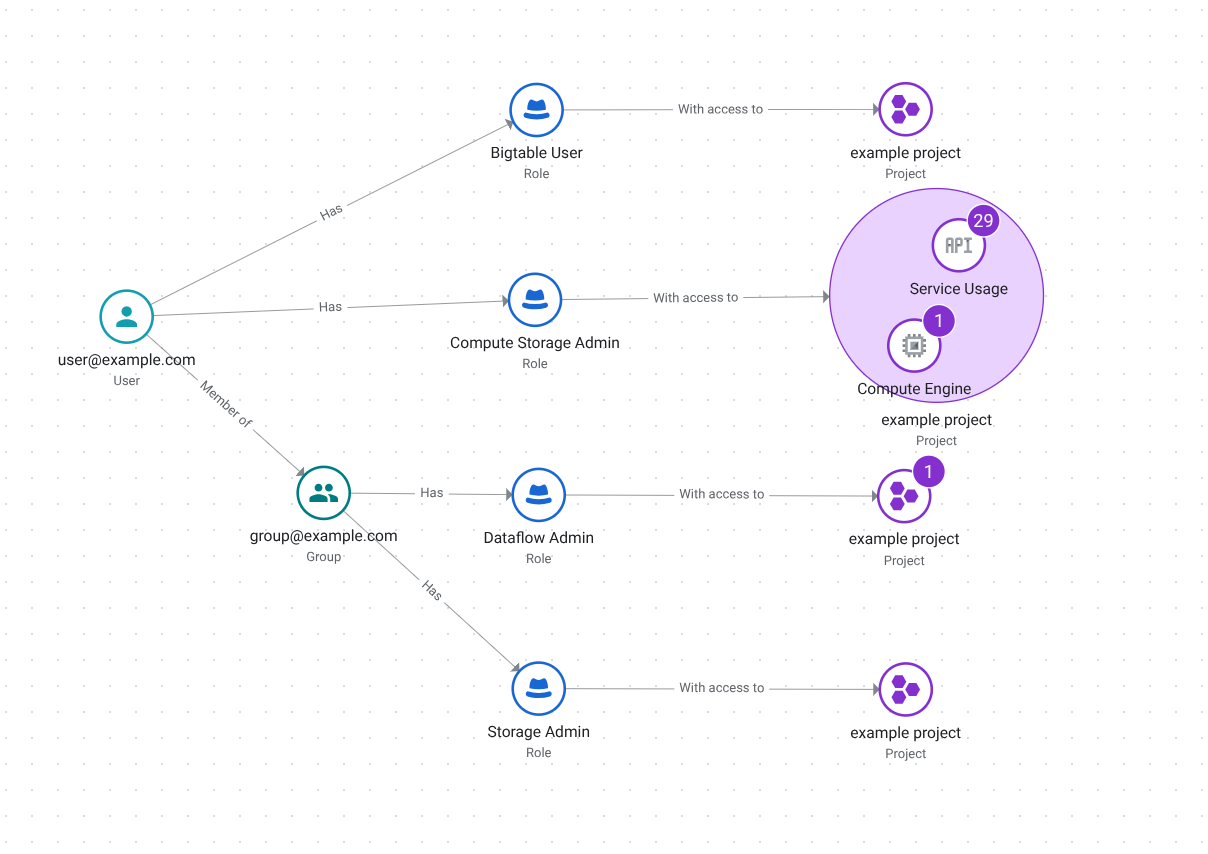
The visualization is organized from left to right in up to four columns.
The lines in the visualization connect principals to groups, principals or
groups to role, and role to resource.
1. On the left are principals returned by the query.
2. If the principal has a role because that role was granted to a group, a line labeled "member of" connects that principal to the group. If the principal was directly granted the role, this column doesn't appear.
3. A line labeled "has" connects each principal or group to a role.
4. A line labeled "with access to" connects each role to the resource that it's granted on.
5. The number of resources that are affected by the granted role is represented as a number next to the resource.
6. If there is an existing [role recommendation or policy insight](https://docs.cloud.google.com/policy-intelligence/docs/role-recommendations-overview.md.txt), the role is circled and has a lightbulb icon. You can click the role to get more information about the recommendation, and use the link to review and apply it.
7. To adjust the query, click **Toggle panel "Visualize results"**.
1. In the **Scope** field, click **Browse** to change the project, folder, or organization that you want to scope the query to.
2. In the **Principal** field, start typing the name of a principal, service account, or group. Then, select the principal, service account, or group whose access you want to analyze from the list of principals provided.
3. To change the role for your query, in the **Select a role** or **Permission** field, select the role or permission that you want to check for.
4. To change the resource for your query, in the **Resource** field, enter the full resource name of the resource that you want to analyze access for. If you don't know the full resource name, start typing the display name of the resource, then select the resource from the list of resources provided.
5. Click **Search** to update the visualization.
## Limitations
Policy Analyzer has the following limitations when you analyze access
for specific types of principals:
- **Agent principals:** When you search for what roles and resources an agent
identity can access, the search results are limited to direct bindings to
agent identities and the following principal sets:
- All agent identities in a trust domain, using the format
`principalSet://TRUST_DOMAIN/*`. For example,
`principalSet://agents.global.org-123456789012.system.id.goog/*`.
- All agent identities with the `platformContainer` attribute, using the format
`principalSet://TRUST_DOMAIN/attribute.platformContainer/aiplatform/projects/PROJECT_NUMBER`. For example, `principalSet://agents.global.org-123456789012.system.id.goog/attribute.platformContainer/aiplatform/projects/9876543210`.
- All agent identities with the `platform` attribute, using the format
`principalSet://TRUST_DOMAIN/attribute.platform/aiplatform`. For
example, `principalSet://agents.global.org-123456789012.system.id.goog/attribute.platform/aiplatform`.
- All agent identities with the `container` attribute, using the format
`principalSet://TRUST_DOMAIN/attribute.container/projects/PROJECT_NUMBER`. For example, `principalSet://agents.global.org-123456789012.system.id.goog/attribute.container/projects/9876543210`.
- **Workload identity or workforce principals**: When you search for what roles
and resources a single identity in a workload or workforce pool can access,
the search results are limited to the following principal sets:
- All identities in the respective workload identity pool, using the format
`principalSet://iam.googleapis.com/projects/PROJECT_NUMBER/locations/global/workloadIdentityPools/POOL_ID/*`. For example,
`principalSet://iam.googleapis.com/projects/9876543210/locations/global/workloadIdentityPools/altostrat-contractors/*`
- All identities in the respective workforce pool, using the format
`principalSet://iam.googleapis.com/locations/global/workforcePools/POOL_ID/*`.
For example, `principalSet://iam.googleapis.com/locations/global/workforcePools/altostrat-contractors/*`.
Policy Analyzer visualizations have the following limitations:
- When creating a query, selections made in [advanced options](https://docs.cloud.google.com/policy-intelligence/docs/analyze-iam-policies.md.txt#options) might
not be reflected in the visualization.
- If the query results in a visualization that is too large or complex to render
effectively, a warning message is displayed. To resolve this issue, refine
your query parameters to narrow the set of results displayed.
- Up to 1,000 groups can be displayed in a visualization.
## What's next
- Learn how to use [`AnalyzeIamPolicyLongrunning`](https://docs.cloud.google.com/asset-inventory/docs/reference/rest/v1/TopLevel/analyzeIamPolicyLongrunning.md.txt) to [write
to BigQuery](https://docs.cloud.google.com/policy-intelligence/docs/policy-analyzer-write-to-bigquery) or [write to
Cloud Storage](https://docs.cloud.google.com/policy-intelligence/docs/policy-analyzer-write-to-gcs).
- See how you can use the REST API to [save Policy Analysis
queries](https://docs.cloud.google.com/policy-intelligence/docs/policy-analyzer-saved-queries).
- Explore the available [access troubleshooting tools](https://docs.cloud.google.com/policy-intelligence/docs/access-troubleshooters.md.txt), which you can use to figure out why a principal doesn't have a certain type of access.