> [!WARNING]
>
> **Preview**
>
>
> This feature is
>
> subject to the "Pre-GA Offerings Terms" in the General Service Terms section of the
> [Service Specific
> Terms](https://docs.cloud.google.com/terms/service-terms#1).
>
> Pre-GA features are available "as is" and might have limited support.
>
> For more information, see the
> [launch stage descriptions](https://cloud.google.com/products/#product-launch-stages).
This page shows you how to use Activity Analyzer to see when your service
accounts and keys were last used to call a Google API. These usages are called
*authentication activities*.
Recent authentication activity can help you identify the service accounts and
service account keys that you no longer use. We recommend disabling or deleting
these unused service accounts and keys because they create an unnecessary
security risk.
When viewing usage for service accounts, keep in mind that requests
authenticated by
[API keys bound to service accounts](https://docs.cloud.google.com/docs/authentication/api-keys.md.txt#api-keys-bound-sa)
aren't recorded in
[service account usage metrics](https://docs.cloud.google.com/iam/docs/service-account-monitoring.md.txt).
Authentication activities with a Google API outside of Google Cloud, such as
[domain-wide delegation](https://docs.cloud.google.com/workspace/cloud-search/docs/guides/delegation) of
authority to Google Workspace APIs, aren't tracked by
[Activity Analyzer](https://docs.cloud.google.com/policy-intelligence/docs/activity-analyzer-service-account-authentication.md.txt)
or [service account insights](https://docs.cloud.google.com/policy-intelligence/docs/service-account-insights.md.txt). To
track these authentication activities, use Cloud Monitoring
[service account usage metrics](https://docs.cloud.google.com/iam/docs/service-account-monitoring.md.txt).
Cross reference Activity Analyzer results with Cloud Monitoring service
account usage metrics before you disable or delete a service account. This
approach prevents you from removing service accounts that are in use with Google
APIs outside of Google Cloud.
> [!NOTE]
> **Note:** You can also use [service account insights](https://docs.cloud.google.com/policy-intelligence/docs/service-account-insights.md.txt) to identify unused service accounts. Service account insights identify service accounts that haven't been used in the past 90 days.
## Before you begin
- Understand [authentication activities](https://docs.cloud.google.com/policy-intelligence/docs/service-account-usage-tools.md.txt#understand-authn).
-
Enable the Policy Analyzer API, if it is not already enabled.
**Roles required to enable APIs**
To enable APIs, you need the `serviceusage.services.enable` permission. If you
created the project, then you likely already have this permission through the
Owner role (`roles/owner`). Otherwise, you can get this permission through the
Service Usage Admin role (`roles/serviceusage.serviceUsageAdmin`).
[Learn how to grant roles](https://docs.cloud.google.com/iam/docs/granting-changing-revoking-access.md.txt).
[Enable the API](https://console.cloud.google.com/apis/enableflow?apiid=policyanalyzer.googleapis.com)
> [!NOTE]
> **Note:** The Policy Analyzer API is separate from [Cloud Asset Inventory's Policy
> Analyzer](https://docs.cloud.google.com/policy-intelligence/docs/analyze-iam-policies). The Policy Analyzer API lets you view recent authentication and authorization activities. Cloud Asset Inventory's Policy Analyzer lets you analyze your allow policies to determine who has what access to your Google Cloud resources.
### Required roles
To get the permissions that
you need to list the most recent authentication activities for your
service accounts and service account keys,
ask your administrator to grant you the
[Activity Analysis Viewer](https://docs.cloud.google.com/iam/docs/roles-permissions/policyanalyzer.md.txt#policyanalyzer.activityAnalysisViewer) (`roles/policyanalyzer.activityAnalysisViewer`) IAM role on the project.
For more information about granting roles, see [Manage access to projects, folders, and organizations](https://docs.cloud.google.com/iam/docs/granting-changing-revoking-access.md.txt).
This predefined role contains
the permissions required to list the most recent authentication activities for your
service accounts and service account keys. To see the exact permissions that are
required, expand the **Required permissions** section:
#### Required permissions
The following permissions are required to list the most recent authentication activities for your
service accounts and service account keys:
- `policyanalyzer.serviceAccountKeyLastAuthenticationActivities.query`
- `policyanalyzer.serviceAccountLastAuthenticationActivities.query`
You might also be able to get
these permissions
with [custom roles](https://docs.cloud.google.com/iam/docs/creating-custom-roles.md.txt) or
other [predefined roles](https://docs.cloud.google.com/iam/docs/roles-overview.md.txt#predefined).
## View recent usage for all service accounts or keys
To list the dates of the most recent authentication activities for all of your
service accounts or service account keys, use the Google Cloud CLI or REST API.
### gcloud
To list the most recent authentication activities for your service accounts or
keys, use the `gcloud policy-intelligence query-activity` command:
```bash
gcloud policy-intelligence query-activity --activity-type=ACTIVITY_TYPE \
--project=PROJECT_ID --limit=LIMIT
```
Replace the following values:
- `ACTIVITY_TYPE`: The activity type that you want to list. To list the most recent usage times for your service accounts, use `serviceAccountLastAuthentication`. To list most recent usage times for your service account keys, use `serviceAccountKeyLastAuthentication`.
- `PROJECT_ID`: Your Google Cloud project ID. Project IDs are alphanumeric strings, like `my-project`.
- `LIMIT`: Optional. The maximum number of results to be returned. The default value is `1000`.
The response is similar to the following, which lists recent usage times for
a project's service accounts:
```yaml
---
activity:
lastAuthenticatedTime: '2021-04-27T07:00:00Z'
serviceAccount:
fullResourceName: //iam.googleapis.com/projects/my-project/serviceAccounts/service-account-1@my-project.iam.gserviceaccount.com
projectNumber: '123456789012'
serviceAccountId: '123456789012345678901'
activityType: serviceAccountLastAuthentication
fullResourceName: //iam.googleapis.com/projects/my-project/serviceAccounts/service-account-1@my-project.iam.gserviceaccount.com
observationPeriod:
endTime: '2021-07-06T07:00:00Z'
startTime: '2020-03-12T07:00:00Z'
---
activity:
lastAuthenticatedTime: '2021-02-09T08:00:00Z'
serviceAccount:
fullResourceName: //iam.googleapis.com/projects/my-project/serviceAccounts/service-account-2@my-project.iam.gserviceaccount.com
projectNumber: '123456789012'
serviceAccountId: '234567890123456789012'
activityType: serviceAccountLastAuthentication
fullResourceName: //iam.googleapis.com/projects/my-project/serviceAccounts/service-account-2@my-project.iam.gserviceaccount.com
observationPeriod:
endTime: '2021-07-06T07:00:00Z'
startTime: '2020-09-01T07:00:00Z'
```
> [!NOTE]
> **Note:** If you list authentication activities for service accounts, the results include disabled service accounts. If you list authentication activities for service account keys, the results *do not* include disabled service account keys, but they might include expired or deleted service account keys.
To learn how to understand these results, see [Understand
activities](https://docs.cloud.google.com/policy-intelligence/docs/activity-analyzer-service-account-authentication#understand-activities) on this page.
### REST
To list the most recent authentication activities for your service accounts or keys, use the Policy Analyzer API's
`activities.query`
method.
Before using any of the request data,
make the following replacements:
- `PROJECT_ID`: Your Google Cloud project ID. Project IDs are alphanumeric strings, like `my-project`.
- `ACTIVITY_TYPE`: The activity type that you want to list. To list the most recent usages for all of your service accounts, use `serviceAccountLastAuthentication`. To list most recent usages for all of your service account keys, use `serviceAccountKeyLastAuthentication`.
- `PAGE_SIZE`: Optional. The maximum number of results to return from this request. If not specified, the server will determine the number of results to return. If the number of activities is greater than the page size, the response contains a pagination token that you can use to retrieve the next page of results.
- `PAGE_TOKEN`: Optional. The pagination token returned in an earlier response from this method. If specified, the list of activities will start where the previous request ended.
HTTP method and URL:
```
GET https://policyanalyzer.googleapis.com/v1/projects/PROJECT_ID/locations/global/activityTypes/ACTIVITY_TYPE/activities:query?pageSize=PAGE_SIZE&pageToken=PAGE_TOKEN
```
To send your request, expand one of these options:
#### curl (Linux, macOS, or Cloud Shell)
> [!NOTE]
> **Note:** The following command assumes that you have logged in to the `gcloud` CLI with your user account by running [`gcloud init`](https://docs.cloud.google.com/sdk/gcloud/reference/init) or [`gcloud auth login`](https://docs.cloud.google.com/sdk/gcloud/reference/auth/login.md.txt) , or by using [Cloud Shell](https://docs.cloud.google.com/shell/docs.md.txt), which automatically logs you into the `gcloud` CLI . You can check the currently active account by running [`gcloud auth list`](https://docs.cloud.google.com/sdk/gcloud/reference/auth/list.md.txt).
Execute the following command:
```
curl -X GET \
-H "Authorization: Bearer $(gcloud auth print-access-token)" \
"https://policyanalyzer.googleapis.com/v1/projects/PROJECT_ID/locations/global/activityTypes/ACTIVITY_TYPE/activities:query?pageSize=PAGE_SIZE&pageToken=PAGE_TOKEN"
```
#### PowerShell (Windows)
> [!NOTE]
> **Note:** The following command assumes that you have logged in to the `gcloud` CLI with your user account by running [`gcloud init`](https://docs.cloud.google.com/sdk/gcloud/reference/init) or [`gcloud auth login`](https://docs.cloud.google.com/sdk/gcloud/reference/auth/login.md.txt) . You can check the currently active account by running [`gcloud auth list`](https://docs.cloud.google.com/sdk/gcloud/reference/auth/list.md.txt).
Execute the following command:
```
$cred = gcloud auth print-access-token
$headers = @{ "Authorization" = "Bearer $cred" }
Invoke-WebRequest `
-Method GET `
-Headers $headers `
-Uri "https://policyanalyzer.googleapis.com/v1/projects/PROJECT_ID/locations/global/activityTypes/ACTIVITY_TYPE/activities:query?pageSize=PAGE_SIZE&pageToken=PAGE_TOKEN" | Select-Object -Expand Content
```
The response is similar to the following, which lists recent usage times for a project's service
accounts:
```
{
"activities": [
{
"fullResourceName": "//iam.googleapis.com/projects/my-project/serviceAccounts/service-account-1@my-project.iam.gserviceaccount.com",
"activityType": "serviceAccountLastAuthentication",
"observationPeriod": {
"startTime": "2020-04-20T07:00:00Z",
"endTime": "2021-05-17T07:00:00Z"
},
"activity": {
"lastAuthenticatedTime": "2021-04-28T07:00:00Z",
"serviceAccount": {
"projectNumber": "123456789012",
"fullResourceName": "//iam.googleapis.com/projects/my-project/serviceAccounts/service-account-1@my-project.iam.gserviceaccount.com",
"serviceAccountId": "123456789012345678901"
}
}
},
{
"fullResourceName": "//iam.googleapis.com/projects/my-project/serviceAccounts/service-account-2@my-project.iam.gserviceaccount.com",
"activityType": "serviceAccountLastAuthentication",
"observationPeriod": {
"startTime": "2020-04-20T07:00:00Z",
"endTime": "2021-05-17T07:00:00Z"
},
"activity": {
"lastAuthenticatedTime": "2021-04-29T07:00:00Z",
"serviceAccount": {
"projectNumber": "123456789012",
"fullResourceName": "//iam.googleapis.com/projects/my-project/serviceAccounts/service-account-2@my-project.iam.gserviceaccount.com",
"serviceAccountId": "234567890123456789012"
}
}
}
],
"nextPageToken": "AVgRrQV4b5nISN6cGJvTPFJ2v_"
}
```
To learn how to understand these results, see [Understand
activities](https://docs.cloud.google.com/policy-intelligence/docs/activity-analyzer-service-account-authentication#understand-activities) on this page.
## View recent usage for specific service accounts
To find the last date that specific service accounts were used, use the
Google Cloud console, gcloud CLI, or REST API.
### Console
1. In the Google Cloud console, go to the **Policy Analyzer** page.
[Go to Policy Analyzer](https://console.cloud.google.com/iam-admin/analyzer)
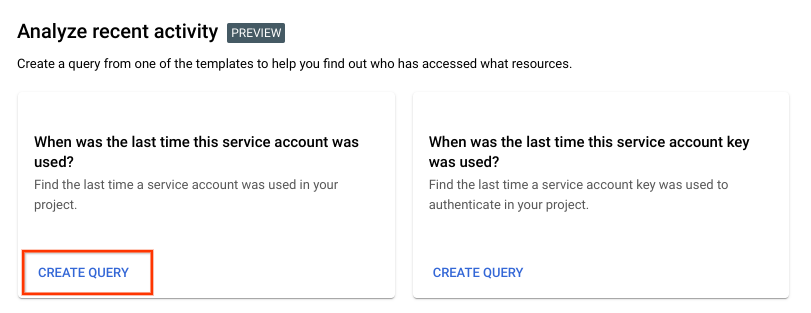
2. Under **Analyze recent activity** , find the pane labeled
**When was the last time this service account was used?**
and click **Create query** in that pane.

3. In the **Select query scope** box, enter the name of the project whose
service accounts you want to analyze.
4. In the **Add service accounts** section, click the **Service account**
box. A list of all service accounts in your project appears. The list also
includes the project that each service account is associated with and the
email address for each service account.
5. Select the service account that you want to view recent usage for.
6. Optional: To view recent usage for more than one service account, click **Add
account** and select another service account. You can analyze up to 10
service accounts at a time.
7. In the **Query for access activities** panel, click **Run query**.
The results page shows the most recent usage for the service accounts.
To learn how to understand these results, see [Understand
activities](https://docs.cloud.google.com/policy-intelligence/docs/activity-analyzer-service-account-authentication#understand-activities) on this page.
### gcloud
To get the most recent authentication activity for specific service accounts,
use the `gcloud policy-intelligence query-activity` command with a filter:
```bash
gcloud policy-intelligence query-activity --activity-type=serviceAccountLastAuthentication \
--project=PROJECT_ID \
--query-filter='FILTER'
```
Replace the following values:
- `PROJECT_ID`: Your Google Cloud project ID. Project IDs are alphanumeric strings, like `my-project`.
- `FILTER`: A filter specifying the full resource names of
the service accounts whose usage you want to see. The full resource name of
a service account includes the project ID and the email address of the service
account.
To filter for a single service account, use a filter with the following format:
```bash
activities.full_resource_name="//iam.googleapis.com/projects/PROJECT_ID/serviceAccounts/SERVICE_ACCOUNT_EMAIL"
```
To filter for multiple service accounts, use `OR` to specify multiple
acceptable full resource names:
```bash
activities.full_resource_name="//iam.googleapis.com/projects/PROJECT_ID/serviceAccounts/SERVICE_ACCOUNT_1_EMAIL" OR activities.full_resource_name="//iam.googleapis.com/projects/PROJECT_ID/serviceAccounts/SERVICE_ACCOUNT_2_EMAIL"
```
You can filter for up to 10 service accounts.
The response describes the most recent usage for the service accounts:
```yaml
---
activity:
lastAuthenticatedTime: '2021-04-27T07:00:00Z'
serviceAccount:
fullResourceName: //iam.googleapis.com/projects/my-project/serviceAccounts/service-account-1@my-project.iam.gserviceaccount.com
projectNumber: '123456789012'
serviceAccountId: '123456789012345678901'
activityType: serviceAccountLastAuthentication
fullResourceName: //iam.googleapis.com/projects/my-project/serviceAccounts/service-account-1@my-project.iam.gserviceaccount.com
observationPeriod:
endTime: '2021-07-06T07:00:00Z'
startTime: '2020-03-12T07:00:00Z'
```
To learn how to understand these results, see [Understand
activities](https://docs.cloud.google.com/policy-intelligence/docs/activity-analyzer-service-account-authentication#understand-activities) on this page.
### REST
To get the most recent authentication activity for specific service accounts, use the Policy Analyzer API's
`activities.query`
method.
Before using any of the request data,
make the following replacements:
- `PROJECT_ID`: Your Google Cloud project ID. Project IDs are alphanumeric strings, like `my-project`.
-
`FILTER`: A filter specifying the full resource names of the service
accounts whose usage you want to see.
To filter for a single service account, use a filter with the following format:
```bash
activities.full_resource_name%3D%22%2F%2Fiam.googleapis.com%2Fprojects%2FPROJECT_ID%2FserviceAccounts%2FSERVICE_ACCOUNT_EMAIL%22
```
To filter for multiple service accounts, use `%20OR%20` to specify multiple
acceptable full resource names:
```bash
activities.full_resource_name%3D%22%2F%2Fiam.googleapis.com%2Fprojects%2FPROJECT_ID%2FserviceAccounts%2FSERVICE_ACCOUNT_1_EMAIL%22%20OR%20activities.full_resource_name%3D%22%2F%2Fiam.googleapis.com%2Fprojects%2FPROJECT_ID%2FserviceAccounts%2FSERVICE_ACCOUNT_2_EMAIL%22
```
HTTP method and URL:
```
GET https://policyanalyzer.googleapis.com/v1/projects/PROJECT_ID/locations/global/activityTypes/serviceAccountLastAuthentication/activities:query?filter=FILTER
```
To send your request, expand one of these options:
#### curl (Linux, macOS, or Cloud Shell)
> [!NOTE]
> **Note:** The following command assumes that you have logged in to the `gcloud` CLI with your user account by running [`gcloud init`](https://docs.cloud.google.com/sdk/gcloud/reference/init) or [`gcloud auth login`](https://docs.cloud.google.com/sdk/gcloud/reference/auth/login.md.txt) , or by using [Cloud Shell](https://docs.cloud.google.com/shell/docs.md.txt), which automatically logs you into the `gcloud` CLI . You can check the currently active account by running [`gcloud auth list`](https://docs.cloud.google.com/sdk/gcloud/reference/auth/list.md.txt).
Execute the following command:
```
curl -X GET \
-H "Authorization: Bearer $(gcloud auth print-access-token)" \
"https://policyanalyzer.googleapis.com/v1/projects/PROJECT_ID/locations/global/activityTypes/serviceAccountLastAuthentication/activities:query?filter=FILTER"
```
#### PowerShell (Windows)
> [!NOTE]
> **Note:** The following command assumes that you have logged in to the `gcloud` CLI with your user account by running [`gcloud init`](https://docs.cloud.google.com/sdk/gcloud/reference/init) or [`gcloud auth login`](https://docs.cloud.google.com/sdk/gcloud/reference/auth/login.md.txt) . You can check the currently active account by running [`gcloud auth list`](https://docs.cloud.google.com/sdk/gcloud/reference/auth/list.md.txt).
Execute the following command:
```
$cred = gcloud auth print-access-token
$headers = @{ "Authorization" = "Bearer $cred" }
Invoke-WebRequest `
-Method GET `
-Headers $headers `
-Uri "https://policyanalyzer.googleapis.com/v1/projects/PROJECT_ID/locations/global/activityTypes/serviceAccountLastAuthentication/activities:query?filter=FILTER" | Select-Object -Expand Content
```
The response describes the most recent usage for the service accounts:
```
{
"activities": [
{
"fullResourceName": "//iam.googleapis.com/projects/my-project/serviceAccounts/service-account-1@my-project.iam.gserviceaccount.com",
"activityType": "serviceAccountLastAuthentication",
"observationPeriod": {
"startTime": "2020-04-20T07:00:00Z",
"endTime": "2021-05-17T07:00:00Z"
},
"activity": {
"lastAuthenticatedTime": "2021-04-28T07:00:00Z",
"serviceAccount": {
"projectNumber": "123456789012",
"fullResourceName": "//iam.googleapis.com/projects/my-project/serviceAccounts/service-account-1@my-project.iam.gserviceaccount.com",
"serviceAccountId": "123456789012345678901"
}
}
}
]
}
```
## View recent usage for specific service account keys
To find the last date that specific service account keys were used, identify the
service account key that you want to view recent usage for, then create a query
using that ID.
If you have a JSON key file, you can find a service account key's unique ID in
the file's `private_key_id` field.
If you don't have a JSON key file, you can find a service account key's unique
ID by following these steps:
### Console
1. In the Google Cloud console, go to the **Policy Analyzer** page.
[Go to Policy Analyzer](https://console.cloud.google.com/iam-admin/analyzer)
2. Under **Analyze recent activity** , find the pane labeled
**When was the last time this service account key was used?** and click **Create query** in that pane.


3. In the **Select query scope** box, enter the name of the project whose
service account keys you want to analyze.
4. In the **Add service account key** section, click the **Service account key**
box. A list of all service account keys in your project appears. The list
also includes the project and service account that each key is associated
with.
5. Select the key that you want to view recent usage for.
6. Optional: To view recent usage for more than one key, click **Add key** and
select another key. You can analyze up to 10 keys at a time.
7. In the **Query for access activities** panel, click **Run query**.
The results page shows the most recent usage for the service account keys.
To learn how to understand these results, see [Understand
activities](https://docs.cloud.google.com/policy-intelligence/docs/activity-analyzer-service-account-authentication#understand-activities) on this page.
### gcloud
**First, identify the service account key that you want to view recent usage
for:**
> [!NOTE]
> **Note:** You can also use the Google Cloud console to identify service account keys. To learn how to list keys in the Google Cloud console, see [List service
> account keys](https://docs.cloud.google.com/iam/docs/keys-list-get#list-keys).
1. List the service account keys.
Before using any of the command data below,
make the following replacements:
- `SERVICE_ACCOUNT_EMAIL`: The email address of the service account that the key is associated with.
Execute the
[gcloud iam service-accounts keys list](https://docs.cloud.google.com/sdk/gcloud/reference/iam/service-accounts/keys/list)
command:
#### Linux, macOS, or Cloud Shell
> [!NOTE]
> **Note:** Ensure you have initialized the Google Cloud CLI with authentication and a project by running either [gcloud init](https://docs.cloud.google.com/sdk/gcloud/reference/init); or [gcloud auth login](https://docs.cloud.google.com/sdk/gcloud/reference/auth/login.md.txt) and [gcloud config set project](https://docs.cloud.google.com/sdk/gcloud/reference/config/set.md.txt).
```bash
gcloud iam service-accounts keys list --iam-account=SERVICE_ACCOUNT_EMAIL
```
#### Windows (PowerShell)
> [!NOTE]
> **Note:** Ensure you have initialized the Google Cloud CLI with authentication and a project by running either [gcloud init](https://docs.cloud.google.com/sdk/gcloud/reference/init); or [gcloud auth login](https://docs.cloud.google.com/sdk/gcloud/reference/auth/login.md.txt) and [gcloud config set project](https://docs.cloud.google.com/sdk/gcloud/reference/config/set.md.txt).
```bash
gcloud iam service-accounts keys list --iam-account=SERVICE_ACCOUNT_EMAIL
```
#### Windows (cmd.exe)
> [!NOTE]
> **Note:** Ensure you have initialized the Google Cloud CLI with authentication and a project by running either [gcloud init](https://docs.cloud.google.com/sdk/gcloud/reference/init); or [gcloud auth login](https://docs.cloud.google.com/sdk/gcloud/reference/auth/login.md.txt) and [gcloud config set project](https://docs.cloud.google.com/sdk/gcloud/reference/config/set.md.txt).
```bash
gcloud iam service-accounts keys list --iam-account=SERVICE_ACCOUNT_EMAIL
```
The output shows a list of all of the user-created keys associated with the
service account, including each key's unique ID, creation time, and
expiration time.
2. Use the data in the output to identify the key you want to track and copy
its unique ID.
**After you find the unique IDs for the service account keys, use the IDs to
filter the results from Activity Analyzer:**
To get the most recent authentication activity for specific service account
keys, use the `gcloud policy-intelligence query-activity` command with a filter.
Before using any of the command data below,
make the following replacements:
- `PROJECT_ID`: Your Google Cloud project ID. Project IDs are alphanumeric strings, like `my-project`.
-
`FILTER`: A filter specifying the full resource names of the service
account keys whose usage you want to see. The full resource name of a service account key
includes the project ID, the email address of the service account associated with the key, and
the key ID.
To filter for a single service account key, use a filter with the following format:
```bash
activities.full_resource_name="//iam.googleapis.com/projects/PROJECT_ID/serviceAccounts/SERVICE_ACCOUNT_EMAIL/keys/KEY_ID"
```
To filter for multiple service account keys, use `OR` to specify multiple
acceptable full resource names:
```bash
activities.full_resource_name="//iam.googleapis.com/projects/PROJECT_ID/serviceAccounts/SERVICE_ACCOUNT_1_EMAIL/keys/KEY_ID_1" OR activities.full_resource_name="//iam.googleapis.com/projects/PROJECT_ID/serviceAccounts/SERVICE_ACCOUNT_2_EMAIL/keys/KEY_ID_2"
```
You can filter for up to 10 service account keys.
Execute the
following
command:
#### Linux, macOS, or Cloud Shell
> [!NOTE]
> **Note:** Ensure you have initialized the Google Cloud CLI with authentication and a project by running either [gcloud init](https://docs.cloud.google.com/sdk/gcloud/reference/init); or [gcloud auth login](https://docs.cloud.google.com/sdk/gcloud/reference/auth/login.md.txt) and [gcloud config set project](https://docs.cloud.google.com/sdk/gcloud/reference/config/set.md.txt).
```bash
gcloud policy-intelligence query-activity --activity-type=serviceAccountKeyLastAuthentication \
--project=PROJECT_ID \
--query-filter='FILTER'
```
#### Windows (PowerShell)
> [!NOTE]
> **Note:** Ensure you have initialized the Google Cloud CLI with authentication and a project by running either [gcloud init](https://docs.cloud.google.com/sdk/gcloud/reference/init); or [gcloud auth login](https://docs.cloud.google.com/sdk/gcloud/reference/auth/login.md.txt) and [gcloud config set project](https://docs.cloud.google.com/sdk/gcloud/reference/config/set.md.txt).
```bash
gcloud policy-intelligence query-activity --activity-type=serviceAccountKeyLastAuthentication `
--project=PROJECT_ID `
--query-filter='FILTER'
```
#### Windows (cmd.exe)
> [!NOTE]
> **Note:** Ensure you have initialized the Google Cloud CLI with authentication and a project by running either [gcloud init](https://docs.cloud.google.com/sdk/gcloud/reference/init); or [gcloud auth login](https://docs.cloud.google.com/sdk/gcloud/reference/auth/login.md.txt) and [gcloud config set project](https://docs.cloud.google.com/sdk/gcloud/reference/config/set.md.txt).
> [!NOTE]
> **Note:** If this command uses `'` for quoting content, replace these single quotes with double quotes. If quoting is nested, use `\"` to escape the inner quotes.
```bash
gcloud policy-intelligence query-activity --activity-type=serviceAccountKeyLastAuthentication ^
--project=PROJECT_ID ^
--query-filter='FILTER'
```
You should receive a response similar to the following:
```
activity:
lastAuthenticatedTime: '2021-06-11T07:00:00Z'
serviceAccountKey:
fullResourceName: //iam.googleapis.com/projects/my-project/serviceAccounts/service-account-1@my-project.iam.gserviceaccount.com/keys/1c65fca351d6925e629059743428b7af243a728c
projectNumber: '232342569935'
serviceAccountId: '103185812403937829397'
activityType: serviceAccountKeyLastAuthentication
fullResourceName: //iam.googleapis.com/projects/my-project/serviceAccounts/service-account-1@my-project.iam.gserviceaccount.com/keys/1c65fca351d6925e629059743428b7af243a728c
observationPeriod:
endTime: '2021-07-06T07:00:00Z'
startTime: '2020-09-10T07:00:00Z'
```
This response describes the most recent usage for the service account keys.
To learn how to understand these results, see [Understand
activities](https://docs.cloud.google.com/policy-intelligence/docs/activity-analyzer-service-account-authentication#understand-activities) on this page.
### REST
**First, identify the service account key that you want to view recent usage
for:**
> [!NOTE]
> **Note:** You can also use the Google Cloud console to identify service account keys. To learn how to list keys in the Google Cloud console, see [List service
> account keys](https://docs.cloud.google.com/iam/docs/keys-list-get#list-keys).
1. List the service account keys:
To list all of the service account keys for a service account, use the IAM API's
`projects.serviceAccounts.keys.list`
method.
Before using any of the request data,
make the following replacements:
- `PROJECT_ID`: Your Google Cloud project ID. Project IDs are alphanumeric strings, like `my-project`.
- `SA_NAME`: The name of the service account whose keys you want to list.
- `KEY_TYPES`: Optional. A comma-separated list of key types that you want to include in the response. The key type indicates whether a key is user-managed (`USER_MANAGED`) or system-managed (`SYSTEM_MANAGED`). If left blank, all keys are returned.
HTTP method and URL:
```
GET https://iam.googleapis.com/v1/projects/PROJECT_ID/serviceAccounts/SA_NAME@PROJECT_ID.iam.gserviceaccount.com/keys?keyTypes=KEY_TYPES
```
To send your request, expand one of these options:
#### curl (Linux, macOS, or Cloud Shell)
> [!NOTE]
> **Note:** The following command assumes that you have logged in to the `gcloud` CLI with your user account by running [`gcloud init`](https://docs.cloud.google.com/sdk/gcloud/reference/init) or [`gcloud auth login`](https://docs.cloud.google.com/sdk/gcloud/reference/auth/login.md.txt) , or by using [Cloud Shell](https://docs.cloud.google.com/shell/docs.md.txt), which automatically logs you into the `gcloud` CLI . You can check the currently active account by running [`gcloud auth list`](https://docs.cloud.google.com/sdk/gcloud/reference/auth/list.md.txt).
Execute the following command:
```
curl -X GET \
-H "Authorization: Bearer $(gcloud auth print-access-token)" \
"https://iam.googleapis.com/v1/projects/PROJECT_ID/serviceAccounts/SA_NAME@PROJECT_ID.iam.gserviceaccount.com/keys?keyTypes=KEY_TYPES"
```
#### PowerShell (Windows)
> [!NOTE]
> **Note:** The following command assumes that you have logged in to the `gcloud` CLI with your user account by running [`gcloud init`](https://docs.cloud.google.com/sdk/gcloud/reference/init) or [`gcloud auth login`](https://docs.cloud.google.com/sdk/gcloud/reference/auth/login.md.txt) . You can check the currently active account by running [`gcloud auth list`](https://docs.cloud.google.com/sdk/gcloud/reference/auth/list.md.txt).
Execute the following command:
```
$cred = gcloud auth print-access-token
$headers = @{ "Authorization" = "Bearer $cred" }
Invoke-WebRequest `
-Method GET `
-Headers $headers `
-Uri "https://iam.googleapis.com/v1/projects/PROJECT_ID/serviceAccounts/SA_NAME@PROJECT_ID.iam.gserviceaccount.com/keys?keyTypes=KEY_TYPES" | Select-Object -Expand Content
```
#### APIs Explorer (browser)
Open the
[method reference page](https://docs.cloud.google.com/iam/docs/reference/rest/v1/projects.serviceAccounts.keys/list.md.txt).
The APIs Explorer panel opens on the right side of the page.
You can interact with this tool to send requests.
Complete any required fields and click **Execute**.
The response describes the most recent usage for the service account keys:
```
{
"keys": [
{
"name": "projects/my-project/serviceAccounts/my-service-account@my-project.iam.gserviceaccount.com/keys/90c48f61c65cd56224a12ab18e6ee9ca9c3aee7c",
"validAfterTime": "2020-03-04T17:39:47Z",
"validBeforeTime": "9999-12-31T23:59:59Z",
"keyAlgorithm": "KEY_ALG_RSA_2048",
"keyOrigin": "GOOGLE_PROVIDED",
"keyType": "USER_MANAGED"
},
{
"name": "projects/my-project/serviceAccounts/my-service-account@my-project.iam.gserviceaccount.com/keys/e5e3800831ac1adc8a5849da7d827b4724b1fce8",
"validAfterTime": "2020-03-31T23:50:09Z",
"validBeforeTime": "9999-12-31T23:59:59Z",
"keyAlgorithm": "KEY_ALG_RSA_2048",
"keyOrigin": "GOOGLE_PROVIDED",
"keyType": "USER_MANAGED"
},
{
"name": "projects/my-project/serviceAccounts/my-service-account@my-project.iam.gserviceaccount.com/keys/b97699f042b8eee6a846f4f96259fbcd13e2682e",
"validAfterTime": "2020-05-17T18:58:13Z",
"validBeforeTime": "9999-12-31T23:59:59Z",
"keyAlgorithm": "KEY_ALG_RSA_2048",
"keyOrigin": "GOOGLE_PROVIDED",
"keyType": "USER_MANAGED",
"disabled": true
}
]
}
```
2. Use the metadata in the response to identify the key you want to track.
Then, copy the key's unique ID from the end of the `name` field.
The `name` field has the following format:
```json
"name": "projects/PROJECT_ID/serviceAccounts/SERVICE_ACCOUNT_EMAIL/keys/KEY_ID"
```
The key's unique ID is everything after `keys/`.
For example, the unique ID in the following key name is
`0f561cc41650ff521899de2fd653bd3de08e2da4`:
```json
"name": "projects/my-project/serviceAccounts/my-account@my-project.iam.gserviceaccount.com/keys/0f561cc41650ff521899de2fd653bd3de08e2da4"
```
**After you find the unique IDs for the service account keys, use the IDs to
filter the results from Activity Analyzer:**
To get the most recent authentication activity for specific service account keys, use the Policy Analyzer API's
`activities.query`
method.
Before using any of the request data,
make the following replacements:
- `PROJECT_ID`: Your Google Cloud project ID. Project IDs are alphanumeric strings, like `my-project`.
-
`FILTER`: A filter specifying the full resource names of the service
account keys whose usage you want to see. The full resource name of a service account key
includes the project ID, the email address of the service account associated with the key, and
the key ID.
To filter for a single service account key, use a filter with the following format:
```bash
activities.full_resource_name%3D%22%2F%2Fiam.googleapis.com%2Fprojects%2FPROJECT_ID%2FserviceAccounts%2FSERVICE_ACCOUNT_EMAIL%2Fkeys%2FKEY_ID%22
```
To filter for multiple service account keys, use `%20OR%20` to specify multiple
acceptable full resource names:
```bash
activities.full_resource_name%3D%22%2F%2Fiam.googleapis.com%2Fprojects%2FPROJECT_ID%2FserviceAccounts%2FSERVICE_ACCOUNT_1_EMAIL%2Fkeys%2FKEY_ID_1%22%20OR%20activities.full_resource_name%3D%22%2F%2Fiam.googleapis.com%2Fprojects%2FPROJECT_ID%2FserviceAccounts%2FSERVICE_ACCOUNT_2_EMAIL%2Fkeys%2FKEY_ID_2%22
```
You can filter for up to 10 service account keys.
HTTP method and URL:
```
GET https://policyanalyzer.googleapis.com/v1/projects/PROJECT_ID/locations/global/activityTypes/serviceAccountKeyLastAuthentication/activities:query?filter=FILTER
```
To send your request, expand one of these options:
#### curl (Linux, macOS, or Cloud Shell)
> [!NOTE]
> **Note:** The following command assumes that you have logged in to the `gcloud` CLI with your user account by running [`gcloud init`](https://docs.cloud.google.com/sdk/gcloud/reference/init) or [`gcloud auth login`](https://docs.cloud.google.com/sdk/gcloud/reference/auth/login.md.txt) , or by using [Cloud Shell](https://docs.cloud.google.com/shell/docs.md.txt), which automatically logs you into the `gcloud` CLI . You can check the currently active account by running [`gcloud auth list`](https://docs.cloud.google.com/sdk/gcloud/reference/auth/list.md.txt).
Execute the following command:
```
curl -X GET \
-H "Authorization: Bearer $(gcloud auth print-access-token)" \
"https://policyanalyzer.googleapis.com/v1/projects/PROJECT_ID/locations/global/activityTypes/serviceAccountKeyLastAuthentication/activities:query?filter=FILTER"
```
#### PowerShell (Windows)
> [!NOTE]
> **Note:** The following command assumes that you have logged in to the `gcloud` CLI with your user account by running [`gcloud init`](https://docs.cloud.google.com/sdk/gcloud/reference/init) or [`gcloud auth login`](https://docs.cloud.google.com/sdk/gcloud/reference/auth/login.md.txt) . You can check the currently active account by running [`gcloud auth list`](https://docs.cloud.google.com/sdk/gcloud/reference/auth/list.md.txt).
Execute the following command:
```
$cred = gcloud auth print-access-token
$headers = @{ "Authorization" = "Bearer $cred" }
Invoke-WebRequest `
-Method GET `
-Headers $headers `
-Uri "https://policyanalyzer.googleapis.com/v1/projects/PROJECT_ID/locations/global/activityTypes/serviceAccountKeyLastAuthentication/activities:query?filter=FILTER" | Select-Object -Expand Content
```
The response describes the most recent usage for the service account keys:
```
{
"activities": [
{
"activity": {
"lastAuthenticatedTime": "2021-06-11T07:00:00Z",
"serviceAccountKey": {
"fullResourceName": "//iam.googleapis.com/projects/my-project/serviceAccounts/service-account-1@my-project.iam.gserviceaccount.com/keys/1c65fca351d6925e629059743428b7af243a728c",
"projectNumber": "123456789012",
"serviceAccountId": "123456789012345678901"
}
},
"activityType": "serviceAccountKeyLastAuthentication",
"fullResourceName": "//iam.googleapis.com/projects/my-project/serviceAccounts/service-account-1t@my-project.iam.gserviceaccount.com/keys/1c65fca351d6925e629059743428b7af243a728c",
"observationPeriod": {
"endTime": "2021-07-06T07:00:00Z",
"startTime": "2020-04-20T07:00:00Z"
}
}
]
}
```
To learn how to understand these results, see [Understand
activities](https://docs.cloud.google.com/policy-intelligence/docs/activity-analyzer-service-account-authentication#understand-activities) on this page.
## Understand activities
### Console
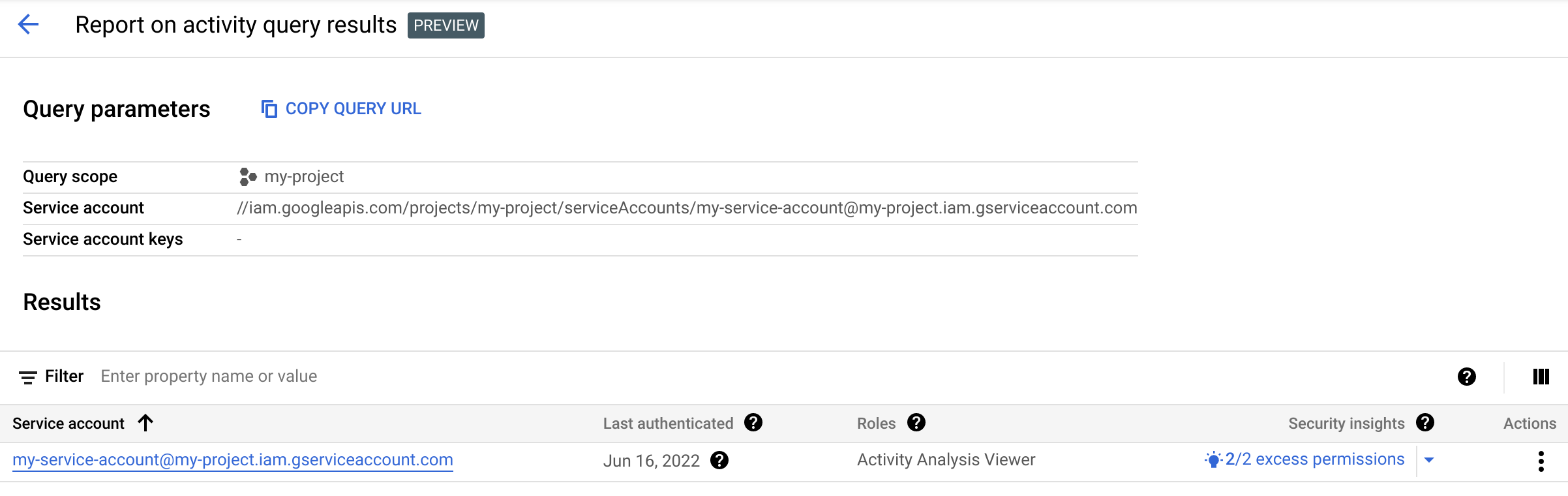
The query results page lists the query parameters and the results of the
query.
For a service account query, the results table lists each service account from
the query and when it last authenticated:

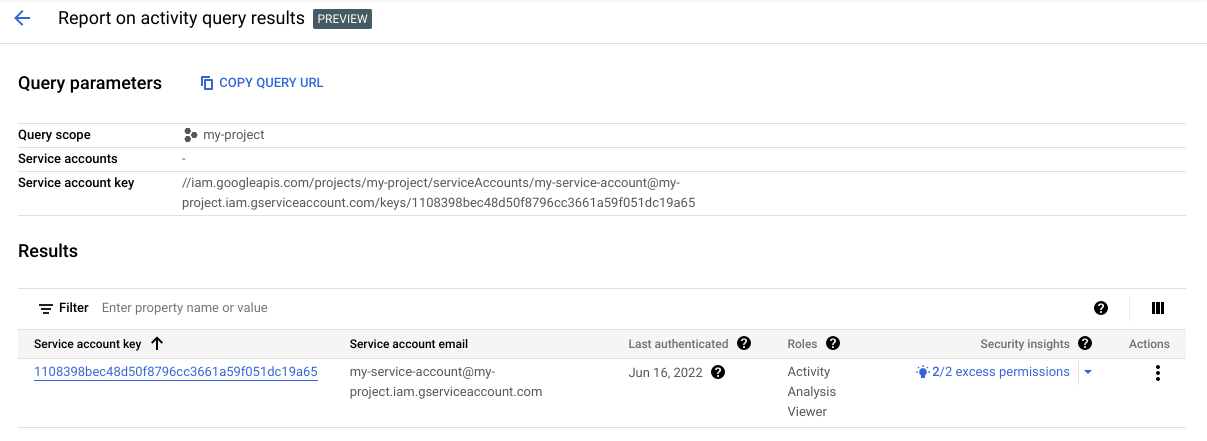
For a service account key query, the results table lists each service account
key from the query, the service account it's associated with, and when it last
authenticated.
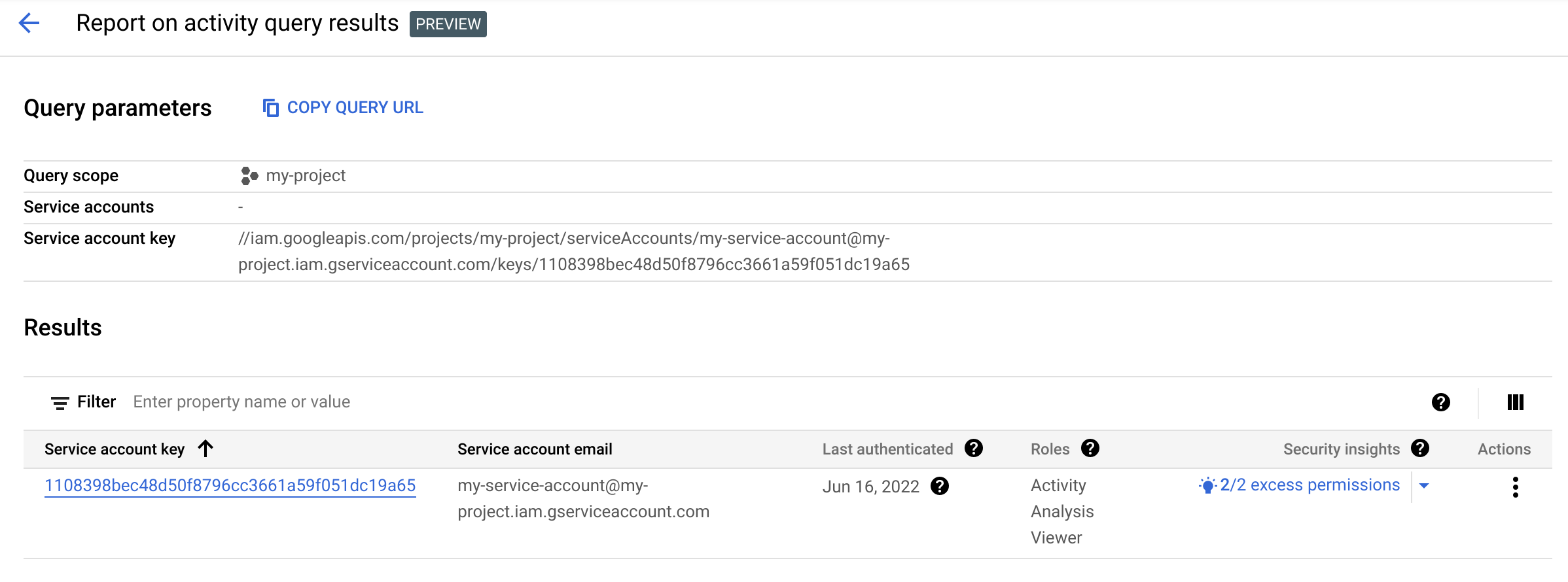
The results might not include very recent authentication events. Check the
tooltip to see the exact date range used during the analysis. The results don't
include authentication events that occurred outside of this range.
The results table for both queries also lists the IAM roles that
the service account has on the project, along with any security insights. These
insights highlight patterns in how your service accounts access resources. For
example, some insights highlight *excess permissions* , or permissions that a
principal doesn't need. Other insights highlight service accounts with [*lateral
movement permissions*](https://docs.cloud.google.com/policy-intelligence/docs/role-recommendations-overview#lateral-movement-insights), or permissions that let the
service account impersonate a service account in another project.
Some insights also come with [role
recommendations](https://docs.cloud.google.com/policy-intelligence/docs/role-recommendations-overview) that suggest changes you can
make to reduce excess permissions. To learn how to manage recommendations and
insights, see [Review and apply recommendations](https://docs.cloud.google.com/policy-intelligence/docs/review-apply-role-recommendations.md.txt#review-apply).
### gcloud
Activity Analyzer reports results as a list of *activities*. Activities have
the following fields:
- `fullResourceName`: The full resource name of the service account or service account key whose activity is being reported. This format is described in the following sections, and in [Full resource names](https://docs.cloud.google.com/iam/docs/full-resource-names.md.txt).
- `activityType`: The type of activity that is being reported. For recent service account authentication activity, the value is `serviceAccountLastAuthentication`. For recent service account key authentication activity, the value is `serviceAccountKeyLastAuthentication`.
- `observationPeriod`: Start and end times indicating the span of time for which the service account or key was observed for activity. The time in these timestamps is always `T07:00:00Z`.
- `activity`: The details of the activity. The contents of this field vary based on the activity type. See the following sections for details.
### Details for service account activities
The `activity` field for `serviceAccountLastAuthentication` activities contains
the following fields:
- `serviceAccount`: Details about the service account whose activity is
being reported, including the following:
- `fullResourceName`: The full resource name of the service account, in the format `//iam.googleapis.com/projects/PROJECT_ID/serviceAccounts/SERVICE_ACCOUNT_EMAIL`.
- `projectNumber`: The numeric ID of the project that owns the service account.
- `serviceAccountId`: The numeric ID of the service account.
- `lastAuthenticatedTime`: A timestamp representing the date at which the most
recent authentication event occurred. The time in this timestamp is always
`T07:00:00Z`, regardless of the exact time of the authentication
event.
The results might not include very recent authentication events. Check the
`observationPeriod` to see the exact date range used during the analysis.
The results don't include authentication events that occurred outside of
this range.
This field is not included for service accounts that have never been used.
### Details for service account key activities
The `activity` field for `serviceAccountKeyLastAuthentication` activities
contains the following fields:
- `serviceAccountKey`: Details about the service account key whose
activity is being reported, including the following:
- `fullResourceName`: The full resource name of the service account key, in the format `//iam.googleapis.com/projects/PROJECT_ID/serviceAccounts/SERVICE_ACCOUNT_EMAIL/keys/KEY_ID`.
- `projectNumber`: The numeric ID of the project that owns the service account that the key is associated with.
- `serviceAccountId`: The numeric ID of the service account that the key is associated with.
- `lastAuthenticatedTime`: A timestamp representing the date at which the most
recent authentication event occurred. The time in this timestamp is always
`T07:00:00Z`, regardless of the exact time of the authentication
event.
The results might not include very recent authentication events. Check the
`observationPeriod` to see the exact date range used during the analysis.
The results don't include authentication events that occurred outside of
this range.
This field is not included for service account keys that have never been
used.
### REST
Activity Analyzer reports results as a list of *activities*. Activities have
the following fields:
- `fullResourceName`: The full resource name of the service account or service account key whose activity is being reported. This format is described in the following sections, and in [Full resource names](https://docs.cloud.google.com/iam/docs/full-resource-names.md.txt).
- `activityType`: The type of activity that is being reported. For recent service account authentication activity, the value is `serviceAccountLastAuthentication`. For recent service account key authentication activity, the value is `serviceAccountKeyLastAuthentication`.
- `observationPeriod`: Start and end times indicating the span of time for which the service account or key was observed for activity. The time in these timestamps is always `T07:00:00Z`.
- `activity`: The details of the activity. The contents of this field vary based on the activity type. See the following sections for details.
### Details for service account activities
The `activity` field for `serviceAccountLastAuthentication` activities contains
the following fields:
- `serviceAccount`: Details about the service account whose activity is
being reported, including the following:
- `fullResourceName`: The full resource name of the service account, in the format `//iam.googleapis.com/projects/PROJECT_ID/serviceAccounts/SERVICE_ACCOUNT_EMAIL`.
- `projectNumber`: The numeric ID of the project that owns the service account.
- `serviceAccountId`: The numeric ID of the service account.
- `lastAuthenticatedTime`: A timestamp representing the date at which the most
recent authentication event occurred. The time in this timestamp is always
`T07:00:00Z`, regardless of the exact time of the authentication
event.
The results might not include very recent authentication events. Check the
`observationPeriod` to see the exact date range used during the analysis.
The results don't include authentication events that occurred outside of
this range.
This field is not included for service accounts that have never been used.
### Details for service account key activities
The `activity` field for `serviceAccountKeyLastAuthentication` activities
contains the following fields:
- `serviceAccountKey`: Details about the service account key whose
activity is being reported, including the following:
- `fullResourceName`: The full resource name of the service account key, in the format `//iam.googleapis.com/projects/PROJECT_ID/serviceAccounts/SERVICE_ACCOUNT_EMAIL/keys/KEY_ID`.
- `projectNumber`: The numeric ID of the project that owns the service account that the key is associated with.
- `serviceAccountId`: The numeric ID of the service account that the key is associated with.
- `lastAuthenticatedTime`: A timestamp representing the date at which the most
recent authentication event occurred. The time in this timestamp is always
`T07:00:00Z`, regardless of the exact time of the authentication
event.
The results might not include very recent authentication events. Check the
`observationPeriod` to see the exact date range used during the analysis.
The results don't include authentication events that occurred outside of
this range.
This field is not included for service account keys that have never been
used.
## What's next
- Review the other available [tools to understand service account
usage](https://docs.cloud.google.com/policy-intelligence/docs/service-account-usage-tools).
- Learn how to [disable service accounts](https://docs.cloud.google.com/iam/docs/service-accounts-disable-enable.md.txt#disabling) or [delete service accounts](https://docs.cloud.google.com/iam/docs/service-accounts-delete-undelete.md.txt#deleting).
- Learn how to [delete service account keys](https://docs.cloud.google.com/iam/docs/keys-create-delete.md.txt#deleting).