This tutorial shows how to handle sessions on [App Engine](https://docs.cloud.google.com/appengine/docs/standard).
Many apps need session handling for authentication and user preferences. PHP comes with a memory-based implementation to perform this function. However, this implementation is unsuitable for an app that can be served from multiple instances, because the session that is recorded in one instance might differ from other instances.
## Objectives
- Write the app.
- Run the app locally.
- Deploy the app on App Engine.
## Costs
In this document, you use the following billable components of Google Cloud:
- [App Engine](https://docs.cloud.google.com/appengine/pricing)
- [Firestore](https://docs.cloud.google.com/firestore/pricing)
To generate a cost estimate based on your projected usage,
use the [pricing calculator](https://docs.cloud.google.com/products/calculator).
New Google Cloud users might be eligible for a [free trial](https://docs.cloud.google.com/free).
When you finish the tasks that are described in this document, you can avoid
continued billing by deleting the resources that you created. For more information, see
[Clean up](https://docs.cloud.google.com/php/getting-started/session-handling-with-firestore.md.txt#clean-up).
## Before you begin
1. Configure the gcloud CLI to use your new Google Cloud project:
```bash
# Configure gcloud for your project
gcloud config set project PROJECT_ID
```
Replace `PROJECT_ID` with the Google Cloud project ID that you created or selected previously.
## Setting up the project
1. In your terminal window, start in a directory of your choosing and create a
new directory named `sessions`. All of the code for this tutorial is
inside the `sessions` directory.
2. Change into the `sessions` directory:
```php
cd sessions
```
3. Install the dependencies:
```bash
composer require google/cloud-firestore
```
At the end of this tutorial, the final file structure is similar
to the following:
sessions
├── app.yaml
└── composer.json
├── index.php
## Writing the app
- In your terminal window, create a file called `index.php` with the following content:
```php
$projectId,
]);
$handler = $firestore->sessionHandler(['gcLimit' => 500]);
// Configure PHP to use the the Firebase session handler.
session_set_save_handler($handler, true);
session_save_path('sessions');
session_start();
$colors = ['red', 'blue', 'green', 'yellow', 'pink'];
/**
* This is an example of a front controller for a flat file PHP site. Using a
* Static list provides security against URL injection by default.
*/
switch (@parse_url($_SERVER['REQUEST_URI'])['path']) {
case '/':
if (!isset($_SESSION['views'])) {
$_SESSION['views'] = 0;
$_SESSION['color'] = $colors[rand(0, 4)];
}
printf(
'Views: %s',
$_SESSION['color'],
$_SESSION['views']++
);
break;
default:
http_response_code(404);
exit('Not Found');
}
```
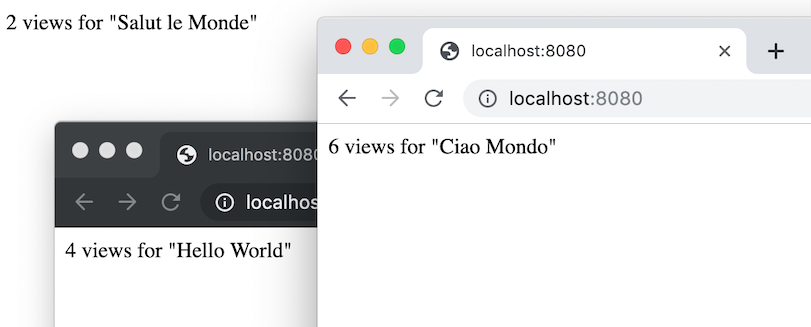
This app displays greetings in different languages for every user. Returning
users are always greeted in the same language.
Before your app can store preferences for a user, you need a way to store
information about the current user in a session. This sample app uses
Firestore to store session data.
You can use the [`Firestore session handler`](https://docs.cloud.google.com/php/docs/reference/cloud-firestore/latest/FirestoreSessionHandler.md.txt) to use Firestore for PHP sessions.
The following diagram illustrates how Firestore handles sessions for the App Engine app.

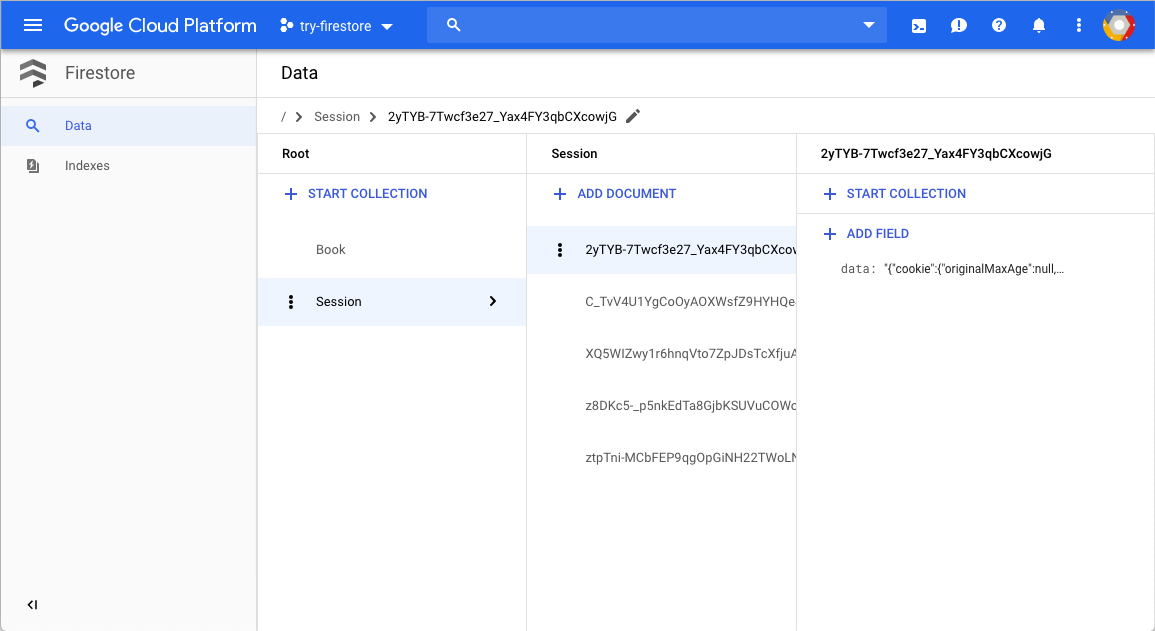
After you've set `session_set_save_handler`, every request has a `$_SESSION`
global variable that you can use to access the session. The session data is
stored in Firestore.
## Running locally
1. Start the built-in PHP web server:
```php
php -S localhost:8080
```
2. View the app in your web browser:
### Cloud Shell
In the Cloud Shell toolbar, click **Web preview**

and select **Preview on port 8080**.
### Local machine
In your browser, go to
`http://localhost:8080`
You see one of five greetings: "Hello World", "Hallo Welt", "Hola mundo", "Salut le Monde", or "Ciao Mondo." The language changes if you open the page in a different browser or in incognito mode. You can see and edit the session data in the [Google Cloud console](https://console.cloud.google.com/firestore/).
3. To stop the HTTP server, in your terminal window, press `Control+C`.
## Deploying and running on App Engine
You can use the
[App Engine standard environment](https://docs.cloud.google.com/appengine/docs/standard)
to build and deploy an app that runs reliably under heavy load and with large
amounts of data.
This tutorial uses the App Engine standard environment to deploy the
server.
1. In your terminal window, create an `app.yaml` file and copy the following:
```yaml
runtime: php73
```
2. Deploy the app on App Engine:
```php
gcloud app deploy
```
3. To view the live app, enter the following URL:
`https://PROJECT_ID.REGION_ID.r.appspot.com`
Replace the following:
- `PROJECT_ID`: Your Google Cloud project ID
- `REGION_ID`: A [code that App Engine assigns
to your app](https://docs.cloud.google.com/appengine/docs/standard/php/how-requests-are-routed#region-id)
The greeting is now delivered by a web server running on
an App Engine instance.
## Deleting sessions
PHP performs session [garbage collection (GC)](https://www.php.net/manual/en/function.session-gc.php),
which removes old and expired sessions
according to your `php.ini` configuration. The Firestore session
handler doesn't clean up sessions by default, but you can configure it to do so
by passing a `gcLimit` option when creating the session handler:
```php
$handler = $firestore->sessionHandler(['gcLimit' => 500]);
```
Sessions are removed using probability based session GC, or when you call the
`session_gc` function explicitly.
## Debugging the app
If you cannot connect to your App Engine app, check the following:
1. Check that the `gcloud` deploy commands successfully completed and didn't output any errors. If there were errors (for example, `message=Build failed`), fix them, and try [deploying the App Engine app](https://docs.cloud.google.com/php/getting-started/session-handling-with-firestore.md.txt#deploying_the_web_app) again.
2. In the Google Cloud console, go to the **Logs Explorer** page.
[Go to Logs Explorer page](https://console.cloud.google.com/logs/query)
1. In the **Recently selected resources** drop-down list, click
**App Engine Application** , and then click **All module_id** . You see a list of
requests from when you visited your app. If you don't see a list of
requests, confirm you selected **All module_id** from the drop-down list.
If you see error messages printed to the Google Cloud console, check that your app's code matches
[the code in the section about writing the web app](https://docs.cloud.google.com/php/getting-started/session-handling-with-firestore.md.txt#writing_the_web_app).
2. Make sure that the Firestore API is enabled.
## Clean up
### Delete the project
> [!CAUTION]
> **Caution** : Deleting a project has the following effects:
>
> - **Everything in the project is deleted.** If you used an existing project for the tasks in this document, when you delete it, you also delete any other work you've done in the project.
> - **Custom project IDs are lost.** When you created this project, you might have created a custom project ID that you want to use in the future. To preserve the URLs that use the project ID, such as an `appspot.com` URL, delete selected resources inside the project instead of deleting the whole project.
>
>
> If you plan to explore multiple architectures, tutorials, or quickstarts, reusing projects
> can help you avoid exceeding project quota limits.
1. In the Google Cloud console, go to the **Manage resources** page.
[Go to Manage resources](https://console.cloud.google.com/iam-admin/projects)
2. In the project list, select the project that you want to delete, and then click **Delete**.
3. In the dialog, type the project ID, and then click **Shut down** to delete the project.
### Delete the App Engine instance
1. In the Google Cloud console, go to the **Versions** page for App Engine.
[Go to Versions](https://console.cloud.google.com/appengine/versions)
2. Select the checkbox for the non-default app version that you want to delete.
> [!NOTE]
> **Note:** The only way you can delete the default version of your App Engine app is by deleting your project. However, you can [stop the default version in the
> Google Cloud console](https://console.cloud.google.com/appengine/versions). This action shuts down all instances associated with the version. You can restart these instances later if needed.
>
>
>
> In the App Engine standard environment, you can stop the default version only if your app has
> manual or basic scaling.
>
3. To delete the app version, click **Delete**.
## What's next
- [Learn more about App Engine](https://docs.cloud.google.com/appengine/docs.md.txt).
- [Add background processing with Pub/Sub and Cloud Run](https://docs.cloud.google.com/php/getting-started/background-processing.md.txt).
- [Deploy an app to Compute Engine](https://docs.cloud.google.com/php/tutorials/getting-started-on-compute-engine).
- [Deploy an app to Google Kubernetes Engine](https://docs.cloud.google.com/kubernetes-engine/docs/quickstarts/deploy-app-container-image).
- [Authenticate users with IAP](https://docs.cloud.google.com/php/getting-started/authenticate-users.md.txt).