Network Security Integration uses the
[producer-consumer model](https://docs.cloud.google.com/network-security-integration/docs/nsi-overview.md.txt#service_producers_and_consumers)
to inspect and monitor data. It uses
[out-of-band integration](https://docs.cloud.google.com/network-security-integration/docs/out-of-band/out-of-band-integration-overview.md.txt)
with packet mirroring technology to mirror network traffic using user-managed
virtual appliances.
This tutorial describes how to create and configure producer and consumer
resources to set up out-of-band integration.
## Objectives
This tutorial shows you how to complete the following tasks in a project:
1. Create custom Virtual Private Cloud (VPC) networks with subnets for the producer and the consumer in the same project.
2. For the producer, create and configure producer resources and mirroring deployment resources. An example of producer resources is an internal passthrough Network Load Balancer.
3. For the consumer, create and configure client and server virtual machine (VM) instances, mirroring endpoint resources, and firewall policies to mirror the client-server traffic.
4. Test the connection and verify that network traffic packets from the consumer VMs are mirrored to the producer's mirroring resources.
The following diagram shows the flow of the traffic between the producer
and consumer VPC networks.
[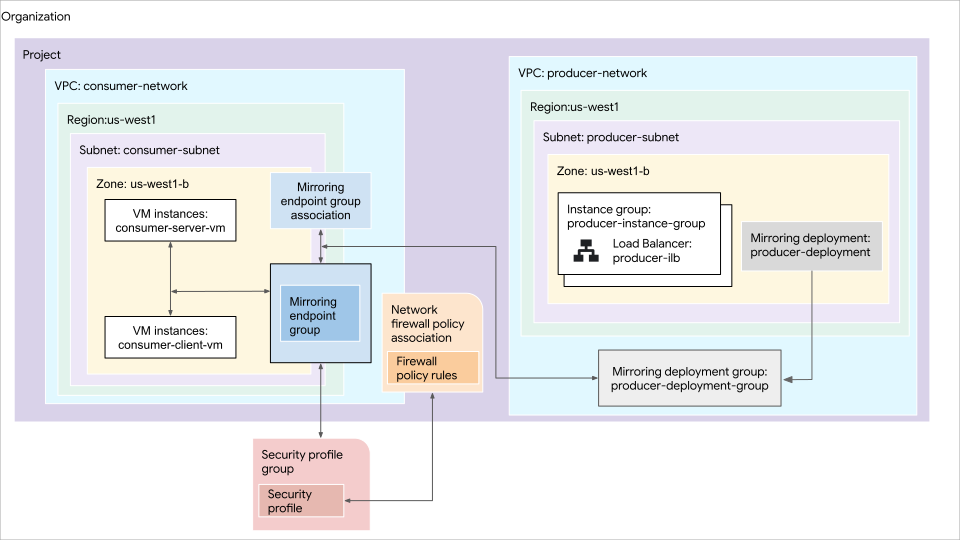](https://docs.cloud.google.com/static/network-security-integration/images/out-of-band/oob-architecture-tutorial.svg) **Figure 1.** High-level deployment architecture of producer and consumer components in a single project (click to enlarge).
The previous diagram shows the following:
- Network traffic flowing from the consumer network to the producer network through a mirroring endpoint group.
- The producer network includes a VM instance, an internal passthrough Network Load Balancer, and a mirroring deployment.
- The mirroring deployment group of the producer network includes the zonal mirroring deployment.
- The consumer network includes client and server VM instances. Firewall rules and policies within the consumer network manage traffic flow, and a security profile group is associated with the firewall policy.
- The consumer network is linked to a mirroring endpoint group association, which connects the consumer network to the mirroring endpoint group.
## Before you begin
1. Enable the [Compute Engine API](https://console.cloud.google.com/marketplace/product/google/compute.googleapis.com) for your project.
2. Enable the [Network Security API](https://console.cloud.google.com/apis/library/networksecurity.googleapis.com) in the Google Cloud project that you want to use for billing.
3. Make sure that you have the [Compute
Network Admin role](https://docs.cloud.google.com/compute/docs/access/iam#compute.networkAdmin) (`roles/compute.networkAdmin`) granted at the project level and the [Security Profile Admin role](https://docs.cloud.google.com/iam/docs/roles-permissions/networksecurity.md.txt#networksecurity.securityProfileAdmin) (`roles/networksecurity.securityProfileAdmin`) granted at the organization level.
4. If you prefer to work from the command line, install the Google Cloud CLI. For the conceptual and installation information about the tool, see [gcloud CLI overview](https://docs.cloud.google.com/sdk/gcloud.md.txt).
**Note:** If you haven't run the Google Cloud CLI previously, first run
[`gcloud init`](https://docs.cloud.google.com/sdk/gcloud/reference/init) to
initialize your gcloud CLI directory.
5. Get the ID of your project. You need it to create mirroring and endpoint resources. If you're using the gcloud CLI, you can replace the `PROJECT_ID` here or later in the respective commands.
6. Get the ID of your organization. You need it to create organization level resources, such as security profiles and security profile groups. If you're using the gcloud CLI, you can replace the `ORG_ID` here or later in the respective commands.
## Create producer resources
In this section, you create the following resources for the producer:
- A custom VPC network with a subnet.
- An unmanaged instance group with a VM instance logging incoming Generic Network Virtualization Encapsulation ([GENEVE](https://datatracker.ietf.org/doc/html/rfc8926)) packets.
- An internal passthrough Network Load Balancer with a backend service and a forwarding rule.
- A firewall rule to allow Google Cloud health checks.
- A mirroring deployment group and a mirroring deployment.
### Create a custom VPC network
In this section, you create a VPC network with a subnet.
### Console
1. In the Google Cloud console, go to the **VPC networks** page.
[Go to VPC networks](https://console.cloud.google.com/networking/networks/list)
2. Click **Create VPC network**.
3. For **Name** , enter `producer-network`.
4. For **Description** , enter `Producer VPC network`.
5. In the **Subnets** section, do the following:
1. For **Subnet creation mode** select **Custom**.
2. In the **New subnet** section, enter the following information:
- **Name** : `producer-subnet`
- **Region** : `us-west1
`
- **IP stack type** : **IPv4 (single-stack)**
- **IPv4 range** : `10.10.0.0/16`
3. Click **Done**.
6. Click **Create**.
7. Open the gcloud CLI and run the following command to
increase the maximum transmission unit (MTU) of the Google Cloud console
network.
```
gcloud compute networks update producer-network \
--mtu=1768
```
In the command, specify an MTU of 1768 bytes, which is the sum of the
[default MTU of a Google Cloud console network](https://docs.cloud.google.com/vpc/docs/mtu.md.txt) (1460 bytes)
and the [Network Security Integration GENEVE encapsulation overhead](https://docs.cloud.google.com/network-security-integration/docs/understand-geneve.md.txt#geneve-mtu)
(308 bytes).
### gcloud
1. Create a VPC network.
```
gcloud compute networks create producer-network \
--subnet-mode=custom \
--mtu=1768 \
--description="Producer VPC network"
```
In the command, specify an MTU of 1768 bytes, which is the sum of the
[default MTU of a Google Cloud console network](https://docs.cloud.google.com/vpc/docs/mtu.md.txt) (1460 bytes)
and the [Network Security Integration GENEVE encapsulation overhead](https://docs.cloud.google.com/network-security-integration/docs/understand-geneve.md.txt#geneve-mtu)
(308 bytes).
2. In the VPC network, create a subnet.
```
gcloud compute networks subnets create producer-subnet \
--network=producer-network \
--region=us-west1 \
--range=10.10.0.0/16
```
### Create an unmanaged instance group
In this section, you create an unmanaged instance group.
### Console
1. In the Google Cloud console, go to the **Instance groups** page.
[Go to Instance groups](https://console.cloud.google.com/compute/instanceGroups/list)
2. Click **Create instance group**.
3. Click **New unmanaged instance group**.
4. For **Name** , enter `producer-instance-group`.
5. In the **Location** section, select `us-west1` for **Region** , and select
`us-west1-b` for
**Zone**.
6. In the **Network and instances** section, do the following:
1. For **Network** , select `producer-network`.
2. For **Subnetwork** , select `producer-subnet`.
7. Click **Create**.
### gcloud
```
gcloud compute instance-groups unmanaged create producer-instance-group \
--zone=us-west1-b
```
### Configure load balancer components
In this section, you create the components for an internal passthrough Network Load Balancer, including a
backend service and a forwarding rule.
### Console
#### Start your configuration
1. In the Google Cloud console, go to the **Load balancing** page.
[Go to Load
balancing](https://console.cloud.google.com/net-services/loadbalancing/list)
2. Click **Create load balancer**.
3. For **Type of load balancer** , select **Network Load Balancer
(TCP/UDP/SSL)** and click **Next**.
4. For **Proxy or passthrough** , select **Passthrough load
balancer** and click **Next**.
5. For **Public facing or internal** , select **Internal** and click **Next**.
6. Click **Configure**.
#### Basic configuration
On the **Create internal passthrough Network Load Balancer** page, enter the
following information:
- **Load balancer name** : `producer-ilb`
- **Region** : `us-west1
`
- **Network** : `producer-network`
#### Configure the backends
1. Click **Backend configuration**.
2. For **Protocol** , select **`UDP`**.
3. From the **Health check** list, select **Create a health check** , enter the following information, and click **Create** .
- **Name:** `producer-health-check`
- **Scope** : **Regional**
- **Port:** `80`
- **Proxy protocol:** **`NONE`**
4. In the **New Backend** section of **Backends** , for **IP stack type** , choose **IPv4 (single-stack)**.
5. In **Instance group** , select the `producer-instance-group` instance group and
click **Done**.
6. Verify that there is a blue check mark next to **Backend
configuration** before continuing.
#### Configure the frontend
1. In the **New Frontend IP and port** section, enter the following information, and click **Done** :
1. For **Name** , enter `producer-ilb-fr`.
2. For **Subnetwork** , select `producer-subnet`.
3. For **Ports** , select **Single** and then in **Port number** , enter `6081`.
4. In the **Advanced configuration** section, for **Packet mirroring** , select **Enable this load balancer for packet mirroring**
5. Verify that there is a blue check mark next to **Frontend
configuration** before continuing.
#### Review the configuration
1. Click **Review and finalize**.
2. Review your load balancer configuration settings.
3. Click **Create**.
### gcloud
1. Create a regional health check.
```
gcloud compute health-checks create tcp producer-health-check \
--region=us-west1 \
--port=80
```
2. Create the backend service.
```
gcloud compute backend-services create producer-backend-service \
--protocol=UDP \
--region=us-west1 \
--health-checks=producer-health-check \
--health-checks-region=us-west1 \
--load-balancing-scheme=INTERNAL
```
3. Create a forwarding rule for the backend service.
```
gcloud compute forwarding-rules create producer-ilb-fr \
--backend-service=producer-backend-service \
--region=us-west1 \
--network=producer-network \
--subnet=producer-subnet \
--ip-protocol=UDP \
--load-balancing-scheme=INTERNAL \
--is-mirroring-collector \
--ports=6081
```
### Create a VM instance and add it to the instance group
In this section, you create a VM instance with a startup script that sets up a
logging server for GENEVE encapsulated packets.
Before you create the VM instance, get the IP address of the subnet's gateway.
You need the IP address for the startup script.
### Console
**Get the IP address of the subnet gateway**
1. In the Google Cloud console, go to the **VPC networks** page.
[Go to VPC networks](https://console.cloud.google.com/networking/networks/list)
2. Click the `producer-network` VPC network.
3. Click the **Subnets** tab.
4. In the **Subnets** section, note the gateway IP address from the
**Gateway** column.
**Create the VM instance**
1. In the Google Cloud console, go to the **VM instances** page.
[Go to VM instance](https://console.cloud.google.com/compute/instances)
1. Click **Create instance**.
2. For **Name** , enter `producer-instance`.
3. For **Region** , select `us-west1`.
4. For **Zone** , select `us-west1-b`.
5. Set **Machine type** to **e2-micro**.
6. Click **Networking** and then, in the **Network interfaces** section, click **Add a network interface** and set the following:
- **Network** : `producer-network`
- **Subnet** : `producer-subnet`
- **External IPv4 address** : **None**
7. Click **Advanced** and enter the following script in **Startup
script**:
```
#!/bin/bash
# Log incoming packets from the gateway IP and the GENEVE 6081 port.
iptables -A INPUT -p udp -s '"$GW_IP"'/32 --dport 6081 -j LOG --log-prefix "[NSI MIRRORING] "
# Spin up a simple server for health checks on port 80.
nohup python3 -u -m http.server 80 &
```
Replace the following:
- `GW_IP`: the IP address of the subnet gateway.
8. Click **Create**.
**Add the VM instance to the instance group**
1. In the Google Cloud console, go to the **Instance groups** page.
[Go to Instance groups](https://console.cloud.google.com/compute/instanceGroups/list)
2. Click `producer-instance-group`.
3. Click **Edit**.
4. In the **VM instances** section, from the **Select VMs** list, select the
`producer-instance` VM.
5. Click **Save**.
### gcloud
1. Get the IP address of the subnet's gateway.
```
GW_IP=$(gcloud compute networks subnets describe producer-subnet \
--region=us-west1 \
--format="get(gatewayAddress)")
```
2. Create a VM instance.
```
gcloud compute instances create producer-instance \
--image-project=debian-cloud \
--image-family=debian-11 \
--machine-type=e2-micro \
--zone=us-west1-b \
--network-interface="subnet=producer-subnet,no-address" \
--metadata=startup-script='#!/bin/bash
# Log incoming packets from the gateway IP and the GENEVE 6081 port.
iptables -A INPUT -p udp -s '"$GW_IP"'/32 --dport 6081 -j LOG --log-prefix "[NSI MIRRORING] "
# Spin up a simple server for health checks on port 80.
nohup python3 -u -m http.server 80 &'
```
3. Add the VM instance to the instance group.
```
gcloud compute instance-groups unmanaged add-instances producer-instance-group \
--instances=producer-instance \
--zone=us-west1-b
```
4. Add the instance group to the backend service.
```
gcloud compute backend-services add-backend producer-backend-service \
--region=us-west1 \
--instance-group=producer-instance-group \
--instance-group-zone=us-west1-b
```
### Create a firewall policy and add firewall rules
In this section, you create a firewall policy and add firewall rules to allow
UDP traffic, Google Cloud health checks, and SSH connections to the
producer VM instance through Identity-Aware Proxy (IAP).
### Console
1. In the Google Cloud console, go to the **Firewall policies** page.
[Go to Firewall policies](https://console.cloud.google.com/net-security/firewall-manager/firewall-policies/list)
2. Click **Create firewall policy**.
3. In the **Name** field, enter `producer-firewall-policy`.
4. For **Deployment scope** , select **Global** , and click
**Continue**.
5. Create the following rules for your policy.
**Allow UDP traffic with GENEVE port from the VPC gateway IP address**
1. Click **Create firewall rule** and configure the following fields:
- **Priority** : `100`
- **Direction of traffic** : **Ingress**
- **Action on match** : **Allow**
- **Source filters** \> **IP ranges** : `GATEWAY_IP`
- **Protocol and ports** : Select **Specified protocol and
ports** , select the **UDP** checkbox, and then, in **Ports** specify `6081`.
2. Click **Create**.
Replace `GATEWAY_IP` with the IP address of
the subnet gateway.
**Allow Google Cloud health checks**
1. Click **Create firewall rule** and configure the following
fields:
- **Priority** : `101`
- **Direction of traffic** : **Ingress**
- **Action on match** : **Allow**
- **IP ranges** : `35.191.0.0/16` and `130.211.0.0/22`
- **Protocol and ports** : Select **Specified protocol and
ports** , select the **TCP** checkbox, and then, in **Ports** specify `80`.
2. Click **Create**.
**Allow SSH connection to the producer VM instance through Identity-Aware Proxy**
1. Click **Create firewall rule** and configure the following fields:
- **Priority** : `102`
- **Direction of traffic** : **Ingress**
- **Action on match** : **Allow**
- **IP ranges** : `35.235.240.0/20`
- **Protocol and ports** : Select **Specified protocol and
ports** , select the **TCP** checkbox, and then, in **Ports** specify `22`.
2. Click **Create**.
6. To associate the policy with a network, click **Continue** , and then
click **Associate**.
7. Select the `producer-network` checkbox.
8. Click **Continue**.
9. Click **Create**.
### gcloud
1. Create global network firewall policy.
```
gcloud compute network-firewall-policies create producer-firewall-policy \
--global
```
2. Associate the firewall policy with the producer network.
```
gcloud compute network-firewall-policies associations create \
--name=producer-firewall-policy-assoc \
--firewall-policy=producer-firewall-policy \
--global-firewall-policy \
--network=producer-network
```
3. Create a firewall rule to allow UDP connection with GENEVE port from the
VPC gateway IP address.
```
gcloud compute network-firewall-policies rules create 100 \
--firewall-policy=producer-firewall-policy \
--global-firewall-policy \
--action=allow \
--direction=INGRESS \
--layer4-configs=udp:6081 \
--src-ip-ranges=$GW_IP/32
```
4. Create a firewall rule to allow Google Cloud health checks.
```
gcloud compute network-firewall-policies rules create 101 \
--firewall-policy=producer-firewall-policy \
--global-firewall-policy \
--action=allow \
--direction=INGRESS \
--layer4-configs=tcp:80 \
--src-ip-ranges=35.191.0.0/16,130.211.0.0/22 # Google Cloud health check ranges
```
5. Create a firewall rule to allow SSH connection to the producer VM
instance through Identity-Aware Proxy.
```
gcloud compute network-firewall-policies rules create 102 \
--firewall-policy=producer-firewall-policy \
--global-firewall-policy \
--action=allow \
--direction=INGRESS \
--layer4-configs=tcp:22 \
--src-ip-ranges=35.235.240.0/20 # Google Cloud IAP range
```
### Create producer mirroring resources
In this section, you create a mirroring deployment group and a mirroring
deployment.
### Console
1. In the Google Cloud console, go to the **Deployment groups** page.
[Go to Deployment groups](https://console.cloud.google.com/net-security/integration/deployment-groups/list)
2. Click **Create deployment group**.
3. For **Name** , enter `producer-deployment-group`.
4. For **Network** , select `producer-network`.
5. For **Purpose** , select **NSI out-of-band**.
6. In the **Mirroring deployments** section, click **Create mirroring
deployment** , specify the following fields, and then, click **Create**:
- **Name** : `producer-deployment`.
- **Region** : `us-west1`.
- **Zone** : `us-west1-b`.
- **Internal load balancer** : `producer-ilb`.
7. Click **Create**.
### gcloud
1. Create a mirroring deployment group.
```
gcloud network-security mirroring-deployment-groups create producer-deployment-group \
--location=global \
--network=projects/PROJECT_ID/global/networks/producer-network \
--no-async
```
Replace `PROJECT_ID` with the ID of your project.
2. Create a mirroring deployment.
```
gcloud network-security mirroring-deployments create producer-deployment \
--location=us-west1-b \
--forwarding-rule=producer-ilb-fr \
--forwarding-rule-location=us-west1 \
--mirroring-deployment-group=projects/PROJECT_ID/locations/global/mirroringDeploymentGroups/producer-deployment-group \
--no-async
```
## Create consumer resources
In this section, you create the following resources for the consumer:
- A custom VPC network with a subnet
- A server and a client VM
- A firewall policy and a rule to mirror traffic
- A mirroring endpoint group and a mirroring endpoint group association
- A security profile and a security profile group
### Create a custom VPC network
In this section, you create a VPC network with a subnet.
### Console
1. In the Google Cloud console, go to the **VPC networks** page.
[Go to VPC networks](https://console.cloud.google.com/networking/networks/list)
2. Click Click **Create VPC network**.
3. For **Name** , enter `consumer-network`.
4. For **Description** , enter `Consumer VPC network`.
5. In the **Subnets** section, do the following:
1. For **Subnet creation mode** select **Custom**.
2. In the **New subnet** section, enter the following information:
- **Name** : `consumer-subnet`
- **Region** : `us-west1`
- **IP stack type** : **IPv4 (single-stack)**
- **IPv4 range** : `10.11.0.0/16`
3. Click **Done**.
6. Click **Create**.
### gcloud
1. Create a consumer VPC network.
```
gcloud compute networks create consumer-network \
--subnet-mode=custom \
--description="Consumer VPC network"
```
2. In the VPC network, create a subnet.
```
gcloud compute networks subnets create consumer-subnet \
--network=consumer-network \
--region=us-west1 \
--range=10.11.0.0/16
```
### Create server and client VMs
In this section, you create a server and a client VM.
### Console
#### Create a server VM
1. In the Google Cloud console, go to the **VM instances** page.
[Go to VM instance](https://console.cloud.google.com/compute/instances)
2. Click **Create instance**.
3. Set **Name** to `consumer-server-vm`.
4. Set **Region** to `us-west1`.
5. Set **Zone** to `us-west1-b`.
6. Set **Machine type** to **e2-micro**.
7. Click **Networking** and then, in the **Network interfaces** section,
click **Add a network interface** and set the following:
- **Network** : `consumer-network`
- **Subnet** : `consumer-subnet`
- **External IPv4 address** : **None**
8. Click **Advanced** and enter the following script in **Startup script**:
```
echo success > /tmp/connection_test && nohup python3 -u -m http.server --directory /tmp 8000 &
```
9. Click **Create**.
#### Create a client VM
1. In the Google Cloud console, go to the **VM instances** page.
[Go to VM instance](https://console.cloud.google.com/compute/instances)
2. Click **Create instance**.
3. Set **Name** to `consumer-client-vm`.
4. Set **Region** to `us-west1`.
5. Set **Zone** to `us-west1-b`.
6. Set **Machine type** to **e2-micro**.
7. Click **Networking** and then, in the **Network interfaces** section,
click **Add a network interface** and set the following:
- **Network** : `consumer-network`
- **Subnet** : `consumer-subnet`
- **External IPv4 address** : **None**
8. Click **Create**.
### gcloud
1. Create the server VM.
```
gcloud compute instances create consumer-server-vm \
--image-project=debian-cloud \
--image-family=debian-11 \
--machine-type=e2-micro \
--zone=us-west1-b \
--network-interface="subnet=consumer-subnet,no-address" \
--metadata=startup-script="echo success > /tmp/connection_test && nohup python3 -u -m http.server --directory /tmp 8000 &"
```
2. Create the client VM.
```
gcloud compute instances create consumer-client-vm \
--image-project=debian-cloud \
--image-family=debian-11 \
--machine-type=e2-micro \
--zone=us-west1-b \
--network-interface="subnet=consumer-subnet,no-address"
```
### Create a firewall policy to allow ingress traffic
In this section, you create a firewall policy and add a firewall rule to allow
ingress traffic to the consumer VMs.
### Console
1. In the Google Cloud console, go to the **Firewall policies** page.
[Go to Firewall policies](https://console.cloud.google.com/net-security/firewall-manager/firewall-policies/list)
2. Click **Create firewall policy**.
3. In the **Name** field, enter `consumer-firewall-policy`.
4. For **Deployment scope** , select **Global** , and click
**Continue**.
5. Click **Create firewall rule** , configure the following
fields, and click **Create**:
- **Priority** : `101`
- **Direction of traffic** : **Ingress**
- **Action on match** : **Allow**
- **Source filters** \> **IP ranges** : `35.235.240.0/20`
- **Protocol and ports** : Select **Specified protocol and
ports** , select the **TCP** checkbox, and then, in **Ports** specify `22`.
The IPv4 range `35.235.240.0/20` contains all IP addresses that
Identity-Aware Proxy uses for TCP forwarding. For more information, see
[Preparing your project for IAP TCP forwarding](https://docs.cloud.google.com/iap/docs/using-tcp-forwarding.md.txt#preparing_your_project_for_tcp_forwarding).
6. To allow traffic on TCP port `8000` into the server VM, click
**Create firewall rule** and configure the following fields:
- **Priority** : `102`
- **Direction of traffic** : **Ingress**
- **Action on match** : **Allow**
- **Source filters** \> **IP ranges** : `10.11.0.0/16`
- **Protocol and ports** : Select **Specified protocol and
ports** , select the **TCP** checkbox, and then, in **Ports** specify `8000`.
- Click **Create**
7. To associate the policy with a network, click **Continue** , and then
click **Associate**.
8. Select the `consumer-network` checkbox.
9. Click **Continue**.
10. Click **Create**.
### gcloud
1. Create global network firewall policy.
```
gcloud compute network-firewall-policies create consumer-firewall-policy \
--global
```
2. Associate the firewall policy with the consumer network.
```
gcloud compute network-firewall-policies associations create \
--name=consumer-firewall-policy-assoc \
--firewall-policy=consumer-firewall-policy \
--global-firewall-policy \
--network=consumer-network
```
3. Create an SSH allow rule to allow SSH connection to the client VM
instance through Identity-Aware Proxy.
```
gcloud compute network-firewall-policies rules create 101 \
--firewall-policy=consumer-firewall-policy \
--global-firewall-policy \
--action=allow \
--direction=INGRESS \
--layer4-configs=tcp:22 \
--src-ip-ranges=35.235.240.0/20 # Google Cloud IAP range
```
The IPv4 range `35.235.240.0/20` contains all IP addresses that
IAP uses for TCP forwarding. For more
information, see [Preparing your project for IAP TCP forwarding](https://docs.cloud.google.com/iap/docs/using-tcp-forwarding.md.txt#preparing_your_project_for_tcp_forwarding).
4. Create firewall rule to allow traffic on TCP port `8000` into the server VM.
```
gcloud compute network-firewall-policies rules create 102 \
--firewall-policy=consumer-firewall-policy \
--global-firewall-policy \
--action=allow \
--direction=INGRESS \
--layer4-configs=tcp:8000 \
--src-ip-ranges=10.11.0.0/16
```
### Create consumer endpoint group
In this section, you create a mirroring endpoint group and a mirroring
endpoint group association.
### Console
1. In the Google Cloud console, go to the **Endpoint groups** page.
[Go to Endpoint groups](https://console.cloud.google.com/net-security/integration/endpoint-groups/list)
2. Click **Create endpoint group**.
3. For **Name** , enter `consumer-endpoint-group`.
4. For **Purpose** , select **NSI out-of-band**.
5. For **Deployment group** , select **In project**.
6. For **Deployment group name** , enter `producer-deployment-group`.
7. Click **Continue**.
8. Click **Add endpoint group association**.
9. For **Project**, select your current project.
10. For **Network** , select `consumer-network`.
11. Click **Create**.
### gcloud
1. Create the mirroring endpoint group.
```
gcloud network-security mirroring-endpoint-groups create consumer-endpoint-group \
--location=global \
--mirroring-deployment-group=projects/PROJECT_ID/locations/global/mirroringDeploymentGroups/producer-deployment-group \
--no-async
```
Replace `PROJECT_ID` with the ID of your project.
2. Create the mirroring endpoint group association.
```
gcloud network-security mirroring-endpoint-group-associations create consumer-endpoint-group-association \
--location=global \
--mirroring-endpoint-group=projects/PROJECT_ID/locations/global/mirroringEndpointGroups/consumer-endpoint-group \
--network=consumer-network \
--no-async
```
### Create a security profile and a security profile group
Create a security profile group and a custom security profile to
mirror traffic.
### Console
#### Create a custom security profile
1. In the Google Cloud console, go to the **Security profiles** page.
[Go to Security profiles](https://console.cloud.google.com/net-security/security-profiles/profiles/list)
2. From the project picker, select your organization.
3. In the **Security profiles** tab, click **Create profile**.
4. For **Name** , enter `consumer-security-profile`.
5. For **Purpose** , select **NSI out-of-band**.
6. For **Project**, select your current project.
7. For **Endpoint group** , select `consumer-endpoint-group`.
8. Click **Create**.
#### Create a security profile group
1. In the Google Cloud console, go to the **Security profile groups** page.
[Go to Security profile groups](https://console.cloud.google.com/net-security/security-profiles/profile-groups/list)
2. From the project picker, select your organization.
3. In the **Security profile groups** tab, click **Create profile group**.
4. For **Name** , enter `consumer-security-profile-group`.
5. For **Purpose** , select **NSI out-of-band**.
6. For **Custom mirroring profile** , select `consumer-security-profile`.
7. Click **Create**.
### gcloud
1. Create a custom mirroring security profile.
```
gcloud network-security security-profiles custom-mirroring create consumer-security-profile \
--location=global \
--organization=ORG_ID \
--mirroring-endpoint-group=projects/PROJECT_ID/locations/global/mirroringEndpointGroups/consumer-endpoint-group \
--billing-project=PROJECT_ID \
--no-async
```
Replace the following:
- `ORG_ID`: the ID of your organization. Security profiles are organizational-level resources. To create them, you need the [Security Profile Admin role](https://docs.cloud.google.com/iam/docs/roles-permissions/networksecurity.md.txt#networksecurity.securityProfileAdmin) (`networksecurity.securityProfileAdmin`) at the organization level.
- `PROJECT_ID`: the ID of your project.
2. Create a mirroring security profile group.
```
gcloud network-security security-profile-groups create consumer-security-profile-group \
--location=global \
--organization=ORG_ID \
--custom-mirroring-profile=organizations/ORG_ID/locations/global/securityProfiles/consumer-security-profile \
--billing-project=PROJECT_ID \
--no-async
```
Replace the following:
- `ORG_ID`: the ID of your organization. Security profile groups are organizational-level resources. To create them, you need the [Security Profile Admin role](https://docs.cloud.google.com/iam/docs/roles-permissions/networksecurity.md.txt#networksecurity.securityProfileAdmin) (`networksecurity.securityProfileAdmin`) at the organization level.
- `PROJECT_ID`: the ID of your project.
## Create a firewall policy rule to mirror traffic
In this section, you create a mirroring rule to mirror traffic.
### Console
1. In the Google Cloud console, go to the **Firewall policies** page.
[Go to Firewall policies](https://console.cloud.google.com/net-security/firewall-manager/firewall-policies/list)
2. Click `consumer-firewall-policy`.
3. Click **Mirroring rules** tab.
4. Click **Create mirroring rule** and configure the following
fields:
- **Priority** : `100`
- **Direction of traffic** : **Ingress**
- **Action on match** : **Mirror**
- **Security profile group** : `consumer-security-profile-group`
- **Source** : **IPv4**
- **IP ranges** : `10.11.0.0/16`
- **Protocol and ports** : select **Specified protocol and
ports** , select the **TCP** checkbox, and then, in **Ports** , specify `8000`.
5. Click **Create**.
### gcloud
1. Add a firewall rule to mirror traffic on the TCP port `8000` on the
server VM.
```
gcloud compute network-firewall-policies mirroring-rules create 100 \
--firewall-policy=consumer-firewall-policy \
--global-firewall-policy \
--action=mirror \
--security-profile-group=organizations/ORG_ID/locations/global/securityProfileGroups/consumer-security-profile-group \
--direction=INGRESS \
--layer4-configs=tcp:8000 \
--src-ip-ranges=10.11.0.0/16
```
Replace `ORG_ID` with the ID of your organization.
## Test the connection
In this section, you send some network traffic from the consumer client VM
instance to the consumer server VM instance, and then check the logs of the
producer VM instance to verify the mirroring.
1. Run the following command to connect to the consumer client VM instance
through SSH, and send a request to the consumer server VM instance.
```
gcloud compute ssh consumer-client-vm \
--tunnel-through-iap \
--zone=us-west1-b \
--command="curl -m 3 -s http://consumer-server-vm:8000/connection_test || echo fail"
```
You see the `success` message when you run the previous command.
It indicates that traffic is sent from the client to the server.
2. Run the following command to check the logs of the producer VM instance.
```
gcloud compute ssh producer-instance \
--tunnel-through-iap \
--zone=us-west1-b \
--command="cat /var/log/syslog | grep 'NSI MIRRORING'"
```
You see a message similar to `[NSI MIRRORING] IN=ens4
OUT= MAC=xx:xx:xx:xx:xx:xx:xx:xx:xx:xx:xx:xx:xx:xx SRC=10.10.0.1
DST=10.10.0.2 LEN=136 TOS=0x00 PREC=0x00 TTL=64 ID=0 DF PROTO=UDP SPT=45554
DPT=6081 LEN=116`. It indicates that the client-server traffic is
mirrored by the producer VM instance.
## Clean up
To avoid incurring charges to your Google Cloud account for the resources used in this
tutorial, either delete the project that contains the resources, or keep the project and
delete the individual resources.
### Delete the consumer resources
1. Disassociate the firewall policy from the consumer network and delete the
firewall policy.
### Console
1. In the Google Cloud console, go to the **Firewall policies**
page.
[Go to Firewall policies](https://console.cloud.google.com/net-security/firewall-manager/firewall-policies/list)
2. Click the `consumer-firewall-policy` policy.
3. Click the **Associations** tab.
4. Select the `consumer-network` association
checkbox.
5. Click **Remove association**.
6. Click **Remove**.
7. On the top of the page, click **Delete**.
8. Click **Delete** again to confirm.
### gcloud
1. Remove the association.
```
gcloud compute network-firewall-policies associations delete \
--name=consumer-firewall-policy-assoc \
--firewall-policy=consumer-firewall-policy \
--global-firewall-policy
```
2. Delete the firewall policy.
```
gcloud compute network-firewall-policies delete consumer-firewall-policy \
--global
```
2. Delete the security profile group.
### Console
1. In the Google Cloud console, go to the **Security profiles** page.
[Go to Security profiles](https://console.cloud.google.com/net-security/security-profiles/profiles/list)
2. From the project picker, select your organization.
3. On the **Security profile groups** tab, select the
`consumer-security-profile-group` security
profile group, and then click **Delete**.
4. Click **Delete** again to confirm.
### gcloud
```
gcloud network-security security-profile-groups delete consumer-security-profile-group \
--location=global \
--organization=ORG_ID \
--billing-project=PROJECT_ID \
--quiet
```
Replace the following:
- `ORG_ID`: your organization ID
- `PROJECT_ID`: your project ID
3. Delete the security profile.
### Console
1. In the Google Cloud console, go to the **Security profiles** page.
[Go to Security profiles](https://console.cloud.google.com/net-security/security-profiles/profiles/list)
2. From the project picker, select your organization.
3. On the **Security profiles** tab, select the
`consumer-security-profile` security
profile, and then click **Delete**.
4. Click **Delete** again to confirm.
### gcloud
```
gcloud network-security security-profiles custom-mirroring delete consumer-security-profile \
--location=global \
--organization=ORG_ID \
--billing-project=PROJECT_ID \
--quiet
```
4. Delete the mirroring endpoint group association.
### Console
1. In the Google Cloud console, go to the **Endpoint groups** page.
[Go to Endpoint groups](https://console.cloud.google.com/net-security/integration/endpoint-groups/list)
2. Click `consumer-endpoint-group`.
3. Select the `consumer-network` association and click
**Delete**.
4. Click **Delete** again to confirm.
### gcloud
```
gcloud network-security mirroring-endpoint-group-associations delete consumer-endpoint-group-association \
--location=global \
--no-async
```
5. Delete the mirroring endpoint group.
### Console
1. In the Google Cloud console, go to the **Endpoint groups** page.
[Go to Endpoint groups](https://console.cloud.google.com/net-security/integration/endpoint-groups/list)
2. Select `consumer-endpoint-group` and click
**Delete**.
3. Click **Delete** again to confirm.
### gcloud
```
gcloud network-security mirroring-endpoint-groups delete consumer-endpoint-group \
--location=global \
--no-async
```
6. Delete the server and client VMs.
### Console
1. In the Google Cloud console, go to the **VM instances** page.
[Go to VM instance](https://console.cloud.google.com/compute/instances)
2. Select the checkboxes of `consumer-client-vm` and
`consumer-server-vm` and click **Delete**.
3. Click **Delete** again to confirm.
### gcloud
1. Delete the client VM.
```
gcloud compute instances delete consumer-client-vm \
--zone=us-west1-b \
--quiet
```
2. Delete the server VM.
```
gcloud compute instances delete consumer-server-vm \
--zone=us-west1-b \
--quiet
```
7. Delete the consumer network and subnet.
### Console
1. In the Google Cloud console, go to the **VPC networks** page.
[Go to VPC networks](https://console.cloud.google.com/networking/networks/list)
2. Click `consumer-network`.
3. On the **Subnets** tab, select the checkbox of
`consumer-subnet` and click **Delete**.
4. Click **Delete** again to confirm.
5. Click **Delete VPC network**.
6. In the text field, enter `consumer-network` and click **Delete**.
### gcloud
1. Delete the subnet.
```
gcloud compute networks subnets delete consumer-subnet \
--region=us-west1 \
--quiet
```
2. Delete the VPC network.
```
gcloud compute networks delete consumer-network \
--quiet
```
### Delete the producer resources
1. Disassociate the firewall policy from the producer network and delete the
firewall policy.
### Console
1. In the Google Cloud console, go to the **Firewall policies**
page.
[Go to Firewall policies](https://console.cloud.google.com/net-security/firewall-manager/firewall-policies/list)
2. Click the `producer-firewall-policy` policy.
3. Click the **Associations** tab.
4. Select the `producer-network` association
checkbox.
5. Click **Remove association**.
6. Click **Remove**.
7. Click **Delete**.
8. Click **Delete** again to confirm.
### gcloud
1. Remove the association.
```
gcloud compute network-firewall-policies associations delete \
--name=producer-firewall-policy-assoc \
--firewall-policy=producer-firewall-policy \
--global-firewall-policy
```
2. Delete the firewall policy.
```
gcloud compute network-firewall-policies delete producer-firewall-policy \
--global
```
2. Delete the mirroring deployment and mirroring deployment group.
### Console
1. In the Google Cloud console, go to the **Deployment groups** page.
[Go to Deployment groups](https://console.cloud.google.com/net-security/integration/deployment-groups/list)
2. Click `producer-deployment-group`.
3. Delete `producer-deployment`.
1. Select the `producer-deployment` checkbox and click **Delete**.
2. Click **Delete** again to confirm.
4. Click the **Delete** button.
5. Click **Delete** again to confirm.
### gcloud
1. Delete the mirroring deployment.
```
gcloud network-security mirroring-deployments delete producer-deployment \
--location=us-west1-b \
--no-async
```
2. Delete the mirroring deployment group.
```
gcloud network-security mirroring-deployment-groups delete producer-deployment-group \
--location=global \
--no-async
```
3. Delete the load balancer resources.
### Console
1. In the Google Cloud console, go to the **Load balancing** page.
[Go to Load balancing](https://console.cloud.google.com/networking/loadbalancing/list)
2. Select the `producer-ilb` checkbox.
3. Click the **Delete** button at the top of the page.
4. Select the `producer-health-check` checkbox and click
**Delete load balancer and the selected resources**.
### gcloud
1. Delete the forwarding rule.
```
gcloud compute forwarding-rules delete producer-ilb-fr \
--region=us-west1 \
--quiet
```
2. Remove the backend service.
```
gcloud compute backend-services delete producer-backend-service \
--region=us-west1 \
--quiet
```
3. Delete the health check.
```
gcloud compute health-checks delete producer-health-check \
--region=us-west1 \
--quiet
```
4. Delete the producer VM instance.
### Console
1. In the Google Cloud console, go to the **VM instances** page.
[Go to VM instances](https://console.cloud.google.com/compute/instances)
2. Select the checkbox of `producer-instance` and click **Delete**.
3. Click **Delete** again to confirm.
### gcloud
```
gcloud compute instances delete producer-instance \
--zone=us-west1-b \
--quiet
```
5. Delete the instance group.
### Console
1. In the Google Cloud console, go to the **Instance groups** page.
[Go to Instance groups](https://console.cloud.google.com/compute/instanceGroups/list)
2. Select the `producer-instance-group` checkbox.
3. Click **Delete**.
4. In the confirmation window, click **Delete**.
### gcloud
```
gcloud compute instance-groups unmanaged delete producer-instance-group \
--zone=us-west1-b \
--quiet
```
6. Delete the producer network and subnet.
### Console
1. In the Google Cloud console, go to the **VPC networks** page.
[Go to VPC networks](https://console.cloud.google.com/networking/networks/list)
2. Click `producer-network`.
3. On the **Subnets** tab, select the checkbox of `producer-subnet`
and click **Delete**.
4. Click **Delete** again to confirm.
5. Click **Delete VPC network**.
6. In the text field, enter `producer-network` and click **Delete**.
### gcloud
1. Delete the subnet.
```
gcloud compute networks subnets delete producer-subnet \
--region=us-west1 \
--quiet
```
2. Delete the network.
```
gcloud compute networks delete producer-network \
--quiet
```
## What's next
- [Mirroring deployment groups overview](https://docs.cloud.google.com/network-security-integration/docs/out-of-band/deployment-groups-overview.md.txt)
- [Mirroring deployments overview](https://docs.cloud.google.com/network-security-integration/docs/out-of-band/deployments-overview.md.txt)
- [Mirroring endpoint groups overview](https://docs.cloud.google.com/network-security-integration/docs/out-of-band/endpoint-groups-overview.md.txt)
- [Security profiles overview](https://docs.cloud.google.com/network-security-integration/docs/security-profiles-overview.md.txt)
- [Security profile groups overview](https://docs.cloud.google.com/network-security-integration/docs/security-profile-groups-overview.md.txt)
- Explore reference architectures, diagrams, and best practices about Google Cloud. Take a look at our [Cloud Architecture Center](https://docs.cloud.google.com/architecture).