> [!NOTE]
> **Note:** Connectivity Tests performs a [static analysis](https://docs.cloud.google.com/network-intelligence-center/docs/connectivity-tests/concepts/overview#no-data-plane-testing) of the resource configurations in your VPC network. This analysis does not represent the actual condition of the network data plane.
This tutorial shows you how to iteratively use Connectivity Tests
to identify and fix an issue with network connectivity.
In this case, Virtual Private Cloud (VPC) firewall rules prevent the external
IP address of one virtual machine (VM) instance from
using the ICMP protocol to ping the external IP address of another VM.
Because VM-to-VM communication problems are often network connectivity issues,
Connectivity Tests can give you information about possible
configuration problems so that you can fix them. You can then run
Connectivity Tests again to verify your fix.
## Overview
In this case, you have configured two VM instances in the same subnet of your
VPC network. Both VMs have external IP addresses. When you test
connectivity between them by sending a ping packet from `vm1` to
the external IP address of `vm2`, the ping doesn't work.
[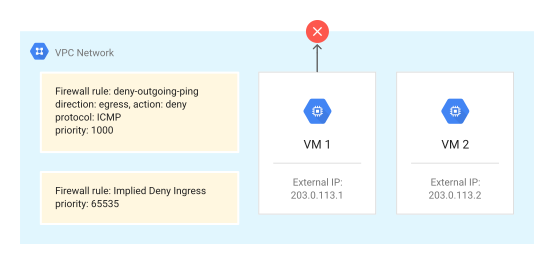](https://docs.cloud.google.com/static/network-intelligence-center/docs/connectivity-tests/images/tutorial-denied-ping.svg) Troubleshooting a denied ping between two VMs
## Before you begin
Before you start the tutorial, follow all of the steps in
the `Before you begin` section of
[Create and run Connectivity Tests](https://docs.cloud.google.com/network-intelligence-center/docs/connectivity-tests/how-to/running-connectivity-tests#before-you-begin).
It can also be helpful to review
[how VPC firewall rules work](https://docs.cloud.google.com/vpc/docs/firewalls).
## Configure network resources
In this section you configure the Google Cloud resources in the testing path.
### Configure a VPC network
You can use an existing network and subnet that contain the VMs, or
you can [create a new network and subnet](https://docs.cloud.google.com/vpc/docs/create-modify-vpc-networks).
### Configure two VM instances
> [!NOTE]
> **Note:** This tutorial refers to the VMs that you use or create as `vm1` and `vm2`.
1. The VM instances in this tutorial are located in the same VPC network and subnet. You can use existing VMs or [create
new ones](https://docs.cloud.google.com/compute/docs/instances/create-start-instance).
2. Assign `vm1` and `vm2` an external IP address when you create them. Note the addresses because you will use them later.
### Create a firewall rule `default-deny-outgoing-ping`
After you have created the VMs, [create an egress VPC firewall
rule](https://docs.cloud.google.com/vpc/docs/using-firewalls) called
`default-deny-outgoing-ping`. This rule denies the ICMP protocol from
`vm1` to `vm2`. Make sure that there are no existing firewall rules in this
network that would override this rule. Additionally, make sure that no
hierarchical firewall policy rules would override this rule. For details, see the
[Hierarchical firewall policies overview](https://docs.cloud.google.com/vpc/docs/firewall-policies).
Use the values in the following table to configure this
VPC firewall rule.
| VPC firewall rule field | Value |
|---|---|
| **Name** | `default-deny-outgoing-ping` |
| **Network** | Use the VPC network where the VMs are located. |
| **Priority** | `1000` |
| **Direction of traffic** | **Egress** |
| **Action on match** | **Deny** |
| **Targets** | Select **All instances in the network**. |
| **Destination IP ranges** | Use the external IP address of `vm2`. |
| **Specified protocols and ports** | Select the **Other protocols** checkbox, and then enter `icmp`. |
### Create a firewall rule `default-deny-ingress-to-vm2`
Create an ingress firewall rule called `default-deny-ingress-to-vm2` to deny the
ICMP protocol to the external IP address of `vm2`. Make sure that there are no
existing firewall rules in this
network that would override this rule. Additionally, make sure that no
hierarchical firewall policy rules would override this rule. For details, see the
[Hierarchical firewall policies overview](https://docs.cloud.google.com/vpc/docs/firewall-policies).
Use the values in the following table to create the rule.
| VPC firewall rule field | Value |
|---|---|
| **Name** | `default-deny-ingress-to-vm2` |
| **Network** | Use the VPC network where the VMs are located. |
| **Priority** | `65534` |
| **Direction of traffic** | **Ingress** |
| **Action on match** | **Deny** |
| **Targets** | Select **All instances in the network**. |
| **Source IP ranges** | Use the external IP address of `vm1`. |
| **Specified protocols and ports** | Select the **Other protocols** checkbox, and then enter `icmp`. |
## Run the first trace
Using the Google Cloud console,
[run a trace](https://docs.cloud.google.com/network-intelligence-center/docs/connectivity-tests/how-to/running-connectivity-tests#testing-between-ips)
to determine if an ICMP (ping) packet can travel from `vm1` to the external
IP address of `vm2`. After running this trace, Connectivity Tests
tells you that the trace packet has been dropped due to the VPC
firewall rule `default-deny-outgoing-ping`.
Use the following table for input values for the trace.
| Field name | Value |
|---|---|
| **Protocol** | `icmp` |
| **Source IP address** | Use the external IP address of `vm1`. Select the **This is an IP address used in Google Cloud** checkbox. |
| **Source IP address or service project** | Verify the project name for `vm1`. |
| **Destination IP address** | Use the external IP address of `vm2`. Select the **This is an IP address used in Google Cloud** checkbox. |
| **Destination IP address or service project** | Verify the project name for `vm2`. |
The following Google Cloud console snapshot shows that the trace packet was
dropped to the firewall rule `default-deny-outgoing-ping`.
[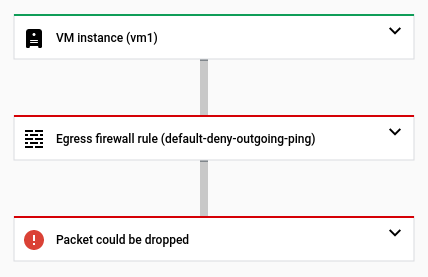](https://docs.cloud.google.com/static/network-intelligence-center/docs/connectivity-tests/images/tutorial-denied-outgoing-ping.png) Console UI snapshot of the trace containing the denied outgoing ping
## Run a second trace after disabling firewall rule `default-deny-outgoing-ping`
1. To allow the ping test to `vm2`, [temporarily
disable](https://docs.cloud.google.com/vpc/docs/using-firewalls#updating_firewall_rules) the VPC firewall rule `default-deny-outgoing-ping`.
2. After the configuration updates successfully, run the trace again.
3. The trace fails again. The packet was dropped due to this firewall rule denying an ingress ICMP packet to the external IP address of `vm2`.
The following Google Cloud console snapshot shows that an inbound trace packet
can pass through Cloud NAT, but can't reach `vm2` due to the previously
mentioned firewall rule.
[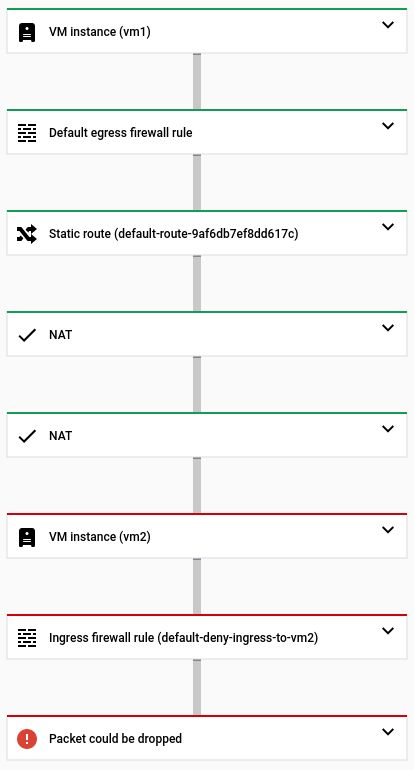](https://docs.cloud.google.com/static/network-intelligence-center/docs/connectivity-tests/images/tutorial-second-trace.png) Console UI snapshot of the trace failing to reach `vm2`
## Create the firewall rule `allow-ping-from-known-ranges`
To allow ingress to the external IP address of `vm2`, configure a new
VPC firewall
rule called `allow-ping-from-known-ranges`. Because allowing all ingress ICMP
packets into your VPC network is a security risk, specify only a
small set of source ranges that are allowed to send ICMP packets to the
external IP address of `vm2`.
For the purposes of this tutorial, this source range includes only the external
IP address of `vm1`, but check any existing firewall rules or rule priorities to
make sure that they don't override this new rule. Additionally, make sure that
no
hierarchical firewall policy rules would override this rule. For details, see the
[Hierarchical firewall policies overview](https://docs.cloud.google.com/vpc/docs/firewall-policies).
Use the values in the following table to configure the rule.
| VPC firewall rule field | Value |
|---|---|
| **Name** | `allow-ping-from-known-ranges` |
| **Network** | Use the name of the network that contains both VMs. |
| **Priority** | `1000` |
| **Direction of traffic** | **Ingress** |
| **Action on match** | **Allow** |
| **Targets** | Select **All instances in the network**. |
| **Source filter** | **IP ranges** |
| **Source IP ranges** | Use the external IP address of `vm1`. |
| **Specified protocols and ports** | Select the **Other protocols** checkbox, and then enter `icmp`. |
## Run a third trace
After creating the `allow-ping-from-known-ranges` firewall rule, ping the
external IP address of `vm2` again. The ping works and the problem is resolved.
[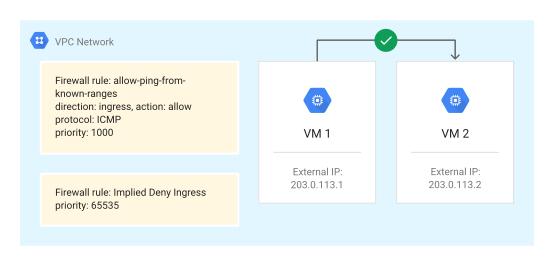](https://docs.cloud.google.com/static/network-intelligence-center/docs/connectivity-tests/images/tutorial-allowed-ping.svg) An allowed ping between two VMs
You can verify this result by performing another trace against the updated
configuration containing the new firewall rule. This time,
Connectivity Tests tells you that the packet has been delivered to
`vm2` and that the matched firewall rule, `allow-ping-from-known-ranges`, allows
an inbound ICMP packet to the external IP address of `vm2`.
[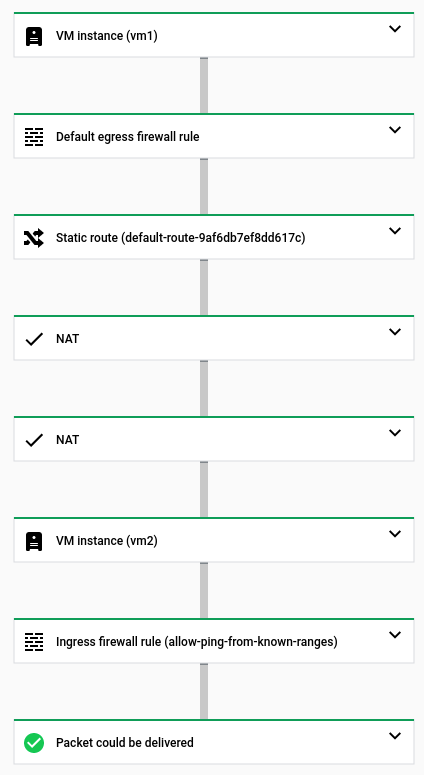](https://docs.cloud.google.com/static/network-intelligence-center/docs/connectivity-tests/images/tutorial-successful-trace.png) Console UI snapshot of a successful trace to `vm2`
## Clean up
If required, you can disable or delete any of the following Google Cloud resources
that you created for this tutorial. Make sure that these are not production
resources. If you decide to disable resources, check the [Compute Engine
pricing page](https://cloud.google.com/compute/all-pricing) and the [All networking pricing page](https://cloud.google.com/vpc/network-pricing)
to make sure that you won't be billed for them.
1. [Disable](https://docs.cloud.google.com/vpc/docs/using-firewalls#updating_firewall_rules) or [delete](https://docs.cloud.google.com/vpc/docs/using-firewalls#deleting_firewall_rules) firewall rules.
2. [Disable](https://docs.cloud.google.com/compute/docs/instances/stop-start-instance) or [delete](https://docs.cloud.google.com/compute/docs/instances/deleting-instance) VMs.
3. [Delete](https://docs.cloud.google.com/vpc/docs/create-modify-vpc-networks#deleting_subnets) VPC subnets.
4. [Delete](https://docs.cloud.google.com/vpc/docs/create-modify-vpc-networks#deleting_a_network) the VPC network.
## What's next
- [Learn about Connectivity Tests](https://docs.cloud.google.com/network-intelligence-center/docs/connectivity-tests/concepts/overview)
- [Update or delete Connectivity Tests](https://docs.cloud.google.com/network-intelligence-center/docs/connectivity-tests/how-to/managing-connectivity-tests)
- [Troubleshoot Connectivity Tests issues](https://docs.cloud.google.com/network-intelligence-center/docs/connectivity-tests/support/troubleshooting)