MACsec for Cloud Interconnect helps you secure traffic on Cloud Interconnect
connections, specifically between your on-premises router and Google's edge
routers. MACsec for Cloud Interconnect uses IEEE standard
[802.1AE Media Access Control Security (MACsec)](https://1.ieee802.org/security/802-1ae/)
to encrypt traffic between your on-premises router and Google's edge
routers.
MACsec for Cloud Interconnect doesn't provide encryption in transit within
Google. For stronger security, we recommend that you use MACsec with other
network security protocols, such as IP Security (IPsec) and Transport Layer
Security (TLS).
For more information about using IPsec to secure your network
traffic to Google Cloud, see the [HA VPN over Cloud Interconnect
overview](https://docs.cloud.google.com/network-connectivity/docs/interconnect/concepts/ha-vpn-interconnect). For more information
about encryption in Cross-Site Interconnect,
see [Encryption options](https://docs.cloud.google.com/network-connectivity/docs/interconnect/concepts/cross-site-overview#encryption).
MACsec for Cloud Interconnect is available for 10‑Gbps,
100‑Gbps, and 400‑Gbps circuits. However, to order
MACsec for Cloud Interconnect for 10‑Gbps circuits, you must contact
your account manager.
MACsec for Cloud Interconnect supports all VLAN attachment features,
including IPv4, IPv6, and IPsec.
The following diagrams show how MACsec encrypts traffic:
- Figure 1 depicts MACsec encrypting traffic on Dedicated Interconnect. The encryption shown in this diagram also applies to Cross-Site Interconnect.
- Figure 2 depicts MACsec encrypting traffic on Partner Interconnect.
[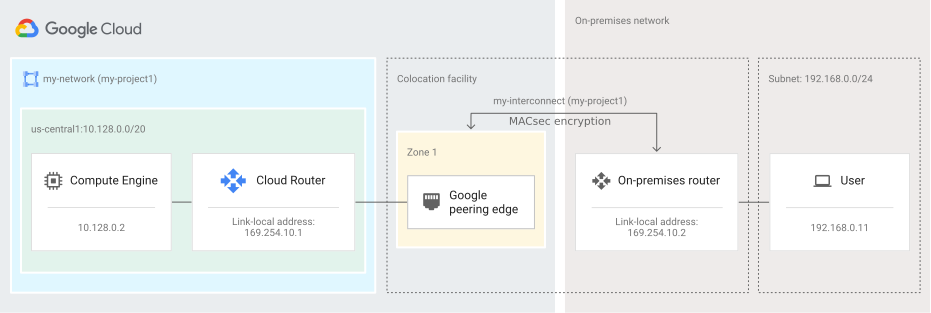](https://docs.cloud.google.com/static/network-connectivity/docs/interconnect/images/single-interconnect.svg) **Figure 1.** MACsec encrypts traffic on Dedicated Interconnect between Google's peering edge router and an on-premises router (click to enlarge).
[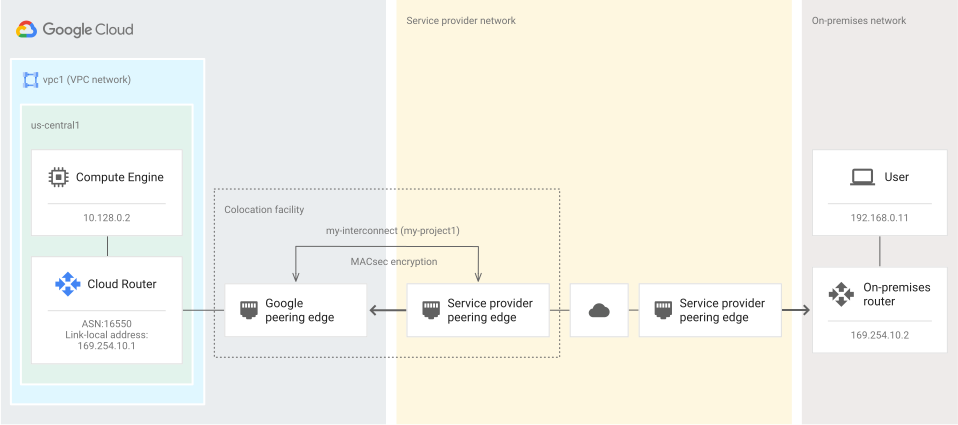](https://docs.cloud.google.com/static/network-connectivity/docs/interconnect/images/partner-interconnect-overview-intro.svg) **Figure 2.** MACsec encrypts traffic on Partner Interconnect between Google's peering edge router and the service provider's peering edge router (click to enlarge).
To use MACsec on Partner Interconnect, work with your service
provider to ensure that your network traffic is encrypted through your
providers' network.
There is no additional cost for using MACsec for Cloud Interconnect.
## How MACsec for Cloud Interconnect works
MACsec for Cloud Interconnect helps secure traffic between your on-premises
router and Google's peering edge router. You use the Google Cloud CLI
(gcloud CLI) or the Google Cloud console to generate a GCM-AES-256
connectivity association key (CAK) and connectivity association key name (CKN)
values. You configure your router to use the CAK and CKN values to configure
MACsec. After you enable MACsec on your router and in
Cloud Interconnect, MACsec encrypts your traffic between your
on-premises router and Google's peering edge router.
We recommend a layered security approach for encryption. At Layer 2, MACsec
encrypts traffic between adjacent routers. At Layer 3, IPsec secures traffic
between customer on-premises networks and VPC networks. You can
achieve further protection with application-level security protocols.
## Supported on-premises routers
You can use on-premises routers with MACsec for Cloud Interconnect that
support the MACsec specifications listed in the following table.
| Setting | Value |
|---|---|
| MACsec cipher suite | - GCM-AES-256-XPN - GCM-AES-256 > [!CAUTION] > **Caution:** The GCM-AES-256 cipher suite is supported, but not recommended for high-bandwidth links because it can cause dropped packets when the control plane is overloaded. We recommend using GCM-AES-256-XPN to avoid dropped packets. |
| CAK cryptographic algorithm | AES_256_CMAC |
| Key server priority | 15 |
| Secure association key (SAK) rekey interval | 28800 seconds |
| MACsec confidentiality offset | 0 |
| Window size | 64 |
| Integrity check value (ICV) indicator | yes |
| Secure Channel Identifier (SCI) | enabled |
MACsec for Cloud Interconnect supports hitless key rotation for up to five
keys.
Several routers manufactured by Cisco, Juniper, and Arista satisfy the
specifications. We can't recommend specific routers. We recommend that you
consult with your router vendor to determine which model best suits your needs.
## Before you use MACsec for Cloud Interconnect
Ensure that you meet the following requirements:
- Understand basic network
[interconnections](https://wikipedia.org/wiki/Interconnection),
so that you can order and configure network circuits.
- Understand the differences between and the requirements for
[Dedicated Interconnect](https://docs.cloud.google.com/network-connectivity/docs/interconnect/concepts/dedicated-overview#before_you_use)
and
[Partner Interconnect](https://docs.cloud.google.com/network-connectivity/docs/interconnect/concepts/partner-overview#before-you-use-partner).
- Have administrator access to your on-premises edge router.
- Check that MACsec is available at your colocation facility.
## MACsec for Cloud Interconnect setup steps
After you verify that MACsec for Cloud Interconnect is available at your
colocation facility, check if you already have a MACsec-capable
Cloud Interconnect connection. If not, order a MACsec-capable
Cloud Interconnect connection. If you're using
Cross-Site Interconnect, then your connections are MACsec-capable
by default.
After your Cloud Interconnect connection completes testing and is ready
for use, you can set up MACsec by creating MACsec pre-shared keys and
configuring your on-premises router. You can then enable MACsec and verify that
it's enabled for your link and is operational. Finally, you can monitor your
MACsec connection to ensure that it's operating correctly.
### MACsec availability
MACsec for Cloud Interconnect is supported on all
Cloud Interconnect 100‑Gbps and 400‑Gbps connections,
regardless of location.
MACsec for Cloud Interconnect is not available at all colocation facilities
for 10‑Gbps circuits. For more information about features available at
colocation facilities, see the following, depending on your connection type:
- [All colocation facilities](https://docs.cloud.google.com/network-connectivity/docs/interconnect/concepts/choosing-colocation-facilities#locations-table)
- [Colocation facilities for Cross-Site Interconnect](https://docs.cloud.google.com/network-connectivity/docs/interconnect/concepts/cross-site-locations)
To discover which colocation facilities with 10‑Gbps circuits support
MACsec for Cloud Interconnect, do the following. MACsec availability
for 10‑Gbps circuits is only displayed for allow-listed projects. To order
MACsec for Cloud Interconnect for 10‑Gbps circuits, you must contact
your account manager.
### Console
1. In the Google Cloud console, go to the Cloud Interconnect **Physical
connections** tab.
[Go to Physical connections](https://console.cloud.google.com/hybrid/interconnects/list?tab=interconnects)
2. Click **Set up physical connection**.
3. Select **Dedicated Interconnect** , and then click **Continue**.
4. Select **Order new Dedicated Interconnect** , and then click **Continue**.
5. In the **Google Cloud location** field, click **Choose**.
6. In the **Choose colocation facility** pane, find the city that you want a
Cloud Interconnect connection in. In the **Geographic location**
field, select a geographic area. The
**MACsec support for current project** column shows the circuit sizes
that are available for MACsec for Cloud Interconnect.
### gcloud
1. Authenticate to the Google Cloud CLI:
gcloud auth login
2. To discover if a colocation facility supports MACsec for
Cloud Interconnect, do one of the following:
- Verify that a specific colocation facility supports MACsec for
Cloud Interconnect:
gcloud compute interconnects locations describe COLOCATION_FACILITY
Replace `COLOCATION_FACILITY` with the
colocation facility name listed in the
[locations table](https://docs.cloud.google.com/network-connectivity/docs/interconnect/concepts/choosing-colocation-facilities#locations-table).
The output is similar to the following sample. Take note of the
`availableFeatures` section. MACsec-capable connections display the
following:
- For 10‑Gbps links: `linkType: LINK_TYPE_ETHERNET_10G_LR` and `availableFeatures: IF_MACSEC`
- For 100‑Gbps links: `linkType: LINK_TYPE_ETHERNET_100G_LR`; all 100‑Gbps links are MACsec capable
- For 400‑Gbps links: `linkType: LINK_TYPE_ETHERNET_400G_LR`; all 400‑Gbps links are MACsec capable
address: |-
Equinix
47 Bourke Road
Alexandria
Sydney, New South Wales 2015
Australia
availabilityZone: zone1
availableFeatures:
- IF_MACSEC
availableLinkTypes:
- LINK_TYPE_ETHERNET_10G_LR
- LINK_TYPE_ETHERNET_100G_LR
- LINK_TYPE_ETHERNET_400G_LR
city: Sydney
continent: C_ASIA_PAC
creationTimestamp: '2019-12-05T12:56:15.000-08:00'
description: Equinix Sydney (SY3)
facilityProvider: Equinix
facilityProviderFacilityId: SY3
id: '1173'
kind: compute#interconnectLocation
name: syd-zone1-1605
peeringdbFacilityId: '1605'
regionInfos:
- region: https://www.googleapis.com/compute/v1/projects/my-project/regions/australia-southeast1
- region: https://www.googleapis.com/compute/v1/projects/my-project/regions/australia-southeast2
- region: https://www.googleapis.com/compute/v1/projects/my-project/regions/us-east7
selfLink: https://www.googleapis.com/compute/v1/projects/my-project/global/interconnectLocations/syd-zone1-1605
status: AVAILABLE
- List all colocation facilities that support
MACsec for Cloud Interconnect on 10‑Gbps circuits:
gcloud compute interconnects locations list \
--filter "availableFeatures: (IF_MACSEC)"
The output is similar to the following:
NAME DESCRIPTION FACILITY_PROVIDER
...
syd-zone1-1605 Equinix Sydney (SY3) Equinix
...
- List all colocation facilities that have 100‑Gbps links, and
therefore offer MACsec by default:
gcloud compute interconnects locations list \
--filter "availableLinkTypes: (LINK_TYPE_ETHERNET_100G_LR)"
The output is similar to the following:
NAME DESCRIPTION FACILITY_PROVIDER
...
syd-zone1-1605 Equinix Sydney (SY3) Equinix
...
## MACsec support on existing Cloud Interconnect connections
MACsec for Cloud Interconnect is supported on existing 100‑Gbps and
400‑Gbps Cloud Interconnect connections.
If you have a 10‑Gbps connection, [check MACsec availability at your
colocation facility](https://docs.cloud.google.com/network-connectivity/docs/interconnect/concepts/macsec-overview#macsec-availability). If MACsec support is available at
your colocation facility, then [verify that Cloud Interconnect is
MACsec capable](https://docs.cloud.google.com/network-connectivity/docs/interconnect/how-to/macsec/set-up-macsec#verify-macsec-capable).
## Can I enable MACsec if my existing Cloud Interconnect connection doesn't support it?
If your colocation facility doesn't support MACsec, you can do one of the
following:
- Request a new Cloud Interconnect connection and request MACsec as a
required feature.
- Contact your Google Cloud account manager to schedule a migration of your
existing Cloud Interconnect connection to MACsec-capable ports.
Physically migrating connections can take several weeks to complete
due to scheduling constraints. Migrations require a maintenance window that
requires your Cloud Interconnect connections to be free of any
production traffic.
## What's next?
- [Set up MACsec for Cloud Interconnect](https://docs.cloud.google.com/network-connectivity/docs/interconnect/how-to/macsec/set-up-macsec)
- [Enable MACsec for Cloud Interconnect](https://docs.cloud.google.com/network-connectivity/docs/interconnect/how-to/macsec/enable-macsec)