To keep your availability monitoring aligned with your services as endpoints
change or resources are retired, you can list, view, edit, and delete your
uptime checks. You can perform these management tasks by using the
Google Cloud console, the Google Cloud CLI, the Cloud Monitoring API, or the client
libraries.
## Before you begin
Complete the following in the Google Cloud project that stores your
uptime checks. For [App Hub](https://docs.cloud.google.com/app-hub/docs/overview)
configurations, select the App Hub host project or management project.
- Select the tab for how you plan to use the samples on this page:
### Console
When you use the Google Cloud console to access Google Cloud services and
APIs, you don't need to set up authentication.
### gcloud
In the Google Cloud console, activate Cloud Shell.
[Activate Cloud Shell](https://console.cloud.google.com/?cloudshell=true)
At the bottom of the Google Cloud console, a
[Cloud Shell](https://docs.cloud.google.com/shell/docs/how-cloud-shell-works)
session starts and displays a command-line prompt. Cloud Shell is a shell environment
with the Google Cloud CLI
already installed and with values already set for
your current project. It can take a few seconds for the session to initialize.
### C#
To use the .NET samples on this page in a local development environment, install and
initialize the gcloud CLI, and then set up Application Default Credentials with
your user credentials.
1.
[Install](https://docs.cloud.google.com/sdk/docs/install) the Google Cloud CLI.
2. If you're using an external identity provider (IdP), you must first
[sign in to the gcloud CLI with your federated identity](https://docs.cloud.google.com/iam/docs/workforce-log-in-gcloud).
3.
If you're using a local shell, then create local authentication credentials for your user
account:
```bash
gcloud auth application-default login
```
You don't need to do this if you're using Cloud Shell.
If an authentication error is returned, and you are using an external identity provider
(IdP), confirm that you have
[signed in to the gcloud CLI with your federated identity](https://docs.cloud.google.com/iam/docs/workforce-log-in-gcloud).
For more information, see
[Set up ADC for a local development environment](https://docs.cloud.google.com/docs/authentication/set-up-adc-local-dev-environment)
in the Google Cloud authentication documentation.
### Go
To use the Go samples on this page in a local development environment, install and
initialize the gcloud CLI, and then set up Application Default Credentials with
your user credentials.
1.
[Install](https://docs.cloud.google.com/sdk/docs/install) the Google Cloud CLI.
2. If you're using an external identity provider (IdP), you must first
[sign in to the gcloud CLI with your federated identity](https://docs.cloud.google.com/iam/docs/workforce-log-in-gcloud).
3.
If you're using a local shell, then create local authentication credentials for your user
account:
```bash
gcloud auth application-default login
```
You don't need to do this if you're using Cloud Shell.
If an authentication error is returned, and you are using an external identity provider
(IdP), confirm that you have
[signed in to the gcloud CLI with your federated identity](https://docs.cloud.google.com/iam/docs/workforce-log-in-gcloud).
For more information, see
[Set up ADC for a local development environment](https://docs.cloud.google.com/docs/authentication/set-up-adc-local-dev-environment)
in the Google Cloud authentication documentation.
### Java
To use the Java samples on this page in a local development environment, install and
initialize the gcloud CLI, and then set up Application Default Credentials with
your user credentials.
1.
[Install](https://docs.cloud.google.com/sdk/docs/install) the Google Cloud CLI.
2. If you're using an external identity provider (IdP), you must first
[sign in to the gcloud CLI with your federated identity](https://docs.cloud.google.com/iam/docs/workforce-log-in-gcloud).
3.
If you're using a local shell, then create local authentication credentials for your user
account:
```bash
gcloud auth application-default login
```
You don't need to do this if you're using Cloud Shell.
If an authentication error is returned, and you are using an external identity provider
(IdP), confirm that you have
[signed in to the gcloud CLI with your federated identity](https://docs.cloud.google.com/iam/docs/workforce-log-in-gcloud).
For more information, see
[Set up ADC for a local development environment](https://docs.cloud.google.com/docs/authentication/set-up-adc-local-dev-environment)
in the Google Cloud authentication documentation.
### Node.js
To use the Node.js samples on this page in a local development environment, install and
initialize the gcloud CLI, and then set up Application Default Credentials with
your user credentials.
1.
[Install](https://docs.cloud.google.com/sdk/docs/install) the Google Cloud CLI.
2. If you're using an external identity provider (IdP), you must first
[sign in to the gcloud CLI with your federated identity](https://docs.cloud.google.com/iam/docs/workforce-log-in-gcloud).
3.
If you're using a local shell, then create local authentication credentials for your user
account:
```bash
gcloud auth application-default login
```
You don't need to do this if you're using Cloud Shell.
If an authentication error is returned, and you are using an external identity provider
(IdP), confirm that you have
[signed in to the gcloud CLI with your federated identity](https://docs.cloud.google.com/iam/docs/workforce-log-in-gcloud).
For more information, see
[Set up ADC for a local development environment](https://docs.cloud.google.com/docs/authentication/set-up-adc-local-dev-environment)
in the Google Cloud authentication documentation.
### PHP
To use the PHP samples on this page in a local development environment, install and
initialize the gcloud CLI, and then set up Application Default Credentials with
your user credentials.
1.
[Install](https://docs.cloud.google.com/sdk/docs/install) the Google Cloud CLI.
2. If you're using an external identity provider (IdP), you must first
[sign in to the gcloud CLI with your federated identity](https://docs.cloud.google.com/iam/docs/workforce-log-in-gcloud).
3.
If you're using a local shell, then create local authentication credentials for your user
account:
```bash
gcloud auth application-default login
```
You don't need to do this if you're using Cloud Shell.
If an authentication error is returned, and you are using an external identity provider
(IdP), confirm that you have
[signed in to the gcloud CLI with your federated identity](https://docs.cloud.google.com/iam/docs/workforce-log-in-gcloud).
For more information, see
[Set up ADC for a local development environment](https://docs.cloud.google.com/docs/authentication/set-up-adc-local-dev-environment)
in the Google Cloud authentication documentation.
### Python
To use the Python samples on this page in a local development environment, install and
initialize the gcloud CLI, and then set up Application Default Credentials with
your user credentials.
1.
[Install](https://docs.cloud.google.com/sdk/docs/install) the Google Cloud CLI.
2. If you're using an external identity provider (IdP), you must first
[sign in to the gcloud CLI with your federated identity](https://docs.cloud.google.com/iam/docs/workforce-log-in-gcloud).
3.
If you're using a local shell, then create local authentication credentials for your user
account:
```bash
gcloud auth application-default login
```
You don't need to do this if you're using Cloud Shell.
If an authentication error is returned, and you are using an external identity provider
(IdP), confirm that you have
[signed in to the gcloud CLI with your federated identity](https://docs.cloud.google.com/iam/docs/workforce-log-in-gcloud).
For more information, see
[Set up ADC for a local development environment](https://docs.cloud.google.com/docs/authentication/set-up-adc-local-dev-environment)
in the Google Cloud authentication documentation.
### Ruby
To use the Ruby samples on this page in a local development environment, install and
initialize the gcloud CLI, and then set up Application Default Credentials with
your user credentials.
1.
[Install](https://docs.cloud.google.com/sdk/docs/install) the Google Cloud CLI.
2. If you're using an external identity provider (IdP), you must first
[sign in to the gcloud CLI with your federated identity](https://docs.cloud.google.com/iam/docs/workforce-log-in-gcloud).
3.
If you're using a local shell, then create local authentication credentials for your user
account:
```bash
gcloud auth application-default login
```
You don't need to do this if you're using Cloud Shell.
If an authentication error is returned, and you are using an external identity provider
(IdP), confirm that you have
[signed in to the gcloud CLI with your federated identity](https://docs.cloud.google.com/iam/docs/workforce-log-in-gcloud).
For more information, see
[Set up ADC for a local development environment](https://docs.cloud.google.com/docs/authentication/set-up-adc-local-dev-environment)
in the Google Cloud authentication documentation.
### REST
To use the REST API samples on this page in a local development environment, you use the
credentials you provide to the gcloud CLI.
1. [Install](https://docs.cloud.google.com/sdk/docs/install) the Google Cloud CLI.
2. If you're using an external identity provider (IdP), you must first [sign in to the gcloud CLI with your federated identity](https://docs.cloud.google.com/iam/docs/workforce-log-in-gcloud).
For more information, see
[Authenticate for using REST](https://docs.cloud.google.com/docs/authentication/rest)
in the Google Cloud authentication documentation.
## List all uptime checks
### Console
1. In the Google Cloud console, go to the  **Uptime checks** page:
[Go to **Uptime checks**](https://console.cloud.google.com/monitoring/uptime)
If you use the search bar to find this page, then select the result whose subheading is
**Monitoring**.
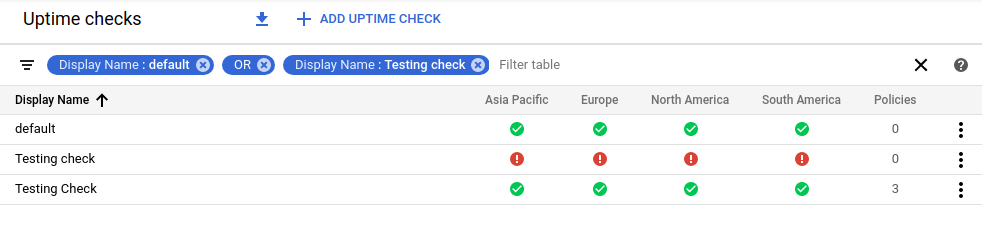
The following example shows a sample **Uptime checks** page:
> [!NOTE]
> **Note:** Dashboards report "no data available" for newly created uptime checks. This message is removed when the data arrives. The maximum wait time for this stage is 5 minutes.
2. In the toolbar of the Google Cloud console,
select your Google Cloud project. For [App Hub](https://docs.cloud.google.com/app-hub/docs/overview)
configurations, select the App Hub host project or management project.
3. (Optional) To restrict the uptime checks that are listed, add filters.
Each filter is composed of a name and a value.
You can set the value to be an exact match for an uptime check name,
or a partial match. Matches aren't case sensitive. For example, to list all
uptime checks whose name contains `default`, do the following:
- Click **Filter table** and select **Display name**.
- Enter `default` and then press the return key.
If you have multiple filters, then the filters are automatically joined
by a logical `AND` unless you insert an `OR` filter.
The previous example uses the `OR` filter so that an uptime check is
listed if its name matches `default` or `Testing check`.
### gcloud
To list your uptime checks and synthetic monitors, run
the [`gcloud monitoring uptime list-configs`](https://docs.cloud.google.com/sdk/gcloud/reference/monitoring/uptime/list-configs)
command:
gcloud monitoring uptime list-configs --project=PROJECT_ID
Before you run the previous command, replace the following:
- PROJECT_ID: The identifier of the project. For [App Hub](https://docs.cloud.google.com/app-hub/docs/overview) configurations, select the App Hub host project or management project.
The returned data includes the following:
- Name and display name.
- Check identifier.
- Monitored resource.
- Period between checks.
You can configure the Google Cloud CLI command to filter and sort the results.
### REST
To list your uptime checks and synthetic monitors, call the
[`projects.uptimeCheckConfigs.list`](https://docs.cloud.google.com/monitoring/api/ref_v3/rest/v3/projects.uptimeCheckConfigs/list)
method. Specify the following parameters:
- **parent** : Required. The project whose uptime checks are listed.
For [App Hub](https://docs.cloud.google.com/app-hub/docs/overview)
configurations, select the App Hub host project or management project. This field has the following format:
projects/PROJECT_ID
> [!NOTE]
> **Note:** You can't use the API to retrieve the status of an uptime check.
### C#
To authenticate to Monitoring, set up Application Default Credentials.
For more information, see
[Set up authentication for a local development environment](https://docs.cloud.google.com/docs/authentication/set-up-adc-local-dev-environment).
public static object ListUptimeCheckConfigs(string projectId)
{
var client = UptimeCheckServiceClient.Create();
var configs = client.ListUptimeCheckConfigs(new ProjectName(projectId));
foreach (UptimeCheckConfig config in configs)
{
Console.WriteLine(config.Name);
}
return 0;
}
### Java
To authenticate to Monitoring, set up Application Default Credentials.
For more information, see
[Set up authentication for a local development environment](https://docs.cloud.google.com/docs/authentication/set-up-adc-local-dev-environment).
private static void listUptimeChecks(String projectId) throws IOException {
ListUptimeCheckConfigsRequest request =
ListUptimeCheckConfigsRequest.newBuilder().setParent(ProjectName.format(projectId)).build();
try (UptimeCheckServiceClient client = UptimeCheckServiceClient.create()) {
ListUptimeCheckConfigsPagedResponse response = client.listUptimeCheckConfigs(request);
for (UptimeCheckConfig config : response.iterateAll()) {
System.out.println(config.getDisplayName());
}
} catch (Exception e) {
usage("Exception listing uptime checks: " + e.toString());
throw e;
}
}
### Go
To authenticate to Monitoring, set up Application Default Credentials.
For more information, see
[Set up authentication for a local development environment](https://docs.cloud.google.com/docs/authentication/set-up-adc-local-dev-environment).
// list is an example of listing the uptime checks in projectID.
func list(w io.Writer, projectID string) error {
ctx := context.Background()
client, err := monitoring.NewUptimeCheckClient(ctx)
if err != nil {
return fmt.Errorf("NewUptimeCheckClient: %w", err)
}
defer client.Close()
req := &monitoringpb.ListUptimeCheckConfigsRequest{
Parent: "projects/" + projectID,
}
it := client.ListUptimeCheckConfigs(ctx, req)
for {
config, err := it.Next()
if err == iterator.Done {
break
}
if err != nil {
return fmt.Errorf("ListUptimeCheckConfigs: %w", err)
}
fmt.Fprintln(w, config)
}
fmt.Fprintln(w, "Done listing uptime checks")
return nil
}
### Node.js
To authenticate to Monitoring, set up Application Default Credentials.
For more information, see
[Set up authentication for a local development environment](https://docs.cloud.google.com/docs/authentication/set-up-adc-local-dev-environment).
// Imports the Google Cloud client library
const monitoring = require('https://docs.cloud.google.com/nodejs/docs/reference/monitoring/latest/overview.html');
// Creates a client
const client = new monitoring.https://docs.cloud.google.com/nodejs/docs/reference/monitoring/latest/overview.html();
/**
* TODO(developer): Uncomment and edit the following lines of code.
*/
// const projectId = 'YOUR_PROJECT_ID';
const request = {
parent: client.projectPath(projectId),
};
// Retrieves an uptime check config
const [uptimeCheckConfigs] = await client.listUptimeCheckConfigs(request);
uptimeCheckConfigs.forEach(uptimeCheckConfig => {
console.log(`ID: ${uptimeCheckConfig.name}`);
console.log(` Display Name: ${uptimeCheckConfig.displayName}`);
console.log(' Resource: %j', uptimeCheckConfig.monitoredResource);
console.log(' Period: %j', uptimeCheckConfig.period);
console.log(' Timeout: %j', uptimeCheckConfig.timeout);
console.log(` Check type: ${uptimeCheckConfig.check_request_type}`);
console.log(
' Check: %j',
uptimeCheckConfig.httpCheck || uptimeCheckConfig.tcpCheck
);
console.log(
` Content matchers: ${uptimeCheckConfig.contentMatchers
.map(matcher => matcher.content)
.join(', ')}`
);
console.log(` Regions: ${uptimeCheckConfig.selectedRegions.join(', ')}`);
});
### PHP
To authenticate to Monitoring, set up Application Default Credentials.
For more information, see
[Set up authentication for a local development environment](https://docs.cloud.google.com/docs/authentication/set-up-adc-local-dev-environment).
use Google\Cloud\Monitoring\V3\Client\UptimeCheckServiceClient;
use Google\Cloud\Monitoring\V3\ListUptimeCheckConfigsRequest;
/**
* Example:
* ```
* list_uptime_checks($projectId);
* ```
*/
function list_uptime_checks(string $projectId): void
{
$projectName = 'projects/' . $projectId;
$uptimeCheckClient = new UptimeCheckServiceClient([
'projectId' => $projectId,
]);
$listUptimeCheckConfigsRequest = (new ListUptimeCheckConfigsRequest())
->setParent($projectName);
$pages = $uptimeCheckClient->listUptimeCheckConfigs($listUptimeCheckConfigsRequest);
foreach ($pages->iteratePages() as $page) {
foreach ($page as $uptimeCheck) {
print($uptimeCheck->getName() . PHP_EOL);
}
}
}
### Python
To authenticate to Monitoring, set up Application Default Credentials.
For more information, see
[Set up authentication for a local development environment](https://docs.cloud.google.com/docs/authentication/set-up-adc-local-dev-environment).
def list_uptime_check_configs(project_id: str) -> pagers.ListUptimeCheckConfigsPager:
"""Gets all uptime checks defined in the Google Cloud project
Args:
project_id: Google Cloud project id
Returns:
A list of configurations.
Iterating over this object will yield results and resolve additional pages automatically.
"""
client = monitoring_v3.UptimeCheckServiceClient()
configs = client.list_uptime_check_configs(request={"parent": project_id})
for config in configs:
pprint.pprint(config)
return configs
### Ruby
To authenticate to Monitoring, set up Application Default Credentials.
For more information, see
[Set up authentication for a local development environment](https://docs.cloud.google.com/docs/authentication/set-up-adc-local-dev-environment).
gem "google-cloud-monitoring"
require "google/cloud/monitoring"
def list_uptime_check_configs project_id
client = Google::Cloud::https://docs.cloud.google.com/ruby/docs/reference/google-cloud-monitoring/latest/Google-Cloud-Monitoring.html.https://docs.cloud.google.com/ruby/docs/reference/google-cloud-monitoring/latest/Google-Cloud-Monitoring.html
project_name = client.project_path project: project_id
configs = client.list_uptime_check_configs parent: project_name
configs.each { |config| puts config.name }
end
## View details of an uptime check
### Console
1. In the Google Cloud console, go to the  **Uptime checks** page:
[Go to **Uptime checks**](https://console.cloud.google.com/monitoring/uptime)
If you use the search bar to find this page, then select the result whose subheading is
**Monitoring**.
2. In the toolbar of the Google Cloud console, select your Google Cloud project. For [App Hub](https://docs.cloud.google.com/app-hub/docs/overview) configurations, select the App Hub host project or management project.
3. Locate the uptime check that you want to view, and then click its name.
The following screenshot shows the uptime details for an uptime check
with the name "Testing check":
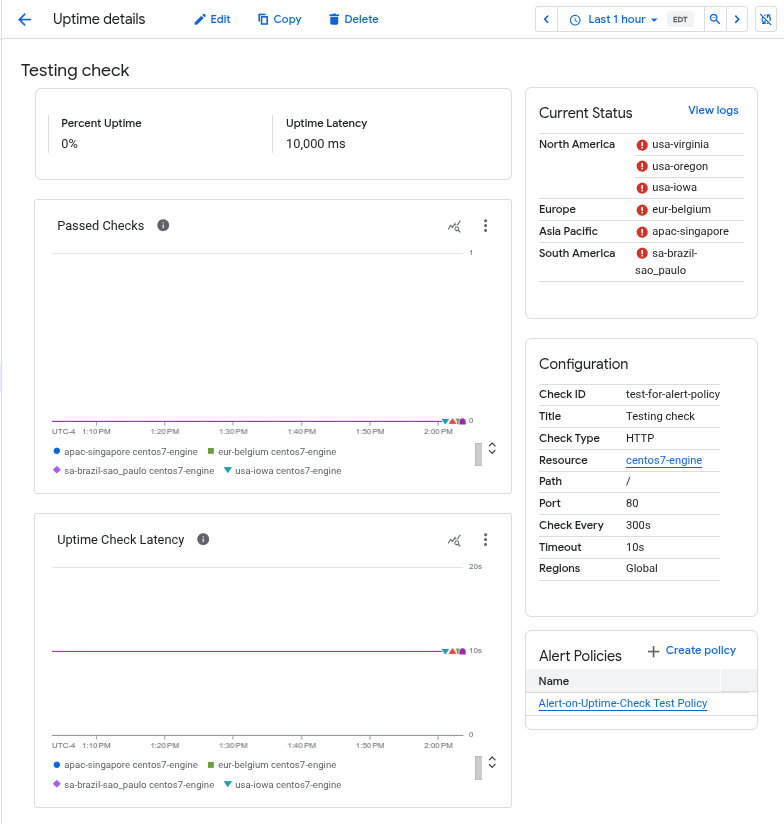
The **Uptime details** page contains the following information:
- The selected time interval. By default, the interval is **1 hour**.
- The name of the uptime check. In the sample, the name is **Testing
check**.
- The labels that you added to the uptime check.
- The uptime percentage and the average latency.
The **Percent uptime** value is a percentage calculated as
`(S/T)*100`, where `S` is the number of successful check responses and `T` is
the total number of check responses, from all locations.
For group checks, the values of `S` and `T` are summed across all current
group members.
For example, over a 25-minute period, an uptime check with a one-minute period
running from all regions would get 25 requests from each of 6 locations, for a
total of 150 requests. If the dashboard reports an 83.3% uptime, then 125
of 150 requests succeeded.
- The **Passed checks** and **Uptime check latency** panes graphically display
the number of passed checks and latency of each check as a function of time.
- The **Current status** pane displays the status of the most recent checks.
A green circle with a check next to a region indicates the last run of the
check in that region succeeded; a red circle with an x indicates failure.
If you have enabled the logging of uptime-check failures, then
the pane contains a **View logs** link.
- The **Configuration** pane shows the configuration of the uptime check.
This data is assigned when the uptime check is created.
The **Check Id** value corresponds to the `CHECK_ID`
value in API calls.
- The **Alert Policies** pane lists information about associated
alerting policies. In the sample dashboard, one alerting policy is
configured.
### gcloud
To list the details of an uptime check or synthetic monitor,
run the [`gcloud monitoring uptime describe`](https://docs.cloud.google.com/sdk/gcloud/reference/monitoring/uptime/describe)
command:
gcloud monitoring uptime describe CHECK_ID --project=PROJECT_ID
Before you run the previous command, replace the following:
- PROJECT_ID: The identifier of the project. For [App Hub](https://docs.cloud.google.com/app-hub/docs/overview) configurations, select the App Hub host project or management project.
- CHECK_ID: The identifier of the uptime check or synthetic monitor. You can find the identifier by running the `gcloud monitoring uptime list-configs` command and examining the **name** field. For more information, see [Find the unique identifier of an uptime check](https://docs.cloud.google.com/monitoring/uptime-checks/manage#uptime-check-ids).
The data returned for the uptime check includes the following:
- Name and display name.
- Check identifier.
- Monitored resource.
- Period between checks.
### REST
To list the details of an uptime check or synthetic monitor, call the
[`projects.uptimeCheckConfigs.get`](https://docs.cloud.google.com/monitoring/api/ref_v3/rest/v3/projects.uptimeCheckConfigs/get)
method. Specify the following parameter:
- **name**: The full name of the uptime check configuration.
projects/PROJECT_ID/uptimeCheckConfigs/CHECK_ID
In the previous expression:
- PROJECT_ID is the project that stores the uptime check.
For [App Hub](https://docs.cloud.google.com/app-hub/docs/overview)
configurations, select the App Hub host project or management project.
- CHECK_ID is the identifier of the uptime check or
synthetic monitor. For more information, see
[Find the unique identifier of an uptime check](https://docs.cloud.google.com/monitoring/uptime-checks/manage#uptime-check-ids).
> [!NOTE]
> **Note:** You can't use the API to retrieve the status of an uptime check.
### C#
To authenticate to Monitoring, set up Application Default Credentials.
For more information, see
[Set up authentication for a local development environment](https://docs.cloud.google.com/docs/authentication/set-up-adc-local-dev-environment).
public static object GetUptimeCheckConfig(string configName)
{
var client = UptimeCheckServiceClient.Create();
UptimeCheckConfig config = client.GetUptimeCheckConfig(configName);
if (config == null)
{
Console.Error.WriteLine(
"No configuration found with the name {0}", configName);
return -1;
}
Console.WriteLine("Name: {0}", config.Name);
Console.WriteLine("Display Name: {0}", config.DisplayName);
Console.WriteLine("Http Path: {0}", config.HttpCheck.Path);
return 0;
}
### Java
To authenticate to Monitoring, set up Application Default Credentials.
For more information, see
[Set up authentication for a local development environment](https://docs.cloud.google.com/docs/authentication/set-up-adc-local-dev-environment).
private static void getUptimeCheckConfig(String checkName) throws IOException {
// Create UptimeCheckServiceSettings instance for add retry mechanism
UptimeCheckServiceSettings.Builder uptimeCheckServiceSettingsBuilder =
UptimeCheckServiceSettings.newBuilder();
uptimeCheckServiceSettingsBuilder
.getUptimeCheckConfigSettings()
.setRetrySettings(
uptimeCheckServiceSettingsBuilder
.getUptimeCheckConfigSettings()
.getRetrySettings()
.toBuilder()
.setInitialRetryDelay(org.threeten.bp.Duration.ofMillis(100L))
.setRetryDelayMultiplier(1.3)
.setMaxRetryDelay(MAX_RECONNECT_BACKOFF_TIME)
.setInitialRpcTimeout(MAX_RECONNECT_BACKOFF_TIME)
.setRpcTimeoutMultiplier(1.0)
.setMaxRpcTimeout(MAX_RECONNECT_BACKOFF_TIME)
.setTotalTimeout(MAX_RECONNECT_BACKOFF_TIME)
.setMaxAttempts(6)
.build());
UptimeCheckServiceSettings uptimeCheckServiceSettings =
uptimeCheckServiceSettingsBuilder.build();
// create UptimeCheckServiceClient with retry setting
try (UptimeCheckServiceClient client =
UptimeCheckServiceClient.create(uptimeCheckServiceSettings)) {
UptimeCheckConfig config = client.getUptimeCheckConfig(checkName);
if (config != null) {
System.out.println(config.toString());
} else {
System.out.println("No uptime check config found with ID " + checkName);
}
} catch (Exception e) {
usage("Exception getting uptime check: " + e.toString());
throw e;
}
}
### Go
To authenticate to Monitoring, set up Application Default Credentials.
For more information, see
[Set up authentication for a local development environment](https://docs.cloud.google.com/docs/authentication/set-up-adc-local-dev-environment).
// get is an example of getting an uptime check. resourceName should be
// of the form `projects/[PROJECT_ID]/uptimeCheckConfigs/[UPTIME_CHECK_ID]`.
func get(w io.Writer, resourceName string) (*monitoringpb.UptimeCheckConfig, error) {
ctx := context.Background()
client, err := monitoring.NewUptimeCheckClient(ctx)
if err != nil {
return nil, fmt.Errorf("NewUptimeCheckClient: %w", err)
}
defer client.Close()
req := &monitoringpb.GetUptimeCheckConfigRequest{
Name: resourceName,
}
config, err := client.GetUptimeCheckConfig(ctx, req)
if err != nil {
return nil, fmt.Errorf("GetUptimeCheckConfig: %w", err)
}
fmt.Fprintf(w, "Config: %v", config)
return config, nil
}
### Node.js
To authenticate to Monitoring, set up Application Default Credentials.
For more information, see
[Set up authentication for a local development environment](https://docs.cloud.google.com/docs/authentication/set-up-adc-local-dev-environment).
// Imports the Google Cloud client library
const monitoring = require('https://docs.cloud.google.com/nodejs/docs/reference/monitoring/latest/overview.html');
// Creates a client
const client = new monitoring.https://docs.cloud.google.com/nodejs/docs/reference/monitoring/latest/overview.html();
/**
* TODO(developer): Uncomment and edit the following lines of code.
*/
// const projectId = 'YOUR_PROJECT_ID';
// const uptimeCheckConfigId = 'YOUR_UPTIME_CHECK_CONFIG_ID';
const request = {
// i.e. name: 'projects/my-project-id/uptimeCheckConfigs/My-Uptime-Check
name: client.projectUptimeCheckConfigPath(projectId, uptimeCheckConfigId),
};
console.log(`Retrieving ${request.name}`);
// Retrieves an uptime check config
const [uptimeCheckConfig] = await client.getUptimeCheckConfig(request);
console.log(`ID: ${uptimeCheckConfig.name}`);
console.log(`Display Name: ${uptimeCheckConfig.displayName}`);
console.log('Resource: %j', uptimeCheckConfig.monitoredResource);
console.log('Period: %j', uptimeCheckConfig.period);
console.log('Timeout: %j', uptimeCheckConfig.timeout);
console.log(`Check type: ${uptimeCheckConfig.check_request_type}`);
console.log(
'Check: %j',
uptimeCheckConfig.httpCheck || uptimeCheckConfig.tcpCheck
);
console.log(
`Content matchers: ${uptimeCheckConfig.contentMatchers
.map(matcher => matcher.content)
.join(', ')}`
);
console.log(`Regions: ${uptimeCheckConfig.selectedRegions.join(', ')}`);
### PHP
To authenticate to Monitoring, set up Application Default Credentials.
For more information, see
[Set up authentication for a local development environment](https://docs.cloud.google.com/docs/authentication/set-up-adc-local-dev-environment).
use Google\Cloud\Monitoring\V3\Client\UptimeCheckServiceClient;
use Google\Cloud\Monitoring\V3\GetUptimeCheckConfigRequest;
/**
* Example:
* ```
* get_uptime_check($projectId, $configName);
* ```
*
* @param string $projectId Your project ID
* @param string $configName
*/
function get_uptime_check($projectId, $configName)
{
$uptimeCheckClient = new UptimeCheckServiceClient([
'projectId' => $projectId,
]);
$getUptimeCheckConfigRequest = (new GetUptimeCheckConfigRequest())
->setName($configName);
$uptimeCheck = $uptimeCheckClient->getUptimeCheckConfig($getUptimeCheckConfigRequest);
print('Retrieved an uptime check:' . PHP_EOL);
print($uptimeCheck->serializeToJsonString() . PHP_EOL);
}
### Python
To authenticate to Monitoring, set up Application Default Credentials.
For more information, see
[Set up authentication for a local development environment](https://docs.cloud.google.com/docs/authentication/set-up-adc-local-dev-environment).
def get_uptime_check_config(config_name: str) -> uptime.UptimeCheckConfig:
"""Reads the uptime check configuration
Args:
config_name: Uptime check configuration identity
Returns:
A structure that describes the updated uptime check
"""
client = monitoring_v3.UptimeCheckServiceClient()
config = client.get_uptime_check_config(request={"name": config_name})
pprint.pprint(config)
return config
### Ruby
To authenticate to Monitoring, set up Application Default Credentials.
For more information, see
[Set up authentication for a local development environment](https://docs.cloud.google.com/docs/authentication/set-up-adc-local-dev-environment).
gem "google-cloud-monitoring"
require "google/cloud/monitoring"
def get_uptime_check_config config_name
client = Google::Cloud::https://docs.cloud.google.com/ruby/docs/reference/google-cloud-monitoring/latest/Google-Cloud-Monitoring.html.https://docs.cloud.google.com/ruby/docs/reference/google-cloud-monitoring/latest/Google-Cloud-Monitoring.html
config = client.get_uptime_check_config name: config_name
pp config.to_h
config
end
## Edit an uptime check
You can modify some fields of an uptime check. For example, you might want
the check to occur more frequently, or you might want to increase
the timeout associated with validation of the response. However, if your
uptime check isn't configured with the correct protocol, resource type, or
resource, then delete the current uptime check and create a new one.
For information about how to edit an alerting policy that monitors an
uptime check, see the following documents:
- [Manage policies by using Google Cloud console](https://docs.cloud.google.com/monitoring/alerts/manage-alerts).
- [Managing alerting policies by API](https://docs.cloud.google.com/monitoring/alerts/using-alerting-api).
To edit a public uptime check, you can use the process on any of the following
tabs. To edit a private uptime check, use the **Console** or **API** tab:
### Console
1. In the Google Cloud console, go to the  **Uptime checks** page:
[Go to **Uptime checks**](https://console.cloud.google.com/monitoring/uptime)
If you use the search bar to find this page, then select the result whose subheading is
**Monitoring**.
2. In the toolbar of the Google Cloud console, select your Google Cloud project. For [App Hub](https://docs.cloud.google.com/app-hub/docs/overview) configurations, select the App Hub host project or management project.
3. Locate the uptime check that you want to edit, and then do one of the
following:
- Click **More** and select **Edit**.
- View the uptime check details, and then click **Edit**.
4. Change the values of the fields as needed. You can't modify all fields. If
the custom header values of a check are hidden, you can't make them
viewable.
5. To verify if the check works, click **Test** . If the test fails, see
[Failed checks](https://docs.cloud.google.com/monitoring/uptime-checks#check-failures) for possible causes.
6. Click **Save**.
### gcloud
To modify an uptime check or synthetic monitor,
run the [`gcloud monitoring uptime update`](https://docs.cloud.google.com/sdk/gcloud/reference/monitoring/uptime/update)
command:
gcloud monitoring uptime update CHECK_ID OPTIONAL_FLAGS --project=PROJECT_ID
Before you run the previous command, replace the following:
- PROJECT_ID: The identifier of the project. For [App Hub](https://docs.cloud.google.com/app-hub/docs/overview) configurations, select the App Hub host project or management project.
- CHECK_ID: The identifier of the uptime check or synthetic monitor. You can find the identifier by running the `gcloud monitoring uptime list-configs` command and examining the **name** field. For more information, see [Find the unique identifier of an uptime check](https://docs.cloud.google.com/monitoring/uptime-checks/manage#uptime-check-ids).
You must also define which fields you want to modify.
For example, to set the period of an uptime check to be 10 minutes,
run the following command:
gcloud monitoring uptime update CHECK_ID --period=10
### REST
Call the [`projects.uptimeCheckConfigs.patch`](https://docs.cloud.google.com/monitoring/api/ref_v3/rest/v3/projects.uptimeCheckConfigs/patch)
method. Set the parameters to the method as follows:
- **uptimeCheckConfig.name**: Required. This is part of the REST URL. It
is the resource name of the uptime check to edit:
projects/PROJECT_ID/uptimeCheckConfigs/CHECK_ID
In the previous expression:
- PROJECT_ID is the project that stores the uptime check.
For [App Hub](https://docs.cloud.google.com/app-hub/docs/overview)
configurations, select the App Hub host project or management project.
- CHECK_ID is the identifier of the uptime check or
synthetic monitor. For more information, see
[Find the unique identifier of an uptime check](https://docs.cloud.google.com/monitoring/uptime-checks/manage#uptime-check-ids).
- **updateMask** : Optional. This is a query parameter:
`?updateMask=[FIELD_LIST]`.
`[FIELD_LIST]` is a comma-separated list of fields in the
[`UptimeCheckConfig`](https://docs.cloud.google.com/monitoring/api/ref_v3/rest/v3/projects.uptimeCheckConfigs#UptimeCheckConfig)
object that should be changed. For example:
"resource.type,httpCheck.path"
- The request body must contain an
[`UptimeCheckConfig`](https://docs.cloud.google.com/monitoring/api/ref_v3/rest/v3/projects.uptimeCheckConfigs#UptimeCheckConfig)
with the new field values.
If `updateMask` is set, then only the fields listed in `updateMask` replace
the corresponding fields in the existing configuration. If a field has
subfields, and the field is listed in the field mask but none of its subfields
are, then all subfields of that field replace the corresponding fields.
If `updateMask` isn't set, then the configuration in the request body
replaces the entire existing configuration.
The `patch` method returns the
[`UptimeCheckConfig`](https://docs.cloud.google.com/monitoring/api/ref_v3/rest/v3/projects.uptimeCheckConfigs#UptimeCheckConfig)
object for the altered configuration.
### C#
To authenticate to Monitoring, set up Application Default Credentials.
For more information, see
[Set up authentication for a local development environment](https://docs.cloud.google.com/docs/authentication/set-up-adc-local-dev-environment).
public static object UpdateUptimeCheck(string configName,
string newHttpPath, string newDisplayName)
{
var client = UptimeCheckServiceClient.Create();
var config = client.GetUptimeCheckConfig(configName);
var fieldMask = new FieldMask();
if (newDisplayName != null)
{
config.DisplayName = newDisplayName;
fieldMask.Paths.Add("display_name");
}
if (newHttpPath != null)
{
config.HttpCheck.Path = newHttpPath;
fieldMask.Paths.Add("http_check.path");
}
client.UpdateUptimeCheckConfig(config);
return 0;
}
### Java
To authenticate to Monitoring, set up Application Default Credentials.
For more information, see
[Set up authentication for a local development environment](https://docs.cloud.google.com/docs/authentication/set-up-adc-local-dev-environment).
private static void updateUptimeCheck(String checkName, String hostName, String pathName)
throws IOException {
UpdateUptimeCheckConfigRequest request =
UpdateUptimeCheckConfigRequest.newBuilder()
.setUpdateMask(FieldMask.newBuilder().addPaths("http_check.path"))
.setUptimeCheckConfig(
UptimeCheckConfig.newBuilder()
.setName(checkName)
.setMonitoredResource(
MonitoredResource.newBuilder()
.setType("uptime_url")
.putLabels("host", hostName))
.setHttpCheck(HttpCheck.newBuilder().setPath(pathName).setPort(80))
.setTimeout(Duration.newBuilder().setSeconds(10))
.setPeriod(Duration.newBuilder().setSeconds(300)))
.build();
try (UptimeCheckServiceClient client = UptimeCheckServiceClient.create()) {
UptimeCheckConfig config = client.updateUptimeCheckConfig(request);
System.out.println("Uptime check updated: \n" + config.toString());
} catch (Exception e) {
usage("Exception updating uptime check: " + e.toString());
throw e;
}
}
### Go
To authenticate to Monitoring, set up Application Default Credentials.
For more information, see
[Set up authentication for a local development environment](https://docs.cloud.google.com/docs/authentication/set-up-adc-local-dev-environment).
// update is an example of updating an uptime check. resourceName should be
// of the form `projects/[PROJECT_ID]/uptimeCheckConfigs/[UPTIME_CHECK_ID]`.
func update(w io.Writer, resourceName, displayName, httpCheckPath string) (*monitoringpb.UptimeCheckConfig, error) {
ctx := context.Background()
client, err := monitoring.NewUptimeCheckClient(ctx)
if err != nil {
return nil, fmt.Errorf("NewUptimeCheckClient: %w", err)
}
defer client.Close()
getReq := &monitoringpb.GetUptimeCheckConfigRequest{
Name: resourceName,
}
config, err := client.GetUptimeCheckConfig(ctx, getReq)
if err != nil {
return nil, fmt.Errorf("GetUptimeCheckConfig: %w", err)
}
config.DisplayName = displayName
config.GetHttpCheck().Path = httpCheckPath
req := &monitoringpb.UpdateUptimeCheckConfigRequest{
UpdateMask: &field_mask.FieldMask{
Paths: []string{"display_name", "http_check.path"},
},
UptimeCheckConfig: config,
}
config, err = client.UpdateUptimeCheckConfig(ctx, req)
if err != nil {
return nil, fmt.Errorf("UpdateUptimeCheckConfig: %w", err)
}
fmt.Fprintf(w, "Successfully updated %v", resourceName)
return config, nil
}
### Node.js
To authenticate to Monitoring, set up Application Default Credentials.
For more information, see
[Set up authentication for a local development environment](https://docs.cloud.google.com/docs/authentication/set-up-adc-local-dev-environment).
// Imports the Google Cloud client library
const monitoring = require('https://docs.cloud.google.com/nodejs/docs/reference/monitoring/latest/overview.html');
// Creates a client
const client = new monitoring.https://docs.cloud.google.com/nodejs/docs/reference/monitoring/latest/overview.html();
/**
* TODO(developer): Uncomment and edit the following lines of code.
*/
// const projectId = 'YOUR_PROJECT_ID';
// const uptimeCheckConfigId = 'YOUR_UPTIME_CHECK_CONFIG_ID';
// const displayName = 'A New Display Name';
// const path = '/some/path';
const request = {
// i.e. name: 'projects/my-project-id/uptimeCheckConfigs/My-Uptime-Check
name: client.projectUptimeCheckConfigPath(projectId, uptimeCheckConfigId),
};
console.log(`Updating ${request.name} to ${displayName}`);
// Updates the display name and path on an uptime check config
request.uptimeCheckConfig = {
name: request.name,
displayName: displayName,
httpCheck: {
path: path,
},
};
request.updateMask = {
paths: ['display_name', 'http_check.path'],
};
const [response] = await client.updateUptimeCheckConfig(request);
console.log(`${response.name} config updated.`);
### PHP
To authenticate to Monitoring, set up Application Default Credentials.
For more information, see
[Set up authentication for a local development environment](https://docs.cloud.google.com/docs/authentication/set-up-adc-local-dev-environment).
use Google\Cloud\Monitoring\V3\Client\UptimeCheckServiceClient;
use Google\Cloud\Monitoring\V3\GetUptimeCheckConfigRequest;
use Google\Cloud\Monitoring\V3\UpdateUptimeCheckConfigRequest;
use Google\Protobuf\FieldMask;
/**
* Example:
* ```
* update_uptime_checks($projectId);
* ```
*/
function update_uptime_checks(
string $projectId,
string $configName,
string $newDisplayName = null,
string $newHttpCheckPath = null
): void {
$uptimeCheckClient = new UptimeCheckServiceClient([
'projectId' => $projectId,
]);
$getUptimeCheckConfigRequest = (new GetUptimeCheckConfigRequest())
->setName($configName);
$uptimeCheck = $uptimeCheckClient->getUptimeCheckConfig($getUptimeCheckConfigRequest);
$fieldMask = new FieldMask();
if ($newDisplayName) {
$fieldMask->getPaths()[] = 'display_name';
$uptimeCheck->setDisplayName($newDisplayName);
}
if ($newHttpCheckPath) {
$paths = $fieldMask->getPaths()[] = 'http_check.path';
$uptimeCheck->getHttpCheck()->setPath($newHttpCheckPath);
}
$updateUptimeCheckConfigRequest = (new UpdateUptimeCheckConfigRequest())
->setUptimeCheckConfig($uptimeCheck)
->setUpdateMask($fieldMask);
$uptimeCheckClient->updateUptimeCheckConfig($updateUptimeCheckConfigRequest);
print($uptimeCheck->serializeToString() . PHP_EOL);
}
### Python
To authenticate to Monitoring, set up Application Default Credentials.
For more information, see
[Set up authentication for a local development environment](https://docs.cloud.google.com/docs/authentication/set-up-adc-local-dev-environment).
def update_uptime_check_config(
config_name: str, new_display_name: str = None, new_http_check_path: str = None
) -> uptime.UptimeCheckConfig:
"""Creates a new uptime check configuration
Args:
config_name: Uptime check configuration identity
new_display_name: A new human friendly name of the configuration
new_http_check_path: A new HTTP endpoint of the configuration
Returns:
A structure that describes the updated uptime check
"""
client = monitoring_v3.UptimeCheckServiceClient()
config = client.get_uptime_check_config(request={"name": config_name})
field_mask = field_mask_pb2.FieldMask()
if new_display_name:
field_mask.paths.append("display_name")
config.display_name = new_display_name
if new_http_check_path:
field_mask.paths.append("http_check.path")
config.http_check.path = new_http_check_path
changed_config = client.update_uptime_check_config(
request={"uptime_check_config": config, "update_mask": field_mask}
)
pprint.pprint(changed_config)
return changed_config
### Ruby
To authenticate to Monitoring, set up Application Default Credentials.
For more information, see
[Set up authentication for a local development environment](https://docs.cloud.google.com/docs/authentication/set-up-adc-local-dev-environment).
gem "google-cloud-monitoring"
require "google/cloud/monitoring"
def update_uptime_check_config config_name: nil,
new_display_name: nil,
new_http_check_path: nil
client = Google::Cloud::https://docs.cloud.google.com/ruby/docs/reference/google-cloud-monitoring/latest/Google-Cloud-Monitoring.html.https://docs.cloud.google.com/ruby/docs/reference/google-cloud-monitoring/latest/Google-Cloud-Monitoring.html
config = { name: config_name }
field_mask = { paths: [] }
unless new_display_name.to_s.empty?
field_mask[:paths].push "display_name"
config[:display_name] = new_display_name
end
unless new_http_check_path.to_s.empty?
field_mask[:paths].push "http_check.path"
config[:http_check] = { path: new_http_check_path }
end
client.update_uptime_check_config uptime_check_config: config,
update_mask: field_mask
end
There can be a delay of up to 5 minutes
before you see the new uptime check
results. During that time, the results of the former uptime check are displayed
in the dashboards and used in alerting policies.
## Delete an uptime check
We recommend that you delete an uptime check when you turn down the service
or resource it monitors.
> [!NOTE]
> **Note:** Before you delete an uptime check, verify that there are no alerting policies that monitor the uptime check. When an alerting policy monitors an uptime check, the Google Cloud console prevents deletion of that uptime check. However, the Cloud Monitoring API doesn't generate an error or prevent deletion. No alert is created for the missing check.
To delete an uptime check, do the following:
### Console
> [!NOTE]
> **Note:** When you delete an uptime check or synthetic monitor by using the Google Cloud console, you also delete associated alerting policies. However, deleting a synthetic monitor doesn't delete the Cloud Run function.
1. In the Google Cloud console, go to the  **Uptime checks** page:
[Go to **Uptime checks**](https://console.cloud.google.com/monitoring/uptime)
If you use the search bar to find this page, then select the result whose subheading is
**Monitoring**.
2. In the toolbar of the Google Cloud console, select your Google Cloud project. For [App Hub](https://docs.cloud.google.com/app-hub/docs/overview) configurations, select the App Hub host project or management project.
3. Locate the uptime check that you want to delete, and then do one of the
following:
- Click **More** and select **Delete**.
- View the uptime check details, and then click **Delete** .
### gcloud
> [!NOTE]
> **Note:** You can't delete an uptime check or a synthetic monitor by using the Google Cloud CLI or the Cloud Monitoring API when there is an alerting policy associated with that uptime check or synthetic monitor. You must delete the alerting policy first. Deleting a synthetic monitor doesn't delete the Cloud Run function.
To delete an uptime check or synthetic monitor,
run the [`gcloud monitoring uptime delete`](https://docs.cloud.google.com/sdk/gcloud/reference/monitoring/uptime/delete)
command:
gcloud monitoring uptime delete CHECK_ID --project=PROJECT_ID
Before you run the previous command, replace the following:
- PROJECT_ID: The identifier of the project. For [App Hub](https://docs.cloud.google.com/app-hub/docs/overview) configurations, select the App Hub host project or management project.
- CHECK_ID: The identifier of the uptime check or synthetic monitor. You can find the identifier by running the `gcloud monitoring uptime list-configs` command and examining the **name** field. For more information, see [Find the unique identifier of an uptime check](https://docs.cloud.google.com/monitoring/uptime-checks/manage#uptime-check-ids).
### REST
> [!NOTE]
> **Note:** You can't delete an uptime check or a synthetic monitor by using the Google Cloud CLI or the Cloud Monitoring API when there is an alerting policy associated with that uptime check or synthetic monitor. You must delete the alerting policy first. Deleting a synthetic monitor doesn't delete the Cloud Run function.
To delete an uptime check or a synthetic monitor, call the
[`projects.uptimeCheckConfigs.delete`](https://docs.cloud.google.com/monitoring/api/ref_v3/rest/v3/projects.uptimeCheckConfigs/delete)
method. Fill out the parameter as follows:
- **name**: Required. This is the resource name of the uptime check
configuration to delete:
projects/PROJECT_ID/uptimeCheckConfigs/CHECK_ID
In the previous expression:
- PROJECT_ID is the project that stores the uptime check.
For [App Hub](https://docs.cloud.google.com/app-hub/docs/overview)
configurations, select the App Hub host project or management project.
- CHECK_ID is the identifier of the uptime check or
synthetic monitor. For more information, see
[Find the unique identifier of an uptime check](https://docs.cloud.google.com/monitoring/uptime-checks/manage#uptime-check-ids).
### C#
To authenticate to Monitoring, set up Application Default Credentials.
For more information, see
[Set up authentication for a local development environment](https://docs.cloud.google.com/docs/authentication/set-up-adc-local-dev-environment).
public static object DeleteUptimeCheckConfig(string configName)
{
var client = UptimeCheckServiceClient.Create();
client.DeleteUptimeCheckConfig(configName);
Console.WriteLine($"Deleted {configName}");
return 0;
}
### Java
To authenticate to Monitoring, set up Application Default Credentials.
For more information, see
[Set up authentication for a local development environment](https://docs.cloud.google.com/docs/authentication/set-up-adc-local-dev-environment).
private static void deleteUptimeCheckConfig(String checkName) throws IOException {
try (UptimeCheckServiceClient client = UptimeCheckServiceClient.create()) {
client.deleteUptimeCheckConfig(checkName);
} catch (Exception e) {
usage("Exception deleting uptime check: " + e.toString());
throw e;
}
}
### Go
To authenticate to Monitoring, set up Application Default Credentials.
For more information, see
[Set up authentication for a local development environment](https://docs.cloud.google.com/docs/authentication/set-up-adc-local-dev-environment).
// delete is an example of deleting an uptime check. resourceName should be
// of the form `projects/[PROJECT_ID]/uptimeCheckConfigs/[UPTIME_CHECK_ID]`.
func delete(w io.Writer, resourceName string) error {
ctx := context.Background()
client, err := monitoring.NewUptimeCheckClient(ctx)
if err != nil {
return fmt.Errorf("NewUptimeCheckClient: %w", err)
}
defer client.Close()
req := &monitoringpb.DeleteUptimeCheckConfigRequest{
Name: resourceName,
}
if err := client.DeleteUptimeCheckConfig(ctx, req); err != nil {
return fmt.Errorf("DeleteUptimeCheckConfig: %w", err)
}
fmt.Fprintf(w, "Successfully deleted %q", resourceName)
return nil
}
### Node.js
To authenticate to Monitoring, set up Application Default Credentials.
For more information, see
[Set up authentication for a local development environment](https://docs.cloud.google.com/docs/authentication/set-up-adc-local-dev-environment).
// Imports the Google Cloud client library
const monitoring = require('https://docs.cloud.google.com/nodejs/docs/reference/monitoring/latest/overview.html');
// Creates a client
const client = new monitoring.https://docs.cloud.google.com/nodejs/docs/reference/monitoring/latest/overview.html();
/**
* TODO(developer): Uncomment and edit the following lines of code.
*/
// const projectId = 'YOUR_PROJECT_ID';
// const uptimeCheckConfigId = 'YOUR_UPTIME_CHECK_CONFIG_ID';
const request = {
// i.e. name: 'projects/my-project-id/uptimeCheckConfigs/My-Uptime-Check
name: client.projectUptimeCheckConfigPath(projectId, uptimeCheckConfigId),
};
console.log(`Deleting ${request.name}`);
// Delete an uptime check config
await client.deleteUptimeCheckConfig(request);
console.log(`${request.name} deleted.`);
### PHP
To authenticate to Monitoring, set up Application Default Credentials.
For more information, see
[Set up authentication for a local development environment](https://docs.cloud.google.com/docs/authentication/set-up-adc-local-dev-environment).
use Google\Cloud\Monitoring\V3\Client\UptimeCheckServiceClient;
use Google\Cloud\Monitoring\V3\DeleteUptimeCheckConfigRequest;
/**
* Example:
* ```
* delete_uptime_check($projectId, $configName);
* ```
*
* @param string $projectId Your project ID
* @param string $configName
*/
function delete_uptime_check($projectId, $configName)
{
$uptimeCheckClient = new UptimeCheckServiceClient([
'projectId' => $projectId,
]);
$deleteUptimeCheckConfigRequest = (new DeleteUptimeCheckConfigRequest())
->setName($configName);
$uptimeCheckClient->deleteUptimeCheckConfig($deleteUptimeCheckConfigRequest);
printf('Deleted an uptime check: ' . $configName . PHP_EOL);
}
### Python
To authenticate to Monitoring, set up Application Default Credentials.
For more information, see
[Set up authentication for a local development environment](https://docs.cloud.google.com/docs/authentication/set-up-adc-local-dev-environment).
# `config_name` is the `name` field of an UptimeCheckConfig.
# See https://cloud.google.com/monitoring/api/ref_v3/rest/v3/projects.uptimeCheckConfigs#UptimeCheckConfig.
def delete_uptime_check_config(config_name: str) -> None:
"""Deletes the uptime check configuration
Args:
config_name: Uptime check configuration identity
"""
client = monitoring_v3.UptimeCheckServiceClient()
client.delete_uptime_check_config(request={"name": config_name})
print("Deleted ", config_name)
### Ruby
To authenticate to Monitoring, set up Application Default Credentials.
For more information, see
[Set up authentication for a local development environment](https://docs.cloud.google.com/docs/authentication/set-up-adc-local-dev-environment).
gem "google-cloud-monitoring"
require "google/cloud/monitoring"
def delete_uptime_check_config config_name
client = Google::Cloud::https://docs.cloud.google.com/ruby/docs/reference/google-cloud-monitoring/latest/Google-Cloud-Monitoring.html.https://docs.cloud.google.com/ruby/docs/reference/google-cloud-monitoring/latest/Google-Cloud-Monitoring.html
client.delete_uptime_check_config name: config_name
puts "Deleted #{config_name}"
end
## Monitor an uptime check
We recommend that you create an alerting policy to notify you when
your uptime check fails. For more information, see
[Create alerting policies for uptime checks](https://docs.cloud.google.com/monitoring/uptime-checks/uptime-alerting-policies).
## Find the unique identifier of an uptime check
When your uptime check is created, Monitoring assigns it an
identifier, referred to as the uptime-check ID. This identifier is embedded in
the resource name for the uptime check:
projects/PROJECT_ID/uptimeCheckConfigs/CHECK_ID
The PROJECT_ID is the identifier of the project that stores the
uptime check. For [App Hub](https://docs.cloud.google.com/app-hub/docs/overview)
configurations, select the App Hub host project or management project.
The uptime-check ID is included in the response of Cloud Monitoring API methods
that create or list uptime checks. You can also find the uptime-check ID
in the **Configuration** pane of the **Uptime details** page in the
Google Cloud console. For information about how to view the **Uptime
details** page, see the [View details of an uptime check](https://docs.cloud.google.com/monitoring/uptime-checks/manage#get) section of
this document.
## What's next
- [List uptime-check server IP addresses](https://docs.cloud.google.com/monitoring/uptime-checks/using-uptime-checks)
- [Create alerting policies for uptime checks](https://docs.cloud.google.com/monitoring/uptime-checks/uptime-alerting-policies)
- [Chart uptime-check metrics](https://docs.cloud.google.com/monitoring/charts/uptime-charts)