This guide describes how to use the APIs Explorer to try out
Cloud Monitoring API methods. APIs Explorer is a widget attached to the
REST API reference page for a method. It appears as a panel with the title
**Try this API** . The following screenshot shows the panel as it
appears for a method with only one parameter, **name**:

The APIs Explorer is an excellent way to try out methods in the
Cloud Monitoring API without having to write any code. The widget presents a form
showing the parameters for each method. Fill in the form, click the **Execute**
button, and see the results.
You can also hide the widget by clicking the button, or
expand the widget to full screen by clicking the button.
> [!NOTE]
> **Note:** If you expand APIs Explorer to full screen, then you can view the request as a curl command, as an HTTP request, and in JavaScript.
## Try It! buttons
In the documentation, you might see **Try It!** buttons like the following:
[Try It!](https://docs.cloud.google.com/monitoring/api/ref_v3/rest/v3/projects.metricDescriptors/list?apix_params=%7B%22name%22:%22projects/%5BPROJECT_ID%5D%22%7D)
When you click the button, the APIs Explorer on the method's reference
page opens. Typically, some parameters appropriate to the example are populated;
however, you might have to edit some of the parameters to match your own
project, such as the value for PROJECT_ID.
For information about avoiding and fixing errors, see [Troubleshoot](https://docs.cloud.google.com/monitoring/api/apis-explorer#api-explorer-tips).
## Access the APIs Explorer
The APIs Explorer is attached to the reference page for each REST API
method. To find the widget, see the reference page for a method, for example,
see
[`metricDescriptors.list`](https://docs.cloud.google.com/monitoring/api/ref_v3/rest/v3/projects.metricDescriptors/list).
## Execute a request
Most methods have some required parameters and some optional ones. The
required ones are marked with a red bar until they are filled. You can
execute a request after supplying values for all required arguments.
The `metricDescriptors.list` method returns descriptors for all available metric types in a project. The only required parameter is the **name** parameter.
To execute the `metricDescriptors.list` method, do the following:
1. Click [Try It!](https://docs.cloud.google.com/monitoring/api/ref_v3/rest/v3/projects.metricDescriptors/list?apix_params=%7B%22name%22:%22projects/%5BPROJECT_ID%5D%22%7D)
2. In the **name** parameter, enter your project's ID using the format `projects/PROJECT_ID`. Be sure to replace PROJECT_ID with your project's ID.
3. Click **Execute** . To execute the command, APIs Explorer requires access to your account. When prompted, select an account and click **Allow**. Access is for a limited time period and restricted to the API method you are executing.
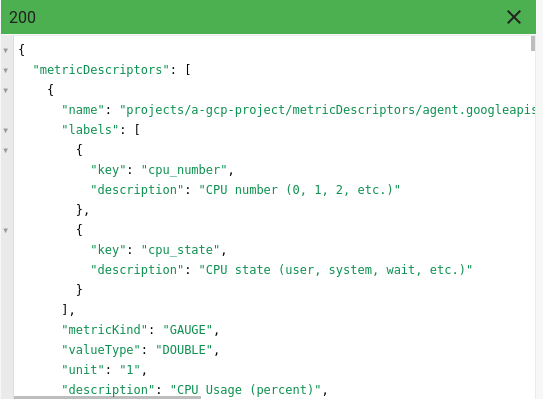
The results of the method invocation appear in a box which has a green or red
header. When the request succeeds, the box has a green header with the HTTP
status code `200` in it. The results of the invocation are in the box:
When the header is red, it contains an HTTP failure code, and the box contains
the error message. For information about resolving errors, see
[Troubleshoot](https://docs.cloud.google.com/monitoring/api/apis-explorer#api-explorer-tips).
> [!NOTE]
> **Note:** After you configure the APIs Explorer and then click **Execute**, the page URL changes. You can bookmark the updated URL. When you want to run the method again, click the bookmark to open the page with the form already populated with your previous selections.
## Supply additional parameters
The list of parameters you see depends on the method to which the
APIs Explorer widget is attached. For example, the
`metricDescriptors.list` method has more than the **name** parameter,
but **name** is the only required parameter.
When you provide only the project name, you get all the metric descriptors
available in your project, and there are many of them. To restrict
the retrieval to a smaller set, use the **filter** parameter.
For example, to list only those metrics types whose name ends with
`utilization`, do the following:
1. Click [Try It!](https://docs.cloud.google.com/monitoring/api/ref_v3/rest/v3/projects.metricDescriptors/list?apix_params=%7B%22name%22:%22projects/%5BPROJECT_ID%5D%22,%22filter%22:%22metric.type%3Dends_with(%5C%22utilization%5C%22)%22%7D)
2. In the **name** parameter, enter your project's ID using the format
`projects/PROJECT_ID`. Be sure to replace PROJECT_ID with
your project's ID.
3. Ensure the **filter** parameter has the value
`metric.type=ends_with("utilization")`
4. Click **Execute** and complete the authorization dialogs.
## Standard parameters
By default, the set of parameters that APIs Explorer shows corresponds to
the parameters of the associated method. However, the APIs Explorer widget
also has a set of extra parameters that aren't part of the method itself. To
display the extra parameters, click **Show standard parameters**:

To hide the extra parameters from the display, click
**Hide standard parameters**.
The most useful standard parameter is the **fields** parameter. This parameter
lets you select the fields in the returned output that you want to see.
For example, listing the descriptors for metrics ending with `utilization`
still returns many results. If you only want to know the
name of the metric type and its description, then you can specify this
restriction by using the **fields** parameter.
To see the result of setting the **fields** parameter, do the following:
1. Click [Try It!](https://docs.cloud.google.com/monitoring/api/ref_v3/rest/v3/projects.metricDescriptors/list?apix_params=%7B%22name%22:%22projects/%5BPROJECT_ID%5D%22,%22filter%22:%22metric.type%3Dends_with(%5C%22utilization%5C%22)%22,%22fields%22:%22metricDescriptors.type,metricDescriptors.description%22%7D)
2. In the **name** parameter, enter your project's ID using the format
`projects/PROJECT_ID`. Be sure to replace PROJECT_ID with
your project's ID.
3. Ensure the **filter** parameter has the value
`metric.type=ends_with("utilization")`
4. Click **Show standard parameters** , and verify the **fields** parameter
has the value `metricDescriptors.type,metricDescriptors.description`
5. Click **Execute** and complete the authorization dialogs.
Executing this request returns only the `type` (short name) of each metric
and its `description`.
## Troubleshoot
This section describes common issues when using APIs Explorer.
For more information about using the Cloud Monitoring API, see [Troubleshooting the Cloud Monitoring API](https://docs.cloud.google.com/monitoring/api/troubleshooting).
### Invalid filter syntax
You copy a multi-line expression and paste it into a field shown in
APIs Explorer, but APIs Explorer displays an error message.
Yes: Ensure that strings are on a single
line.
```
"query": "sum by (instance_name) (rate({\"compute.googleapis.com/instance/disk/read_bytes_count\", monitored_resource=\"gce_instance\"}[5m]))"
```
No: Copy and paste line-continuation or
new-line characters.
### Invalid project identifier
If the project identifier is invalid, then the API request
fails with an HTTP error of 400.
To resolve this condition, verify that the text PROJECT_ID was replaced
with your project's ID.
### Invalid form values
If your API request fails or returns unexpected values, then check all
form parameters.
The APIs Explorer parameters require specific formatting. Formatting
mistakes might cause errors or they might be accepted but be treated like
spelling errors in the API method:
- Don't use quotation marks around parameter values of any type.
- Don't use backslashes except when you need to protect a substring.
For example, the following sample is for an API method where you enter
the content as JSON, instead of completing individual form parameters.
Because the value for `filter` is a string, the substring,
`k8s_cluster`, is protected by backslashes:
```
{
"resourceNames": [...],
"filter": "resource.type = \"k8s_cluster\""
}
```
- Quote strings appearing inside filters. Use double quotation marks (`"`) and not apostrophes (`'`). For an example, see [Supply additional parameters](https://docs.cloud.google.com/monitoring/api/apis-explorer#apix-optional-params).
- Don't use URL-encoding in the form. If an API method requires URL-encoding, then the widget performs the conversion when you execute the method.
### Too much data is returned
To limit the number of results returned, in the **pageSize** parameter,
enter a value, such as `2`. The **pageSize** parameter defines the maximum
number of results that are returned, and is available for most API methods.
To select specific fields to return, use the **fields** parameter. For
more information, see [Standard parameters](https://docs.cloud.google.com/monitoring/api/apis-explorer#apix-fields-param).
## Authentication
There is a **Credentials** section on the APIs Explorer page. We
recommend that you leave these fields at default values.
The default authentication mechanism is Google OAuth 2.0.
To find out which API scopes that are required for the method,
click **Show scopes**. By default, all necessary scopes are granted.
For more information about these concepts, see
[Control access with Identity and Access Management](https://docs.cloud.google.com/monitoring/access-control).