The Google Cloud console lets you view, list, edit, copy, and delete your alerting
policies in Cloud Monitoring. You can also associate an alerting policy with
an [App Hub](https://docs.cloud.google.com/app-hub/docs/overview) application and view or download the JSON
representation of an alerting policy. To view your alerting policies in the
same context as your metric data, you can add them to a custom dashboard.
To manage your alerting policies by using the Cloud Monitoring API, see
[Manage alerting policies by API](https://docs.cloud.google.com/monitoring/alerts/using-alerting-api).
This feature is supported only for Google Cloud projects.
For [App Hub](https://docs.cloud.google.com/app-hub/docs/overview)
configurations, select the App Hub host project or management project.
## Before you begin
Complete the following in the Google Cloud project that stores your alerting
policies:
1.
To get the permissions that
you need to create and modify alerting policies by using the Google Cloud console,
ask your administrator to grant you the
[Monitoring Editor](https://docs.cloud.google.com/iam/docs/roles-permissions/monitoring#monitoring.editor) (`roles/monitoring.editor`) IAM role on your project.
For more information about granting roles, see [Manage access to projects, folders, and organizations](https://docs.cloud.google.com/iam/docs/granting-changing-revoking-access).
You might also be able to get
the required permissions through [custom
roles](https://docs.cloud.google.com/iam/docs/creating-custom-roles) or other [predefined
roles](https://docs.cloud.google.com/iam/docs/roles-overview#predefined).
For more information about Cloud Monitoring roles,
see [Control access with Identity and Access Management](https://docs.cloud.google.com/monitoring/access-control).
2. Verify that you're familiar with the general concepts of alerting policies.
For more information, see [Alerting overview](https://docs.cloud.google.com/monitoring/alerts).
## Edit, list, or delete alerting policies
> [!CAUTION]
> **Caution:** If you're working with Google Cloud support to investigate the cause of an alert, then don't modify the associated alerting policy. Modifying an alerting policy causes the system to discard the precomputed data that the system uses to determine when to create an alert. Discarding this data results in the loss of the historical record of the alert.
1. In the Google Cloud console, go to the
**Alerting** page:
[Go to **Alerting**](https://console.cloud.google.com/monitoring/alerting)
If you use the search bar to find this page, then select the result whose subheading is
**Monitoring**.
The **Alerting** page displays panes that list summary information,
alerts, and alerting policies.
2. In the toolbar of the Google Cloud console,
select your Google Cloud project. For [App Hub](https://docs.cloud.google.com/app-hub/docs/overview)
configurations, select the App Hub host project or management project.
3. Click **See all policies** in the **Policies** pane.
The **Policies** page includes a list of all policies, a filter bar, and
options to edit, copy, or delete each policy:
- To filter the list of alerting policies, do one of the following:
- Enter a name on the filter bar. For example, to display only policies whose name contains `Example`, enter `Example`. A case-sensitive comparison tests whether a policy is listed.
- Click **Filter policies**, select the filter property, and then either enter a value for the filter or select a value from the menu.
When you add multiple filters, a logical `AND` joins the filters.
4. Optional: To view the details of a policy, click the name of the policy.
For information about the **Policy details** page, see
[View an alerting policy](https://docs.cloud.google.com/monitoring/alerts/manage-alerts#view-details).
5. Optional: To edit or copy a policy,
click **More options** ,
and select the corresponding option.
Editing and copying a policy is similar to
[creating a metric-based alerting policy](https://docs.cloud.google.com/monitoring/alerts/using-alerting-ui). However,
not all fields can be modified.
When done, click **Save policy**.
6. Optional: To delete a policy,
click **More options**
and select **Delete** . In the confirmation dialog, select **Delete**.
If a dashboard contains a chart that displays data for an alerting policy,
then that chart stops displaying data when the alerting policy is deleted.
For more information, see
[Alerting policy widget doesn't display any data](https://docs.cloud.google.com/monitoring/charts/troubleshooting-charts#no-data-alert-chart).
## View an alerting policy
1. In the Google Cloud console, go to the
**Alerting** page:
[Go to **Alerting**](https://console.cloud.google.com/monitoring/alerting)
If you use the search bar to find this page, then select the result whose subheading is
**Monitoring**.
2. In the toolbar of the Google Cloud console,
select your Google Cloud project. For [App Hub](https://docs.cloud.google.com/app-hub/docs/overview)
configurations, select the App Hub host project or management project.
3. To list all policies, click **See all policies**
in the **Policies** pane.
4. Find the policy that you want to view, and then select it.
The details page for the alerting policy opens. Here, you can monitor or edit
your policy and view related data, such as alerts and notifications.
Additionally, you can do the following:
- Modify the time range for the data shown in the chart. Charts have limited
resolution and might not show every measurement for some time ranges.
- Edit your alert to add user-defined labels, which will be included in your
alerts and notifications. For more information, see
[Annotate alerts with labels](https://docs.cloud.google.com/monitoring/alerts/labels).
- Change the enabled state of the policy. When a policy is disabled, you won't
get notifications.
> [!NOTE]
> **Note:** A re-enabled policy might trigger immediately. For more information, see [Notifications for disabled alerting policies](https://docs.cloud.google.com/monitoring/alerts/concepts-indepth#disabled-policies).
## View the JSON representation of an alerting policy
When you create or modify an alerting policy by using the Cloud Monitoring API,
you provide a JSON representation of that policy to the API method. You can
create the JSON yourself by using the API documentation to guide
the content. An alternative is to create a policy by using
the Google Cloud console, and then download the policy to your local system.
The JSON file that you downloaded can be edited and used as a template for other
policies. For examples of policies described by JSON, see
[Sample policies](https://docs.cloud.google.com/monitoring/alerts/policies-in-json).
To download the JSON representation of an alerting policy,
do the following:
1. In the Google Cloud console, go to the
**Alerting** page:
[Go to **Alerting**](https://console.cloud.google.com/monitoring/alerting)
If you use the search bar to find this page, then select the result whose subheading is
**Monitoring**.
2. In the toolbar of the Google Cloud console, select your Google Cloud project. For [App Hub](https://docs.cloud.google.com/app-hub/docs/overview) configurations, select the App Hub host project or management project.
3. Find the policy that you want to view, and then click the policy name to open the **Policy details** page.
4. Click **JSON**.
To view the JSON representation of an alerting policy when you're editing it,
click ****View code****.
## Add alerting policy to dashboard
To view your alerting policies in the same context as your metric data,
add those policies to a [custom dashboard](https://docs.cloud.google.com/monitoring/charts/dashboards).
When you view that dashboard, it
shows a chart for each alerting policy that you added. These charts display
the monitored metric, the threshold, and the number of open alerts
for the policy. These charts also contain links that let you view or edit
the policy.
You can add policies with one condition to custom dashboards. Policies that
contain multiple conditions can be viewed only from the alerting context.
To display a summary of an alerting policy on a custom dashboard,
do the following:
1. In the Google Cloud console, go to the **Dashboards** page:
[Go to **Dashboards**](https://console.cloud.google.com/monitoring/dashboards)
If you use the search bar to find this page, then select the result whose subheading is
**Monitoring**.
2. In the toolbar of the Google Cloud console, select your Google Cloud project. For [App Hub](https://docs.cloud.google.com/app-hub/docs/overview) configurations, select the App Hub host project or management project.
3. Select a dashboard or click **Create dashboard**.
4. In the toolbar, click **Add widget**.
5. In the **Add widget** dialog, select **Alert Policy**.
6. Click **Alert policy** , and then select an alerting policy. Only single-condition alerting policies can be selected from the **Alert policy** menu.
7. To apply your changes to the dashboard, in the toolbar, click **Apply** . To discard your changes, click **Cancel**.
The following screenshot illustrates a chart for an alerting policy:

In this example, the alerting policy is monitoring the CPU usage of two
different virtual machines. The dashed line shows the condition threshold,
which is set to 50%. The green chip with the label `No alerts`
indicates that there are no open alerts for the alerting policy. If
you place your pointer on the chip that shows the number of open
alerts, then a dialog opens that links to the underlying alerting
policy.
For more information, see
[Display alerting policies and alerts on a dashboard](https://docs.cloud.google.com/monitoring/dashboards/alerts-and-incidents).
## Associate an alerting policy with an App Hub application
By adding user-defined labels to an alerting policy, you can associate it
with a service or workload that is part of an
[App Hub](https://docs.cloud.google.com/app-hub/docs/overview) application. These labels are included in
alerts and notifications, and the alerting policy is also listed in the
Application Monitoring dashboards. To learn more about labels, see
[Annotate alerts with labels](https://docs.cloud.google.com/monitoring/alerts/labels).
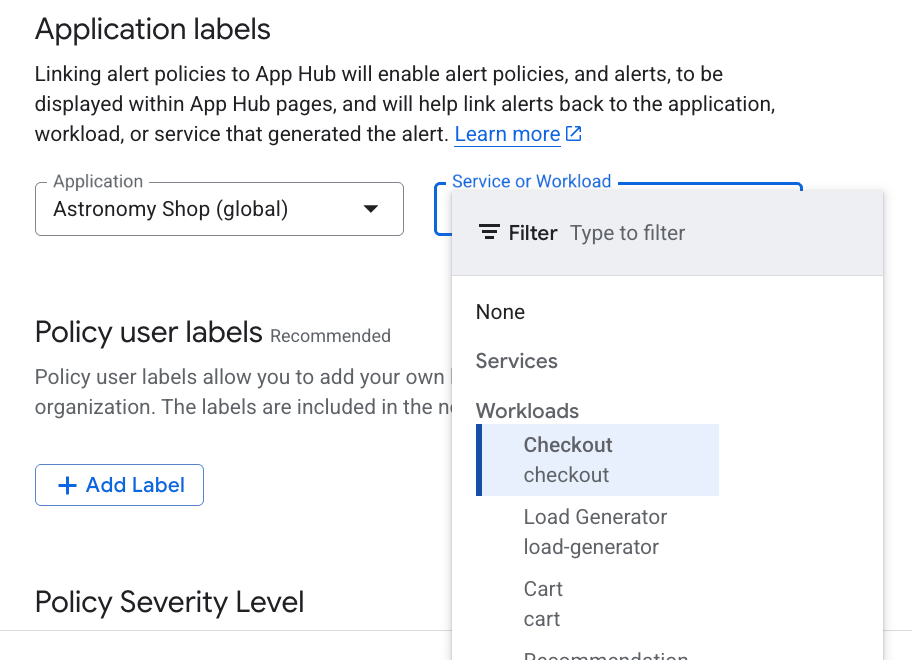
To associate an alerting policy with a workload or service by using
the Google Cloud console, do the following:
1. In the Google Cloud console, go to the
**Alerting** page:
[Go to **Alerting**](https://console.cloud.google.com/monitoring/alerting)
If you use the search bar to find this page, then select the result whose subheading is
**Monitoring**.
2. In the toolbar of the Google Cloud console, select your Google Cloud project. For [App Hub](https://docs.cloud.google.com/app-hub/docs/overview) configurations, select the App Hub host project or management project.
3. Find the alerting policy, click **View more** , select **Edit** , and then go to the **Notifications and name** section.
4. In the **Application labels** section, select your application and
then select your service or workload:
5. Click **Save policy**.
After you complete these steps, labels with the following keys are attached to
your alerting policy. These labels identify your application and your service or
workload:
- `apphub_application_location`
- `apphub_application_id`
- `apphub_service_id` or `apphub_workload_id`
You can also add user labels to an alerting policy by using the
Google Cloud CLI, Terraform, or the Cloud Monitoring API.
However, you must use the label keys shown in the previous example.
For more information, see the following:
- [Manage alerting policies by API](https://docs.cloud.google.com/monitoring/alerts/using-alerting-api#api-update-policy).
- [Manage alerting policies with Terraform](https://docs.cloud.google.com/monitoring/alerts/manage-alerts-terraform).