Migrate to Virtual Machines lets you migrate ([*lift and shift*](https://docs.cloud.google.com/architecture/migration-to-gcp-getting-started#rehost_lift_and_shift)) your virtual machines
(VMs), with minor automatic modifications, from your source environment to
Compute Engine. Migrate to Virtual Machines uses data replication technology which
continuously replicates disk data from the source VMs to Google Cloud
without causing any downtime on the source. You then create VM clones from
replicated data for testing and perform predictable VM cut-over to your final
workloads running on Google Cloud.
Data replication allows Migrate to Virtual Machines to perform an initial replication
of the data from the source VM so that you can quickly clone and test a migrated
VM. However, because the source VM continues to run during the migration process,
including during testing, Migrate to Virtual Machines continues to replicate data
until you perform the final cut-over to your migrated VM.
The VMs that you create during the migration process are called migrating VMs,
and they exist in various states during and after a migration. For information
on the lifecycle of a migrating VM, including expiration timelines, see
[Lifecycle of a migration VM](https://docs.cloud.google.com/migrate/virtual-machines/docs/5.0/migrate/manage-migrating-vm).
Migrate to Virtual Machines is fully integrated into the Google Cloud console,
which means you can perform all migration tasks within the [Google Cloud console](https://console.cloud.google.com/) UI.
## About the migration process
Migrate to Virtual Machines provides a path for you to migrate your VMs to
Compute Engine. The migration process occurs in the following distinct phases:
- **Onboard**: Select a source VM that you want to migrate.
- **Replication**: Replicate data from the source VM to Google Cloud.
Data replication is a continuous process that takes place in the background
until the final cut-over or you delete the migration.
- **Set VM target details**: Configure Compute Engine settings for the
migrated VM, such as the project, instance type, memory, network, and more.
- **Test-clone**: Optionally create a Compute Engine clone of the source VM
from the replication data and test it on Google Cloud.
- **Cut-over**: Migrate the source VM to Compute Engine. This process
includes stopping the source VM, completing a final replication, and
creating the production Compute Engine instance from the source VM.
- **Finalize**: Perform any final cleanup after a successful migration.
The following image shows these phases:
[](https://docs.cloud.google.com/migrate/virtual-machines/docs/5.0/images/phases.svg)
Each of these phases is described in more detail in the following sections.
### Onboarding phase
The first phase of migration is the onboarding phase where you select the VMs to
migrate:
[](https://docs.cloud.google.com/migrate/virtual-machines/docs/5.0/images/onboard-phase.svg)
For example, for a vSphere data center, the [Google Cloud console](https://console.cloud.google.com/compute/mfce)
shows you all VMs on the data center. Select only the VMs that you want to
migrate to onboard the VMs.
### Replication phase
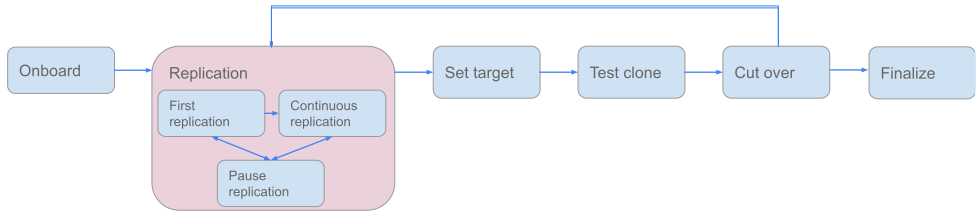
After onboarding a VM, start replication of disk data from the source VM to
Google Cloud. The source VM continues to run during replication:
[](https://docs.cloud.google.com/migrate/virtual-machines/docs/5.0/images/replication-phase.svg)
Data replication is a continuous process that takes place in the background with
minimal impact on the source VM.
Data replication is comprised of two steps:
1. **First replication step**: Migrate to Virtual Machines creates the initial
snapshot of the source VM data disks and replicates the snapshot data to
Google Cloud. Depending on the amount of disk data on the source VM,
the first replication can take minutes or hours to complete.
2. **Incremental replication step**: Following a successful first replication
step, incremental replication steps occur at set time intervals (every two
hours by default). In each step, a new snapshot is created for each data disk.
Only data updates that occurred after the previous step are replicated to
Google Cloud using the Change Block Tracking (CBT) mechanism.
Once you start replicating the source VM, replication continues until you delete
the migration.
At any time, you can pause replication for a VM. For example, you might pause
replication on one or more VMs to minimize network resources or to set a higher
priority to those migrating VMs which are not paused. You can then resume
replication at a later time.
#### OS adaptations
To function properly on Google Cloud, migrated VMs might need changes to
their configuration. This process is called *OS adaptation*. The operating system
(OS) adaptation process is performed at the completion of each replication step
to prepare the VM to run in Google Cloud.
For example, Migrate to Virtual Machines adapts network configurations, deploys the
Compute Engine agent, and enables the serial console on the migrated VM.
See [OS adaptations](https://docs.cloud.google.com/migrate/virtual-machines/docs/5.0/resources/vm-adaptations)
for more, including the specific adaptations applied to Linux and Windows VMs.
### Set target details
After you initiate data replication, set the Compute Engine target environment
on Google Cloud for the migrated VM:
[](https://docs.cloud.google.com/migrate/virtual-machines/docs/5.0/images/set-target-phase.svg)
The Compute Engine target details define the landing zone for a migrated VM on
Google Cloud. These details include the project, instance type, network
setting, and more. Migrate to Virtual Machines then creates the Compute Engine
instance to host the migrated VM using the target details.
You can modify the target details at any time. When instantiating a
Compute Engine instance for either the test-clone or cut-over phase,
Migrate to Virtual Machines uses the target details settings at the time of the
operation.
### Test-clone phase
At any time after the initial replication step of the disk data from the source
VM completes, you can clone the source VM to a Compute Engine instance for
testing:
[](https://docs.cloud.google.com/migrate/virtual-machines/docs/5.0/images/test-clone-phase.svg)
You often create test-clones throughout your migration process as you make
modifications to the source VM or the target details. Remember that a test-clone
is a static snapshot of the source VM created from the current replication data
and target details. New replication data and modifications to the target details
are only applied to **new** test-clones, not to existing test-clones.
While not required, creating a test-clone of the VM before deploying to
production is highly recommended. Testing is a critical phase of the migration
process to ensure that your migrated VM functions correctly in Google Cloud.
If you decide to create a test-clone from the source VM, Migrate to Virtual Machines
creates a Compute Engine instance from the latest replication data using the
target details.
**Note**: The source VM continues to run during the testing phase, which means
data replication also continues.
Because the source VM continues to run during the testing phase, you have to
ensure that you perform your testing in a sandbox environment that isolates the
testing VM from the original source VM.
Once the test VM is up and running, you can verify that the test VM is working
as expected and document any changes required to allow the VM to function in
Google Cloud. When testing completes, you typically delete the testing
Compute Engine instance and create a production Compute Engine instance
as part of the cut-over phase.
### Cut-over phase
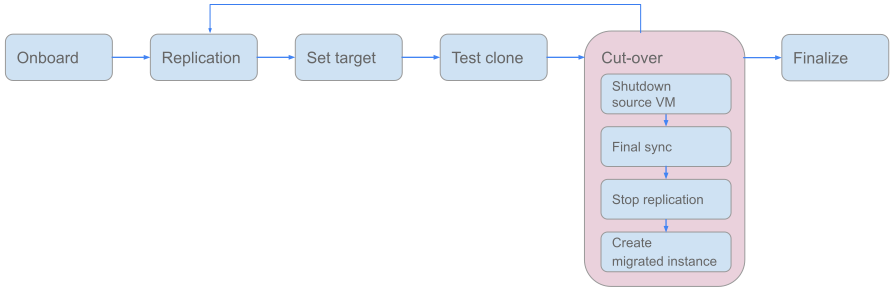
In the cut-over phase, the source VM is stopped by Migrate to Virtual Machines,
replication is finalized, and a new VM instance is created on Compute Engine
on Google Cloud:
[](https://docs.cloud.google.com/migrate/virtual-machines/docs/5.0/images/cut-over-phase.svg)
You should only perform the cut-over after you have performed all validations
during the recommended testing phase.
The cut-over phase includes a short VM downtime and should take place during
a scheduled maintenance window. You must first determine the maintenance window
during which you can stop the source VM and redirect traffic to the migrated VM
running on Compute Engine.
Initiating a cut-over on a migrating VM starts the following sequence of actions
performed by Migrate to Virtual Machines:
1. Shutdown the source VM.
2. Perform the final data replication. Because replication occurs throughout all
migration phases, the amount of data to replicate shouldn't be very large.
If a replication is in progress, then it is completed. If no replication is
in progress, then perform a final replication.
3. Stop replication.
4. Create the Compute Engine instance from the final replicated data.
After cut-over, perform your final validations on the migrated VM.
The cut-over results determine your next actions:
- **Cut-over failed**: For some reason, cutover to the new VM instance on
Compute Engine failed, possibly due to a network issue or other issue. At
this point, the source VM is stopped, and the final replication data is
still valid. Retry cut-over to see if the retry clears up the error.
- **Cut-over succeeded but the new VM instance is not functioning correctly**:
If the new VM instance on Compute Engine is not functioning correctly,
delete the Compute Engine VM, and start the source VM. This process is
called "rollback".
Because of the complexity of rolling back a migration, roll back is not an
automated process. If you have to perform a rollback, you have to ensure
that you redirect traffic back to the source VM. Also, note any data written
on the Compute Engine instance is not pushed back to the original source
VM.
With the source VM functioning again, you can diagnose and resolve the
migration error. After the error has been resolved, you can restart
replication and then retry the migration.
- **Cut-over succeeded, and the new VM instance is working correctly**:
If your validation results determine that the new VM is working correctly,
your migration is complete.
### Finalize phase
Following a successful cut-over, you *finalize* the migration. Performing
finalize deletes all replication data and all other storage resources associated
with the migrated VM, and changes the state of the VM to **Finalized**.
Finalize can be performed only on VMs in the **Cut-Over** state:
[](https://docs.cloud.google.com/migrate/virtual-machines/docs/5.0/images/finalize-phase.svg)
The replication data used to create the Compute Engine VM is retained after
cut-over. That means you can use that data to create additional instances of
your migrated VM after cut-over. However, you eventually want to free up the
storage in the finalize phase.
> [!NOTE]
> **Note:** You are charged for the storage used by the replication data until you delete it in the finalize phase.
After you perform finalize, the only allowed operations on the migration are:
- Delete the migration
- Add to or remove from a group
> [!NOTE]
> **Note:** Finalize does not delete Compute Engine instances running a migrated VM. If you created Compute Engine instances during the testing phase, you must manually delete them. You will be charged for those test-clone instances until they are deleted.
## What's next
- [Migrate to Virtual Machines Architecture](https://docs.cloud.google.com/migrate/virtual-machines/docs/5.0/discover/architecture)