Migrate to Virtual Machines lets you migrate VMs and disks of VMs from the
following four migration sources to Google Cloud:
- vSphere data center (on-premises)
- AWS cloud service
- Azure cloud service
- Google Cloud VMware Engine
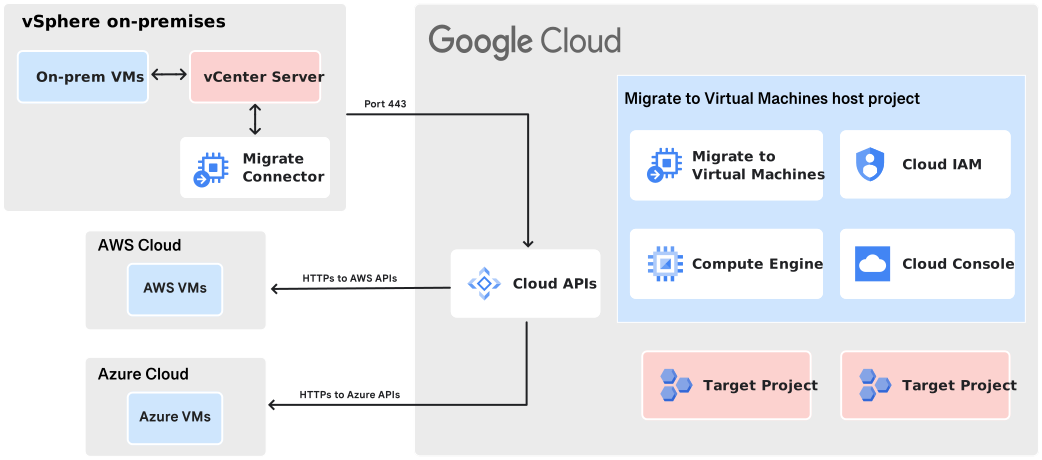
The following diagram shows the architecture for migrating VMs and disks of VMs
from various migration sources to Google Cloud:
[](https://docs.cloud.google.com/migrate/virtual-machines/docs/5.0/images/m2vm_architecture.svg)
## About Google Cloud projects
[Google Cloud projects](https://docs.cloud.google.com/resource-manager/docs/creating-managing-projects)
form the basis for creating, enabling, and using Google Cloud services
including managing APIs, enabling billing, adding and removing collaborators,
and managing permissions for Google Cloud resources.
### Google Cloud console
[Google Cloud console](https://console.cloud.google.com/) is the graphical user interface for Google Cloud.
Use the Google Cloud console to manage all aspects of migration, access monitoring
and logging data, and to configure authentication and authorization.
### Cloud IAM
[Identity and Access Management (IAM)](https://docs.cloud.google.com/compute/docs/access) lets you control
access to specific Google Cloud resources and prevents unwanted access to
your resources. To give users the ability to create and manage your
Compute Engine resources, you can add users as team members to your project or
to specific resources and grant them permissions using IAM roles.
## Migration sources and targets
A migration is defined by:
- The *migration source*: An on-premises data center or cloud service hosting
the VMs or VM disks that you want to migrate. You can define multiple sources
on a host project.
- The *migration target*: A Compute Engine VM or Persistent Disk volumes
on Google Cloud.
- The *host* project: The project you use to control the migration process is
referred to as your *host* project. Within your host project, you enable the
Migrate to Virtual Machines service and any other services required by
Migrate to Virtual Machines. Once enabled, you can begin migrating source VMs
from the host project, to your migration targets.
- The *target* project: The project that hosts the migration target. You can
have multiple target projects to which you can migrate your VMs.
### Migration sources
Migrate to Virtual Machines lets you to migrate VMs from the following four
migration sources:
- vSphere data center: Migrate on-premises VMs from the vSphere data center to Google Cloud.
- VMware Engine data center: Migrate VMs from the VMware Engine data center to Compute Engine.
- AWS Cloud service: Migrate your EC2 instances from your AWS account to Google Cloud.
- Azure Cloud service: Migrate your VM instances from your Azure account to Google Cloud.
### Migration targets
A *migration target* is defined as the following:
- For [VM migration](https://docs.cloud.google.com/migrate/virtual-machines/docs/5.0/migrate/migrating-vms), the *migration target* is an instance of Compute Engine running on Google Cloud.
- For [disk migration](https://docs.cloud.google.com/migrate/virtual-machines/docs/5.0/migrate/migrating-disks), the *migration target* are Persistent Disk volumes running on Google Cloud.
The project that contains the *migration target* is called the *target* project.
You can use your host project as a target project, or you can migrate to
additional projects. For more information, see [Adding a target project](https://docs.cloud.google.com/migrate/virtual-machines/docs/5.0/get-started/target-project).
Use multiple target projects to isolate migrated VMs or disks from each other.
For example, it is recommended to isolate a Compute Engine VM used for
testing from those used for production. You can use projects and VPCs to create
sandbox environments for testing that are separate from your production
environments. For more information, see
[Decide a resource hierarchy for your Google Cloud landing zone](https://docs.cloud.google.com/architecture/landing-zones/decide-resource-hierarchy).
You can also use the [Deployment Manager](https://docs.cloud.google.com/deployment-manager/docs/fundamentals)
to deploy migrated VMs or VM disks to production across multiple projects.
See [Using Images from Other Projects](https://docs.cloud.google.com/deployment-manager/docs/configuration/using-images-from-other-projects-for-vm-instances) for more.
Along with the Migrate to Virtual Machines services, you also use the following
Google Cloud services when performing a migration.
#### Compute Engine
[Compute Engine](https://docs.cloud.google.com/compute/docs) lets you create and run VMs on
Google Cloud. Compute Engine offers scale, performance, and value
that lets you launch large compute clusters on Google's infrastructure.
As part of defining the migration target, you set the project of the
Compute Engine VM. The characteristics of the target Compute Engine
instance are based on the requirements of the migrated VM. You can customize the
Compute Engine VM to specify:
- Google Cloud project
- Number of CPUs
- Amount of memory
- Disk type
- Network configuration
- many other options
You might have different requirements on the target Compute Engine VM
based on whether the instance is being used for testing a migrated VM or being
used in a production environment. For example, you might test the migrated VM in
a single Compute Engine VM with 2 CPUs and 8 GB of RAM. Then, when
you move to a production environment, you define target Compute Engine
instances with different characteristics, such as 4 or 8 CPUs, and 16 GB of
RAM.
#### Persistent Disk
[Persistent Disk](https://docs.cloud.google.com/compute/docs/disks#pdspecs) are durable network storage
devices that your Compute Engine VMs can access like physical disks in a
desktop or a server. The data on each persistent disk is distributed across
several physical disks. Compute Engine manages the physical disks and the data
distribution for you to ensure redundancy and optimal performance.
## What's next
- [VM Migration lifecycle](https://docs.cloud.google.com/migrate/virtual-machines/docs/5.0/discover/lifecycle)
- [Migrate from a VMware source](https://docs.cloud.google.com/migrate/virtual-machines/docs/5.0/migrate/create-a-vmware-source)
- [Migrate from an AWS source](https://docs.cloud.google.com/migrate/virtual-machines/docs/5.0/migrate/create-an-aws-source)
- [Migrate from an Azure source](https://docs.cloud.google.com/migrate/virtual-machines/docs/5.0/migrate/create-an-azure-source)