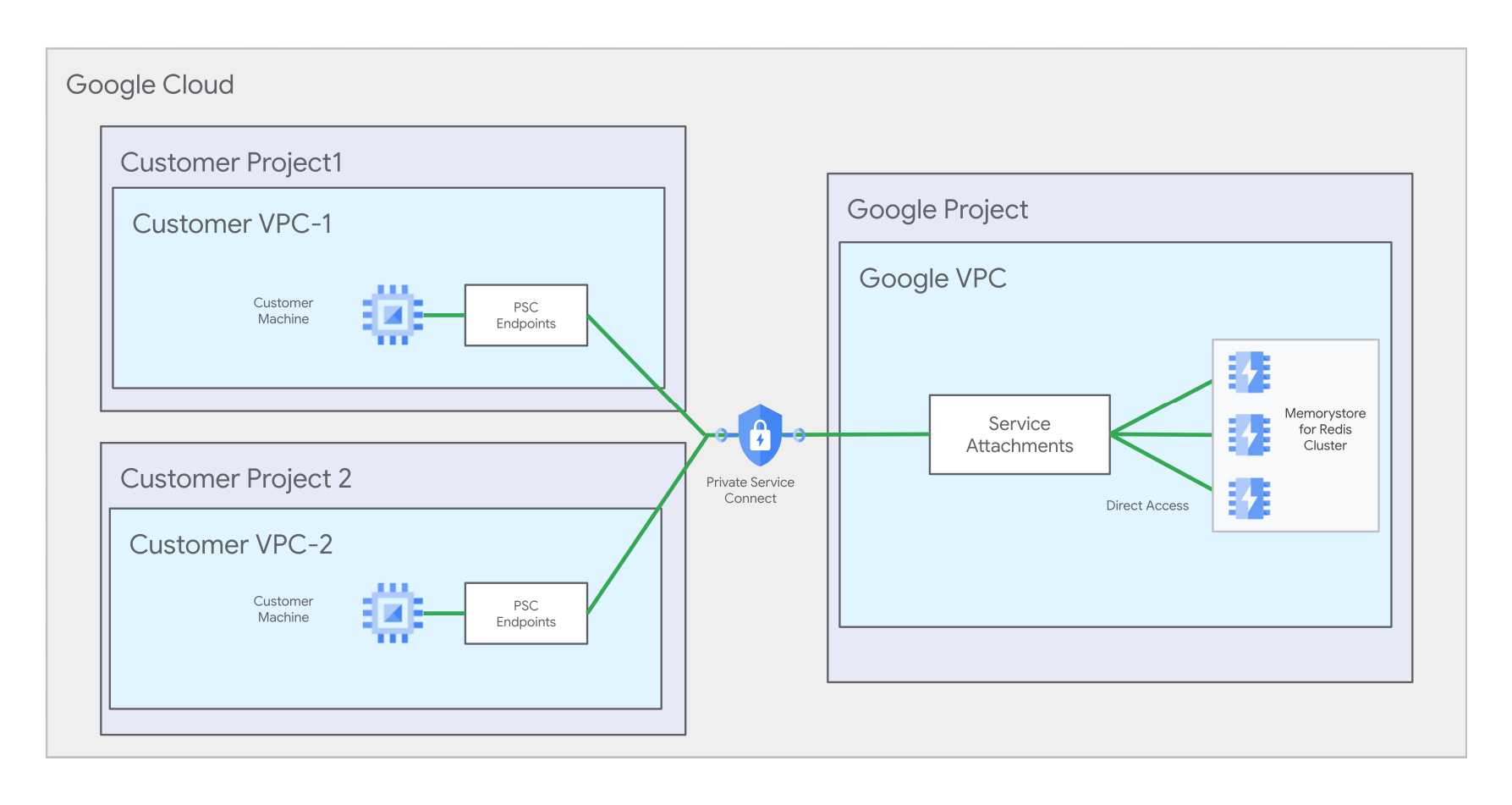
This page explains how to set up connectivity for multiple Virtual Private Cloud (VPC)
networks for an existing Memorystore for Redis Cluster instance that already has some
[automatically registered Private Service Connect connections](https://docs.cloud.google.com/memorystore/docs/cluster/about-multiple-vpc-networking.md.txt#psc_connection_types). This tutorial shows you how
to do this by creating Private Service Connect endpoints in a consumer
network, targeting the service attachments of you Memorystore
instance, and registering the components with the instance. This page also
explains how to connect your client to the instance through
Private Service Connect connections.
For instructions on how to set up multiple VPC networking for a new
Memorystore that is not provisioned with automatically registered Private Service Connect connections, see [Set up multiple VPC networks using user-registered Private Service Connect connections](https://docs.cloud.google.com/memorystore/docs/cluster/multiple-vpcs-user-registered-psc-connection.md.txt).
For more information about multiple VPC network setups, see
[About multiple VPC networking](https://docs.cloud.google.com/memorystore/docs/cluster/about-multiple-vpc-networking.md.txt).
## Summary of key steps
This section gives a summary list of the key steps in this tutorial for setting
up your new Private Service Connect connection. First, you should
prepare to follow this tutorial by completing the steps in the [Before you begin](https://docs.cloud.google.com/memorystore/docs/cluster/multiple-vpcs-automatically-registered-psc-connection.md.txt#before_you_begin) section.
> [!NOTE]
> **Note:** The sample commands on this page are [`gcloud CLI`](https://docs.cloud.google.com/sdk/gcloud/reference/memorystore) commands. To find instructions and examples of using Terraform to perform these tasks, see the [google_redis_cluster_user_created_connections](https://registry.terraform.io/providers/hashicorp/google/latest/docs/resources/redis_cluster_user_created_connections) page.
### Key steps
1. [Step 1: Note the service attachment paths](https://docs.cloud.google.com/memorystore/docs/cluster/multiple-vpcs-automatically-registered-psc-connection.md.txt#step_1_note_the_service_attachment_paths)
2. [Step 2: Set up and register Private Service Connect connections for your second VPC network](https://docs.cloud.google.com/memorystore/docs/cluster/multiple-vpcs-automatically-registered-psc-connection.md.txt#step_2_set_up_and_register_psc_connections_for_your_second_vpc_network)
3. [Step 3: Set up a client connection](https://docs.cloud.google.com/memorystore/docs/cluster/multiple-vpcs-automatically-registered-psc-connection.md.txt#step_3_set_up_a_client_connection)
Additionally, you can also:
- [Delete your Private Service Connect connections](https://docs.cloud.google.com/memorystore/docs/cluster/multiple-vpcs-automatically-registered-psc-connection.md.txt#delete_your_psc_connections)
- [Delete your Memorystore for Redis Cluster instance](https://docs.cloud.google.com/memorystore/docs/cluster/multiple-vpcs-automatically-registered-psc-connection.md.txt#delete_your_memorystore_for_redis_cluster_instance)
## Before you begin
Before you begin, ensure that you have the following IAM roles
and Google Cloud resources.
> [!CAUTION]
> **Important** : To use multiple VPC networking with Memorystore for Redis Cluster, your cluster must run a maintenance version of at least `REDISCLUSTER_20251210_02_00`. If your cluster runs an older maintenance version, then you must perform a self-service update before you can add or use multiple connections. For more information about updating your cluster to a newer maintenance version, see [Self-service maintenance](https://docs.cloud.google.com/memorystore/docs/cluster/self-service-maintenance.md.txt).
### Required IAM roles
| Example resource ID | Resource type |
|---|---|
| [`roles/redis.admin`](https://docs.cloud.google.com/memorystore/docs/cluster/access-control.md.txt#predefined_roles) | Provides full control of a Memorystore for Redis Cluster instance and controls the instance over its lifecycle. |
| [`roles/servicedirectory.editor`](https://docs.cloud.google.com/service-directory/docs/access-control.md.txt) | Grants you permission to edit Service Directory resources. This role is needed for creating a Private Service Connect endpoint. |
| [`roles/compute.networkAdmin`](https://docs.cloud.google.com/compute/docs/access/iam.md.txt#compute.networkAdmin) | Grants full control over the VPC network that initiates a connection to a Memorystore instance. You can create and manage IP addresses, firewall rules, and [Private Service Connect endpoints](https://docs.cloud.google.com/vpc/docs/about-accessing-vpc-hosted-services-endpoints.md.txt). This role is needed for creating a Private Service Connect endpoint. If you use Private Service Connect to connect to a Memorystore instance from multiple VPC networks, then each network may have its own administrator. |
### Prerequisite resources
You need to create the following resources before you begin this tutorial. We
recommend creating the resources with the following IDs and locations, however
you can also choose your own IDs and locations. This tutorial assumes you [Created a Memorystore instance](https://docs.cloud.google.com/memorystore/docs/cluster/create-instances.md.txt)
that has two automatically registered Private Service Connect
connections.
| Example resource ID | Resource type | Example full path | Description |
|---|---|---|---|
| `my-memorystore-instance` | Memorystore for Redis Cluster instance | n/a | For the example commands in this tutorial, this value represents your existing instance that already has an automatically registered Private Service Connect connection in network 1. |
| `my-network-1` | VPC network | `projects/my-project-1/global/networks/my-network-1` | Your Memorystore has an automatically registered Private Service Connect connection on this network |
| `my-project-1` | Google Cloud project | n/a | Your Memorystore instance is located in this project |
In this tutorial, you will use the following resources to create two
Private Service Connect connections in VPC network 2:
| Example resource ID | Resource type | Example full path | Description |
|---|---|---|---|
| `my-project-2` | Google Cloud project | n/a | For this tutorial, this is the project where you create the second network and second subnetwork. However, the second network and subnet can be in the same project as the first network, if you choose. |
| `my-network-2` | VPC network | `projects/my-project-2/global/networks/my-network-2` | In this tutorial, you create 2 Private Service Connect endpoints in this network |
| `my-subnet-2` | VPC subnet | `projects/my-project-2/regions/us-central1/subnetworks/my-subnet-2 ` | In this tutorial, you reserve 2 IP addresses in this subnet |
### Enable APIs
Enable the following APIs needed for managing Compute Engine networking,
Memorystore for Redis Cluster, and Private Service Connect resources.
### gcloud
To enable the APIs in project 2, run the following commands:
```
gcloud services enable --project=PROJECT_2_ID compute.googleapis.com
gcloud services enable --project=PROJECT_2_ID redis.googleapis.com
gcloud services enable --project=PROJECT_2_ID servicedirectory.googleapis.com
```
## Step 1: Note the service attachment paths
Make a note of the two service attachment URIs for your
Memorystore instance. You use these service attachment URIs to set
up new Private Service Connect connections.
### gcloud
To view summary information about an instance with
Private Service Connect enabled, look for the `pscServiceAttachments`
field. This field displays the two URIs that point to the service attachments
of the instance. To view this information, use the
`gcloud redis clusters describe` command:
```
gcloud redis clusters describe INSTANCE_ID --project=PROJECT_1_ID --region=REGION_ID
```
Replace the following:
- INSTANCE_ID is the name of your Memorystore instance.
- PROJECT_1_ID is the ID of Project 1 that contains the Memorystore instance.
- REGION_ID is the ID of the region where your Memorystore instance is located.
The following shows a sample output for this command:
```
gcloud redis clusters describe my-memorystore-instance \
--project=my-project-1 --region=us-central1
...
pscServiceAttachments:
- connectionType: CONNECTION_TYPE_DISCOVERY
serviceAttachment: projects/1048073346231/regions/us-central1/serviceAttachments/gcp-memorystore-auto-8d7d48ef-3ca3-4d-psc-sa
- serviceAttachment: projects/1048073346231/regions/us-central1/serviceAttachments/gcp-memorystore-auto-8d7d48ef-3ca3-4d-psc-sa-2
```
## Step 2: Set up and register Private Service Connect connections for your second VPC network
This section shows you how to set up the two
Private Service Connect connections required for your second VPC
network.
### Create the Private Service Connect endpoints for network 2
This section explains the actions you need to take to create 2
Private Service Connect endpoints in Network 2.
#### Reserve IP addresses for network 2
Next, reserve 2 IP addresses in network 2.
##### Reserve IP address 1
### gcloud
To reserve IP address 1, run the `gcloud compute addresses create` command:
```
gcloud compute addresses create IP_ADDRESS_1_ID \
--project=PROJECT_2_ID \
--addresses=IP_ADDRESS_1 \
--region=REGION_ID \
--subnet=projects/PROJECT_2_ID/regions/REGION_ID/subnetworks/SUBNET_2_ID \
--purpose=GCE_ENDPOINT
```
Replace the following:
- IP_ADDRESS_1_ID is the ID you give to your IP address.
- PROJECT_2_ID is the ID of project 2. This is the project where you create the second Virtual Private Cloud network and subnetwork.
- IP_ADDRESS_1 is an IP address of your choosing from within the `SUBNET_2_ID` range you reserved as a part of [Prerequisite resources](https://docs.cloud.google.com/memorystore/docs/cluster/multiple-vpcs-automatically-registered-psc-connection.md.txt#prerequisite_resources).
- REGION_ID is the region where your Memorystore instance is located.
- SUBNET_2_ID is the ID of the subnetwork you reserved on network 2 in project 2 as a part of [Prerequisite resources](https://docs.cloud.google.com/memorystore/docs/cluster/multiple-vpcs-automatically-registered-psc-connection.md.txt#prerequisite_resources).
For example:
```
gcloud compute addresses create my-ip-address-1 \
--project=my-project-1 \
--addresses=10.142.0.10 \
--region=us-central1 \
--subnet=projects/my-project-1/regions/us-central1/subnetworks/my-subnet-1 \
--purpose=GCE_ENDPOINT
```
##### Reserve IP address 2
### gcloud
To reserve IP address 2, run the `gcloud compute addresses create` command:
```
gcloud compute addresses create IP_ADDRESS_2_ID \
--project=PROJECT_2_ID \
--addresses=IP_ADDRESS_2 \
--region=REGION_ID \
--subnet=projects/PROJECT_2_ID/regions/REGION_ID/subnetworks/SUBNET_2_ID \
--purpose=GCE_ENDPOINT
```
Replace the following:
- IP_ADDRESS_2_ID is the ID you give to your IP address.
- PROJECT_2_ID is the ID of project 2. This is the project where you created the second VPC network and subnetwork.
- IP_ADDRESS_2 is an IP address of your choosing from within the `SUBNET_2_ID` range you reserved as a part of [Prerequisite resources](https://docs.cloud.google.com/memorystore/docs/cluster/multiple-vpcs-automatically-registered-psc-connection.md.txt#prerequisite_resources).
- REGION_ID is the region where your Memorystore instance is located.
- SUBNET_2_ID is the ID of the subnetwork you reserved on network 2 in project 2 as a part of [Prerequisite resources](https://docs.cloud.google.com/memorystore/docs/cluster/multiple-vpcs-automatically-registered-psc-connection.md.txt#prerequisite_resources).
#### Add forwarding rules for network 2
Next, create forwarding rules that connect the IP addresses to the
Memorystore instance's service attachments.
##### Add forwarding rule 1 for IP 1
### gcloud
To add a forwarding rule for IP 1, run the `gcloud compute forwarding-rules create`
command:
```
gcloud compute forwarding-rules create FORWARDING_RULE_1_NAME \
--address=IP_ADDRESS_1_ID \
--network=projects/PROJECT_2_ID/global/networks/NETWORK_2_ID \
--region=REGION_ID \
--target-service-attachment=SERVICE_ATTACHMENT_1 \
--project=PROJECT_2_ID \
--allow-psc-global-access
```
Replace the following:
- FORWARDING_RULE_1_NAME is the name you give to the forwarding rule you are creating.
- IP_ADDRESS_1_ID is the ID of the IP address you reserved in the [Reserve IP addresses](https://docs.cloud.google.com/memorystore/docs/cluster/multiple-vpcs-automatically-registered-psc-connection.md.txt#reserve_ip_addresses_for_network_2) section.
- NETWORK_2_ID is the ID of your second network.
- REGION_ID is the region where your Memorystore instance is located.
- SERVICE_ATTACHMENT_1 is the first service attachment you noted in [Note the service attachment paths](https://docs.cloud.google.com/memorystore/docs/cluster/multiple-vpcs-automatically-registered-psc-connection.md.txt#step_1_note_the_service_attachment_paths).
- PROJECT_2_ID is the ID of project 2. This is the project where you created the second VPC network and subnetwork.
By using the optional [--allow-psc-global-access](https://docs.cloud.google.com/sdk/gcloud/reference/compute/forwarding-rules/create.md.txt#--allow-psc-global-access) parameter, clients from all Memorystore for Redis Cluster supported regions can access this forwarding rule.
For example:
```
gcloud compute forwarding-rules create my-forwarding-rule-1 \
--address=my-ip-address-1 \
--network=projects/my-project-2/global/networks/my-network-2 \
--region=us-central1 \
--target-service-attachment=projects/1048073346231/regions/us-central1/serviceAttachments/gcp-memorystore-auto-a0583920-edef-42-psc-sa \
--project=my-project-2 \
--allow-psc-global-access
```
##### Add forwarding rule 2 for IP 2
### gcloud
To add a forwarding rule for IP 2, run the `gcloud compute forwarding-rules create`
command:
```
gcloud compute forwarding-rules create FORWARDING_RULE_2_NAME \
--address=IP_ADDRESS_2_ID \
--network=projects/PROJECT_2_ID/global/networks/NETWORK_2_ID \
--region=REGION_ID \
--target-service-attachment=SERVICE_ATTACHMENT_2 \
--project=PROJECT_2_ID \
--allow-psc-global-access
```
Replace the following:
- FORWARDING_RULE_2_NAME is the name you give to the forwarding rule you are creating.
- IP_ADDRESS_2_ID is the ID of the IP address you reserved in the [Reserve IP addresses](https://docs.cloud.google.com/memorystore/docs/cluster/multiple-vpcs-automatically-registered-psc-connection.md.txt#reserve_ip_addresses_for_network_2) section.
- NETWORK_2_ID is the ID of your second network.
- REGION_ID is the region where your Memorystore instance is located.
- SERVICE_ATTACHMENT_2 is the second service attachment you noted in [Note the service attachment paths](https://docs.cloud.google.com/memorystore/docs/cluster/multiple-vpcs-automatically-registered-psc-connection.md.txt#step_1_note_the_service_attachment_paths).
- PROJECT_2_ID is the ID of project 2. This is the project where you created the second VPC network and subnetwork.
By using the optional [--allow-psc-global-access](https://docs.cloud.google.com/sdk/gcloud/reference/compute/forwarding-rules/create.md.txt#--allow-psc-global-access) parameter, clients from all Memorystore for Redis Cluster supported regions can access this forwarding rule.
For example:
```
gcloud compute forwarding-rules create my-forwarding-rule-2 \
--address=my-ip-address-2 \
--network=projects/my-project-2/global/networks/my-network-2 \
--region=us-central1 \
--target-service-attachment=projects/1048073346231/regions/us-central1/serviceAttachments/gcp-memorystore-auto-a0583920-edef-42-psc-sa-2 \
--project=my-project-2 \
--allow-psc-global-access
```
### Register Private Service Connect connections with your Memorystore instance for network 2
This section shows the steps to follow to register connections with your
Memorystore instance. First, you need to get the connection IDs
and project IDs of your forwarding rules.
Then, you will enable connectivity by registering the
Private Service Connect connection information with your
Memorystore instance.
#### Get the forwarding rule connection IDs and project IDs for network 2
Next, get the `pscConnectionId` value for each forwarding rule. Make a note of
the values.
##### Get the Private Service Connect connection ID 1
### gcloud
To see the `pscConnectionId` value and other forwarding rule summary
information, run the `gcloud compute forwarding-rules describe` command:
```
gcloud compute forwarding-rules describe FORWARDING_RULE_1_NAME \
--project=PROJECT_2_ID \
--region=REGION_ID
```
Replace the following:
- FORWARDING_RULE_1_NAME is the name of your first forwarding rule.
- PROJECT_2_ID is the ID of the Google Cloud project that contains the forwarding rule.
The following example shows a sample output for this command:
```
gcloud compute forwarding-rules describe my-forwarding-rule-1 \
--project=my-project-2 \
--region=us-central1
...
pscConnectionId: '94710983646969729'
```
##### Get the Private Service Connect connection ID 2
### gcloud
To see the `pscConnectionId` value and other forwarding rule summary
information, run the `gcloud compute forwarding-rules describe` command:
```
gcloud compute forwarding-rules describe FORWARDING_RULE_2_NAME \
--project=PROJECT_2_ID \
--region=REGION_ID
```
Replace the following:
- FORWARDING_RULE_2_NAME is the name of your second forwarding rule.
- PROJECT_2_ID is the ID of the Google Cloud project that contains the forwarding rule.
#### Register Private Service Connect connection information for VPC network 2
### gcloud
To register each connection, you'll provide the
Private Service Connect connection ID, IP address, network
path, forwarding rule path/URI, and the target service attachment. Do this by
running the `gcloud redis clusters add-cluster-endpoints` command:
```
gcloud redis clusters add-cluster-endpoints INSTANCE_ID \
--region=REGION_ID \
--project=PROJECT_1_ID \
--cluster-endpoint='["psc-connection":[{"psc-connection-id":"PSC_CONNECTION_1_ID","address":"IP_ADDRESS_1","network":"projects/PROJECT_2_ID/global/networks/NETWORK_2_ID","forwarding-rule":"projects/PROJECT_2_ID/regions/REGION_ID/forwardingRules/FORWARDING_RULE_1_NAME","service-attachment":"SERVICE_ATTACHMENT_1"},{"psc-connection-id":"PSC_CONNECTION_2_ID","address":"IP_ADDRESS_2","network":"projects/PROJECT_2_ID/global/networks/NETWORK_2_ID","forwarding-rule":"projects/PROJECT_2_ID/regions/REGION_ID/forwardingRules/FORWARDING_RULE_2_NAME","service-attachment":"SERVICE_ATTACHMENT_2"}]]'
```
Replace the following:
- INSTANCE_ID is the ID of your Memorystore for Redis Cluster instance.
- REGION_ID is the ID of the region where your Memorystore instance is located.
- PROJECT_1_ID is the ID of Project 1 where your Memorystore instance is located. If your Private Service Connect connection resides in a different project than your instance, then use the project that contains the connection as the value for this parameter.
- PROJECT_2_ID is the ID of Project 2.
- PSC_CONNECTION_1_ID is the Private Service Connect connection ID 1 you noted when [Getting forwarding rule connection IDs for network 2](https://docs.cloud.google.com/memorystore/docs/cluster/multiple-vpcs-automatically-registered-psc-connection.md.txt#get_the_forwarding_rule_connection_ids_and_project_ids_for_network_2).
- IP_ADDRESS_1 is the address of the first IP address you reserved.
- NETWORK_2_ID is the ID of Network 2.
- FORWARDING_RULE_1_NAME is the name of the first forwarding rule you created.
- SERVICE_ATTACHMENT_1 is your first service attachment that `FORWARDING_RULE_1_NAME` is connected with.
- PSC_CONNECTION_2_ID is the Private Service Connect connection ID 2 you noted when [Getting forwarding rule connection ID for network 2](https://docs.cloud.google.com/memorystore/docs/cluster/multiple-vpcs-automatically-registered-psc-connection.md.txt#get_the_forwarding_rule_connection_ids_and_project_ids_for_network_2).
- IP_ADDRESS_2 is the address of the second IP address you reserved.
- FORWARDING_RULE_2_NAME is the name of the second forwarding rule you created.
- SERVICE_ATTACHMENT_2 is your second service attachment that `FORWARDING_RULE_2_NAME` is connected with.
For example:
```
gcloud redis clusters add-cluster-endpoints my-instance \
--region=us-central-1 \
--project=my-project-1 \
--cluster-endpoint='["psc-connection":[{"psc-connection-id":"94710983646969729","address":"10.142.0.10","network":"projects/my-project-2/global/networks/my-network-2","forwarding-rule":"projects/my-project-2/regions/us-central1/forwardingRules/my-forwarding-rule-1","service-attachment":"projects/1048073346231/regions/us-central1/serviceAttachments/gcp-memorystore-auto-8d7d48ef-3ca3-4d-psc-sa"},{"psc-connection-id":"86510983646969993","address":"10.142.0.12","network":"projects/my-project-2/global/networks/my-network-2","forwarding-rule":"projects/my-project-2/regions/us-central1/forwardingRules/my-forwarding-rule-2","service-attachment":"projects/1048073346231/regions/us-central1/serviceAttachments/gcp-memorystore-auto-8d7d48ef-3ca3-4d-psc-sa-2"}]]'
```
## Step 3: Set up a client connection
This section explains how to configure your client for connectivity for the
networks in this guide.
### Make a note of the Private Service Connect connection endpoint information
Make a note of the IP address that corresponds with the
Private Service Connect connection that has the
`CONNECTION_TYPE_DISCOVERY` type. For this connection, Memorystore for Redis Cluster
adds a `port` field.
### gcloud
To view Private Service Connect connection endpoint information
for your networks, run the `gcloud redis clusters describe` command:
```
gcloud redis clusters describe INSTANCE_ID \
--region=REGION_ID \
--project=PROJECT_1_ID
```
Make a note of the IP addresses:
clusterEndpoints:
- connections:
- pscAutoConnection:
address: 10.x.x.x
connectionType: CONNECTION_TYPE_DISCOVERY
forwardingRule: https://www.googleapis.com/compute/v1/projects/my-project-1/regions/us-central1/forwardingRules/sca-auto-fr-3fbb11e4-0290-49fe-9771-0c6e062c5a95
network: projects/my-project-1/global/networks/default
projectId: my-project-1
pscConnectionId: '36424170409558068'
pscConnectionStatus: PSC_CONNECTION_STATUS_ACTIVE
serviceAttachment: projects/767993847198/regions/us-central1/serviceAttachments/gcp-memorystore-auto-1f1e6af6-3519-4b-psc-sa
- pscAutoConnection:
address: 10.x.x.x
forwardingRule: https://www.googleapis.com/compute/v1/projects/my-project-1/regions/us-central1/forwardingRules/sca-auto-fr-a3c9c26d-347b-454c-8496-e837993fda6a
network: projects/my-project-1/global/networks/default
projectId: my-project-1
pscConnectionId: '36424170409558019'
pscConnectionStatus: PSC_CONNECTION_STATUS_ACTIVE
serviceAttachment: projects/767993847198/regions/us-central1/serviceAttachments/gcp-memorystore-auto-1f1e6af6-3519-4b-psc-sa-2
- pscConnection:
address: 10.x.x.x
connectionType: CONNECTION_TYPE_DISCOVERY
forwardingRule: projects/my-project-1/regions/us-central1/forwardingRules/fw3us211
network: projects/my-project-1/global/networks/default
projectId: my-project-1
pscConnectionId: '44476954916683780'
pscConnectionStatus: PSC_CONNECTION_STATUS_ACTIVE
serviceAttachment: projects/767993847198/regions/us-central1/serviceAttachments/gcp-memorystore-auto-1f1e6af6-3519-4b-psc-sa
- pscConnection:
address: 10.x.x.x
forwardingRule: projects/my-project-1/regions/us-central1/forwardingRules/fw4us211
network: projects/my-project-1/global/networks/default
projectId: my-project-1
pscConnectionId: '44476954916683781'
pscConnectionStatus: PSC_CONNECTION_STATUS_ACTIVE
serviceAttachment: projects/767993847198/regions/us-central1/serviceAttachments/gcp-memorystore-auto-1f1e6af6-3519-4b-psc-sa-2
To get the discovery IP addresses in the endpoints list, look for the
`CONNECTION_TYPE_DISCOVERY` connection type. In the preceding output, the
values of the IP addresses of the *discovery
Private Service Connect connections* are the ones that are
associated with this connection type.
To obtain the discovery connection IP address of your user-registered
connection, view the `pscConnection` section of the output. To obtain the
discovery connection IP address of your automatically registered connection,
view the `pscAutoConnection` section of the output.
### Configure your client
Next, configure your client as follows:
- Configure client connections in network 1 using the discovery IP address for
network 1. In this tutorial, this is the IP address you noted that's listed in
the `endpoints:` section's connection entry for the corresponding network 1 and
corresponds with the `CONNECTION_TYPE_DISCOVERY` value.
- Configure client connections in network 2 using the discovery IP address for
network 2. In this tutorial, this is the IP address you noted that's listed in
the `endpoints:` section's connection entry for the corresponding network 2 and
corresponds with the `CONNECTION_TYPE_DISCOVERY` value.
For more information about connecting to a cluster in Memorystore for Redis Cluster,
see [Connect from a Compute Engine VM using redis-cli](https://docs.cloud.google.com/memorystore/docs/cluster/connect-cluster-instance.md.txt#connect_from_a_compute_engine_vm_using_redis_cli).
### Allow ports on your firewall
If you don't allow the correct ports on your firewall, then your cluster might
encounter connection errors because the firewall might block the ports that
Memorystore for Redis Cluster uses.
For all of your cluster's Private Service Connect endpoints, you must
allow TCP port 6379, as well as TCP ports 11000 through 13047. For more
information, see [Troubleshoot issues](https://docs.cloud.google.com/memorystore/docs/cluster/troubleshoot-issues.md.txt#connection_error_caused_by_firewall_rules).
## Delete your Private Service Connect connections
Optionally, before you [delete your instance](https://docs.cloud.google.com/memorystore/docs/cluster/multiple-vpcs-automatically-registered-psc-connection.md.txt#delete_your_memorystore_for_redis_cluster_instance), you can delete all user-registered
Private Service Connect connections associated with the instance.
To do this, you must delete the forwarding rules and deregister the endpoints
that you set up in this tutorial.
Also, you can delete the reserved IP addresses to release them for future use.
### Delete forwarding rules
This section gives instructions on deleting the forwarding rules you created
previously in this tutorial.
#### Delete forwarding rule 1
### gcloud
To delete a forwarding rule, run the [`gcloud compute forwarding-rules delete`](https://docs.cloud.google.com/sdk/gcloud/reference/compute/forwarding-rules/delete.md.txt) command:
```
gcloud compute forwarding-rules delete FORWARDING_RULE_1_NAME \
--region=REGION_ID \
--project=PROJECT_2_ID
```
Replace the following:
- FORWARDING_RULE_1_NAME is the name of your first forwarding rule.
- PROJECT_2_ID is the ID of project 2. This is the project where you created the second VPC network and subnetwork.
#### Delete forwarding rule 2
### gcloud
To delete a forwarding rule, run the [`gcloud compute forwarding-rules delete`](https://docs.cloud.google.com/sdk/gcloud/reference/compute/forwarding-rules/delete.md.txt) command:
```
gcloud compute forwarding-rules delete FORWARDING_RULE_2_NAME \
--region=REGION_ID \
--project=PROJECT_2_ID
```
Replace the following:
- FORWARDING_RULE_2_NAME is the name of your second forwarding rule.
- PROJECT_2_ID is the ID of project 2. This is the project where you created the second VPC network and subnetwork.
### Deregister your Private Service Connect endpoints for VPC network 2
This section provides instructions for deregistering the
Private Service Connect endpoints that you [registered earlier in this tutorial](https://docs.cloud.google.com/memorystore/docs/cluster/multiple-vpcs-automatically-registered-psc-connection.md.txt#register_psc_connection_information_for_vpc_network_1).
#### Deregister endpoints for VPC network 2
### gcloud
To deregister the endpoint information with the Memorystore
instance, run the `gcloud redis clusters remove-cluster-endpoints` command:
```
gcloud redis clusters remove-cluster-endpoints INSTANCE_ID \
--region=REGION_ID \
--project=PROJECT_1_ID \
--cluster-endpoint='["psc-connection":[{"psc-connection-id":"PSC_CONNECTION_1_ID"},{"psc-connection-id":"PSC_CONNECTION_2_ID"}]]'
```
Replace the following:
- INSTANCE_ID is the ID of the instance for which you are deregistering endpoints.
- PROJECT_1_ID is the ID of Project 1 where your Memorystore instance is located.
- REGION_ID is the ID of the region where your Memorystore instance is located.
- PSC_CONNECTION_1_ID is the first Private Service Connect connection ID you noted when [Getting forwarding rule connection IDs](https://docs.cloud.google.com/memorystore/docs/cluster/multiple-vpcs-automatically-registered-psc-connection.md.txt#get_the_forwarding_rule_connection_ids_and_project_ids_for_network_2).
- PSC_CONNECTION_2_ID is the second Private Service Connect connection ID you noted when [Getting forwarding rule connection IDs](https://docs.cloud.google.com/memorystore/docs/cluster/multiple-vpcs-automatically-registered-psc-connection.md.txt#get_the_forwarding_rule_connection_ids_and_project_ids_for_network_2).
## Delete your Memorystore for Redis Cluster instance
Optionally, you can choose to delete your Memorystore instance.
However, before you can delete your Memorystore instance, you must
[Deregister your Private Service Connect endpoints](https://docs.cloud.google.com/memorystore/docs/cluster/multiple-vpcs-automatically-registered-psc-connection.md.txt#deregister_your_private_service_connect_endpoints_for_vpc_network_2).
### gcloud
To delete your Memorystore for Redis Cluster instance, run the `gcloud redis clusters delete`
command:
```
gcloud redis clusters delete INSTANCE_ID \
--region=REGION_ID \
--project=PROJECT_1_ID
```
Replace the following:
- INSTANCE_ID is the ID of your instance.
- REGION_ID is the ID of the region where your Memorystore instance is located.
- PROJECT_1_ID is the ID of project 1. This is the project where your Memorystore instance is located.