You can configure origins for Media CDN in many ways. This page shows
you how to configure origins.
## Configure a Cloud Storage bucket as an origin
Media CDN supports Cloud Storage buckets as backends
for content. Each service can reference multiple buckets by configuring
routes for host, paths, and other request attributes.
Cloud Storage buckets are configured by using the bucket URL, such as
`gs://my-bucket`, as the origin address when creating an origin resource.
### Console
1. In the Google Cloud console, go to the **Media CDN** page.
[Go to Media CDN](https://console.cloud.google.com/net-services/media-cdn/list/services)
2. Click the **Origins** tab.
3. Click **Create origin**.
4. Enter a name for the origin. For example: `cloud-storage-origin`.
5. Optional: Enter a description.
6. For the **Origin address** , choose **Select a Google Cloud Storage bucket**.
7. Browse to your Cloud Storage bucket and select it.
8. For Cloud Storage, retain the default protocol and port
settings.
9. Optional: For [origin request header overrides](https://docs.cloud.google.com/media-cdn/docs/configure-origin.md.txt#configure-rewrites)
to take precedence over headers sent by the client or manipulated by
route-level header actions, do the following:
1. Select **Enable origin override**.
2. In the **Headers** section, specify headers by adding one or more name-value pairs.
10. Optional: Select a failover origin to try in case this origin becomes
unreachable. You can update this field later.
11. Select [redirect conditions](https://docs.cloud.google.com/media-cdn/docs/configure-origin.md.txt#configure-following-origin-redirects).
12. Select [retry conditions](https://docs.cloud.google.com/media-cdn/docs/origins.md.txt#retry-origin-requests).
13. For **Max attempts**, select the maximum number of attempts to fill cache
from this origin.
14. Optional: Specify the following [timeout](https://docs.cloud.google.com/media-cdn/docs/origins.md.txt#tune-origin-timeouts)
values:
1. For **Connect timeout**, select the maximum duration to wait for the origin connection to be established.
2. For **Response timeout**, select the maximum duration to allow for a response to complete.
3. For **Read timeout**, select the maximum duration to wait between reads of a single HTTP connection or stream.
15. Optional: Click **Add label** and specify one or more key-value pairs.
16. Click **Create origin**.
### gcloud
Use the [`gcloud edge-cache origins create` command](https://docs.cloud.google.com/sdk/gcloud/reference/edge-cache/origins/create.md.txt):
```
gcloud edge-cache origins create ORIGIN \
--origin-address=ADDRESS
```
Replace the following:
- `ORIGIN`: the name of the new origin
- `ADDRESS`: the bucket name---for example, `gs://my-bucket`
This is the same whether the bucket is
[multi-regional, dual-region, or regional](https://docs.cloud.google.com/storage/docs/locations.md.txt).
When configuring a service, you can route your video-on-demand content to one
bucket and live streaming content to a second bucket. This is useful if you have
different teams managing each workflow. To reduce cache fill latency, you can
similarly route the `eu-media.example.com` region to a multiregional
Cloud Storage bucket located in the EU and the `us-media.example.com`
region (or match on path, header, or query parameter) to a US-based storage
bucket.
> [!IMPORTANT]
> **Important:** We recommend that you use a multiregional bucket for origin storage because a multiregional bucket provides [increased geographic redundancy](https://docs.cloud.google.com/storage/docs/availability-durability.md.txt#cross-region-redundancy) for stored objects.
[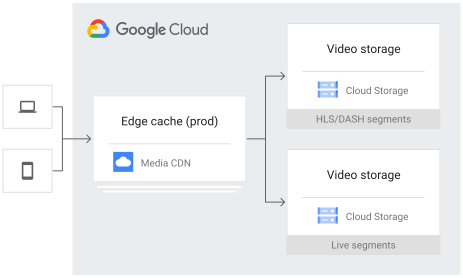](https://docs.cloud.google.com/static/media-cdn/images/edge-cache-buckets.svg) Media CDN buckets (click to enlarge).
For cases where write latency is critical, such as low-latency live streaming,
you can configure a regional Cloud Storage endpoint as close to your
users as possible.
## Authenticate requests
To confirm that a request is coming from Media CDN,
use one of the following supported approaches:
- Validate that the connecting IP address is from Media CDN's cache fill ranges. These ranges are shared across all customers, but are always used by `EdgeCacheService` resources when connecting to an origin.
- Add a custom request header with a token value that you validate on the origin (for example, a random 16-byte value). Your origin can then reject requests that don't include this value.
## Configure an origin protocol
If your origin supports HTTP/2, you don't need to explicitly set the protocol.
For origins that support only HTTPS (HTTP/1.1 over TLS) or HTTP/1.1 (without
TLS), set the `protocol` field explicitly by doing the following:
### Console
1. In the Google Cloud console, go to the **Media CDN** page.
[Go to Media CDN](https://console.cloud.google.com/net-services/media-cdn/list/services)
2. Click the **Origins** tab.
3. Select your origin and click **Edit**.
4. For the protocol, select **HTTPS** or **HTTP** . For **HTTP** , also
specify the port as `80`.
5. Click **Update origin**.
### gcloud
Use the [`gcloud edge-cache origins update` command](https://docs.cloud.google.com/sdk/gcloud/reference/edge-cache/origins/update.md.txt):
```
gcloud edge-cache origins update LEGACY_ORIGIN \
--protocol=HTTPS
```
Replace `LEGACY_ORIGIN` with the name of the origin.
## Configure private Cloud Storage buckets
Media CDN can pull content from any internet-reachable HTTP or HTTPS
endpoint. In some cases, you might want to require authentication, in order to
only allow Media CDN to pull content, and prevent unauthorized
access. Cloud Storage supports this through [IAM
permissions](https://docs.cloud.google.com/iam/docs).
> [!IMPORTANT]
> **Important:** For routes that are associated with a private Cloud Storage origin, set the [cache mode](https://docs.cloud.google.com/media-cdn/docs/caching.md.txt#cache-modes) to `FORCE_CACHE_ALL`. Otherwise, caching is prevented because private Cloud Storage buckets set a `cache-control: private` header.
For Cloud Storage origins, do the following:
- Grant the Media CDN service account the `objectViewer` IAM permission on the Cloud Storage buckets you are using as your origins.
- Remove the `allUsers` permission.
- Optional: Remove the `allAuthenticatedUsers` permission.
To change permissions of a Cloud Storage bucket, you need the
[Storage Admin role](https://docs.cloud.google.com/storage/docs/access-control/iam-roles.md.txt)
(`roles/storage.admin`).
The Media CDN service account is owned by the
Media CDN project, and it won't appear in your project's list of
service accounts. The service account grants access only to
Media CDN resources in the projects that you explicitly allow.
You must create at least one Media CDN resource to trigger
service account creation. In most cases, this is the `EdgeCacheOrigin` resource
connected to your Cloud Storage bucket.
To grant Media CDN access to a bucket, grant the `objectViewer`
role to the service account:
```
gcloud storage buckets add-iam-policy-binding gs://BUCKET \
--member=serviceAccount:service-PROJECT_NUMBER@gcp-sa-mediaedgefill.iam.gserviceaccount.com \
--role=roles/storage.objectViewer
```
Replace `PROJECT_NUMBER` with the project number.
Before removing public access to an existing storage bucket used as a production
origin, allow at least 10 minutes for the configuration to propagate.
Use the [`gcloud storage buckets remove-iam-policy-binding` command](https://docs.cloud.google.com/sdk/gcloud/reference/storage/buckets/remove-iam-policy-binding)
to remove permissions granted to the `allUsers` role for the given bucket. For
example, if the bucket grants `allUsers` the `objectViewer` role, remove the
grant using the following command:
```
gcloud storage buckets remove-iam-policy-binding gs://BUCKET \
--member=allUsers --role=roles/storage.objectViewer
```
To validate that public access has been removed, open an incognito
browser window and attempt to access a bucket object by using
`https://storage.googleapis.com/BUCKET/object.ext`.
To allow `EdgeCacheService` resources within one project access
to a Cloud Storage bucket in another project, you can grant the
Media CDN service account in that project access to the storage
bucket.
To do so, verify that `PROJECT_NUMBER` in
`service-PROJECT_NUMBER@gcp-sa-mediaedgefill.iam.gserviceaccount.com` is the
project number of the project with the `EdgeCacheService` resources that need
access. You can repeat this for multiple projects, especially if some of them
house different Media CDN environments (such as development,
staging, or production) and a separate project contains your video or media
assets.
You can protect access to your Cloud Storage origin without enabling
[signed requests](https://docs.cloud.google.com/media-cdn/docs/signed-requests.md.txt) for that route.
Configuring private Cloud Storage doesn't prevent your cached content
from being directly accessed from Media CDN. For information
about how you can issue signed requests to individual users, see [signed
requests](https://docs.cloud.google.com/media-cdn/docs/signed-requests).
## Configure an external Application Load Balancer as an origin
If you require active health-checking, round-robin, or load-aware steering
across Compute Engine, GKE, or on-premises origins,
you can [configure an external Application Load Balancer](https://docs.cloud.google.com/load-balancing/docs/https/setting-up-https.md.txt)
as an origin.
This lets you configure (for example) your live streaming packagers behind
Media CDN or a group of
[Envoy proxies managed by Cloud Service Mesh](https://docs.cloud.google.com/service-mesh/docs/traffic-director-concepts)
for connecting back to your on-premises infrastructure.
Load balancers let you [configure backends](https://docs.cloud.google.com/load-balancing/docs/backend-service.md.txt)
for the following:
- Compute Engine [virtual machine (VM) instance groups](https://docs.cloud.google.com/compute/docs/instance-groups/adding-an-instance-group-to-a-load-balancer.md.txt).
- [Network endpoint groups](https://docs.cloud.google.com/load-balancing/docs/negs.md.txt) (including Compute Engine VMs and Google Kubernetes Engine clusters).
- [Serverless network endpoint groups](https://docs.cloud.google.com/load-balancing/docs/negs/serverless-neg-concepts.md.txt) (Cloud Run, App Engine, and Cloud Run functions).
An architecture that combines an external Application Load Balancer origin for serving video
manifests and a Cloud Storage origin for segment storage resembles
the following, with two origins mapped to different routes.
[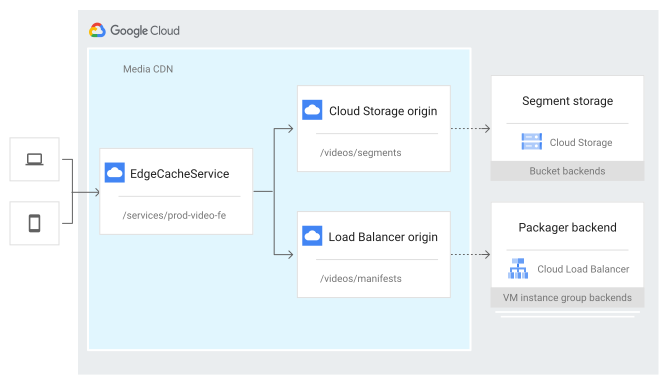](https://docs.cloud.google.com/static/media-cdn/images/edge-cache-deployment.svg) Edge cache deployment (click to enlarge).
To configure an external Application Load Balancer as an origin, you need to create
an origin resource with the IP address or public hostname pointing to your
[load balancer's forwarding rules](https://docs.cloud.google.com/load-balancing/docs/forwarding-rule-concepts.md.txt#https_lb).
A public hostname (domain name) is preferred because this is required for an SSL
(TLS) certificate and for modern HTTP versions (HTTP/2 and HTTP/3).
You must also confirm the following:
- Your load balancer has a route that matches the hostname used for your `EdgeCacheService` resource or that you have configured a [`urlRewrite.hostRewrite`](https://docs.cloud.google.com/media-cdn/docs/configure-origin.md.txt#configure-rewrites) for routes where your load balancer is configured as the origin.
- Your load balancer has a publicly trusted SSL (TLS) certificate configured for these hostnames.
For example, if the public domain name pointed at your load balancer's
forwarding rule is `origin-packager.example.com`, then you need to create an
origin with the `originAddress` set to this name.
### Console
1. In the Google Cloud console, go to the **Media CDN** page.
[Go to Media CDN](https://console.cloud.google.com/net-services/media-cdn/list/services)
2. Click the **Origins** tab.
3. Click **Create origin**.
4. Enter a name for the origin. For example: `load-balancer-origin`.
5. Optional: Enter a description.
6. For the **Origin address** , choose **Specify a FQDN or IP address**.
7. Enter the FQDN or IP address for your Google Cloud load balancer.
8. Optional: Select a failover origin to try in case this origin becomes
unreachable. You can update this field later.
9. Select [retry conditions](https://docs.cloud.google.com/media-cdn/docs/origins.md.txt#retry-origin-requests).
10. For **Max attempts**, select the maximum number of attempts to fill cache
from this origin.
11. Optional: Specify the following [timeout](https://docs.cloud.google.com/media-cdn/docs/origins.md.txt#tune-origin-timeouts)
values:
1. For **Connect timeout**, select the maximum duration to wait for the origin connection to be established.
2. For **Response timeout**, select the maximum duration to allow for a response to complete.
3. For **Read timeout**, select the maximum duration to wait between reads of a single HTTP connection or stream.
12. Optional: Click **Add label** and specify one or more key-value pairs.
13. Click **Create origin**.
### gcloud
Use the [`gcloud edge-cache origins create` command](https://docs.cloud.google.com/sdk/gcloud/reference/edge-cache/origins/create.md.txt):
```
gcloud edge-cache origins create LB_ORIGIN \
--origin-address=LB_ADDRESS
```
Replace the following:
- `LB_ORIGIN`: the name of the origin
- `LB_ADDRESS`: the FQDN or IP address---for example, `origin-packager.example.com`
If you are using the IP address of your forwarding rule as the origin address,
or you don't have an SSL certificate attached to your load balancer, you can
set the protocol to `HTTP` to fall back to unencrypted connections. We recommend
that you do this only for development or testing.
## Configure a region for flexible shielding
You can configure a region for [flexible shielding](https://docs.cloud.google.com/media-cdn/docs/origins.md.txt#flex-shielding)
when you create or update an origin.
### Console
1. In the Google Cloud console, go to the **Media CDN** page.
[Go to Media CDN](https://console.cloud.google.com/net-services/media-cdn/list/services)
2. Click the **Origins** tab.
3. Click the name of the origin that you want to update.
4. To switch to the edit mode, click the **Edit** button.
5. In the **Origin controls** section, for **Origin shielding** ,
select **Flexible shielding (custom)** . The closest region is selected
automatically. If the closest region is not available in the list,
manually select a value from the available list of regions. The
valid values are `africa-south1`, `europe-west3`, `me-central1`, and
`us-east5`.
6. To save your changes, click **Update origin**.
> [!NOTE]
> **Note:** When you enable flexible shielding, it automatically selects the region based on the bucket's region if that region is supported. If the bucket's region isn't on the supported list, or if you are using an FQDN or IP address, the region selection is cleared.
To set shielding back to the default origin shielding, update the origin to
select **Origin shielding (default)**.
### gcloud
To configure flexible shielding for a region in an existing origin, use the
[`gcloud edge-cache origins update` command](https://docs.cloud.google.com/sdk/gcloud/reference/edge-cache/origins/update.md.txt):
```
gcloud edge-cache origins update ORIGIN \
--origin-address=ADDRESS \
--flex-shielding=REGION
```
Replace the following:
- `ORIGIN`: the name of the origin
- `ADDRESS`: the address of the origin
- `REGION`: the region for origin shielding. The valid values are `africa-south1`, `europe-west3`, `me-central1`, and `us-east5`. To set shielding back to the default origin shielding, run the same command after setting the `flex-shielding` option to empty.
### yaml
To configure origin shielding for a region in an existing origin, add a
`flexShielding` section to your `EdgeCacheOrigin` resource configuration:
```yaml
name: ORIGIN
originAddress: ADDRESS
# ... Other fields
flexShielding:
flexShieldingRegions:
- REGION
# ... Other fields
```
Replace the following:
- `ORIGIN`: the name of the origin
- `ADDRESS`: the address of the origin
- `REGION`: the region for origin shielding. The valid values are `africa-south1`, `europe-west3`, `me-central1`, and `us-east5`.
To set origin shielding back to the default, remove the `flexShielding`
section.
## Configure origin failover
The following sections show you how to configure [origin failover behavior](https://docs.cloud.google.com/media-cdn/docs/origins.md.txt#failure-behavior).
### Origin failover without redirect following
The following is a basic failover `EdgeCacheOrigin` configuration:
```yaml
name: FAILOVER_ORIGIN
originAddress: FAILOVER_DOMAIN_NAME
```
Media CDN retries the route's primary origin a maximum of three
times before attempting a failover origin. In this configuration, after trying
the primary origin three times, Media CDN attempts a single
request against the `FAILOVER_ORIGIN`. If the
failover origin also fails to respond successfully, then
Media CDN returns either the entire origin response or, if no
status code is received, an HTTP `502 Bad Gateway` response.
Cache fill latency increases with the number of retries and failover events.
Increasing the origin timeout values (such as `connectTimeout`) further
impacts cache fill latency because it increases the time spent waiting for an
overloaded or busy origin server to respond.
The following example demonstrates a configuration that sends fill requests to
`MY_ORIGIN`. The configuration causes
Media CDN to retry on connection errors (such as DNS, TCP, or
TLS errors), HTTP `5*xx*` responses from the origin, or HTTP
`404 Not Found`. After two attempts, it fails over to
`FAILOVER_ORIGIN`.
A total maximum of four attempts are made across your configured origins: the
original attempt plus up to three retry attempts. You can configure a
`maxAttempts` value per origin to determine how many retries are made before
attempting to fail over.
```yaml
name: MY_ORIGIN
originAddress: DOMAIN_NAME
maxAttempts: 2 # the number of attempts to make before trying the failoverOrigin
failoverOrigin: FAILOVER_ORIGIN
# what conditions trigger a retry or failover
retryConditions:
- CONNECT_FAILURE
- HTTP_5xx # any HTTP 5xx response
- NOT_FOUND # retry on a HTTP 404
timeout:
maxAttemptsTimeout: 10s # set a deadline for all retries and failover
```
### Origin failover with redirect following
For example, suppose that you have configured the following `EdgeCacheOrigin`
resources and that your `EdgeCacheService` resource's routes are configured to
use `PrimaryOrigin` for cache fill:
```yaml
name: PrimaryOrigin
originAddress: "primary.example.com"
maxAttempts: 2
failoverOrigin: "SecondaryOrigin"
retryConditions: [CONNECT_FAILURE]
originRedirect:
redirectConditions: [FOUND, TEMPORARY_REDIRECT]
```
```yaml
name: SecondaryOrigin
originAddress: "secondary.example.com"
maxAttempts: 3
originRedirect:
redirectConditions: [FOUND, TEMPORARY_REDIRECT]
```
In this example, when Media CDN performs a cache fill,
Media CDN reads the configuration of the `PrimaryOrigin` and
responds accordingly.
Suppose that Media CDN connects to `primary.example.com` as
attempt #1 to contact the origin. If `primary.example.com` returns a successful
response, Media CDN uses that response for the cache fill.
Suppose now that `primary.example.com` returns an HTTP `302 Found Redirect` to
`Location: b.example.com`. Then as attempt #2 to contact the origin,
Media CDN follows the redirect to `b.example.com`. In this case,
Media CDN does the following:
- If `b.example.com` returns a successful response, Media CDN uses that response for the cache fill.
- If `b.example.com` returns a redirect or a failure response, Media CDN fails over to the configured `SecondaryOrigin`. This is because, in this example, `PrimaryOrigin` is configured for two `maxAttempts`.
If Media CDN fails over to `SecondaryOrigin`,
Media CDN uses the `SecondaryOrigin` configuration and attempts
to connect to `secondary.example.com`. This is attempt #1 to contact the origin,
and attempt #3 overall.
In this case, Media CDN does the following:
- If `secondary.example.com` returns a successful response, Media CDN uses that response for the cache fill.
- If `secondary.example.com` returns an HTTP `302 Found Redirect` to `Location:
c.example.com`, Media CDN attempts to contact `c.example.com`. In this example, this is attempt #2 for `SecondaryOrigin` and attempt #4 overall.
If the attempt to contact `c.example.com` returns a successful response,
Media CDN uses that response for the cache fill. If the attempt
returns a redirect that Media CDN is configured to follow,
Media CDN returns an HTTP `502 Bad Gateway` status code because it
has exhausted the maximum attempts to contact an origin.
Media CDN makes at most four attempts across all origins,
regardless of `EdgeCacheOrigin` configurations. Lastly, if
Media CDN fails to contact `c.example.com`,
Media CDN returns either a `504 Gateway Timeout` response or a
`502 Bad Gateway` response.
If you require health checking, round-robin, or load-aware steering across
origins, you can configure an
[external Application Load Balancer](https://docs.cloud.google.com/load-balancing/docs/https/setting-up-https.md.txt) as a primary
origin.
## Configure following origin redirects
Media CDN supports following redirects returned by your origin
internally during cache fill, rather than returning redirect responses directly
to the client. When Media CDN is configured to follow origin
redirects, Media CDN retrieves content from the redirect location
before caching and returning the redirected response to the client.
Media CDN follows redirects across domains.
> [!WARNING]
> **Warning:** Configuring redirects from an untrusted or an attacker-controlled origin service might expose your Media CDN configuration to open redirect vulnerabilities.
As a best practice, configure origin redirection only for origins that you trust
and control. Ensure that you trust every origin in a redirect chain because
each origin produces content that is served by your `EdgeCacheService`.
To enable following origin redirects, add the following configuration to your
`EdgeCacheOrigin` resource:
```yaml
name: MY_ORIGIN
originAddress: DOMAIN_NAME
maxAttempts: 2
originRedirect:
redirectConditions: [FOUND, TEMPORARY_REDIRECT]
```
Media CDN uses the protocol specified in the redirects to reach
all servers. Confirm that all servers that Media CDN might be
redirected to provide support for your required protocols.
In particular, if the protocol is set to HTTPS, HTTP/2, or HTTP/3,
Media CDN doesn't fall back to HTTP/1.1 connections to follow
unsecured redirects. The host header sent to the redirected origin matches the
redirected URL. Media CDN follows a single redirect per
`EdgeCacheOrigin` attempt before returning the final response or evaluating
retry or failover conditions.
The `redirectConditions` setting specifies which HTTP response codes cause
Media CDN to follow a redirect for each origin.
| Condition | Description |
|---|---|
| MOVED_PERMANENTLY | Follow redirect for response code HTTP `301` |
| FOUND | Follow redirect for response code HTTP `302` |
| SEE_OTHER | Follow redirect for response code HTTP `303` |
| TEMPORARY_REDIRECT | Follow redirect for response code HTTP `307` |
| PERMANENT_REDIRECT | Follow redirect for response code HTTP `308` |
## Configure origin-specific host rewrites or header modifications
If your origin requires an origin-specific host rewrite or header modification,
use the following `originOverrideAction` configuration example to set them:
```yaml
name: FAILOVER_ORIGIN
originAddress: FAILOVER_ORIGIN_HOST"
originOverrideAction:
urlRewrite:
hostRewrite: FAILOVER_ORIGIN_HOST"
headerAction:
requestHeadersToAdd:
- headerName: "Authorization"
headerValue: "AUTH-KEY"
replace: true
```
The `originOverrideAction.hostRewrite` setting takes
precedence over any existing [header rewrites](https://docs.cloud.google.com/media-cdn/docs/custom-headers.md.txt#set-custom-headers)
configured on routes that point to this origin.
You can use `requestHeadersToAdd` unique, per-origin headers requested by that
particular origin. A common use case adds static `Authorization` headers.
Because these header manipulations are run during the origin request, headers
added per origin either replace or append to existing headers of the same field
name. By default, Media CDN appends to existing headers. To
replace existing headers, set `headerAction.replace` to `true`.
Origin-specific header modifications use only static header values.
Dynamic header variables such as `{client_region}` are not supported.
For information about how to set request headers per route, see
[Set custom headers](https://docs.cloud.google.com/media-cdn/docs/custom-headers.md.txt#set-custom-headers).
## Troubleshooting origins
If an origin isn't behaving as expected, check how to
[troubleshoot origins](https://docs.cloud.google.com/media-cdn/docs/troubleshooting-origins.md.txt).
## What's next
- [Use a private Amazon S3-compatible bucket as an origin](https://docs.cloud.google.com/media-cdn/docs/connect-to-s3-compatible-buckets.md.txt)
- [Configure service routes](https://docs.cloud.google.com/media-cdn/docs/routing.md.txt)