The [spark-bigquery-connector](https://github.com/GoogleCloudDataproc/spark-bigquery-connector)
is used with [Apache Spark](https://spark.apache.org "Apache Spark")
to read and write data from and to [BigQuery](https://docs.cloud.google.com/bigquery/docs.md.txt).
The connector takes advantage of the
[BigQuery Storage API](https://docs.cloud.google.com/bigquery/docs/reference/storage.md.txt)
when reading data from BigQuery.
This tutorial provides information on the availability of the pre-installed connector,
and shows you how make a specific connector version available to Spark
jobs. Example code shows you how to use the Spark BigQuery connector
within a Spark application.
## Use the pre-installed connector
The Spark BigQuery connector is pre-installed on and is available to
Spark jobs run on Managed Service for Apache Spark clusters created with image versions
`2.1` and later. The pre-installed connector version is listed on the
[image version release pages](https://docs.cloud.google.com/managed-spark/docs/concepts/versioning/image-version-lists.md.txt#supported-image-versions).
## Make a specific connector version available to Spark jobs
If you want to use a connector version that is different from a pre-installed
version on a `2.1` or later image version cluster, or if you want to install
the connector on a pre-`2.1` image version cluster, follow the instructions in
this section.
**Important:** The `spark-bigquery-connector` version must be compatible with
the Managed Service for Apache Spark cluster image version. See the
[Connector to Managed Service for Apache Spark Image Compatibility Matrix](https://github.com/GoogleCloudDataproc/spark-bigquery-connector?tab=readme-ov-file#connector-to-dataproc-image-compatibility-matrix).
### `2.1` and later image version clusters
When you [create a Managed Service for Apache Spark cluster](https://docs.cloud.google.com/managed-spark/docs/guides/create-cluster.md.txt)
with a `2.1` or later image version, specify the
connector version as [cluster metadata](https://docs.cloud.google.com/managed-spark/docs/concepts/configuring-clusters/metadata.md.txt).
gcloud CLI example:
```
gcloud dataproc clusters create CLUSTER_NAME \
--region=REGION \
--image-version=2.2 \
--metadata=SPARK_BQ_CONNECTOR_VERSION or SPARK_BQ_CONNECTOR_URL\
other flags
```
Notes:
- SPARK_BQ_CONNECTOR_VERSION: Specify a connector version.
Spark BigQuery connector versions are listed on the
[spark-bigquery-connector/releases](https://github.com/GoogleCloudDataproc/spark-bigquery-connector/releases)
page in GitHub.
Example:
```
--metadata=SPARK_BQ_CONNECTOR_VERSION=0.42.1
```
- SPARK_BQ_CONNECTOR_URL: Specify a URL that points to the jar in Cloud Storage.
You can specify the URL of a connector listed in the **link** column in the
[Downloading and Using the Connector](https://github.com/GoogleCloudDataproc/spark-bigquery-connector?tab=readme-ov-file#downloading-and-using-the-connector)
in GitHub or the path to a Cloud Storage location where you have
placed a custom connector jar.
Examples:
```
--metadata=SPARK_BQ_CONNECTOR_URL=gs://spark-lib/bigquery/spark-3.5-bigquery-0.42.1.jar
--metadata=SPARK_BQ_CONNECTOR_URL=gs://PATH_TO_CUSTOM_JAR
```
### `2.0` and earlier image version clusters
You can make the Spark BigQuery connector available to your application
in one of the following ways:
1. Install the spark-bigquery-connector in the Spark jars directory of every
node by using the
[Managed Service for Apache Spark connectors initialization action](https://github.com/GoogleCloudDataproc/initialization-actions/tree/master/connectors) when you create your cluster.
2. Provide the connector jar URL when you submit your job to the cluster using
the Google Cloud console, gcloud CLI, or the Managed Service for Apache Spark
API.
### Console
Use the Spark job **Jars files** item on the Managed Service for Apache Spark
[**Submit a job**](https://console.cloud.google.com/dataproc/jobs/jobsSubmit) page.
### gcloud
Use the [`gcloud dataproc jobs submit spark --jars` flag](https://docs.cloud.google.com/sdk/gcloud/reference/dataproc/jobs/submit/spark#--jars).
### API
Use the [`SparkJob.jarFileUris` field](https://docs.cloud.google.com/managed-spark/docs/reference/rest/v1/SparkJob.md.txt#FIELDS.jar_file_uris).
**How to specify the connector jar when running Spark jobs on pre-2.0 image version clusters**
Spark-BigQuery connector versions are listed in the GitHub [GoogleCloudDataproc/spark-bigquery-connector repository](https://github.com/GoogleCloudDataproc/spark-bigquery-connector/releases).
- Specify the connector jar by substituting the Scala and connector version information in the following URI string:
```
gs://spark-lib/bigquery/spark-bigquery-with-dependencies_SCALA_VERSION-CONNECTOR_VERSION.jar
```
- Use Scala `2.12` with Managed Service for Apache Spark image versions `1.5+`
```
gs://spark-lib/bigquery/spark-bigquery-with-dependencies_2.12-CONNECTOR_VERSION.jar
```
gcloud CLI example:
```
gcloud dataproc jobs submit spark \
--jars=gs://spark-lib/bigquery/spark-bigquery-with-dependencies_2.12-0.23.2.jar \
-- job args
```
- Use Scala `2.11` with Managed Service for Apache Spark image versions `1.4` and earlier:
```
gs://spark-lib/bigquery/spark-bigquery-with-dependencies_2.11-CONNECTOR_VERSION.jar
```
gcloud CLI example:
```
gcloud dataproc jobs submit spark \
--jars=gs://spark-lib/bigquery/spark-bigquery-with-dependencies_2.11-0.23.2.jar \
-- job-args
```
> [!IMPORTANT]
> For non-production use, you can also point to the `latest` jars, as follows:
> 1. Managed Service for Apache Spark image version `1.5+`: `--jars=gs://spark-lib/bigquery/spark-bigquery-latest_2.12.jar`
> 2. Managed Service for Apache Spark image versions 1.4 and earlier: `--jars=gs://spark-lib/bigquery/spark-bigquery-latest.jar`
3. Include the connector jar in your Scala or Java Spark application as a dependency
(see
[Compiling against the connector](https://github.com/GoogleCloudDataproc/spark-bigquery-connector#compiling-against-the-connector)).
> [!NOTE]
> **Note:** If the connector is not available at runtime, a `ClassNotFoundException` is thrown.
## Calculate costs
In this document, you use the following billable components of Google Cloud:
- Managed Service for Apache Spark
- BigQuery
- Cloud Storage
To generate a cost estimate based on your projected usage,
use the [pricing calculator](https://docs.cloud.google.com/products/calculator).
New Google Cloud users might be eligible for a [free trial](https://docs.cloud.google.com/free).
## Read and write data from and to BigQuery
This example reads data from
[BigQuery](https://console.cloud.google.com/bigquery)
into a Spark DataFrame to perform a word count using the [standard data source
API](https://spark.apache.org/docs/latest/sql-data-sources.html "Data Sources").
The connector reads data from BigQuery using the [BigQuery Storage Read API](https://docs.cloud.google.com/bigquery/docs/reference/storage.md.txt), which reads directly from the table's data files in a distributed manner.
The connector writes the data to BigQuery in one of two modes:
**DIRECT** or **INDIRECT**.
- **DIRECT**: Uses the BigQuery Storage Write API. Each executor writes its data, and the driver commits all pending data into the table.
- **INDIRECT**: Buffers the data into a Cloud Storage temporary table, and then triggers a BigQuery Load job to copy the data into BigQuery in one operation.
When using INDIRECT mode, the connector attempts to delete the temporary files
once the BigQuery load operation has succeeded and once again
when the Spark application terminates. If the job fails, remove any remaining
temporary Cloud Storage files manually. Typically, temporary BigQuery
files are located in `gs://[bucket]/.spark-bigquery-[jobid]-[UUID]`.
## Configure billing
By default, the project associated with the credentials or service account is
billed for API usage. To bill a different project, set the following
configuration: `spark.conf.set("parentProject", "")`.
It can also be added to a read or write operation, as follows:
`.option("parentProject", "")`.
## Run the code
Before running this example, create a dataset named "wordcount_dataset" or
change the output dataset in the code to an existing BigQuery dataset in your
Google Cloud project.
Use the
[bq](https://docs.cloud.google.com/bigquery/bq-command-line-tool "bq command-line tool") command to create
the `wordcount_dataset`:
```bash
bq mk wordcount_dataset
```
Use the [Google Cloud CLI](https://docs.cloud.google.com/sdk/gcloud/reference/storage.md.txt "gcloud CLI") command
to create a Cloud Storage bucket, which will be used to export to
BigQuery:
```bash
gcloud storage buckets create gs://[bucket]
```
### Scala
1. Examine the code and replace the \[bucket\] placeholder with the Cloud Storage bucket you created earlier.
```scala
/*
* Remove comment if you are not running in spark-shell.
*
import org.apache.spark.sql.SparkSession
val spark = SparkSession.builder()
.appName("spark-bigquery-demo")
.getOrCreate()
*/
// Use the Cloud Storage bucket for temporary BigQuery export data used
// by the connector.
val bucket = "[bucket]"
spark.conf.set("temporaryGcsBucket", bucket)
// Enable reading from BigQuery views and materializing query results.
spark.conf.set("viewsEnabled", "true")
spark.conf.set("materializationDataset", "wordcount_dataset")
// Load data in from BigQuery. See
// https://github.com/GoogleCloudDataproc/spark-bigquery-connector#properties
// for option information.
val wordsDF =
spark.read.bigquery("bigquery-public-data:samples.shakespeare")
.cache()
wordsDF.createOrReplaceTempView("words")
// Perform word count.
val wordCountDF = spark.sql(
"SELECT word, SUM(word_count) AS word_count FROM words GROUP BY word")
wordCountDF.show()
wordCountDF.printSchema()
// Saving the data to BigQuery.
(wordCountDF.write.format("bigquery")
.save("wordcount_dataset.wordcount_output"))
```
2. Run the code on your cluster
1. Use SSH to connect to the Managed Service for Apache Spark cluster master node
1. Go to the [Managed Service for Apache Spark **Clusters**](https://console.cloud.google.com/dataproc/clusters) page in the Google Cloud console, then click the name of your cluster 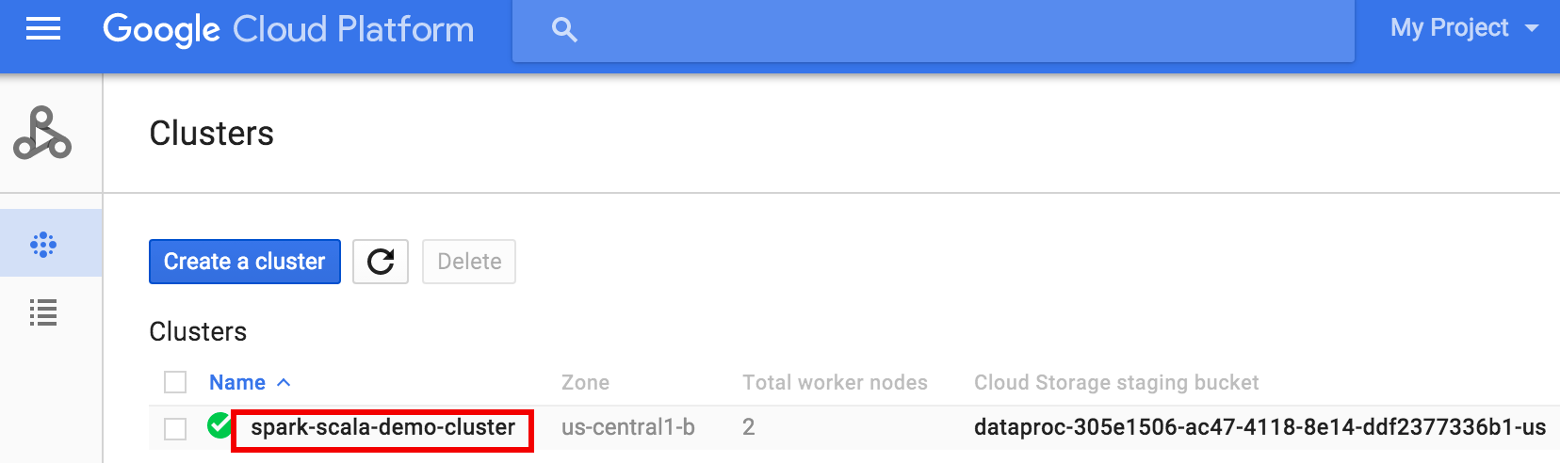
2. On the **\>Cluster details** page, select the VM Instances tab. Then, click `SSH` to the right of the name of the cluster master node\> 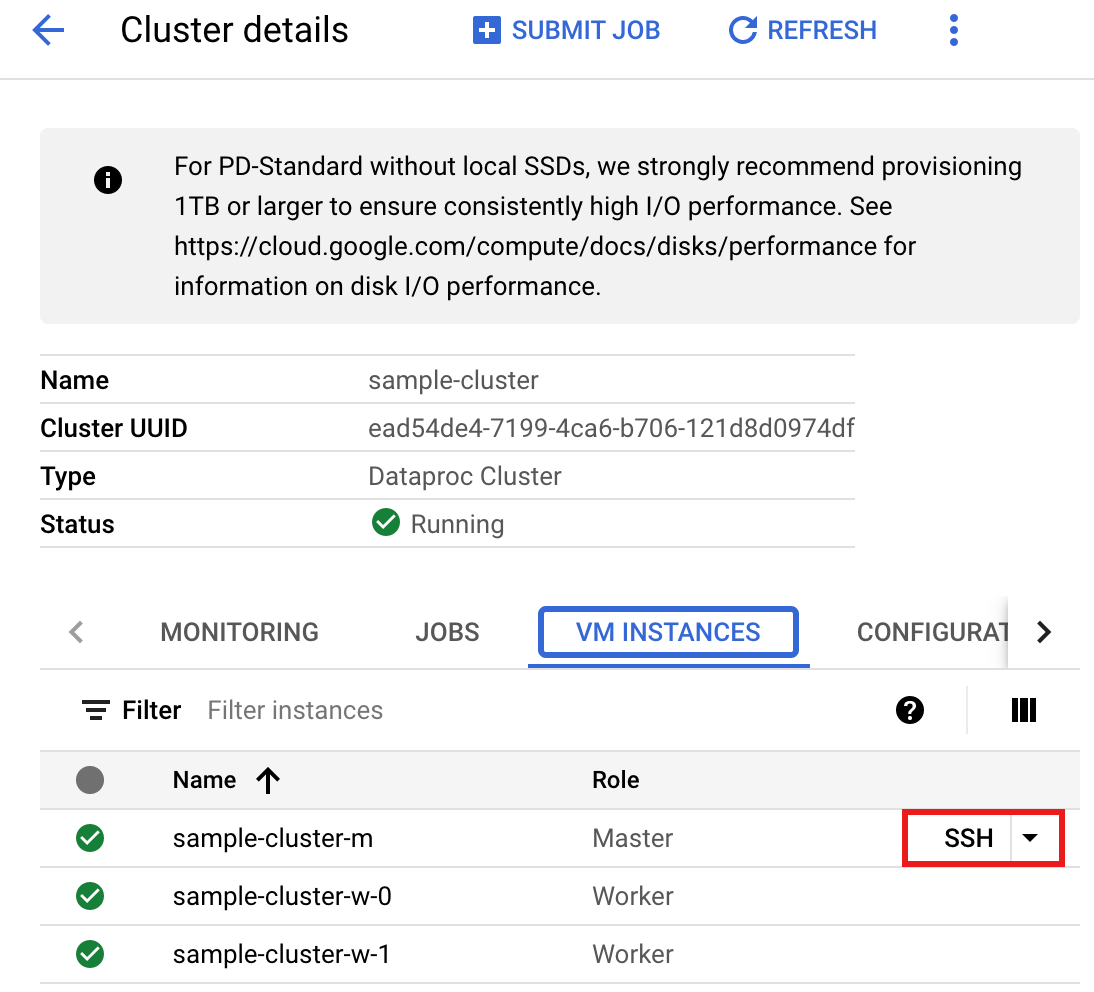
A browser window opens at your home directory on the master node
```
Connected, host fingerprint: ssh-rsa 2048 ...
...
user@clusterName-m:~$
```
2. Create `wordcount.scala` with the pre-installed `vi`, `vim`, or `nano` text editor, then paste in the Scala code from the [Scala code listing](https://docs.cloud.google.com/managed-spark/docs/tutorials/bigquery-connector-spark-example.md.txt#scala-code-listing)
```
nano wordcount.scala
```
3. Launch the `spark-shell` REPL.
```
$ spark-shell --jars=gs://spark-lib/bigquery/spark-bigquery-latest_2.12.jar
...
Using Scala version ...
Type in expressions to have them evaluated.
Type :help for more information.
...
Spark context available as sc.
...
SQL context available as sqlContext.
scala>
```
4. Run wordcount.scala with the `:load wordcount.scala` command to create the BigQuery `wordcount_output` table. The output listing displays 20 lines from the wordcount output.
```
:load wordcount.scala
...
+---+---+
| word|word_count|
+---+---+
| XVII| 2|
| spoil| 28|
| Drink| 7|
|forgetful| 5|
| Cannot| 46|
| cures| 10|
| harder| 13|
| tresses| 3|
| few| 62|
| steel'd| 5|
| tripping| 7|
| travel| 35|
| ransom| 55|
| hope| 366|
| By| 816|
| some| 1169|
| those| 508|
| still| 567|
| art| 893|
| feign| 10|
+---+---+
only showing top 20 rows
root
|-- word: string (nullable = false)
|-- word_count: long (nullable = true)
```
To preview the output table, open the [`BigQuery`](https://console.cloud.google.com/bigquery) page, select the `wordcount_output` table, and then click **Preview** . 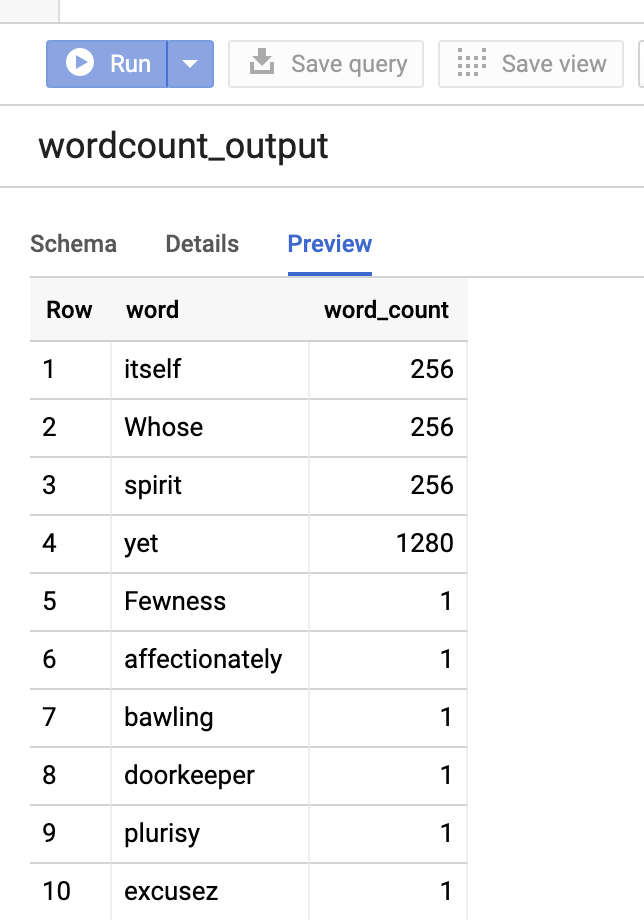
### PySpark
1. Examine the code and replace the \[bucket\] placeholder with the Cloud Storage bucket you created earlier.
```python
#!/usr/bin/env python
"""BigQuery I/O PySpark example."""
from pyspark.sql import SparkSession
spark = SparkSession \
.builder \
.master('yarn') \
.appName('spark-bigquery-demo') \
.getOrCreate()
# Use the Cloud Storage bucket for temporary BigQuery export data used
# by the connector.
bucket = "[bucket]"
spark.conf.set('temporaryGcsBucket', bucket)
# Enable reading from BigQuery views and materializing query results.
spark.conf.set('viewsEnabled', 'true')
spark.conf.set('materializationDataset', 'wordcount_dataset')
# Load data from BigQuery.
words = spark.read.format('bigquery') \
.load('bigquery-public-data:samples.shakespeare')
words.createOrReplaceTempView('words')
# Perform word count.
word_count = spark.sql(
'SELECT word, SUM(word_count) AS word_count FROM words GROUP BY word')
word_count.show()
word_count.printSchema()
# Save the data to BigQuery
word_count.write.format('bigquery') \
.save('wordcount_dataset.wordcount_output')
```
2. Run the code on your cluster
> [!IMPORTANT]
> **Use Managed Service for Apache Spark to submit the PySpark code** : Instead of running the PySpark code manually from the cluster master instance, you can submit the PySpark file directly to your cluster (see the [Managed Service for Apache Spark Quickstarts](https://docs.cloud.google.com/managed-spark/docs.md.txt)). Here are the steps using the Google Cloud CLI:
> 1. Create `wordcount.py` locally in a text editor by copying the PySpark code from the [PySpark code listing](https://docs.cloud.google.com/managed-spark/docs/tutorials/bigquery-connector-spark-example.md.txt#python-code-listing)
> 2. Run the PySpark code by submitting the job to your cluster with the `gcloud dataproc jobs submit` command:
>
> ```
> gcloud dataproc jobs submit pyspark wordcount.py \
> --cluster=cluster-name \
> --region=region \
> --jars=gs://spark-lib/bigquery/spark-bigquery-latest_2.12.jar
> ```
1. Use SSH to connect to the Managed Service for Apache Spark cluster master node
1. Go to the [Managed Service for Apache Spark **Clusters**](https://console.cloud.google.com/dataproc/clusters) page in the Google Cloud console, then click the name of your cluster 
2. On the **Cluster details** page, select the VM Instances tab. Then, click `SSH` to the right of the name of the cluster master node 
A browser window opens at your home directory on the master node
```
Connected, host fingerprint: ssh-rsa 2048 ...
...
user@clusterName-m:~$
```
2. Create `wordcount.py` with the pre-installed `vi`, `vim`, or `nano` text editor, then paste in the PySpark code from the [PySpark code listing](https://docs.cloud.google.com/managed-spark/docs/tutorials/bigquery-connector-spark-example.md.txt#python-code-listing)
```
nano wordcount.py
```
3. Run wordcount with `spark-submit` to create the BigQuery `wordcount_output` table. The output listing displays 20 lines from the wordcount output.
```
spark-submit --jars gs://spark-lib/bigquery/spark-bigquery-latest_2.12.jar wordcount.py
...
+---+---+
| word|word_count|
+---+---+
| XVII| 2|
| spoil| 28|
| Drink| 7|
|forgetful| 5|
| Cannot| 46|
| cures| 10|
| harder| 13|
| tresses| 3|
| few| 62|
| steel'd| 5|
| tripping| 7|
| travel| 35|
| ransom| 55|
| hope| 366|
| By| 816|
| some| 1169|
| those| 508|
| still| 567|
| art| 893|
| feign| 10|
+---+---+
only showing top 20 rows
root
|-- word: string (nullable = false)
|-- word_count: long (nullable = true)
```
To preview the output table, open the [`BigQuery`](https://console.cloud.google.com/bigquery) page, select the `wordcount_output` table, and then click **Preview** . 
## Troubleshooting tips
You can examine job logs in Cloud Logging and in the BigQuery
Jobs Explorer to troubleshoot Spark jobs that use the BigQuery
connector.
- **Managed Service for Apache Spark driver logs** contain a `BigQueryClient` entry with
BigQuery metadata that includes the `jobId`:
```
ClassNotFoundException INFO BigQueryClient:.. jobId: JobId{project=PROJECT_ID, job=JOB_ID, location=LOCATION}
```
- **BigQuery jobs** contain `Managed Service for Apache Spark_job_id` and
`Managed Service for Apache Spark_job_uuid` labels:
- Logging:
```
protoPayload.serviceData.jobCompletedEvent.job.jobConfiguration.labels.dataproc_job_id="JOB_ID"
protoPayload.serviceData.jobCompletedEvent.job.jobConfiguration.labels.dataproc_job_uuid="JOB_UUID"
protoPayload.serviceData.jobCompletedEvent.job.jobName.jobId="JOB_NAME"
```
- BigQuery Jobs Explorer: Click a job ID to view job details under **Labels** in **Job information**.
## What's next
- See [BigQuery Storage \& Spark SQL - Python](https://github.com/tfayyaz/cloud-dataproc/blob/master/notebooks/python/1.2.%20BigQuery%20Storage%20%26%20Spark%20SQL%20-%20Python.ipynb).
- Learn how to [create a table definition file for an external data source](https://docs.cloud.google.com/bigquery/external-table-definition).
- Learn how to [query externally partitioned data](https://docs.cloud.google.com/bigquery/docs/hive-partitioned-queries-gcs).
- See [Spark job tuning tips](https://docs.cloud.google.com/managed-spark/docs/support/spark-job-tuning.md.txt).