You can submit a job to an existing Managed Service for Apache Spark cluster using a
[jobs.submit](https://docs.cloud.google.com/managed-spark/docs/reference/rest/v1/projects.regions.jobs/submit.md.txt) API HTTP or programmatic request, using the Google Cloud CLI
[`gcloud`](https://docs.cloud.google.com/sdk/gcloud/reference/dataproc/jobs/submit) command-line tool in a
local terminal window or in [Cloud Shell](https://console.cloud.google.com/?cloudshell=true), or
from the [Google Cloud console](https://console.cloud.google.com/dataproc/jobs/jobsSubmit) opened in
a local browser. You can also [SSH into the master
instance](https://docs.cloud.google.com/managed-spark/docs/concepts/accessing/ssh) in your cluster, and then
run a job directly from the instance without using Managed Service for Apache Spark.
> [!NOTE]
> **Job driver and log output:** For information on viewing job driver output and logs, see [Managed Service for Apache Spark job output and logs](https://docs.cloud.google.com/managed-spark/docs/guides/job-output.md.txt).
**Job concurrency:**
You can configure the maximum number of concurrent Managed Service for Apache Spark jobs
with the
[dataproc:dataproc.scheduler.max-concurrent-jobs](https://docs.cloud.google.com/managed-spark/docs/concepts/configuring-clusters/cluster-properties.md.txt#service_properties)
cluster property when you create a cluster. If this property value is not set,
the upper limit on concurrent jobs is calculated as
`max((masterMemoryMb - 3584) / masterMemoryMbPerJob, 5)`.
`masterMemoryMb` is determined by the master VM's machine type.
`masterMemoryMbPerJob` is `1024` by default, but is
configurable at cluster creation with the
[dataproc:dataproc.scheduler.driver-size-mb](https://docs.cloud.google.com/managed-spark/docs/concepts/configuring-clusters/cluster-properties.md.txt#service_properties) cluster property.
> [!CAUTION]
> **Caution:** A race condition that leads to job failures can occur when jobs are submitted at the same time. **To avoid job failures, separate consecutive job
> submissions by at least a fraction of a second.**
## How to submit a job
> [!IMPORTANT]
> You can specify a `file:///` path to refer to a local file on a cluster's primary node. Note that `file:///` paths are typically used only for Managed Service for Apache Spark pre-installed files provided on the cluster.
**Classpath isolation and custom JARs:** Don't copy custom "fat JARs" or bundle JARs (such as Apache Iceberg runtime or Google Cloud bundles) directly into cluster system directories, such as `/usr/lib/spark/jars/`. Placing custom JARs in system directories pollutes the classpath of the Managed Service for Apache Spark agent with transitive dependencies (such as Guava or Hadoop libraries) that conflict with the agent's built-in libraries. This conflict can cause class resolution errors (such as `ClassNotFoundException` or `NoClassDefFoundError`) when performing job management operations like canceling a job, causing the agent to crash and leaving YARN applications orphaned.
Instead, use one of the following supported approaches:
- **Job-specific dependencies:** Specify the Cloud Storage path to your JARs when you submit the job by using the `--jars` flag in the Google Cloud CLI CLI, the **Jar files** field in the Google Cloud console, or the `jarFileUris` field in the API. Spark distributes the dependencies to the driver and executors for the job without polluting the agent's classpath.
- **Cluster-wide dependencies:** Specify dependencies during cluster creation by using the `spark:spark.jars` [cluster property](https://docs.cloud.google.com/managed-spark/docs/concepts/configuring-clusters/cluster-properties.md.txt):
```
--properties="spark:spark.jars=gs://YOUR_BUCKET/jar-1.jar,gs://YOUR_BUCKET/jar-2.jar"
```
This instructs Managed Service for Apache Spark to configure `/etc/spark/conf/spark-defaults.conf`, automatically distributing the dependencies to the Spark driver and executor classpaths for all jobs while leaving the node-local Managed Service for Apache Spark agent cleanly isolated.
### Console
Open the Managed Service for Apache Spark
[Submit a job](https://console.cloud.google.com/dataproc/jobs/jobsSubmit)
page in the Google Cloud console in your browser.
**Spark job example**
To submit a sample Spark job, fill in the fields on the
**Submit a job** page, as follows:
1. Under **Select compute type for job** , select **Spark on Compute Engine**.
2. In the **Cluster job details** section, specify a **Job ID** (or accept the default ID) and select your **Cluster** from the cluster list.
3. In the **Files and artifacts** section:
1. Set **Job type** to **Spark (Scala / Java)** (`Spark`).
2. Under **Driver configuration** , select **Main class** , and set **Main class** to `org.apache.spark.examples.SparkPi`.
3. Set **Arguments** to the single argument `1000`.
4. Add `file:///usr/lib/spark/examples/jars/spark-examples.jar` to **Jar files** (or the API `jarFileUris` field):
1. `file:///` denotes a Hadoop LocalFileSystem scheme. Managed Service for Apache Spark installed `/usr/lib/spark/examples/jars/spark-examples.jar` on the cluster's master node when it created the cluster. This path is used only for pre-installed examples provided by Managed Service for Apache Spark. Don't copy custom JARs into system directories (see the caution in [How to submit a job](https://docs.cloud.google.com/managed-spark/docs/guides/submit-job.md.txt#how_to_submit_a_job)).
2. Alternatively, you can specify a Cloud Storage path (`gs://your-bucket/your-jarfile.jar`) or a Hadoop Distributed File System path (`hdfs://path-to-jar.jar`) to one of your jars. (If you submit the job by using the API, specify this path in the `jarFileUris` field.)
> [!NOTE]
> **To add more arguments** : Each argument must be entered in a separate text box. Press **\** to open a new text box for each additional argument.
Click **Submit** to start the job. Once the job starts, it is
added to the Jobs list.
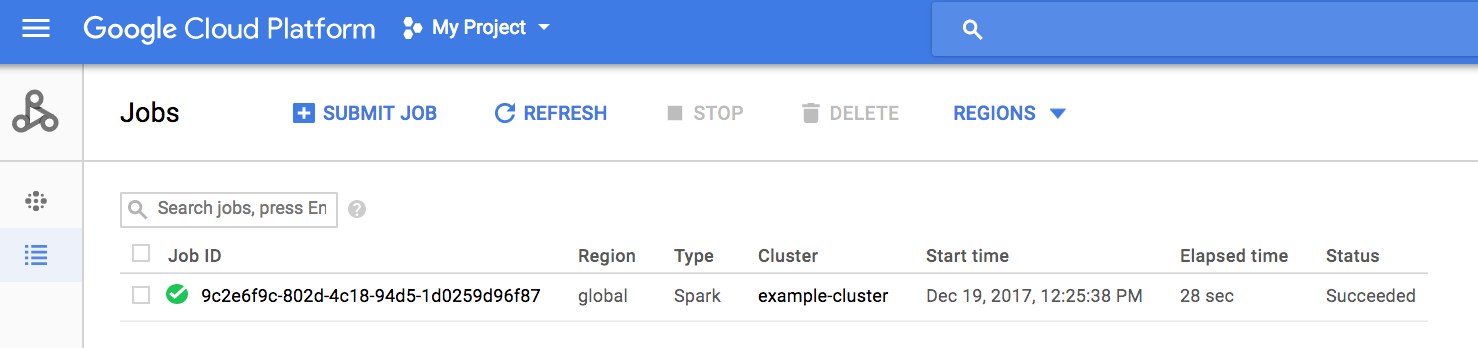
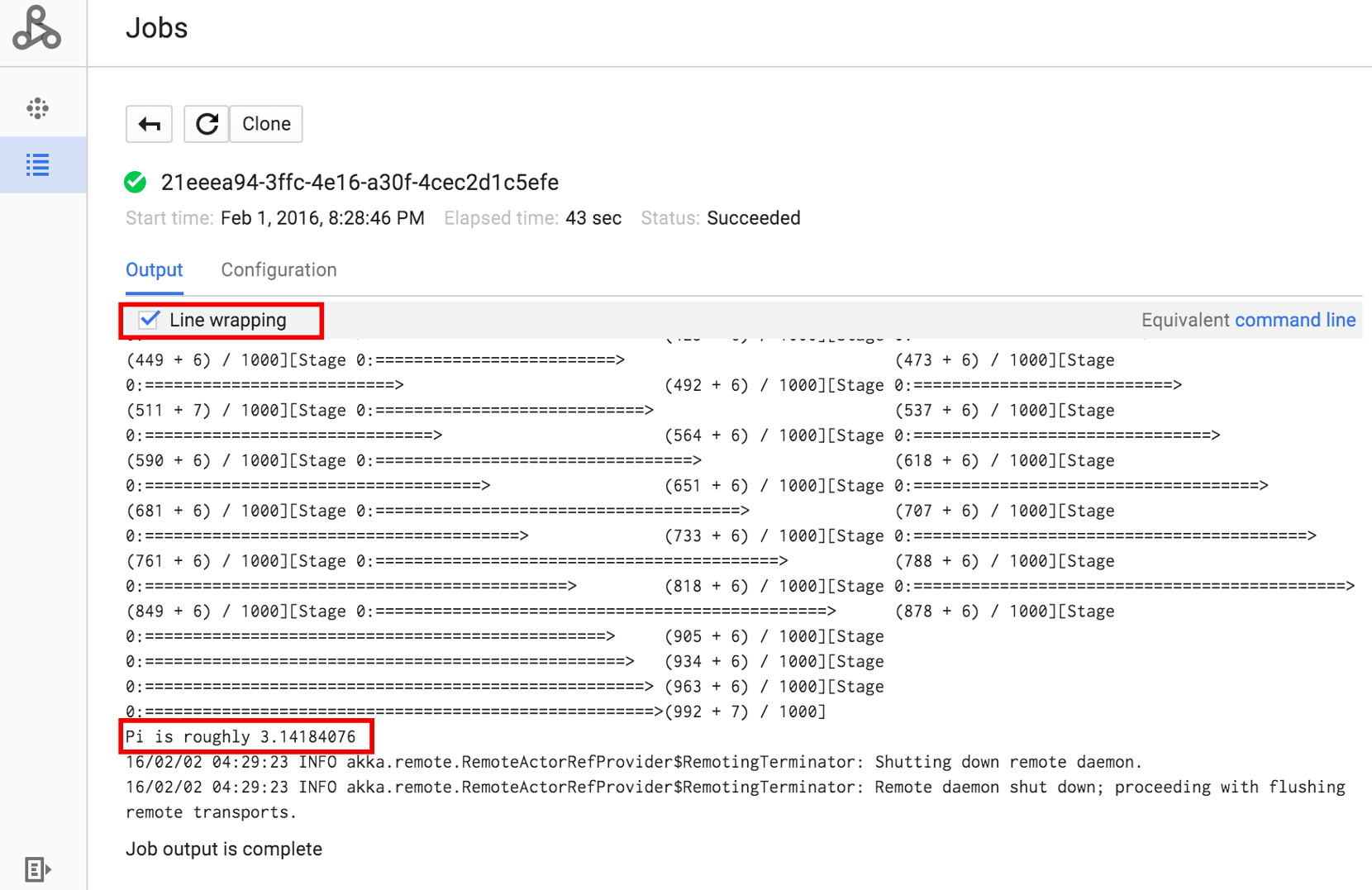
Click the Job ID to open the **Jobs** page, where you can view the job's driver output. Since this job produces long output lines that
exceed the width of the browser window, you can check the **Line wrapping** box to bring all
output text within view in order to display the calculated result for `pi`.
You can view your job's driver output from the command line using the
[gcloud dataproc jobs wait](https://docs.cloud.google.com/sdk/gcloud/reference/dataproc/jobs/wait)
command shown below (for more information, see
[View job output--GCLOUD COMMAND](https://docs.cloud.google.com/managed-spark/docs/guides/job-output.md.txt#view_job_output)).
Copy and paste your project ID as the value for the `--project` flag and your
Job ID (shown on the Jobs list) as the final argument.
```
gcloud dataproc jobs wait job-id \
--project=project-id \
--region=region
```
Here are snippets from the driver output for the sample `SparkPi`
job:
```
...
2015-06-25 23:27:23,810 INFO [dag-scheduler-event-loop]
scheduler.DAGScheduler (Logging.scala:logInfo(59)) - Stage 0 (reduce at
SparkPi.scala:35) finished in 21.169 s
2015-06-25 23:27:23,810 INFO [task-result-getter-3] cluster.YarnScheduler
(Logging.scala:logInfo(59)) - Removed TaskSet 0.0, whose tasks have all
completed, from pool
2015-06-25 23:27:23,819 INFO [main] scheduler.DAGScheduler
(Logging.scala:logInfo(59)) - Job 0 finished: reduce at SparkPi.scala:35,
took 21.674931 s
Pi is roughly 3.14189648
...
Job [c556b47a-4b46-4a94-9ba2-2dcee31167b2] finished successfully.
driverOutputUri:
gs://sample-staging-bucket/google-cloud-dataproc-metainfo/cfeaa033-749e-48b9-...
...
```
### gcloud
To submit a job to a Managed Service for Apache Spark cluster, run the gcloud CLI
[gcloud dataproc jobs submit](https://docs.cloud.google.com/sdk/gcloud/reference/dataproc/jobs/submit)
command locally in a terminal window or in
[Cloud Shell](https://console.cloud.google.com/?cloudshell=true).
```
gcloud dataproc jobs submit job-command \
--cluster=cluster-name \
--region=region \
other dataproc-flags \
-- job-args
```
You can add the `--cluster-labels` flag to specify one or more cluster labels. Managed Service for Apache Spark will submit the job to a cluster that matches a specified cluster label. **PySpark job submit example**
1. List the publicly accessible `hello-world.py` located in Cloud Storage.
```
gcloud storage cat gs://dataproc-examples/pyspark/hello-world/hello-world.py
```
File Listing:
```bash
#!/usr/bin/python
import pyspark
sc = pyspark.SparkContext()
rdd = sc.parallelize(['Hello,', 'world!'])
words = sorted(rdd.collect())
print(words)
```
2. Submit the PySpark job to Managed Service for Apache Spark.
```
gcloud dataproc jobs submit pyspark \
gs://dataproc-examples/pyspark/hello-world/hello-world.py \
--cluster=cluster-name \
--region=region
```
Terminal output:
```
Waiting for job output...
…
['Hello,', 'world!']
Job finished successfully.
```
**Spark job submit example**
1. Run the SparkPi example pre-installed on the Managed Service for Apache Spark cluster's master node. (The `file:///usr/lib/spark/examples/jars/spark-examples.jar` path is for pre-installed examples only; for custom JAR dependencies, see the caution in [How to submit a job](https://docs.cloud.google.com/managed-spark/docs/guides/submit-job.md.txt#how_to_submit_a_job).)
```
gcloud dataproc jobs submit spark \
--cluster=cluster-name \
--region=region \
--class=org.apache.spark.examples.SparkPi \
--jars=file:///usr/lib/spark/examples/jars/spark-examples.jar \
-- 1000
```
Terminal output:
```
Job [54825071-ae28-4c5b-85a5-58fae6a597d6] submitted.
Waiting for job output…
…
Pi is roughly 3.14177148
…
Job finished successfully.
…
```
**How the job calculates Pi** : The Spark job estimates a value of Pi using the [Monte Carlo method](https://en.wikipedia.org/wiki/Monte_Carlo_method). It generates `x,y` points on a coordinate plane that models a circle enclosed by a unit square. The input argument (`1000`) determines the number of x,y pairs to generate; the more pairs generated, the greater the accuracy of the estimation. This estimation leverages Managed Service for Apache Spark worker nodes to parallelize the computation. For more information, see [Estimating Pi using the Monte Carlo Method](https://academo.org/demos/estimating-pi-monte-carlo/) and see [JavaSparkPi.java on GitHub](https://github.com/apache/spark/blob/master/examples/src/main/java/org/apache/spark/examples/JavaSparkPi.java).
### REST
This section shows you how to submit a Spark job to compute the approximate value
of `pi` using the Managed Service for Apache Spark
[jobs.submit](https://docs.cloud.google.com/managed-spark/docs/reference/rest/v1/projects.regions.jobs/submit.md.txt) API.
You can add the `clusterLabels` field to the API request shown below to specify one or more cluster labels. Managed Service for Apache Spark will submit the job to a cluster that matches a specified cluster label (see the [jobs.submit](https://docs.cloud.google.com/managed-spark/docs/reference/rest/v1/projects.regions.jobs.md.txt#JobPlacement.FIELDS.cluster_labels) API for more information).
Before using any of the request data,
make the following replacements:
- project-id: Google Cloud project ID
- region: [cluster region](https://docs.cloud.google.com/managed-spark/docs/guides/create-cluster.md.txt#cluster-region)
- clusterName: cluster name
HTTP method and URL:
```
POST https://dataproc.googleapis.com/v1/projects/project-id/regions/region/jobs:submit
```
Request JSON body:
```
{
"job": {
"placement": {
"clusterName": "cluster-name"
},
"sparkJob": {
"args": [
"1000"
],
"mainClass": "org.apache.spark.examples.SparkPi",
"jarFileUris": [
"file:///usr/lib/spark/examples/jars/spark-examples.jar"
]
}
}
}
```
To send your request, expand one of these options:
#### curl (Linux, macOS, or Cloud Shell)
> [!NOTE]
> **Note:** The following command assumes that you have logged in to the `gcloud` CLI with your user account by running [`gcloud init`](https://docs.cloud.google.com/sdk/gcloud/reference/init) or [`gcloud auth login`](https://docs.cloud.google.com/sdk/gcloud/reference/auth/login.md.txt) , or by using [Cloud Shell](https://docs.cloud.google.com/shell/docs.md.txt), which automatically logs you into the `gcloud` CLI . You can check the currently active account by running [`gcloud auth list`](https://docs.cloud.google.com/sdk/gcloud/reference/auth/list.md.txt).
Save the request body in a file named `request.json`,
and execute the following command:
```
curl -X POST \
-H "Authorization: Bearer $(gcloud auth print-access-token)" \
-H "Content-Type: application/json; charset=utf-8" \
-d @request.json \
"https://dataproc.googleapis.com/v1/projects/project-id/regions/region/jobs:submit"
```
#### PowerShell (Windows)
> [!NOTE]
> **Note:** The following command assumes that you have logged in to the `gcloud` CLI with your user account by running [`gcloud init`](https://docs.cloud.google.com/sdk/gcloud/reference/init) or [`gcloud auth login`](https://docs.cloud.google.com/sdk/gcloud/reference/auth/login.md.txt) . You can check the currently active account by running [`gcloud auth list`](https://docs.cloud.google.com/sdk/gcloud/reference/auth/list.md.txt).
Save the request body in a file named `request.json`,
and execute the following command:
```
$cred = gcloud auth print-access-token
$headers = @{ "Authorization" = "Bearer $cred" }
Invoke-WebRequest `
-Method POST `
-Headers $headers `
-ContentType: "application/json; charset=utf-8" `
-InFile request.json `
-Uri "https://dataproc.googleapis.com/v1/projects/project-id/regions/region/jobs:submit" | Select-Object -Expand Content
```
You should receive a JSON response similar to the following:
```
{
"reference": {
"projectId": "project-id",
"jobId": "job-id"
},
"placement": {
"clusterName": "cluster-name",
"clusterUuid": "cluster-Uuid"
},
"sparkJob": {
"mainClass": "org.apache.spark.examples.SparkPi",
"args": [
"1000"
],
"jarFileUris": [
"file:///usr/lib/spark/examples/jars/spark-examples.jar"
]
},
"status": {
"state": "PENDING",
"stateStartTime": "2020-10-07T20:16:21.759Z"
},
"jobUuid": "job-Uuid"
}
```
> [!IMPORTANT]
> **Note:** You can click the **Equivalent REST** link at the bottom of the Managed Service for Apache Spark Google Cloud console [Submit a job](https://console.cloud.google.com/dataproc/jobs/jobsSubmit) page to have the Google Cloud console construct an equivalent API REST request to use in your code to submit a job to your cluster.
### Java
1. [Install the client library](https://docs.cloud.google.com/managed-spark/docs/reference/libraries.md.txt#installing_the_client_library)
2. [Set up application default credentials](https://docs.cloud.google.com/managed-spark/docs/reference/libraries.md.txt#setting_up_authentication)
3. Run the code
> [!IMPORTANT]
> See [Setting Up a Java Development Environment](https://docs.cloud.google.com/java/docs/setup.md.txt).
```java
import com.google.api.gax.longrunning.OperationFuture;
import com.google.cloud.dataproc.v1.Job;
import com.google.cloud.dataproc.v1.JobControllerClient;
import com.google.cloud.dataproc.v1.JobControllerSettings;
import com.google.cloud.dataproc.v1.JobMetadata;
import com.google.cloud.dataproc.v1.JobPlacement;
import com.google.cloud.dataproc.v1.SparkJob;
import com.google.cloud.storage.Blob;
import com.google.cloud.storage.Storage;
import com.google.cloud.storage.StorageOptions;
import java.io.IOException;
import java.util.concurrent.ExecutionException;
import java.util.regex.Matcher;
import java.util.regex.Pattern;
public class SubmitJob {
public static void submitJob() throws IOException, InterruptedException {
// TODO(developer): Replace these variables before running the sample.
String projectId = "your-project-id";
String region = "your-project-region";
String clusterName = "your-cluster-name";
submitJob(projectId, region, clusterName);
}
public static void submitJob(String projectId, String region, String clusterName)
throws IOException, InterruptedException {
String myEndpoint = String.format("%s-dataproc.googleapis.com:443", region);
// Configure the settings for the job controller client.
JobControllerSettings jobControllerSettings =
JobControllerSettings.newBuilder().setEndpoint(myEndpoint).build();
// Create a job controller client with the configured settings. Using a try-with-resources
// closes the client,
// but this can also be done manually with the .close() method.
try (JobControllerClient jobControllerClient =
JobControllerClient.create(jobControllerSettings)) {
// Configure cluster placement for the job.
JobPlacement jobPlacement = JobPlacement.newBuilder().setClusterName(clusterName).build();
// Configure Spark job settings.
SparkJob sparkJob =
SparkJob.newBuilder()
.setMainClass("org.apache.spark.examples.SparkPi")
.addJarFileUris("file:///usr/lib/spark/examples/jars/spark-examples.jar")
.addArgs("1000")
.build();
Job job = Job.newBuilder().setPlacement(jobPlacement).setSparkJob(sparkJob).build();
// Submit an asynchronous request to execute the job.
OperationFuture submitJobAsOperationAsyncRequest =
jobControllerClient.submitJobAsOperationAsync(projectId, region, job);
Job response = submitJobAsOperationAsyncRequest.get();
// Print output from Google Cloud Storage.
Matcher matches =
Pattern.compile("gs://(.*?)/(.*)").matcher(response.getDriverOutputResourceUri());
matches.matches();
Storage storage = StorageOptions.getDefaultInstance().getService();
Blob blob = storage.get(matches.group(1), String.format("%s.000000000", matches.group(2)));
System.out.println(
String.format("Job finished successfully: %s", new String(blob.getContent())));
} catch (ExecutionException e) {
// If the job does not complete successfully, print the error message.
System.err.println(String.format("submitJob: %s ", e.getMessage()));
}
}
}
```
### Python
1. [Install the client library](https://docs.cloud.google.com/managed-spark/docs/reference/libraries.md.txt#installing_the_client_library)
2. [Set up application default credentials](https://docs.cloud.google.com/managed-spark/docs/reference/libraries.md.txt#setting_up_authentication)
3. Run the code
> [!IMPORTANT]
> See [Setting Up a Python Development Environment](https://docs.cloud.google.com/python/docs/setup.md.txt).
```python
import re
from google.cloud import dataproc_v1 as dataproc
from google.cloud import storage
def submit_job(project_id, region, cluster_name):
# Create the job client.
job_client = dataproc.JobControllerClient(
client_options={"api_endpoint": f"{region}-dataproc.googleapis.com:443"}
)
# Create the job config. 'main_jar_file_uri' can also be a
# Google Cloud Storage URL.
job = {
"placement": {"cluster_name": cluster_name},
"spark_job": {
"main_class": "org.apache.spark.examples.SparkPi",
"jar_file_uris": ["file:///usr/lib/spark/examples/jars/spark-examples.jar"],
"args": ["1000"],
},
}
operation = job_client.submit_job_as_operation(
request={"project_id": project_id, "region": region, "job": job}
)
response = operation.result()
# Dataproc job output gets saved to the Google Cloud Storage bucket
# allocated to the job. Use a regex to obtain the bucket and blob info.
matches = re.match("gs://(.*?)/(.*)", response.driver_output_resource_uri)
output = (
storage.Client()
.get_bucket(matches.group(1))
.blob(f"{matches.group(2)}.000000000")
.download_as_bytes()
.decode("utf-8")
)
print(f"Job finished successfully: {output}")
```
### Go
1. [Install the client library](https://docs.cloud.google.com/managed-spark/docs/reference/libraries.md.txt#installing_the_client_library)
2. [Set up application default credentials](https://docs.cloud.google.com/managed-spark/docs/reference/libraries.md.txt#setting_up_authentication)
3. Run the code
> [!IMPORTANT]
> See [Setting Up a Go Development Environment](https://docs.cloud.google.com/go/docs/setup.md.txt).
```go
import (
"context"
"fmt"
"io"
"log"
"regexp"
dataproc "cloud.google.com/go/dataproc/apiv1"
"cloud.google.com/go/dataproc/apiv1/dataprocpb"
"cloud.google.com/go/storage"
"google.golang.org/api/option"
)
func submitJob(w io.Writer, projectID, region, clusterName string) error {
// projectID := "your-project-id"
// region := "us-central1"
// clusterName := "your-cluster"
ctx := context.Background()
// Create the job client.
endpoint := fmt.Sprintf("%s-dataproc.googleapis.com:443", region)
jobClient, err := dataproc.NewJobControllerClient(ctx, option.WithEndpoint(endpoint))
if err != nil {
log.Fatalf("error creating the job client: %s\n", err)
}
// Create the job config.
submitJobReq := &dataprocpb.SubmitJobRequest{
ProjectId: projectID,
Region: region,
Job: &dataprocpb.Job{
Placement: &dataprocpb.JobPlacement{
ClusterName: clusterName,
},
TypeJob: &dataprocpb.Job_SparkJob{
SparkJob: &dataprocpb.SparkJob{
Driver: &dataprocpb.SparkJob_MainClass{
MainClass: "org.apache.spark.examples.SparkPi",
},
JarFileUris: []string{"file:///usr/lib/spark/examples/jars/spark-examples.jar"},
Args: []string{"1000"},
},
},
},
}
submitJobOp, err := jobClient.SubmitJobAsOperation(ctx, submitJobReq)
if err != nil {
return fmt.Errorf("error with request to submitting job: %w", err)
}
submitJobResp, err := submitJobOp.Wait(ctx)
if err != nil {
return fmt.Errorf("error submitting job: %w", err)
}
re := regexp.MustCompile("gs://(.+?)/(.+)")
matches := re.FindStringSubmatch(submitJobResp.DriverOutputResourceUri)
if len(matches) < 3 {
return fmt.Errorf("regex error: %s", submitJobResp.DriverOutputResourceUri)
}
// Dataproc job output gets saved to a GCS bucket allocated to it.
storageClient, err := storage.NewClient(ctx)
if err != nil {
return fmt.Errorf("error creating storage client: %w", err)
}
obj := fmt.Sprintf("%s.000000000", matches[2])
reader, err := storageClient.Bucket(matches[1]).Object(obj).NewReader(ctx)
if err != nil {
return fmt.Errorf("error reading job output: %w", err)
}
defer reader.Close()
body, err := io.ReadAll(reader)
if err != nil {
return fmt.Errorf("could not read output from Dataproc Job: %w", err)
}
fmt.Fprintf(w, "Job finished successfully: %s", body)
return nil
}
```
### Node.js
1. [Install the client library](https://docs.cloud.google.com/managed-spark/docs/reference/libraries.md.txt#installing_the_client_library)
2. [Set up application default credentials](https://docs.cloud.google.com/managed-spark/docs/reference/libraries.md.txt#setting_up_authentication)
3. Run the code
> [!IMPORTANT]
> See [Setting Up a Node.js Development Environment](https://docs.cloud.google.com/nodejs/docs/setup.md.txt).
```javascript
const dataproc = require('@google-cloud/dataproc');
const {Storage} = require('@google-cloud/storage');
// TODO(developer): Uncomment and set the following variables
// projectId = 'YOUR_PROJECT_ID'
// region = 'YOUR_CLUSTER_REGION'
// clusterName = 'YOUR_CLUSTER_NAME'
// Create a client with the endpoint set to the desired cluster region
const jobClient = new dataproc.v1.JobControllerClient({
apiEndpoint: `${region}-dataproc.googleapis.com`,
projectId: projectId,
});
async function submitJob() {
const job = {
projectId: projectId,
region: region,
job: {
placement: {
clusterName: clusterName,
},
sparkJob: {
mainClass: 'org.apache.spark.examples.SparkPi',
jarFileUris: [
'file:///usr/lib/spark/examples/jars/spark-examples.jar',
],
args: ['1000'],
},
},
};
const [jobOperation] = await jobClient.submitJobAsOperation(job);
const [jobResponse] = await jobOperation.promise();
const matches =
jobResponse.driverOutputResourceUri.match('gs://(.*?)/(.*)');
const storage = new Storage();
const output = await storage
.bucket(matches[1])
.file(`${matches[2]}.000000000`)
.download();
// Output a success message.
console.log(`Job finished successfully: ${output}`);
```
## Submit a job directly on your cluster
If you want to run a job directly on your cluster without using the
Managed Service for Apache Spark, [SSH into the master node of your
cluster](https://docs.cloud.google.com/managed-spark/docs/concepts/accessing/ssh), then run the job on the
master node.
After establishing an SSH connection to the VM master instance, run commands in
a terminal window on the cluster's master node to:
1. Open a Spark shell.
2. Run a Spark job to count the number of lines in a (seven-line) Python "hello-world" file located in a publicly accessible Cloud Storage file.
3. Quit the shell.
```
user@cluster-name-m:~$ spark-shell
...
scala> sc.textFile("gs://dataproc-examples"
+ "/pyspark/hello-world/hello-world.py").count
...
res0: Long = 7
scala> :quit
```
## Run bash jobs on Managed Service for Apache Spark
You may want to run a bash script as your Managed Service for Apache Spark job,
either because the engines you use aren't supported as a top-level
Managed Service for Apache Spark job type or because you need to do additional setup
or calculation of arguments before launching a job using `hadoop` or
`spark-submit` from your script.
### [Pig](https://pig.apache.org/) example
Assume you copied an hello.sh bash script into Cloud Storage:
```bash
gcloud storage cp hello.sh gs://${BUCKET}/hello.sh
```
Since the `pig fs` command uses Hadoop paths, copy the script from
Cloud Storage to a destination specified as `file:///` to make sure
it's on the local filesystem instead of HDFS. The subsequent `sh` commands
reference the local filesystem automatically and do not require the `file:///`
prefix.
```bash
gcloud dataproc jobs submit pig --cluster=${CLUSTER} --region=${REGION} \
-e='fs -cp -f gs://${BUCKET}/hello.sh file:///tmp/hello.sh; sh chmod 750 /tmp/hello.sh; sh /tmp/hello.sh'
```
Alternatively, since the Managed Service for Apache Spark jobs submit `--jars`
argument stages a file into a temporary directory created for the lifetime of
the job, you can specify your Cloud Storage shell script as a `--jars`
argument:
```bash
gcloud dataproc jobs submit pig --cluster=${CLUSTER} --region=${REGION} \
--jars=gs://${BUCKET}/hello.sh \
-e='sh chmod 750 ${PWD}/hello.sh; sh ${PWD}/hello.sh'
```
Note that the `--jars` argument can also reference a local script:
```bash
gcloud dataproc jobs submit pig --cluster=${CLUSTER} --region=${REGION} \
--jars=hello.sh \
-e='sh chmod 750 ${PWD}/hello.sh; sh ${PWD}/hello.sh'
```