A Managed Service for Apache Spark `NodeGroup` resource is a group of Managed Service for Apache Spark
cluster nodes that execute an assigned role. This page describes the
**driver node group** , which is a group of Compute Engine VMS that are
assigned the `Driver` role for the purpose of running job drivers on the
Managed Service for Apache Spark cluster.
> [!CAUTION]
> **Caution:** Driver node groups are typically used on shared, long-running clusters. But, be cautious about using this approach. A shared, long-running cluster typically represents a single point of failure: a cluster that is unhealthy or in an error state can block an entire data pipeline. Instead, use [ephemeral clusters](https://docs.cloud.google.com/managed-spark/docs/support/spark-job-tuning.md.txt#use_ephemeral_clusters), which exist for the lifetime of a single job.
## When to use driver node groups
- Use driver node groups only when you need to run many concurrent jobs on a shared cluster.
- Increase master node resources before using driver node groups to avoid [driver node group limitations](https://docs.cloud.google.com/managed-spark/docs/guides/node-groups/driver-node-groups.md.txt#limitations).
## How driver nodes help you run concurrents job
Managed Service for Apache Spark starts a job driver process on a Managed Service for Apache Spark
cluster master node for each job. The driver process, in turn,
runs an application driver, such as `spark-submit`, as its child process.
However, the number of concurrent jobs running on the master is limited by the
resources available on master node, and since Managed Service for Apache Spark master
nodes can't be scaled, a job can fail or get throttled when master node resources
are insufficient to run a job.
Driver node groups are special node groups managed by YARN, so job concurrency
is not limited by master node resources. In clusters with a driver node group,
application drivers run on driver nodes. Each driver node can run multiple
application drivers if the node has sufficient resources.
## Benefits
Using a Managed Service for Apache Spark cluster with a driver node
group lets you:
- Horizontally scale job driver resources to run more concurrent jobs
- Scale driver resources separately from worker resources
- Obtain faster scaledown on Managed Service for Apache Spark 2.0+ and later image clusters. On these clusters, the app master runs within a Spark driver in a driver node group (the `spark.yarn.unmanagedAM.enabled` is set to `true` by default).
- Customize driver node start-up. You can add `{ROLE} == 'Driver'` in an [initialization script](https://docs.cloud.google.com/managed-spark/docs/concepts/configuring-clusters/init-actions.md.txt) to have the script perform actions for a driver node group in [node selection](https://docs.cloud.google.com/managed-spark/docs/concepts/configuring-clusters/init-actions.md.txt#node_selection).
## Limitations
- Node groups are not supported in [Managed Service for Apache Spark workflow templates](https://docs.cloud.google.com/managed-spark/docs/concepts/workflows/overview.md.txt).
- Node group clusters cannot be stopped, restarted, or autoscaled.
- The MapReduce app master runs on worker nodes. A scale down of worker nodes can be slow if you enable [graceful decommissioning](https://docs.cloud.google.com/managed-spark/docs/concepts/configuring-clusters/scaling-clusters.md.txt#graceful_decommissioning).
- Job concurrency is affected by the `dataproc:agent.process.threads.job.max` [cluster property](https://docs.cloud.google.com/managed-spark/docs/concepts/configuring-clusters/cluster-properties.md.txt#dataproc_service_properties_table). For example, with three masters and this property set to the default value of `100`, maximum cluster-level job concurrency is `300`.
**Driver node group compared to Spark cluster mode**
| Feature | Spark cluster mode | Driver node group |
|---|---|---|
| Worker node scale down | Long-lived drivers run on the same worker nodes as short-lived containers, making scale down of workers using graceful decommission slow. | Worker nodes scale down more quickly when drivers run on node groups. |
| Streamed driver output | Requires searching in YARN logs to find the node where the driver was scheduled. | Driver output is streamed to Cloud Storage, and is viewable in the Google Cloud console and in the `gcloud dataproc jobs wait` command output after a job completes. |
## Driver node group IAM permissions
The following IAM permissions are associated with the
Managed Service for Apache Spark node group related actions.
| Permission | Action |
|---|---|
| `dataproc.nodeGroups.create` | Create Managed Service for Apache Spark node groups. If a user has `dataproc.clusters.create` in the project, this permission is granted. |
| `dataproc.nodeGroups.get` | Get the details of a Managed Service for Apache Spark node group. |
| `dataproc.nodeGroups.update` | Resize a Managed Service for Apache Spark node group. |
## Driver node group operations
You can use the gcloud CLI and Managed Service for Apache Spark API to create,
get, resize, delete, and submit a job to a Managed Service for Apache Spark driver node group.
### Create a driver node group cluster
A driver node group is associated with one Managed Service for Apache Spark cluster.
You create a node group as part of
[creating a Managed Service for Apache Spark cluster](https://docs.cloud.google.com/managed-spark/docs/guides/create-cluster.md.txt#creating_a_cloud_dataproc_cluster).
You can use the gcloud CLI or Managed Service for Apache Spark REST API to
create a Managed Service for Apache Spark cluster with a driver node group.
> [!NOTE]
> **Note:** Managed Service for Apache Spark driver node groups are supported in clusters created with [2.0.52](https://docs.cloud.google.com/managed-spark/docs/concepts/versioning/dataproc-release-2.0) and later [image versions](https://docs.cloud.google.com/managed-spark/docs/concepts/versioning/dataproc-version-clusters#supported-dataproc-image-versions).
### gcloud
```
gcloud dataproc clusters create CLUSTER_NAME \
--region=REGION \
--driver-pool-size=SIZE \
--driver-pool-id=NODE_GROUP_ID
```
**Required flags:**
- CLUSTER_NAME: The cluster name, which must be unique within a project. The name must start with a lowercase letter, and can contain up to 51 lowercase letters, numbers, and hyphens. It cannot end with a hyphen. The name of a deleted cluster can be reused.
- REGION: The [region](https://docs.cloud.google.com/compute/docs/regions-zones.md.txt#available) where the cluster will be located.
- SIZE: The number of driver nodes in the node group. The number of nodes needed depend on job load and driver pool machine type. The number of *minimum* driver group nodes is equal to total memory or vCPUs required by job drivers divided by each driver pool's machine memory or vCPUs.
- NODE_GROUP_ID: Optional and recommended. The ID must be unique within the cluster. Use this ID to identify the driver group in future operations, such as resizing the node group. If not specified, Managed Service for Apache Spark generates the node group ID.
**Recommended flag:**
- `--enable-component-gateway`: Add this flag to enable the [Managed Service for Apache Spark Component Gateway](https://docs.cloud.google.com/managed-spark/docs/concepts/accessing/gateways.md.txt), which provides access to the YARN web interface. The YARN UI Application and Scheduler pages display cluster and job status, application queue memory, core capacity, and other metrics.
**Additional flags:** The following optional `driver-pool` flags can be added
to the `gcloud dataproc clusters create` command to customize the node group.
| Flag | Default value |
|---|---|
| `--driver-pool-id` | A string identifier, generated by the service if not set by the flag. This ID can be used to identify the node group when performing future node pool operations, such as resizing the node group. |
| `--driver-pool-machine-type` | `n1-standard-4` |
| `--driver-pool-accelerator` | No default. When specifying an accelerator, the GPU type is required; the number of GPUs is optional. |
| `--num-driver-pool-local-ssds` | No default |
| `--driver-pool-local-ssd-interface` | No default |
| `--driver-pool-boot-disk-type` | `pd-standard` |
| `--driver-pool-boot-disk-size` | `1000 GB` |
| `--driver-pool-min-cpu-platform` | `AUTOMATIC` |
### REST
Complete a
[AuxiliaryNodeGroup](https://docs.cloud.google.com/managed-spark/docs/reference/rest/v1/ClusterConfig.md.txt#AuxiliaryNodeGroup)
as part of a Managed Service for Apache Spark API
[`cluster.create`](https://docs.cloud.google.com/managed-spark/docs/reference/rest/v1/projects.regions.clusters/create.md.txt)
request.
Before using any of the request data,
make the following replacements:
- PROJECT_ID: Required. Google Cloud project ID.
- REGION: Required. Dataproc cluster [region](https://docs.cloud.google.com/compute/docs/regions-zones/regions-zones#available).
- CLUSTER_NAME: Required. The cluster name, which must be unique within a project. The name must start with a lowercase letter, and can contain up to 51 lowercase letters, numbers, and hyphens. It cannot end with a hyphen. The name of a deleted cluster can be reused.
- SIZE: Required. Number of nodes in the node group.
- [](https://docs.cloud.google.com/managed-spark/docs/reference/rest/v1/projects.regions.clusters.nodeGroups/create#body.QUERY_PARAMETERS.node_group_id)NODE_GROUP_ID: Optional and recommended. The ID must be unique within the cluster. Use this ID to identify the driver group in future operations, such as resizing the node group. If not specified, Managed Service for Apache Spark generates the node group ID.
**Additional options:** See
[NodeGroup](https://docs.cloud.google.com/managed-spark/docs/reference/rest/v1/projects.regions.clusters.nodeGroups.md.txt#resource:-nodegroup).
> [!IMPORTANT]
> Set the [EndpointConfig.enableHttpPortAccess](https://docs.cloud.google.com/managed-spark/docs/reference/rest/v1/ClusterConfig.md.txt#EndpointConfig) property to `true` to enable the [Managed Service for Apache Spark Component Gateway](https://docs.cloud.google.com/managed-spark/docs/concepts/accessing/gateways.md.txt), which provides access to the YARN web interface. The YARN UI Application and Scheduler pages display cluster and job status, application queue memory, core capacity, and other metrics.
HTTP method and URL:
```
POST https://dataproc.googleapis.com/v1/projects/PROJECT_ID/regions/REGION/clusters
```
Request JSON body:
```
{
"clusterName":"CLUSTER_NAME",
"config": {
"softwareConfig": {
"imageVersion":""
},
"endpointConfig": {
"enableHttpPortAccess": true
},
"auxiliaryNodeGroups": [{
"nodeGroup":{
"roles":["DRIVER"],
"nodeGroupConfig": {
"numInstances": SIZE
}
},
"nodeGroupId": "NODE_GROUP_ID"
}]
}
}
```
To send your request, expand one of these options:
#### curl (Linux, macOS, or Cloud Shell)
> [!NOTE]
> **Note:** The following command assumes that you have logged in to the `gcloud` CLI with your user account by running [`gcloud init`](https://docs.cloud.google.com/sdk/gcloud/reference/init) or [`gcloud auth login`](https://docs.cloud.google.com/sdk/gcloud/reference/auth/login.md.txt) , or by using [Cloud Shell](https://docs.cloud.google.com/shell/docs.md.txt), which automatically logs you into the `gcloud` CLI . You can check the currently active account by running [`gcloud auth list`](https://docs.cloud.google.com/sdk/gcloud/reference/auth/list.md.txt).
Save the request body in a file named `request.json`,
and execute the following command:
```
curl -X POST \
-H "Authorization: Bearer $(gcloud auth print-access-token)" \
-H "Content-Type: application/json; charset=utf-8" \
-d @request.json \
"https://dataproc.googleapis.com/v1/projects/PROJECT_ID/regions/REGION/clusters"
```
#### PowerShell (Windows)
> [!NOTE]
> **Note:** The following command assumes that you have logged in to the `gcloud` CLI with your user account by running [`gcloud init`](https://docs.cloud.google.com/sdk/gcloud/reference/init) or [`gcloud auth login`](https://docs.cloud.google.com/sdk/gcloud/reference/auth/login.md.txt) . You can check the currently active account by running [`gcloud auth list`](https://docs.cloud.google.com/sdk/gcloud/reference/auth/list.md.txt).
Save the request body in a file named `request.json`,
and execute the following command:
```
$cred = gcloud auth print-access-token
$headers = @{ "Authorization" = "Bearer $cred" }
Invoke-WebRequest `
-Method POST `
-Headers $headers `
-ContentType: "application/json; charset=utf-8" `
-InFile request.json `
-Uri "https://dataproc.googleapis.com/v1/projects/PROJECT_ID/regions/REGION/clusters" | Select-Object -Expand Content
```
You should receive a JSON response similar to the following:
```
{
"projectId": "PROJECT_ID",
"clusterName": "CLUSTER_NAME",
"config": {
...
"auxiliaryNodeGroups": [
{
"nodeGroup": {
"name": "projects/PROJECT_ID/regions/REGION/clusters/CLUSTER_NAME/nodeGroups/NODE_GROUP_ID",
"roles": [
"DRIVER"
],
"nodeGroupConfig": {
"numInstances": SIZE,
"instanceNames": [
"CLUSTER_NAME-np-q1gp",
"CLUSTER_NAME-np-xfc0"
],
"imageUri": "https://www.googleapis.com/compute/v1/projects/cloud-dataproc-ci/global/images/dataproc-2-0-deb10-...-rc01",
"machineTypeUri": "https://www.googleapis.com/compute/v1/projects/PROJECT_ID/zones/REGION-a/machineTypes/n1-standard-4",
"diskConfig": {
"bootDiskSizeGb": 1000,
"bootDiskType": "pd-standard"
},
"managedGroupConfig": {
"instanceTemplateName": "dataproc-2a8224d2-...",
"instanceGroupManagerName": "dataproc-2a8224d2-..."
},
"minCpuPlatform": "AUTOMATIC",
"preemptibility": "NON_PREEMPTIBLE"
}
},
"nodeGroupId": "NODE_GROUP_ID"
}
]
},
}
```
### Get driver node group cluster metadata
You can use the
[`gcloud dataproc node-groups describe`](https://docs.cloud.google.com/sdk/gcloud/reference/dataproc/node-groups/describe)
command or the [Managed Service for Apache Spark API](https://docs.cloud.google.com/managed-spark/docs/reference/rest.md.txt) to
get driver node group metadata.
### gcloud
```
gcloud dataproc node-groups describe NODE_GROUP_ID \
--cluster=CLUSTER_NAME \
--region=REGION
```
**Required flags:**
- NODE_GROUP_ID: You can run `gcloud dataproc clusters
describe CLUSTER_NAME` to list the node group ID.
- CLUSTER_NAME: The cluster name.
- REGION: The cluster region.
### REST
Before using any of the request data,
make the following replacements:
- PROJECT_ID: Required. Google Cloud project ID.
- REGION: Required. The cluster region.
- CLUSTER_NAME: Required. The cluster name.
- NODE_GROUP_ID: Required. You can run `gcloud dataproc clusters describe CLUSTER_NAME` to list the node group ID.
HTTP method and URL:
```
GET https://dataproc.googleapis.com/v1/projects/PROJECT_ID/regions/REGION/clusters/CLUSTER_NAMEnodeGroups/Node_GROUP_ID
```
To send your request, expand one of these options:
#### curl (Linux, macOS, or Cloud Shell)
> [!NOTE]
> **Note:** The following command assumes that you have logged in to the `gcloud` CLI with your user account by running [`gcloud init`](https://docs.cloud.google.com/sdk/gcloud/reference/init) or [`gcloud auth login`](https://docs.cloud.google.com/sdk/gcloud/reference/auth/login.md.txt) , or by using [Cloud Shell](https://docs.cloud.google.com/shell/docs.md.txt), which automatically logs you into the `gcloud` CLI . You can check the currently active account by running [`gcloud auth list`](https://docs.cloud.google.com/sdk/gcloud/reference/auth/list.md.txt).
Execute the following command:
```
curl -X GET \
-H "Authorization: Bearer $(gcloud auth print-access-token)" \
"https://dataproc.googleapis.com/v1/projects/PROJECT_ID/regions/REGION/clusters/CLUSTER_NAMEnodeGroups/Node_GROUP_ID"
```
#### PowerShell (Windows)
> [!NOTE]
> **Note:** The following command assumes that you have logged in to the `gcloud` CLI with your user account by running [`gcloud init`](https://docs.cloud.google.com/sdk/gcloud/reference/init) or [`gcloud auth login`](https://docs.cloud.google.com/sdk/gcloud/reference/auth/login.md.txt) . You can check the currently active account by running [`gcloud auth list`](https://docs.cloud.google.com/sdk/gcloud/reference/auth/list.md.txt).
Execute the following command:
```
$cred = gcloud auth print-access-token
$headers = @{ "Authorization" = "Bearer $cred" }
Invoke-WebRequest `
-Method GET `
-Headers $headers `
-Uri "https://dataproc.googleapis.com/v1/projects/PROJECT_ID/regions/REGION/clusters/CLUSTER_NAMEnodeGroups/Node_GROUP_ID" | Select-Object -Expand Content
```
You should receive a JSON response similar to the following:
```
{
"name": "projects/PROJECT_ID/regions/REGION/clusters/CLUSTER_NAME/nodeGroups/NODE_GROUP_ID",
"roles": [
"DRIVER"
],
"nodeGroupConfig": {
"numInstances": 5,
"imageUri": "https://www.googleapis.com/compute/v1/projects/cloud-dataproc-ci/global/images/dataproc-2-0-deb10-...-rc01",
"machineTypeUri": "https://www.googleapis.com/compute/v1/projects/PROJECT_ID/zones/REGION-a/machineTypes/n1-standard-4",
"diskConfig": {
"bootDiskSizeGb": 1000,
"bootDiskType": "pd-standard"
},
"managedGroupConfig": {
"instanceTemplateName": "dataproc-driver-pool-mcia3j656h2fy",
"instanceGroupManagerName": "dataproc-driver-pool-mcia3j656h2fy"
},
"minCpuPlatform": "AUTOMATIC",
"preemptibility": "NON_PREEMPTIBLE"
}
}
```
### Resize a driver node group
You can use the
[`gcloud dataproc node-groups resize`](https://docs.cloud.google.com/sdk/gcloud/reference/dataproc/node-groups/resize)
command or the [Managed Service for Apache Spark API](https://docs.cloud.google.com/managed-spark/docs/reference/rest.md.txt)
to add or remove driver nodes from a cluster driver node group.
### gcloud
```
gcloud dataproc node-groups resize NODE_GROUP_ID \
--cluster=CLUSTER_NAME \
--region=REGION \
--size=SIZE
```
**Required flags:**
- NODE_GROUP_ID: You can run `gcloud dataproc clusters
describe CLUSTER_NAME` to list the node group ID.
- CLUSTER_NAME: The cluster name.
- REGION: The cluster region.
- SIZE: Specify the new number of driver nodes in the node group.
**Optional flag:**
- `--graceful-decommission-timeout=TIMEOUT_DURATION`: When scaling down a node group, you can add this flag to specify a [graceful decommissioning](https://docs.cloud.google.com/managed-spark/docs/concepts/configuring-clusters/scaling-clusters.md.txt#graceful_decommissioning) TIMEOUT_DURATION to avoid the immediate termination of job drivers. **Recommendation:** Set a timeout duration that is at least equal to the duration of longest job running on the node group (recovery of failed drivers is not supported).
Example: gcloud CLI `NodeGroup` scale up command:
```
gcloud dataproc node-groups resize NODE_GROUP_ID \
--cluster=CLUSTER_NAME \
--region=REGION \
--size=4
```
Example: gcloud CLI `NodeGroup` scale down command:
```
gcloud dataproc node-groups resize NODE_GROUP_ID \
--cluster=CLUSTER_NAME \
--region=REGION \
--size=1 \
--graceful-decommission-timeout="100s"
```
### REST
Before using any of the request data,
make the following replacements:
- PROJECT_ID: Required. Google Cloud project ID.
- REGION: Required. The cluster region.
- NODE_GROUP_ID: Required. You can run `gcloud dataproc
clusters describe CLUSTER_NAME` to list the node group ID.
- SIZE: Required. New number of nodes in the node group.
- TIMEOUT_DURATION: Optional. When scaling down a node group, you can add a [`gracefulDecommissionTimeout`](https://docs.cloud.google.com/managed-spark/docs/reference/rest/v1/projects.regions.clusters.nodeGroups/resize.md.txt#body.request_body.FIELDS.graceful_decommission_timeout) to the request body to avoid the immediate termination of job drivers. **Recommendation:** Set a timeout duration that is at least equal to the duration of longest job running on the node group (recovery of failed drivers is not supported).
Example:
```
{ "size": SIZE,
"gracefulDecommissionTimeout": "TIMEOUT_DURATION"
}
```
HTTP method and URL:
```
POST https://dataproc.googleapis.com/v1/projects/PROJECT_ID/regions/REGION/clusters/CLUSTER_NAME/nodeGroups/Node_GROUP_ID:resize
```
Request JSON body:
```
{
"size": SIZE,
}
```
To send your request, expand one of these options:
#### curl (Linux, macOS, or Cloud Shell)
> [!NOTE]
> **Note:** The following command assumes that you have logged in to the `gcloud` CLI with your user account by running [`gcloud init`](https://docs.cloud.google.com/sdk/gcloud/reference/init) or [`gcloud auth login`](https://docs.cloud.google.com/sdk/gcloud/reference/auth/login.md.txt) , or by using [Cloud Shell](https://docs.cloud.google.com/shell/docs.md.txt), which automatically logs you into the `gcloud` CLI . You can check the currently active account by running [`gcloud auth list`](https://docs.cloud.google.com/sdk/gcloud/reference/auth/list.md.txt).
Save the request body in a file named `request.json`,
and execute the following command:
```
curl -X POST \
-H "Authorization: Bearer $(gcloud auth print-access-token)" \
-H "Content-Type: application/json; charset=utf-8" \
-d @request.json \
"https://dataproc.googleapis.com/v1/projects/PROJECT_ID/regions/REGION/clusters/CLUSTER_NAME/nodeGroups/Node_GROUP_ID:resize"
```
#### PowerShell (Windows)
> [!NOTE]
> **Note:** The following command assumes that you have logged in to the `gcloud` CLI with your user account by running [`gcloud init`](https://docs.cloud.google.com/sdk/gcloud/reference/init) or [`gcloud auth login`](https://docs.cloud.google.com/sdk/gcloud/reference/auth/login.md.txt) . You can check the currently active account by running [`gcloud auth list`](https://docs.cloud.google.com/sdk/gcloud/reference/auth/list.md.txt).
Save the request body in a file named `request.json`,
and execute the following command:
```
$cred = gcloud auth print-access-token
$headers = @{ "Authorization" = "Bearer $cred" }
Invoke-WebRequest `
-Method POST `
-Headers $headers `
-ContentType: "application/json; charset=utf-8" `
-InFile request.json `
-Uri "https://dataproc.googleapis.com/v1/projects/PROJECT_ID/regions/REGION/clusters/CLUSTER_NAME/nodeGroups/Node_GROUP_ID:resize" | Select-Object -Expand Content
```
You should receive a JSON response similar to the following:
```
{
"name": "projects/PROJECT_ID/regions/REGION/operations/OPERATION_ID",
"metadata": {
"@type": "type.googleapis.com/google.cloud.dataproc.v1.NodeGroupOperationMetadata",
"nodeGroupId": "NODE_GROUP_ID",
"clusterUuid": "CLUSTER_UUID",
"status": {
"state": "PENDING",
"innerState": "PENDING",
"stateStartTime": "2022-12-01T23:34:53.064308Z"
},
"operationType": "RESIZE",
"description": "Scale "up or "down" a GCE node pool to SIZE nodes."
}
}
```
### Delete a driver node group cluster
When you [delete a Managed Service for Apache Spark cluster](https://docs.cloud.google.com/managed-spark/docs/guides/manage-cluster.md.txt#delete_a_cluster), node groups associated with the cluster are deleted.
### Submit a job
You can use the [`gcloud dataproc jobs submit`](https://docs.cloud.google.com/sdk/gcloud/reference/dataproc/jobs/submit)
command or the [Managed Service for Apache Spark API](https://docs.cloud.google.com/managed-spark/docs/reference/rest.md.txt) to
[submit a job to a cluster](https://docs.cloud.google.com/managed-spark/docs/guides/submit-job.md.txt#how_to_submit_a_job)
with a driver node group.
### gcloud
```
gcloud dataproc jobs submit JOB_COMMAND \
--cluster=CLUSTER_NAME \
--region=REGION \
--driver-required-memory-mb=DRIVER_MEMORY \
--driver-required-vcores=DRIVER_VCORES \
DATAPROC_FLAGS \
-- JOB_ARGS
```
**Required flags:**
- JOB_COMMAND: Specify the [job command](https://docs.cloud.google.com/sdk/gcloud/reference/dataproc/jobs/submit#COMMAND).
- CLUSTER_NAME: The cluster name.
- DRIVER_MEMORY: Amount of job drivers memory in MB needed to run a job (see [Yarn Memory Controls](https://hadoop.apache.org/docs/stable/hadoop-yarn/hadoop-yarn-site/NodeManagerCGroupsMemory.html)).
- DRIVER_VCORES: The number of vCPUs needed to run a job.
**Additional flags:**
- DATAPROC_FLAGS: Add any additional [gcloud dataproc jobs submit](https://docs.cloud.google.com/sdk/gcloud/reference/dataproc/jobs/submit) flags related to the job type.
- JOB_ARGS: Add any arguments (after the `--` to pass to the job.
**Examples:** You can run the following examples from an
[SSH terminal session](https://docs.cloud.google.com/managed-spark/docs/concepts/accessing/ssh.md.txt)
on a Managed Service for Apache Spark driver node group cluster.
- Spark job to estimate value of `pi`:
```
gcloud dataproc jobs submit spark \
--cluster=CLUSTER_NAME \
--region=REGION \
--driver-required-memory-mb=2048 \
--driver-required-vcores=2 \
--class=org.apache.spark.examples.SparkPi \
--jars=file:///usr/lib/spark/examples/jars/spark-examples.jar \
-- 1000
```
- Spark wordcount job:
```
gcloud dataproc jobs submit spark \
--cluster=CLUSTER_NAME \
--region=REGION \
--driver-required-memory-mb=2048 \
--driver-required-vcores=2 \
--class=org.apache.spark.examples.JavaWordCount \
--jars=file:///usr/lib/spark/examples/jars/spark-examples.jar \
-- 'gs://apache-beam-samples/shakespeare/macbeth.txt'
```
- PySpark job to estimate value of `pi`:
```
gcloud dataproc jobs submit pyspark \
file:///usr/lib/spark/examples/src/main/python/pi.py \
--cluster=CLUSTER_NAME \
--region=REGION \
--driver-required-memory-mb=2048 \
--driver-required-vcores=2 \
-- 1000
```
- Hadoop [TeraGen](https://hadoop.apache.org/docs/r3.2.0/api/org/apache/hadoop/examples/terasort/package-summary.html) MapReduce job:
```
gcloud dataproc jobs submit hadoop \
--cluster=CLUSTER_NAME \
--region=REGION \
--driver-required-memory-mb=2048 \
--driver-required-vcores=2 \
--jar file:///usr/lib/hadoop-mapreduce/hadoop-mapreduce-examples.jar \
-- teragen 1000 \
hdfs:///gen1/test
```
### REST
Before using any of the request data,
make the following replacements:
- PROJECT_ID: Required. Google Cloud project ID.
- REGION: Required. Dataproc cluster [region](https://docs.cloud.google.com/compute/docs/regions-zones/regions-zones#available)
- CLUSTER_NAME: Required. The cluster name, which must be unique within a project. The name must start with a lowercase letter, and can contain up to 51 lowercase letters, numbers, and hyphens. It cannot end with a hyphen. The name of a deleted cluster can be reused.
- DRIVER_MEMORY: Required. Amount of job drivers memory in MB needed to run a job (see [Yarn Memory Controls](https://hadoop.apache.org/docs/stable/hadoop-yarn/hadoop-yarn-site/NodeManagerCGroupsMemory.html)).
- DRIVER_VCORES: Required. The number of vCPUs needed to run a job.
**Additional fields:** Add additional fields related to the [job type](https://docs.cloud.google.com/managed-spark/docs/reference/rest/v1/projects.regions.jobs.md.txt#Job.FIELDS.oneof_type_job) and job arguments (the sample request includes fields needed to submit a Spark job that estimates the value of `pi`).
HTTP method and URL:
```
POST https://dataproc.googleapis.com/v1/projects/PROJECT_ID/regions/REGION/jobs:submit
```
Request JSON body:
```
{
"job": {
"placement": {
"clusterName": "CLUSTER_NAME",
},
"driverSchedulingConfig": {
"memoryMb]": DRIVER_MEMORY,
"vcores": DRIVER_VCORES
},
"sparkJob": {
"jarFileUris": "file:///usr/lib/spark/examples/jars/spark-examples.jar",
"args": [
"10000"
],
"mainClass": "org.apache.spark.examples.SparkPi"
}
}
}
```
To send your request, expand one of these options:
#### curl (Linux, macOS, or Cloud Shell)
> [!NOTE]
> **Note:** The following command assumes that you have logged in to the `gcloud` CLI with your user account by running [`gcloud init`](https://docs.cloud.google.com/sdk/gcloud/reference/init) or [`gcloud auth login`](https://docs.cloud.google.com/sdk/gcloud/reference/auth/login.md.txt) , or by using [Cloud Shell](https://docs.cloud.google.com/shell/docs.md.txt), which automatically logs you into the `gcloud` CLI . You can check the currently active account by running [`gcloud auth list`](https://docs.cloud.google.com/sdk/gcloud/reference/auth/list.md.txt).
Save the request body in a file named `request.json`,
and execute the following command:
```
curl -X POST \
-H "Authorization: Bearer $(gcloud auth print-access-token)" \
-H "Content-Type: application/json; charset=utf-8" \
-d @request.json \
"https://dataproc.googleapis.com/v1/projects/PROJECT_ID/regions/REGION/jobs:submit"
```
#### PowerShell (Windows)
> [!NOTE]
> **Note:** The following command assumes that you have logged in to the `gcloud` CLI with your user account by running [`gcloud init`](https://docs.cloud.google.com/sdk/gcloud/reference/init) or [`gcloud auth login`](https://docs.cloud.google.com/sdk/gcloud/reference/auth/login.md.txt) . You can check the currently active account by running [`gcloud auth list`](https://docs.cloud.google.com/sdk/gcloud/reference/auth/list.md.txt).
Save the request body in a file named `request.json`,
and execute the following command:
```
$cred = gcloud auth print-access-token
$headers = @{ "Authorization" = "Bearer $cred" }
Invoke-WebRequest `
-Method POST `
-Headers $headers `
-ContentType: "application/json; charset=utf-8" `
-InFile request.json `
-Uri "https://dataproc.googleapis.com/v1/projects/PROJECT_ID/regions/REGION/jobs:submit" | Select-Object -Expand Content
```
You should receive a JSON response similar to the following:
```
{
"reference": {
"projectId": "PROJECT_ID",
"jobId": "job-id"
},
"placement": {
"clusterName": "CLUSTER_NAME",
"clusterUuid": "cluster-Uuid"
},
"sparkJob": {
"mainClass": "org.apache.spark.examples.SparkPi",
"args": [
"1000"
],
"jarFileUris": [
"file:///usr/lib/spark/examples/jars/spark-examples.jar"
]
},
"status": {
"state": "PENDING",
"stateStartTime": "start-time"
},
"jobUuid": "job-Uuid"
}
```
### Python
1. [Install the client library](https://docs.cloud.google.com/managed-spark/docs/reference/libraries.md.txt#installing_the_client_library)
2. [Set up application default credentials](https://docs.cloud.google.com/managed-spark/docs/reference/libraries.md.txt#setting_up_authentication)
3. Run the code
> [!IMPORTANT]
> See [Setting Up a Python Development Environment](https://docs.cloud.google.com/python/docs/setup.md.txt).
- Spark job to estimate value of pi:
```python
import re
from google.cloud import dataproc_v1 as dataproc
from google.cloud import storage
def submit_job(project_id: str, region: str, cluster_name: str) -> None:
"""Submits a Spark job to the specified Dataproc cluster with a driver node group and prints the output.
Args:
project_id: The Google Cloud project ID.
region: The Dataproc region where the cluster is located.
cluster_name: The name of the Dataproc cluster.
"""
# Create the job client.
with dataproc.JobControllerClient(
client_options={"api_endpoint": f"{region}-dataproc.googleapis.com:443"}
) as job_client:
driver_scheduling_config = dataproc.DriverSchedulingConfig(
memory_mb=2048, # Example memory in MB
vcores=2, # Example number of vcores
)
# Create the job config. 'main_jar_file_uri' can also be a
# Google Cloud Storage URL.
job = {
"placement": {"cluster_name": cluster_name},
"spark_job": {
"main_class": "org.apache.spark.examples.SparkPi",
"jar_file_uris": ["file:///usr/lib/spark/examples/jars/spark-examples.jar"],
"args": ["1000"],
},
"driver_scheduling_config": driver_scheduling_config
}
operation = job_client.submit_job_as_operation(
request={"project_id": project_id, "region": region, "job": job}
)
response = operation.result()
# Dataproc job output gets saved to the Cloud Storage bucket
# allocated to the job. Use a regex to obtain the bucket and blob info.
matches = re.match("gs://(.*?)/(.*)", response.driver_output_resource_uri)
if not matches:
print(f"Error: Could not parse driver output URI: {response.driver_output_resource_uri}")
raise ValueError
output = (
storage.Client()
.get_bucket(matches.group(1))
.blob(f"{matches.group(2)}.000000000")
.download_as_bytes()
.decode("utf-8")
)
print(f"Job finished successfully: {output}")
```
- PySpark job to print 'hello world':
```python
import re
from google.cloud import dataproc_v1 as dataproc
from google.cloud import storage
def submit_job(project_id, region, cluster_name):
"""Submits a PySpark job to a Dataproc cluster with a driver node group.
Args:
project_id (str): The ID of the Google Cloud project.
region (str): The region where the Dataproc cluster is located.
cluster_name (str): The name of the Dataproc cluster.
"""
# Create the job client.
job_client = dataproc.JobControllerClient(
client_options={"api_endpoint": f"{region}-dataproc.googleapis.com:443"}
)
driver_scheduling_config = dataproc.DriverSchedulingConfig(
memory_mb=2048, # Example memory in MB
vcores=2, # Example number of vcores
)
# Create the job config. The main Python file URI points to the script in
# a Google Cloud Storage bucket.
job = {
"placement": {"cluster_name": cluster_name},
"pyspark_job": {
"main_python_file_uri": "gs://dataproc-examples/pyspark/hello-world/hello-world.py"
},
"driver_scheduling_config": driver_scheduling_config,
}
operation = job_client.submit_job_as_operation(
request={"project_id": project_id, "region": region, "job": job}
)
response = operation.result()
# Dataproc job output gets saved to the Google Cloud Storage bucket
# allocated to the job. Use a regex to obtain the bucket and blob info.
matches = re.match("gs://(.*?)/(.*)", response.driver_output_resource_uri)
if not matches:
raise ValueError(
f"Unexpected driver output URI: {response.driver_output_resource_uri}"
)
output = (
storage.Client()
.get_bucket(matches.group(1))
.blob(f"{matches.group(2)}.000000000")
.download_as_bytes()
.decode("utf-8")
)
print(f"Job finished successfully: {output}")
```
## View job logs
To view job status and help debug job issues, you can view driver logs using
the gcloud CLI or the Google Cloud console.
### gcloud
Job driver logs are streamed to the gcloud CLI output or
Google Cloud console during job execution. Driver logs persist in
a the Managed Service for Apache Spark cluster
[staging bucket](https://docs.cloud.google.com/managed-spark/docs/concepts/configuring-clusters/staging-bucket.md.txt)
in Cloud Storage.
Run the following gcloud CLI command to list the location of driver
logs in Cloud Storage:
```
gcloud dataproc jobs describe JOB_ID \
--region=REGION
```
The Cloud Storage location of driver logs is listed as the
`driverOutputResourceUri` in the command output in the following format:
```
driverOutputResourceUri: gs://CLUSTER_STAGING_BUCKET/google-cloud-dataproc-metainfo/CLUSTER_UUID/jobs/JOB_ID
```
### Console
To view node group cluster logs:
1. [Enable Logging](https://docs.cloud.google.com/managed-spark/docs/guides/logging.md.txt).
2. You can use the following [Logs Explorer](https://console.cloud.google.com/logs/query) query
format to find logs:
```
resource.type="cloud_dataproc_cluster"
resource.labels.project_id="PROJECT_ID"
resource.labels.cluster_name="CLUSTER_NAME"
log_name="projects/PROJECT_ID/logs/LOG_TYPE>"
```
Replace the following;
- PROJECT_ID: Google Cloud project ID.
- CLUSTER_NAME: The cluster name.
- LOG_TYPE:
- Yarn user logs: `yarn-userlogs`
- Yarn resource manager logs: `hadoop-yarn-resourcemanager`
- Yarn node manager logs: `hadoop-yarn-nodemanager`
## Monitor metrics
Managed Service for Apache Spark node group job drivers run in a
`dataproc-driverpool-driver-queue` child queue under a `dataproc-driverpool`
partition.
### Driver node group metrics
The following table lists the associated node group driver metrics,
which are collected by default for driver node groups.
| Driver node group metric | Description |
|---|---|
| `yarn:ResourceManager:DriverPoolsQueueMetrics:AvailableMB` | The amount available memory in Mebibytes in `dataproc-driverpool-driver-queue` under the `dataproc-driverpool` partition. |
| `yarn:ResourceManager:DriverPoolsQueueMetrics:PendingContainers` | The number of pending (queued) containers in `dataproc-driverpool-driver-queue` under the `dataproc-driverpool` partition. |
### Child queue metrics
The following table lists the child queue metrics. The metrics are collected
by default for driver node groups, and can be enabled for collection
on any Managed Service for Apache Spark clusters.
| Child queue metric | Description |
|---|---|
| `yarn:ResourceManager:ChildQueueMetrics:AvailableMB` | The amount of the available memory in Mebibytes in this queue under the default partition. |
| `yarn:ResourceManager:ChildQueueMetrics:PendingContainers` | Number of pending (queued) containers in this queue under the default partition. |
| `yarn:ResourceManager:ChildQueueMetrics:running_0` | The number of jobs with a runtime between `0` and `60` minutes in this queue under all partitions. |
| `yarn:ResourceManager:ChildQueueMetrics:running_60` | The number of jobs with a runtime between `60` and `300` minutes in this queue under all partitions. |
| `yarn:ResourceManager:ChildQueueMetrics:running_300` | The number of jobs with a runtime between `300` and `1440` minutes in this queue under all partitions. |
| `yarn:ResourceManager:ChildQueueMetrics:running_1440` | The number of jobs with a runtime greater than `1440` minutes in this queue under all partitions. |
| `yarn:ResourceManager:ChildQueueMetrics:AppsSubmitted` | Number of applications submitted to this queue under all partitions. |
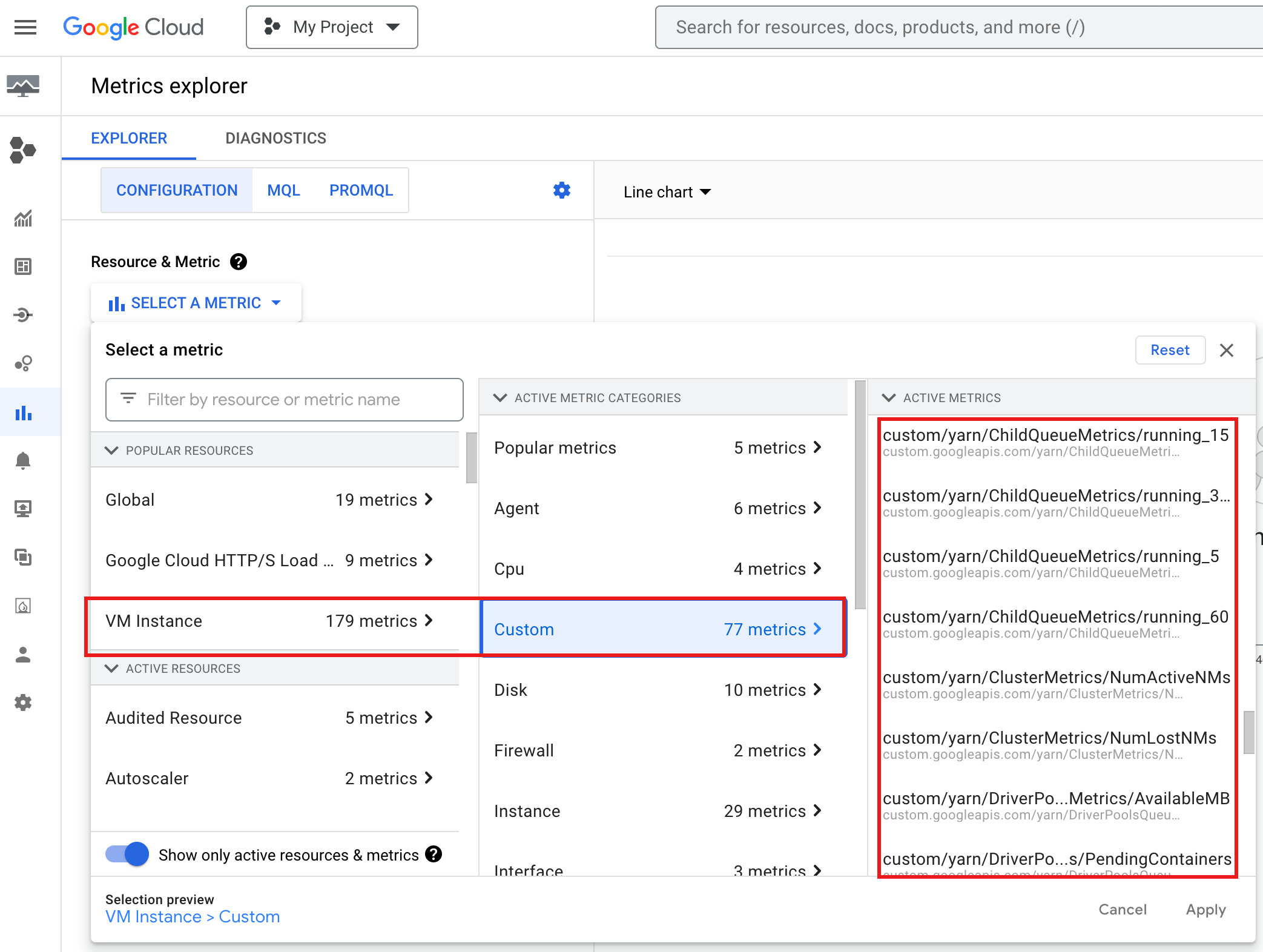
To view `YARN ChildQueueMetrics` and `DriverPoolsQueueMetrics` in the
Google Cloud console:
- Select **VM Instance → Custom** resources in the
[Metrics Explorer](https://console.cloud.google.com/monitoring/metrics-explorer).
## Debug node group job driver
This section provides driver node group conditions and errors with
recommendations to fix the condition or error.
### Conditions
- **Condition:** `yarn:ResourceManager:DriverPoolsQueueMetrics:AvailableMB`
is nearing `0`. This indicates that cluster driver pools queue are
running out of memory.
**Recommendation:**: Scale up the size of the driver pool.
- **Condition:** `yarn:ResourceManager:DriverPoolsQueueMetrics:PendingContainers`
is larger than 0. This can indicate that cluster driver pools queue are running
out of memory and YARN is queuing jobs.
**Recommendation:**: Scale up the size of the driver pool.
### Errors
- **Error:** `Cluster CLUSTER_NAME requires driver scheduling config to run
SPARK job because it contains a node pool with role DRIVER.
Positive values are required for all driver scheduling config values.`
**Recommendation:** Set `driver-required-memory-mb` and `driver-required-vcores`
with positive numbers.
- **Error:** `Container exited with a non-zero exit code 137`.
**Recommendation:** Increase `driver-required-memory-mb` to job memory usage.