When you create a Managed Service for Apache Spark cluster, you can enable
Managed Service for Apache Spark Personal Cluster Authentication to allow
interactive workloads on the cluster to securely run as your user identity.
This means that interactions with other Google Cloud resources such as
Cloud Storage will be authenticated as yourself instead of the cluster
service account.
> [!NOTE]
> **Note:** Managed Service for Apache Spark Personal Cluster Authentication is only supported when calling into Google Cloud services that support [credential access boundaries](https://docs.cloud.google.com/iam/docs/downscoping-short-lived-credentials.md.txt).
## Considerations
- When you create a cluster with Personal Cluster Authentication enabled,
the cluster will only be usable by your identity. Other users
won't be able to run jobs on the cluster or access
[Component Gateway](https://docs.cloud.google.com/managed-spark/docs/concepts/accessing/gateways.md.txt)
endpoints on the cluster.
- Clusters with Personal Cluster Authentication enabled block SSH access and
Compute Engine features such as startup scripts on all VMs in the
cluster.
- Clusters with Personal Cluster Authentication enabled automatically enable
and configure Kerberos on the cluster for secure intra-cluster communication.
However, all Kerberos identities on the cluster will interact with Google Cloud
resources as the same user.
- Clusters with Personal Cluster Authentication enabled don't support
custom images.
- Managed Service for Apache Spark Personal Cluster Authentication does not
support Managed Service for Apache Spark [workflows](https://docs.cloud.google.com/managed-spark/docs/concepts/workflows/overview.md.txt).
- Managed Service for Apache Spark Personal Cluster Authentication is intended only for
interactive jobs run by an individual (human) user. Long-running jobs and
operations should configure and use an appropriate service account identity.
- The propagated credentials are downscoped with a
[Credential Access Boundary](https://docs.cloud.google.com/iam/docs/downscoping-short-lived-credentials.md.txt).
The default access boundary is limited to reading and writing Cloud Storage objects
in Cloud Storage buckets owned by the same project that contains the cluster.
You can define a non-default access boundary when you
[enable_an_interactive_session](https://docs.cloud.google.com/managed-spark/docs/concepts/iam/personal-auth.md.txt#downscoped-example).
- Managed Service for Apache Spark Personal Cluster Authentication uses
Compute Engine [guest attributes](https://docs.cloud.google.com/compute/docs/metadata/manage-guest-attributes.md.txt).
If the [guest attributes feature is disabled](https://docs.cloud.google.com/compute/docs/metadata/manage-guest-attributes.md.txt#disabling_guest_attributes), Personal Cluster Authentication will fail.
## Objectives
- Create a Managed Service for Apache Spark cluster with Managed Service for Apache Spark
Personal Cluster Authentication enabled.
- Start credential propagation to the cluster.
- Use a Jupyter notebook on the cluster to run Spark jobs that authenticate
with your credentials.
## Before You Begin
### Create a Project
### Configure the Environment
Configure the environment from Cloud Shell or a local terminal:
### Cloud Shell
1. Start a [Cloud Shell](https://console.cloud.google.com/?cloudshell=true) session.
### Local terminal
1. Run `gcloud auth login` to obtain valid user credentials.
## Create a cluster and enable an interactive session
1. Find the email address of your active account in gcloud.
```
gcloud auth list --filter=status=ACTIVE --format="value(account)"
```
2. Create a cluster.
```
gcloud dataproc clusters create CLUSTER_NAME \
--properties=dataproc:dataproc.personal-auth.user=your-email-address \
--enable-component-gateway \
--optional-components=JUPYTER \
--region=REGION
```
3. Enable a credential propagation session for the cluster
to start using your personal credentials when interacting with Google Cloud
resources.
```
gcloud dataproc clusters enable-personal-auth-session \
--region=REGION \
CLUSTER_NAME
```
Sample output:
```
Injecting initial credentials into the cluster CLUSTER_NAME...done.
Periodically refreshing credentials for cluster CLUSTER_NAME. This will continue running until the command is interrupted...
```
1. **Downscoped access boundary example** :
The following example enables a personal auth session that is more restrictive
than the default downscoped credential access boundary. It restricts access to
the Managed Service for Apache Spark cluster's
[staging bucket](https://docs.cloud.google.com/managed-spark/docs/concepts/configuring-clusters/staging-bucket.md.txt) (see
[Downscope with Credential Access Boundaries](https://docs.cloud.google.com/iam/docs/downscoping-short-lived-credentials.md.txt)
for more information).
```bash
gcloud dataproc clusters enable-personal-auth-session \
--project=PROJECT_ID \
--region=REGION \
--access-boundary=<(echo -n "{ \
\"access_boundary\": { \
\"accessBoundaryRules\": [{ \
\"availableResource\": \"//storage.googleapis.com/projects/_/buckets/$(gcloud dataproc clusters describe --project=PROJECT_ID --region=REGION CLUSTER_NAME --format="value(config.configBucket)")\", \
\"availablePermissions\": [ \
\"inRole:roles/storage.objectViewer\", \
\"inRole:roles/storage.objectCreator\", \
\"inRole:roles/storage.objectAdmin\", \
\"inRole:roles/storage.legacyBucketReader\" \
] \
}] \
} \
}") \
CLUSTER_NAME
```
4. Keep the command running and switch to a new Cloud Shell tab or
terminal session. The client will refresh the credentials while the command
is running.
5. Type `Ctrl-C` to end the session.
## Access Jupyter on the cluster
### gcloud
1. Get cluster details.
```
gcloud dataproc clusters describe CLUSTER_NAME --region=REGION
```
The Jupyter Web interface URL is listed in cluster details.
```
...
JupyterLab: https://UUID-dot-us-central1.dataproc.googleusercontent.com/jupyter/lab/
...
```
2. Copy the URL into your local browser to launch the Jupyter UI.
3. Check that personal cluster authentication was successful.
1. Start a Jupyter terminal.
2. Run `gcloud auth list`
3. Verify that your username is the only active account. 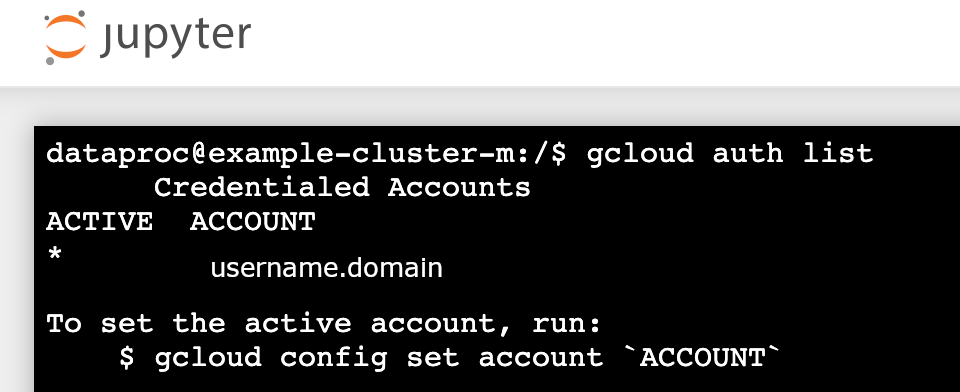
4. In a Jupyter terminal, enable Jupyter to authenticate with Kerberos and submit Spark jobs.
```
kinit -kt /etc/security/keytab/dataproc.service.keytab managed-spark/$(hostname -f)
```
1. Run `klist` to verify that Jupyter obtained a valid TGT. 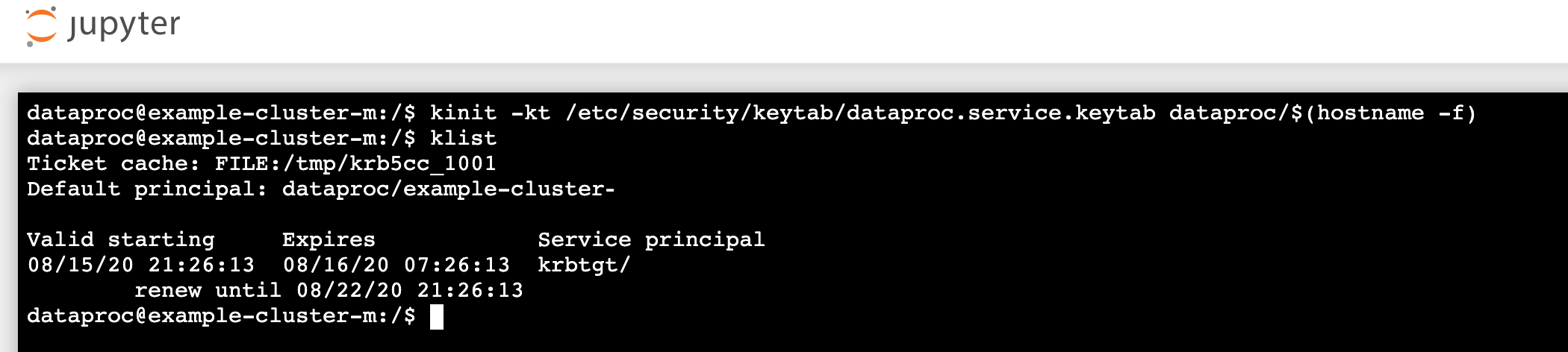
5. In a Juypter terminal, use the gcloud CLI to create a `rose.txt` file in a Cloud Storage bucket in your project.
```
echo "A rose by any other name would smell as sweet" > /tmp/rose.txt
```
```
gcloud storage cp /tmp/rose.txt gs://bucket-name/rose.txt
```
1. Mark the file as private so that only your user account can read from or write to it. Jupyter will use your personal credentials when interacting with Cloud Storage.
```
gcloud storage objects update gs://bucket-name/rose.txt --predefined-acl=private
```
2. Verify your private access.
```
gcloud storage objects describe gs://$BUCKET/rose.txt
```
```
acl:
```
6. email: $USER entity: user-$USER role: OWNER
### Console
1. Click the [Component Gateway Jupyter](https://docs.cloud.google.com/managed-spark/docs/concepts/accessing/gateways.md.txt#console_1) link to launch the Jupyter UI.
2. Check that personal cluster authentication was successful.
1. Start a Jupyter terminal
2. Run `gcloud auth list`
3. Verify that your username is the only active account. 
3. In a Jupyter terminal, enable Jupyter to authenticate with Kerberos and submit Spark jobs.
```
kinit -kt /etc/security/keytab/dataproc.service.keytab managed-spark/$(hostname -f)
```
1. Run `klist` to verify that Jupyter obtained a valid TGT. 
4. In a Jupyter terminal, use the gcloud CLI to create a `rose.txt` file in a Cloud Storage bucket in your project.
```
echo "A rose by any other name would smell as sweet" > /tmp/rose.txt
```
```
gcloud storage cp /tmp/rose.txt gs://bucket-name/rose.txt
```
1. Mark the file as private so that only your user account can read from or write to it. Jupyter will use your personal credentials when interacting with Cloud Storage.
```
gcloud storage objects update gs://bucket-name/rose.txt --predefined-acl=private
```
2. Verify your private access.
```
gcloud storage objects describe gs://bucket-name/rose.txt
```
```
acl:
```
5. email: $USER entity: user-$USER role: OWNER
## Run a PySpark job from Jupyter
1. Navigate to a folder, then create a PySpark notebook.
2. Run a basic word count job against the `rose.txt` file you created above.
```
text_file = sc.textFile("gs://bucket-name/rose.txt")
counts = text_file.flatMap(lambda line: line.split(" ")) \
.map(lambda word: (word, 1)) \
.reduceByKey(lambda a, b: a + b)
print(counts.collect())
```
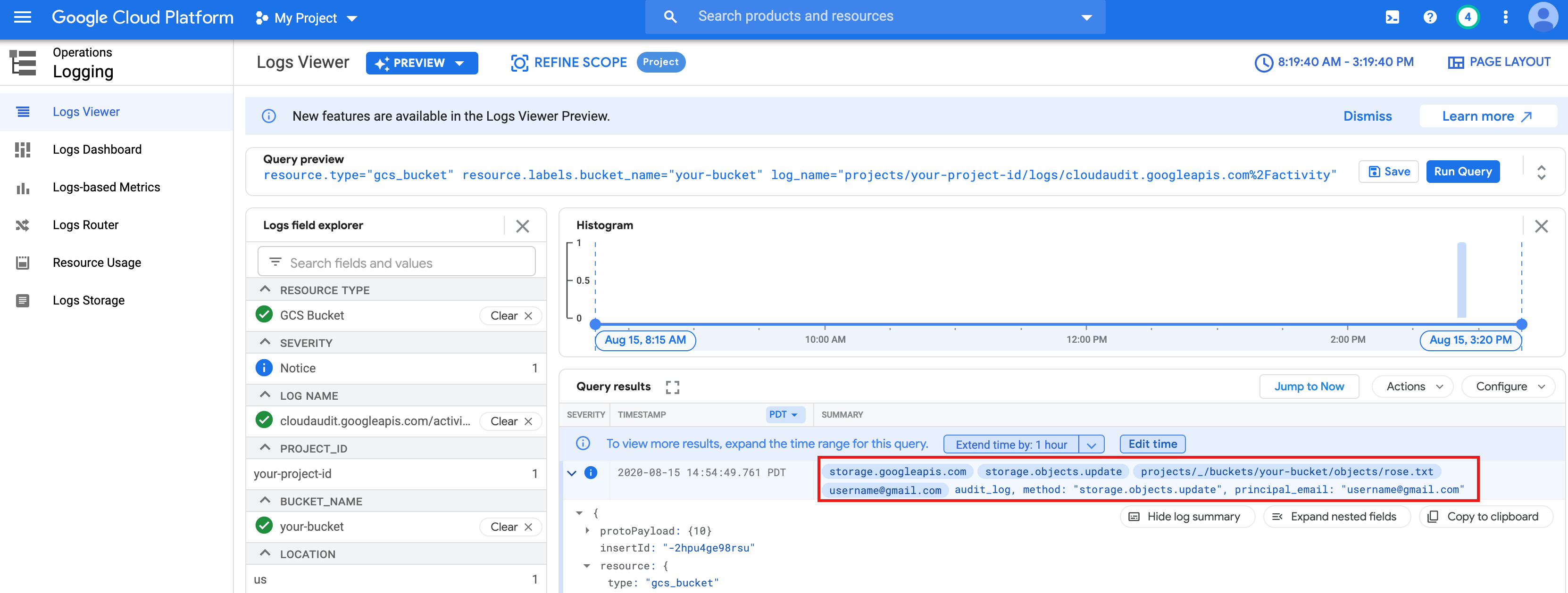
Spark is able to read the `rose.txt` file in Cloud Storage because it runs with your user credentials.
You can also check the Cloud Storage Bucket
[Audit Logs](https://console.cloud.google.com/logs) to verify that the job is accessing Cloud Storage
with your identity (see
[Cloud Audit Logs with Cloud Storage](https://docs.cloud.google.com/storage/docs/audit-logs) for more information).
## Cleanup
1. Delete the Managed Service for Apache Spark cluster.
```
gcloud dataproc clusters delete CLUSTER_NAME --region=REGION
```