After creating a Managed Service for Apache Spark cluster, you can adjust ("scale") the cluster
by increasing or decreasing the number of primary or secondary worker nodes
(horizontal scaling) in the cluster. You can scale a
Managed Service for Apache Spark cluster at any time, even when jobs are running on the
cluster. You cannot change the machine type of an existing cluster (vertical
scaling). To vertically scale, create a cluster using a [supported machine type](https://docs.cloud.google.com/managed-spark/docs/concepts/compute/supported-machine-types.md.txt),
then migrate jobs to the new cluster.
> [!IMPORTANT]
> **Use Managed Service for Apache Spark Autoscaling.** Instead of manually scaling clusters, enable [Autoscaling](https://docs.cloud.google.com/managed-spark/docs/concepts/configuring-clusters/autoscaling.md.txt) to have Managed Service for Apache Spark set the "right" number of workers for your workloads.
You can scale a Managed Service for Apache Spark cluster for the following:
1. to increase the number of workers to make a job run faster.
2. to decrease the number of workers to save money (see [Graceful Decommissioning](https://docs.cloud.google.com/managed-spark/docs/concepts/configuring-clusters/scaling-clusters.md.txt#graceful_decommissioning) as an option to use when downsizing a cluster to avoid losing work in progress).
3. to increase the number of nodes to expand available Hadoop Distributed File System (HDFS) storage.
> [!NOTE]
> **Note:** You can't scale a [single-node cluster](https://docs.cloud.google.com/managed-spark/docs/concepts/configuring-clusters/single-node-clusters.md.txt).
Because clusters can be scaled more than once, you might want to
increase or decrease the cluster size at one time, and then decrease or increase
the size later.
Recommendations:
- **Remove workers cautiously**: If you remove workers
from your cluster, make sure that the new cluster size is sufficient to handle
your workload; if it isn't, your jobs may take a long time to complete or may
stop responding.
- **Avoid scaling primary workers:**
Primary workers run HDFS DataNodes, while secondary workers are compute-only.
Scaling primary workers carries risks. For example, HDFS NameNodes can have multiple
race conditions during scaling operations that can cause HDFS to become corrupted and
decommissioning to become stuck indefinitely. For more information, see
[Avoid scaling primary workers](https://docs.cloud.google.com/managed-spark/docs/concepts/configuring-clusters/autoscaling.md.txt#avoid_scaling_primary_workers).
## Use scaling
There are three ways you can scale your Managed Service for Apache Spark cluster:
1. Use the [`gcloud`](https://docs.cloud.google.com/sdk/gcloud/reference/dataproc/clusters/update.md.txt) command-line tool in the gcloud CLI.
2. Edit the cluster configuration in the [Google Cloud console](https://docs.cloud.google.com/managed-spark/docs/concepts/configuring-clusters/scaling-clusters.md.txt#scaling_with_the_developers_console).
3. Use the [REST API](https://docs.cloud.google.com/managed-spark/docs/reference/rest/v1/projects.regions.clusters/patch.md.txt).
New workers added to a cluster will use the same
[machine type](https://docs.cloud.google.com/compute/docs/machine-types "machine type")
as existing workers. For example, if a cluster is created with
workers that use the `n1-standard-8` machine type, new workers
will also use the `n1-standard-8` machine type.
> [!NOTE]
> **Note:** Managed Service for Apache Spark does not support changing worker size (vCPUs, memory, persistent disk) when you add workers to a cluster.
You can scale the number of primary workers or the number of secondary
(preemptible) workers, or both. For example, if you only scale the number of
preemptible workers, the number of primary workers remains the same.
### gcloud
> [!NOTE]
> **gcloud CLI setup:** You must [setup and configure](https://docs.cloud.google.com/sdk/docs/quickstarts) the gcloud CLI to use the Google Cloud CLI.
To scale a cluster with [`gcloud dataproc clusters update`](https://docs.cloud.google.com/sdk/gcloud/reference/dataproc/clusters/update.md.txt), run the following command:
```
gcloud dataproc clusters update cluster-name \
--region=region \
[--num-workers and/or --num-secondary-workers]=new-number-of-workers
```
where cluster-name is the name of the cluster to update, and new-number-of-workers is the updated number of primary and/or secondary worker nodes. For example, to scale a cluster named "dataproc-1" to use five primary worker nodes, run the following command.
```
gcloud dataproc clusters update dataproc-1 \
--region=region \
--num-workers=5
...
Waiting on operation [operations/projects/project-id/operations/...].
Waiting for cluster update operation...done.
Updated [https://dataproc.googleapis.com/...].
clusterName: my-test-cluster
...
masterDiskConfiguration:
bootDiskSizeGb: 500
masterName: dataproc-1-m
numWorkers: 5
...
workers:
- my-test-cluster-w-0
- my-test-cluster-w-1
- my-test-cluster-w-2
- my-test-cluster-w-3
- my-test-cluster-w-4
...
```
### REST API
See [clusters.patch](https://docs.cloud.google.com/managed-spark/docs/reference/rest/v1/projects.regions.clusters/patch.md.txt).
**Example**
```
PATCH /v1/projects/project-id/regions/us-central1/clusters/example-cluster?updateMask=config.worker_config.num_instances,config.secondary_worker_config.num_instances
{
"config": {
"workerConfig": {
"numInstances": 4
},
"secondaryWorkerConfig": {
"numInstances": 2
}
},
"labels": null
}
```
> [!IMPORTANT]
> **Let the Console construct your cluster update
> request.** : You can click the **Equivalent REST** link at the bottom of the Google Cloud console Managed Service for Apache Spark Cluster details→Configuration page to have the Console construct an equivalent API REST PATCH request.
### Console
After a cluster is created, you can scale a cluster by opening the **Cluster details** page for the cluster from the [Google Cloud console](https://console.cloud.google.com/dataproc/clusters) **Clusters** page, then clicking the **Edit** button on the **Configuration** tab. 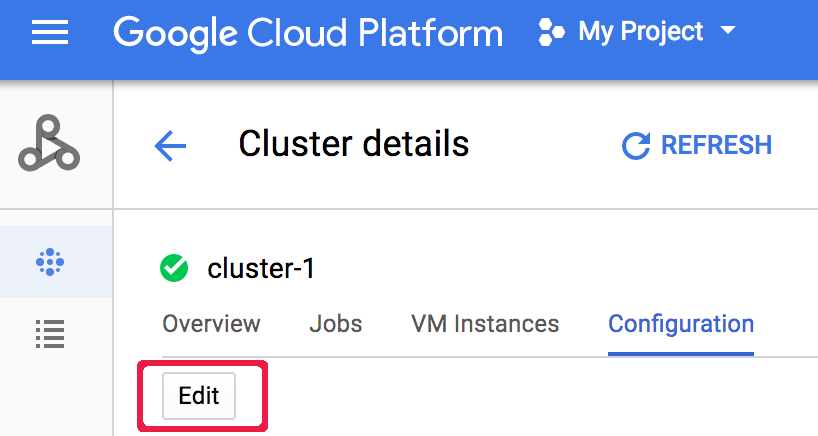 Enter a new value for the number of **Worker nodes** and/or **Preemptible worker nodes** (updated to "5" and " 2", respectively, in the following screenshot). 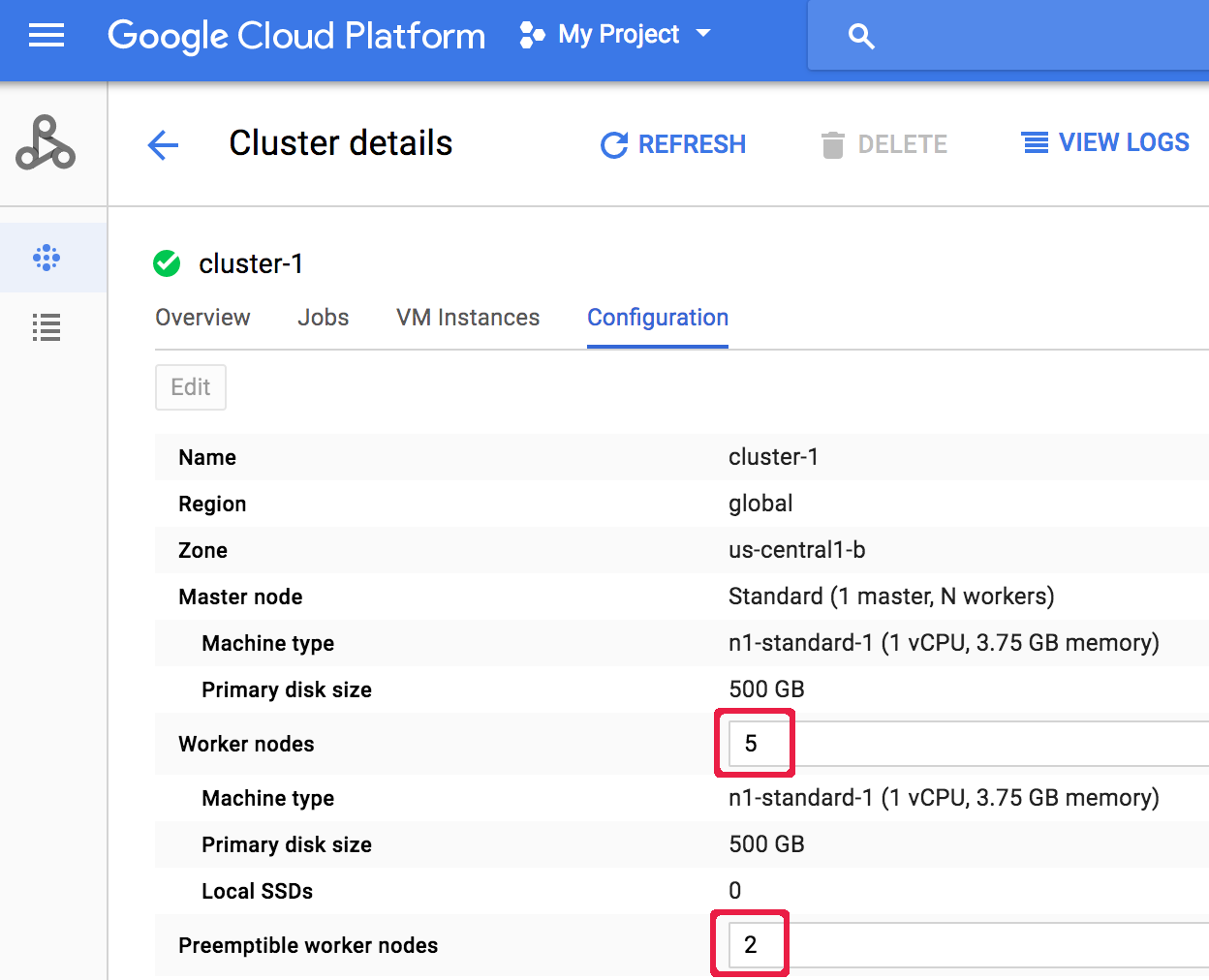 Click **Save** to update the cluster.
### How Managed Service for Apache Spark selects cluster nodes for removal
On clusters created with image versions
[1.5.83+](https://docs.cloud.google.com/managed-spark/docs/concepts/versioning/dataproc-release-1.5),
[2.0.57+](https://docs.cloud.google.com/managed-spark/docs/concepts/versioning/dataproc-release-2.0),
and [2.1.5+](https://docs.cloud.google.com/managed-spark/docs/concepts/versioning/dataproc-release-2.1),
when scaling down a cluster, Managed Service for Apache Spark attempts to minimize
the impact of node removal on running YARN applications by first removing
inactive, unhealthy, and idle nodes, then removing nodes with
the fewest running YARN application masters and running containers.
## Graceful decommissioning
When you [downscale a cluster](https://docs.cloud.google.com/managed-spark/docs/concepts/configuring-clusters/scaling-clusters.md.txt#use-scaling), work in progress may stop
before completion. If you are using
[Managed Service for Apache Spark v 1.2 or later](https://docs.cloud.google.com/managed-spark/docs/concepts/versioning/dataproc-versions#supported_cloud_dataproc_versions),
you can use Graceful Decommissioning, which incorporates
[Graceful Decommission of YARN Nodes](https://hadoop.apache.org/docs/current/hadoop-yarn/hadoop-yarn-site/GracefulDecommission.html)
to finish work in progress on a worker before it is removed from the Cloud
Managed Service for Apache Spark cluster.
> [!NOTE]
> **Note:** A worker is not removed from a cluster until running YARN applications are finished.
### Graceful decommissioning and secondary workers
The preemptible (secondary) worker group continues to provision or delete
workers to reach its expected size even after a cluster scaling operation
is marked complete. If you attempt to gracefully decommission a secondary worker
and receive an error message similar to the following:
*"Secondary
worker group cannot be modified outside of Managed Service for Apache Spark. If you recently
created or updated this cluster, wait a few minutes before gracefully
decommissioning to allow all secondary instances to join or leave the cluster.
Expected secondary worker group size: x, actual size: y"* ,
wait a
few minutes then repeat the graceful decommissioning request.
> [!NOTE]
> **Note:**
> - You can **forcefully decommission** preemptible workers at any time.
> - You gracefully decommission primary workers at any time
### Use graceful decommissioning
Managed Service for Apache Spark Graceful Decommissioning incorporates
[Graceful Decommission of YARN Nodes](https://hadoop.apache.org/docs/current/hadoop-yarn/hadoop-yarn-site/GracefulDecommission.html)
to finish work in progress on a worker before it is removed from the Cloud
Managed Service for Apache Spark cluster. As a default, graceful decommissioning is disabled. You
enable it by setting a timeout value when you update
your cluster to remove one or more workers from the cluster.
### gcloud
When you update a cluster to remove one or more workers, use the [gcloud dataproc clusters update](https://docs.cloud.google.com/sdk/gcloud/reference/dataproc/clusters/update.md.txt) command with the `--graceful-decommission-timeout` flag. The timeout (string) values can be a value of "0s" (the default; forceful not graceful decommissioning) or a positive duration relative to the current time (for example, "3s"). The maximum duration is 1 day.
> [!NOTE]
> **Durations**: Specify a graceful decommissioning duration as a non-negative integer with one of the following lower-case suffixes: "s", "m", "h", or "d" for seconds, minutes, hours, or days, respectively. The maximum duration for graceful decommissioning is "1d" (one day). If the suffix is omitted, seconds is assumed.
```
gcloud dataproc clusters update cluster-name \
--region=region \
--graceful-decommission-timeout="timeout-value" \
[--num-workers and/or --num-secondary-workers]=decreased-number-of-workers \
... other args ...
```
### REST API
See [clusters.patch.gracefulDecommissionTimeout](https://docs.cloud.google.com/managed-spark/docs/reference/rest/v1/projects.regions.clusters/patch.md.txt#query-parameters). The timeout (string) values can be a value of "0" (the default; forceful not graceful decommissioning) or a duration in seconds (for example, "3s"). The maximum duration is 1 day.
### Console
After a cluster is created, you can select graceful decommissioning of a cluster by opening the **Cluster details** page for the cluster from the [Google Cloud console](https://console.cloud.google.com/dataproc/clusters) **Clusters** page, then clicking the **Edit** button on the **Configuration** tab.  In the **Graceful Decommissioning** section, select **Use graceful decommissioning** , and then select a timeout value. 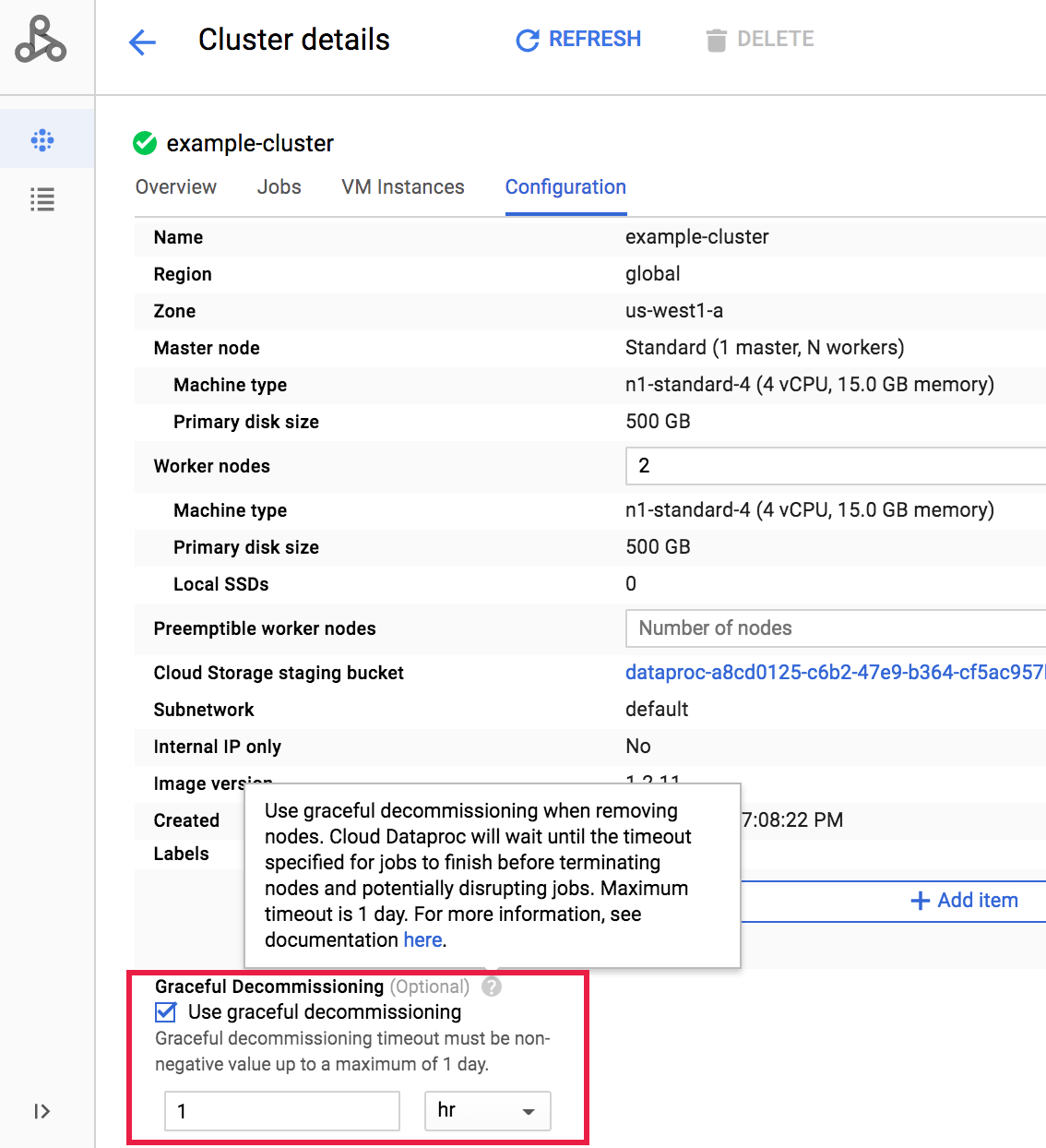 Click **Save** to update the cluster.
### Cancel a graceful decommissioning scaledown operation
On Managed Service for Apache Spark clusters created with image versions
[2.0.57+](https://docs.cloud.google.com/managed-spark/docs/concepts/versioning/dataproc-release-2.0)
or [2.1.5+](https://docs.cloud.google.com/managed-spark/docs/concepts/versioning/dataproc-release-2.1),
you can run the [`gcloud dataproc operations cancel`](https://docs.cloud.google.com/sdk/gcloud/reference/dataproc/operations/cancel)
command or issue a Managed Service for Apache Spark API
[`operations.cancel`](https://docs.cloud.google.com/managed-spark/docs/reference/rest/v1/projects.locations.operations/cancel.md.txt)
request to cancel a graceful decommissioning scaledown operation.
> [!IMPORTANT]
> You can obtain the resource name, including the ID, of a scaledown operation by running [**gcloud dataproc operations list**](https://docs.cloud.google.com/sdk/gcloud/reference/dataproc/operations/list) or issuing a Managed Service for Apache Spark API [**operations.list**](https://docs.cloud.google.com/managed-spark/docs/reference/rest/v1/projects.locations.operations/list.md.txt) request.
When you cancel a graceful decommissioning scaledown operation:
- workers in a `DECOMMISSIONING` state are re-commissioned and become `ACTIVE`
at the completion of the operation's cancellation.
- if the scaledown operation includes label updates, the updates
may not take effect.
> [!NOTE]
> **Note:** Cancellation of a scaledown operation is asynchronous. Managed Service for Apache Spark makes a best effort to cancel the operation, but success of the cancellation is not guaranteed.
To verify the status of the cancellation request, you can
run the [`gcloud dataproc operations describe`](https://docs.cloud.google.com/sdk/gcloud/reference/dataproc/operations/describe)
command or issue a Managed Service for Apache Spark API
[`operations.get`](https://docs.cloud.google.com/managed-spark/docs/reference/rest/v1/projects.locations.operations/get.md.txt)
request. If the cancel operation succeeds, the inner operation status is marked
as `CANCELLED`.